RK Android OTA USB Upgrade Guide
RK Android OTA USB Upgrade Guide
- Author: Wu Sihan (Witheart)
- Last Updated: 20250310
Overview: This guide provides instructions on how to perform a USB OTA upgrade using update.zip.
For details on how to compile the update.zip package, please refer to the “RK Android OTA USB Upgrade Package Compilation Guide”.
1. Upgrade Process
1.1 Place the update.zip File in the Required Location
The update.zip file can be placed in any of the following locations:
- Root directory of a USB flash drive
- Root directory of an SD card
/data/media/0/directory
1.2 Insert the USB Flash Drive or SD Card
- Insert the USB flash drive or SD card into the device and wait for about one minute.
- Important: Use a standard USB port. Avoid using an OTG USB port, as it may not be configured as a host in recovery mode, leading to a failed upgrade.
1.3 Automatic Upgrade Detection
-
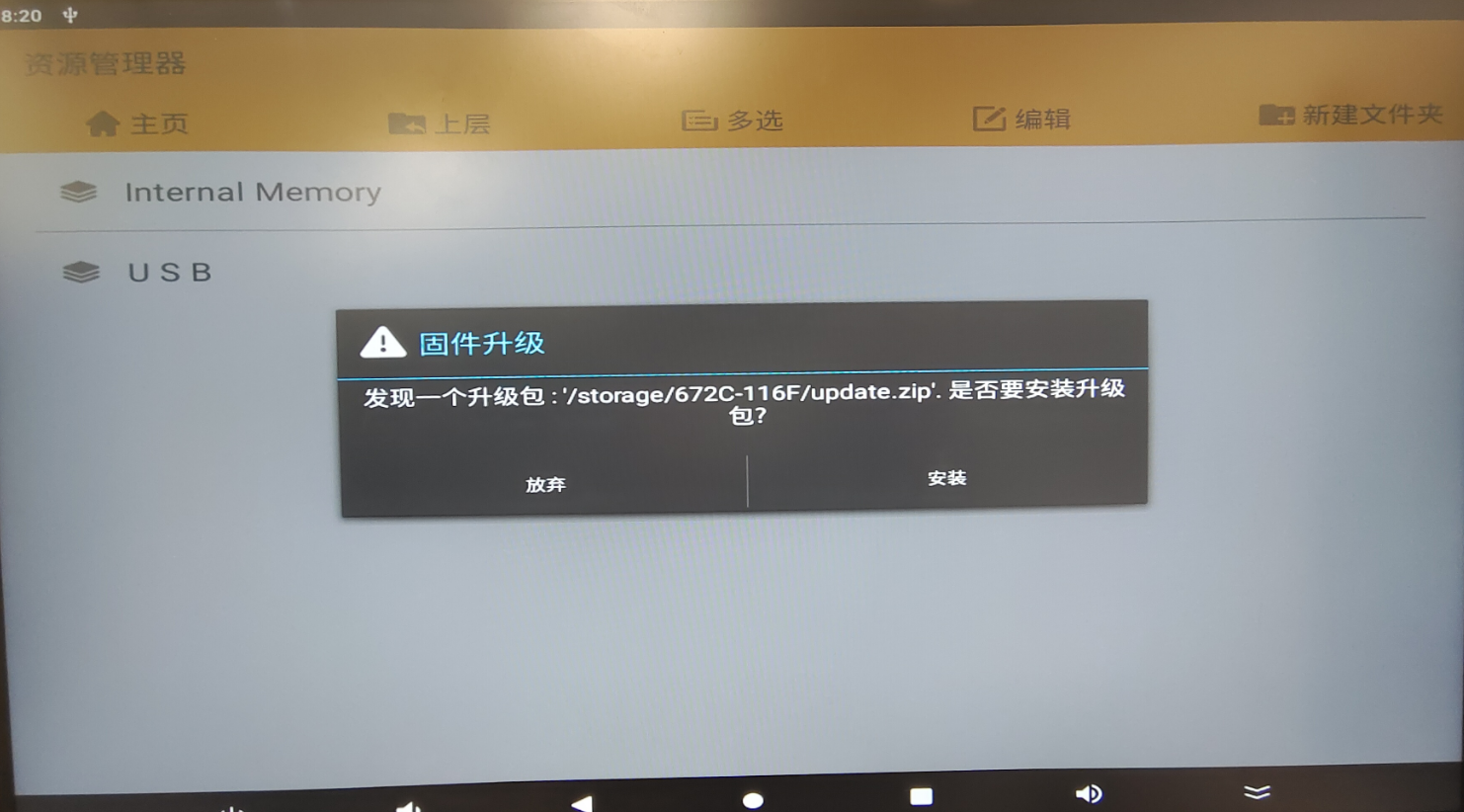
The system will automatically detect the upgrade package and display an upgrade prompt.
-
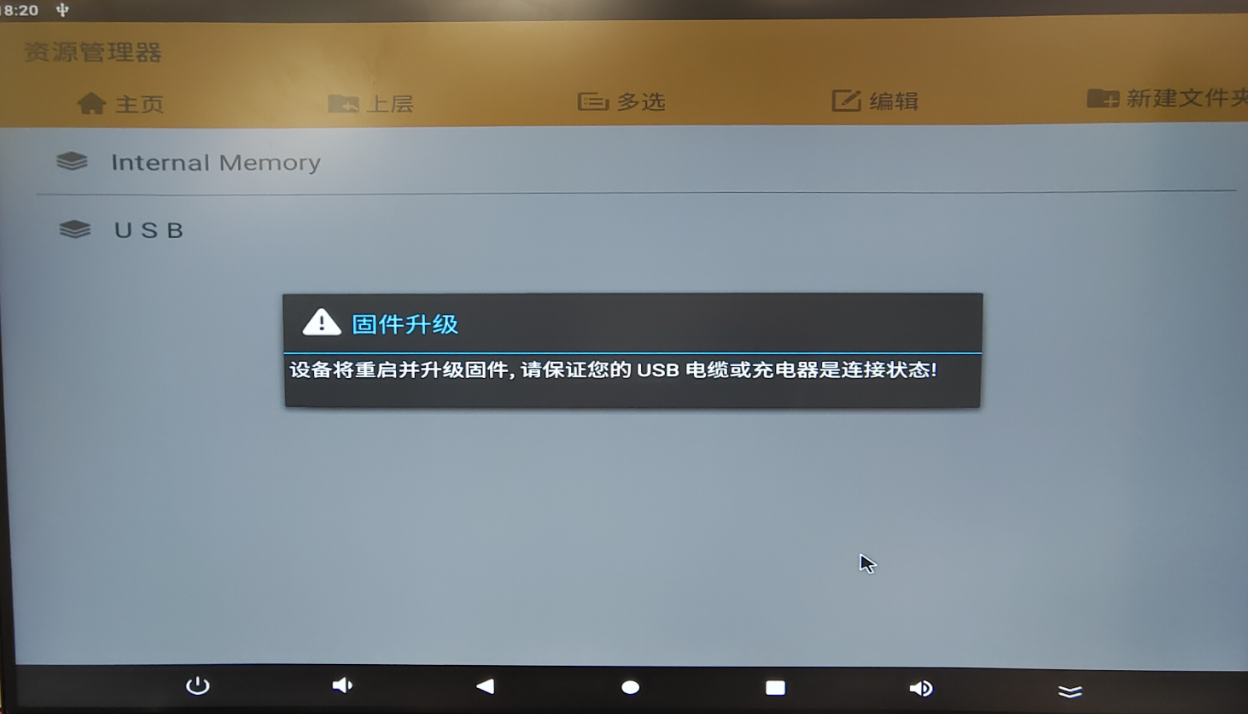
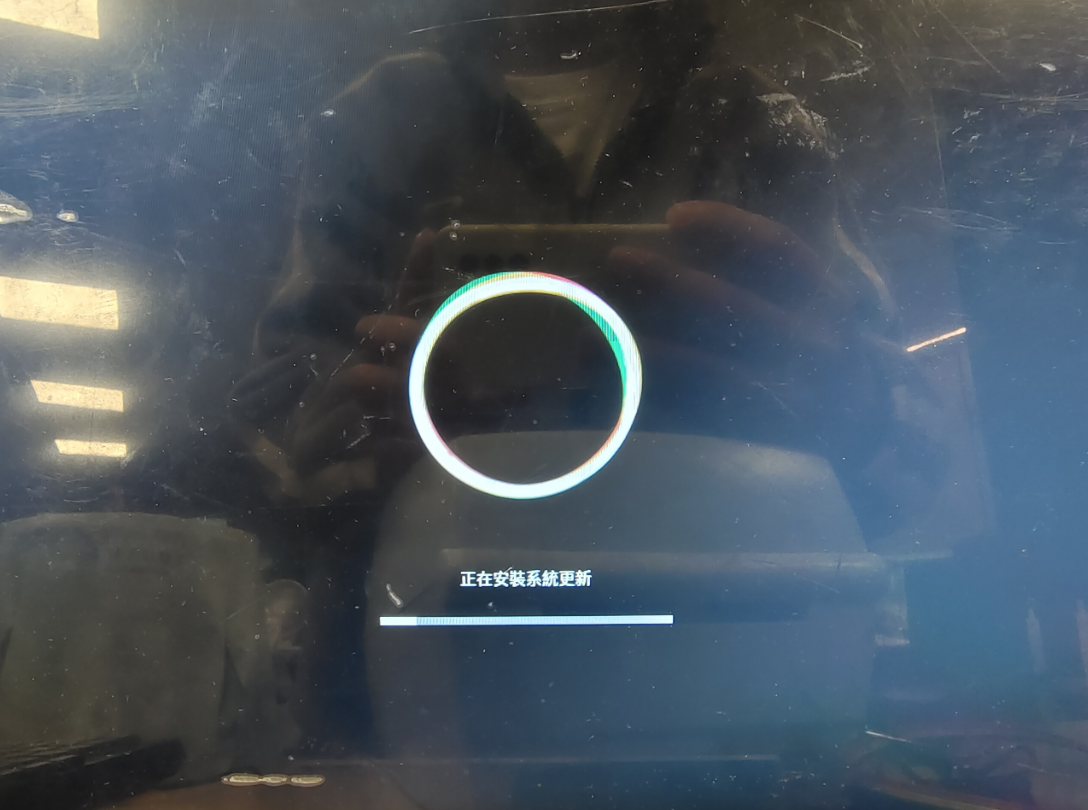
Click Install(安装) and wait patiently. Do not power off the device during the installation process. The system will reboot automatically once the installation is complete.
1.4 System Reboot
-
The device will restart during the upgrade process.

1.5 Upgrade Successful
-
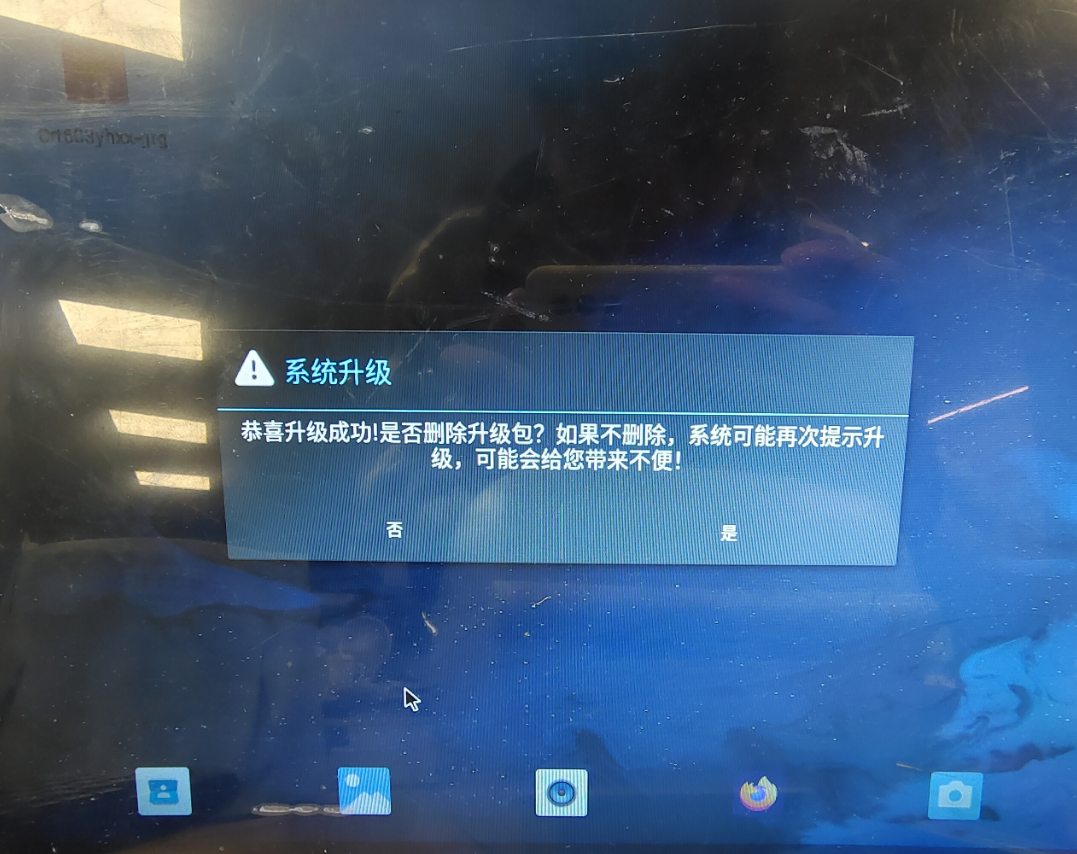
Once the system reboots successfully, the upgrade is complete.

AtomGit 是由开放原子开源基金会联合 CSDN 等生态伙伴共同推出的新一代开源与人工智能协作平台。平台坚持“开放、中立、公益”的理念,把代码托管、模型共享、数据集托管、智能体开发体验和算力服务整合在一起,为开发者提供从开发、训练到部署的一站式体验。
更多推荐



 7
7 0
0- 0


 已为社区贡献2条内容

所有评论(0)