ps aux command and ps command explained
The ps command lists all running processes on the system. It is one of the most frequently used commands. Administrators use it for reporting, debugging, and monitoring various processes-related tasks. For example, an administrator can use it to know whether a particular process is running, who is running which process, which process is consuming how much memory or CPU, how long a process has been running, etc. This tutorial explains how to use this command through various examples.
Discover more
Computer Hardware
Operating Systems
Linux
Linux & Unix
Windows OS
Programming
cpu
Computer
CPU
Chips & Processors
Lab setup
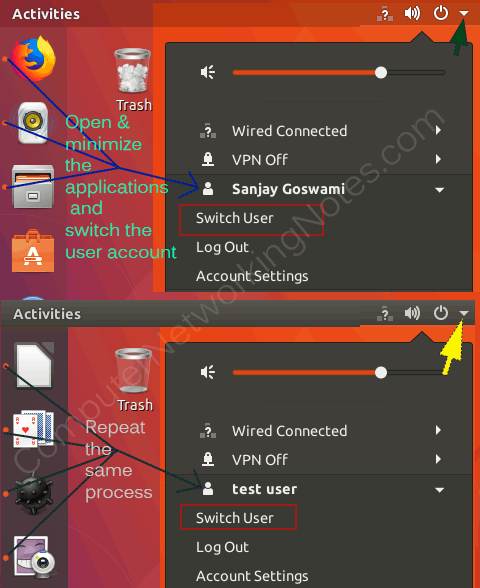
For practice, we need a few processes running under different user accounts. Start some applications and keep them running. Switch the user account and repeat the same process.
Using the ps command
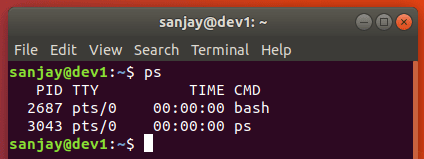
Open a terminal and run the ps command. Without any option or argument, it shows only the process running under the logged-in user account from the current terminal.
Discover more
cpu
Windows OS
Linux & Unix
The output shows two running processes. The first process shows the process that opens this terminal. This process runs till the terminal remains open. The second process shows the last executed command in this terminal. It contains four columns that provide the following information:
PID:- The unique ID of the process. Linux assigns a unique ID to each process for tracking, monitoring, and managing purposes.
TTY:- The terminal on which this process is running.
TIME:- The CPU time consumed by this process.
CMD:- The command that started this process.
Specifying options with the ps command
The ps command accepts options in three styles: BSD UNIX, AT&T Unix, and GNU Linux.
- BSD UNIX style accepts options without leading dashes (such as aux).
- AT&T Unix style accepts options with a leading dash (such as -aux).
- GNU Linux style accepts options with double-leading dashes (such as --sort).
The ps command examples
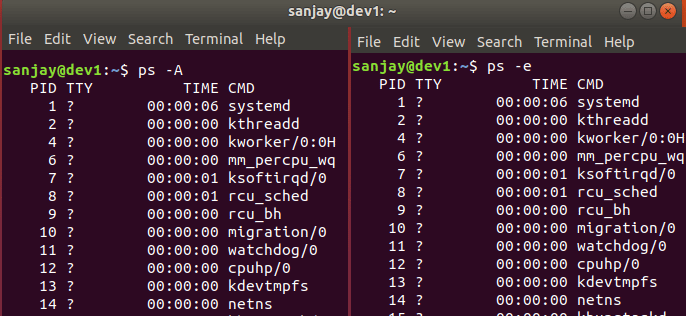
The following commands print all running processes on the system.
$ps –A
$ps -e
Discover more
Linux
CPUs
Computer Hardware
Options A and e provide a summarized overview of running processes. To print the detailed overview, use the options f (full format) and F (extra full format) with these options.
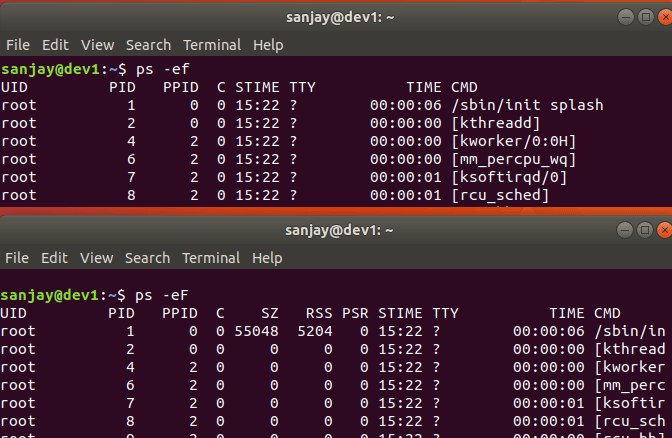
To view the same output in BSD Unix style, use aux.
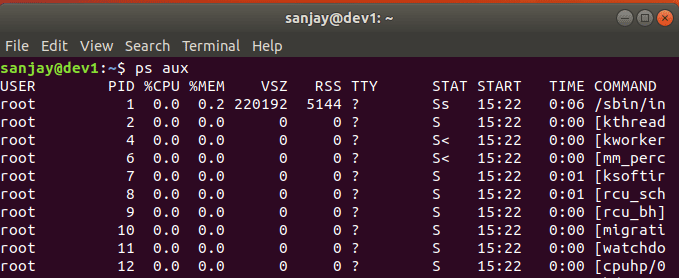
The ps aux command
The ps aux command is the most frequently used command by Linux administrators. It displays all the essential information an administrator needs to report and debug the system. It combines the following three options.
a = Include processes from all users
u = Display the process's user/owner
x = Also includes processes not attached to this terminal
The ps aux command output
The following table explains the output of the ps aux command.
| Column | Description |
| USER | The user account under which this process is running |
| PID | Process ID of this process |
| %CPU | CPU time used by this process (in percentage) |
| %MEM | Physical memory used by this process (in percentage) |
| VSZ | Virtual memory consumed by this process (in bytes) |
| RSS | Resident Set Size, the non-swappable physical memory used by this process (in KiB) |
| TTY | Terminal on which this process is running. A question mark (?) sign represents that this process is not started at a terminal. |
| STAT | Process state. Explained in the following table. |
| START | Starting time and date of this process |
| TIME | Total CPU time used by this process |
| COMMAND | The command that started this process |
The following table lists the stat codes.
| D | uninterruptible sleep (usually IO) |
| R | running or runnable (on the run queue) |
| S | interruptible sleep (waiting for an event to complete) |
| T | stopped by a job control signal |
| t | stopped by a debugger during the tracing |
| w | paging (not valid since the 2.6.xx kernel) |
| x | dead (should never be seen) |
| Z | defunct ("zombie") process, terminated but not reaped by its parent |
| < | high-priority (not nice to other users) |
| N | low-priority (nice to other users) |
| L | has pages locked into memory (for real-time and custom IO) |
| s | is a session leader |
| l | is multi-threaded (using CLONE_THREAD) |
| + | is in the foreground process group |
Key points
- CPU usage is the percentage of the time spent running during the entire lifetime of a process.
- The SIZE and RSS fields do not count the page tables, kernel stack, struct thread_info, and struct task_struct.
- SIZE is the virtual size of the process (code+data+stack).
- Processes marked <defunct> are dead processes (so-called "zombies") that remain because their parent has not destroyed them properly.
- It truncates the username if its length is greater than the length of the display column.
Viewing all processes under a specific user account
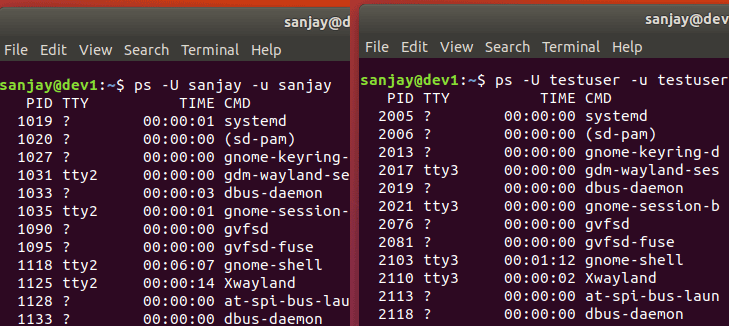
The -U and -u options allow us to view all processes under a specific user account. The -U option selects all the processes started by the specified user. The -u option selects all processes under the specified user's ID.
$ps –U [UserName] –u [UserName]
Discover more
Computer
Operating Systems
Programming
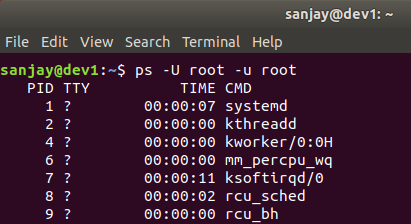
The following command displays all processes running under the root user account.
$ps -U root -u root
Viewing all processes under a particular group
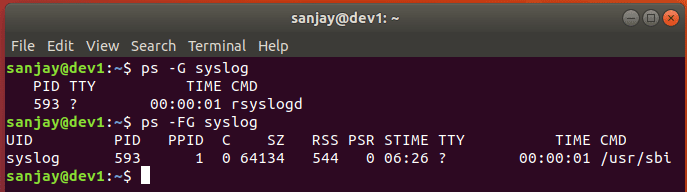
The -G option displays all processes running under the specified group.
$ps –G [Group Name]
We can combine the –G option with the –F option for a detailed overview.
$ps –FG [Group Name]
Listing all processes in a hierarchy
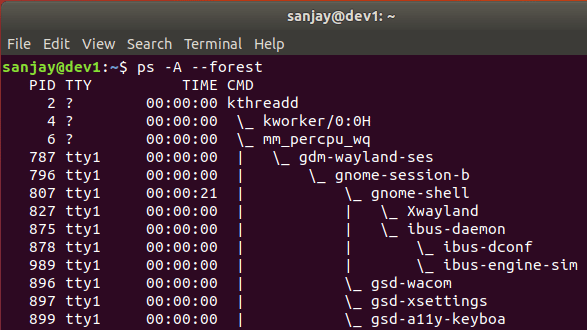
The following command lists all processes in a hierarchy.
$ps –A --forest
Displaying only specific column
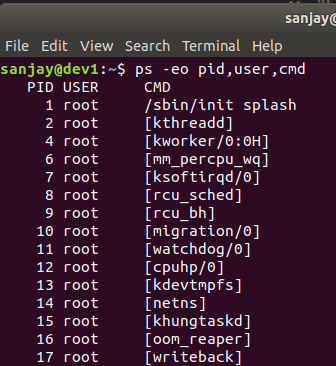
We can limit the output by specifying the required column names as arguments. For example, The following command shows only PID, USER and CMD columns.
$ps –eo pid,user,cmd
Finding the process that is using the highest memory
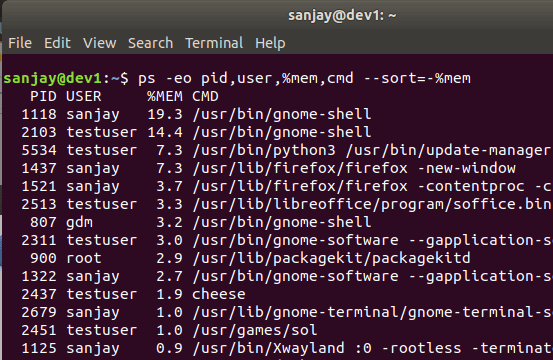
By default, the ps command does not sort the output. By setting the sort order to %MEM, we can sort processes according to their memory usage. The --sort=[column name] option sets order. We can combine this option with other options for a more specific output.
Discover more
Linux
Linux & Unix
CPU
$ps –eo pid,user,%mem,cmd --sort=-%mem
Limiting output
By default, the ps command does not limit the output result. Suppose we are interested only in knowing the top three processes consuming the highest memory instead of displaying the ps command's output in the terminal. In that case, we can redirect it to the head command. The head command displays the top 10 lines from the provided source by default. We can override it by specifying the required line numbers. We can use the -n 4 option with the head command to display only the top three processes.
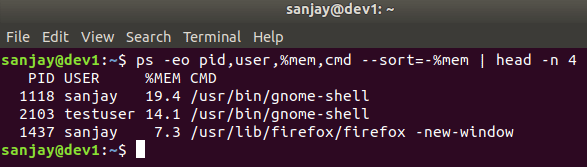
Supply the digit four as an argument for three results since the titles occupy the first line as in the ps command's output.
Finding the process which is using the highest CPU
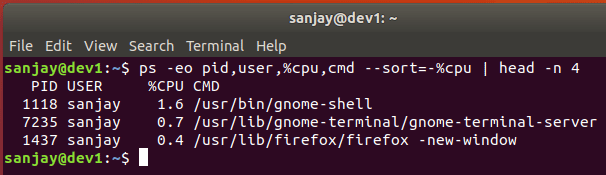
We can sort the output based on the CPU column to find the process using the highest CPU cycle. For example, the following command prints the top 3 processes ordered by CPU usage.
$ps –eo pid,user,%cpu,cmd –-sort=-%cpu | head –n 4
Finding the total number of processes running by a user
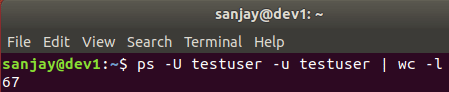
To figure out the total number of processes running by a user, use the following command
$ps –U [UserName] –u [UserName] | wc –l
Conclusion
The ps command displays running processes. It supports various options for specific results. We can view the particular information using these options instead of all results. The a,u, and x are the most commonly used options. Using these options together displays all running processes on the system.

AtomGit 是由开放原子开源基金会联合 CSDN 等生态伙伴共同推出的新一代开源与人工智能协作平台。平台坚持“开放、中立、公益”的理念,把代码托管、模型共享、数据集托管、智能体开发体验和算力服务整合在一起,为开发者提供从开发、训练到部署的一站式体验。
更多推荐
 10
10 0
0- 0


 已为社区贡献54条内容

所有评论(0)