运维AI助手搭建
1、安装ollama
准备一台Linux系统的虚拟机(CentOS7/CentOS Stream 9/Redhat 9.7/Redhat 10等系统都可以,都是通过的)
1、安装ollama
[root@localhost ~]# curl -fsSL https://ollama.com/install.sh | sh
>>> Installing ollama to /usr/local
ERROR: This version requires zstd for extraction. Please install zstd and try again:
  - Debian/Ubuntu: sudo apt-get install zstd
  - RHEL/CentOS/Fedora: sudo dnf install zstd
  - Arch: sudo pacman -S zstd
[root@localhost ~]# dnf install zstd -y
这里报错了,是因为这里需要安装一个zstd依赖包才能下载,如果运行
curl -fsSL https://ollama.com/install.sh | sh命令如果报错了,根据错误信息的提示进行操作。不同的虚拟机环境不一样,实际报错,按照自己错误提示来解决bug
2、gemma4模型
Gemma 是由 Google 基于与其旗舰模型 Gemini 相同的技术开发的轻量级开源模型。
- E2B (Effective 2 Billion):指的是该模型拥有约 20 亿个参数。
- 核心特点:
- 高性能:虽然参数量小,但在逻辑推理、数学能力和代码理解方面,表现优于许多同体积甚至更大体积的模型。
- 多模态能力:Gemma 4 版本强化了对视觉(图像)**和**音频的理解(需使用支持多模态的特定版本)。
- 低延迟:由于体积小,它在边缘设备或普通虚拟机上响应极快,非常适合作为对话机器人或简单自动化任务的后端。
- 长文本支持:通常支持高达 128K 的上下文窗口。
3、Linux 虚拟机硬件配置要求
在虚拟机(VM)环境下运行模型,性能主要受 内存(RAM) 和 CPU 核心数 影响。如果你没有 NVIDIA GPU,Ollama 会自动使用 CPU 模式。
不同版本模型的硬件建议表
| 模型版本 | 模型文件大小 | 最低内存 (RAM) | 推荐内存 (RAM) | 推荐 CPU (核心数) | 磁盘空间 |
|---|---|---|---|---|---|
| Gemma 2B / E2B | 约 1.5 - 2 GB | 4 GB | 8 GB | 4 核+ | > 5 GB |
| Gemma 7B / 9B | 约 4.8 - 5.5 GB | 8 GB | 16 GB | 8 核+ | > 10 GB |
| Gemma 27B | 约 16 GB | 32 GB | 64 GB |
4、虚拟机配置优化建议
在 Linux 虚拟机中搭建时,为了保证流畅度,请注意以下几点:
- 开启指令集支持:在虚拟机设置(如 VMware 或 KVM/Proxmox)中,将 CPU 模式设置为 “host”(主机模式),这样虚拟机可以调用物理 CPU 的 AVX2 等加速指令集,大幅提升推理速度。
- 内存预留:虚拟机内存要比模型大小多出至少 2GB,用于操作系统自身的运行。
- 禁用 Swap 抖动:尽量分配足够的物理内存,避免系统频繁使用 Swap 分区(虚拟内存),否则回复速度会慢得像幻灯片。
- 磁盘 IO:建议将模型文件放在 SSD 存储上,可以缩短模型加载时间。
总结建议: 如果你只是想在虚拟机里流畅运行 Gemma 2B 级别模型,给虚拟机分配 4-8GB 内存 和 4 核 CPU 就能获得非常丝滑的体验了。
5、下载模型
[root@localhost ~]# ollama run gemma4:e2b
pulling manifest
pulling 4e30e2665218: 100% ▕█████████████████████████████████████████████████████████████████████████████████████████████████████████████████████████▏ 7.2 GB
pulling 7339fa418c9a: 100% ▕█████████████████████████████████████████████████████████████████████████████████████████████████████████████████████████▏  11 KB
pulling 56380ca2ab89: 100% ▕█████████████████████████████████████████████████████████████████████████████████████████████████████████████████████████▏   42 B
pulling c6bc3775a3fa: 100% ▕█████████████████████████████████████████████████████████████████████████████████████████████████████████████████████████▏  473 B
verifying sha256 digest
writing manifest
success
Error: 500 Internal Server Error: model requires more system memory (7.2 GiB) than is available (2.9 GiB)
[root@localhost ~]# ollama list
NAME          ID              SIZE      MODIFIED
gemma4:e2b    7fbdbf8f5e45    7.2 GB    4 minutes ago
# 这里的报错提示是因为内存太小了,需要增大内存,如果内存不够的话,就使用物理存储为虚拟内存
# 创建一个 8G 的交换文件
fallocate -l 8G /swapfile
chmod 600 /swapfile
mkswap /swapfile
swapon /swapfile

# 再次运行模型
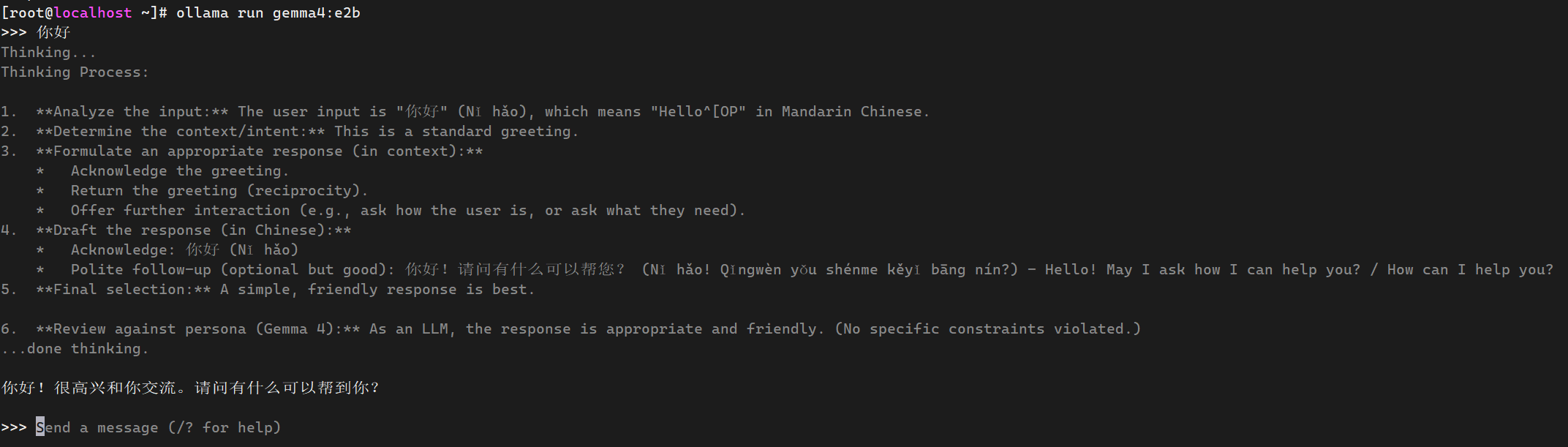
ollama run gemma4:e2b

再次运行命令并测试
2、AI助手ShellGPT
ShellGPT 是一个基于 AI 大型语言模型(LLM)的命令行工具,它通过 AI 技术帮助用户快速生成 shell 命令、代码片段和文档。它支持 Linux、macOS、Windows 操作系统,并且兼容 PowerShell、CMD、Bash、Zsh 等多种 shell 环境。
1、ShellGPT的安装与配置
1)安装Python和pip
#检查Python版本(需≥3.8)
python3 --version
#若未安装pip,执行以下命令:(debian系linux)
sudo apt update && sudo apt install python3-pip
或者:(红帽系Linux)
yum install python3 python3-pip
2)安装ShellGPT
#使用pip安装
pip3 install shell-gpt
#国内用户可使用清华源加速
pip3 install shell-gpt -i https://pypi.tuna.tsinghua.edu.cn/simple
3) 安装 LiteLLM 扩展
ShellGPT 需要通过 LiteLLM 来支持非 OpenAI 的后端。
pip3 install "shell-gpt[litellm]"
4)配置 ShellGPT
这是最关键的一步,你需要修改 ShellGPT 的配置文件 .sgptrc。
-
初始化配置(如果你是第一次运行): 直接输入
sgpt "hello",它会提示你输入 OpenAI API Key。随便输入一串字符(如abc12345)即可跳过。 -
编辑配置文件:
Bash
vi ~/.config/shell_gpt/.sgptrc -
修改以下三项关键参数:
USE_LITELLM=trueDEFAULT_MODEL=ollama/gemma4:2b(注意格式是ollama/模型名)OPENAI_USE_FUNCTIONS=false(本地模型通常不支持该功能,建议关闭)
提示:如果你的 Ollama 不在本地(或者端口改了),可以检查
API_BASE_URL是否指向http://localhost:11434。
[root@localhost ~]# sgpt "hello"
Please enter your OpenAI API key: Traceback (most recent call last):
  File "/usr/local/bin/sgpt", line 5, in <module>
    from sgpt import cli
  File "/usr/local/lib/python3.12/site-packages/sgpt/__init__.py", line 1, in <module>
    from .app import main as main
  File "/usr/local/lib/python3.12/site-packages/sgpt/app.py", line 12, in <module>
    from sgpt.config import cfg
  File "/usr/local/lib/python3.12/site-packages/sgpt/config.py", line 92, in <module>
    cfg = Config(SHELL_GPT_CONFIG_PATH, **DEFAULT_CONFIG)
          ^^^^^^^^^^^^^^^^^^^^^^^^^^^^^^^^^^^^^^^^^^^^^^^
  File "/usr/local/lib/python3.12/site-packages/sgpt/config.py", line 61, in __init__
    __api_key = getpass(prompt="Please enter your OpenAI API key: ")
                ^^^^^^^^^^^^^^^^^^^^^^^^^^^^^^^^^^^^^^^^^^^^^^^^^^^^
  File "/usr/lib64/python3.12/getpass.py", line 77, in unix_getpass
    passwd = _raw_input(prompt, stream, input=input)
             ^^^^^^^^^^^^^^^^^^^^^^^^^^^^^^^^^^^^^^^
  File "/usr/lib64/python3.12/getpass.py", line 146, in _raw_input
    line = input.readline()
           ^^^^^^^^^^^^^^^^
KeyboardInterrupt

# 这是因为 ShellGPT 有个“先入为主”的设计:如果不先输入 API Key,它就不会生成那个配置文件。 你刚才用 Ctrl+C 中断了它,所以文件夹和文件都还没建立。
既然我们要用 Ollama 跑本地模型,根本不需要真的 OpenAI Key。我们可以通过手动创建目录和文件的方式来“骗过”它。
第一步:手动创建配置目录
在终端执行:
mkdir -p ~/.config/shell_gpt/
第二步:直接写入配置内容
不要直接 vi 一个空文件了,直接运行下面这段命令,把 Ollama 的配置直接写入文件:
cat <<EOF > ~/.config/shell_gpt/.sgptrc
# ShellGPT 配置文件
API_BASE_URL=http://localhost:11434/v1
OPENAI_API_KEY=ollama
DEFAULT_MODEL=ollama/gemma4:e2b
USE_LITELLM=true
OPENAI_USE_FUNCTIONS=false
ROLE_STORAGE_PATH=/root/.config/shell_gpt/roles
CHAT_CACHE_PATH=/tmp/shell_gpt/chat_cache
CACHE_PATH=/tmp/shell_gpt/cache
CACHE_LENGTH=100
REQUEST_TIMEOUT=60
EOF
注意:我在上面配置中写的是
ollama/gemma4:e2b。请确保你已经运行过ollama pull gemma4:e2b,或者把这一行改成你ollama list里能看到的、且你的内存跑得动的模型名字。
第三步:验证
现在你再次运行:
sgpt "hello"
这一次它应该不会再管你要 API Key 了,而是直接去连接你本地的 Ollama。
如果还是报错怎么办?
如果你运行后看到 ModelNotFound 或者连接失败,请检查以下两点:
- Ollama 环境变量:有些版本的 Ollama 默认不开启 API 监听。你可以试着执行
curl http://localhost:11434/api/tags,如果有返回 JSON 数据,说明 Ollama 接口是通的。 - 模型名称完全匹配:ShellGPT 通过 LiteLLM 调用时,前缀必须是
ollama/。比如你的模型叫qwen2:0.5b,配置文件里就要写ollama/qwen2:0.5b。
你现在的 ollama list 结果里,除了那个跑不动的 gemma4:e2b,还有其他小模型吗?如果没有,记得先 ollama pull gemma2:2b(需要约 1.6GB 内存)。
5)尝试运行
[root@localhost ~]# sgpt "hello"
╭───────────────────────────────────────────────────────────────────────── Traceback (most recent call last) ─────────────────────────────────────────────────────────────────────────╮
│ /usr/local/lib/python3.12/site-packages/sgpt/app.py:232 in main │
│ │
│ 229 │ │ │ functions=function_schemas, │
│ 230 │ │ ) │
│ 231 │ else: │
│ ❱ 232 │ │ full_completion = DefaultHandler(role_class, md).handle( │
│ 233 │ │ │ prompt=prompt, │
│ 234 │ │ │ model=model, │
│ 235 │ │ │ temperature=temperature, │
│ │
│ /usr/local/lib/python3.12/site-packages/sgpt/handlers/handler.py:189 in handle │
│ │
│ 186 │ │ │ caching=caching, │
│ 187 │ │ │ **kwargs, │
│ 188 │ │ ) │
│ ❱ 189 │ │ return self.printer(generator, not disable_stream) │
│ 190 │
│ │
│ /usr/local/lib/python3.12/site-packages/sgpt/printer.py:23 in __call__ │
│ │
│ 20 │ │
│ 21 │ def __call__(self, chunks: Generator[str, None, None], live: bool = True) -> str: │
│ 22 │ │ if live: │
│ ❱ 23 │ │ │ return self.live_print(chunks) │
│ 24 │ │ with self.console.status("[bold green]Loading..."): │
│ 25 │ │ │ full_completion = "".join(chunks) │
│ 26 │ │ self.static_print(full_completion) │
│ │
│ /usr/local/lib/python3.12/site-packages/sgpt/printer.py:38 in live_print │
│ │
│ 35 │ def live_print(self, chunks: Generator[str, None, None]) -> str: │
│ 36 │ │ full_completion = "" │
│ 37 │ │ with Live(console=self.console) as live: │
│ ❱ 38 │ │ │ for chunk in chunks: │
│ 39 │ │ │ │ full_completion += chunk │
│ 40 │ │ │ │ markdown = Markdown(markup=full_completion, code_theme=self.theme) │
│ 41 │ │ │ │ live.update(markdown, refresh=True) │
│ │
│ /usr/local/lib/python3.12/site-packages/sgpt/cache.py:37 in wrapper │
│ │
│ 34 │ │ │ │ yield file.read_text() │
│ 35 │ │ │ │ return │
│ 36 │ │ │ result = "" │
│ ❱ 37 │ │ │ for i in func(*args, **kwargs): │
│ 38 │ │ │ │ result += i │
│ 39 │ │ │ │ yield i │
│ 40 │ │ │ if "@FunctionCall" not in result: │
│ │
│ /usr/local/lib/python3.12/site-packages/sgpt/handlers/handler.py:128 in get_completion │
│ │
│ 125 │ │ ) │
│ 126 │ │ │
│ 127 │ │ try: │
│ ❱ 128 │ │ │ for chunk in response: │
│ 129 │ │ │ │ if not chunk.choices: │
│ 130 │ │ │ │ │ continue │
│ 131 │ │ │ │ delta = chunk.choices[0].delta │
│ │
│ /usr/local/lib/python3.12/site-packages/litellm/llms/ollama.py:370 in ollama_completion_stream │
│ │
│ 367 │ │ │ │ for transformed_chunk in streamwrapper: │
│ 368 │ │ │ │ │ yield transformed_chunk │
│ 369 │ │ except Exception as e: │
│ ❱ 370 │ │ │ raise e │
│ 371 │
│ 372 │
│ 373 async def ollama_async_streaming(url, data, model_response, encoding, logging_obj): │
│ │
│ /usr/local/lib/python3.12/site-packages/litellm/llms/ollama.py:329 in ollama_completion_stream │
│ │
│ 326 │ │ try: │
│ 327 │ │ │ if response.status_code != 200: │
│ 328 │ │ │ │ raise OllamaError( │
│ ❱ 329 │ │ │ │ │ status_code=response.status_code, message=response.text │
│ 330 │ │ │ │ ) │
│ 331 │ │ │ │
│ 332 │ │ │ streamwrapper = litellm.CustomStreamWrapper( │
│ │
│ /usr/local/lib/python3.12/site-packages/httpx/_models.py:644 in text │
│ │
│ 641 │ @property │
│ 642 │ def text(self) -> str: │
│ 643 │ │ if not hasattr(self, "_text"): │
│ ❱ 644 │ │ │ content = self.content │
│ 645 │ │ │ if not content: │
│ 646 │ │ │ │ self._text = "" │
│ 647 │ │ │ else: │
│ │
│ /usr/local/lib/python3.12/site-packages/httpx/_models.py:638 in content │
│ │
│ 635 │ @property │
│ 636 │ def content(self) -> bytes: │
│ 637 │ │ if not hasattr(self, "_content"): │
│ ❱ 638 │ │ │ raise ResponseNotRead() │
│ 639 │ │ return self._content │
│ 640 │ │
│ 641 │ @property │
╰─────────────────────────────────────────────────────────────────────────────────────────────────────────────────────────────────────────────────────────────────────────────────────╯
ResponseNotRead: Attempted to access streaming response content, without having called `read()`.
[root@localhost ~]#
这不正常。虽然我们绕过了 API Key 的询问,但现在碰到了一个技术兼容性问题:
ResponseNotRead。为什么会报错?
简单来说:这是 ShellGPT (sgpt)、LiteLLM 和 Ollama 三者在特定版本下的“沟通代沟”。LiteLLM 在处理 Ollama 的流式输出(Streaming)时,有些版本代码逻辑有 Bug,导致 ShellGPT 还没读到内容就想去解析它。
解决办法
[root@localhost ~]# cat <<EOF > ~/.config/shell_gpt/.sgptrc
API_BASE_URL=http://localhost:11434/v1
OPENAI_API_KEY=ollama
# 彻底关闭 LiteLLM,这是解决兼容性报错的关键
USE_LITELLM=false
# 直连模式下,模型名称不需要 ollama/ 前缀
DEFAULT_MODEL=gemma4:e2b
OPENAI_USE_FUNCTIONS=false
ROLE_STORAGE_PATH=/root/.config/shell_gpt/roles
CHAT_CACHE_PATH=/tmp/shell_gpt/chat_cache
CACHE_PATH=/tmp/shell_gpt/cache
CACHE_LENGTH=100
REQUEST_TIMEOUT=300
EOF
[root@localhost ~]# sgpt "hello"


[root@localhost ~]# sgpt "hello"

[root@localhost ~]# curl -v http://localhost:11434/v1/chat/completions \
    -H "Content-Type: application/json" \
    -d '{
        "model": "gemma4:e2b",
        "messages": [{"role": "user", "content": "hi"}],
        "stream": false
    }'
* Host localhost:11434 was resolved.
* IPv6: ::1
* IPv4: 127.0.0.1
*   Trying [::1]:11434...
* connect to ::1 port 11434 from ::1 port 44002 failed: Connection refused
*   Trying 127.0.0.1:11434...
* Connected to localhost (127.0.0.1) port 11434
* using HTTP/1.x
> POST /v1/chat/completions HTTP/1.1
> Host: localhost:11434
> User-Agent: curl/8.12.1
> Accept: */*
> Content-Type: application/json
> Content-Length: 119
>
* upload completely sent off: 119 bytes
< HTTP/1.1 200 OK
< Content-Type: application/json
< Date: Tue, 21 Apr 2026 11:31:06 GMT
< Content-Length: 1220
<
{"id":"chatcmpl-905","object":"chat.completion","created":1776771066,"model":"gemma4:e2b","system_fingerprint":"fp_ollama","choices":[{"index":0,"message":{"role":"assistant","content":"Hi! How can I help you today?","reasoning":"Thinking Process:\n\n1.  **Analyze the input:** The input is \"hi\". This is a very casual, open-ended greeting.\n2.  **Determine the user's intent:** The user is initiating a conversation or just acknowledging presence.\n3.  **Formulate an appropriate response:**\n    *   The response should be friendly, polite, and conversational.\n    *   It should acknowledge the greeting.\n    *   It should invite the user to continue the interaction (ask how I can help, or offer an open-ended continuation).\n4.  **Draft potential responses:**\n    *   \"Hello!\" (Standard)\n    *   \"Hi there!\" (Friendly)\n    *   \"Hello! How can I help you today?\" (Service-oriented)\n5.  **Select the best response:** A combination of friendly acknowledgement and availability is usually best for a general AI interaction.\n\n6.  **Final response generation:** (Selecting a friendly and engaging option.)"},"finish_reason":"stop"}],"usage":{"prompt_tokens":17,"completion_tokens":222,"total_tokens":239}}
* Connection #0 to host localhost left intact
通过
curl的返回结果,我们抓到了两个关键点:
- Ollama 是正常的:它确实返回了
200 OK,而且content里有内容(“Hi! How can I help you today?”)。- 问题的根源——推理过程(Reasoning):看 JSON 里的
"reasoning": "Thinking Process..."。你的这个gemma4:e2b模型在输出答案前,会吐出一大堆思维链(COT)。为什么 ShellGPT 刚才显示空白?
因为 ShellGPT(以及它调用的处理器)默认只解析 JSON 里的
message.content字段。而你的模型返回的 JSON 结构里,内容被包在了推理逻辑之后,或者 ShellGPT 在尝试解析这种包含额外字段(如reasoning)的非标准 OpenAI 响应时直接**“懵逼”**了,导致它提取不到内容,所以给你吐了两个空行。
解决办法:让模型“闭嘴”,只给答案
我们要通过配置文件强制让模型不要输出思维链(Reasoning),只输出最终结果。
请执行以下命令更新配置,我们加入一个
TEMPERATURE限制,并尝试简化模型输出:
# 1. 重新写入配置文件,解决 LiteLLM 与思维链模型的兼容性问题
cat <<EOF > ~/.config/shell_gpt/.sgptrc
# 直连 Ollama 的本地 API 地址
API_BASE_URL=http://localhost:11434/v1
# 绕过 API Key 校验(本地模型随便填)
OPENAI_API_KEY=ollama
# 【核心】必须设为 false!关闭 LiteLLM 代理,防止其无法解析 Ollama 的 reasoning 字段导致报错
USE_LITELLM=false
# 设置模型名称(直连模式下无需 ollama/ 前缀)
DEFAULT_MODEL=gemma4:e2b
# 调低随机度,让模型在命令行环境下输出更稳重
DEFAULT_TEMPERATURE=0.1
# 增加超时时间,给“深度思考型”模型留足推理时间
REQUEST_TIMEOUT=300
# 禁用函数调用功能,提高本地小模型响应速度
OPENAI_USE_FUNCTIONS=false
ROLE_STORAGE_PATH=/root/.config/shell_gpt/roles
CHAT_CACHE_PATH=/tmp/shell_gpt/chat_cache
CACHE_PATH=/tmp/shell_gpt/cache
CACHE_LENGTH=100
EOF

# 2. 通过验证测试:为什么之前会空白?
# 背后原理:gemma4:e2b 这类模型会输出 <reasoning> (思维链),
# 传统的 sgpt 无法解析 JSON 中的非标准推理字段,导致内容提取为空。
# 解决方法:在提问时通过 Prompt 强力约束,让模型只吐出“干货”。

[root@localhost ~]# sgpt "请直接回答hello,不要输出任何推理过程"
hello
排障逻辑:如果你发现
sgpt依然没反应,先用curl -v抓包。如果 JSON 里包含巨大的"reasoning": "..."段落,那就实锤了——是 ShellGPT 没法处理这种“太爱思考”的模型。兼容建议:如果你不想每次都加“不要输出推理过程”这句话,建议
ollama pull qwen2或llama3,这类标准模型没有思维链干扰,配合上面的USE_LITELLM=false配置可以实现秒回。
2、shellGPT常见用法
1、通用知识
使用方法:sgpt “需要咨询的内容”,例如:
[root@localhost ~]# sgpt  "请解释这条命令的作用:find . -name '*.log' -exec rm {} \;"
这条命令的作用是查找当前目录及其所有子目录中所有以 .log 结尾的文件,并删除这些文件。

具体分解如下:

 1 find .: 从当前目录 (.) 开始,递归地搜索所有文件和目录。
 2 -name '*.log': 筛选出名称匹配模式 *.log 的文件。
 3 -exec rm {} \;: 对 find 命令找到的每一个匹配文件执行 rm(删除)操作。{} 代表找到的文件名,\; 表示命令的结束。

总结: 这是一个非常强大的清理命令,用于批量删除指定类型的文件。请在执行此命令前务必确认您要删除的文件是正确的。
这里由于需要推理所以需要等久一点。
2、Shell 命令
使用sgpt --shell 格式,会生成命令,并执行 shell 命令,输入是命令组合,使用方法如下:
[root@localhost ~]# sgpt --shell '查找当前系统中所有的iso文件,并列出来'
find / -type f -name "*.iso" 2>/dev/null
[E]xecute, [M]odify, [D]escribe, [A]bort: E

[root@localhost ~]# sgpt --shell '查看当前服务器每个进程占用的内存'
ps aux --sort=-%mem

[E]xecute, [M]odify, [D]escribe, [A]bort: M
ps aux --sort=-%mem

[E]xecute, [M]odify, [D]escribe, [A]bort: E
USER         PID %CPU %MEM    VSZ   RSS TTY      STAT START   TIME COMMAND
ollama      4194 31.1 73.7 10736888 2733044 ?    Sl   19:40   1:26 /usr/local/bin/ollama runner --ollama-engine --model /usr/share/ollama/.ollama/models/blobs/sha256-4e30e2665218745ef
ollama      2145  1.4  4.9 2442480 184328 ?      Ssl  18:42   0:56 /usr/local/bin/ollama serve
root        4705  1.1  2.0  83256 74464 pts/0    S+   19:43   0:00 /usr/bin/python3 /usr/local/bin/sgpt --shell 查看当前服务器每个进程占用的内存
root           1  0.0  0.2  49172  9144 ?        Ss   18:28   0:01 /usr/lib/systemd/systemd --switched-root --system --deserialize=52
root        4339  0.0  0.1  16312  5912 ?        S    19:40   0:00 systemd-userwork: waiting...
root        4331  0.0  0.1  16312  5900 ?        S    19:40   0:00 systemd-userwork: waiting...
root        4330  0.0  0.1  16312  5864 ?        S    19:40   0:00 systemd-userwork: waiting...
root        3009  0.0  0.1 546732  5608 ?        Ssl  19:07   0:00 /usr/libexec/fwupd/fwupd
root        1722  0.0  0.1  22280  5384 ?        Ss   18:33   0:00 /usr/lib/systemd/systemd --user
root        1233  0.0  0.1 163016  4328 ?        Ssl  18:28   0:00 /usr/sbin/rsyslogd -n
root        4720  0.0  0.1   9300  3984 pts/0    R+   19:44   0:00 ps aux --sort=-%mem
root         946  0.0  0.1  36848  3956 ?        Ss   18:28   0:00 /usr/lib/systemd/systemd-udevd
root        3029  0.0  0.0 245144  3672 ?        Ssl  19:07   0:00 gpg-agent --homedir /var/lib/fwupd/gnupg --use-standard-socket --daemon
root        1087  0.0  0.0 315540  3652 ?        Ssl  18:28   0:03 /usr/bin/vmtoolsd
root        1776  0.1  0.0  16532  3600 ?        S    18:34   0:05 sshd-session: root@pts/0
....
3、生成代码
使用sgpt --code,会结合咨询的需求,生成执行代码。
例子1:
[root@localhost ~]# sgpt --code "写一个shell脚本,备份/data目录到/backups,备份完成后,校验备份完整性,并删除3天之前的备份,代码添加注释"
#!/bin/bash

SOURCE_DIR="/data"
BACKUP_DIR="/backups"
RETENTION_DAYS=3

# 1. 备份 /data 目录到 /backups
echo "Starting backup of $SOURCE_DIR to $BACKUP_DIR..."
TIMESTAMP=$(date +%Y%m%d_%H%M%S)
BACKUP_FILENAME="$BACKUP_DIR/data_backup_$TIMESTAMP.tar.gz"

if tar -czf "$BACKUP_FILENAME" "$SOURCE_DIR" -C "$(dirname "$SOURCE_DIR")" 2>/dev/null; then
    echo "Backup successful: $BACKUP_FILENAME"

    # 2. 校验备份完整性 (使用tar的校验功能)
    echo "Verifying backup integrity..."
    if tar -tzf "$BACKUP_FILENAME" > /dev/null 2>&1; then
        echo "Integrity check passed for $BACKUP_FILENAME."
    else
        echo "Error: Integrity check failed for $BACKUP_FILENAME. Aborting cleanup."
        exit 1
    fi

    # 3. 删除 3 天之前的备份
    echo "Cleaning up backups older than $RETENTION_DAYS days..."
    find "$BACKUP_DIR" -type f -name "data_backup_*.tar.gz" -mtime +"$RETENTION_DAYS" -exec rm {} \;
    echo "Cleanup complete."

else
    echo "Error: Backup failed for $SOURCE_DIR."
    exit 1
fi

echo "Script finished."
例子2:
[root@localhost ~]#  sgpt --code "创建基于 Python 3.9 的 Dockerfile,安装依赖 requirements.txt"
FROM python:3.9-slim
WORKDIR /app
COPY requirements.txt .
RUN pip install --no-cache-dir -r requirements.txt
COPY . .
CMD ["python"]
4、聊天模式
执行sgpt --chat A,会进入聊天模式,A为聊天的ID名称,同一个聊天ID,上下文是关联的回话,使用方法如下:
[root@localhost ~]# sgpt --chat temp_chat 'AI会取代运维吗'
AI不会完全“取代”运维(O&M)的岗位,但它正在深刻地改变运维的工作方式。

AI在自动化重复性任务(如日志分析、故障预测、自动补丁管理)方面表现出色,这使得运维人员可以将更多时间从繁琐的日常操作中解放出来。

未来的运维角色将更侧重于:

 1 系统设计与架构: 设计更健壮、更自动化的系统。
 2 复杂问题解决: 处理AI无法处理的、需要创造性思维的复杂故障。
 3 AI管理: 负责监督和训练AI工具,确保自动化流程的准确性和安全性。

简而言之,AI是强大的工具,它会增强运维人员的能力,而不是完全取代他们。
[root@localhost ~]# sgpt --chat temp_chat '现在怎么学习AI'
学习AI需要一个多方面的准备,特别是对于系统和编程背景的人来说,以下是推荐的学习路径:

 1 掌握编程基础 (Python): Python是AI领域最主流的语言。你需要熟练掌握数据结构、算法和Python的编程能力。
 2 数学基础: 理解线性代数、微积分和概率论,这些是理解机器学习模型背后的原理的关键。
 3 核心库学习: 学习使用主流的AI/ML库,如 NumPy (数值计算), Pandas (数据处理), Scikit-learn (经典机器学习)。
 4 深度学习 (DL): 进阶学习神经网络,使用 TensorFlow 或 PyTorch 来构建更复杂的模型。
 5 实践项目: 通过实际动手做数据分析、图像识别或自然语言处理的小项目来巩固所学知识。

建议从Python和数据处理库开始,逐步深入到深度学习框架。
[root@localhost ~]# sgpt --chat temp_chat '我问的第一个问题是什么'
您问的第一个问题是:“AI会取代运维吗”。
5、REPL模式
REPL 是“Read-Eval-Print Loop”的缩写,是一种交互式编程环境。它允许程序员输入命令,立即执行并显示结果,常用于编程语言的快速测试和学习。例如,Python、Ruby 和 JavaScript等语言都有自己的 REPL 环境。使用方法如下:
[root@localhost ~]# sgpt --repl temp
Entering REPL mode, press Ctrl+C to exit.
>>> 帮我写一个基础的Java入门代码
好的,这是一个最基础的 Java "Hello, World!" 程序。

这个程序演示了 Java 的基本结构,包括类(Class)和主方法(main method)。


 public class HelloWorld {
     public static void main(String[] args) {
         // 打印字符串到控制台
         System.out.println("Hello, World!");
     }
 }


解释:

 1 public class HelloWorld: 定义了一个名为 HelloWorld 的类。在 Java 中,所有代码都必须包含在一个类中。
 2 public static void main(String[] args): 这是程序的入口点。当您运行 Java 程序时,JVM 会从这里开始执行。
 3 System.out.println("Hello, World!");: 这是输出语句,用于将文本打印到控制台。

要运行这段代码,您需要使用 Java 开发工具包 (JDK) 编译和运行它。
>>>
也可以和shell、code 模式组合使用,例如:
[root@localhost ~]# sgpt  --repl temp --shell
Entering shell REPL mode, type [e] to execute commands or [d] to describe the commands, press Ctrl+C to exit.
>>> 当前服务器内存使用率
free -h
>>> e

               total        used        free      shared  buff/cache   available
Mem:           3.5Gi       3.4Gi       153Mi       792Ki       206Mi       140Mi
Swap:          8.0Gi       4.8Gi       3.2Gi

───────────────────────────────────────────────────────────────────────────────────────────────────────────────────────────────────────────────────────────────────────────────────────
>>>

#上面这个和shell配合的模式,可以实现跟AI的对话,AI会给出具体的操作指令,输入e执行命令,输入d解释此命令含义,输入Ctrl+C退出。
REPL模式还指出输入代码,让AI解释含义,方式如下:
[root@localhost ~]# sgpt --code "写一个监控系统资源的检测从基础脚本"
import psutil
import time

def monitor_system():
    print("--- System Resource Monitor ---")
    while True:
        try:
            # CPU Usage
            cpu_percent = psutil.cpu_percent(interval=1)

            # Memory Usage
            memory_info = psutil.virtual_memory()
            memory_percent = memory_info.percent
            memory_used_gb = memory_info.used / (1024**3)
            memory_total_gb = memory_info.total / (1024**3)

            # Disk Usage (Example: Root partition)
            disk_usage = psutil.disk_usage('/')
            disk_percent = disk_usage.percent

            print(f"Timestamp: {time.strftime('%Y-%m-%d %H:%M:%S')}")
            print(f"CPU Usage: {cpu_percent}%")
            print(f"Memory Usage: {memory_percent}% (Used: {memory_used_gb:.2f} GB / Total: {memory_total_gb:.2f} GB)")
            print(f"Disk Usage (/): {disk_percent}%")
            print("-" * 30)

        except Exception as e:
            print(f"An error occurred: {e}")

        # Wait for 5 seconds before the next check
        time.sleep(5)

if __name__ == "__main__":
    try:
        monitor_system()
    except KeyboardInterrupt:
        print("\nMonitoring stopped by user.")
[root@localhost ~]# vim demo1.py
[root@localhost ~]# sgpt --repl temp <demo1.py
Entering REPL mode, press Ctrl+C to exit.
──────────────────────────────────────────────────────────────────────────────────────── Input ────────────────────────────────────────────────────────────────────────────────────────
import psutil
import time

def monitor_system():
    print("--- System Resource Monitor ---")
    while True:
        try:
            # CPU Usage
            cpu_percent = psutil.cpu_percent(interval=1)

            # Memory Usage
            memory_info = psutil.virtual_memory()
            memory_percent = memory_info.percent
            memory_used_gb = memory_info.used / (1024**3)
            memory_total_gb = memory_info.total / (1024**3)

            # Disk Usage (Example: Root partition)
            disk_usage = psutil.disk_usage('/')
            disk_percent = disk_usage.percent

            print(f"Timestamp: {time.strftime('%Y-%m-%d %H:%M:%S')}")
            print(f"CPU Usage: {cpu_percent}%")
            print(f"Memory Usage: {memory_percent}% (Used: {memory_used_gb:.2f} GB / Total: {memory_total_gb:.2f} GB)")
            print(f"Disk Usage (/): {disk_percent}%")
            print("-" * 30)

        except Exception as e:
            print(f"An error occurred: {e}")

        # Wait for 5 seconds before the next check
        time.sleep(5)

if __name__ == "__main__":
    try:
        monitor_system()
    except KeyboardInterrupt:
        print("\nMonitoring stopped by user.")


───────────────────────────────────────────────────────────────────────────────────────────────────────────────────────────────────────────────────────────────────────────────────────
>>> 解释 这个脚本的含义
这个Python脚本是一个系统资源监控程序。

它的主要功能是实时地监测并打印Linux系统(或任何运行的系统)的几个关键资源使用情况,然后每隔5秒刷新一次数据。

具体来说,脚本会执行以下操作:

 1 CPU使用率 (CPU Usage): 测量当前的CPU使用百分比。
 2 内存使用率 (Memory Usage): 测量虚拟内存的百分比,以及已用和总共占用的内存量(以GB为单位)。
 3 磁盘使用率 (Disk Usage): 测量根目录 (/) 的磁盘使用百分比。
 4 时间戳 (Timestamp): 记录每次报告的时间。

脚本使用 psutil 库来获取这些系统信息,并通过一个无限循环 (while True) 持续运行,直到用户按下 Ctrl+C 停止程序。
>>>
 the next check
        time.sleep(5)

if __name__ == "__main__":
    try:
        monitor_system()
    except KeyboardInterrupt:
        print("\nMonitoring stopped by user.")


───────────────────────────────────────────────────────────────────────────────────────────────────────────────────────────────────────────────────────────────────────────────────────
>>> 解释 这个脚本的含义
这个Python脚本是一个系统资源监控程序。

它的主要功能是实时地监测并打印Linux系统(或任何运行的系统)的几个关键资源使用情况,然后每隔5秒刷新一次数据。

具体来说,脚本会执行以下操作:

 1 CPU使用率 (CPU Usage): 测量当前的CPU使用百分比。
 2 内存使用率 (Memory Usage): 测量虚拟内存的百分比,以及已用和总共占用的内存量(以GB为单位)。
 3 磁盘使用率 (Disk Usage): 测量根目录 (/) 的磁盘使用百分比。
 4 时间戳 (Timestamp): 记录每次报告的时间。

脚本使用 psutil 库来获取这些系统信息,并通过一个无限循环 (while True) 持续运行,直到用户按下 Ctrl+C 停止程序。
>>>
这样,AI读入了show-busy-java-threads.sh这个脚本,可以让其解释含义。

AtomGit 是由开放原子开源基金会联合 CSDN 等生态伙伴共同推出的新一代开源与人工智能协作平台。平台坚持“开放、中立、公益”的理念,把代码托管、模型共享、数据集托管、智能体开发体验和算力服务整合在一起,为开发者提供从开发、训练到部署的一站式体验。
更多推荐

 21
21 0
0- 0


 已为社区贡献21条内容

所有评论(0)