YOLOv11【第一章:零基础入门篇·第4节】一文搞懂,模型推理与性能测试全流程!
🏆 本文收录于专栏 《YOLOv11实战:从入门到深度优化》。
本专栏围绕 YOLOv11 的改进、训练、部署与工程优化 展开,系统梳理并复现当前主流的 YOLOv11 实战案例与优化方案,内容目前已覆盖 分类、检测、分割、追踪、关键点、OBB 检测 等多个方向。与常见“只给代码、不讲原理”的教程不同,这个专栏更关注 模型为什么这样改、训练为什么这样配、部署为什么这样做,以及出问题后应该如何定位与修正。
如果你希望自己不仅能把项目跑起来,还能进一步具备 调参、优化、迁移和工程落地 的能力,那么这套内容会更适合作为系统学习 YOLOv11 的参考。专栏整体坚持 持续更新 + 深度解析 + 工程导向 的写作思路,不仅关注模型结构本身,也关注训练策略、损失函数设计、推理加速、部署适配以及真实项目中的问题排查。
✨ 当前专栏限时优惠中:一次订阅,终身有效,后续更新内容均可免费解锁 👉 点此查看专栏详情
🎯 本文定位:计算机视觉 × YOLOv11 零基础入门实战
📅 预计阅读时间:60~90分钟
⭐ 难度等级:⭐☆☆☆☆(入门级)
🔧 技术栈:Ultralytics YOLO11 | Python v3.9+ | PyTorch v2.0+ | torchvision v0.9+ | Ultralytics v8.x | CUDA v11.8+
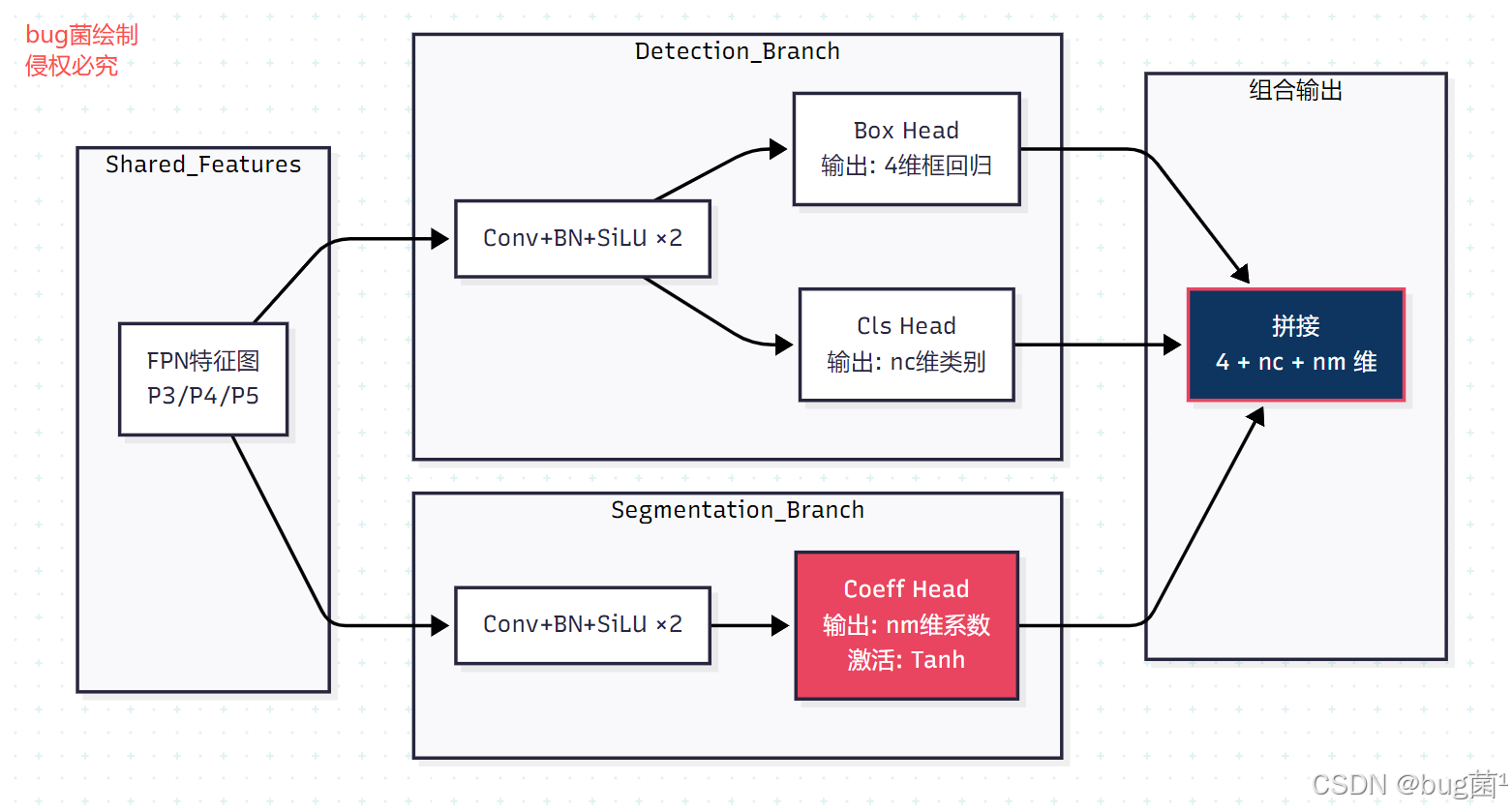
全文目录:
上期回顾
在上一期《YOLOv11【第一章:零基础入门篇·第3节】YOLOv11训练参数优化与调试技巧,一文讲透!》内容中,我们深入探讨了 YOLOv11 的训练参数优化体系,带领大家系统掌握了以下核心内容:
🔑 核心知识点回顾:
- 学习率策略:详解了
lr0、lrf、warmup_epochs等关键参数的含义与最优配置方案,以及余弦退火调度策略的实战应用 - 数据增强参数:Mosaic、MixUp、HSV 色彩空间增强、随机翻转等多种增强策略的参数配置与使用场景
- 批量大小与梯度累积:在显存受限场景下如何通过
accumulate实现大批量等效训练 - 早停机制与模型保存:
patience参数的合理设置,防止过拟合的实用技巧 - 多GPU训练配置:DDP 分布式训练的环境搭建与参数设置
- 训练过程监控:TensorBoard、WandB 的集成方式与指标解读
- 常见训练问题排查:Loss 不收敛、显存溢出、过拟合等典型问题的诊断与修复方案
通过上期内容,相信大家已经掌握了让 YOLOv11 高效训练的核心调参思路,能够根据自己的数据集特点灵活调整训练策略。
1. 推理基础概念与流程架构
1.1 目标检测推理全流程解析
在深入代码实践之前,我们必须对目标检测推理的完整流程有清晰的认知。推理(Inference)是指将训练好的模型权重加载到内存中,对新输入的图像进行前向传播计算,最终输出检测结果的完整过程。
目标检测推理与分类任务的推理存在本质区别。分类任务只需输出一个类别概率向量,而目标检测不仅要判断"图中有什么",还要精确定位"在哪里",并在密集候选框中筛选出最优结果——这使得推理链路更加复杂,也更具工程挑战性。
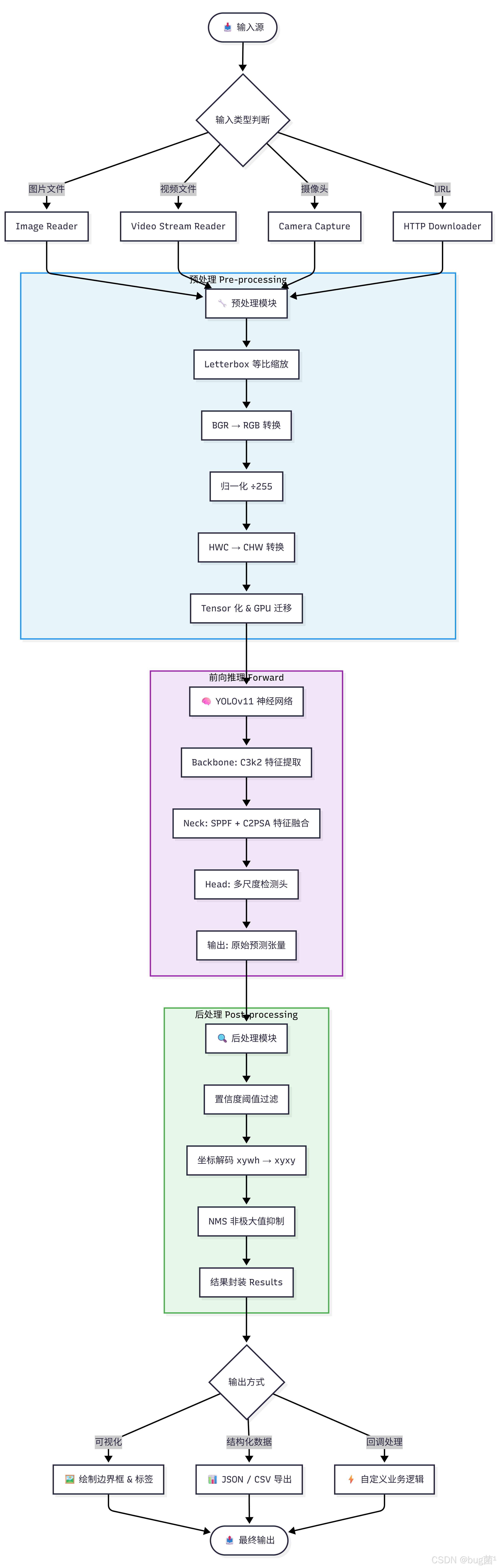
整个推理流程可以分为三大阶段:
① 预处理阶段(Pre-processing)
原始输入图像往往尺寸不一、格式各异,无法直接送入神经网络。预处理阶段负责将原始图像统一处理为模型所需的标准输入张量。核心操作包括:
- Letterbox 缩放:等比例缩放图像并填充灰色边框,避免图像内容变形
- 归一化:将像素值从 [0, 255] 映射到 [0.0, 1.0]
- 维度变换:将 HWC(Height × Width × Channel)格式转换为 CHW 格式,并增加 Batch 维度
- 设备迁移:将 NumPy 数组转换为 PyTorch Tensor 并迁移到 GPU
② 前向推理阶段(Forward Inference)
这是神经网络核心计算发生的阶段。输入张量经过 YOLOv11 的 Backbone(特征提取)、Neck(特征融合)和 Head(检测头)三个模块的依次计算,输出原始预测张量。
YOLOv11 的检测头会在多个尺度(如 80×80、40×40、20×20 的特征图)上同时预测目标,每个位置预测多个候选框(Anchor-Free 方式),每个候选框包含位置坐标(cx, cy, w, h)和各类别置信度。
③ 后处理阶段(Post-processing)
原始预测输出包含大量冗余候选框,需要经过后处理筛选。核心步骤包括:
- 置信度过滤:丢弃置信度低于阈值的候选框(conf_thres)
- 坐标解码:将相对坐标转换为绝对像素坐标
- NMS 抑制:非极大值抑制,去除高度重叠的冗余框(iou_thres)
- 结果封装:将最终结果封装为结构化的 Results 对象
1.2 推理模式分类与选择策略
YOLOv11 支持多种推理后端,适用于不同的部署场景:
| 推理后端 | 格式 | 适用场景 | 速度 | 精度损失 |
|---|---|---|---|---|
| PyTorch | .pt | 研究开发、快速验证 | 中 | 无 |
| ONNX | .onnx | 跨平台部署、边缘端 | 中高 | 极小 |
| TensorRT | .engine | NVIDIA GPU 生产部署 | 极高 | 可控 |
| OpenVINO | .xml | Intel 硬件优化 | 高 | 极小 |
| CoreML | .mlmodel | Apple 设备部署 | 高 | 极小 |
| TFLite | .tflite | 移动端、嵌入式 | 中 | 小 |
在开发阶段,推荐使用 PyTorch 原生 .pt 格式,便于调试和修改;在生产部署时,NVIDIA GPU 环境首选 TensorRT,可以获得 2~5 倍的速度提升。
1.3 推理流程架构图
以下是 YOLOv11 完整推理流程的架构图,帮助大家建立清晰的系统认知:
如图1:
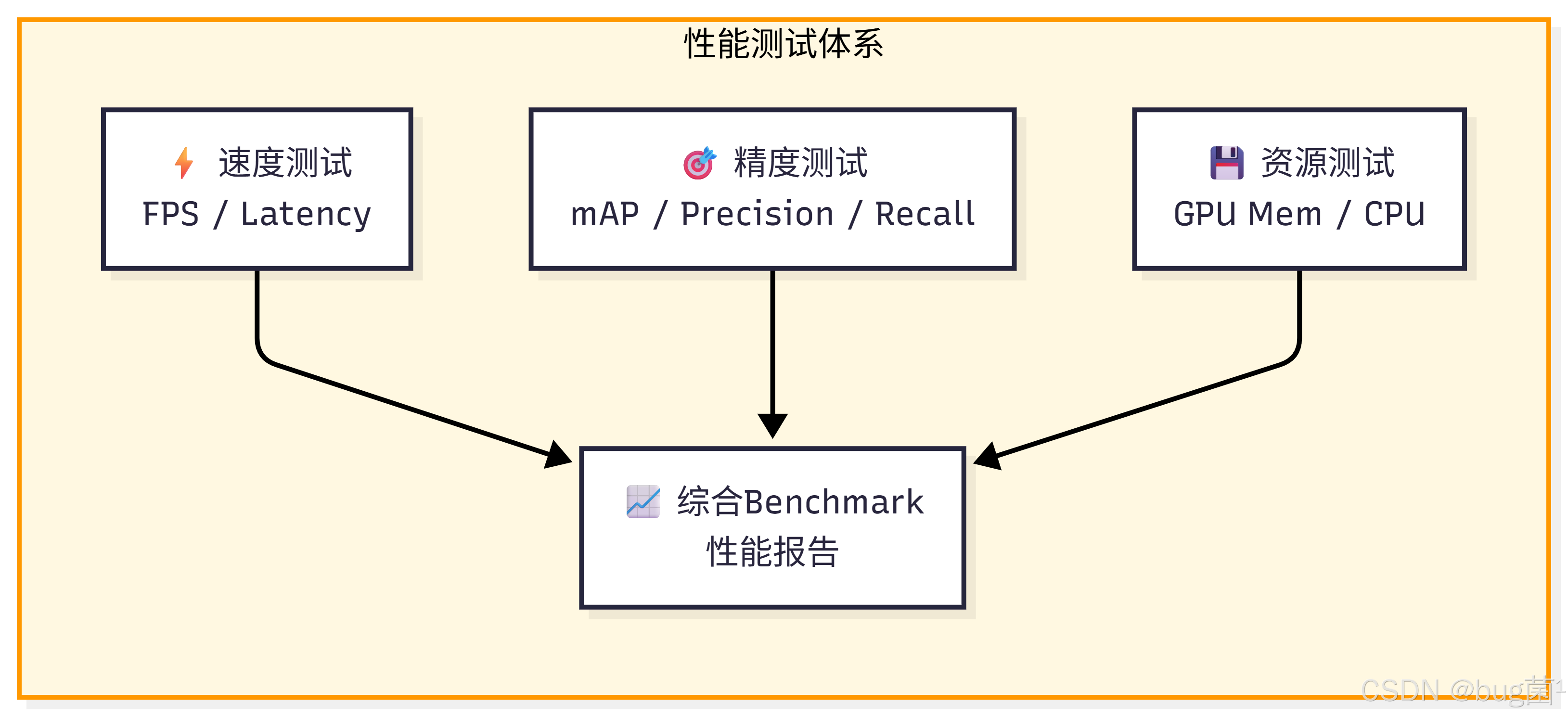
如图2:
2. YOLOv11 推理 API 详解
2.1 Python SDK 推理接口
YOLOv11 的推理接口设计极为简洁,遵循"简单事情简单做,复杂事情也能做"的设计哲学。其核心推理接口通过 model.predict() 方法统一对外暴露。
# ============================================================
# 文件:inference_basic.py
# 功能:YOLOv11 基础推理接口演示
# 依赖:pip install ultralytics>=8.3.0
# ============================================================

from ultralytics import YOLO
import cv2
import numpy as np
from pathlib import Path

# ----------------------------------------------------------
# 1. 模型加载
# ----------------------------------------------------------
# 支持以下几种加载方式:
#   - 官方预训练权重(自动下载): 'yolo11n.pt', 'yolo11s.pt', 'yolo11m.pt', 'yolo11l.pt', 'yolo11x.pt'
#   - 本地训练权重: 'runs/detect/train/weights/best.pt'
#   - ONNX 格式: 'yolo11n.onnx'
#   - TensorRT 格式: 'yolo11n.engine'
model = YOLO('yolo11n.pt')  # 加载 nano 版本预训练权重(最小最快)

# 查看模型基本信息
print(f"模型类别数: {model.model.nc}")      # 输出类别数量(COCO = 80)
print(f"模型类别名: {list(model.names.values())[:5]}...")  # 输出前5个类别名

# ----------------------------------------------------------
# 2. 最简推理调用(一行代码完成推理)
# ----------------------------------------------------------
# predict() 方法是最核心的推理接口
# 返回值是一个 Results 对象的列表(每张图一个 Results)
results = model.predict(
    source='https://ultralytics.com/images/bus.jpg',  # 输入源(支持多种格式)
    conf=0.25,     # 置信度阈值(低于此值的检测框被丢弃)
    iou=0.7,       # NMS IoU 阈值(重叠超过此值的框被抑制)
    imgsz=640,     # 推理图像尺寸(建议为32的倍数)
    device='cpu',  # 推理设备('cpu', '0', '0,1' 等)
    verbose=True,  # 是否打印推理日志
)

# 遍历推理结果
for result in results:
    print(f"检测到 {len(result.boxes)} 个目标")

    # 访问检测框信息
    if result.boxes is not None:
        # boxes.xyxy: 左上角和右下角坐标 [x1, y1, x2, y2]
        print(f"检测框坐标 (xyxy):\n{result.boxes.xyxy}")
        # boxes.conf: 各框的置信度分数
        print(f"置信度分数:\n{result.boxes.conf}")
        # boxes.cls: 各框对应的类别索引
        print(f"类别索引:\n{result.boxes.cls}")
2.2 推理参数全解析
model.predict() 方法支持丰富的参数配置,下面我们逐一解析所有重要参数的含义与使用技巧:
# ============================================================
# 文件:inference_params.py
# 功能:YOLOv11 推理参数完整配置示例与解析
# ============================================================

from ultralytics import YOLO

model = YOLO('yolo11n.pt')

# ----------------------------------------------------------
# 完整推理参数配置(附详细注释)
# ----------------------------------------------------------
results = model.predict(
    # ── 输入配置 ──────────────────────────────────────────
    source='bus.jpg',       # 输入源:图片路径 / 视频路径 / 目录 / URL / 摄像头ID

    # ── 核心检测参数 ───────────────────────────────────────
    conf=0.25,              # 置信度阈值 [0.0, 1.0]
                            # 越低:召回越高但误检越多;越高:精度高但漏检多
                            # 推荐:通用场景 0.25,严格场景 0.5+

    iou=0.7,                # NMS IoU 阈值 [0.0, 1.0]
                            # 控制重叠框的抑制力度
                            # 越低:抑制更激进(相互遮挡场景用 0.5 以下)
                            # 越高:保留更多框(目标密集场景用 0.7 以上)

    imgsz=640,              # 推理输入尺寸(正方形边长,或 [H, W] 矩形)
                            # 必须是 32 的倍数,常用:320/416/512/640/1280
                            # 越大:精度越高但速度越慢,建议平衡选择

    # ── 设备与精度配置 ─────────────────────────────────────
    device='cpu',           # 推理设备
                            # 'cpu': 使用 CPU(兼容性最好)
                            # '0': 使用第0块 GPU(CUDA)
                            # '0,1': 使用多 GPU(大批量推理)
                            # 'mps': Apple Silicon (M1/M2) GPU

    half=False,             # 是否使用 FP16 半精度推理
                            # True: 速度提升约2倍,轻微精度损失(需 CUDA GPU)
                            # False: FP32 全精度(CPU 必须为 False)

    # ── 类别过滤 ──────────────────────────────────────────
    classes=None,           # 过滤特定类别
                            # None: 检测所有类别
                            # [0]: 只检测类别0(person)
                            # [0, 2, 5]: 只检测 person、car、bus

    # ── 增强推理(TTA)──────────────────────────────────────
    augment=False,          # 测试时增强(Test Time Augmentation)
                            # True: 多尺度+翻转推理后融合,精度↑约1-2%,速度↓约3倍
                            # 用于最终精度评估,不用于实时推理

    # ── 输出控制 ──────────────────────────────────────────
    save=False,             # 是否保存带检测框的结果图片到 runs/detect/predict/
    save_txt=False,         # 是否保存检测结果为 txt 文件(YOLO格式标注)
    save_conf=False,        # 是否在 txt 文件中包含置信度分数
    save_crop=False,        # 是否裁剪并保存每个检测目标的图片

    show=False,             # 是否弹出窗口实时显示结果(需要 GUI 环境)

    # ── 项目路径配置 ─────────────────────────────────────
    project='runs/detect',  # 结果保存的父目录
    name='predict',         # 结果保存的子目录名
    exist_ok=True,          # 是否允许覆盖已存在的目录

    # ── 其他配置 ──────────────────────────────────────────
    max_det=300,            # 每张图最多保留的检测框数量
    vid_stride=1,           # 视频推理时的帧间隔(1=逐帧,2=隔帧,提升速度)
    stream=False,           # 是否以流式方式返回结果(大量图片时节省内存)
    verbose=True,           # 是否打印推理过程日志
)

print("推理完成!")
2.3 Results 对象深度解析
推理结果通过 Results 对象返回,它是我们获取检测信息的核心数据结构。深入理解 Results 对象的结构,是进行后续业务处理的基础:
# ============================================================
# 文件:results_analysis.py
# 功能:深度解析 YOLOv11 推理结果 Results 对象
# ============================================================

from ultralytics import YOLO
import torch
import numpy as np

model = YOLO('yolo11n.pt')

# 执行推理,获取结果
results = model.predict('bus.jpg', conf=0.25, verbose=False)

# 取第一张图的结果(results 是列表,每个元素对应一张输入图)
result = results[0]

print("=" * 60)
print("📊 Results 对象完整属性解析")
print("=" * 60)

# ----------------------------------------------------------
# 1. 原始图像信息
# ----------------------------------------------------------
print("\n【图像信息】")
print(f"  原始图像数组 shape: {result.orig_img.shape}")    # (H, W, 3) numpy数组
print(f"  原始图像尺寸 (H, W): {result.orig_shape}")       # 元组,如 (720, 1280)
print(f"  推理图像路径: {result.path}")                     # 输入图像的路径

# ----------------------------------------------------------
# 2. 检测框信息(Boxes)
# ----------------------------------------------------------
print("\n【检测框信息 Boxes】")
if result.boxes is not None and len(result.boxes) > 0:
    boxes = result.boxes

    # ── 坐标格式 ─────────────────────────────────────────
    print(f"\n  ▶ 坐标格式(绝对像素坐标):")
    # xyxy: [x1, y1, x2, y2] 左上角 + 右下角坐标
    print(f"    boxes.xyxy (左上右下):\n    {boxes.xyxy[:3]}")   # 取前3个框示例

    # xywh: [cx, cy, w, h] 中心点 + 宽高坐标
    print(f"    boxes.xywh (中心宽高):\n    {boxes.xywh[:3]}")

    # xyxyn / xywhn: 归一化坐标版本 [0, 1]
    print(f"    boxes.xyxyn (归一化左上右下):\n    {boxes.xyxyn[:3]}")

    # ── 分类信息 ─────────────────────────────────────────
    print(f"\n  ▶ 分类信息:")
    print(f"    boxes.cls (类别索引): {boxes.cls}")               # tensor of int
    print(f"    boxes.conf (置信度分数): {boxes.conf}")           # tensor of float

    # ── 遍历每个检测框 ────────────────────────────────────
    print(f"\n  ▶ 逐框详细信息:")
    for i, box in enumerate(boxes):
        x1, y1, x2, y2 = box.xyxy[0].tolist()                    # 解包坐标
        conf_score = box.conf[0].item()                            # 置信度分数
        cls_id = int(box.cls[0].item())                            # 类别索引
        cls_name = result.names[cls_id]                            # 类别名称

        # 计算检测框宽高
        width = x2 - x1
        height = y2 - y1

        print(f"    框[{i}]: {cls_name}({cls_id}) | "
              f"置信度={conf_score:.3f} | "
              f"位置=[{x1:.0f},{y1:.0f},{x2:.0f},{y2:.0f}] | "
              f"尺寸={width:.0f}×{height:.0f}px")
else:
    print("  未检测到任何目标!")

# ----------------------------------------------------------
# 3. 结果转换为常用数据格式
# ----------------------------------------------------------
print("\n【结果格式转换】")

# 转换为 pandas DataFrame(需要安装 pandas)
try:
    df = result.to_df()
    print(f"\n  ▶ DataFrame 格式:\n{df.head()}")
except Exception:
    print("  提示:安装 pandas 后可使用 result.to_df()")

# 转换为 JSON 字符串
json_str = result.to_json()
print(f"\n  ▶ JSON 格式(前200字符):\n  {json_str[:200]}...")

# 转换为 numpy 数组 [x1, y1, x2, y2, conf, cls]
if result.boxes is not None:
    numpy_arr = result.boxes.data.cpu().numpy()
    print(f"\n  ▶ NumPy 数组 shape: {numpy_arr.shape}")
    print(f"    列含义: [x1, y1, x2, y2, confidence, class_id]")
    print(f"    数据示例:\n{numpy_arr[:3]}")

# ----------------------------------------------------------
# 4. 提取各类别统计信息
# ----------------------------------------------------------
print("\n【检测统计信息】")
if result.boxes is not None and len(result.boxes) > 0:
    cls_ids = result.boxes.cls.cpu().numpy().astype(int)

    # 统计各类别数量
    from collections import Counter
    cls_counter = Counter(cls_ids)

    print("  各类别检测数量:")
    for cls_id, count in sorted(cls_counter.items()):
        cls_name = result.names[cls_id]
        print(f"    {cls_name}: {count} 个")

    # 输出平均置信度
    avg_conf = result.boxes.conf.mean().item()
    print(f"\n  平均置信度: {avg_conf:.4f}")
    print(f"  最高置信度: {result.boxes.conf.max().item():.4f}")
    print(f"  最低置信度: {result.boxes.conf.min().item():.4f}")
3. 多场景推理实战
3.1 图片推理
图片推理是最基础的应用场景,也是调试和验证模型效果的首选方式:
# ============================================================
# 文件:infer_image.py
# 功能:YOLOv11 图片推理完整实战(单图 / 多图 / 目录)
# ============================================================

from ultralytics import YOLO
import cv2
import numpy as np
from pathlib import Path
import os

def infer_single_image(model_path: str, image_path: str,
                        conf: float = 0.25, save_dir: str = 'output'):
    """
    单张图片推理函数

    Args:
        model_path: 模型权重路径
        image_path: 待检测图片路径
        conf: 置信度阈值
        save_dir: 结果保存目录

    Returns:
        dict: 包含检测结果的字典
    """
    # 初始化模型
    model = YOLO(model_path)

    # 检查图片是否存在
    if not Path(image_path).exists():
        raise FileNotFoundError(f"图片不存在: {image_path}")

    # 执行推理
    results = model.predict(
        source=image_path,
        conf=conf,
        iou=0.7,
        imgsz=640,
        save=False,      # 我们手动控制保存
        verbose=False
    )

    result = results[0]

    # 创建保存目录
    os.makedirs(save_dir, exist_ok=True)

    # ----------------------------------------------------------
    # 手动绘制检测结果(比默认绘制更灵活)
    # ----------------------------------------------------------
    # 读取原始图像
    img = result.orig_img.copy()   # BGR 格式的 numpy 数组

    # 定义颜色映射(不同类别使用不同颜色)
    np.random.seed(42)
    colors = {cls_id: tuple(np.random.randint(0, 255, 3).tolist())
              for cls_id in range(len(model.names))}

    detection_info = []

    if result.boxes is not None and len(result.boxes) > 0:
        for box in result.boxes:
            # 提取坐标和类别信息
            x1, y1, x2, y2 = map(int, box.xyxy[0].tolist())
            conf_score = float(box.conf[0])
            cls_id = int(box.cls[0])
            cls_name = model.names[cls_id]
            color = colors[cls_id]

            # 绘制检测框
            cv2.rectangle(img, (x1, y1), (x2, y2), color, 2)

            # 绘制标签背景(使标签更清晰)
            label = f"{cls_name} {conf_score:.2f}"
            (label_w, label_h), baseline = cv2.getTextSize(
                label, cv2.FONT_HERSHEY_SIMPLEX, 0.6, 1
            )
            cv2.rectangle(
                img,
                (x1, y1 - label_h - baseline - 5),
                (x1 + label_w, y1),
                color, -1  # 实心矩形作为背景
            )

            # 绘制标签文字
            cv2.putText(
                img, label, (x1, y1 - 5),
                cv2.FONT_HERSHEY_SIMPLEX, 0.6, (255, 255, 255), 1
            )

            # 记录检测信息
            detection_info.append({
                'class_id': cls_id,
                'class_name': cls_name,
                'confidence': round(conf_score, 4),
                'bbox': [x1, y1, x2, y2],
                'area': (x2 - x1) * (y2 - y1)
            })

    # 在图像左上角显示统计信息
    info_text = f"Detected: {len(detection_info)} objects"
    cv2.putText(img, info_text, (10, 30),
                cv2.FONT_HERSHEY_SIMPLEX, 1, (0, 255, 0), 2)

    # 保存结果图像
    save_path = Path(save_dir) / f"result_{Path(image_path).name}"
    cv2.imwrite(str(save_path), img)
    print(f"✅ 结果已保存至: {save_path}")

    return {
        'image_path': image_path,
        'num_detections': len(detection_info),
        'detections': detection_info,
        'result_image_path': str(save_path)
    }


def infer_image_directory(model_path: str, img_dir: str,
                           conf: float = 0.25, img_suffix: list = None):
    """
    批量推理目录中的所有图片

    Args:
        model_path: 模型权重路径
        img_dir: 图片目录路径
        conf: 置信度阈值
        img_suffix: 图片格式列表,默认 ['.jpg', '.jpeg', '.png', '.bmp']

    Returns:
        list: 所有图片的检测结果列表
    """
    if img_suffix is None:
        img_suffix = ['.jpg', '.jpeg', '.png', '.bmp', '.webp']

    model = YOLO(model_path)
    img_dir = Path(img_dir)

    # 收集所有图片路径
    img_paths = []
    for suffix in img_suffix:
        img_paths.extend(img_dir.glob(f'*{suffix}'))
        img_paths.extend(img_dir.glob(f'*{suffix.upper()}'))

    if not img_paths:
        print(f"⚠️  目录 {img_dir} 中没有找到图片!")
        return []

    print(f"📁 找到 {len(img_paths)} 张图片,开始推理...")

    # 使用 stream=True 以生成器方式返回结果(节省内存,适合大批量)
    all_results = []
    results_gen = model.predict(
        source=img_paths,
        conf=conf,
        stream=True,     # 关键!以流式方式处理,避免大批量内存溢出
        verbose=False
    )

    for i, result in enumerate(results_gen):
        num_det = len(result.boxes) if result.boxes is not None else 0
        print(f"  [{i+1}/{len(img_paths)}] {Path(result.path).name}: "
              f"检测到 {num_det} 个目标")

        all_results.append({
            'path': result.path,
            'num_detections': num_det,
        })

    # 统计汇总
    total_dets = sum(r['num_detections'] for r in all_results)
    print(f"\n📊 批量推理完成!")
    print(f"   处理图片: {len(all_results)} 张")
    print(f"   总检测数: {total_dets} 个")
    print(f"   平均每张: {total_dets/len(all_results):.1f} 个")

    return all_results


# 主函数调用示例
if __name__ == '__main__':
    # 单张图片推理示例
    info = infer_single_image(
        model_path='yolo11n.pt',
        image_path='bus.jpg',
        conf=0.25,
        save_dir='output/images'
    )
    print(f"\n检测结果: {info}")
3.2 视频推理
视频推理在实际应用中极为常见,涉及帧间处理、性能优化等特殊考量:
# ============================================================
# 文件:infer_video.py
# 功能:YOLOv11 视频推理完整实战(带帧率统计与进度显示)
# ============================================================

from ultralytics import YOLO
import cv2
import time
from pathlib import Path
from collections import deque
import numpy as np


def infer_video(model_path: str, video_path: str,
                conf: float = 0.25, vid_stride: int = 1,
                output_path: str = None, show_fps: bool = True):
    """
    视频文件推理函数

    Args:
        model_path: 模型权重路径
        video_path: 待检测视频路径
        conf: 置信度阈值
        vid_stride: 帧间隔(1=逐帧,2=隔帧处理提升速度)
        output_path: 结果视频保存路径(None 则不保存)
        show_fps: 是否在画面上显示实时 FPS
    """
    model = YOLO(model_path)

    # 打开视频文件,获取基本信息
    cap = cv2.VideoCapture(video_path)
    if not cap.isOpened():
        raise IOError(f"无法打开视频: {video_path}")

    total_frames = int(cap.get(cv2.CAP_PROP_FRAME_COUNT))   # 总帧数
    fps_original = cap.get(cv2.CAP_PROP_FPS)                 # 原始帧率
    width = int(cap.get(cv2.CAP_PROP_FRAME_WIDTH))           # 视频宽度
    height = int(cap.get(cv2.CAP_PROP_FRAME_HEIGHT))         # 视频高度
    cap.release()

    print(f"📹 视频信息: {width}×{height} | {fps_original:.1f}fps | {total_frames}帧")

    # 初始化视频写入器(如果需要保存输出)
    video_writer = None
    if output_path:
        Path(output_path).parent.mkdir(parents=True, exist_ok=True)
        fourcc = cv2.VideoWriter_fourcc(*'mp4v')
        video_writer = cv2.VideoWriter(
            output_path, fourcc,
            fps_original / vid_stride,   # 输出帧率根据跨帧比例调整
            (width, height)
        )

    # 用于计算滑动平均 FPS 的双端队列(取最近20帧的平均值)
    fps_queue = deque(maxlen=20)

    # 统计变量
    frame_count = 0
    processed_count = 0
    total_detections = 0

    # 使用 stream=True 以流式方式处理视频帧
    start_time = time.time()
    results_gen = model.predict(
        source=video_path,
        conf=conf,
        vid_stride=vid_stride,  # 视频跨帧推理
        stream=True,            # 视频推理必须使用 stream 模式!
        verbose=False
    )

    for result in results_gen:
        frame_start = time.time()

        # 获取当前帧图像(已经是处理后的 BGR numpy 数组)
        frame = result.orig_img.copy()

        # 获取检测结果
        num_dets = len(result.boxes) if result.boxes is not None else 0
        total_detections += num_dets
        processed_count += 1

        # 使用 YOLOv11 内置的绘制方法(快速方便)
        # 返回值是带有检测框的 numpy 数组
        annotated_frame = result.plot(
            conf=True,      # 显示置信度
            labels=True,    # 显示类别标签
            boxes=True,     # 显示边界框
            line_width=2    # 线宽
        )

        # 计算并显示 FPS
        frame_time = time.time() - frame_start
        fps_queue.append(1.0 / max(frame_time, 1e-6))
        current_fps = np.mean(fps_queue)

        if show_fps:
            # 绘制 FPS 信息面板(半透明背景)
            overlay = annotated_frame.copy()
            cv2.rectangle(overlay, (5, 5), (280, 100), (0, 0, 0), -1)
            cv2.addWeighted(overlay, 0.4, annotated_frame, 0.6, 0, annotated_frame)

            cv2.putText(annotated_frame,
                        f"FPS: {current_fps:.1f}",
                        (10, 35), cv2.FONT_HERSHEY_SIMPLEX, 1.0, (0, 255, 0), 2)
            cv2.putText(annotated_frame,
                        f"Detected: {num_dets}",
                        (10, 70), cv2.FONT_HERSHEY_SIMPLEX, 1.0, (0, 200, 255), 2)

        # 保存到输出视频
        if video_writer is not None:
            video_writer.write(annotated_frame)

        # 打印进度(每50帧输出一次)
        if processed_count % 50 == 0:
            progress = (processed_count * vid_stride / total_frames) * 100
            elapsed = time.time() - start_time
            eta = elapsed / processed_count * (total_frames / vid_stride - processed_count)
            print(f"  进度: {progress:.1f}% | "
                  f"处理帧: {processed_count} | "
                  f"FPS: {current_fps:.1f} | "
                  f"预计剩余: {eta:.0f}s")

    # 释放资源
    if video_writer is not None:
        video_writer.release()
        print(f"✅ 输出视频已保存至: {output_path}")

    # 输出统计报告
    total_time = time.time() - start_time
    avg_fps = processed_count / total_time

    print(f"\n📊 视频推理完成!")
    print(f"   处理帧数: {processed_count} 帧(跨帧={vid_stride})")
    print(f"   总用时: {total_time:.2f}s")
    print(f"   平均FPS: {avg_fps:.1f}")
    print(f"   总检测数: {total_detections}")
    print(f"   平均每帧: {total_detections/max(processed_count,1):.1f} 个目标")


if __name__ == '__main__':
    infer_video(
        model_path='yolo11n.pt',
        video_path='test_video.mp4',
        conf=0.35,
        vid_stride=2,           # 隔帧推理,速度提升约2倍
        output_path='output/result_video.mp4',
        show_fps=True
    )
3.3 实时摄像头推理
实时推理对响应延迟要求最高,以下实现包含完整的性能优化策略:
# ============================================================
# 文件:infer_camera.py
# 功能:YOLOv11 实时摄像头推理(含帧缓冲优化)
# ============================================================

from ultralytics import YOLO
import cv2
import threading
import time
import numpy as np
from collections import deque


class CameraInference:
    """
    实时摄像头推理类

    设计思路:
    - 主线程负责推理与显示(保证帧率稳定)
    - 独立的读帧线程持续从摄像头抓帧(防止帧缓冲积压导致延迟)
    """

    def __init__(self, model_path: str, camera_id: int = 0,
                 conf: float = 0.3, imgsz: int = 640):
        """
        初始化摄像头推理系统

        Args:
            model_path: 模型权重路径
            camera_id: 摄像头设备 ID(0为默认摄像头)
            conf: 置信度阈值
            imgsz: 推理图像尺寸
        """
        self.model = YOLO(model_path)
        self.camera_id = camera_id
        self.conf = conf
        self.imgsz = imgsz

        # 线程安全的帧缓冲(只保留最新一帧)
        self.latest_frame = None
        self.frame_lock = threading.Lock()
        self.running = False

        # FPS 统计
        self.fps_queue = deque(maxlen=30)

    def _capture_thread(self, cap):
        """
        独立的帧捕获线程(持续从摄像头读取最新帧)
        避免推理时摄像头帧缓冲积压,保证获取的始终是最新帧
        """
        while self.running:
            ret, frame = cap.read()
            if ret:
                with self.frame_lock:
                    self.latest_frame = frame  # 覆盖旧帧
            else:
                print("⚠️ 摄像头读取失败,尝试重连...")
                time.sleep(0.1)

    def run(self):
        """启动实时推理"""
        # 打开摄像头
        cap = cv2.VideoCapture(self.camera_id)
        if not cap.isOpened():
            raise IOError(f"无法打开摄像头 ID: {self.camera_id}")

        # 设置摄像头分辨率
        cap.set(cv2.CAP_PROP_FRAME_WIDTH, 1280)
        cap.set(cv2.CAP_PROP_FRAME_HEIGHT, 720)
        cap.set(cv2.CAP_PROP_BUFFERSIZE, 1)  # 最小化缓冲,减少延迟

        self.running = True

        # 启动独立读帧线程
        capture_thread = threading.Thread(
            target=self._capture_thread, args=(cap,), daemon=True
        )
        capture_thread.start()

        print(f"🎥 摄像头已启动!按 'q' 键退出,按 's' 键保存截图")

        frame_idx = 0
        while self.running:
            # 获取最新帧
            with self.frame_lock:
                if self.latest_frame is None:
                    time.sleep(0.01)
                    continue
                frame = self.latest_frame.copy()

            t_start = time.time()

            # 执行推理(单帧推理,不使用 stream 模式)
            results = self.model.predict(
                source=frame,
                conf=self.conf,
                imgsz=self.imgsz,
                verbose=False
            )
            result = results[0]

            # 绘制检测结果
            annotated = result.plot(line_width=2)

            # 计算 FPS
            elapsed = time.time() - t_start
            self.fps_queue.append(1.0 / max(elapsed, 1e-6))
            fps = np.mean(self.fps_queue)

            # 在画面顶部绘制信息栏
            num_det = len(result.boxes) if result.boxes is not None else 0
            info = f"FPS:{fps:.0f} | Conf:{self.conf} | Det:{num_det}"
            cv2.rectangle(annotated, (0, 0), (len(info) * 12, 30), (20, 20, 20), -1)
            cv2.putText(annotated, info, (5, 22),
                        cv2.FONT_HERSHEY_SIMPLEX, 0.7, (0, 255, 100), 2)

            # 显示画面
            cv2.imshow('YOLOv11 Real-time Detection', annotated)

            # 键盘事件处理
            key = cv2.waitKey(1) & 0xFF
            if key == ord('q'):
                print("👋 用户退出推理")
                break
            elif key == ord('s'):
                # 按 's' 保存截图
                save_path = f'screenshot_{frame_idx:04d}.jpg'
                cv2.imwrite(save_path, annotated)
                print(f"📸 截图已保存: {save_path}")

            frame_idx += 1

        # 清理资源
        self.running = False
        cap.release()
        cv2.destroyAllWindows()
        print("✅ 摄像头推理已停止")


if __name__ == '__main__':
    cam_infer = CameraInference(
        model_path='yolo11n.pt',   # 实时推理建议使用 nano 版本
        camera_id=0,
        conf=0.4,
        imgsz=640
    )
    cam_infer.run()
3.4 批量推理与 Stream 模式
当面对大规模图片数据集时,合理使用 stream=True 是关键的内存优化策略:
# ============================================================
# 文件:infer_batch.py
# 功能:YOLOv11 大批量推理与 stream 模式详解
# 理解 stream=True 的内存优化原理
# ============================================================

from ultralytics import YOLO
import os
import json
import time
from pathlib import Path


def batch_infer_with_stream(model_path: str, img_dir: str,
                             conf: float = 0.25,
                             save_results: bool = True,
                             output_json: str = 'batch_results.json'):
    """
    大批量推理(使用 stream 模式节省内存)

    stream=True 的原理:
    - stream=False(默认): 所有图片推理完成后,Results 对象列表全部保存在内存中
                           适合:小批量图片(< 100张)
    - stream=True: 以生成器方式逐一返回 Results 对象,前一个结果处理完即释放内存
                  适合:大批量图片(> 1000张)或视频流处理

    Args:
        model_path: 模型权重路径
        img_dir: 图片目录
        conf: 置信度阈值
        save_results: 是否保存 JSON 结果
        output_json: 输出 JSON 文件路径
    """
    model = YOLO(model_path)
    img_dir = Path(img_dir)

    # 收集图片路径
    img_extensions = {'.jpg', '.jpeg', '.png', '.bmp', '.webp', '.tiff'}
    img_paths = sorted([
        p for p in img_dir.rglob('*')
        if p.suffix.lower() in img_extensions
    ])

    if not img_paths:
        print(f"⚠️  {img_dir} 中未找到图片")
        return []

    print(f"📁 准备推理 {len(img_paths)} 张图片")
    print(f"   使用 stream=True 模式(内存优化)")

    all_results = []
    start_time = time.time()

    # stream=True 返回生成器,逐帧处理,不积压内存
    results_generator = model.predict(
        source=img_paths,
        conf=conf,
        stream=True,     # ⭐ 关键参数:大批量推理必须开启
        verbose=False
    )

    for i, result in enumerate(results_generator):
        # 提取结构化信息
        detections = []
        if result.boxes is not None and len(result.boxes) > 0:
            for box in result.boxes:
                x1, y1, x2, y2 = box.xyxy[0].tolist()
                detections.append({
                    'bbox': [round(x1,1), round(y1,1), round(x2,1), round(y2,1)],
                    'conf': round(float(box.conf[0]), 4),
                    'cls': int(box.cls[0]),
                    'name': model.names[int(box.cls[0])]
                })

        img_result = {
            'image': Path(result.path).name,
            'num_detections': len(detections),
            'detections': detections
        }
        all_results.append(img_result)

        # 每100张打印一次进度
        if (i + 1) % 100 == 0 or (i + 1) == len(img_paths):
            elapsed = time.time() - start_time
            speed = (i + 1) / elapsed
            remaining = (len(img_paths) - i - 1) / speed
            print(f"  [{i+1}/{len(img_paths)}] "
                  f"速度: {speed:.1f} img/s | "
                  f"预计剩余: {remaining:.0f}s")

        # 注意:generator 处理完一个 result 后,其内存会被自动回收
        # 相比 stream=False 可节省约 10~100倍内存

    total_time = time.time() - start_time
    total_dets = sum(r['num_detections'] for r in all_results)

    # 保存 JSON 结果
    if save_results:
        summary = {
            'total_images': len(img_paths),
            'total_detections': total_dets,
            'avg_fps': len(img_paths) / total_time,
            'total_time_s': round(total_time, 2),
            'results': all_results
        }
        with open(output_json, 'w', encoding='utf-8') as f:
            json.dump(summary, f, ensure_ascii=False, indent=2)
        print(f"\n✅ 结果已保存至: {output_json}")

    print(f"\n📊 批量推理统计:")
    print(f"   总图片数: {len(img_paths)}")
    print(f"   总检测数: {total_dets}")
    print(f"   总耗时: {total_time:.2f}s")
    print(f"   推理速度: {len(img_paths)/total_time:.1f} 张/秒")

    return all_results


if __name__ == '__main__':
    batch_infer_with_stream(
        model_path='yolo11n.pt',
        img_dir='datasets/test_images/',
        conf=0.25,
        output_json='results/batch_output.json'
    )
4. 预处理与后处理深度解析
理解预处理和后处理的底层机制,是排查推理问题、进行自定义部署的必备知识。
4.1 图像预处理流程详解
# ============================================================
# 文件:preprocessing_deep.py
# 功能:深度解析 YOLOv11 的图像预处理流程(手动实现)
# ============================================================

import cv2
import numpy as np


def letterbox(image: np.ndarray,
              target_size: tuple = (640, 640),
              color: tuple = (114, 114, 114),
              auto: bool = False,
              scaleup: bool = True) -> tuple:
    """
    Letterbox 图像缩放(YOLOv11 预处理核心函数)

    核心思想:保持图像宽高比不变,用灰色填充短边
    这样可以避免图像变形,保证检测精度

    Args:
        image: 输入图像 (H, W, 3) BGR格式
        target_size: 目标尺寸 (height, width)
        color: 填充颜色 (B, G, R),默认灰色 (114, 114, 114)
        auto: 是否自动调整为32的最小倍数
        scaleup: 是否允许放大图像(False 则只缩小不放大)

    Returns:
        (processed_image, scale_ratio, (pad_top, pad_left)):
        处理后图像、缩放比例、填充像素数
    """
    src_h, src_w = image.shape[:2]
    target_h, target_w = target_size

    # 计算保持宽高比的缩放比例(取宽高方向最小比例)
    scale = min(target_h / src_h, target_w / src_w)

    # 如果不允许放大,则缩放比例上限为1.0
    if not scaleup:
        scale = min(scale, 1.0)

    # 计算缩放后的实际尺寸
    new_w = int(round(src_w * scale))
    new_h = int(round(src_h * scale))

    # 缩放图像
    resized = cv2.resize(image, (new_w, new_h), interpolation=cv2.INTER_LINEAR)

    # 计算需要填充的像素数(上下/左右各填充一半)
    pad_h = target_h - new_h
    pad_w = target_w - new_w

    if auto:
        # auto 模式:调整填充量为32的倍数(减少冗余计算)
        pad_h = pad_h % 32
        pad_w = pad_w % 32

    # 上下左右各填充一半(使目标居中)
    pad_top = pad_h // 2
    pad_bottom = pad_h - pad_top
    pad_left = pad_w // 2
    pad_right = pad_w - pad_left

    # 执行填充(边界复制模式为 BORDER_CONSTANT,填充固定灰色值)
    padded = cv2.copyMakeBorder(
        resized,
        pad_top, pad_bottom, pad_left, pad_right,
        borderType=cv2.BORDER_CONSTANT,
        value=color
    )

    return padded, scale, (pad_top, pad_left)


def preprocess_for_inference(image: np.ndarray,
                              target_size: int = 640) -> tuple:
    """
    将原始图像转换为模型推理所需的输入张量

    完整的预处理步骤:
    1. Letterbox 缩放(等比例+填充)
    2. BGR → RGB 颜色通道转换
    3. HWC → CHW 维度转置
    4. 归一化(/255.0)
    5. 增加 Batch 维度

    Args:
        image: 原始 BGR 图像
        target_size: 推理尺寸

    Returns:
        (tensor, scale, pad): 预处理后的 numpy 张量,缩放比,填充量
    """
    # 步骤1:Letterbox 缩放
    processed, scale, pad = letterbox(
        image,
        target_size=(target_size, target_size)
    )

    # 步骤2:BGR → RGB(PyTorch 训练使用 RGB 格式)
    processed = cv2.cvtColor(processed, cv2.COLOR_BGR2RGB)

    # 步骤3:HWC → CHW(从 Height×Width×Channel 转为 Channel×Height×Width)
    processed = processed.transpose(2, 0, 1)   # (H, W, 3) → (3, H, W)

    # 步骤4:归一化(像素值从 [0,255] 映射到 [0.0, 1.0])
    processed = processed.astype(np.float32) / 255.0

    # 步骤5:增加 Batch 维度 → (1, 3, H, W)
    processed = np.expand_dims(processed, axis=0)

    return processed, scale, pad


def restore_coordinates(boxes_normalized: np.ndarray,
                         scale: float, pad: tuple,
                         orig_shape: tuple) -> np.ndarray:
    """
    将推理输出的归一化坐标还原为原始图像的像素坐标

    这个逆操作对应预处理中的 letterbox 变换

    Args:
        boxes_normalized: 归一化边界框 [x1, y1, x2, y2] (相对于推理尺寸)
        scale: letterbox 的缩放比例
        pad: (pad_top, pad_left) 填充量
        orig_shape: 原始图像尺寸 (H, W)

    Returns:
        原始图像坐标系下的边界框 [x1, y1, x2, y2]
    """
    pad_top, pad_left = pad
    boxes = boxes_normalized.copy().astype(np.float32)

    # 减去填充量(还原到缩放后的实际图像范围)
    boxes[:, [0, 2]] -= pad_left   # x1, x2 减去左填充
    boxes[:, [1, 3]] -= pad_top    # y1, y2 减去上填充

    # 除以缩放比例(还原到原始图像尺寸)
    boxes /= scale

    # 截断到原始图像边界,防止坐标越界
    orig_h, orig_w = orig_shape
    boxes[:, [0, 2]] = boxes[:, [0, 2]].clip(0, orig_w)
    boxes[:, [1, 3]] = boxes[:, [1, 3]].clip(0, orig_h)

    return boxes


# 演示预处理过程
if __name__ == '__main__':
    # 创建一张模拟图像(720×1280 分辨率)
    test_img = np.zeros((720, 1280, 3), dtype=np.uint8)
    # 绘制一些内容方便观察
    cv2.rectangle(test_img, (100, 100), (400, 500), (0, 255, 0), -1)
    cv2.circle(test_img, (800, 360), 150, (0, 0, 255), -1)

    print(f"原始图像尺寸: {test_img.shape}")  # (720, 1280, 3)

    # 执行预处理
    tensor, scale, pad = preprocess_for_inference(test_img, target_size=640)

    print(f"预处理后 Tensor shape: {tensor.shape}")  # (1, 3, 640, 640)
    print(f"缩放比例: {scale:.4f}")                   # 640/720 ≈ 0.5
    print(f"填充量 (top, left): {pad}")               # (0, 80) 左右各填充80像素
    print(f"像素值范围: [{tensor.min():.3f}, {tensor.max():.3f}]")  # [0.0, 1.0]
4.2 NMS 后处理机制
非极大值抑制(Non-Maximum Suppression,NMS)是目标检测后处理的核心算法,理解其原理对调参至关重要:
# ============================================================
# 文件:nms_explained.py
# 功能:NMS 算法原理实现与可视化解析
# ============================================================

import numpy as np


def compute_iou(box1: np.ndarray, box2: np.ndarray) -> float:
    """
    计算两个边界框的 IoU(交并比)

    IoU = 交集面积 / 并集面积
    值域 [0, 1]:0表示完全不重叠,1表示完全重合

    Args:
        box1, box2: [x1, y1, x2, y2] 格式的边界框

    Returns:
        float: IoU 值
    """
    # 计算交集区域坐标
    inter_x1 = max(box1[0], box2[0])
    inter_y1 = max(box1[1], box2[1])
    inter_x2 = min(box1[2], box2[2])
    inter_y2 = min(box1[3], box2[3])

    # 交集面积(如果不重叠则为0)
    inter_area = max(0, inter_x2 - inter_x1) * max(0, inter_y2 - inter_y1)

    # 各自面积
    area1 = (box1[2] - box1[0]) * (box1[3] - box1[1])
    area2 = (box2[2] - box2[0]) * (box2[3] - box2[1])

    # 并集面积 = 面积1 + 面积2 - 交集面积
    union_area = area1 + area2 - inter_area

    # 防止除零
    if union_area <= 0:
        return 0.0

    return inter_area / union_area


def nms(boxes: np.ndarray, scores: np.ndarray,
        iou_threshold: float = 0.5) -> list:
    """
    标准 NMS 算法实现

    算法步骤:
    1. 按置信度分数从高到低排序
    2. 取分数最高的框(记为当前框),加入保留列表
    3. 计算当前框与其余所有框的 IoU
    4. 删除 IoU 超过阈值的框(视为重复检测同一目标)
    5. 重复步骤2-4,直到没有框可处理

    Args:
        boxes: 边界框数组 (N, 4),格式 [x1, y1, x2, y2]
        scores: 置信度分数数组 (N,)
        iou_threshold: IoU 阈值,超过此值的框被抑制

    Returns:
        list: 保留框的索引列表
    """
    if len(boxes) == 0:
        return []

    # 步骤1:按置信度从高到低排序
    sorted_indices = np.argsort(scores)[::-1]   # 降序排列的索引

    keep = []          # 保留框的索引
    remaining = list(sorted_indices)   # 待处理框的索引

    while remaining:
        # 步骤2:取当前最高分框
        current = remaining[0]
        keep.append(current)
        remaining = remaining[1:]   # 从待处理列表中移除当前框

        if not remaining:
            break

        # 步骤3 & 4:计算 IoU,移除重叠过高的框
        to_remove = []
        for idx in remaining:
            iou = compute_iou(boxes[current], boxes[idx])
            if iou > iou_threshold:
                to_remove.append(idx)   # 标记为需要抑制

        # 从待处理列表中移除被抑制的框
        for idx in to_remove:
            remaining.remove(idx)

    return keep


# 演示 NMS 效果
if __name__ == '__main__':
    # 模拟5个候选框(均检测同一个目标)
    # 格式:[x1, y1, x2, y2]
    candidate_boxes = np.array([
        [100, 100, 300, 300],   # 框0:中等置信度
        [105, 98, 308, 305],    # 框1:最高置信度(与框0高度重叠)
        [90,  95, 290, 295],    # 框2:较低置信度(与框0高度重叠)
        [500, 200, 700, 400],   # 框3:另一个目标的检测框(位置不同)
        [510, 195, 710, 410],   # 框4:与框3重叠的检测框
    ])

    confidence_scores = np.array([0.72, 0.95, 0.61, 0.88, 0.75])

    print("=" * 50)
    print("NMS 算法演示")
    print("=" * 50)
    print(f"原始候选框数量: {len(candidate_boxes)}")
    for i, (box, score) in enumerate(zip(candidate_boxes, confidence_scores)):
        print(f"  框{i}: {box} | 置信度: {score:.2f}")

    # 执行 NMS(IoU 阈值 = 0.5)
    kept_indices = nms(candidate_boxes, confidence_scores, iou_threshold=0.5)

    print(f"\nNMS 后保留框数量: {len(kept_indices)}")
    for idx in kept_indices:
        print(f"  框{idx}: {candidate_boxes[idx]} | "
              f"置信度: {confidence_scores[idx]:.2f}")

    # 分析:
    # 框1(0.95)被保留 → 与框0的IoU > 0.5,框0被抑制 → 与框2的IoU > 0.5,框2被抑制
    # 框3(0.88)被保留 → 与框4的IoU > 0.5,框4被抑制
    # 最终只保留2个框,完美对应2个实际目标

    # 验证 IoU 计算
    print(f"\nIoU 验证:")
    print(f"  框1 vs 框0: {compute_iou(candidate_boxes[1], candidate_boxes[0]):.3f}")
    print(f"  框3 vs 框4: {compute_iou(candidate_boxes[3], candidate_boxes[4]):.3f}")
    print(f"  框1 vs 框3: {compute_iou(candidate_boxes[1], candidate_boxes[3]):.3f}")
5. 推理性能测试全套方案
性能测试是连接"模型能用"与"模型好用"的关键环节。一个完整的性能测试体系应涵盖速度、精度、资源消耗三个维度。
5.1 推理速度测试
# ============================================================
# 文件:speed_benchmark.py
# 功能:YOLOv11 推理速度全面测试(延迟 / FPS / 各阶段耗时)
# ============================================================

import time
import torch
import numpy as np
from ultralytics import YOLO
from pathlib import Path
import json
from typing import List, Dict


class SpeedBenchmark:
    """
    推理速度基准测试类

    测试维度:
    - 端到端延迟(End-to-End Latency): 从图片读取到结果输出的全部时间
    - 纯推理延迟(Pure Inference Latency): 仅神经网络前向计算时间
    - 预处理时间(Pre-processing Time)
    - 后处理时间(Post-processing Time)
    - 吞吐量 FPS(Frames Per Second): 每秒处理图片数
    """

    def __init__(self, model_path: str, device: str = 'cpu'):
        """
        初始化速度测试器

        Args:
            model_path: 模型权重路径
            device: 测试设备('cpu' 或 '0' 等GPU ID)
        """
        self.model = YOLO(model_path)
        self.device = device
        self.model_name = Path(model_path).stem
        print(f"✅ 模型加载完成: {model_path} | 设备: {device}")

    def warmup(self, imgsz: int = 640, warmup_rounds: int = 10):
        """
        模型预热

        GPU 首次推理会有额外的初始化开销,预热可以消除这个干扰
        统计时间前必须执行预热操作!

        Args:
            imgsz: 预热推理的图像尺寸
            warmup_rounds: 预热轮次
        """
        print(f"🔥 模型预热中... ({warmup_rounds} 轮)")
        # 创建随机噪声图像用于预热
        dummy_input = np.random.randint(0, 255, (imgsz, imgsz, 3), dtype=np.uint8)

        for i in range(warmup_rounds):
            self.model.predict(
                source=dummy_input,
                imgsz=imgsz,
                device=self.device,
                verbose=False
            )
        print("✅ 预热完成!")

    def measure_latency(self, imgsz: int = 640,
                         num_runs: int = 100) -> Dict:
        """
        测量单次推理延迟

        Args:
            imgsz: 推理图像尺寸
            num_runs: 测试运行次数(越多结果越稳定)

        Returns:
            dict: 延迟统计结果(均值/标准差/P50/P90/P99/P99.9)
        """
        # 创建随机测试图像
        test_img = np.random.randint(0, 255, (imgsz, imgsz, 3), dtype=np.uint8)

        latencies = []

        for _ in range(num_runs):
            # 同步GPU(确保GPU计算完成后再记录时间,防止异步误差)
            if self.device != 'cpu' and torch.cuda.is_available():
                torch.cuda.synchronize()

            t_start = time.perf_counter()   # 高精度计时器

            self.model.predict(
                source=test_img,
                imgsz=imgsz,
                device=self.device,
                verbose=False
            )

            if self.device != 'cpu' and torch.cuda.is_available():
                torch.cuda.synchronize()    # 等待GPU计算完成

            t_end = time.perf_counter()
            latencies.append((t_end - t_start) * 1000)   # 转换为毫秒

        latencies = np.array(latencies)

        result = {
            'mean_ms': float(np.mean(latencies)),           # 平均延迟
            'std_ms': float(np.std(latencies)),             # 标准差(稳定性指标)
            'min_ms': float(np.min(latencies)),             # 最短延迟
            'max_ms': float(np.max(latencies)),             # 最长延迟
            'p50_ms': float(np.percentile(latencies, 50)), # 中位数延迟
            'p90_ms': float(np.percentile(latencies, 90)), # 90百分位延迟
            'p99_ms': float(np.percentile(latencies, 99)), # 99百分位延迟(极端情况)
            'fps': float(1000 / np.mean(latencies)),        # 等效 FPS
            'num_runs': num_runs,
            'imgsz': imgsz,
            'device': self.device
        }

        return result

    def benchmark_multi_sizes(self,
                               sizes: List[int] = None,
                               num_runs: int = 50) -> List[Dict]:
        """
        多分辨率基准测试

        分析不同输入尺寸对推理速度的影响

        Args:
            sizes: 测试的图像尺寸列表
            num_runs: 每个尺寸的测试次数

        Returns:
            list: 各尺寸的测试结果
        """
        if sizes is None:
            sizes = [320, 416, 512, 640, 768, 1024, 1280]

        print(f"\n📏 多分辨率速度测试({num_runs}次/尺寸)")
        print("-" * 60)
        print(f"{'尺寸':>8} | {'均值(ms)':>10} | {'标准差':>8} | "
              f"{'P99(ms)':>9} | {'FPS':>8}")
        print("-" * 60)

        all_results = []

        for size in sizes:
            # 每个尺寸前先预热
            self.warmup(imgsz=size, warmup_rounds=5)

            result = self.measure_latency(imgsz=size, num_runs=num_runs)
            result['model'] = self.model_name
            all_results.append(result)

            print(f"{size:>8}px | "
                  f"{result['mean_ms']:>8.1f}ms | "
                  f"{result['std_ms']:>6.1f}ms | "
                  f"{result['p99_ms']:>7.1f}ms | "
                  f"{result['fps']:>6.1f}")

        print("-" * 60)
        return all_results

    def benchmark_batch_size(self, imgsz: int = 640,
                              batch_sizes: List[int] = None,
                              num_runs: int = 30) -> List[Dict]:
        """
        批量大小对吞吐量影响测试

        Args:
            imgsz: 图像尺寸
            batch_sizes: 测试的批量大小列表
            num_runs: 测试次数

        Returns:
            list: 各批量大小的测试结果
        """
        if batch_sizes is None:
            batch_sizes = [1, 2, 4, 8, 16]

        print(f"\n📦 批量大小吞吐量测试")
        print("-" * 55)
        print(f"{'Batch':>8} | {'总延迟(ms)':>11} | {'单图耗时':>10} | {'吞吐量 img/s':>12}")
        print("-" * 55)

        all_results = []

        for bs in batch_sizes:
            # 创建批量测试图像
            batch_imgs = [
                np.random.randint(0, 255, (imgsz, imgsz, 3), dtype=np.uint8)
                for _ in range(bs)
            ]

            latencies = []
            for _ in range(num_runs):
                if self.device != 'cpu' and torch.cuda.is_available():
                    torch.cuda.synchronize()

                t_start = time.perf_counter()
                self.model.predict(
                    source=batch_imgs,
                    imgsz=imgsz,
                    device=self.device,
                    verbose=False
                )

                if self.device != 'cpu' and torch.cuda.is_available():
                    torch.cuda.synchronize()

                latencies.append((time.perf_counter() - t_start) * 1000)

            mean_latency = np.mean(latencies)
            per_image_ms = mean_latency / bs
            throughput = bs / (mean_latency / 1000)    # 每秒处理图片数

            result = {
                'batch_size': bs,
                'total_latency_ms': round(mean_latency, 2),
                'per_image_ms': round(per_image_ms, 2),
                'throughput_fps': round(throughput, 1)
            }
            all_results.append(result)

            print(f"{bs:>8} | {mean_latency:>9.1f}ms | "
                  f"{per_image_ms:>8.2f}ms | {throughput:>10.1f}")

        print("-" * 55)
        return all_results

    def run_full_benchmark(self, output_json: str = 'speed_report.json'):
        """
        运行完整速度基准测试套件并生成报告

        Args:
            output_json: 报告保存路径
        """
        print(f"\n{'='*60}")
        print(f"  YOLOv11 速度基准测试报告")
        print(f"  模型: {self.model_name}")
        print(f"  设备: {self.device}")
        print(f"{'='*60}")

        # 初始预热
        self.warmup(imgsz=640, warmup_rounds=10)

        # 1. 多分辨率测试
        size_results = self.benchmark_multi_sizes(
            sizes=[320, 416, 512, 640, 1280],
            num_runs=50
        )

        # 2. 批量大小测试(仅在 GPU 上进行)
        batch_results = []
        if self.device != 'cpu':
            batch_results = self.benchmark_batch_size(
                imgsz=640,
                batch_sizes=[1, 2, 4, 8],
                num_runs=20
            )

        # 汇总报告
        report = {
            'model': self.model_name,
            'device': self.device,
            'size_benchmark': size_results,
            'batch_benchmark': batch_results,
        }

        # 保存 JSON 报告
        with open(output_json, 'w') as f:
            json.dump(report, f, indent=2)
        print(f"\n✅ 完整测试报告已保存至: {output_json}")

        return report


# 主函数:运行完整测试
if __name__ == '__main__':
    # 初始化测试器(CPU 环境)
    benchmark = SpeedBenchmark(
        model_path='yolo11n.pt',
        device='cpu'    # 改为 '0' 使用 GPU
    )

    # 运行完整 Benchmark
    report = benchmark.run_full_benchmark(
        output_json='results/speed_benchmark_report.json'
    )
代码解析:
上述 SpeedBenchmark 类的设计有几个值得关注的工程细节:
首先,预热(Warmup) 是速度测试中极易被忽视的关键步骤。GPU 在首次执行推理时需要完成 CUDA kernel 编译、内存分配、计算图优化等初始化操作,这个"冷启动"时间可能比正常推理耗时高出 10~50 倍。不进行预热直接测量,会使结果严重偏高。
其次,GPU 同步(torch.cuda.synchronize()) 是 GPU 推理计时的正确姿势。CUDA 操作是异步执行的,CPU 发出 GPU 指令后会立即返回,若不同步就计时,会得到远低于实际值的错误结果。
第三,百分位延迟(P90/P99) 比均值延迟更能反映系统的实际表现。均值可能被极少数超快帧拉低,而 P99 反映的是 99% 用户的真实体验,在生产系统 SLA 制定中更有参考价值。
5.2 精度性能测试
# ============================================================
# 文件:accuracy_test.py
# 功能:YOLOv11 单图推理精度与置信度分布分析
# ============================================================

import numpy as np
import matplotlib.pyplot as plt
from ultralytics import YOLO
from pathlib import Path
import json


def analyze_detection_confidence(model_path: str,
                                   test_images: list,
                                   conf_thresholds: list = None) -> dict:
    """
    分析不同置信度阈值下的检测结果分布

    这有助于为你的具体任务选择最优的 conf 阈值

    Args:
        model_path: 模型权重路径
        test_images: 测试图片路径列表
        conf_thresholds: 测试的置信度阈值列表

    Returns:
        dict: 各阈值下的检测统计结果
    """
    if conf_thresholds is None:
        conf_thresholds = [0.1, 0.25, 0.3, 0.4, 0.5, 0.6, 0.7, 0.8]

    model = YOLO(model_path)

    # 以最低阈值推理一次,获取所有原始预测
    all_raw_results = []

    # 使用 conf=0.01(极低阈值)获取所有候选框
    results = model.predict(
        source=test_images,
        conf=0.01,    # 极低阈值,保留所有候选框
        iou=0.7,
        stream=True,
        verbose=False
    )

    for result in results:
        if result.boxes is not None and len(result.boxes) > 0:
            confs = result.boxes.conf.cpu().numpy().tolist()
            cls_ids = result.boxes.cls.cpu().numpy().tolist()
            all_raw_results.extend([
                {'conf': c, 'cls': int(k)}
                for c, k in zip(confs, cls_ids)
            ])

    print(f"原始检测候选框总数: {len(all_raw_results)}")

    # 分析不同阈值下的检测数量
    threshold_analysis = {}
    for thresh in conf_thresholds:
        filtered = [r for r in all_raw_results if r['conf'] >= thresh]
        threshold_analysis[thresh] = {
            'num_detections': len(filtered),
            'avg_conf': np.mean([r['conf'] for r in filtered]) if filtered else 0,
            'cls_distribution': {}
        }

        # 统计各类别分布
        for r in filtered:
            cls_id = r['cls']
            cls_name = model.names[cls_id]
            if cls_name not in threshold_analysis[thresh]['cls_distribution']:
                threshold_analysis[thresh]['cls_distribution'][cls_name] = 0
            threshold_analysis[thresh]['cls_distribution'][cls_name] += 1

    # 打印分析结果
    print("\n置信度阈值分析:")
    print(f"{'阈值':>6} | {'检测数':>8} | {'平均置信度':>10}")
    print("-" * 35)
    for thresh, stats in threshold_analysis.items():
        print(f"{thresh:>6.2f} | {stats['num_detections']:>8} | "
              f"{stats['avg_conf']:>10.4f}")

    return {
        'raw_results': all_raw_results,
        'threshold_analysis': threshold_analysis,
        'model_classes': dict(model.names)
    }


def plot_confidence_distribution(raw_results: list,
                                  save_path: str = 'conf_distribution.png'):
    """
    绘制置信度分布直方图(使用英文标签)

    Args:
        raw_results: 原始检测结果列表
        save_path: 图表保存路径
    """
    if not raw_results:
        print("没有可分析的检测结果!")
        return

    confs = [r['conf'] for r in raw_results]

    fig, axes = plt.subplots(1, 2, figsize=(14, 5))
    fig.suptitle('YOLOv11 Detection Confidence Analysis',
                  fontsize=14, fontweight='bold')

    # 左图:置信度分布直方图
    ax1 = axes[0]
    ax1.hist(confs, bins=50, color='steelblue', edgecolor='white', alpha=0.85)
    ax1.axvline(x=0.25, color='red', linestyle='--', linewidth=2,
                label='Default thresh (0.25)')
    ax1.axvline(x=0.5, color='orange', linestyle='--', linewidth=2,
                label='High thresh (0.5)')
    ax1.set_xlabel('Confidence Score', fontsize=12)
    ax1.set_ylabel('Count', fontsize=12)
    ax1.set_title('Confidence Score Distribution', fontsize=12)
    ax1.legend()
    ax1.grid(True, alpha=0.3)

    # 右图:累积分布曲线(选择阈值的辅助工具)
    ax2 = axes[1]
    sorted_confs = np.sort(confs)
    cumulative = np.arange(1, len(sorted_confs) + 1) / len(sorted_confs)

    # 反向绘制(高于阈值的比例)
    ax2.plot(sorted_confs, 1 - cumulative, color='darkorange', linewidth=2)
    ax2.fill_between(sorted_confs, 1 - cumulative, alpha=0.2, color='darkorange')

    # 标注关键阈值点
    for thresh, color in [(0.25, 'red'), (0.5, 'blue'), (0.7, 'green')]:
        ratio = np.mean(np.array(confs) >= thresh)
        ax2.axvline(x=thresh, color=color, linestyle=':', linewidth=1.5)
        ax2.axhline(y=ratio, color=color, linestyle=':', linewidth=1.5)
        ax2.annotate(f'conf={thresh}\n{ratio*100:.1f}% kept',
                     xy=(thresh, ratio),
                     xytext=(thresh + 0.05, ratio + 0.05),
                     fontsize=9,
                     arrowprops=dict(arrowstyle='->', color=color),
                     color=color)

    ax2.set_xlabel('Confidence Threshold', fontsize=12)
    ax2.set_ylabel('Ratio of Detections Kept', fontsize=12)
    ax2.set_title('Cumulative Confidence Distribution', fontsize=12)
    ax2.set_xlim(0, 1)
    ax2.set_ylim(0, 1)
    ax2.grid(True, alpha=0.3)

    plt.tight_layout()
    plt.savefig(save_path, dpi=150, bbox_inches='tight')
    print(f"📊 置信度分布图已保存: {save_path}")
    plt.close()


if __name__ == '__main__':
    # 示例:分析置信度分布
    # 使用当前目录下的图片进行分析
    test_imgs = ['bus.jpg']   # 替换为你的测试图片列表

    analysis = analyze_detection_confidence(
        model_path='yolo11n.pt',
        test_images=test_imgs,
        conf_thresholds=[0.1, 0.2, 0.25, 0.3, 0.4, 0.5, 0.6, 0.7, 0.8, 0.9]
    )

    # 绘制分布图
    plot_confidence_distribution(
        raw_results=analysis['raw_results'],
        save_path='output/confidence_analysis.png'
    )
5.3 综合性能 Benchmark
# ============================================================
# 文件:comprehensive_benchmark.py
# 功能:YOLOv11 综合性能基准测试(速度 + 资源消耗)
# ============================================================

import time
import psutil
import os
import json
import numpy as np
from ultralytics import YOLO
import threading


class ResourceMonitor:
    """
    系统资源监控器(后台线程持续采样)
    用于测试推理过程中的 CPU / 内存占用
    """

    def __init__(self, interval: float = 0.1):
        """
        Args:
            interval: 采样间隔(秒)
        """
        self.interval = interval
        self.cpu_samples = []
        self.mem_samples = []
        self.running = False
        self._thread = None

    def start(self):
        """启动后台监控"""
        self.running = True
        self.cpu_samples = []
        self.mem_samples = []
        self._thread = threading.Thread(
            target=self._monitor_loop, daemon=True
        )
        self._thread.start()

    def stop(self) -> dict:
        """停止监控并返回统计结果"""
        self.running = False
        if self._thread:
            self._thread.join(timeout=2)

        return {
            'cpu_mean': np.mean(self.cpu_samples) if self.cpu_samples else 0,
            'cpu_max': np.max(self.cpu_samples) if self.cpu_samples else 0,
            'mem_mean_mb': np.mean(self.mem_samples) if self.mem_samples else 0,
            'mem_max_mb': np.max(self.mem_samples) if self.mem_samples else 0,
        }

    def _monitor_loop(self):
        """后台监控循环"""
        process = psutil.Process(os.getpid())
        while self.running:
            # 采集 CPU 使用率(当前进程)
            self.cpu_samples.append(process.cpu_percent(interval=None))
            # 采集内存使用量(MB)
            mem_info = process.memory_info()
            self.mem_samples.append(mem_info.rss / 1024 / 1024)
            time.sleep(self.interval)


def comprehensive_model_benchmark(model_paths: list,
                                   test_image: str = None,
                                   num_runs: int = 50,
                                   imgsz: int = 640) -> list:
    """
    多模型综合性能对比测试

    Args:
        model_paths: 待测试的模型路径列表
        test_image: 测试图片路径(None 则使用随机图像)
        num_runs: 每个模型的测试次数
        imgsz: 推理图像尺寸

    Returns:
        list: 各模型的综合测试结果
    """
    import os

    # 准备测试输入
    if test_image and os.path.exists(test_image):
        import cv2
        test_input = cv2.imread(test_image)
        print(f"使用测试图片: {test_image}")
    else:
        test_input = np.random.randint(0, 255, (imgsz, imgsz, 3), dtype=np.uint8)
        print("使用随机生成图像进行测试")

    all_results = []

    print(f"\n{'='*70}")
    print(f"  综合性能对比测试 | 每模型 {num_runs} 次推理 | 尺寸 {imgsz}px")
    print(f"{'='*70}")

    for model_path in model_paths:
        print(f"\n🧪 测试模型: {model_path}")

        # 加载模型
        model = YOLO(model_path)
        model_name = os.path.basename(model_path).replace('.pt', '')

        # 模型预热
        for _ in range(5):
            model.predict(source=test_input, imgsz=imgsz, verbose=False)

        # 启动资源监控
        monitor = ResourceMonitor(interval=0.05)
        monitor.start()

        # 执行推理测试
        latencies = []
        det_counts = []

        for i in range(num_runs):
            t_start = time.perf_counter()
            results = model.predict(
                source=test_input,
                imgsz=imgsz,
                conf=0.25,
                verbose=False
            )
            elapsed_ms = (time.perf_counter() - t_start) * 1000
            latencies.append(elapsed_ms)

            num_dets = len(results[0].boxes) if results[0].boxes is not None else 0
            det_counts.append(num_dets)

        # 停止资源监控,获取统计数据
        resource_stats = monitor.stop()

        # 汇总结果
        latencies = np.array(latencies)
        result = {
            'model': model_name,
            'num_runs': num_runs,
            'imgsz': imgsz,
            # 速度指标
            'latency_mean_ms': round(float(np.mean(latencies)), 2),
            'latency_std_ms': round(float(np.std(latencies)), 2),
            'latency_p50_ms': round(float(np.percentile(latencies, 50)), 2),
            'latency_p99_ms': round(float(np.percentile(latencies, 99)), 2),
            'fps': round(float(1000 / np.mean(latencies)), 1),
            # 检测结果
            'avg_detections': round(float(np.mean(det_counts)), 1),
            # 资源消耗
            'cpu_mean_pct': round(resource_stats['cpu_mean'], 1),
            'cpu_max_pct': round(resource_stats['cpu_max'], 1),
            'memory_mean_mb': round(resource_stats['mem_mean_mb'], 1),
            'memory_max_mb': round(resource_stats['mem_max_mb'], 1),
        }

        all_results.append(result)

        # 打印单个模型结果
        print(f"  ⚡ 延迟: {result['latency_mean_ms']}ms ± {result['latency_std_ms']}ms")
        print(f"  📈 FPS: {result['fps']}")
        print(f"  💾 内存: 均值 {result['memory_mean_mb']}MB | 峰值 {result['memory_max_mb']}MB")
        print(f"  🖥️  CPU: 均值 {result['cpu_mean_pct']}% | 峰值 {result['cpu_max_pct']}%")

    # 打印对比表格
    print(f"\n{'='*70}")
    print("综合性能对比摘要:")
    print(f"{'模型':<15} {'FPS':>8} {'延迟(ms)':>10} {'内存(MB)':>10} {'CPU%':>8}")
    print("-" * 60)
    for r in all_results:
        print(f"{r['model']:<15} {r['fps']:>8.1f} "
              f"{r['latency_mean_ms']:>10.1f} "
              f"{r['memory_mean_mb']:>10.1f} "
              f"{r['cpu_mean_pct']:>8.1f}")
    print(f"{'='*70}")

    return all_results


if __name__ == '__main__':
    # 对比不同规模的 YOLOv11 模型
    models_to_test = ['yolo11n.pt', 'yolo11s.pt']  # 根据实际情况选择

    results = comprehensive_model_benchmark(
        model_paths=models_to_test,
        test_image='bus.jpg',
        num_runs=30,
        imgsz=640
    )

    # 保存结果
    import json
    with open('results/comprehensive_benchmark.json', 'w') as f:
        json.dump(results, f, indent=2)
    print("\n✅ 结果已保存至 results/comprehensive_benchmark.json")
6. 推理加速优化实战
6.1 半精度推理(FP16)
FP16(半精度浮点数)推理是最简单有效的加速手段之一,适用于所有支持 Tensor Core 的 NVIDIA GPU(Turing 架构以上,即 RTX 20 系及以后):
# ============================================================
# 文件:fp16_inference.py
# 功能:FP16 半精度推理加速与精度对比验证
# ============================================================

from ultralytics import YOLO
import numpy as np
import time


def compare_fp32_fp16(model_path: str, test_img: np.ndarray,
                       num_runs: int = 50) -> dict:
    """
    对比 FP32 和 FP16 推理的速度与结果差异

    FP16 原理:
    - FP32(单精度):32位浮点数,指数8位+尾数23位,精度高
    - FP16(半精度):16位浮点数,指数5位+尾数10位,精度略低
    - 优势:内存占用减半,计算吞吐量提升(NVIDIA Tensor Core 专门加速FP16)
    - 劣势:数值范围缩小,极小梯度会下溢为0(推理阶段影响极小)

    注意:FP16 推理需要 CUDA GPU,CPU 不支持 half=True

    Args:
        model_path: 模型路径
        test_img: 测试图像(numpy数组)
        num_runs: 测试次数

    Returns:
        dict: 对比结果
    """
    model = YOLO(model_path)

    # 检测是否有可用 GPU
    import torch
    device = '0' if torch.cuda.is_available() else 'cpu'

    if device == 'cpu':
        print("⚠️  未检测到 CUDA GPU,FP16 测试将在 CPU 模式下运行(效果有限)")
    else:
        print(f"✅ 检测到 GPU: {torch.cuda.get_device_name(0)}")

    # 预热(FP32)
    for _ in range(5):
        model.predict(source=test_img, device=device, verbose=False)

    # ── FP32 测试 ──────────────────────────────────────────────
    fp32_latencies = []
    fp32_results = None
    for i in range(num_runs):
        t_start = time.perf_counter()
        results = model.predict(
            source=test_img,
            device=device,
            half=False,     # FP32 全精度
            verbose=False
        )
        fp32_latencies.append((time.perf_counter() - t_start) * 1000)
        if i == 0:
            fp32_results = results[0]

    fp32_mean = np.mean(fp32_latencies)

    # ── FP16 测试 ──────────────────────────────────────────────
    fp16_latencies = []
    fp16_results = None
    for i in range(num_runs):
        t_start = time.perf_counter()
        results = model.predict(
            source=test_img,
            device=device,
            half=True,      # FP16 半精度
            verbose=False
        )
        fp16_latencies.append((time.perf_counter() - t_start) * 1000)
        if i == 0:
            fp16_results = results[0]

    fp16_mean = np.mean(fp16_latencies)

    # ── 结果对比分析 ─────────────────────────────────────────
    speedup = fp32_mean / fp16_mean

    # 对比检测结果是否一致
    fp32_num = len(fp32_results.boxes) if fp32_results.boxes is not None else 0
    fp16_num = len(fp16_results.boxes) if fp16_results.boxes is not None else 0

    comparison = {
        'device': device,
        'fp32_mean_ms': round(fp32_mean, 2),
        'fp16_mean_ms': round(fp16_mean, 2),
        'speedup_ratio': round(speedup, 2),
        'fp32_detections': fp32_num,
        'fp16_detections': fp16_num,
        'detection_match': fp32_num == fp16_num
    }

    # 如果两者都有检测结果,对比置信度差异
    if (fp32_results.boxes is not None and fp16_results.boxes is not None
            and fp32_num > 0 and fp16_num > 0):
        fp32_conf_mean = float(fp32_results.boxes.conf.mean())
        fp16_conf_mean = float(fp16_results.boxes.conf.mean())
        conf_diff = abs(fp32_conf_mean - fp16_conf_mean)
        comparison['fp32_avg_conf'] = round(fp32_conf_mean, 5)
        comparison['fp16_avg_conf'] = round(fp16_conf_mean, 5)
        comparison['conf_difference'] = round(conf_diff, 5)

    # 打印报告
    print(f"\n{'='*50}")
    print(f"  FP32 vs FP16 对比报告")
    print(f"{'='*50}")
    print(f"  FP32 平均延迟: {fp32_mean:.2f}ms")
    print(f"  FP16 平均延迟: {fp16_mean:.2f}ms")
    print(f"  加速倍数:      {speedup:.2f}x")
    print(f"  FP32 检测数:   {fp32_num}")
    print(f"  FP16 检测数:   {fp16_num}")
    print(f"  结果一致性:    {'✅ 一致' if comparison['detection_match'] else '⚠️ 不一致'}")
    if 'conf_difference' in comparison:
        print(f"  置信度差异:    {comparison['conf_difference']:.5f}")
    print(f"{'='*50}")

    return comparison


if __name__ == '__main__':
    test_img = np.random.randint(0, 255, (640, 640, 3), dtype=np.uint8)

    result = compare_fp32_fp16(
        model_path='yolo11n.pt',
        test_img=test_img,
        num_runs=30
    )
    print(f"\n最终结论:FP16 相比 FP32 加速了 {result['speedup_ratio']}x")
6.2 TensorRT 加速推理
TensorRT 是 NVIDIA 提供的深度学习推理优化引擎,能够对模型进行图融合、量化、内核自动调优等优化,在 NVIDIA GPU 上可以获得 3~8 倍的速度提升:
# ============================================================
# 文件:tensorrt_inference.py
# 功能:YOLOv11 导出为 TensorRT 引擎并进行加速推理
# ============================================================

from ultralytics import YOLO
import time
import numpy as np
import os


def export_to_tensorrt(model_path: str,
                        imgsz: int = 640,
                        half: bool = True,
                        dynamic: bool = False) -> str:
    """
    将 PyTorch 模型导出为 TensorRT 引擎

    TensorRT 优化原理:
    1. 算子融合:将多个小算子合并为一个大算子,减少数据搬运
    2. Kernel 自动调优:针对当前 GPU 选择最优 CUDA Kernel
    3. 量化(INT8/FP16):减少计算精度,大幅提升吞吐量
    4. 内存复用:优化显存分配策略,减少内存碎片

    注意:TensorRT 引擎与硬件强绑定,在 A100 上生成的引擎不能在 RTX 3090 上使用!

    Args:
        model_path: PyTorch 模型路径
        imgsz: 推理图像尺寸
        half: 是否使用 FP16 量化(推荐开启,精度损失极小)
        dynamic: 是否支持动态批量大小(开启后灵活但速度略慢)

    Returns:
        str: 导出的 TensorRT 引擎文件路径
    """
    print(f"🔧 开始导出 TensorRT 引擎...")
    print(f"   模型: {model_path}")
    print(f"   尺寸: {imgsz}px")
    print(f"   FP16: {half}")
    print(f"   注意:首次导出需要较长时间(5~30分钟),请耐心等待")

    model = YOLO(model_path)

    # 导出为 TensorRT 格式
    # 导出完成后会在同目录下生成 .engine 文件
    engine_path = model.export(
        format='engine',    # TensorRT 格式
        imgsz=imgsz,        # 固定推理尺寸(非 dynamic 模式下必须固定)
        half=half,          # FP16 量化
        dynamic=dynamic,    # 动态 batch size
        workspace=4,        # TensorRT 优化使用的显存上限(GB)
        simplify=True,      # 先简化 ONNX 计算图再转换(推荐)
        verbose=False
    )

    print(f"✅ TensorRT 引擎已导出至: {engine_path}")
    return str(engine_path)


def benchmark_tensorrt_vs_pytorch(pt_model_path: str,
                                   engine_path: str,
                                   test_img: np.ndarray,
                                   num_runs: int = 100) -> dict:
    """
    对比 PyTorch 和 TensorRT 的推理性能

    Args:
        pt_model_path: PyTorch 模型路径
        engine_path: TensorRT 引擎路径
        test_img: 测试图像
        num_runs: 测试次数

    Returns:
        dict: 性能对比结果
    """
    import torch

    if not torch.cuda.is_available():
        print("⚠️  TensorRT 需要 CUDA GPU,当前环境无 GPU!")
        return {}

    def run_benchmark(model_path: str, label: str) -> dict:
        """单个模型的基准测试"""
        model = YOLO(model_path)

        # 预热
        for _ in range(10):
            model.predict(source=test_img, device='0', verbose=False)

        latencies = []
        for _ in range(num_runs):
            torch.cuda.synchronize()
            t_start = time.perf_counter()
            results = model.predict(
                source=test_img, device='0', verbose=False
            )
            torch.cuda.synchronize()
            latencies.append((time.perf_counter() - t_start) * 1000)

        latencies = np.array(latencies)
        return {
            'label': label,
            'mean_ms': round(float(np.mean(latencies)), 2),
            'p99_ms': round(float(np.percentile(latencies, 99)), 2),
            'fps': round(float(1000 / np.mean(latencies)), 1),
            'num_detections': len(results[0].boxes) if results[0].boxes else 0
        }

    print("📊 开始对比测试...")

    # 测试 PyTorch (FP32)
    print("\n测试 PyTorch FP32...")
    pt_result = run_benchmark(pt_model_path, 'PyTorch FP32')

    # 测试 TensorRT (FP16)
    print("测试 TensorRT FP16...")
    trt_result = run_benchmark(engine_path, 'TensorRT FP16')

    # 计算加速比
    speedup = pt_result['fps'] / trt_result['fps'] if trt_result['fps'] > 0 else 0

    print(f"\n{'='*55}")
    print(f"  PyTorch vs TensorRT 性能对比")
    print(f"{'='*55}")
    print(f"  {'指标':<20} {'PyTorch FP32':>15} {'TensorRT FP16':>15}")
    print(f"  {'-'*50}")
    print(f"  {'平均延迟 (ms)':<20} {pt_result['mean_ms']:>15.2f} {trt_result['mean_ms']:>15.2f}")
    print(f"  {'P99 延迟 (ms)':<20} {pt_result['p99_ms']:>15.2f} {trt_result['p99_ms']:>15.2f}")
    print(f"  {'吞吐量 (FPS)':<20} {pt_result['fps']:>15.1f} {trt_result['fps']:>15.1f}")
    print(f"  {'检测目标数':<20} {pt_result['num_detections']:>15} {trt_result['num_detections']:>15}")
    print(f"  {'-'*50}")
    print(f"  TensorRT 加速倍数: {trt_result['fps'] / pt_result['fps']:.2f}x 🚀")
    print(f"{'='*55}")

    return {
        'pytorch': pt_result,
        'tensorrt': trt_result,
        'speedup': round(trt_result['fps'] / pt_result['fps'], 2)
    }


if __name__ == '__main__':
    # 注意:以下代码需要 NVIDIA GPU + TensorRT 环境
    # 如无 GPU 环境,可跳过 TensorRT 部分,仅参考导出流程

    import torch
    if torch.cuda.is_available():
        # 导出 TensorRT 引擎
        engine = export_to_tensorrt(
            model_path='yolo11n.pt',
            imgsz=640,
            half=True
        )

        # 性能对比
        test_img = np.random.randint(0, 255, (640, 640, 3), dtype=np.uint8)
        comparison = benchmark_tensorrt_vs_pytorch(
            pt_model_path='yolo11n.pt',
            engine_path=engine,
            test_img=test_img,
            num_runs=100
        )
    else:
        print("当前环境无 CUDA GPU,跳过 TensorRT 测试")
        print("TensorRT 在 NVIDIA GPU 上通常可带来 3~8 倍加速效果")
7. 推理结果可视化与分析
可视化是直观理解检测效果、快速发现问题的最有效手段:
# ============================================================
# 文件:visualization_advanced.py
# 功能:YOLOv11 推理结果高级可视化分析
# ============================================================

import cv2
import numpy as np
import matplotlib.pyplot as plt
import matplotlib.patches as mpatches
from matplotlib.colors import to_rgb
from ultralytics import YOLO
from pathlib import Path
from collections import defaultdict


def visualize_multi_threshold(model_path: str,
                               image_path: str,
                               thresholds: list = None,
                               save_path: str = 'threshold_comparison.png'):
    """
    多置信度阈值检测结果对比图
    直观展示不同 conf 阈值对检测结果的影响

    Args:
        model_path: 模型路径
        image_path: 测试图片路径
        thresholds: 对比的阈值列表
        save_path: 结果图片保存路径
    """
    if thresholds is None:
        thresholds = [0.1, 0.25, 0.5, 0.75]

    model = YOLO(model_path)

    n_thresh = len(thresholds)
    # 创建多列子图
    fig, axes = plt.subplots(1, n_thresh, figsize=(6 * n_thresh, 6))
    if n_thresh == 1:
        axes = [axes]

    fig.suptitle('YOLOv11 Detection Results at Different Confidence Thresholds',
                  fontsize=13, fontweight='bold', y=1.02)

    for ax, thresh in zip(axes, thresholds):
        # 以低阈值推理,然后手动过滤(避免重复推理)
        results = model.predict(
            source=image_path,
            conf=thresh,
            verbose=False
        )
        result = results[0]

        # 使用内置 plot 方法绘制
        annotated = result.plot(conf=True, line_width=2)
        annotated_rgb = cv2.cvtColor(annotated, cv2.COLOR_BGR2RGB)

        num_det = len(result.boxes) if result.boxes is not None else 0

        ax.imshow(annotated_rgb)
        ax.set_title(f'conf={thresh} | Detections: {num_det}',
                      fontsize=11, fontweight='bold')
        ax.axis('off')

    plt.tight_layout()
    plt.savefig(save_path, dpi=120, bbox_inches='tight')
    print(f"📊 阈值对比图已保存: {save_path}")
    plt.close()


def plot_detection_heatmap(model_path: str,
                            image_paths: list,
                            target_class: int = 0,
                            heatmap_save: str = 'detection_heatmap.png',
                            heatmap_size: tuple = (720, 1280)):
    """
    绘制多张图片中特定类别目标的检测位置热力图

    热力图可以帮助理解模型在数据集中检测目标的空间分布
    例如:人体检测热力图 → 大多数人出现在图像中下方

    Args:
        model_path: 模型路径
        image_paths: 图片路径列表(至少10张以上有意义)
        target_class: 目标类别 ID(0=person)
        heatmap_save: 热力图保存路径
        heatmap_size: 热力图分辨率 (H, W)
    """
    model = YOLO(model_path)
    H, W = heatmap_size

    # 累积热力图(每个像素记录该位置被检测框覆盖的次数)
    heatmap = np.zeros((H, W), dtype=np.float32)
    total_boxes = 0

    print(f"🔥 生成类别 '{model.names[target_class]}' 的检测热力图...")

    for result in model.predict(source=image_paths, conf=0.3, stream=True, verbose=False):
        if result.boxes is None:
            continue

        orig_h, orig_w = result.orig_shape

        for box in result.boxes:
            if int(box.cls[0]) != target_class:
                continue

            # 将原始坐标归一化后映射到热力图尺寸
            x1, y1, x2, y2 = box.xyxy[0].tolist()

            # 归一化坐标
            nx1 = x1 / orig_w
            ny1 = y1 / orig_h
            nx2 = x2 / orig_w
            ny2 = y2 / orig_h

            # 映射到热力图像素坐标
            px1 = int(nx1 * W)
            py1 = int(ny1 * H)
            px2 = int(nx2 * W)
            py2 = int(ny2 * H)

            # 在热力图对应区域累加(框内所有像素+1)
            heatmap[py1:py2, px1:px2] += 1
            total_boxes += 1

    print(f"  共累积 {total_boxes} 个检测框")

    if total_boxes == 0:
        print("⚠️  没有检测到目标,无法生成热力图!")
        return

    # 对热力图进行高斯平滑
    heatmap_smooth = cv2.GaussianBlur(heatmap, (51, 51), 0)

    # 归一化到 [0, 255]
    heatmap_norm = cv2.normalize(heatmap_smooth, None, 0, 255, cv2.NORM_MINMAX)
    heatmap_uint8 = heatmap_norm.astype(np.uint8)

    # 应用颜色映射(JET: 蓝→绿→红,热度由低到高)
    heatmap_colored = cv2.applyColorMap(heatmap_uint8, cv2.COLORMAP_JET)

    # 绘制并保存
    fig, axes = plt.subplots(1, 2, figsize=(14, 5))
    fig.suptitle(f"Detection Heatmap: '{model.names[target_class]}' "
                  f"({total_boxes} boxes from {len(image_paths)} images)",
                  fontsize=12, fontweight='bold')

    # 原始热力图
    axes[0].imshow(heatmap, cmap='hot')
    axes[0].set_title('Raw Accumulation Heatmap', fontsize=11)
    axes[0].axis('off')
    plt.colorbar(axes[0].images[0], ax=axes[0], label='Detection Count')

    # 平滑彩色热力图
    heatmap_rgb = cv2.cvtColor(heatmap_colored, cv2.COLOR_BGR2RGB)
    axes[1].imshow(heatmap_rgb)
    axes[1].set_title('Smoothed Colored Heatmap', fontsize=11)
    axes[1].axis('off')

    plt.tight_layout()
    plt.savefig(heatmap_save, dpi=130, bbox_inches='tight')
    print(f"✅ 热力图已保存: {heatmap_save}")
    plt.close()


if __name__ == '__main__':
    # 多阈值对比可视化
    visualize_multi_threshold(
        model_path='yolo11n.pt',
        image_path='bus.jpg',
        thresholds=[0.1, 0.25, 0.5, 0.75],
        save_path='output/threshold_comparison.png'
    )
8. 完整推理系统搭建
本节将所有知识点整合,构建一个生产可用的完整推理引擎:
# ============================================================
# 文件:inference_engine.py
# 功能:生产级 YOLOv11 推理引擎封装
# 集成:推理 + 性能监控 + 结果管理 + 报告生成
# ============================================================

import time
import json
import os
import numpy as np
import cv2
from pathlib import Path
from dataclasses import dataclass, field, asdict
from typing import List, Optional, Dict
from collections import defaultdict, deque
from ultralytics import YOLO


@dataclass
class DetectionBox:
    """单个检测框的数据类"""
    x1: float
    y1: float
    x2: float
    y2: float
    confidence: float
    class_id: int
    class_name: str

    @property
    def width(self) -> float:
        """检测框宽度"""
        return self.x2 - self.x1

    @property
    def height(self) -> float:
        """检测框高度"""
        return self.y2 - self.y1

    @property
    def area(self) -> float:
        """检测框面积"""
        return self.width * self.height

    @property
    def center(self) -> tuple:
        """检测框中心坐标"""
        return ((self.x1 + self.x2) / 2, (self.y1 + self.y2) / 2)


@dataclass
class InferenceResult:
    """单次推理结果的数据类"""
    image_path: str                              # 输入图像路径
    image_size: tuple                            # 图像尺寸 (H, W)
    inference_time_ms: float                     # 推理耗时(毫秒)
    detections: List[DetectionBox] = field(default_factory=list)  # 检测框列表

    @property
    def num_detections(self) -> int:
        """检测到的目标数量"""
        return len(self.detections)

    @property
    def class_counts(self) -> Dict[str, int]:
        """各类别检测数量统计"""
        counts = defaultdict(int)
        for det in self.detections:
            counts[det.class_name] += 1
        return dict(counts)


class YOLOInferenceEngine:
    """
    生产级 YOLOv11 推理引擎

    功能特性:
    - 支持图片/视频/摄像头/批量推理
    - 实时性能统计(FPS、延迟、资源消耗)
    - 结构化结果输出(JSON/CSV/可视化)
    - 自动生成性能报告
    """

    def __init__(self, model_path: str,
                 device: str = 'cpu',
                 conf: float = 0.25,
                 iou: float = 0.7,
                 imgsz: int = 640,
                 classes: Optional[List[int]] = None):
        """
        初始化推理引擎

        Args:
            model_path: 模型权重路径
            device: 推理设备
            conf: 置信度阈值
            iou: NMS IoU 阈值
            imgsz: 推理尺寸
            classes: 过滤类别列表(None=所有类别)
        """
        print(f"🚀 初始化 YOLOv11 推理引擎...")

        self.model = YOLO(model_path)
        self.device = device
        self.conf = conf
        self.iou = iou
        self.imgsz = imgsz
        self.classes = classes
        self.model_name = Path(model_path).stem

        # 性能统计(滑动窗口)
        self._latency_history = deque(maxlen=1000)
        self._total_images = 0
        self._total_detections = 0
        self._engine_start_time = time.time()

        print(f"  ✅ 模型: {model_path}")
        print(f"  ✅ 设备: {device}")
        print(f"  ✅ 阈值: conf={conf}, iou={iou}")
        print(f"  ✅ 类别数: {len(self.model.names)}")

    def infer_image(self, image_input) -> InferenceResult:
        """
        推理单张图片

        Args:
            image_input: 图片路径(str/Path)或 numpy 数组

        Returns:
            InferenceResult: 结构化推理结果
        """
        t_start = time.perf_counter()

        results = self.model.predict(
            source=image_input,
            conf=self.conf,
            iou=self.iou,
            imgsz=self.imgsz,
            device=self.device,
            classes=self.classes,
            verbose=False
        )

        elapsed_ms = (time.perf_counter() - t_start) * 1000
        result = results[0]

        # 提取检测框信息
        detections = []
        if result.boxes is not None and len(result.boxes) > 0:
            for box in result.boxes:
                x1, y1, x2, y2 = box.xyxy[0].tolist()
                cls_id = int(box.cls[0])
                detections.append(DetectionBox(
                    x1=round(x1, 1), y1=round(y1, 1),
                    x2=round(x2, 1), y2=round(y2, 1),
                    confidence=round(float(box.conf[0]), 4),
                    class_id=cls_id,
                    class_name=self.model.names[cls_id]
                ))

        # 更新统计
        self._latency_history.append(elapsed_ms)
        self._total_images += 1
        self._total_detections += len(detections)

        # 获取图像路径
        img_path = str(image_input) if not isinstance(image_input, np.ndarray) else 'numpy_array'
        orig_h, orig_w = result.orig_shape

        return InferenceResult(
            image_path=img_path,
            image_size=(orig_h, orig_w),
            inference_time_ms=round(elapsed_ms, 2),
            detections=detections
        )

    def infer_batch(self, image_list: list,
                     verbose: bool = True) -> List[InferenceResult]:
        """
        批量推理图片列表

        Args:
            image_list: 图片路径列表
            verbose: 是否显示进度

        Returns:
            List[InferenceResult]: 推理结果列表
        """
        all_results = []
        start_time = time.time()

        if verbose:
            print(f"📦 开始批量推理 {len(image_list)} 张图片...")

        for i, img in enumerate(image_list):
            result = self.infer_image(img)
            all_results.append(result)

            if verbose and (i + 1) % 10 == 0:
                elapsed = time.time() - start_time
                fps = (i + 1) / elapsed
                eta = (len(image_list) - i - 1) / fps
                print(f"  [{i+1}/{len(image_list)}] "
                      f"FPS: {fps:.1f} | ETA: {eta:.0f}s")

        if verbose:
            total_time = time.time() - start_time
            avg_fps = len(image_list) / total_time
            print(f"✅ 批量推理完成!平均 {avg_fps:.1f} FPS")

        return all_results

    def get_performance_stats(self) -> dict:
        """
        获取引擎实时性能统计

        Returns:
            dict: 性能统计字典
        """
        if not self._latency_history:
            return {}

        latencies = np.array(list(self._latency_history))
        uptime = time.time() - self._engine_start_time

        return {
            'total_images_processed': self._total_images,
            'total_detections': self._total_detections,
            'avg_detections_per_image': round(
                self._total_detections / max(self._total_images, 1), 2
            ),
            'engine_uptime_s': round(uptime, 1),
            'overall_fps': round(self._total_images / uptime, 1) if uptime > 0 else 0,
            'recent_latency_mean_ms': round(float(np.mean(latencies)), 2),
            'recent_latency_p99_ms': round(float(np.percentile(latencies, 99)), 2),
            'recent_fps': round(float(1000 / np.mean(latencies)), 1),
            'model': self.model_name,
            'device': self.device,
            'conf_threshold': self.conf,
        }

    def generate_report(self, results: List[InferenceResult],
                         output_path: str = 'inference_report.json') -> dict:
        """
        生成完整的推理性能报告

        Args:
            results: 推理结果列表
            output_path: 报告保存路径

        Returns:
            dict: 完整报告字典
        """
        if not results:
            print("⚠️  没有推理结果,无法生成报告!")
            return {}

        # 延迟统计
        latencies = [r.inference_time_ms for r in results]

        # 类别统计
        class_total = defaultdict(int)
        for r in results:
            for cls_name, count in r.class_counts.items():
                class_total[cls_name] += count

        # 置信度统计
        all_confs = [
            det.confidence
            for r in results
            for det in r.detections
        ]

        report = {
            'summary': {
                'total_images': len(results),
                'total_detections': sum(r.num_detections for r in results),
                'avg_detections_per_image': round(
                    sum(r.num_detections for r in results) / len(results), 2
                ),
                'images_with_detections': sum(1 for r in results if r.num_detections > 0),
                'empty_images': sum(1 for r in results if r.num_detections == 0),
            },
            'latency': {
                'mean_ms': round(np.mean(latencies), 2),
                'std_ms': round(np.std(latencies), 2),
                'min_ms': round(np.min(latencies), 2),
                'max_ms': round(np.max(latencies), 2),
                'p50_ms': round(np.percentile(latencies, 50), 2),
                'p95_ms': round(np.percentile(latencies, 95), 2),
                'p99_ms': round(np.percentile(latencies, 99), 2),
                'avg_fps': round(1000 / np.mean(latencies), 1),
            },
            'class_distribution': dict(
                sorted(class_total.items(), key=lambda x: x[1], reverse=True)
            ),
            'confidence_stats': {
                'mean': round(np.mean(all_confs), 4) if all_confs else 0,
                'std': round(np.std(all_confs), 4) if all_confs else 0,
                'min': round(np.min(all_confs), 4) if all_confs else 0,
                'max': round(np.max(all_confs), 4) if all_confs else 0,
            },
            'engine_config': {
                'model': self.model_name,
                'device': self.device,
                'conf_threshold': self.conf,
                'iou_threshold': self.iou,
                'imgsz': self.imgsz,
            },
            # 详细结果(可选,大批量时可注释掉节省空间)
            'detailed_results': [
                {
                    'image': r.image_path,
                    'num_detections': r.num_detections,
                    'inference_ms': r.inference_time_ms,
                    'classes': r.class_counts
                }
                for r in results[:100]   # 只保留前100条详细结果
            ]
        }

        # 保存报告
        os.makedirs(Path(output_path).parent, exist_ok=True)
        with open(output_path, 'w', encoding='utf-8') as f:
            json.dump(report, f, ensure_ascii=False, indent=2)

        # 打印摘要
        print(f"\n{'='*55}")
        print(f"  📊 推理性能报告摘要")
        print(f"{'='*55}")
        print(f"  处理图片数:  {report['summary']['total_images']}")
        print(f"  总检测数:    {report['summary']['total_detections']}")
        print(f"  平均每张:    {report['summary']['avg_detections_per_image']} 个目标")
        print(f"  推理速度:    {report['latency']['avg_fps']} FPS")
        print(f"  平均延迟:    {report['latency']['mean_ms']} ms")
        print(f"  P99 延迟:    {report['latency']['p99_ms']} ms")
        print(f"  检测类别分布:")
        for cls, cnt in list(report['class_distribution'].items())[:5]:
            print(f"    {cls}: {cnt} 个")
        print(f"{'='*55}")
        print(f"  ✅ 完整报告已保存: {output_path}")

        return report


# ============================================================
# 完整使用示例
# ============================================================
if __name__ == '__main__':
    # 初始化推理引擎
    engine = YOLOInferenceEngine(
        model_path='yolo11n.pt',
        device='cpu',
        conf=0.25,
        iou=0.7,
        imgsz=640
    )

    # 单张图片推理
    print("\n--- 单张图片推理示例 ---")
    result = engine.infer_image('bus.jpg')
    print(f"检测到 {result.num_detections} 个目标")
    print(f"推理耗时: {result.inference_time_ms:.1f}ms")
    for det in result.detections:
        print(f"  {det.class_name}: conf={det.confidence:.3f}, "
              f"area={det.area:.0f}px², center={det.center}")

    # 获取实时性能统计
    stats = engine.get_performance_stats()
    print(f"\n当前引擎状态: FPS={stats.get('recent_fps', 0)}, "
          f"总处理量={stats.get('total_images_processed', 0)}")

    # 批量推理(模拟多张图片)
    print("\n--- 批量推理示例 ---")
    test_images = ['bus.jpg'] * 5   # 用同一张图模拟批量
    batch_results = engine.infer_batch(test_images, verbose=True)

    # 生成报告
    report = engine.generate_report(
        results=batch_results,
        output_path='results/inference_report.json'
    )
推理流程总结架构图
给大家绘制了一张推理流程总架构图,仅供参考:

本节小结
通过本节的系统学习,我们构建了完整的 YOLOv11 推理与性能测试知识体系:
核心知识掌握情况:
一是推理全流程。从图像输入到结果输出的完整链路——预处理(Letterbox + 归一化)、前向推理(多尺度特征提取与融合)、后处理(NMS + 坐标解码)三大阶段均做了深入讲解,不仅知道"怎么用",更理解了"为什么这样设计"。
二是多场景实战能力。覆盖了图片、视频、实时摄像头、大批量四种主要推理场景,并针对每个场景给出了工程化的最佳实践,如视频推理必须用 stream=True,大批量推理使用生成器模式节省内存等。
三是性能测试体系。建立了速度(FPS/延迟/百分位延迟)、精度(置信度分布分析)、资源消耗(CPU/内存)三维一体的测试框架,以及预热、GPU同步等正确计时的工程规范。
四是推理优化手段。掌握了 FP16 半精度推理、TensorRT 引擎加速两种主流优化方案的原理与实现,以及 vid_stride、stream、batch 等参数层面的优化技巧。
五是工程化封装。将推理功能封装为生产级的 YOLOInferenceEngine 类,集成了结构化数据类、实时性能统计、自动化报告生成等功能,可直接应用于实际项目。
🔮 下期预告 | 模型验证与性能评估指标详解
在完成模型推理之后,我们面临的下一个核心问题是:我的模型到底好不好? 这正是下一节要系统解决的问题。
精彩内容提前看:
🎯 核心评估指标体系
我们将深入解析目标检测领域最权威的评估指标集合:精确率(Precision)、召回率(Recall)、F1 分数、mAP@50、mAP@50:95 的计算原理与实际含义,以及为什么 mAP@50:95 比 mAP@50 更能全面衡量模型性能。
📊 Precision-Recall 曲线深度解析
P-R 曲线如何绘制?曲线下面积(AUC)代表什么含义?不同任务场景下(追求精度 vs 追求召回)如何利用 P-R 曲线选择最优置信度阈值——这是调优模型必备的分析工具。
🔍 混淆矩阵分析
目标检测的混淆矩阵与分类任务有何不同?TP、FP、FN、TN 在检测场景下的定义是什么?通过混淆矩阵如何快速定位模型的具体缺陷(误检多 vs 漏检多)?
⚡ YOLOv11 官方验证工具实战
model.val() 接口的完整使用方式,如何在自定义数据集上进行标准化验证,以及验证结果报告的完整解读方式。
🔬 细粒度性能分析
按类别分析 mAP 差异,找出模型对哪些类别"不擅长";小目标 vs 大目标的检测性能对比;以及基于分析结果制定针对性的改进策略。
💬 互动时间:你在推理过程中遇到过哪些让你困惑的问题?欢迎在评论区留言,我会在后续文章中重点解答!
⭐ 觉得本文有帮助?点赞收藏,让更多同学看到,我们下期见!
最后,希望本文围绕 YOLOv11 的实战讲解,能在以下几个方面对你有所帮助:
- 🎯 模型精度提升:通过结构改进、损失函数优化、数据增强策略等方案,尽可能提升检测效果与任务表现;
- 🚀 推理速度优化:结合量化、裁剪、蒸馏、部署加速等手段,帮助模型在实际业务场景中跑得更快、更稳;
- 🧩 工程级落地实践:从训练、验证、调参到部署优化,提供可直接复用或稍作修改即可迁移的完整思路与方案。
PS:如果你按文中步骤对 YOLOv11 进行优化后,仍然遇到问题,请不必焦虑或灰心。
YOLOv11 作为新一代目标检测模型,最终效果往往会受到 硬件环境、数据集质量、任务定义、训练配置、部署平台 等多重因素共同影响,因此不同任务之间的最优方案也并不完全相同。
如果你在实践过程中遇到:
- 新的报错 / Bug
- 精度难以提升
- 推理速度不达预期
欢迎把 报错信息 + 关键配置截图 / 代码片段 粘贴到评论区,我们可以一起分析原因、定位瓶颈,并讨论更可行的优化方向。
同时,如果你有更优的调参经验、结构改进思路,或者在实际项目中验证过更有效的方案,也非常欢迎分享出来,大家互相启发、共同完善 YOLOv11 的实战打法 🙌- 当然,部分章节还会结合国内外前沿论文与 AIGC 大模型技术,对主流改进方案进行重构与再设计,内容更贴近真实工程场景,适合有落地需求的开发者深入学习与对标优化。
🧧🧧 文末福利,等你来拿!🧧🧧
文中涉及的多数技术问题,来源于我在 YOLOv11 项目中的一线实践,部分案例也来自网络与读者反馈;如有版权相关问题,欢迎第一时间联系,我会尽快处理(修改或下线)。
部分思路与排查路径参考了全网技术社区与人工智能问答平台,在此也一并致谢。如果这些内容尚未完全解决你的问题,还请多一点理解——YOLOv11 的优化本身就是一个高度依赖场景与数据的工程问题,不存在“一招通杀”的方案。
如果你已经在自己的任务中摸索出更高效、更稳定的优化路径,非常鼓励你:
- 在评论区简要分享你的关键思路;
- 或者整理成教程 / 系列文章。
你的经验,可能正好就是其他开发者卡关许久所缺的那一环 💡
OK,本期关于 YOLOv11 优化与实战应用 的内容就先聊到这里。如果你还想进一步深入:
- 了解更多结构改进与训练技巧;
- 对比不同场景下的部署与加速策略;
- 系统构建一套属于自己的 YOLOv11 调优方法论;
欢迎继续查看专栏:《YOLOv11实战:从入门到深度优化》。
也期待这些内容,能在你的项目中真正落地见效,帮你少踩坑、多提效,下期再见 👋
码字不易,如果这篇文章对你有所启发或帮助,欢迎给我来个 一键三连(关注 + 点赞 + 收藏),这是我持续输出高质量内容的核心动力 💪
同时也推荐关注我的公众号 「猿圈奇妙屋」:
- 第一时间获取 YOLOv11 / 目标检测 / 多任务学习 等方向的进阶内容;
- 不定期分享与视觉算法、深度学习相关的最新优化方案与工程实战经验;
- 以及 BAT 等大厂面试题、技术书籍 PDF、工程模板与工具清单等实用资源。
期待在更多维度上和你一起进步,共同提升算法与工程能力 🔧🧠
🫵 Who am I?
我是专注于 计算机视觉 / 图像识别 / 深度学习工程落地 的讲师 & 技术博主,笔名 bug菌:
- 活跃于 CSDN | 掘金 | InfoQ | 51CTO | 华为云 | 阿里云 | 腾讯云 等技术社区;
- CSDN 博客之星 Top30、华为云多年度十佳博主、掘金多年度人气作者 Top40;
- 掘金、InfoQ、51CTO 等平台签约及优质创作者,51CTO 年度博主 Top12;
- 全网粉丝累计 30w+。
更多系统化的学习路径与实战资料可以从这里进入 👉 点击获取更多精彩内容
硬核技术公众号 「猿圈奇妙屋」 欢迎你的加入,BAT 面经、4000G+ PDF 电子书、简历模版等通通可白嫖,你要做的只是——愿意来拿。

— End —

AtomGit 是由开放原子开源基金会联合 CSDN 等生态伙伴共同推出的新一代开源与人工智能协作平台。平台坚持“开放、中立、公益”的理念,把代码托管、模型共享、数据集托管、智能体开发体验和算力服务整合在一起,为开发者提供从开发、训练到部署的一站式体验。
更多推荐


 16
16 0
0- 0


 已为社区贡献62条内容

所有评论(0)