快速搭建Django投票应用指南
一、前提
快速搭建投票应用它将由两部分组成:
-
一个让人们查看和投票的公共站点。
-
一个让你能添加、修改和删除投票的管理站点。
1. 安装 django
阅读 安装 Django,安装 django:
pip install django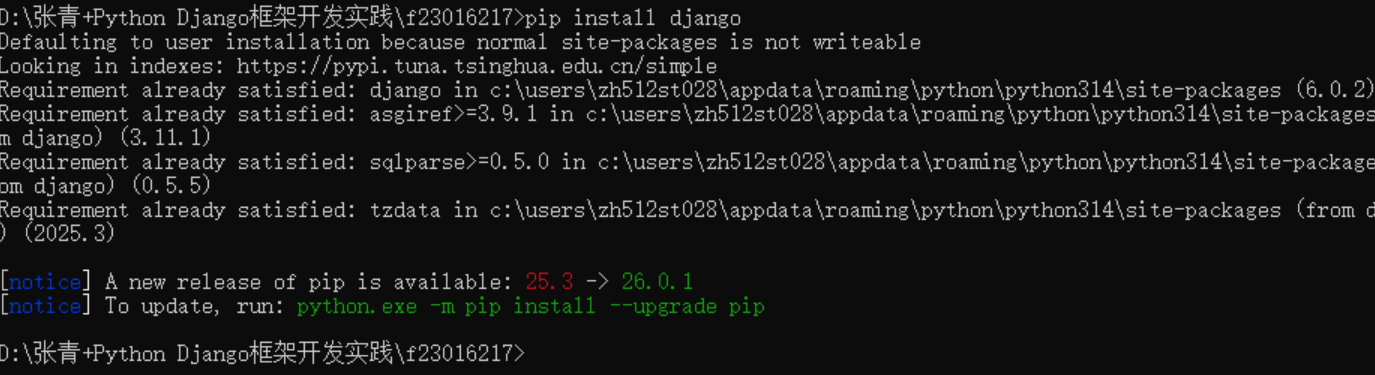
2. 验证版本
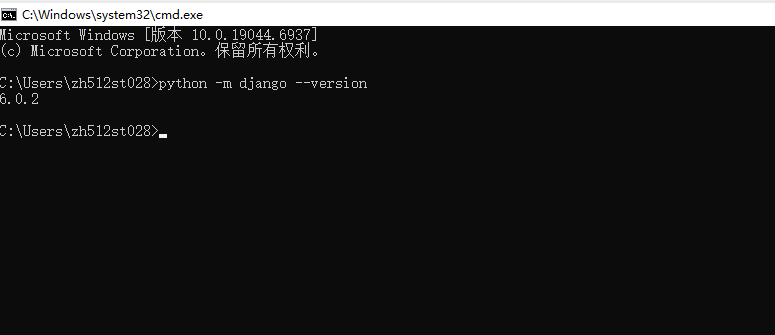
Django 已被安装,且安装的是哪个版本,通过在命令提示行输入命令(由 $ 前缀)。
python -m django --version如果这行命令输出了一个版本号,证明已经安装了此版本的 Django;如果得到的是一个“No module named django”的错误提示,则表明未安装。
二、创建项目
1. 初始化设置
如果第一次使用 Django,需要一些初始化设置(即一个 Django 项目实例需要的设置项集合,包括数据库配置、Django 配置和应用程序配置)
django-admin startproject mysite djangotutorial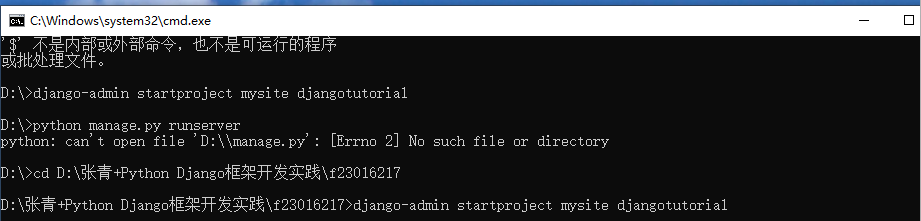
2. 创建名目
让我们看看 startproject 创建了些什么:
djangotutorial/
    manage.py
    mysite/
        __init__.py
        settings.py
        urls.py
        asgi.py
        wsgi.py
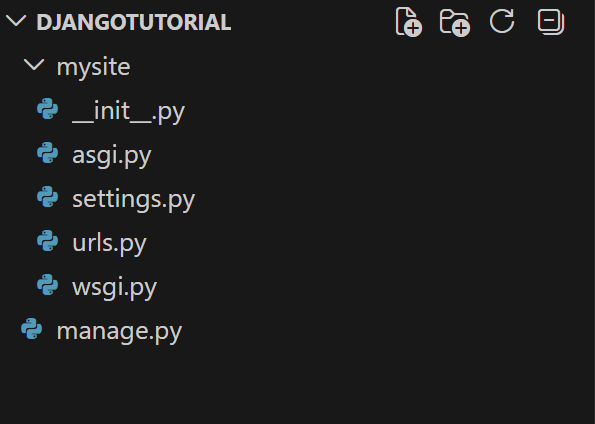
这些目录和文件的用处是:
-
manage.py: 一个让你用各种方式管理 Django 项目的命令行工具。你可以阅读 django-admin 和 manage.py 获取所有manage.py的细节。 -
mysite/: 一个目录,它是你项目的实际 Python 包。它的名称是你需要用来导入其中任何内容的 Python 包名称(例如mysite.urls)。 -
mysite/__init__.py:一个空文件,告诉 Python 这个目录应该被认为是一个 Python 包。如果你是 Python 初学者,阅读官方文档中的 更多关于包的知识。 -
mysite/settings.py: Settings/configuration for this Django project. Django 配置 will tell you all about how settings work. -
mysite/urls.py:Django 项目的 URL 声明,就像你网站的“目录”。阅读 URL调度器 文档来获取更多关于 URL 的内容。 -
mysite/asgi.py:作为你的项目的运行在 ASGI 兼容的 Web 服务器上的入口。阅读 如何使用 ASGI 来部署 了解更多细节。 -
mysite/wsgi.py:作为你的项目的运行在 WSGI 兼容的Web服务器上的入口。阅读 如何使用 WSGI 进行部署 了解更多细节。
三、用于开发的简易服务器
1. 验证 Django 项目是否正常工作
如果还没有进入 djangotutorial 目录,请先进入该目录,然后运行以下命令:
cd djangotutorial
python manage.py runserver
会看到如下输出:
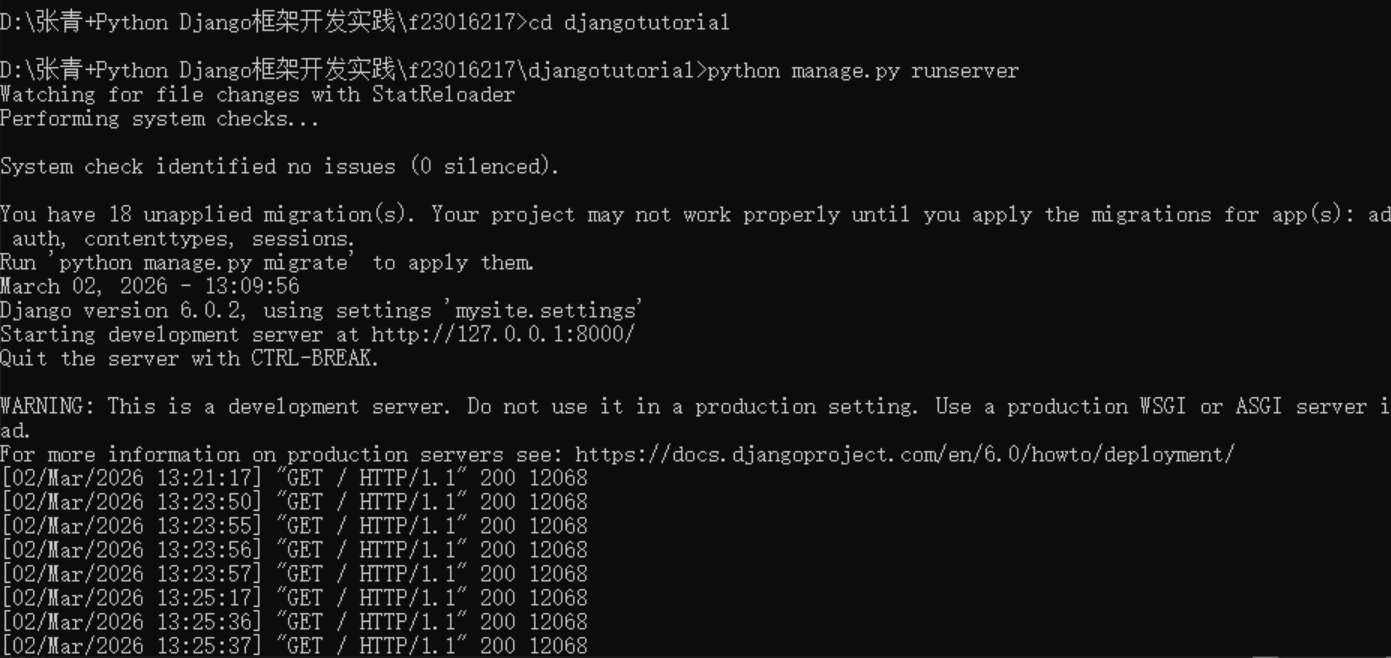
服务器现在正在运行。
2. 浏览器访问
通过浏览器访问 http://127.0.0.1:8000/ 。将看到一个“祝贺”页面,有一只火箭正在发射。
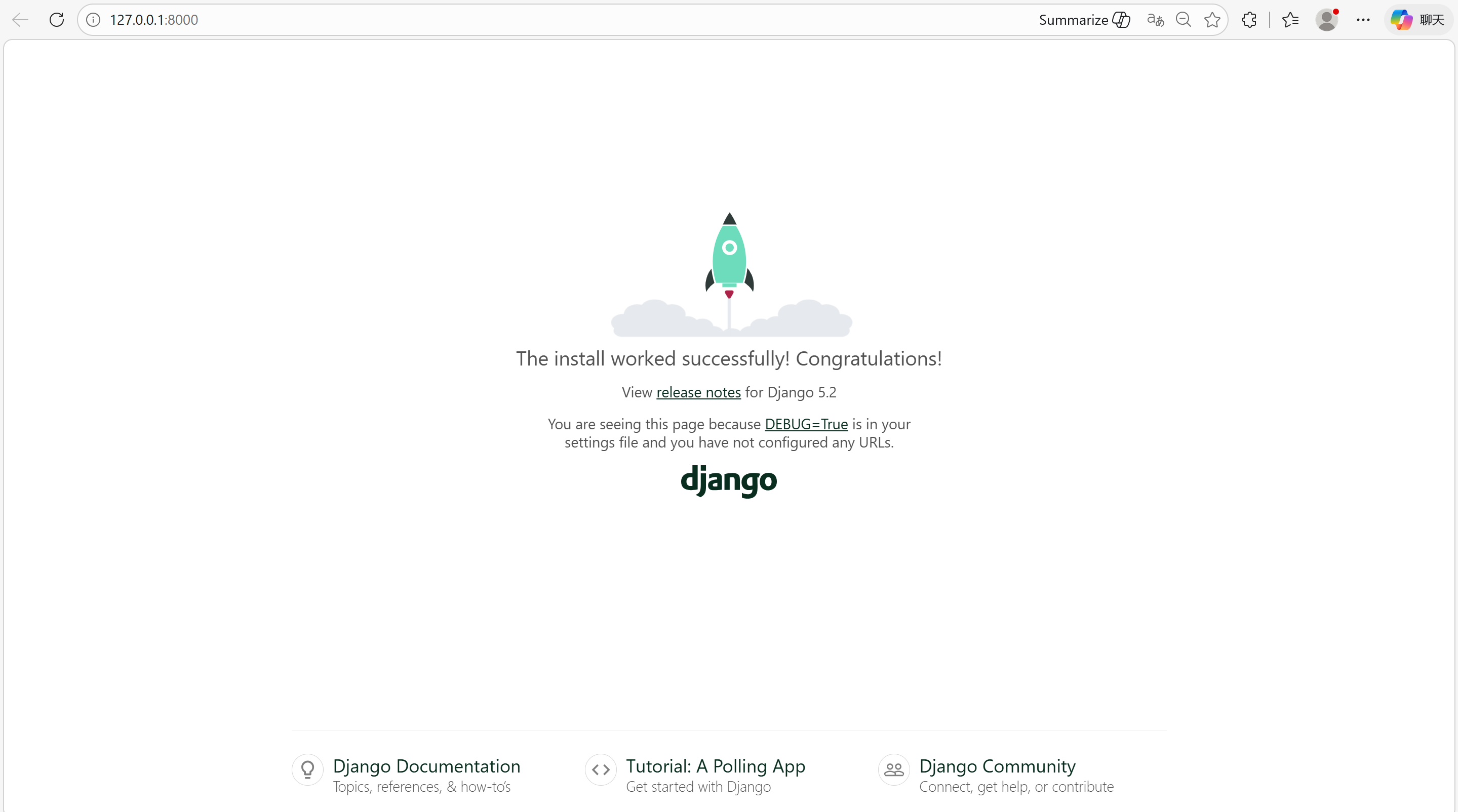
已经启动了 Django 开发服务器,这是一个用纯 Python 编写的轻量级网络服务器。在 Django 中包含了这个服务器,所以可以快速开发,而不需要处理配置生产服务器的问题。
四、创建投票应用
1. 创建应用
开发环境已经配置好了,可以开始创建。
在 Django 中,每一个应用都是一个 Python 包,并且遵循着相同的约定。Django 自带一个工具,可以帮助生成应用的基础目录结构。
确定现在处于 manage.py 所在的目录下,然后运行这行命令来创建一个应用:
python manage.py startapp polls这将创建一个名为 polls 的目录,其布局如下:
polls/
    __init__.py
    admin.py
    apps.py
    migrations/
        __init__.py
    models.py
    tests.py
    views.py
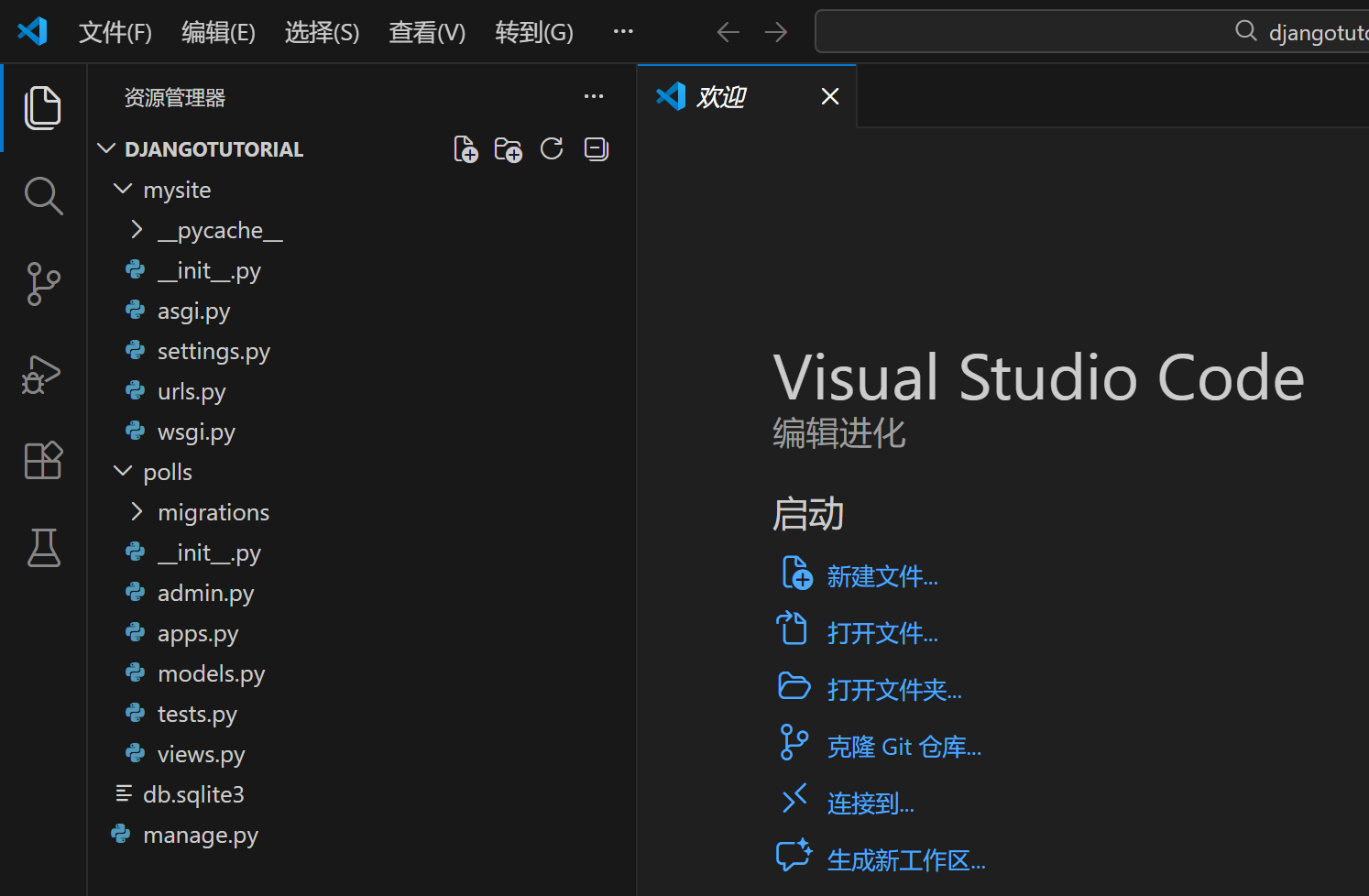
这个目录结构包括了投票应用的全部内容。
2. 快速打开项目
用 VS Code 直接打开当前所在的 Django 项目文件夹:
$ code .code:系统识别的 VS Code 可执行程序指令(前提是安装 VS Code 时勾选了「添加到 PATH」,否则无法直接用)。.:代表当前目录(终端里的djangotutorial文件夹)。
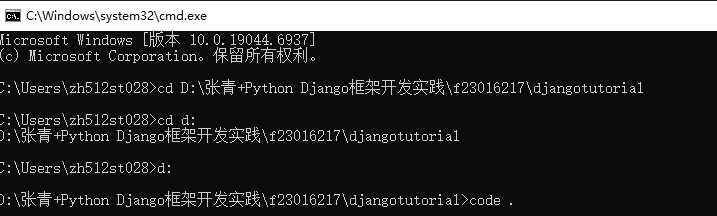
执行后得到以下界面:
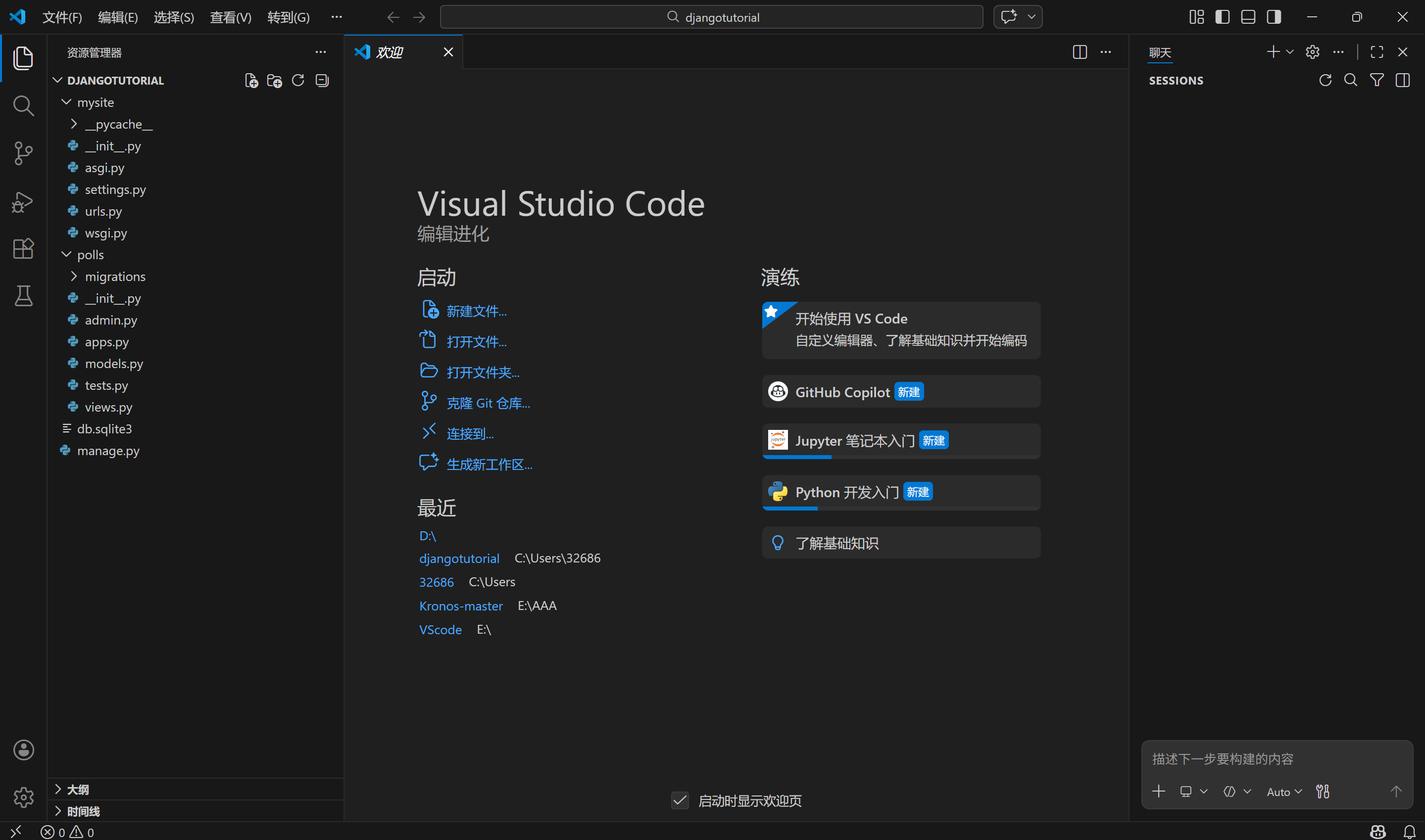
结合之前的 Admin 模型不显示问题,这个命令的核心价值是:
- 快速打开整个项目:不用手动打开 VS Code 再「导入文件夹」,直接通过终端定位到项目根目录(
djangotutorial),执行code .就能一键加载整个项目的所有文件(settings.py、admin.py、models.py等)。 - 方便编辑代码:打开后你可以直接在 VS Code 里修改
polls/admin.py、models.py等文件,解决之前模型注册后不显示的问题。 - 统一项目上下文:VS Code 会识别当前文件夹为工作区,方便使用终端、插件(如 Python 语法检查)等功能,避免打开单个文件时路径识别错误。
五、编写视图
1. 编写第一个视图
打开 polls/views.py,把下面这些 Python 代码输入进去:
polls/views.py:
from django.http import HttpResponse

def index(request):
    return HttpResponse("Hello, world. You're at the polls index.")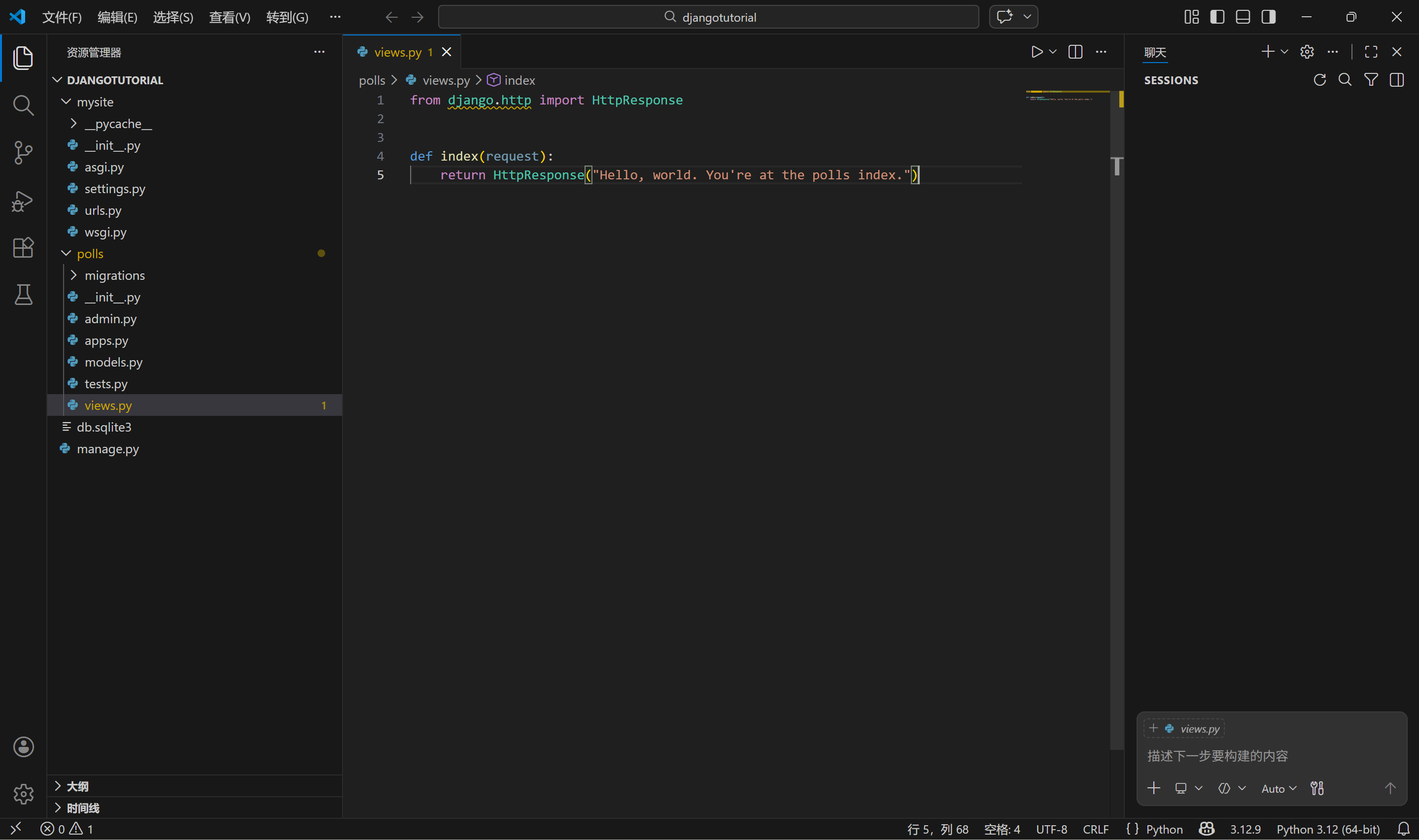
这是在 Django 中最基本的视图。要在浏览器中访问它,需要将其映射到一个 URL,故需要定义一个 URL 配置,简称为 "URLconf"。这些 URL 配置是在每个 Django 应用程序内部定义的,它们是名为 urls.py 的 Python 文件。
2. 定义 URLconf
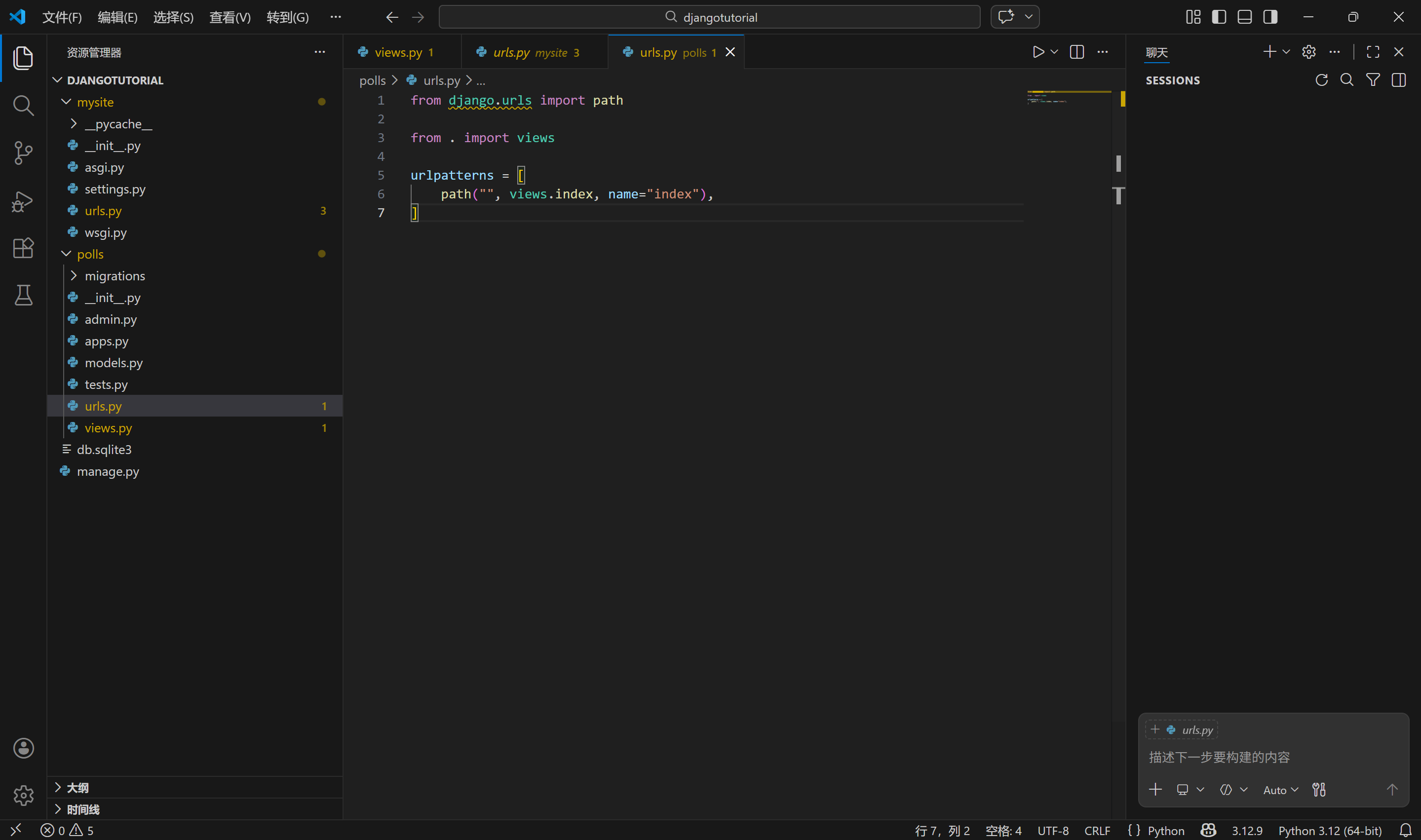
创建一个名为 polls/urls.py 的文件,并包含以下内容:
polls/urls.py:
from django.urls import path

from . import views

urlpatterns = [
    path("", views.index, name="index"),
]
应用目录现在应该如下所示:
polls/
    __init__.py
    admin.py
    apps.py
    migrations/
        __init__.py
    models.py
    tests.py
    urls.py
    views.py
3. 配置 URLconf
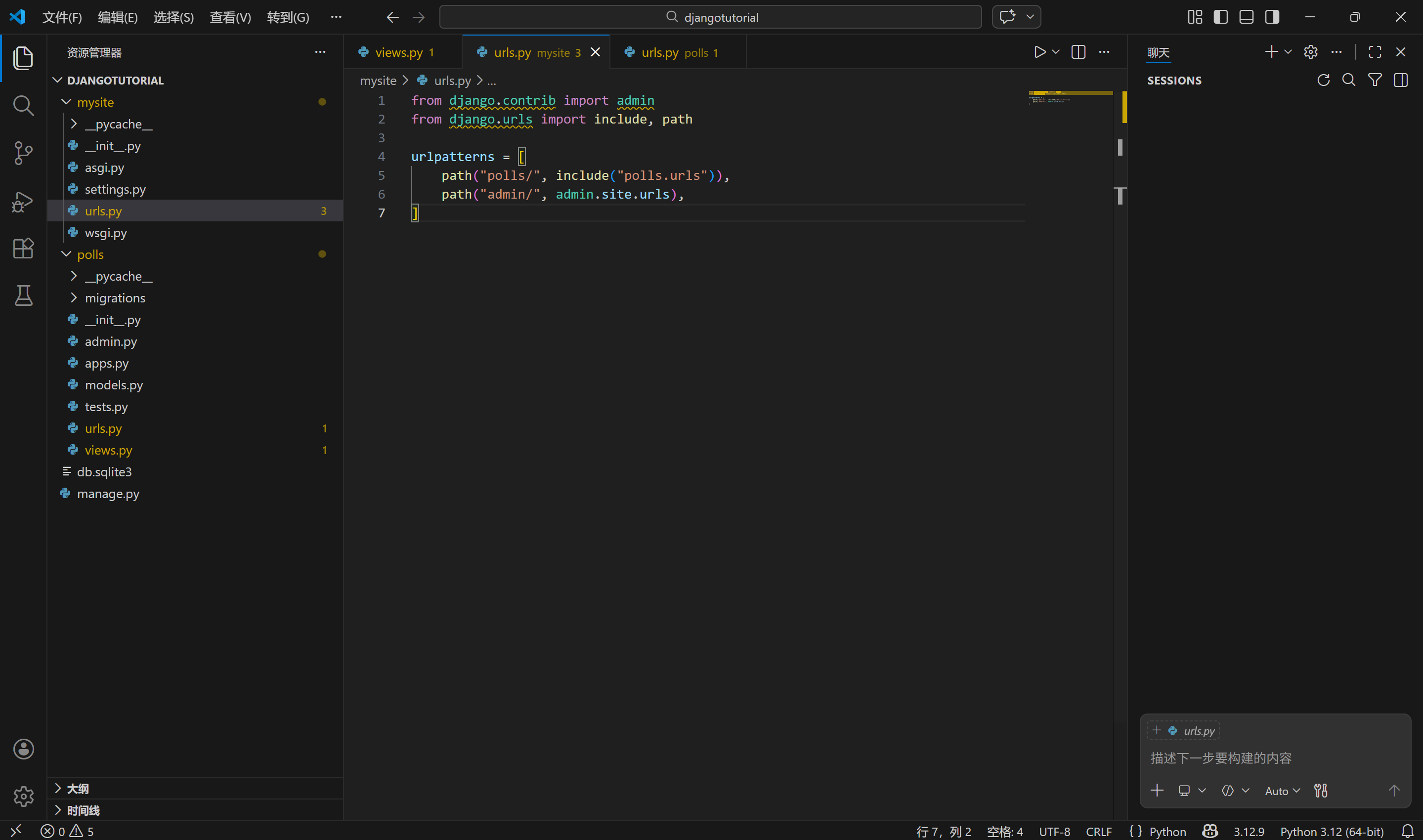
将 mysite 项目中的根 URLconf 配置为包含 polls.urls 中定义的 URLconf。为此,需要在 mysite/urls.py 中导入 django.urls.include,并在 urlpatterns 列表中插入一个 include() 调用,最终代码如下:
mysite/urls.py:
from django.contrib import admin
from django.urls import include, path

urlpatterns = [
    path("polls/", include("polls.urls")),
    path("admin/", admin.site.urls),
]
path() 函数至少需要两个参数:route 和 view。include() 函数允许引用其他 URLconfs。每当 Django 遇到 include() 时,它会截断 URL 中匹配到该点的部分,并将剩余的字符串发送到包含的 URLconf 以进行进一步处理。
设计 include() 的理念是使其可以即插即用。因为投票应用有它自己的URLconf( polls/urls.py ),他们能够被放在 "/polls/" , "/fun_polls/" ,"/content/polls/",或者其他任何路径下,这个应用都能够正常工作。当包含其他 URL 模式时,应该始终使用 include()。
唯一的例外是 admin.site.urls,这是 Django 为默认管理站点提供的预构建 URLconf。
现在把 index 视图添加进了 URLconf。通过以下命令验证是否正常工作:
python manage.py runserver4. 浏览器访问
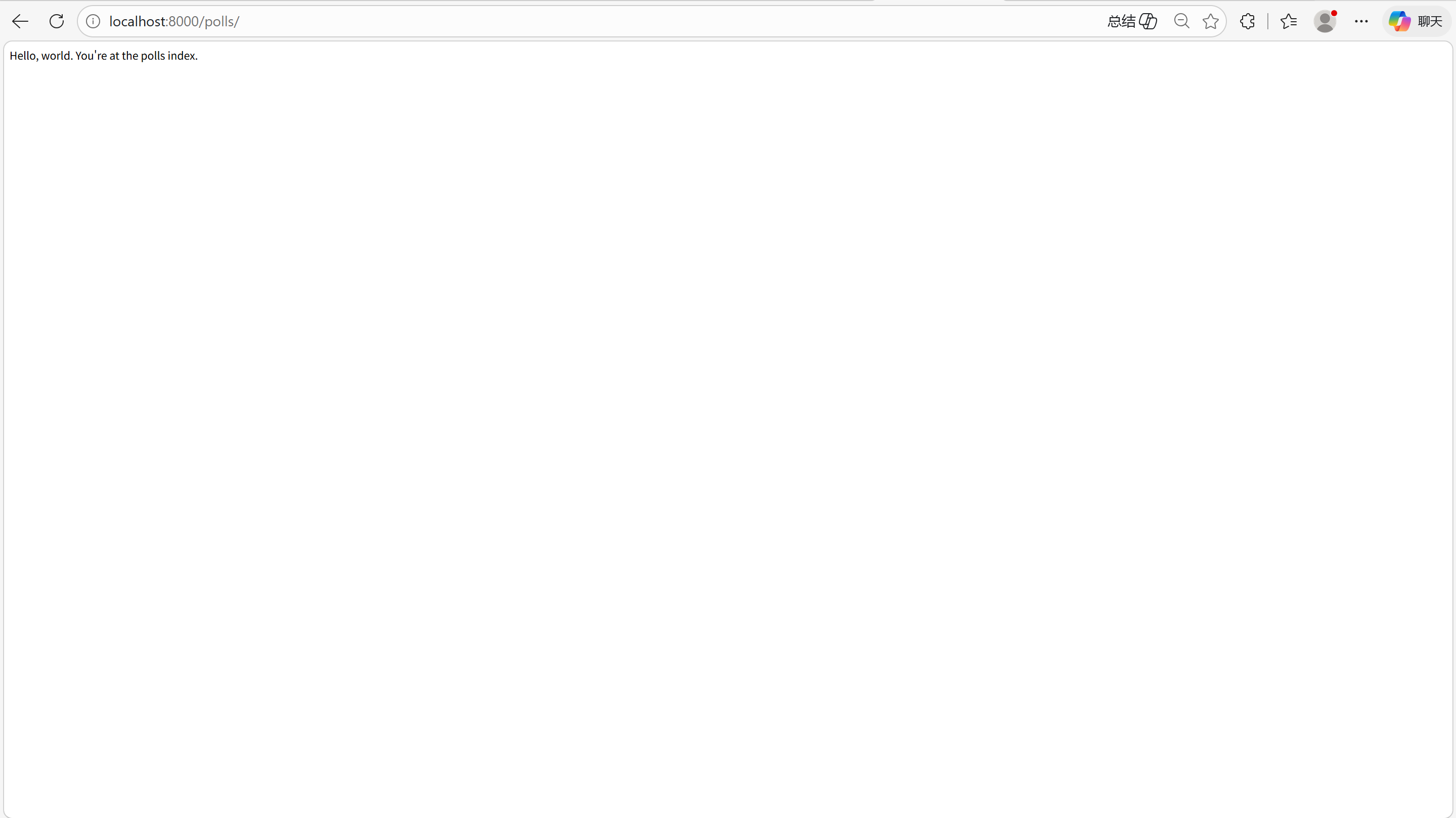
浏览器访问 http://localhost:8000/polls/,你应该能够看见 "Hello, world. You're at the polls index." ,这是你在 index 视图中定义的。
六、数据库配置
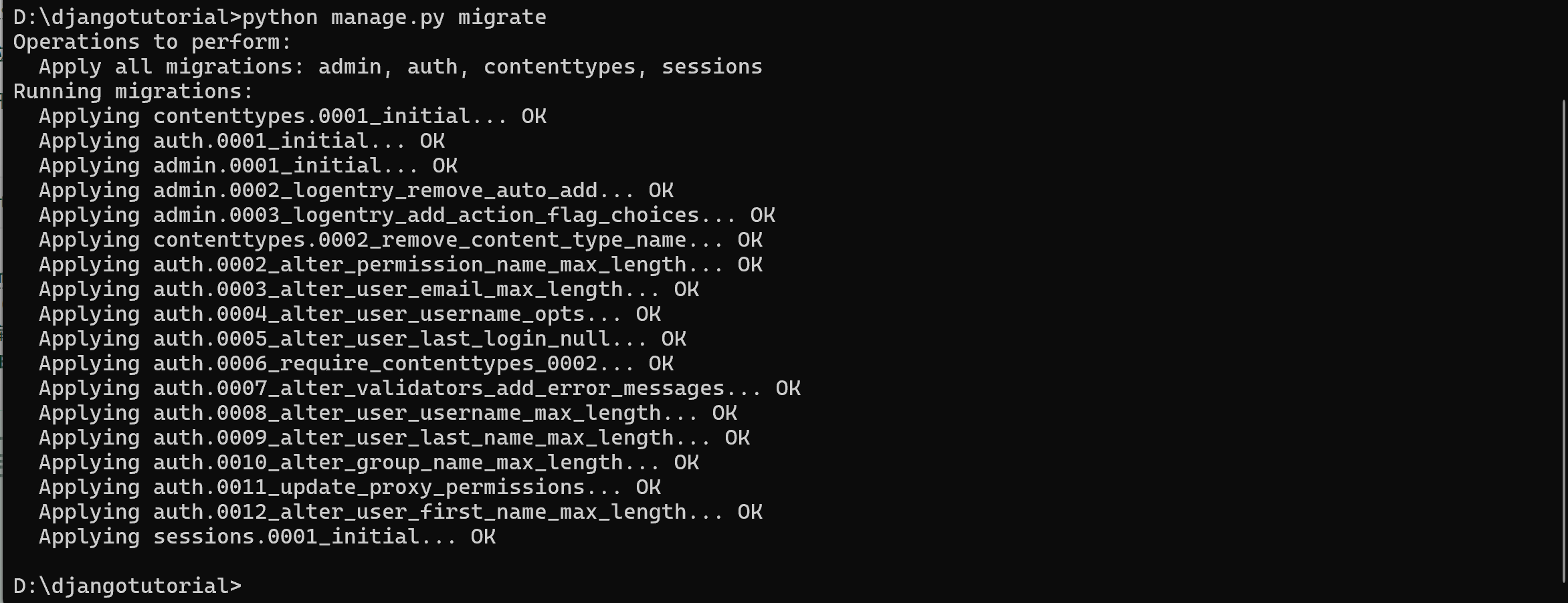
默认开启的某些应用需要至少一个数据表,所以,在使用他们之前需要在数据库中创建一些表。请执行以下命令:
$ python manage.py migrate这个 migrate 命令查看 INSTALLED_APPS 配置,并根据 mysite/settings.py 文件中的数据库配置和随应用提供的数据库迁移文件,创建任何必要的数据库表。
七、创建模型
1. 定义模型
在 Django 里写一个数据库驱动的 Web 应用的第一步需要定义模型(数据库结构设计和附加的其它元数据)
在这个投票应用中,需要创建两个模型:问题 Question 和选项 Choice。Question 模型包括问题描述和发布时间。Choice 模型有两个字段,选项描述和当前得票数。每个选项属于一个问题。
这些概念可以通过一个 Python 类来描述。
2. 编辑文件
按照下面的例子来编辑 polls/models.py 文件:
polls/models.py:
from django.db import models


class Question(models.Model):
    question_text = models.CharField(max_length=200)
    pub_date = models.DateTimeField("date published")


class Choice(models.Model):
    question = models.ForeignKey(Question, on_delete=models.CASCADE)
    choice_text = models.CharField(max_length=200)
    votes = models.IntegerField(default=0)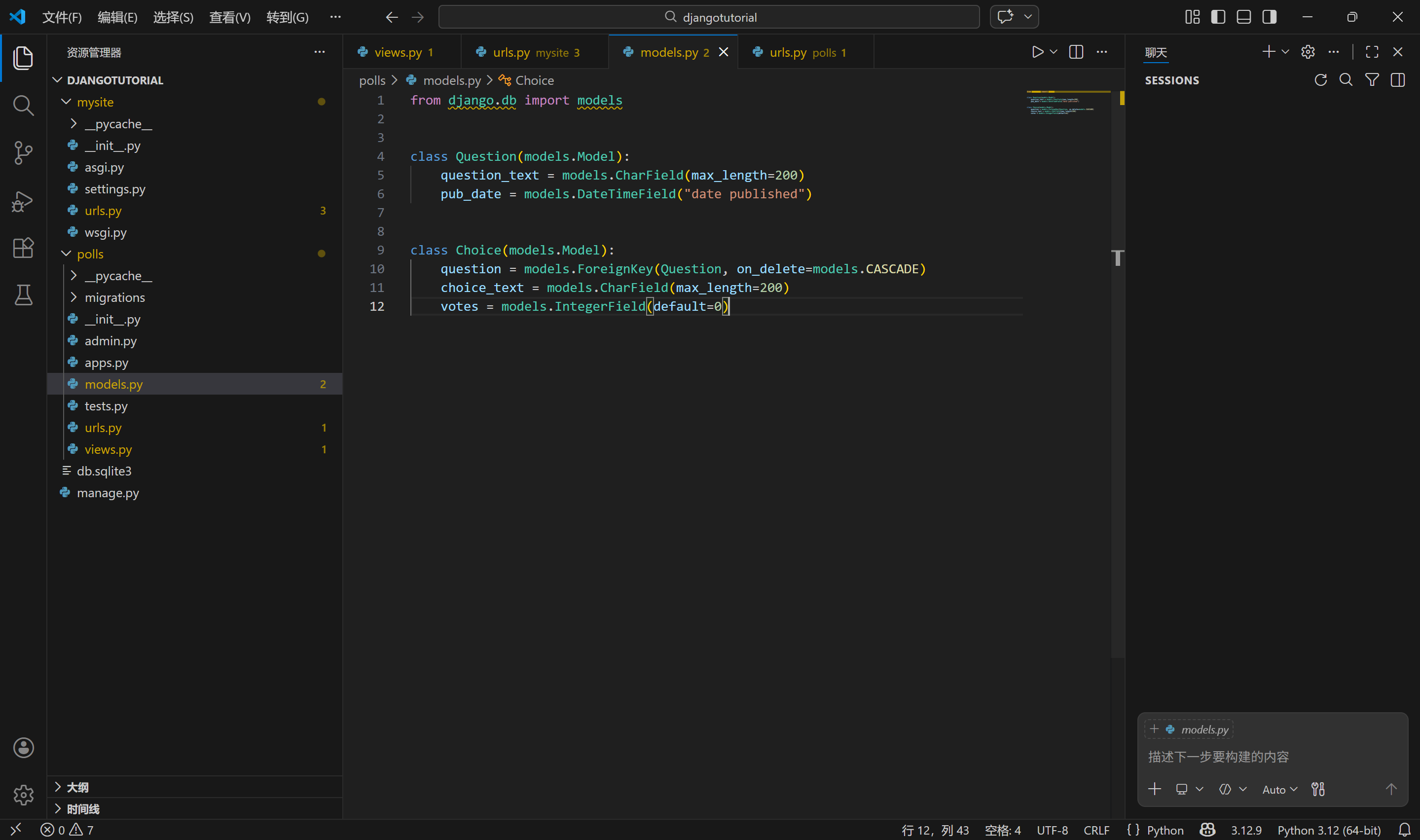
每个模型被表示为 django.db.models.Model 类的子类。每个模型有许多类变量,都表示模型里的一个数据库字段。每个字段都是 Field 类的实例。字符字段被表示为 CharField ,日期时间字段被表示为 DateTimeField 。每个 Field 类实例变量的名字(例如 question_text 或 pub_date )也是字段名,所以最好使用对机器友好的格式。
八、激活模型
创建模型的代码给了 Django 很多信息,通过这些信息,Django 可以:
-
为这个应用创建数据库 schema(生成
CREATE TABLE语句)。 -
创建可以与
Question和Choice对象进行交互的 Python 数据库 API。
1. 安装于项目中
首先得把 polls 应用安装到项目里。
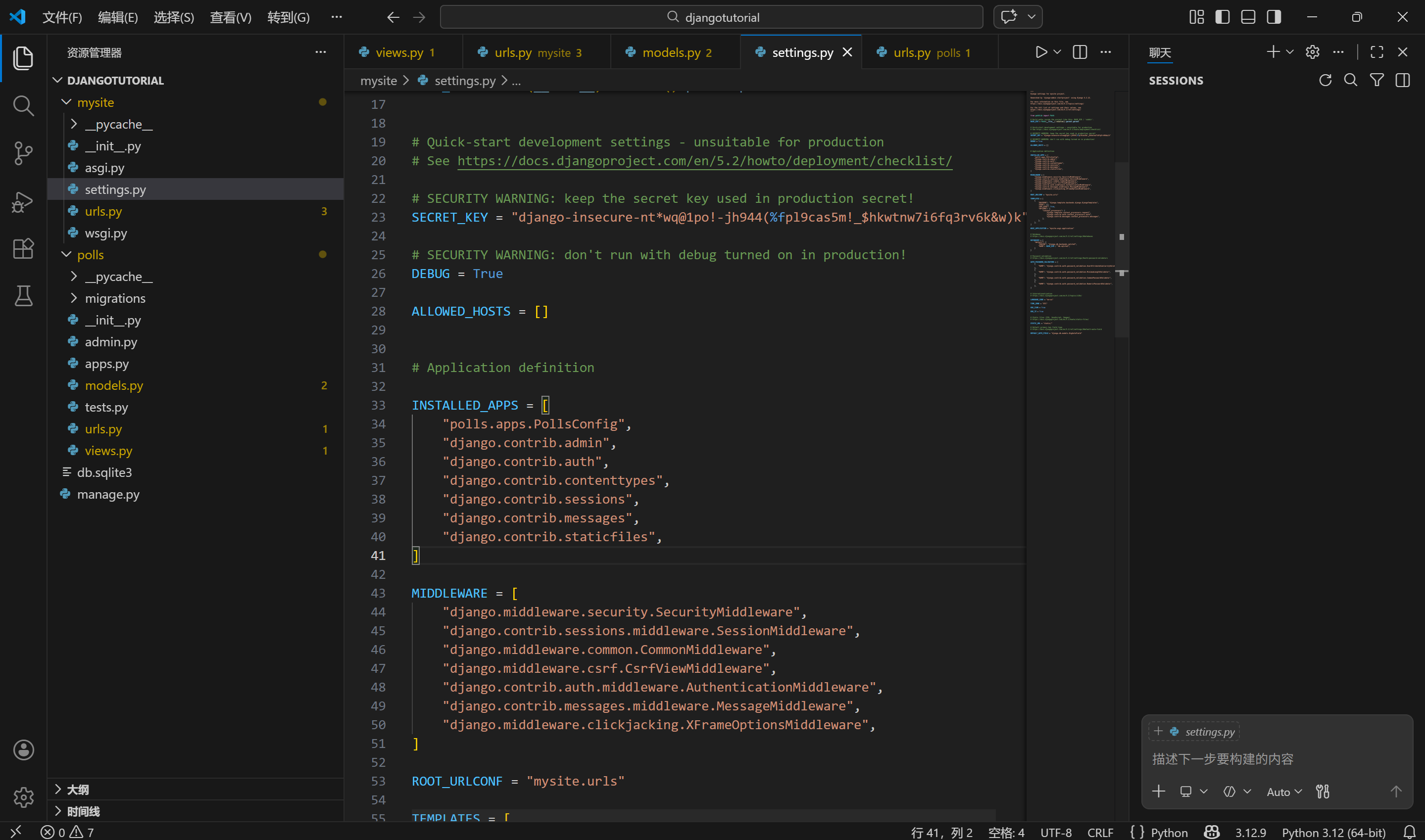
为了在工程中包含这个应用,需要在配置类 INSTALLED_APPS 中添加设置。因为 PollsConfig 类写在文件 polls/apps.py 中,所以它的点式路径是 'polls.apps.PollsConfig'。在文件 mysite/settings.py 中 INSTALLED_APPS 子项添加点式路径。
mysite/settings.py:
INSTALLED_APPS = [
    "polls.apps.PollsConfig",
    "django.contrib.admin",
    "django.contrib.auth",
    "django.contrib.contenttypes",
    "django.contrib.sessions",
    "django.contrib.messages",
    "django.contrib.staticfiles",
]
现在 Django 项目会包含 polls 应用。
2. 检测模型文件修改并存储迁移
接着运行下面的命令:
python manage.py makemigrations polls得到以下输出:
Migrations for 'polls':
  polls/migrations/0001_initial.py
    + Create model Question
    + Create model Choice
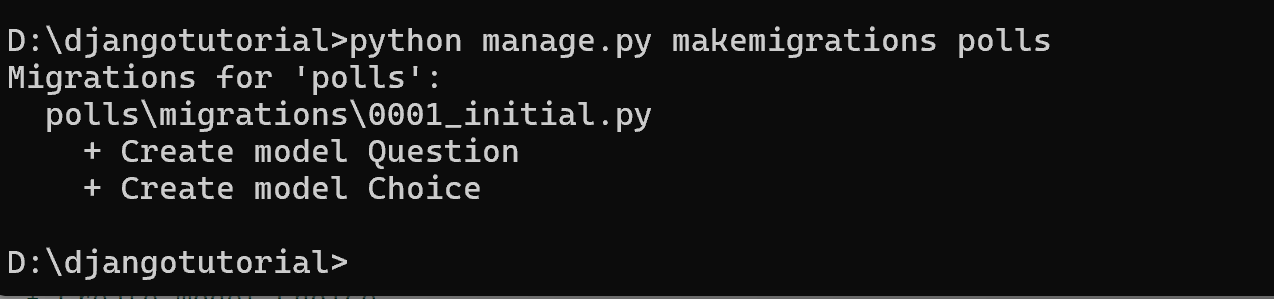
通过运行 makemigrations 命令,Django 会检测对模型文件的修改(在这种情况下,已经取得了新的),并且把修改的部分储存为一次迁移。
3. 自动执行数据库迁移并同步管理
Django 有一个自动执行数据库迁移并同步管理的数据库结构的命令,这个命令是 migrate。首先了解迁移命令会执行哪些 SQL 语句。sqlmigrate 命令接收一个迁移的名称,然后返回对应的 SQL:
python manage.py sqlmigrate polls 0001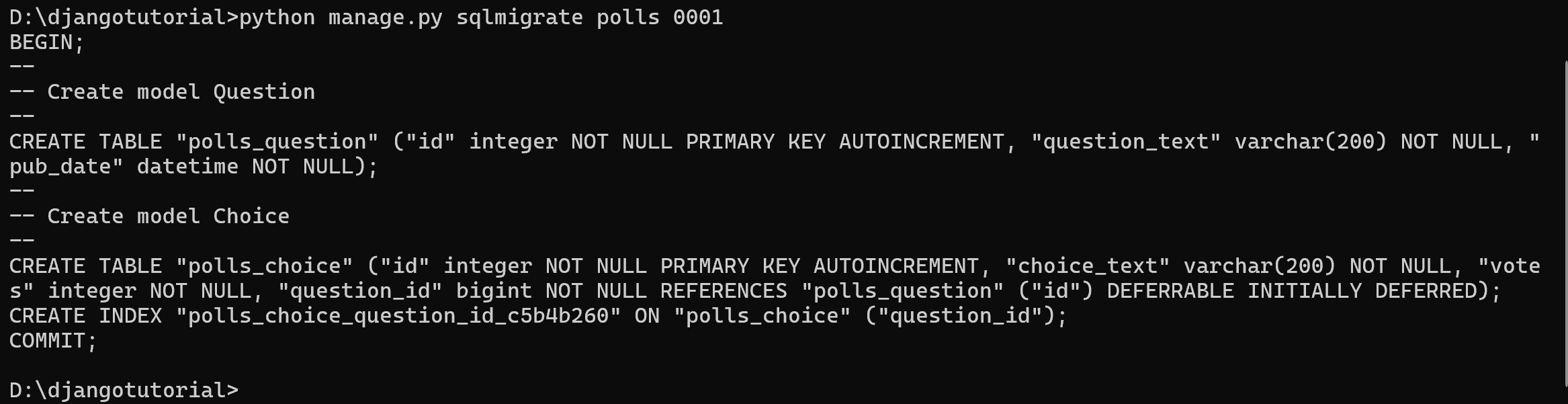
得到以下输出:
BEGIN;
--
-- Create model Question
--
CREATE TABLE "polls_question" (
    "id" bigint NOT NULL PRIMARY KEY GENERATED BY DEFAULT AS IDENTITY,
    "question_text" varchar(200) NOT NULL,
    "pub_date" timestamp with time zone NOT NULL
);
--
-- Create model Choice
--
CREATE TABLE "polls_choice" (
    "id" bigint NOT NULL PRIMARY KEY GENERATED BY DEFAULT AS IDENTITY,
    "choice_text" varchar(200) NOT NULL,
    "votes" integer NOT NULL,
    "question_id" bigint NOT NULL
);
ALTER TABLE "polls_choice"
  ADD CONSTRAINT "polls_choice_question_id_c5b4b260_fk_polls_question_id"
    FOREIGN KEY ("question_id")
    REFERENCES "polls_question" ("id")
    DEFERRABLE INITIALLY DEFERRED;
CREATE INDEX "polls_choice_question_id_c5b4b260" ON "polls_choice" ("question_id");

COMMIT;
4. 创建新定义的模型的数据表
现在再次运行 migrate 命令,在数据库里创建新定义的模型的数据表:
python manage.py migrateOperations to perform: Apply all migrations: admin, auth, contenttypes, polls, sessions Running migrations: Applying polls.0001_initial... OK
这个 migrate 命令选中所有还没有执行过的迁移(Django 通过在数据库中创建一个特殊的表 django_migrations 来跟踪执行过哪些迁移)并应用在数据库上(对模型的更改同步到数据库结构上)
注意:
改变模型三步:
-
编辑
models.py文件,改变模型。 -
运行 python manage.py makemigrations 为模型的改变生成迁移文件。
-
运行 python manage.py migrate 来应用数据库迁移。
数据库迁移被分解成生成和应用两个命令是为了让你能够在代码控制系统上提交迁移数据并使其能在多个应用里使用;这不仅仅会让开发更加简单,也给别的开发者和生产环境中的使用带来方便。
九、初试 API
进入交互式 Python 命令行,尝试 Django 创建的各种 API。
通过以下命令打开 Python 命令行:
python manage.py shell
使用这种方式而不是直接输入"python"。
manage.py 会设置 DJANGO_SETTINGS_MODULE 环境变量,该变量为 Django 提供了指向 mysite/settings.py 文件的 Python 导入路径。默认情况下,shell 命令会自动从 INSTALLED_APPS 中导入模型。
进入了 shell,就可以探索 数据库 API:
# No questions are in the system yet.
>>> Question.objects.all()
<QuerySet []>

# Create a new Question.
# Support for time zones is enabled in the default settings file, so
# Django expects a datetime with tzinfo for pub_date. Use timezone.now()
# instead of datetime.datetime.now() and it will do the right thing.
>>> from django.utils import timezone
>>> q = Question(question_text="What's new?", pub_date=timezone.now())

# Save the object into the database. You have to call save() explicitly.
>>> q.save()

# Now it has an ID.
>>> q.id
1

# Access model field values via Python attributes.
>>> q.question_text
"What's new?"
>>> q.pub_date
datetime.datetime(2012, 2, 26, 13, 0, 0, 775217, tzinfo=datetime.UTC)

# Change values by changing the attributes, then calling save().
>>> q.question_text = "What's up?"
>>> q.save()

# objects.all() displays all the questions in the database.
>>> Question.objects.all()
<QuerySet [<Question: Question object (1)>]>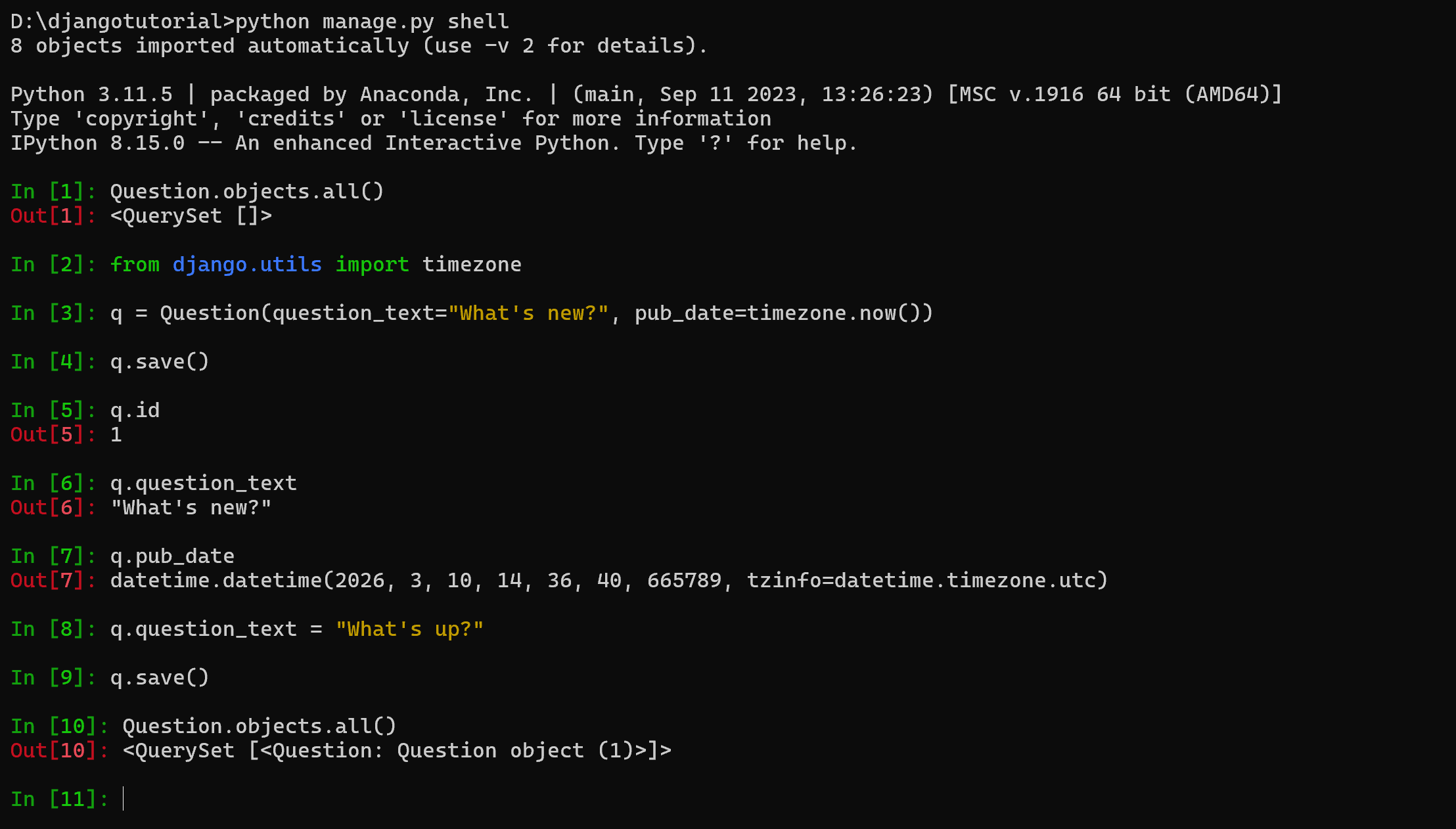
给 Question 和 Choice 增加 __str__() 方法。
polls/models.py:
from django.db import models


class Question(models.Model):
    # ...
    def __str__(self):
        return self.question_text


class Choice(models.Model):
    # ...
    def __str__(self):
        return self.choice_text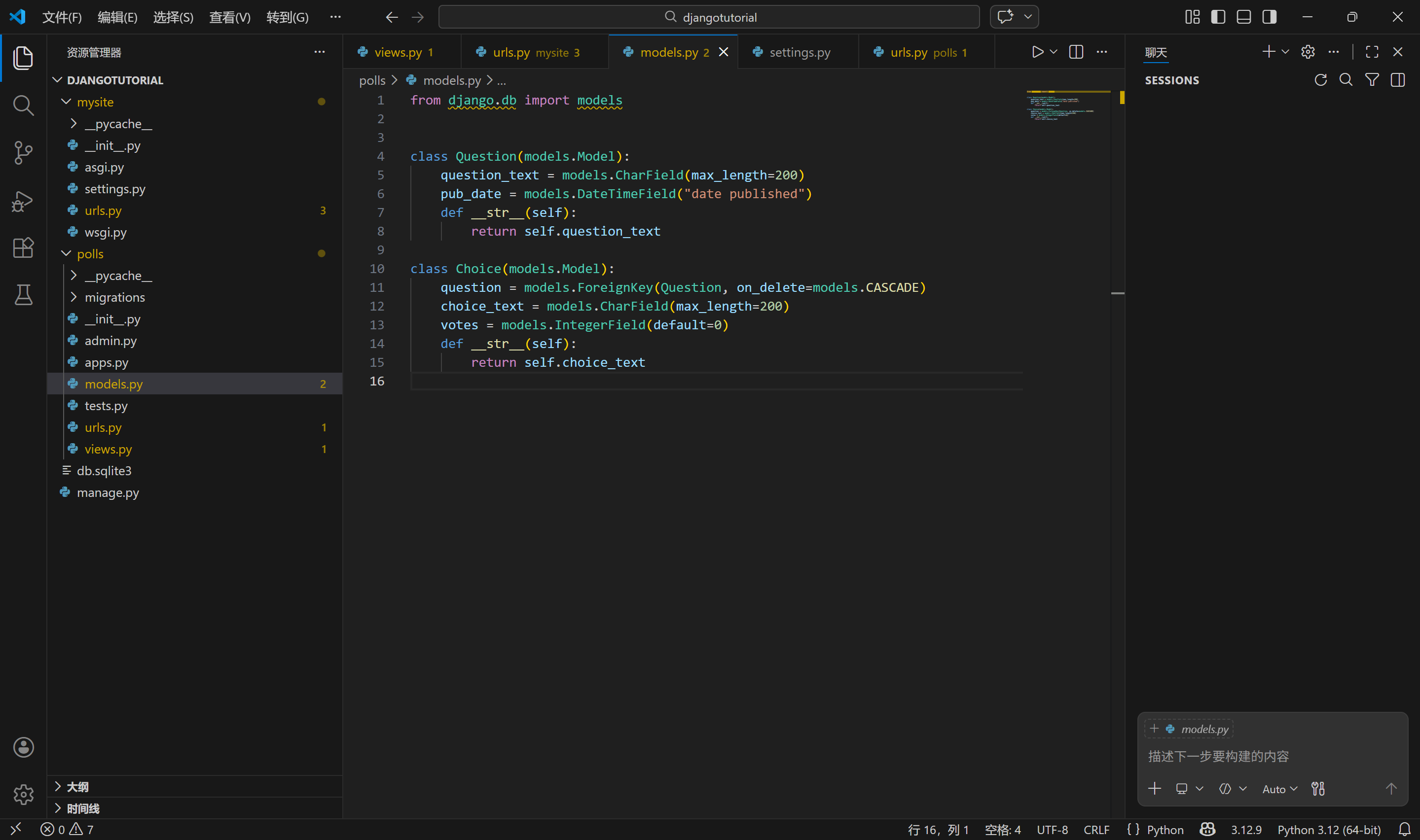
给模型增加 __str__() 方法是很重要(不仅仅能在命令行里使用方便,并且 Django 自动生成的 admin 里也使用这个方法来表示对象)
再为此模型添加一个自定义方法:
polls/models.py:
import datetime

from django.db import models
from django.utils import timezone


class Question(models.Model):
    # ...
    def was_published_recently(self):
        return self.pub_date >= timezone.now() - datetime.timedelta(days=1)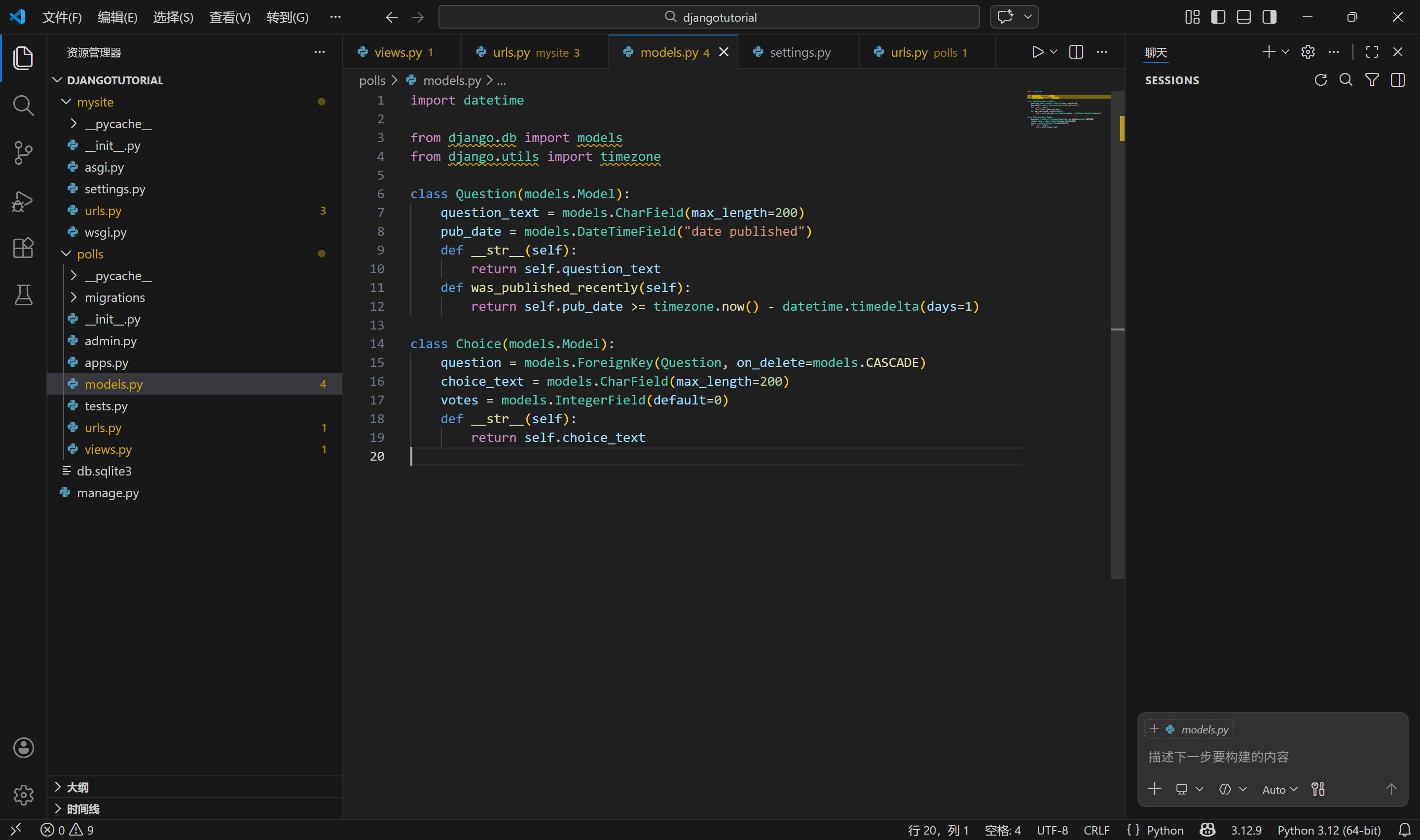
新加入的 import datetime 和 from django.utils import timezone 分别导入了 Python 的标准 datetime 模块和 Django 中和时区相关的 django.utils.timezone 工具模块。
保存这些更改后,请启动一个新的 Python 交互式 Shell。(如果三个大于号提示符 (>>>) 表明仍在 Shell 中,需要先使用 exit() 退出)。再次运行以重新加载模型。
python manage.py shell 
# Make sure our __str__() addition worked.
>>> Question.objects.all()
<QuerySet [<Question: What's up?>]>

# Django provides a rich database lookup API that's entirely driven by
# keyword arguments.
>>> Question.objects.filter(id=1)
<QuerySet [<Question: What's up?>]>
>>> Question.objects.filter(question_text__startswith="What")
<QuerySet [<Question: What's up?>]>

# Get the question that was published this year.
>>> from django.utils import timezone
>>> current_year = timezone.now().year
>>> Question.objects.get(pub_date__year=current_year)
<Question: What's up?>

# Request an ID that doesn't exist, this will raise an exception.
>>> Question.objects.get(id=2)
Traceback (most recent call last):
    ...
DoesNotExist: Question matching query does not exist.

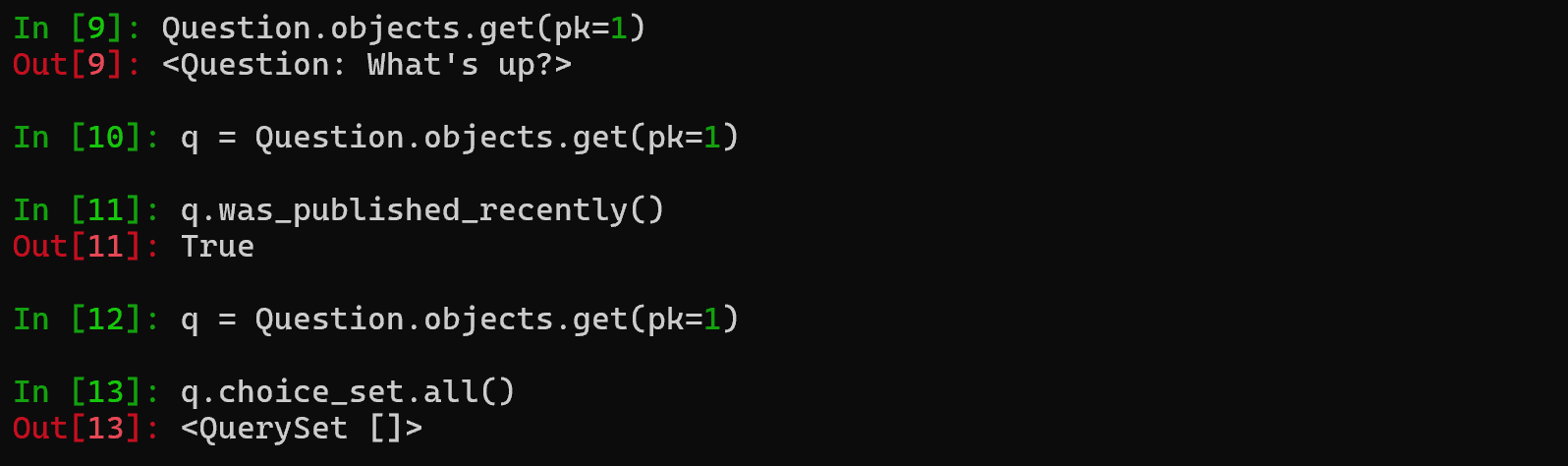
# Lookup by a primary key is the most common case, so Django provides a
# shortcut for primary-key exact lookups.
# The following is identical to Question.objects.get(id=1).
>>> Question.objects.get(pk=1)
<Question: What's up?>

# Make sure our custom method worked.
>>> q = Question.objects.get(pk=1)
>>> q.was_published_recently()
True

# Give the Question a couple of Choices. The create call constructs a new
# Choice object, does the INSERT statement, adds the choice to the set
# of available choices and returns the new Choice object. Django creates
# a set (defined as "choice_set") to hold the "other side" of a ForeignKey
# relation (e.g. a question's choice) which can be accessed via the API.
>>> q = Question.objects.get(pk=1)

# Display any choices from the related object set -- none so far.
>>> q.choice_set.all()
<QuerySet []>

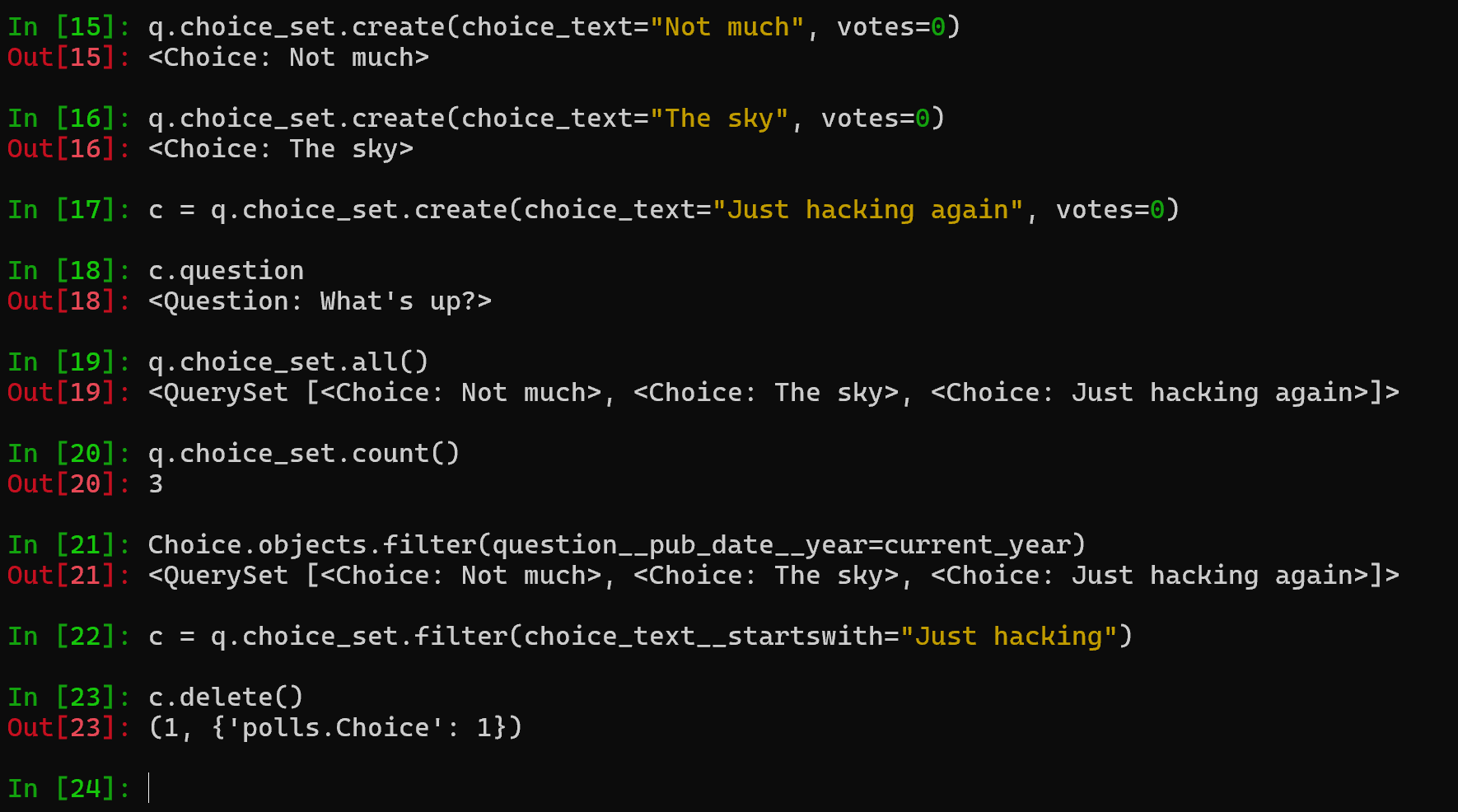
# Create three choices.
>>> q.choice_set.create(choice_text="Not much", votes=0)
<Choice: Not much>
>>> q.choice_set.create(choice_text="The sky", votes=0)
<Choice: The sky>
>>> c = q.choice_set.create(choice_text="Just hacking again", votes=0)

# Choice objects have API access to their related Question objects.
>>> c.question
<Question: What's up?>

# And vice versa: Question objects get access to Choice objects.
>>> q.choice_set.all()
<QuerySet [<Choice: Not much>, <Choice: The sky>, <Choice: Just hacking again>]>
>>> q.choice_set.count()
3

# The API automatically follows relationships as far as you need.
# Use double underscores to separate relationships.
# This works as many levels deep as you want; there's no limit.
# Find all Choices for any question whose pub_date is in this year
# (reusing the 'current_year' variable we created above).
>>> Choice.objects.filter(question__pub_date__year=current_year)
<QuerySet [<Choice: Not much>, <Choice: The sky>, <Choice: Just hacking again>]>

# Let's delete one of the choices. Use delete() for that.
>>> c = q.choice_set.filter(choice_text__startswith="Just hacking")
>>> c.delete()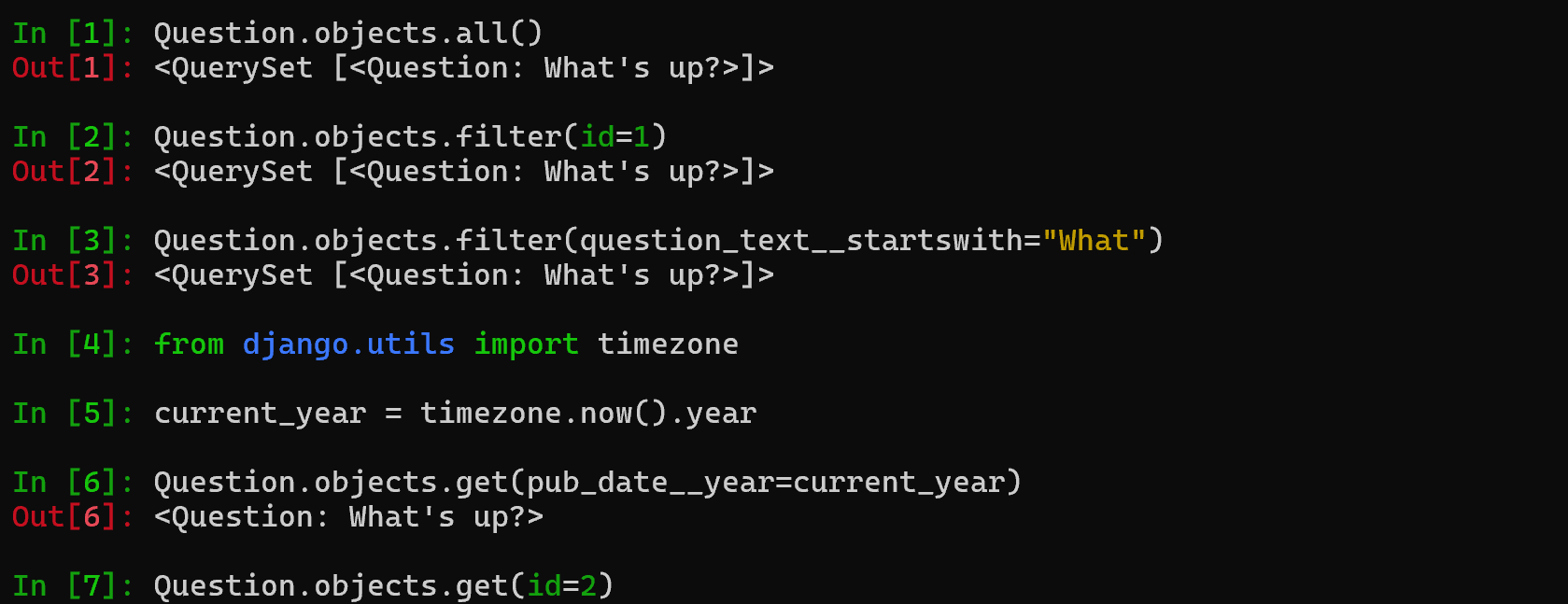
十、Django 管理页面
Django 产生于一个公众页面和内容发布者页面完全分离的新闻类站点的开发过程中。站点管理人员使用管理系统来添加新闻、事件和体育时讯等,这些添加的内容被显示在公众页面上。Django 通过为站点管理人员创建统一的内容编辑界面解决了这个问题。
管理界面不是为了网站的访问者,而是为管理者准备的。
1. 创建一个管理员账号
首先,我们得创建一个能登录管理页面的用户。请运行下面的命令:
$ python manage.py createsuperuser键入想要使用的用户名,然后按下回车键:
Username: admin然后提示你输入想要使用的邮件地址:
Email address: admin@example.com最后一步是输入密码。你会被要求输入两次密码,第二次的目的是为了确认第一次输入的确实是你想要的密码。
Password: **********
Password (again): *********
Superuser created successfully.

2. 启动开发服务器
Django 的管理界面默认就是启用的。让我们启动开发服务器,看看它到底是什么样的。
如果开发服务器未启动,用以下命令启动它:
python manage.py runserver现在,打开浏览器,转到本地域名的 “/admin/” 目录。如 http://127.0.0.1:8000/admin/ ,会看见管理员登录界面:
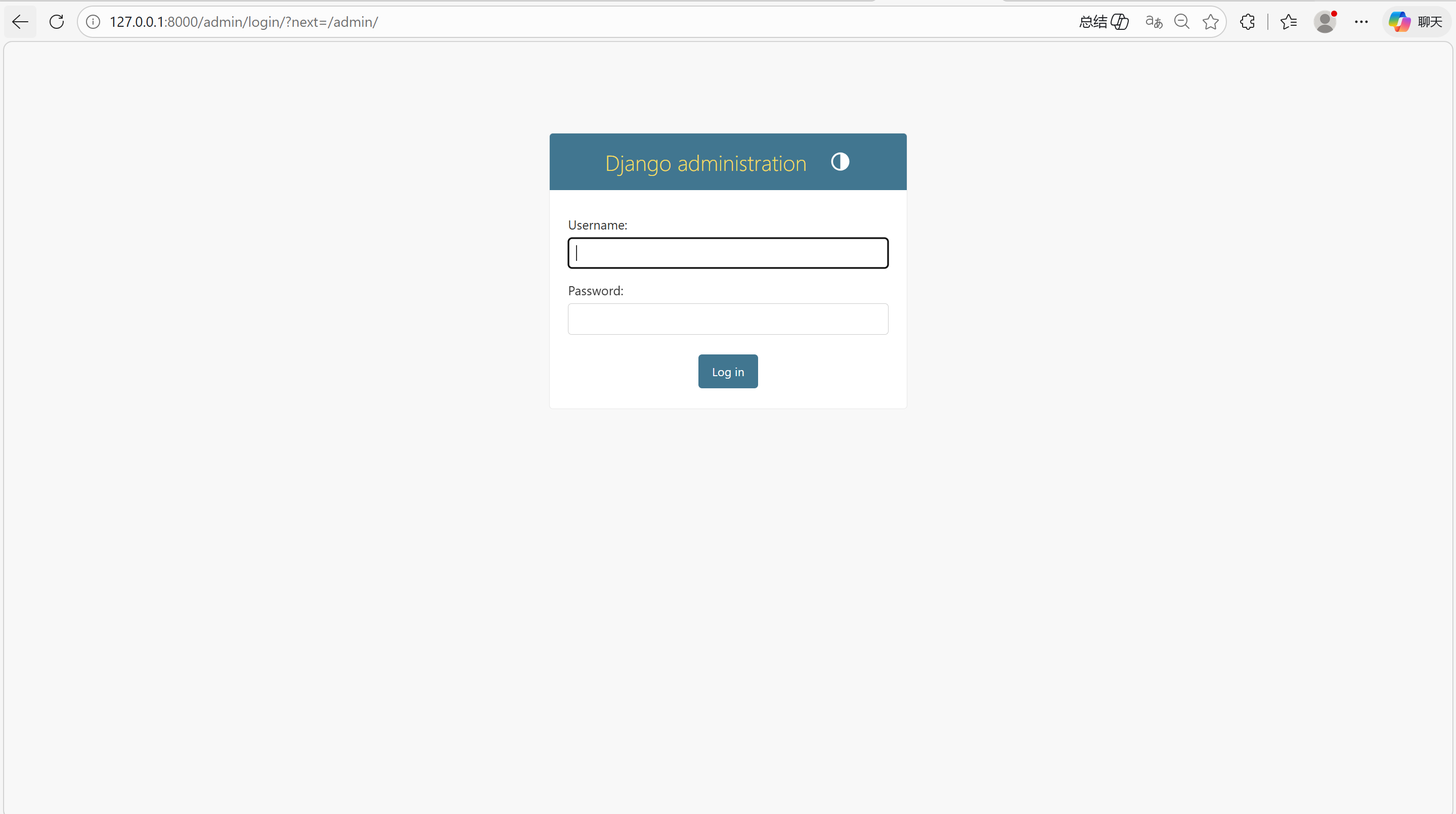
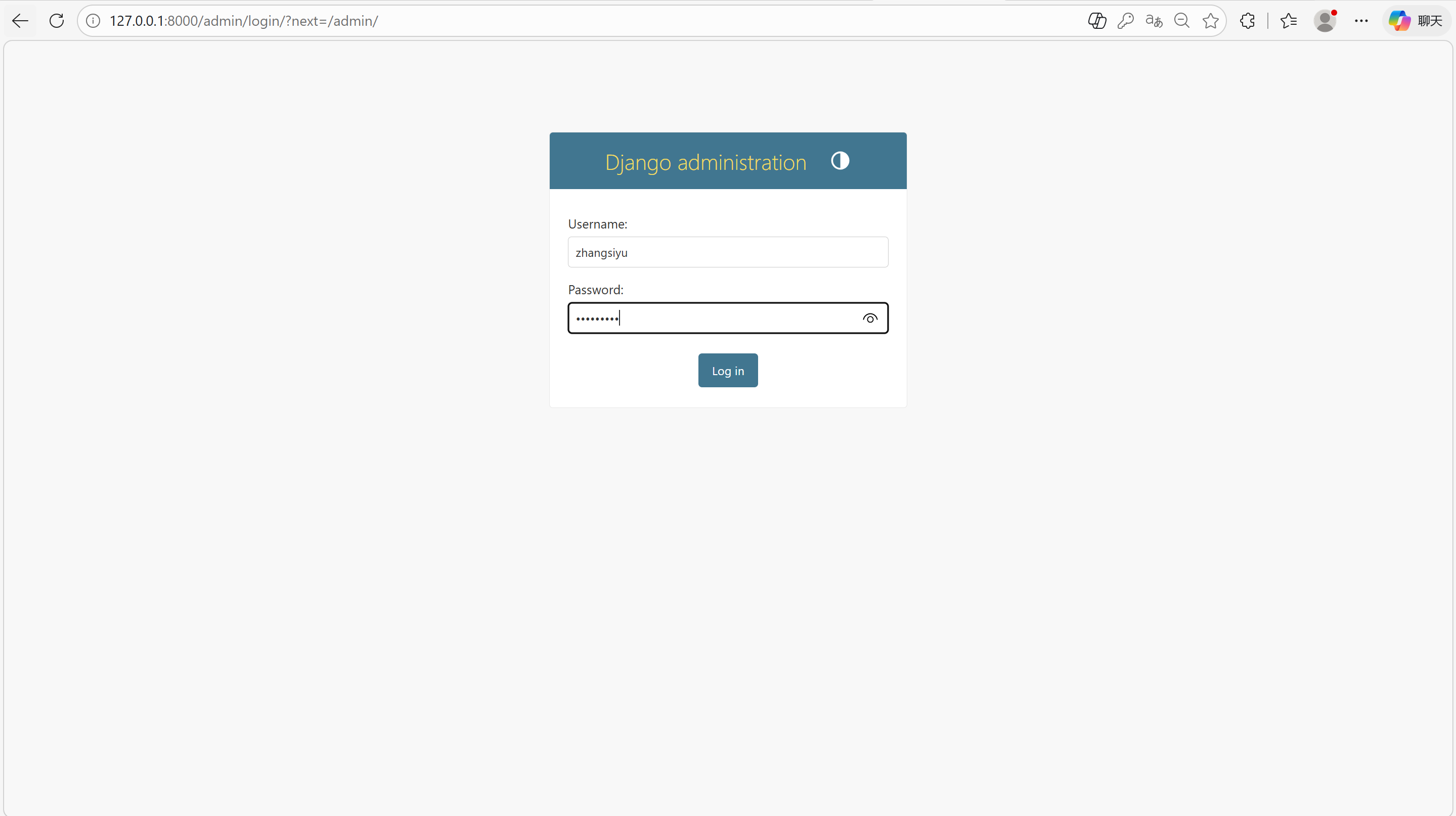
3. 进入管理站点页面
使用在上一步中创建的超级用户来登录,然后会看到 Django 管理页面的索引页:
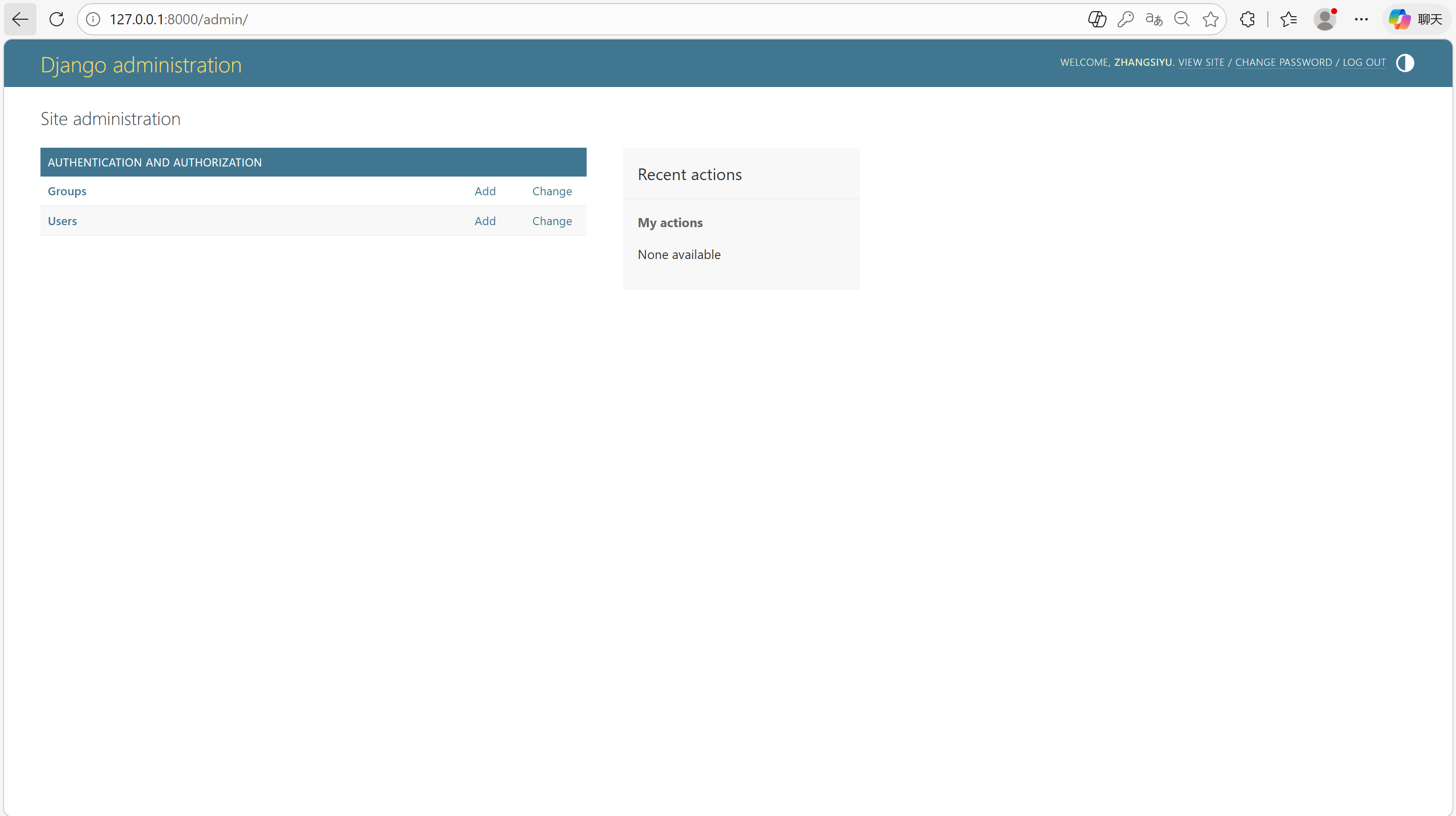
会看到几种可编辑的内容:组和用户(由 django.contrib.auth 提供的,这是 Django 开发的认证框架)
4. 向管理页面中加入投票应用
投票应用没在索引页面里显示。只需要再做一件事:告诉管理,问题 Question 对象需要一个后台接口。
打开 polls/admin.py 文件,polls/admin.py:
from django.contrib import admin

from .models import Question

admin.site.register(Question)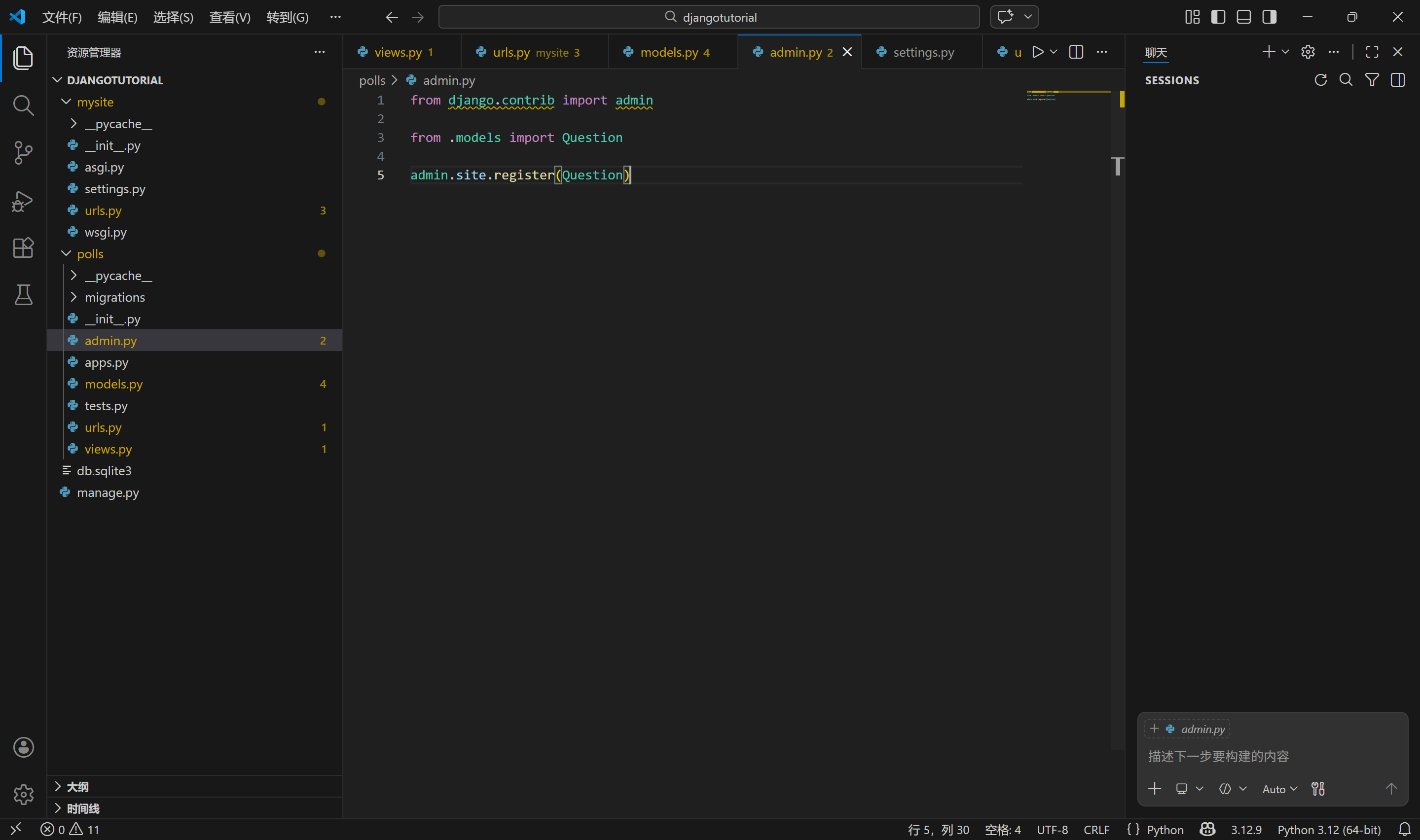
5. 便捷的管理功能
向管理页面注册了问题 Question 类。Django 知道它应该被显示在索引页里,刷新得到:
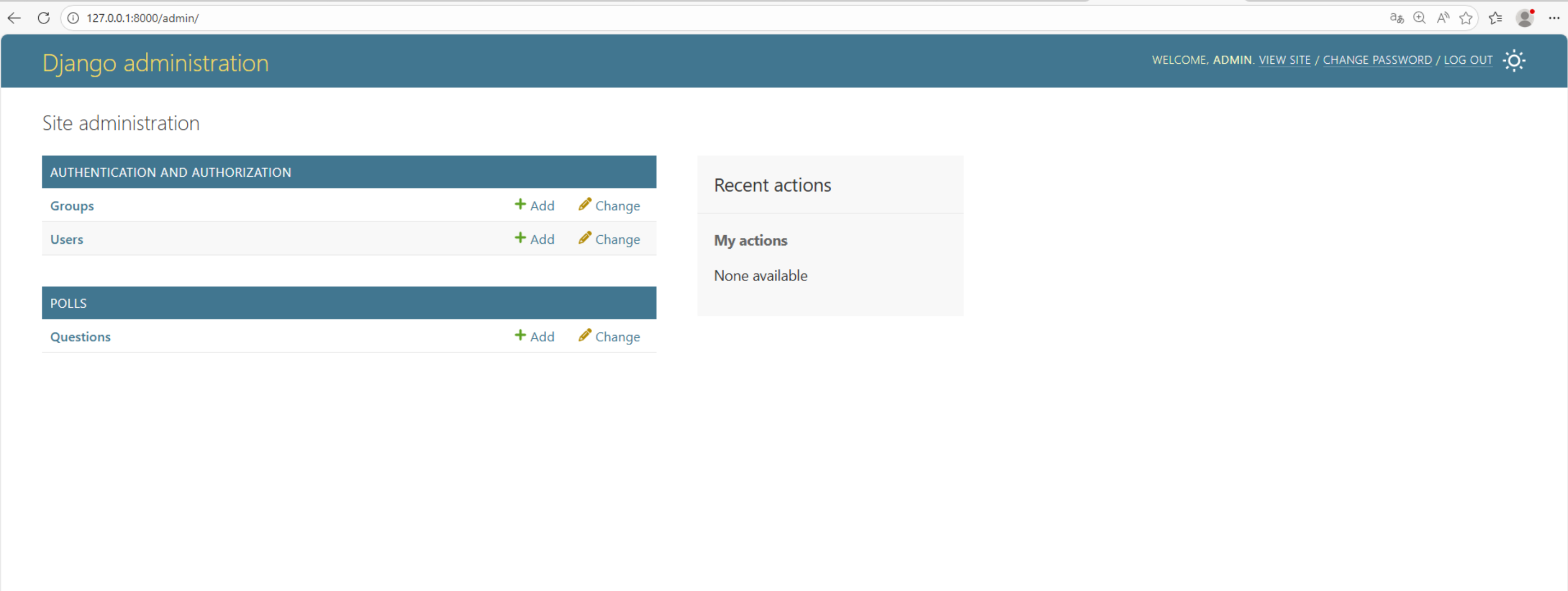
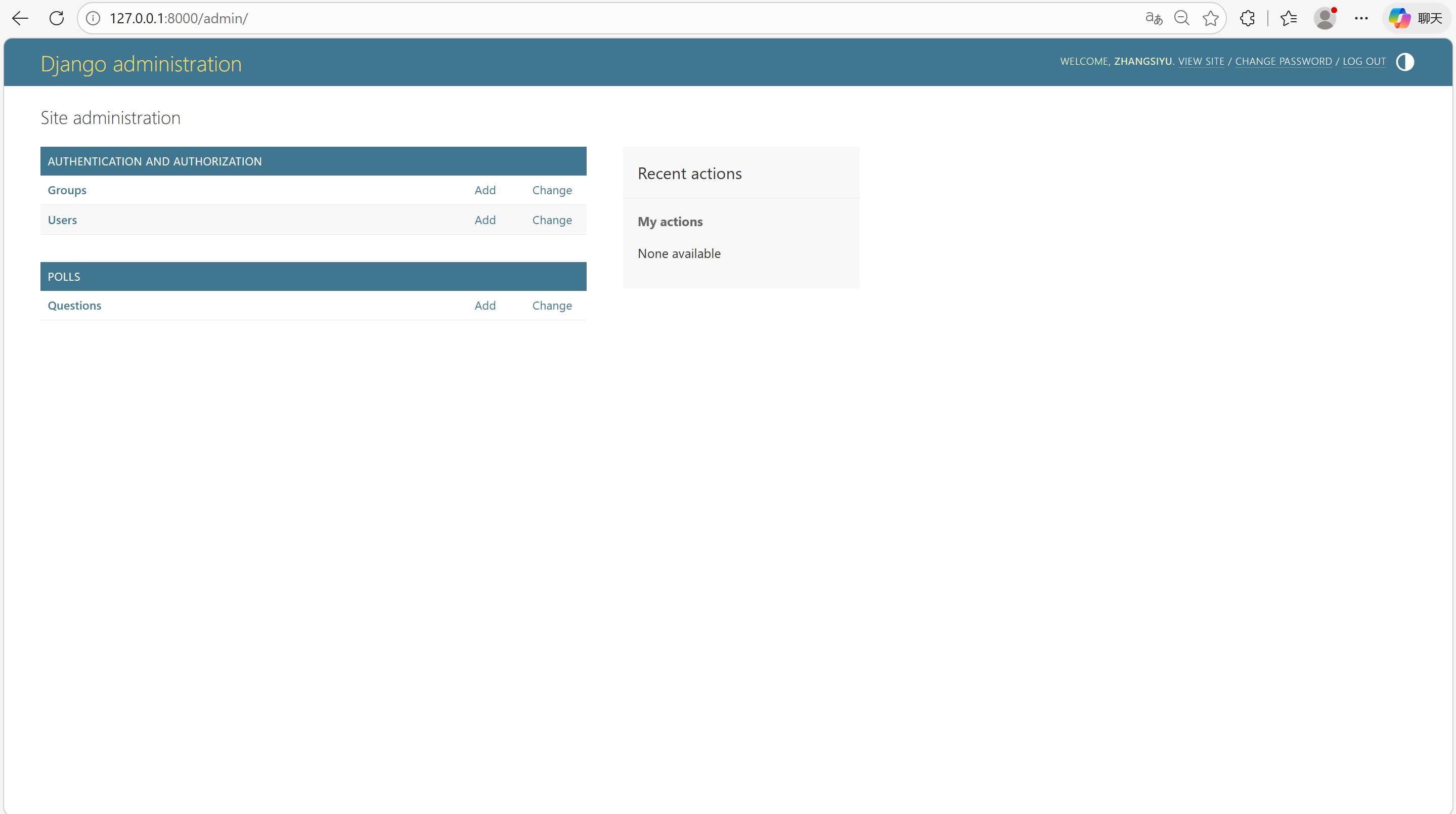
点击 "Questions" 。现在看到是问题 "Questions" 对象的列表 "change list" 。这个界面会显示所有数据库里的问题 Question 对象,可以选择一个来修改。这里现在有在上一部分中创建的 “What's up?” 问题。
点击 “What's up?” 来编辑这个问题(Question)对象:
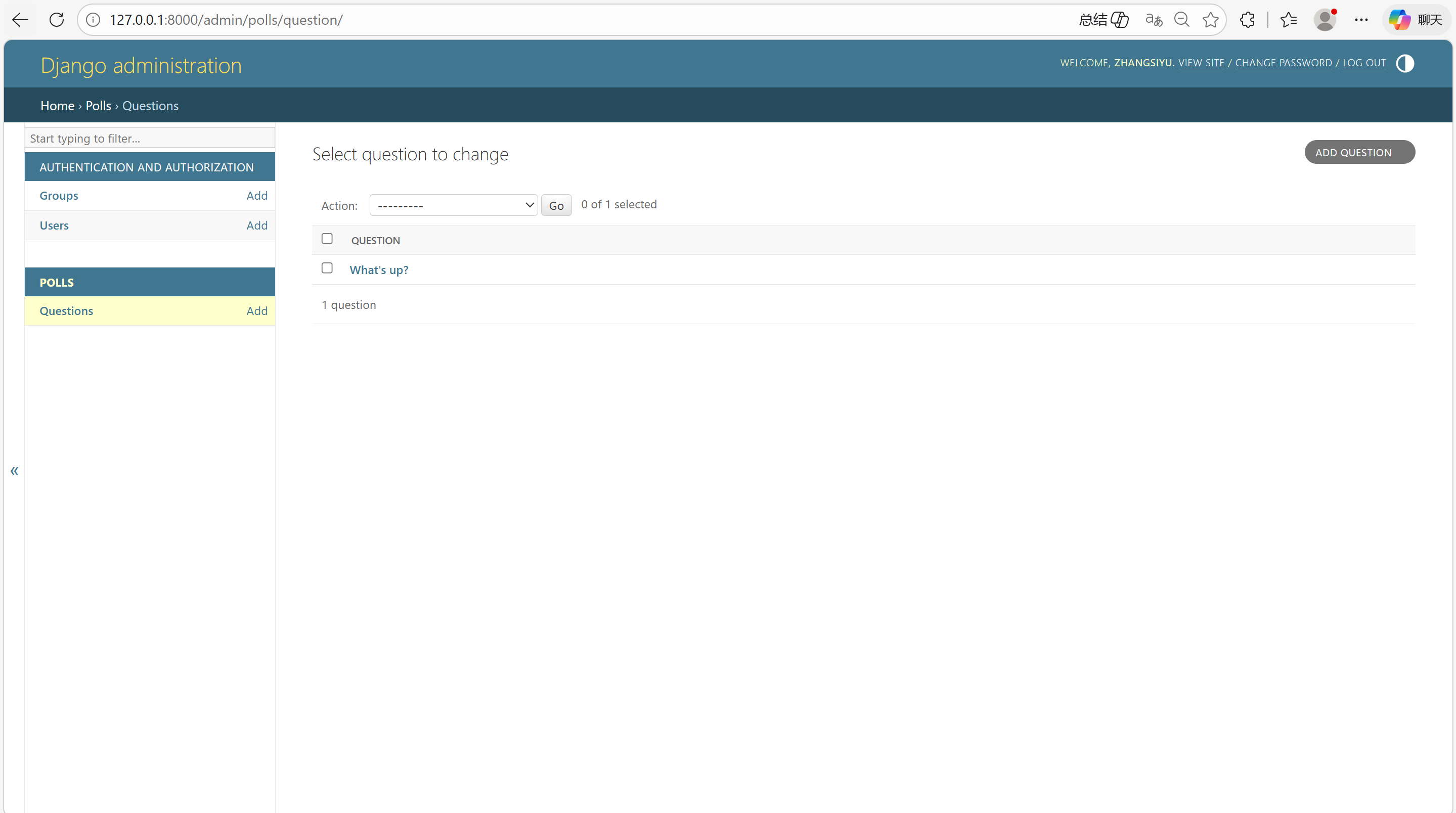
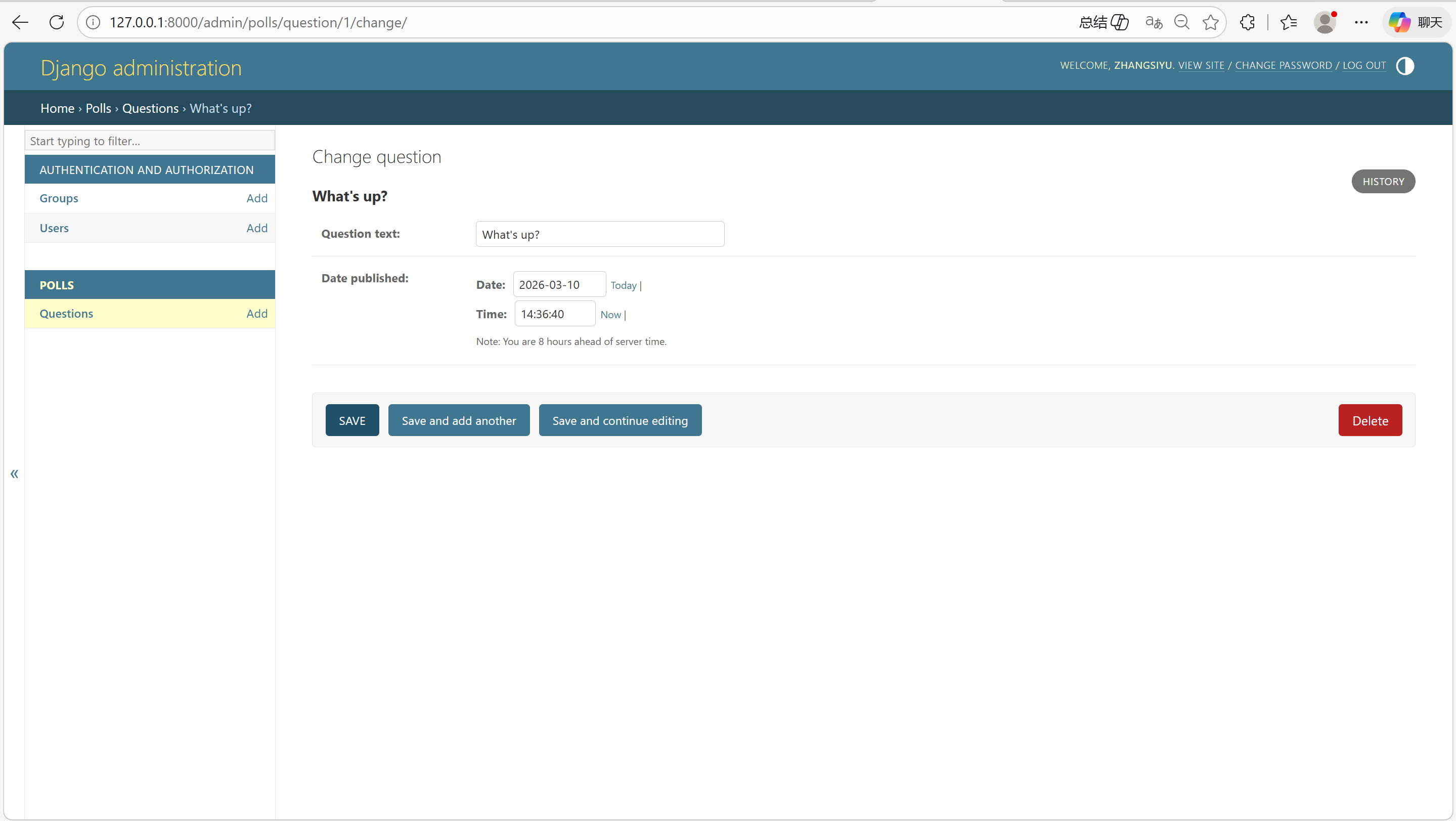
注意事项:
-
这个表单是从问题
Question模型中自动生成的 -
不同的字段类型(日期时间字段 DateTimeField 、字符字段 CharField)会生成对应的 HTML 输入控件。每个类型的字段都知道它们该如何在管理页面里显示自己。
-
每个日期时间字段 DateTimeField 都有 JavaScript 写的快捷按钮。日期有转到今天(Today)的快捷按钮和一个弹出式日历界面。时间有设为现在(Now)的快捷按钮和一个列出常用时间的方便的弹出式列表。
页面的底部提供了几个选项:
-
保存(Save): 保存改变,然后返回对象列表。
-
保存并继续编辑(Save and continue editing):保存改变,然后重新载入当前对象的修改界面。
-
保存并新增(Save and add another):保存改变,然后添加一个新的空对象并载入修改界面。
-
删除(Delete):显示一个确认删除页面。
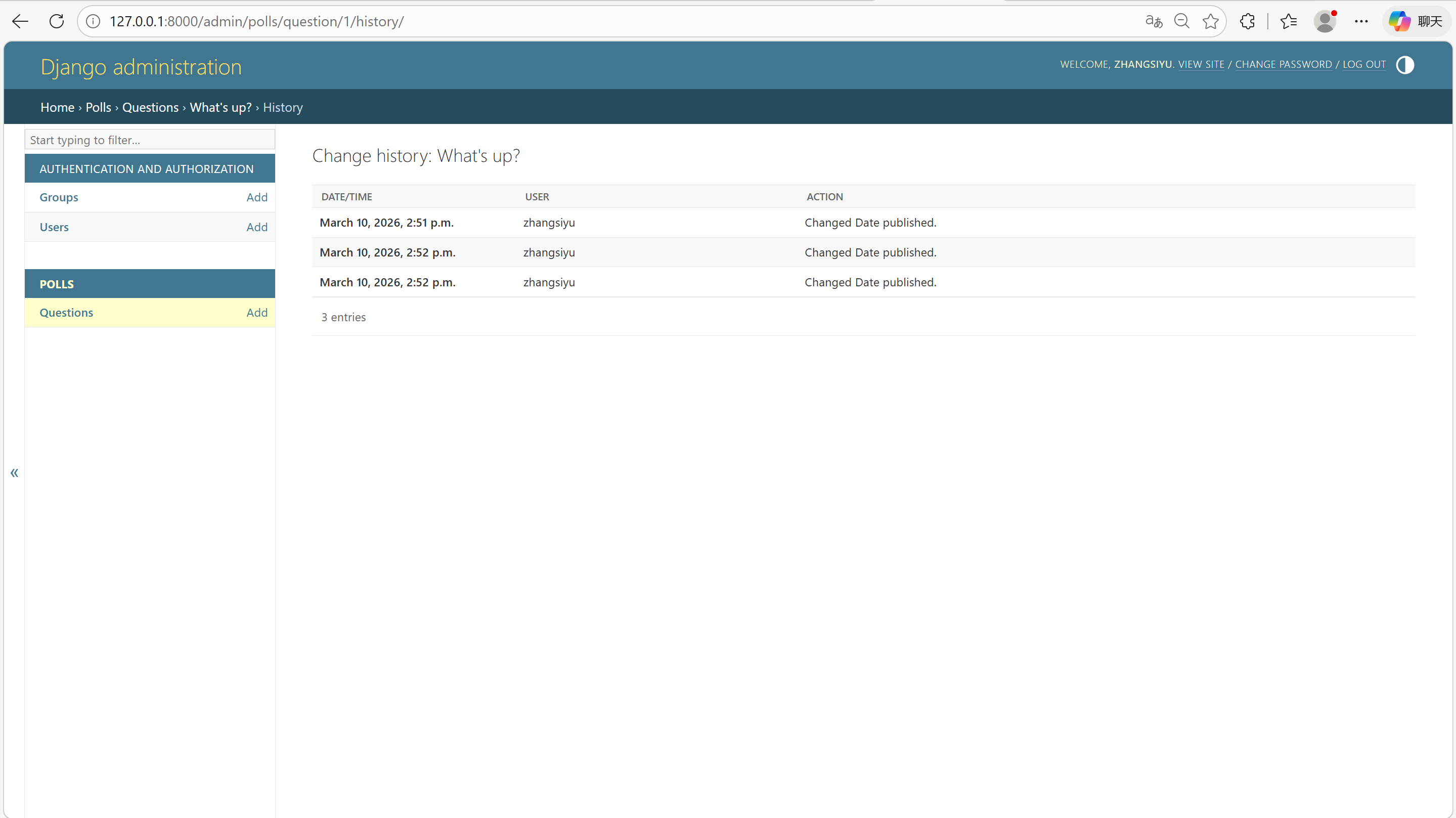
通过点击 “今天(Today)” 和 “现在(Now)” 按钮改变 “发布日期(Date Published)”。然后点击 “保存并继续编辑(Save and add another)”按钮。然后点击右上角的 “历史(History)”按钮。会看到一个列出了所有通过 Django 管理页面对当前对象进行的改变的页面,其中列出了时间戳和进行修改操作的用户名:
十一、 创建公共接口——“视图”
1. 概况
Django 中的视图的概念是「一类具有相同功能和模板的网页的集合」。比如,在一个博客应用中,你可能会创建如下几个视图:
-
博客首页——展示最近的几项内容。
-
内容“详情”页——详细展示某项内容。
-
以年为单位的归档页——展示选中的年份里各个月份创建的内容。
-
以月为单位的归档页——展示选中的月份里各天创建的内容。
-
以天为单位的归档页——展示选中天里创建的所有内容。
-
评论处理器——用于响应为一项内容添加评论的操作。
而在我们的投票应用中,我们需要下列几个视图:
-
问题索引页——展示最近的几个投票问题。
-
问题详情页——展示某个投票的问题和不带结果的选项列表。
-
问题结果页——展示某个投票的结果。
-
投票处理器——用于响应用户为某个问题的特定选项投票的操作。
2. 完善 polls/views.py(添加视图函数)
打开 polls/views.py,替换为以下完整代码(包含教程中所有视图):
from django.shortcuts import get_object_or_404, render
from django.http import HttpResponse, Http404

from .models import Question

# 问题索引页:展示最近5个投票问题
def index(request):
    latest_question_list = Question.objects.order_by("-pub_date")[:5]
    context = {"latest_question_list": latest_question_list}
    # 快捷函数render:载入模板+传递上下文+返回HttpResponse
    return render(request, "polls/index.html", context)

# 问题详情页:展示指定ID的问题(不存在则抛404)
def detail(request, question_id):
    # 快捷函数get_object_or_404:查询对象,不存在则抛404
    question = get_object_or_404(Question, pk=question_id)
    return render(request, "polls/detail.html", {"question": question})

# 问题结果页:占位视图
def results(request, question_id):
    response = "You're looking at the results of question %s."
    return HttpResponse(response % question_id)

# 投票处理器:占位视图
def vote(request, question_id):
    return HttpResponse("You're voting on question %s." % question_id)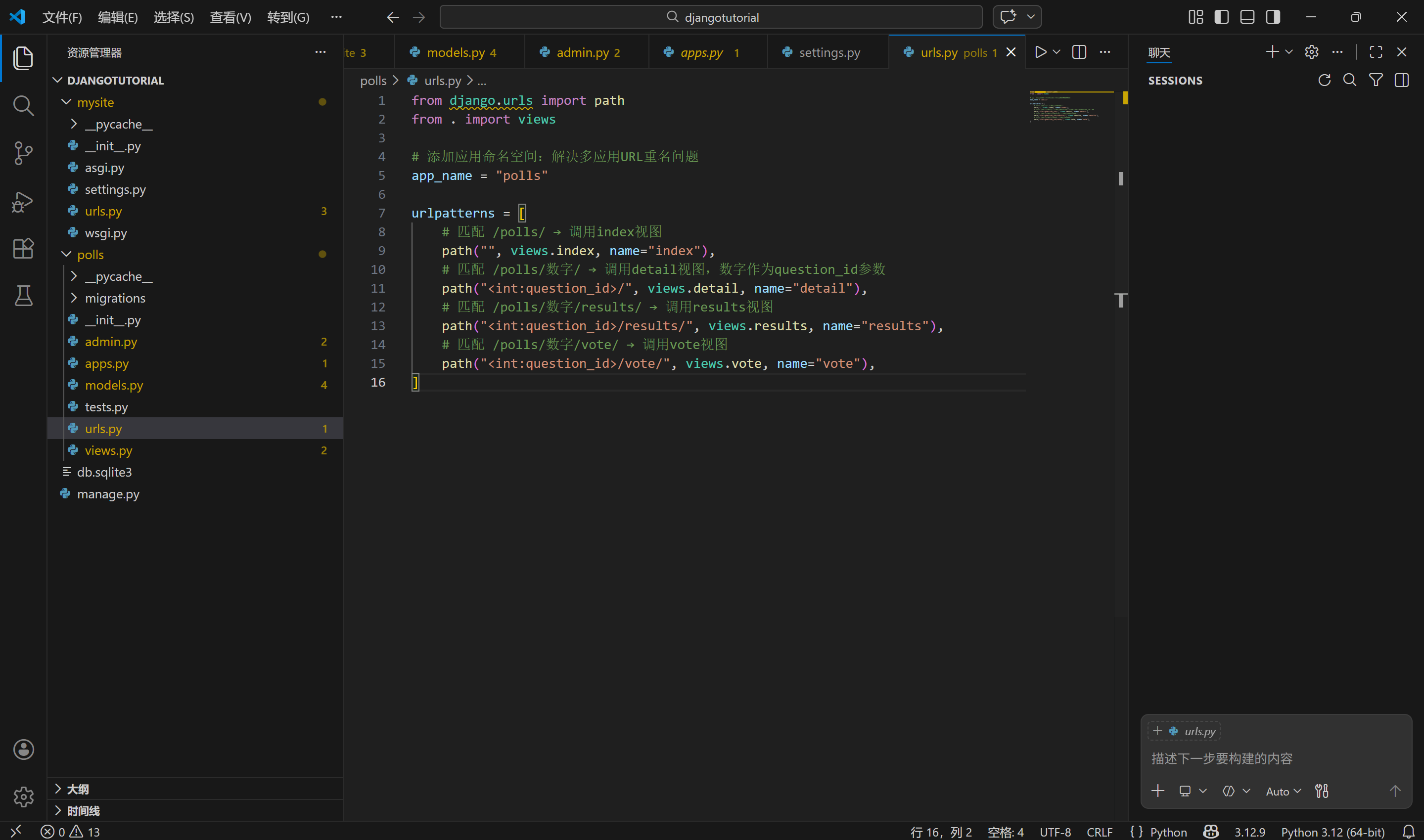
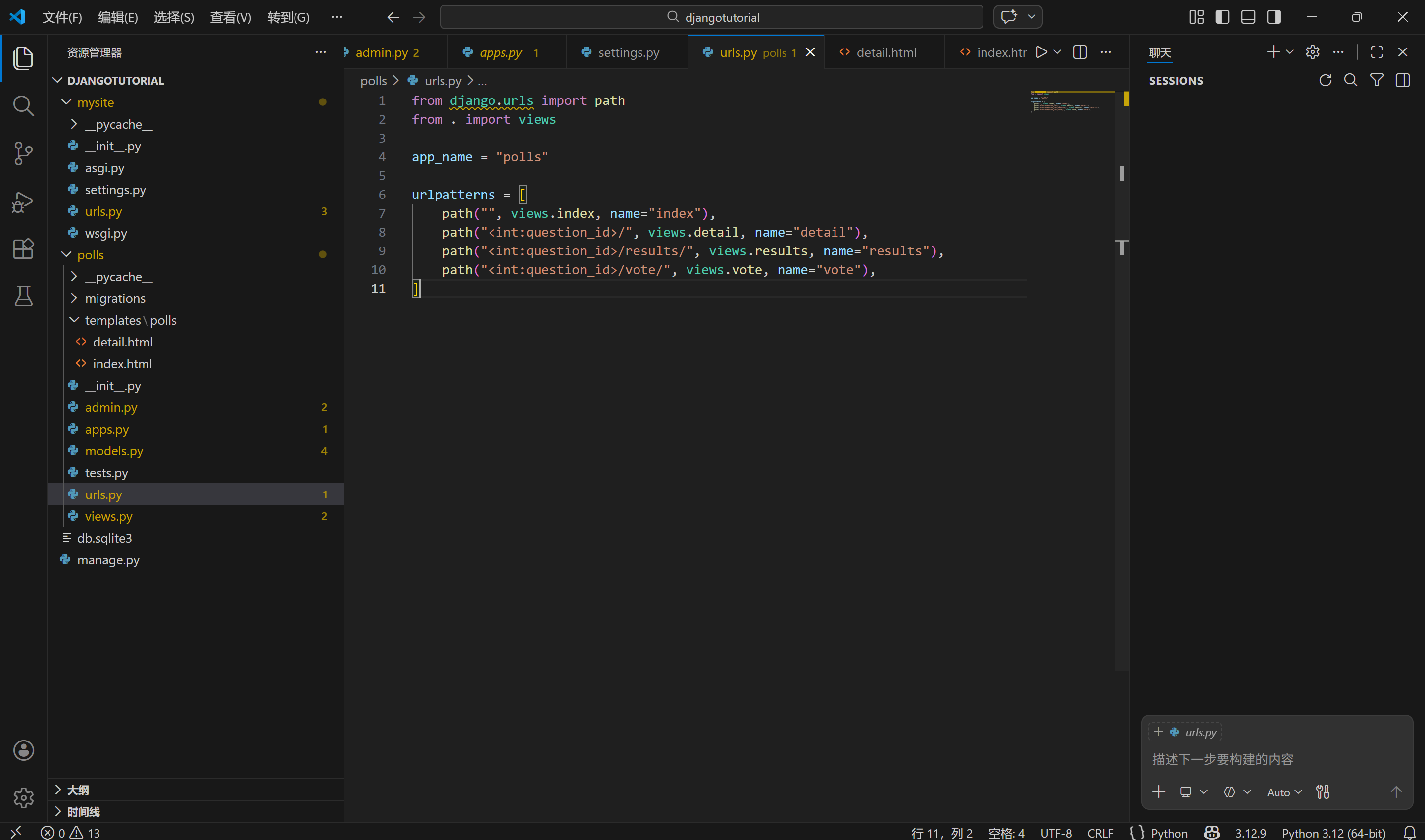
3. 配置 polls/urls.py(URL 与视图映射)
打开 polls/urls.py,添加命名空间和所有 URL 规则:
from django.urls import path
from . import views

app_name = "polls"

urlpatterns = [
    path("", views.index, name="index"),
    path("<int:question_id>/", views.detail, name="detail"),
    path("<int:question_id>/results/", views.results, name="results"),
    path("<int:question_id>/vote/", views.vote, name="vote"),
]
4. 创建模板文件(分离视图与页面样式)
Django 模板的核心是「将 Python 逻辑与 HTML 样式分离」,需按以下目录结构创建:
polls/
    templates/
        polls/          # 模板命名空间:避免与其他应用重名
            index.html  # 索引页模板
detail.html # 详情页模板- 创建 polls/templates/polls/index.html:
<!-- polls/templates/polls/index.html -->
<!DOCTYPE html>
<html>
<head>
    <title>Polls Index</title>
</head>
<body>
    {% if latest_question_list %}
        <ul>
        {% for question in latest_question_list %}
            <!-- 使用{% url %}标签:避免硬编码URL -->
            <li><a href="/polls/{{ question.id }}/">{{ question.question_text }}</a></li>
        {% endfor %}
        </ul>
    {% else %}
        <p>No polls are available.</p>
    {% endif %}
</body>
</html>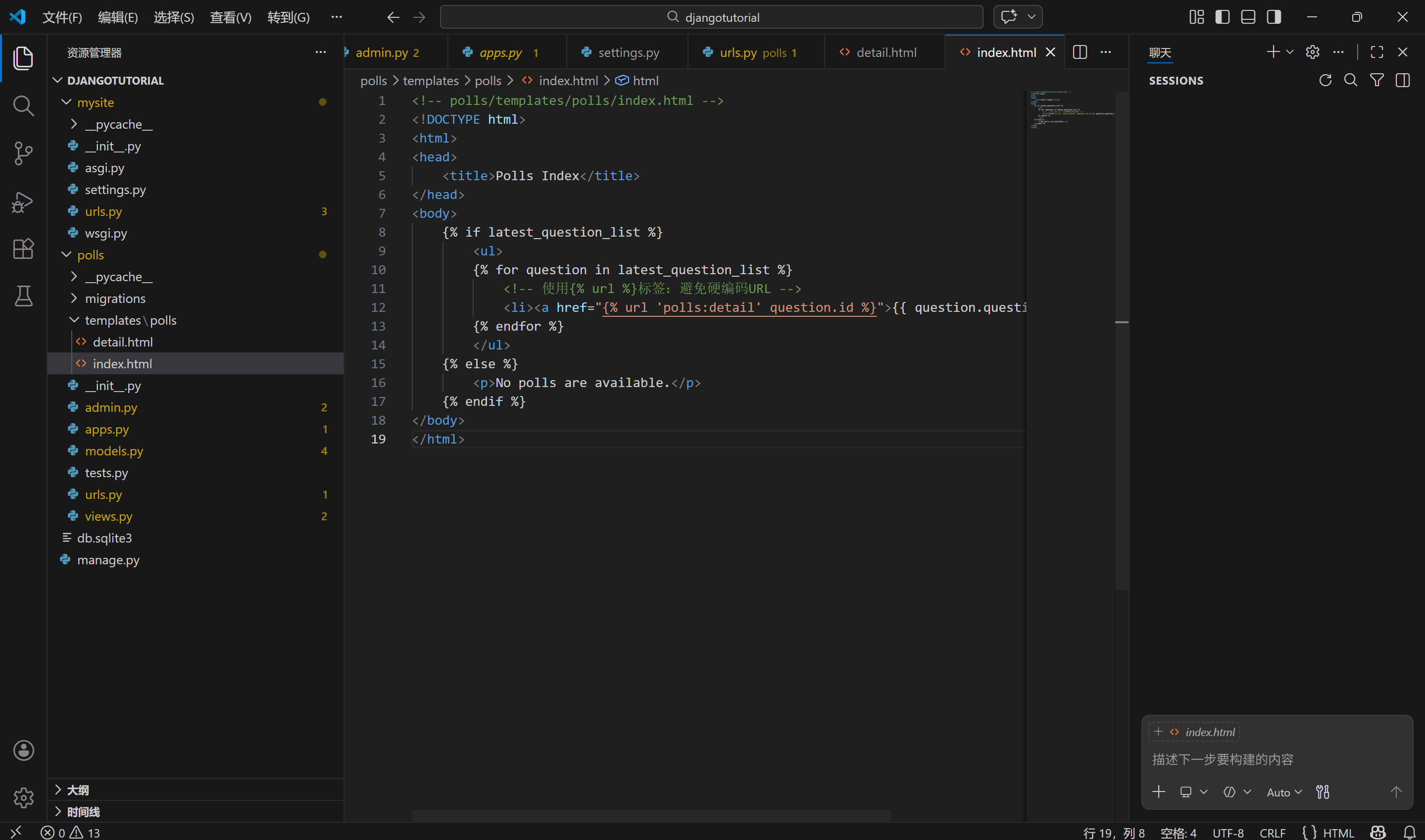
- 创建 polls/templates/polls/detail.html:
<!-- polls/templates/polls/detail.html -->
<!DOCTYPE html>
<html>
<head>
    <title>Question Detail</title>
</head>
<body>
    <h1>{{ question.question_text }}</h1>
    <ul>
    {% for choice in question.choice_set.all %}
        <li>{{ choice.choice_text }}</li>
    {% endfor %}
    </ul>
</body>
</html>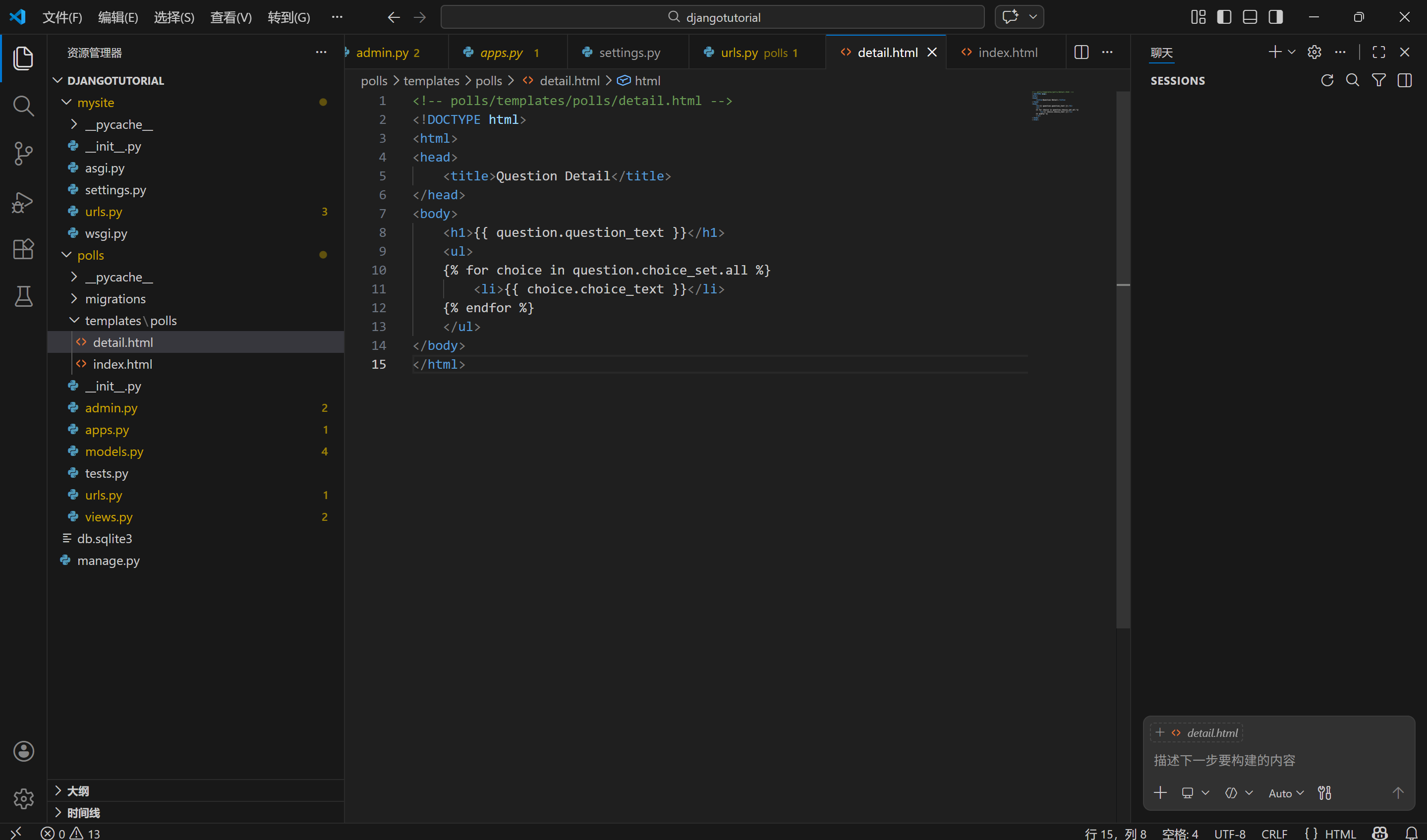
5. 测试运行
(1)启动 Django 开发服务器:
运行
python manage.py runserver
(2)启动 Django 开发服务器:
访问以下 URL 测试效果:
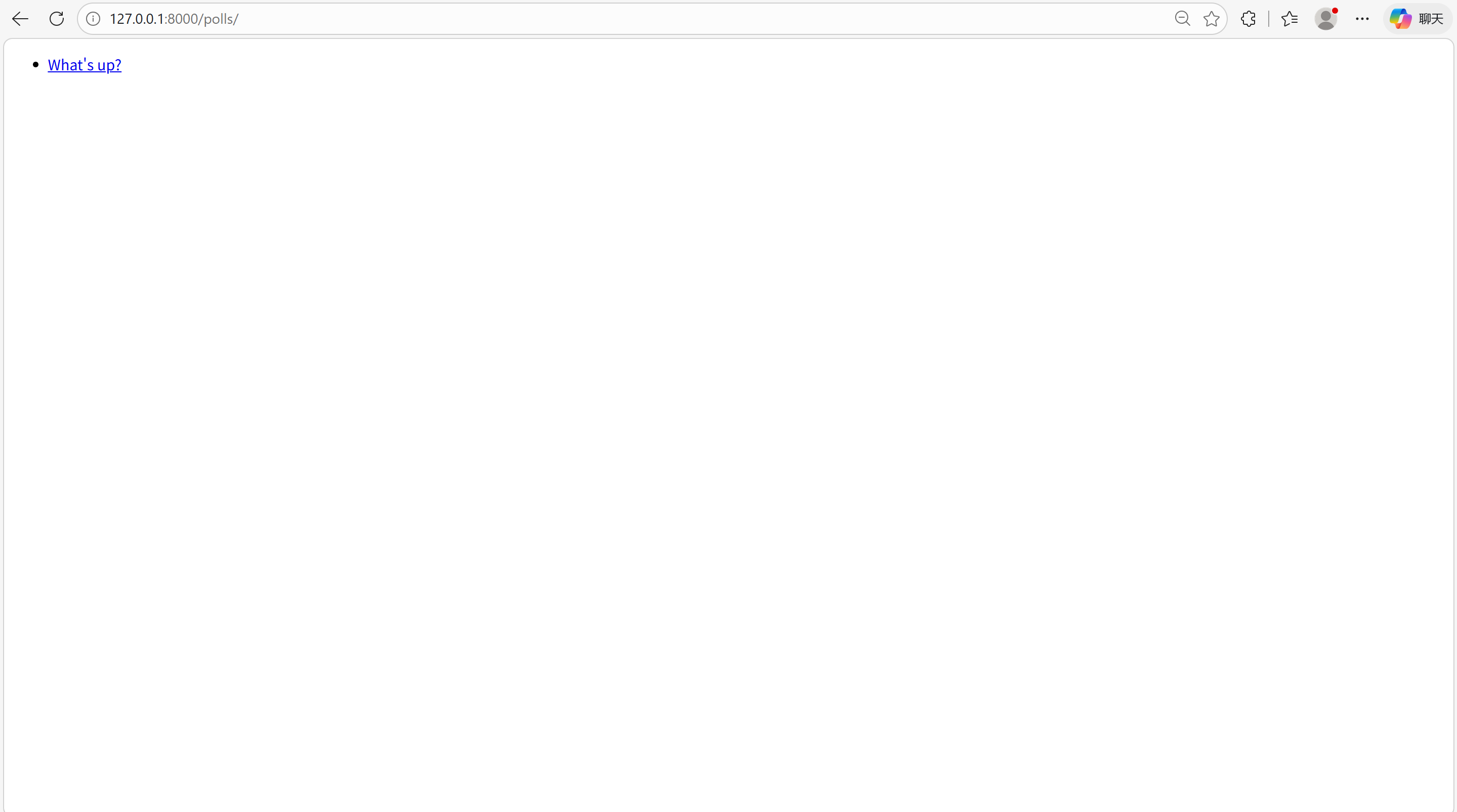
http://127.0.0.1:8000/polls/:查看所有投票问题(需先添加 Question 数据)
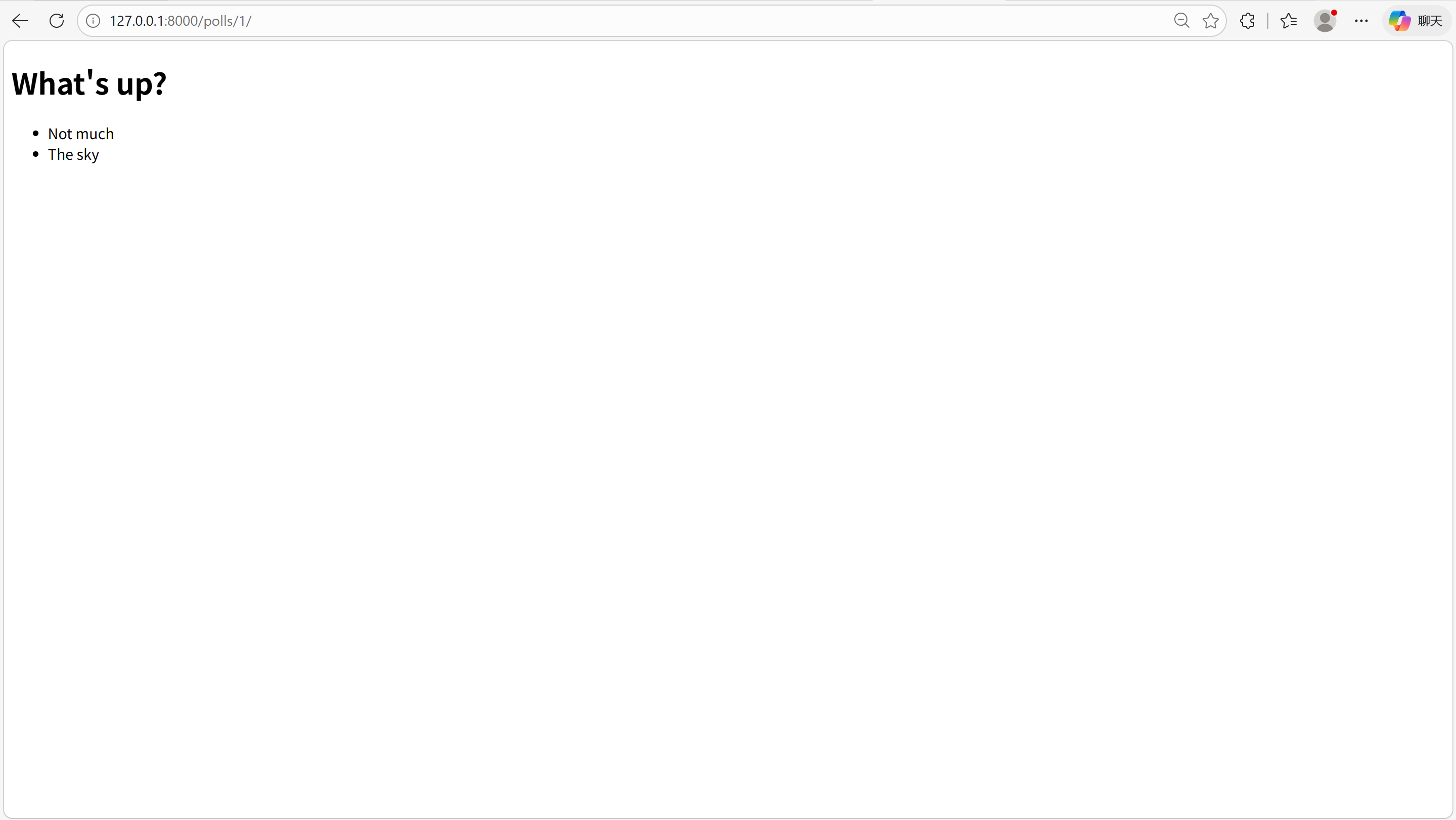
http://127.0.0.1:8000/polls/1/:查看 ID 为 1 的问题详情(无数据则显示 404)
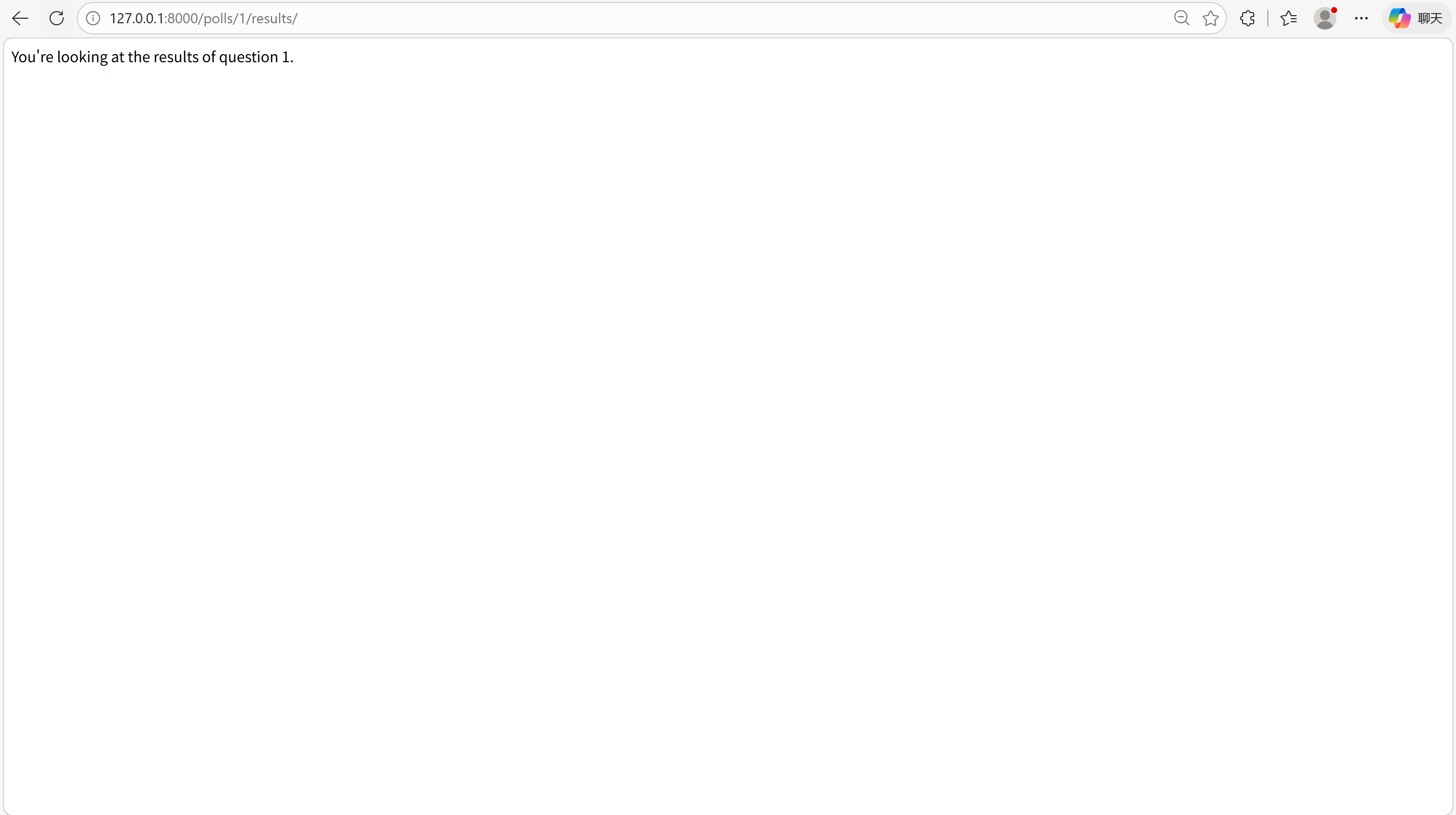
http://127.0.0.1:8000/polls/1/results/:查看 ID 为 1 的结果页(占位文本)
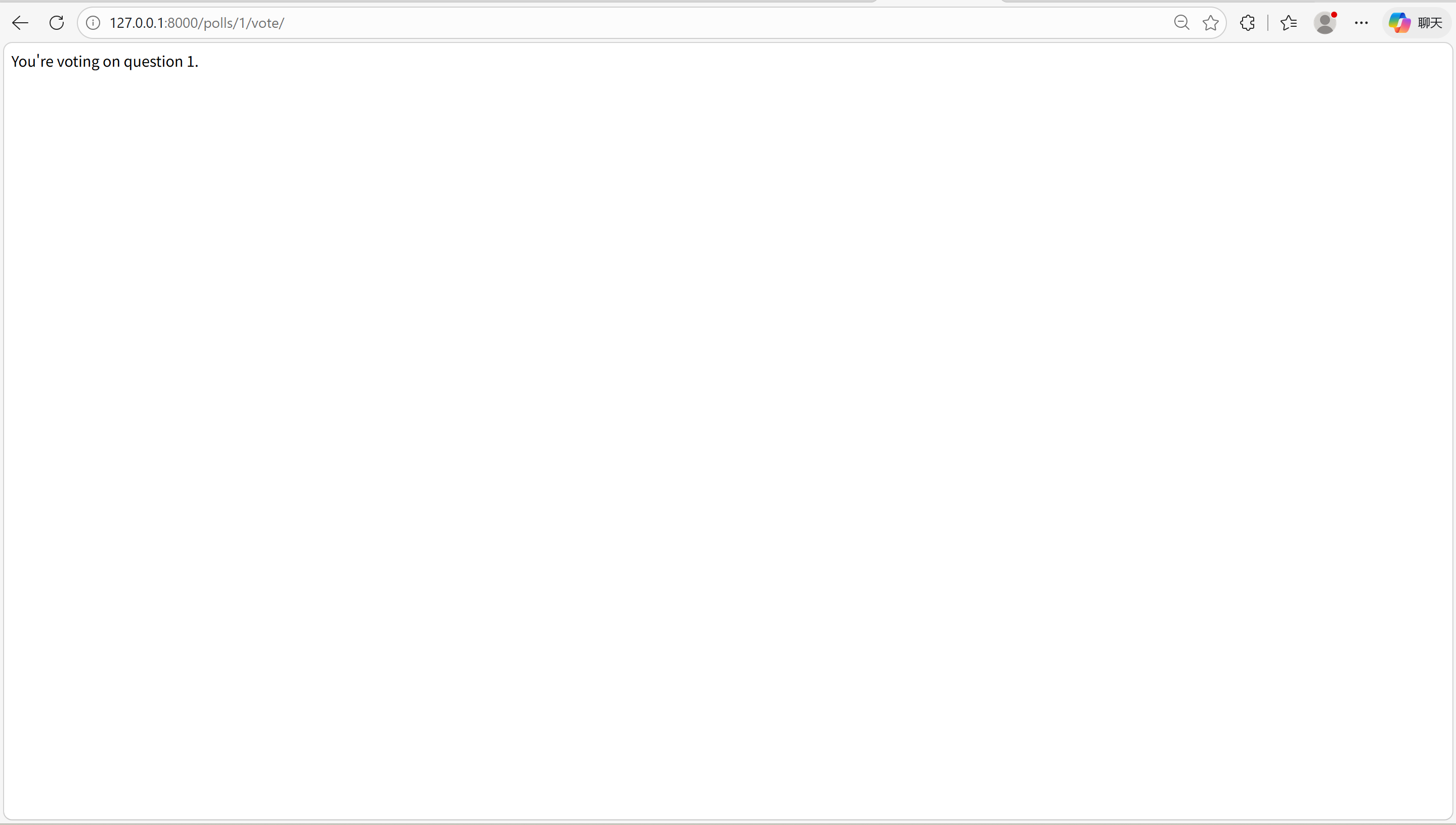
http://127.0.0.1:8000/polls/1/vote/:查看 ID 为 1 的投票页(占位文本)
十二、 实现投票表单与投票逻辑
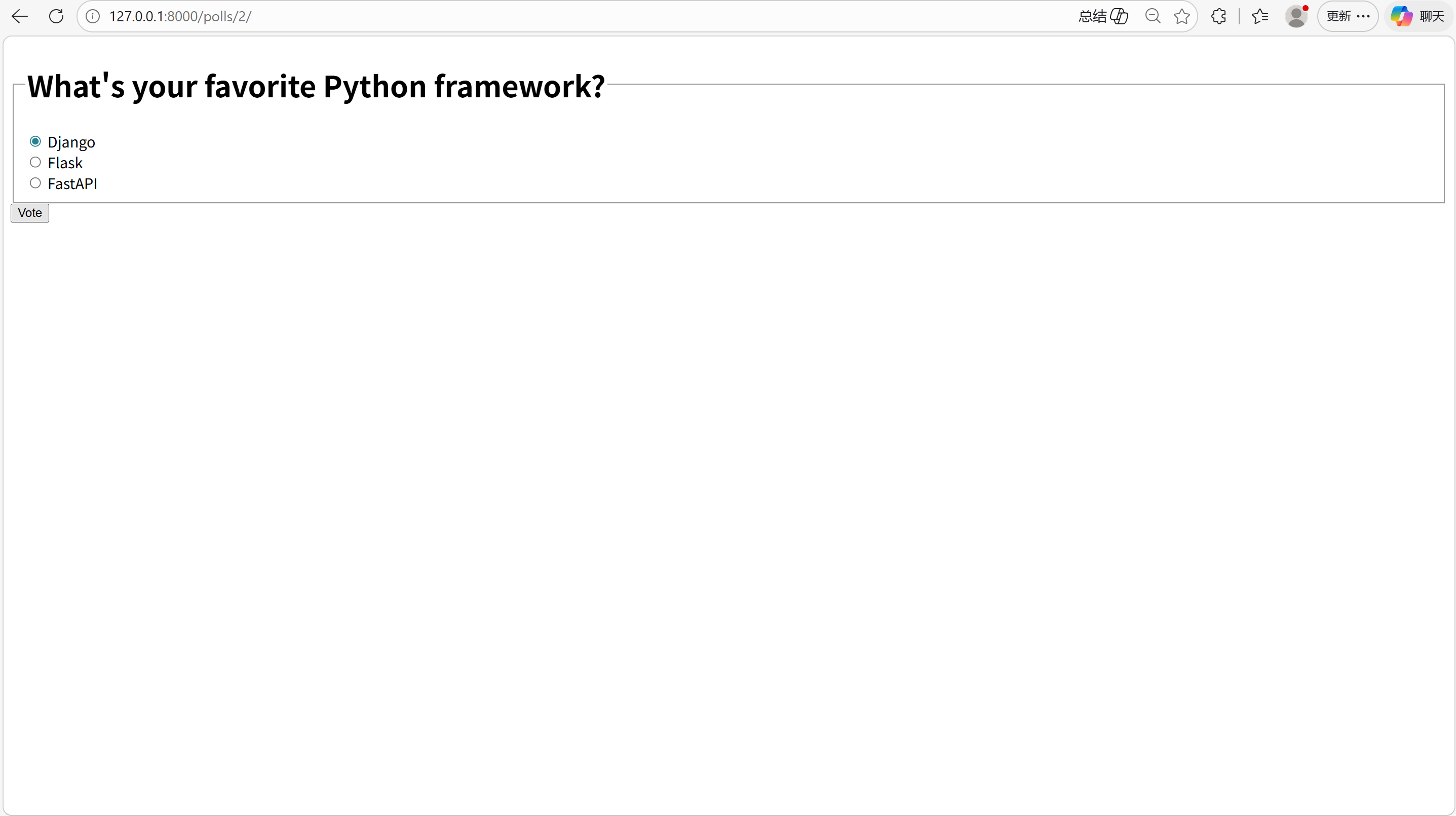
1. 更新 polls/detail.html 模板(添加投票表单)
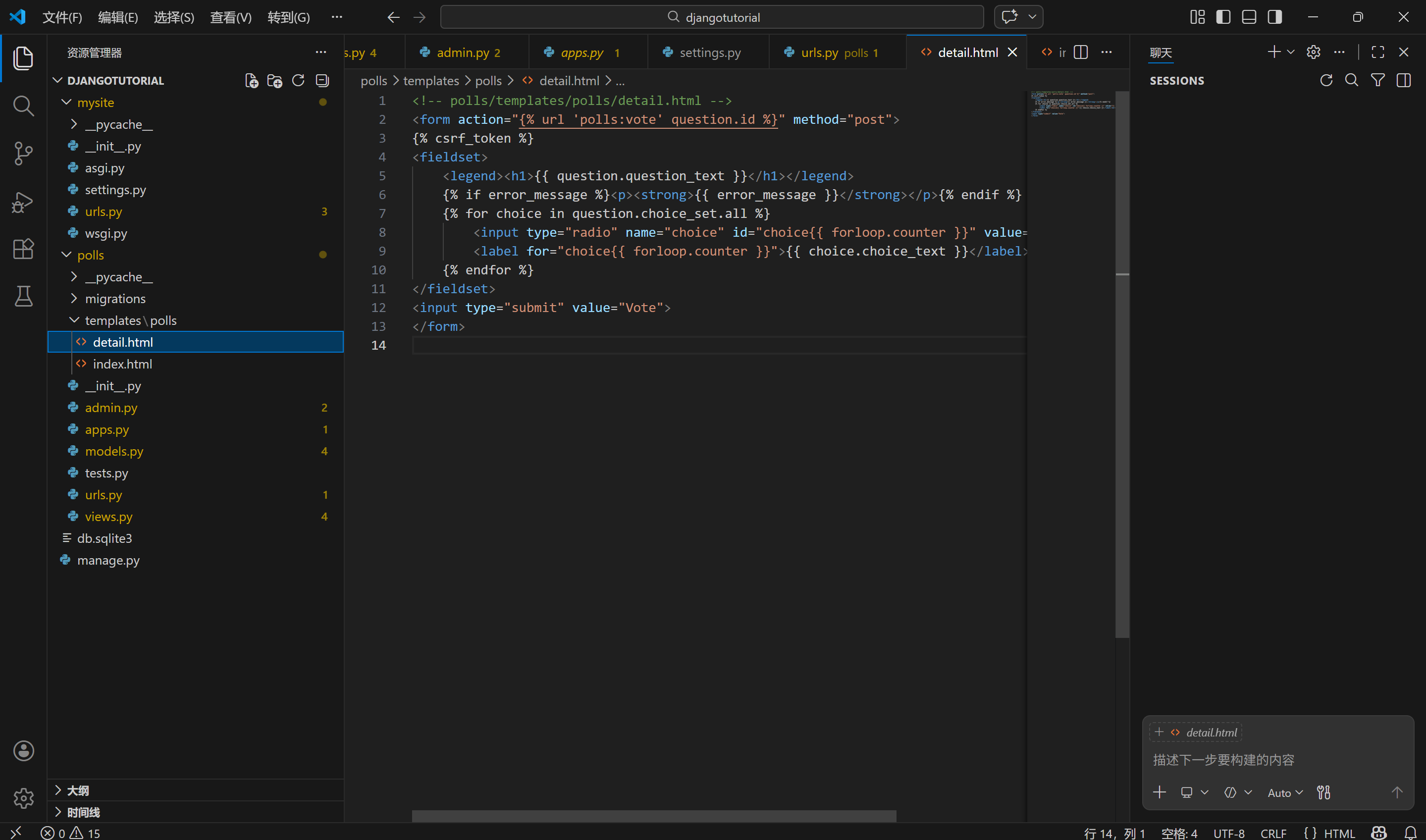
替换 polls/templates/polls/detail.html 内容为以下代码(包含表单、CSRF 防护、错误提示):
预览
<!-- polls/templates/polls/detail.html -->
<form action="{% url 'polls:vote' question.id %}" method="post">
{% csrf_token %}
<fieldset>
    <legend><h1>{{ question.question_text }}</h1></legend>
    {% if error_message %}<p><strong>{{ error_message }}</strong></p>{% endif %}
    {% for choice in question.choice_set.all %}
        <input type="radio" name="choice" id="choice{{ forloop.counter }}" value="{{ choice.id }}">
        <label for="choice{{ forloop.counter }}">{{ choice.choice_text }}</label><br>
    {% endfor %}
</fieldset>
<input type="submit" value="Vote">
</form>
关键说明:
method="post":提交表单会修改服务器数据,必须用 POST(而非 GET);{% csrf_token %}:Django 防跨站请求伪造(CSRF)的核心标签,POST 表单必须加;forloop.counter:循环计数器,为每个单选按钮生成唯一 ID(如 choice1、choice2);name="choice":所有单选按钮同名,确保只能选一个,提交时传递选中的choice.id。
2. 完善 polls/views.py 的 vote 视图(处理投票逻辑)
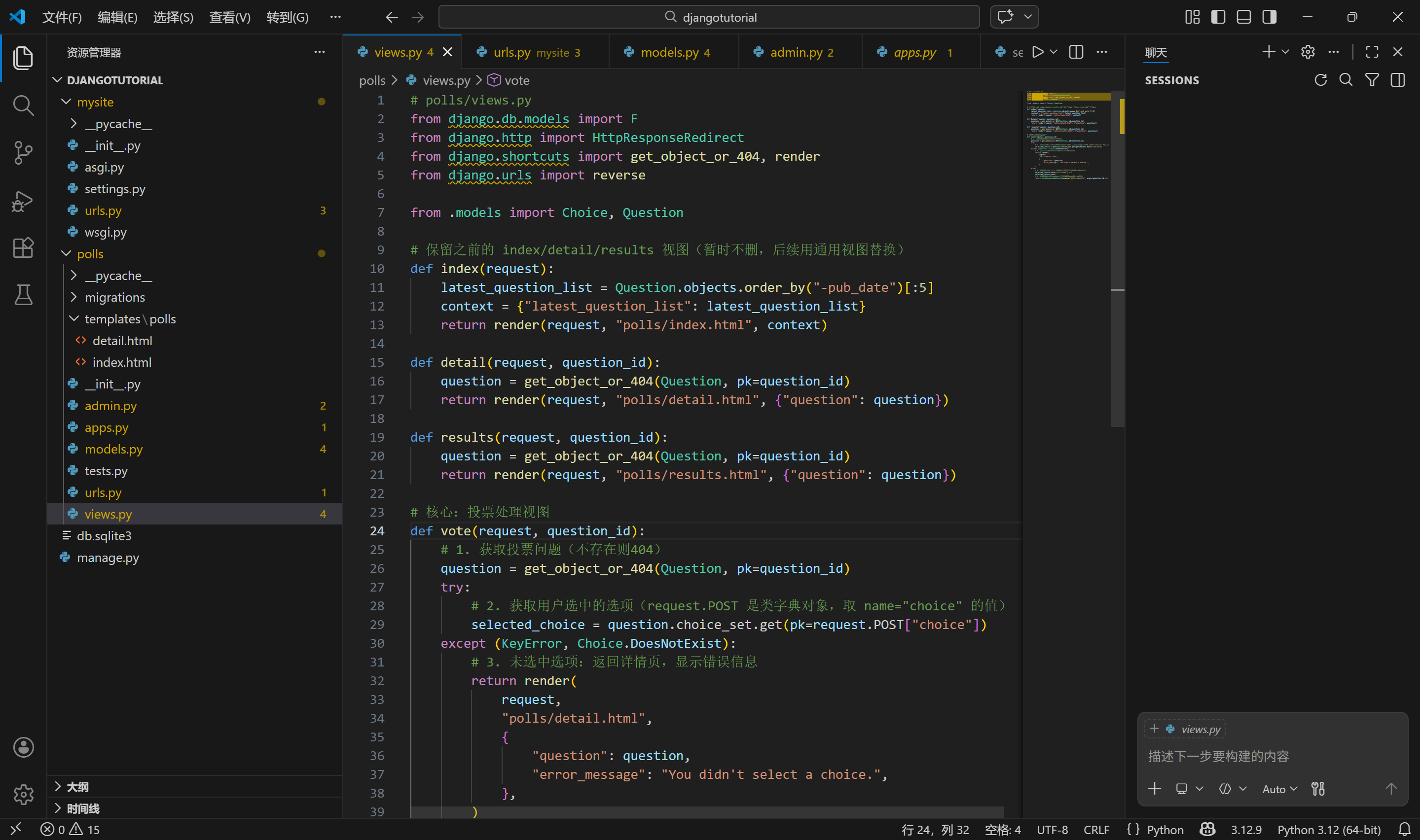
更新 polls/views.py,添加完整的投票处理函数(替换原有空的 vote 函数):
运行
# polls/views.py
from django.db.models import F
from django.http import HttpResponseRedirect
from django.shortcuts import get_object_or_404, render
from django.urls import reverse

from .models import Choice, Question

# 保留之前的 index/detail/results 视图(暂时不删,后续用通用视图替换)
def index(request):
    latest_question_list = Question.objects.order_by("-pub_date")[:5]
    context = {"latest_question_list": latest_question_list}
    return render(request, "polls/index.html", context)

def detail(request, question_id):
    question = get_object_or_404(Question, pk=question_id)
    return render(request, "polls/detail.html", {"question": question})

def results(request, question_id):
    question = get_object_or_404(Question, pk=question_id)
    return render(request, "polls/results.html", {"question": question})

# 核心:投票处理视图
def vote(request, question_id):
    # 1. 获取投票问题(不存在则404)
    question = get_object_or_404(Question, pk=question_id)
    try:
        # 2. 获取用户选中的选项(request.POST 是类字典对象,取 name="choice" 的值)
        selected_choice = question.choice_set.get(pk=request.POST["choice"])
    except (KeyError, Choice.DoesNotExist):
        # 3. 未选中选项:返回详情页,显示错误信息
        return render(
            request,
            "polls/detail.html",
            {
                "question": question,
                "error_message": "You didn't select a choice.",
            },
        )
    else:
        # 4. 投票数+1(用 F() 避免并发问题,直接操作数据库)
        selected_choice.votes = F("votes") + 1
        selected_choice.save()
        # 5. 投票成功:重定向到结果页(避免刷新重复提交)
        return HttpResponseRedirect(reverse("polls:results", args=(question.id,)))
关键说明:
request.POST["choice"]:获取表单提交的选中选项 ID(字符串类型);F("votes") + 1:Django 数据库表达式,直接在数据库层面加 1(避免多用户并发投票时计数错误);HttpResponseRedirect:POST 处理完成后必须重定向,防止用户点「返回」重复提交;reverse("polls:results", args=(question.id,)):反向解析 URL(避免硬编码/polls/1/results/)。
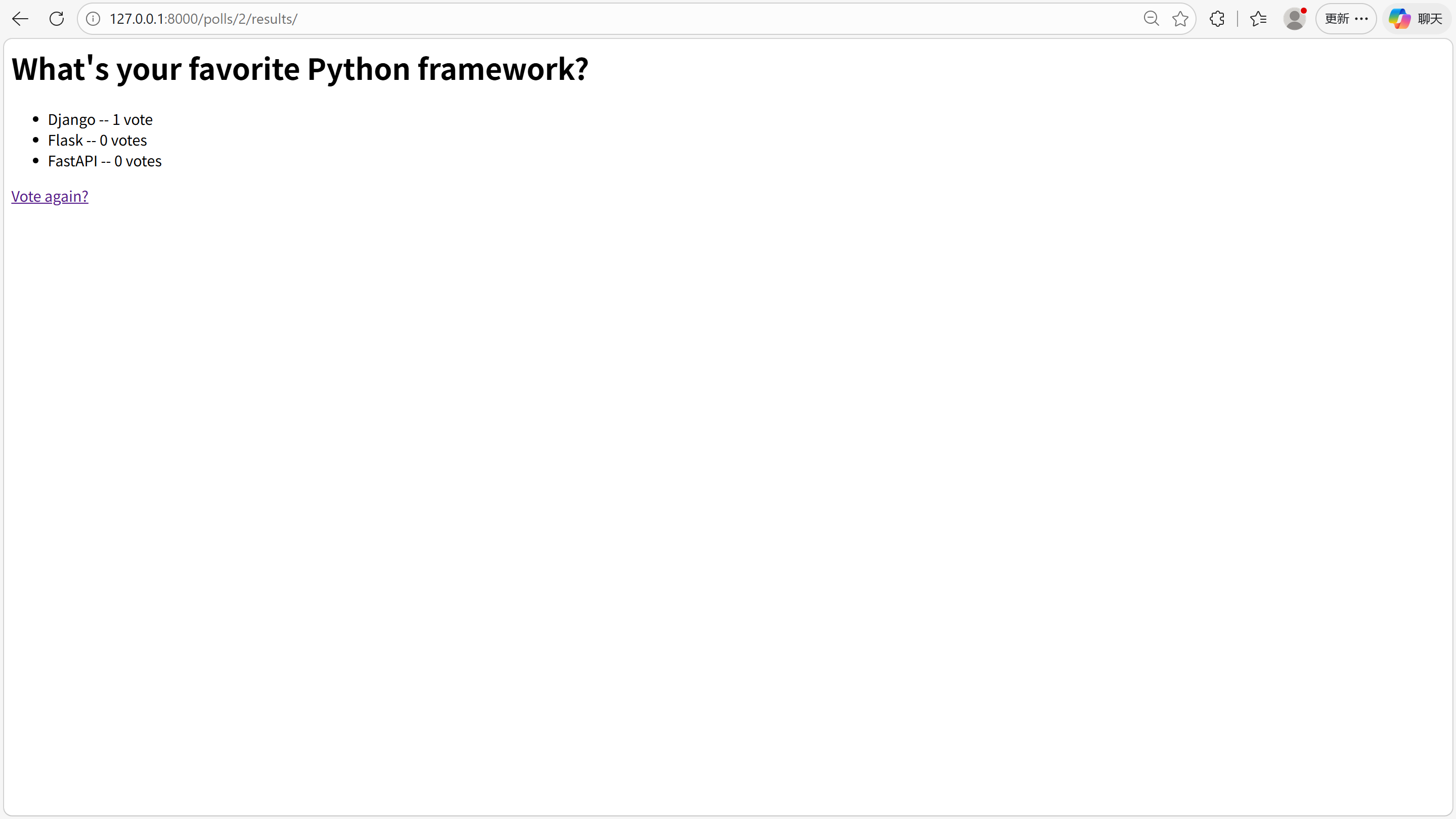
3. 创建 polls/results.html 模板(显示投票结果)
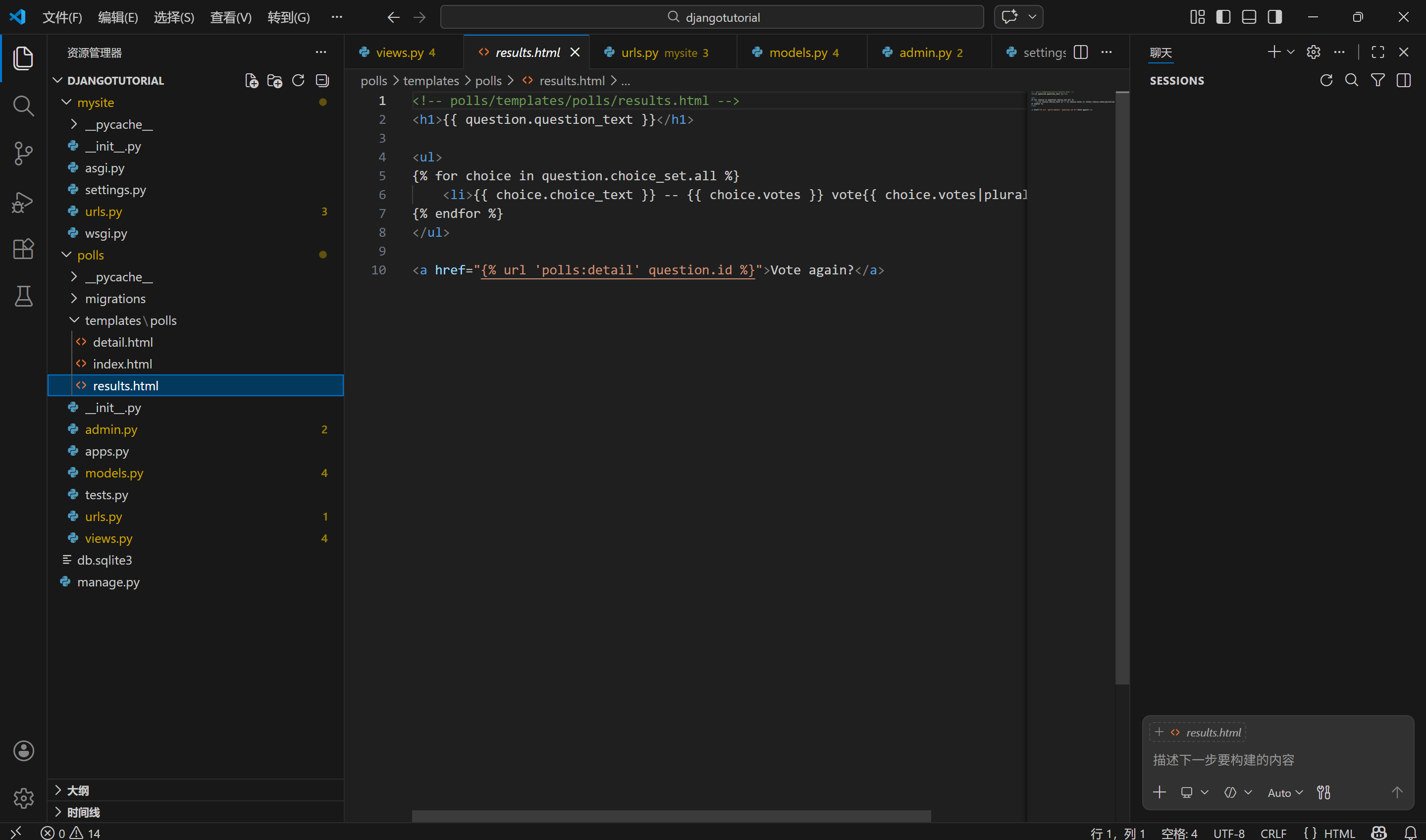
新建 polls/templates/polls/results.html 文件,内容如下:
预览
<!-- polls/templates/polls/results.html -->
<h1>{{ question.question_text }}</h1>

<ul>
{% for choice in question.choice_set.all %}
    <li>{{ choice.choice_text }} -- {{ choice.votes }} vote{{ choice.votes|pluralize }}</li>
{% endfor %}
</ul>

<a href="{% url 'polls:detail' question.id %}">Vote again?</a>
关键说明:
{{ choice.votes|pluralize }}:模板过滤器,自动处理单复数(1 vote / 2 votes)。
4. 测试投票功能
(1)启动开发服务器:
运行
python manage.py runserver
(2)先添加测试数据(如果还没有):
python manage.py shell在 shell 中执行:
from polls.models import Question, Choice
from django.utils import timezone

# 创建问题
q = Question(question_text="What's your favorite Python framework?", pub_date=timezone.now())
q.save()
# 创建选项
q.choice_set.create(choice_text="Django", votes=0)
q.choice_set.create(choice_text="Flask", votes=0)
q.choice_set.create(choice_text="FastAPI", votes=0)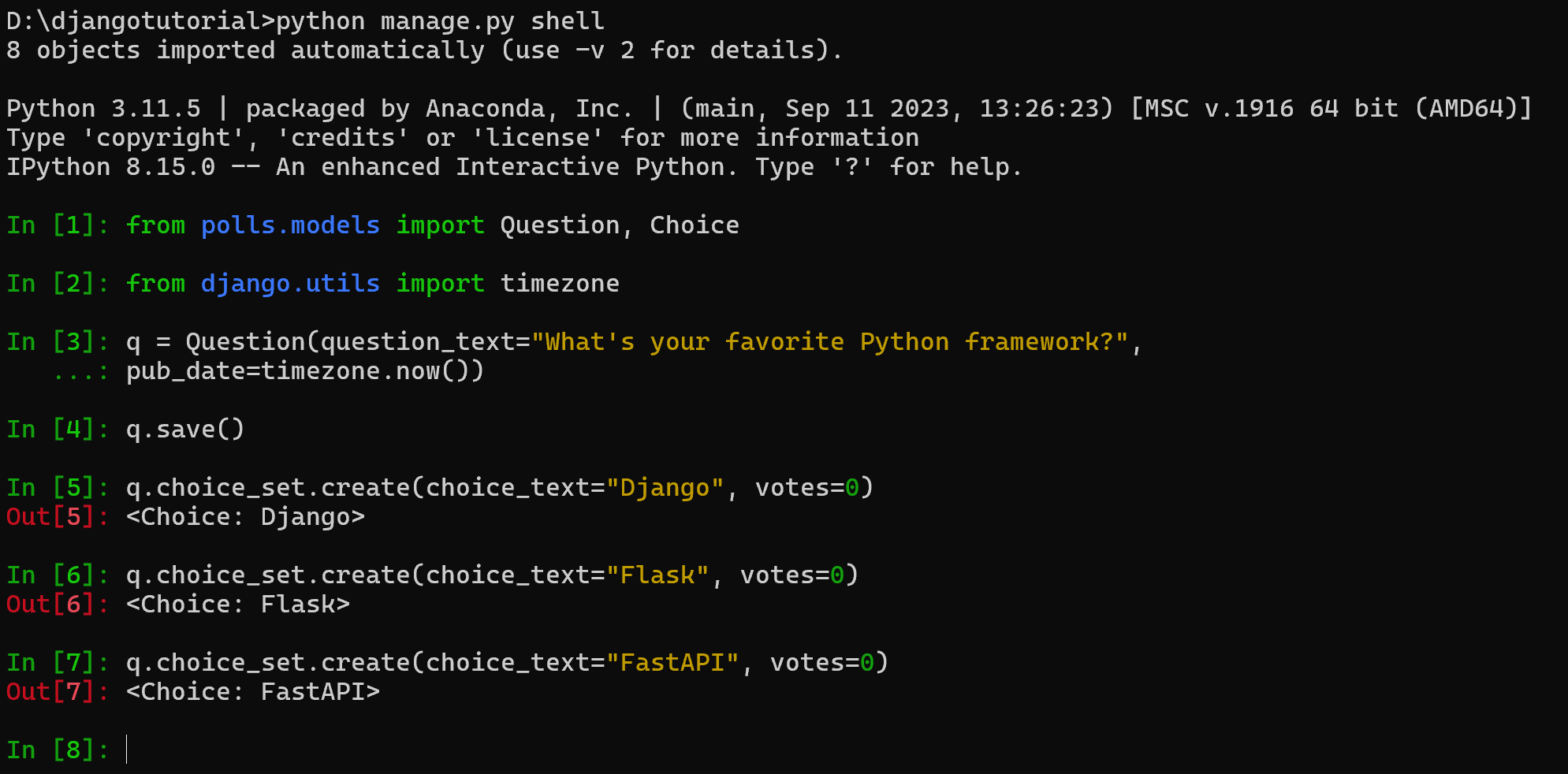
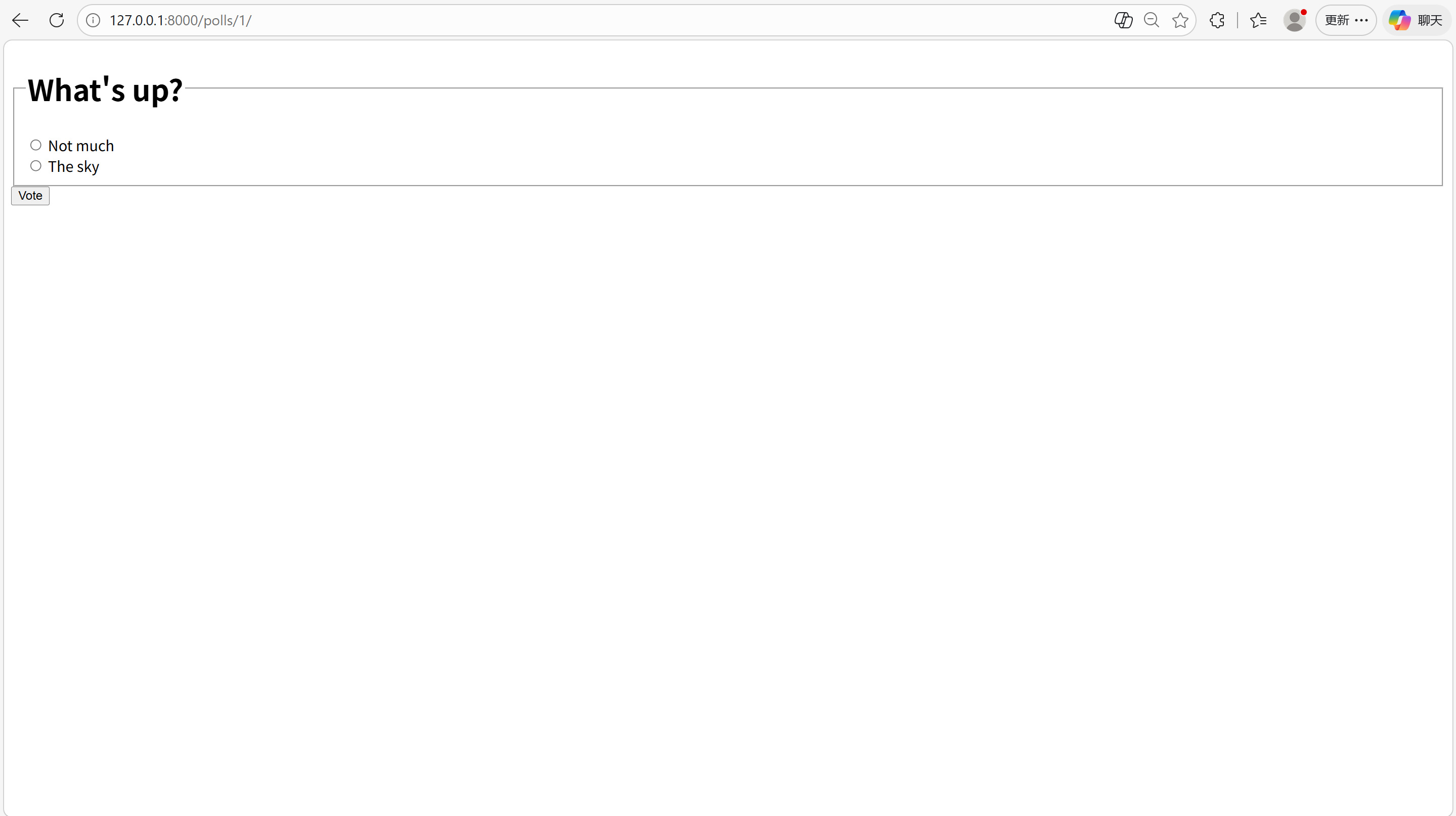
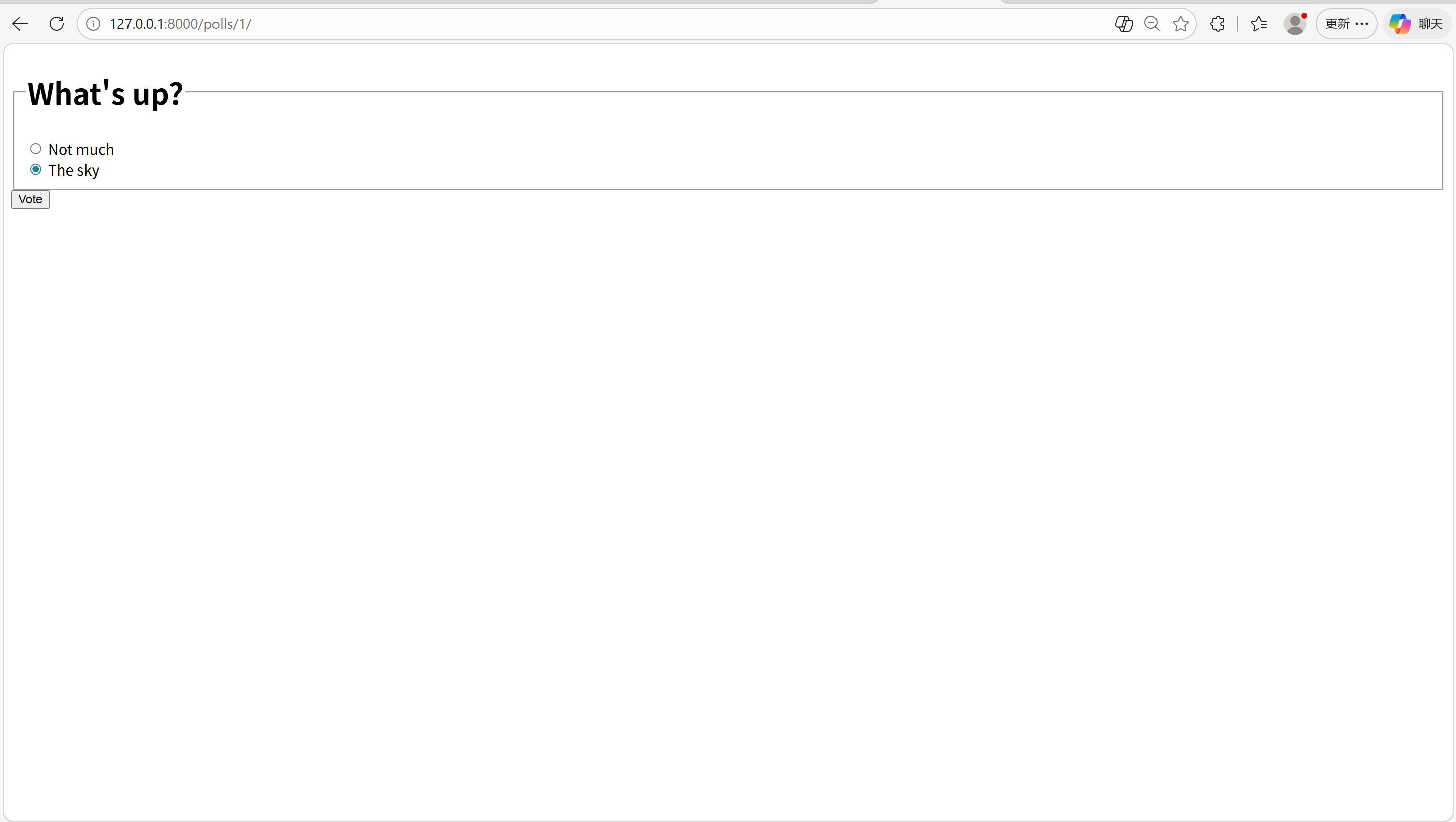
(3)访问 http://127.0.0.1:8000/polls/1/:
- 未选选项直接提交 → 显示错误信息;
- 选中选项提交 → 跳转到结果页,投票数 + 1;
- 刷新结果页不会重复投票(重定向的作用)。

5. 用通用视图精简代码
通用视图是 Django 对「查询数据→渲染模板」这类重复逻辑的抽象,能大幅减少代码量。我们需要将 index/detail/results 视图替换为通用视图。
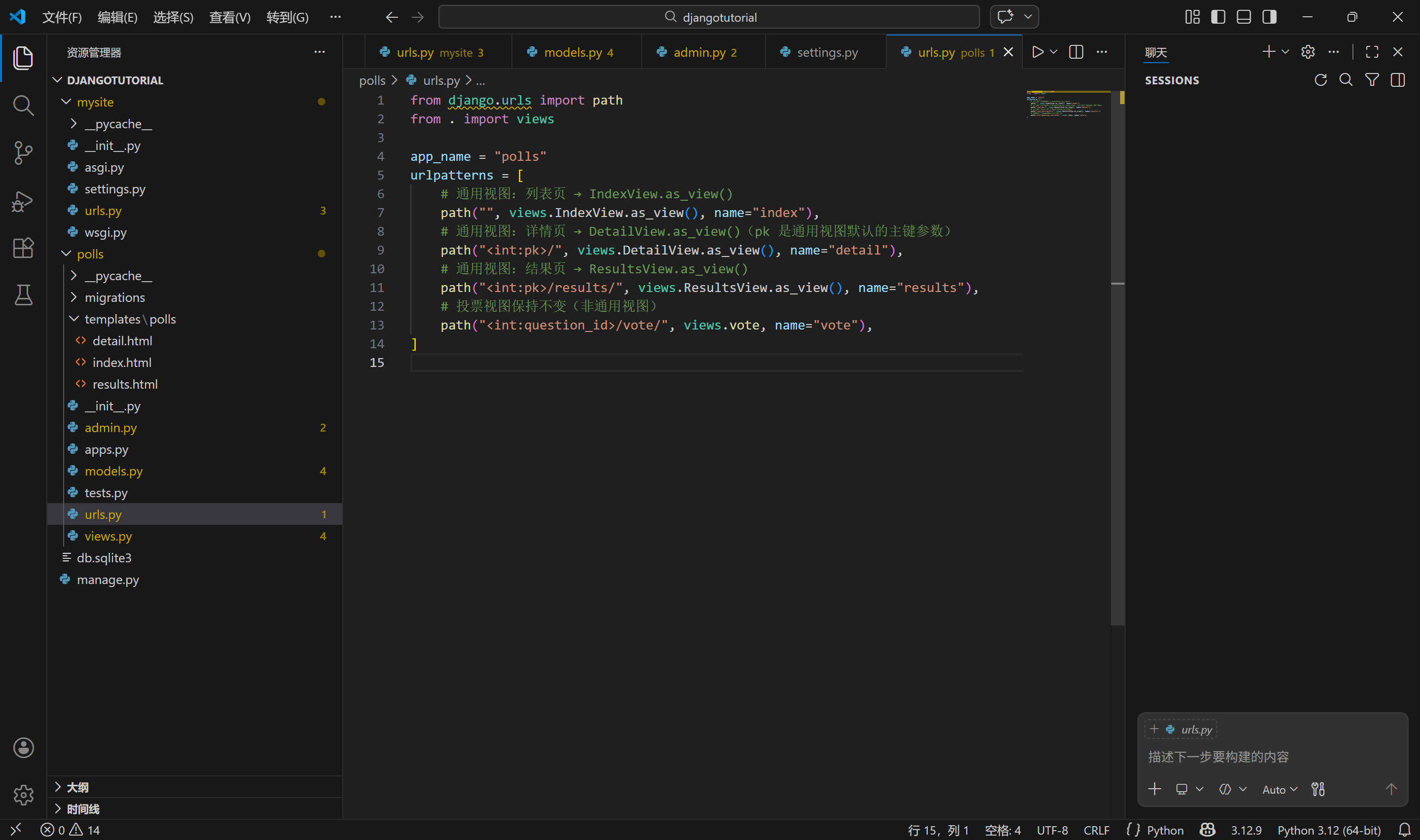
(1)修改 polls/urls.py(适配通用视图)
替换 polls/urls.py 内容(注意 <question_id> 改为 <pk>,通用视图默认用 pk 接收主键):
运行
# polls/urls.py
from django.urls import path
from . import views

app_name = "polls"
urlpatterns = [
    # 通用视图:列表页 → IndexView.as_view()
    path("", views.IndexView.as_view(), name="index"),
    # 通用视图:详情页 → DetailView.as_view()(pk 是通用视图默认的主键参数)
    path("<int:pk>/", views.DetailView.as_view(), name="detail"),
    # 通用视图:结果页 → ResultsView.as_view()
    path("<int:pk>/results/", views.ResultsView.as_view(), name="results"),
    # 投票视图保持不变(非通用视图)
    path("<int:question_id>/vote/", views.vote, name="vote"),
]
6. 重构 polls/views.py(替换为通用视图)
删除原有 index/detail/results 函数,替换为通用视图类:
运行
# polls/views.py
from django.db.models import F
from django.http import HttpResponseRedirect
from django.shortcuts import get_object_or_404, render
from django.urls import reverse
from django.views import generic  # 导入通用视图

from .models import Choice, Question

# 通用视图1:列表视图(显示最近5个问题)
class IndexView(generic.ListView):
    template_name = "polls/index.html"  # 指定使用的模板(覆盖默认模板名)
    context_object_name = "latest_question_list"  # 自定义上下文变量名(默认是 question_list)

    def get_queryset(self):
        """返回最近5个发布的问题(核心查询逻辑)"""
        return Question.objects.order_by("-pub_date")[:5]

# 通用视图2:详情视图(显示单个问题)
class DetailView(generic.DetailView):
    model = Question  # 指定操作的模型
    template_name = "polls/detail.html"  # 覆盖默认模板(默认是 polls/question_detail.html)

# 通用视图3:结果视图(显示单个问题的结果)
class ResultsView(generic.DetailView):
    model = Question
    template_name = "polls/results.html"  # 覆盖默认模板,与详情页区分

# 投票视图保持不变
def vote(request, question_id):
    question = get_object_or_404(Question, pk=question_id)
    try:
        selected_choice = question.choice_set.get(pk=request.POST["choice"])
    except (KeyError, Choice.DoesNotExist):
        return render(
            request,
            "polls/detail.html",
            {"question": question, "error_message": "You didn't select a choice."},
        )
    else:
        selected_choice.votes = F("votes") + 1
        selected_choice.save()
        return HttpResponseRedirect(reverse("polls:results", args=(question.id,)))
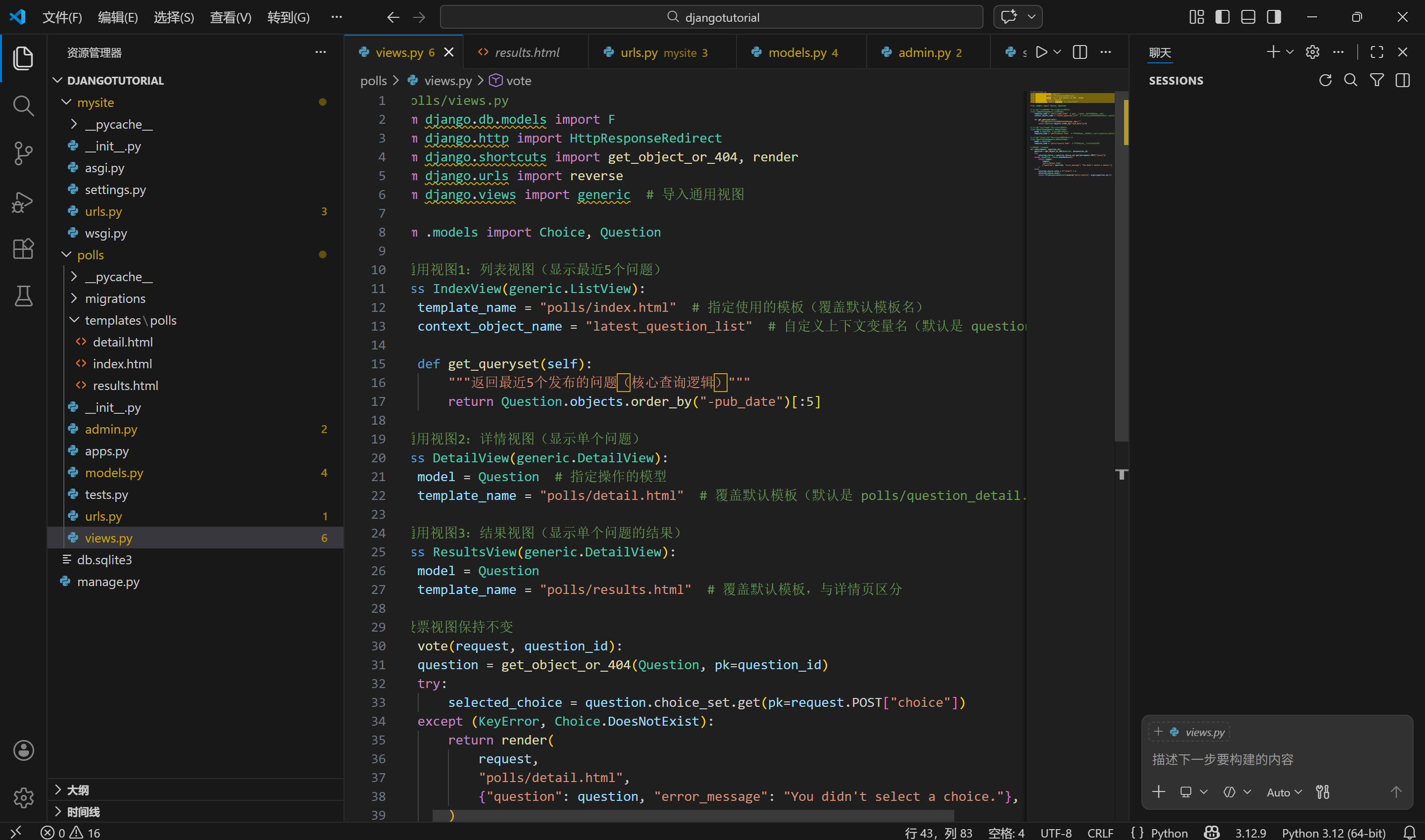
通用视图关键说明:
表格
| 通用视图类 | 作用 | 核心配置 |
|---|---|---|
generic.ListView |
显示模型对象列表 | model/get_queryset() 定义查询逻辑;template_name 指定模板;context_object_name 自定义上下文变量 |
generic.DetailView |
显示单个模型对象详情 | model 指定模型;template_name 覆盖默认模板名 |
- 默认上下文变量:
ListView默认为question_list,DetailView默认为question(与我们之前的变量名一致,所以模板无需修改); - 默认模板名:
ListView默认为polls/question_list.html,DetailView默认为polls/question_detail.html,我们用template_name覆盖为已有的index.html/detail.html。
7. 测试验证
(1)重启开发服务器(修改 URLconf / 视图后必须重启):
运行
python manage.py runserver
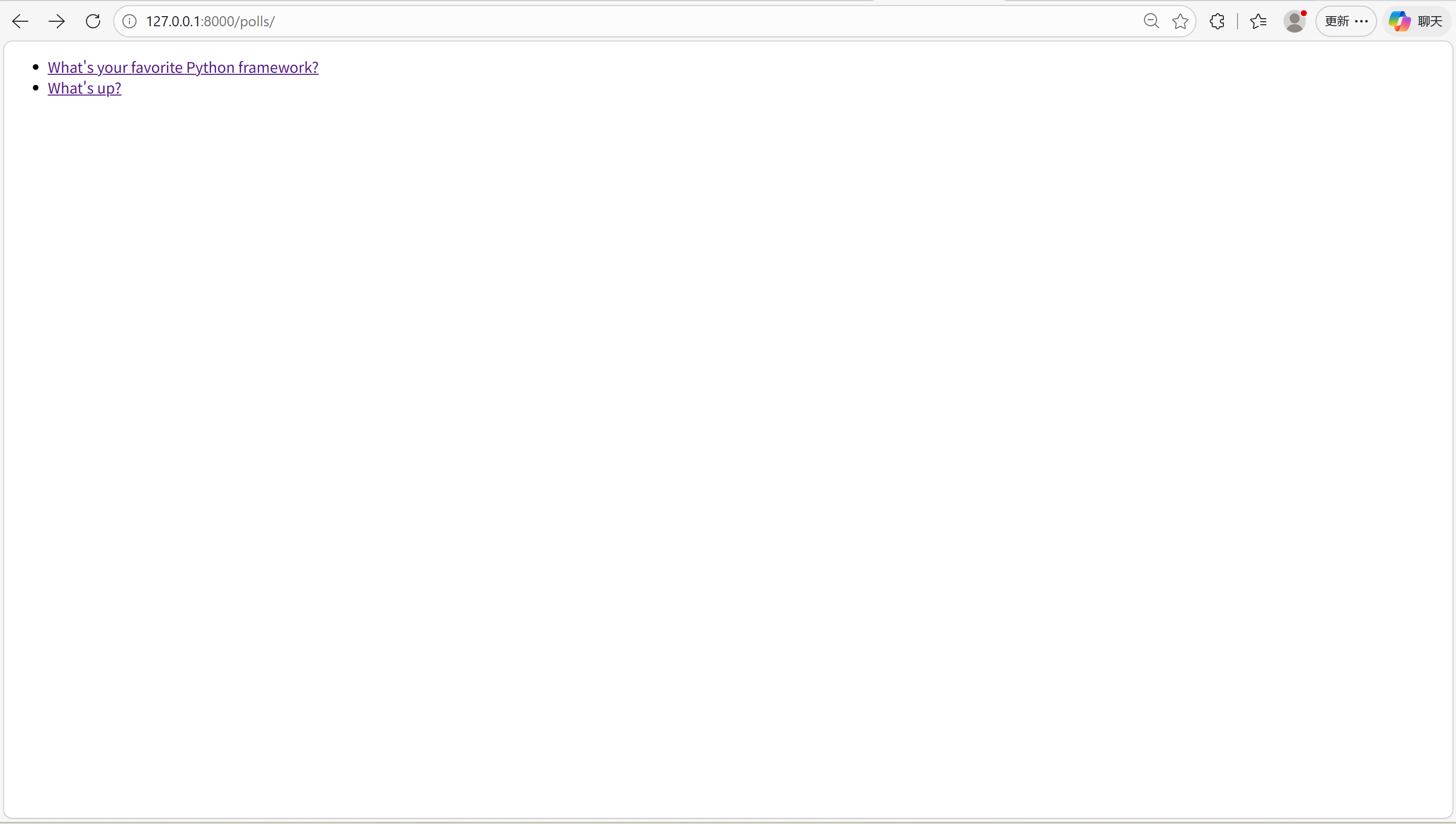
(2)访问 http://127.0.0.1:8000/polls/:
- 点击问题进入详情页 → 选择选项投票 → 跳转到结果页,投票数增加;
- 未选选项直接提交 → 显示错误信息
You didn't select a choice.; - 结果页点击
Vote again?可返回投票页再次投票。
十三、自动化测试(从找 Bug 到写测试)
为投票应用编写自动化测试,包括模型测试、视图测试,目的是发现并修复 Bug,保证代码修改后功能稳定。
1. 概念
- 自动化测试:用代码检查代码是否符合预期(替代手动测试),每次修改代码后可快速验证功能;
- 核心价值:节约时间、预防 Bug、提升代码可信度、便于团队协作;
- Django 测试工具:
django.test.TestCase(测试基类)、Client(模拟用户请求)、断言方法(assertIs/assertContains等)。
2. 测试并修复模型 Bug
(1)发现 Bug:was_published_recently() 逻辑错误
该方法本应只对「一天内发布的问题」返回True,但对「未来发布的问题」也返回True。先在 shell 中验证 Bug:
python manage.py shellimport datetime
from django.utils import timezone
from polls.models import Question
# 创建一个30天后发布的问题
future_question = Question(pub_date=timezone.now() + datetime.timedelta(days=30))
# 错误:未来的问题也返回True
print(future_question.was_published_recently()) # 输出 True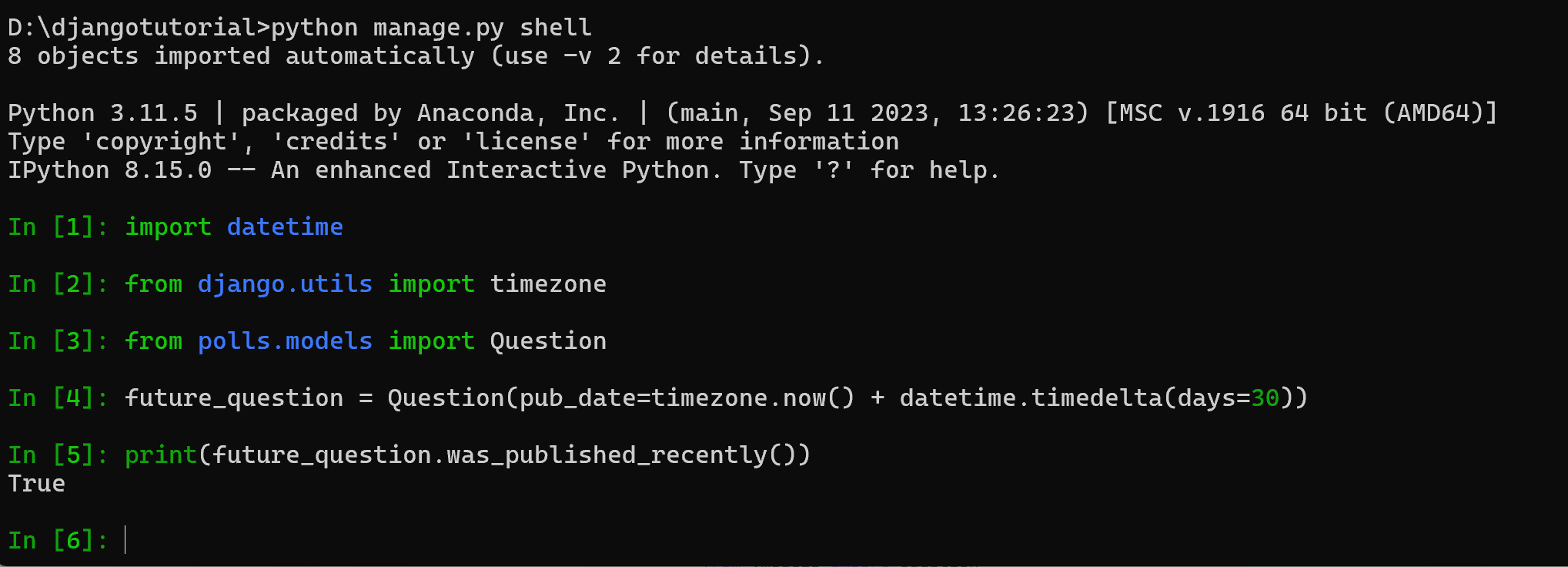
(2)编写模型测试用例
创建 / 修改 polls/tests.py,编写测试代码暴露 Bug:
import datetime
from django.test import TestCase
from django.utils import timezone
from .models import Question

# 测试Question模型的类(继承TestCase)
class QuestionModelTests(TestCase):
    def test_was_published_recently_with_future_question(self):
        """测试:未来发布的问题,was_published_recently()应返回False"""
        # 1. 准备测试数据:30天后发布的问题
        time = timezone.now() + datetime.timedelta(days=30)
        future_question = Question(pub_date=time)
        # 2. 断言:方法返回值应为False(当前会失败,因为有Bug)
        self.assertIs(future_question.was_published_recently(), False)

    def test_was_published_recently_with_old_question(self):
        """测试:超过1天前发布的问题,应返回False"""
        time = timezone.now() - datetime.timedelta(days=1, seconds=1)
        old_question = Question(pub_date=time)
        self.assertIs(old_question.was_published_recently(), False)

    def test_was_published_recently_with_recent_question(self):
        """测试:1天内发布的问题,应返回True"""
        time = timezone.now() - datetime.timedelta(hours=23, minutes=59, seconds=59)
        recent_question = Question(pub_date=time)
        self.assertIs(recent_question.was_published_recently(), True)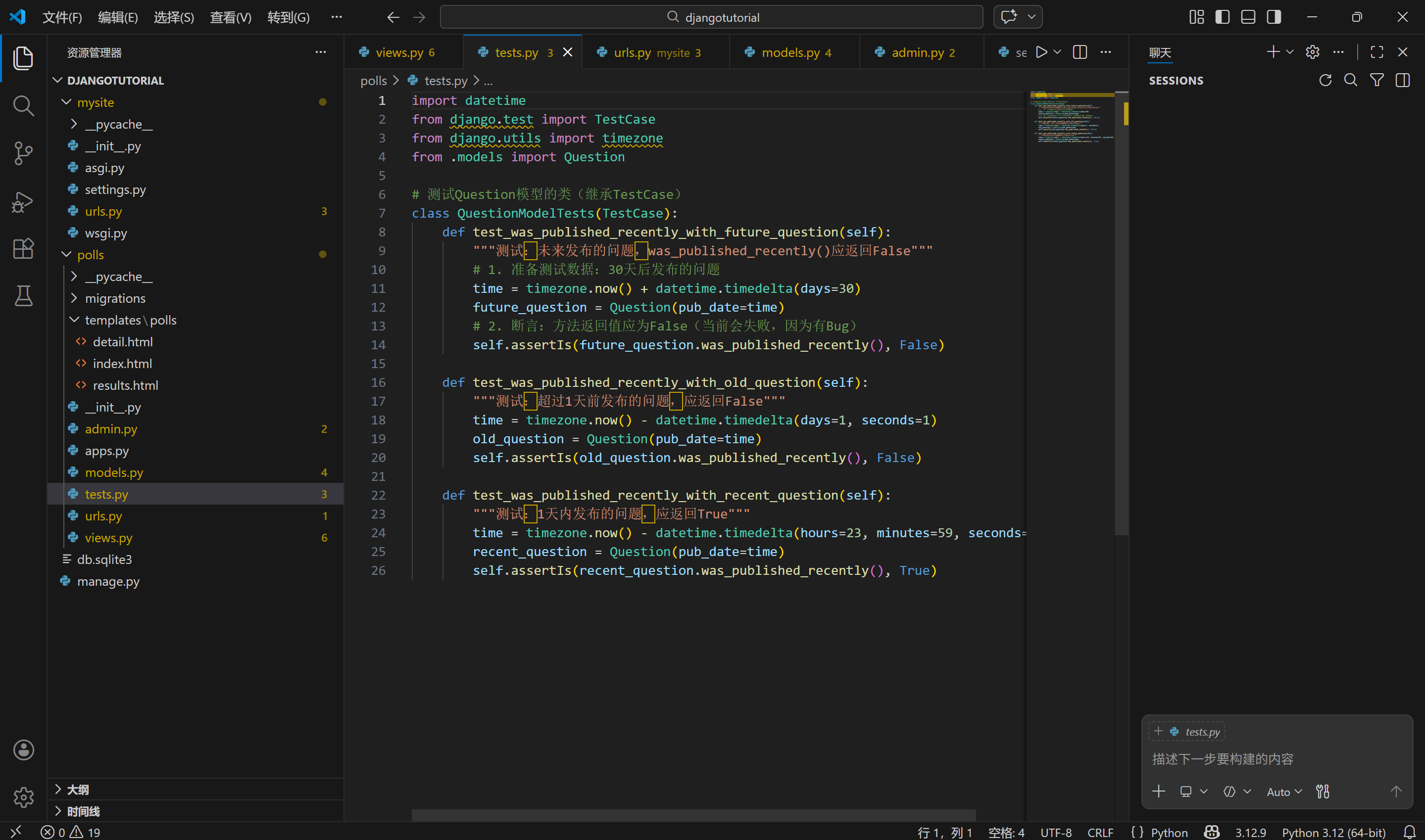
(3)运行测试(验证 Bug)
执行测试命令,会看到测试失败(暴露 Bug):
python manage.py test polls失败输出示例:
FAIL: test_was_published_recently_with_future_question (polls.tests.QuestionModelTests)
AssertionError: True is not False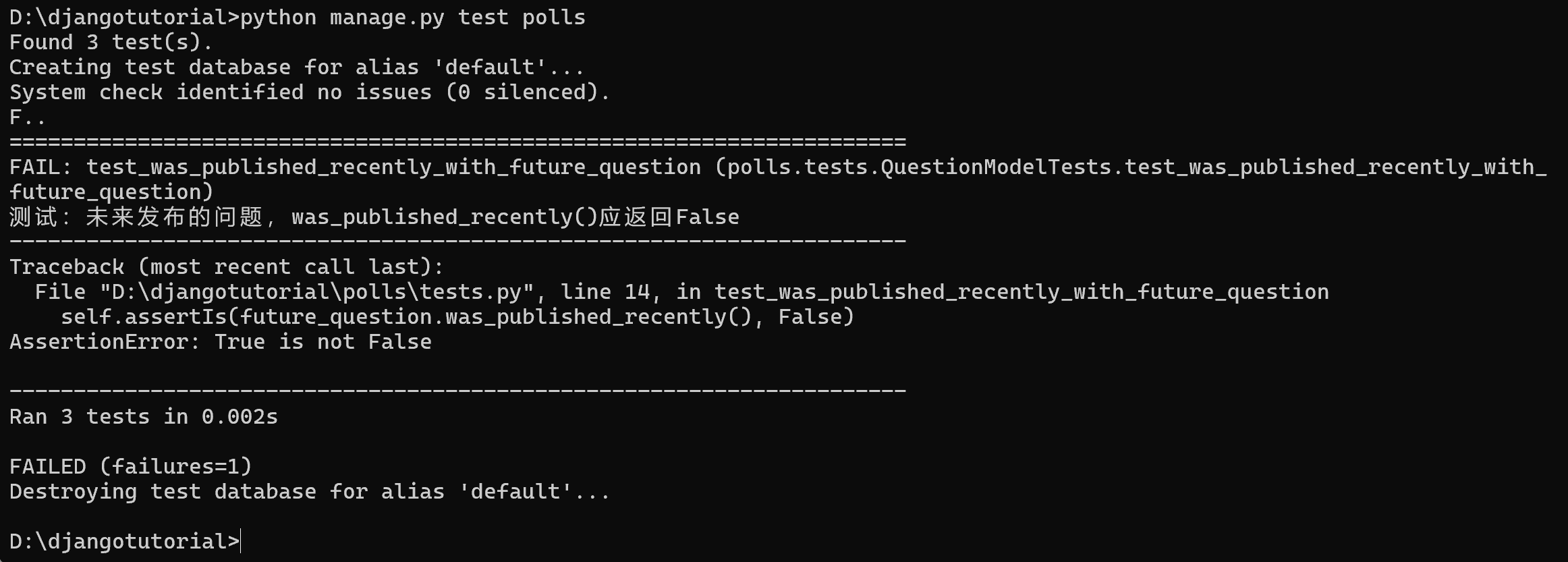
(4)修复 Bug:修改模型方法
修改 polls/models.py 中的 was_published_recently()
import datetime  # 新增导入
from django.db import models
from django.utils import timezone

class Question(models.Model):
    question_text = models.CharField(max_length=200)
    pub_date = models.DateTimeField('date published')

    def __str__(self):
        return self.question_text

    def was_published_recently(self):
        now = timezone.now()
        # 修复:只在「一天内」且「不是未来」时返回True
        return now - datetime.timedelta(days=1) <= self.pub_date <= now

class Choice(models.Model):
    question = models.ForeignKey(Question, on_delete=models.CASCADE)
    choice_text = models.CharField(max_length=200)
    votes = models.IntegerField(default=0)

    def __str__(self):
        return self.choice_text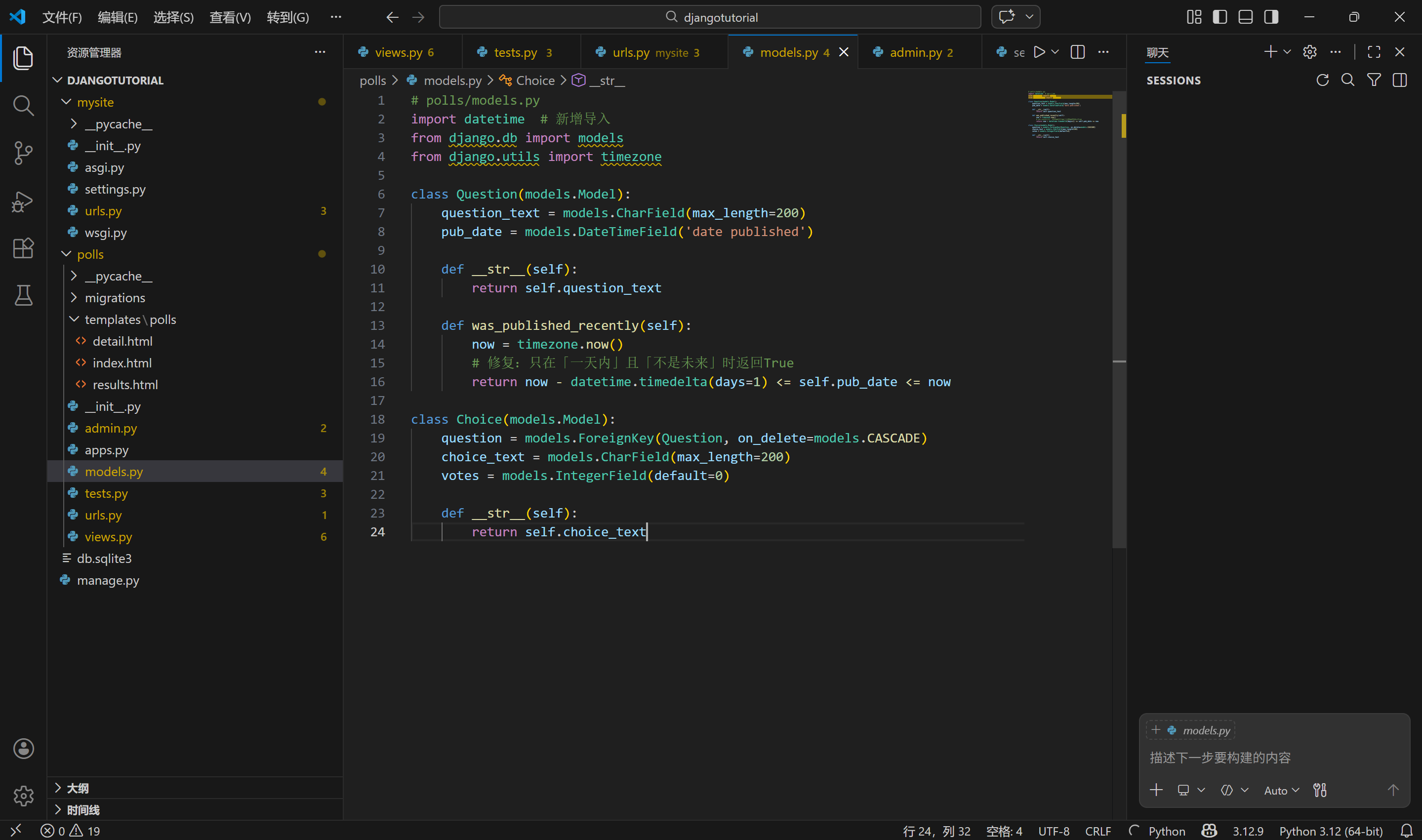
(5)重新运行测试(验证修复)
python manage.py test polls成功输出示例:
Ran 3 tests in 0.002s
OK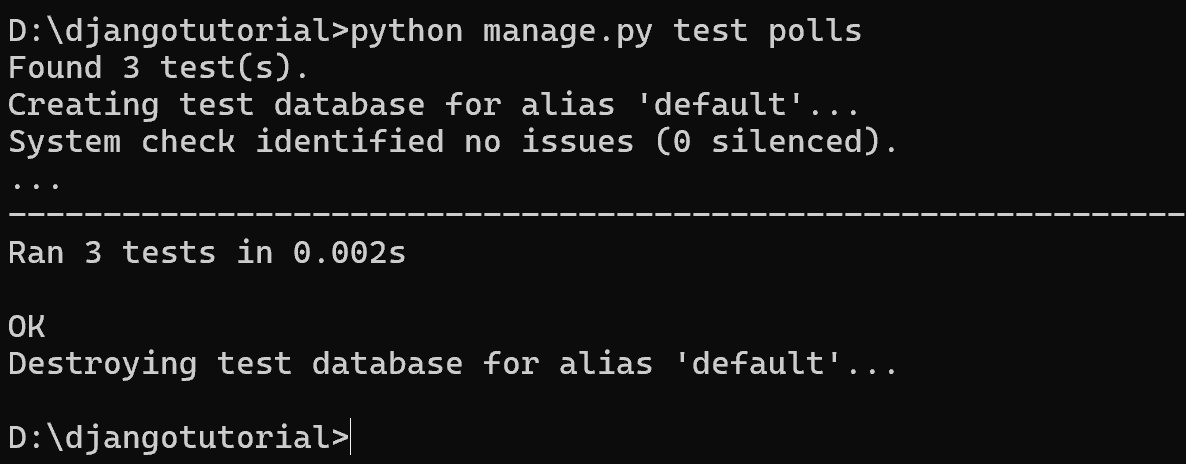
3. 测试视图(过滤未来的问题)
(1)问题:首页显示未来的问题
当前IndexView会显示所有问题(包括未来发布的),需修复并编写测试。
(2)编写视图测试用例
在 polls/tests.py 中新增视图测试代码:
运行
import datetime
from django.test import TestCase  # 关键:导入TestCase
from django.utils import timezone
from django.urls import reverse  # 视图测试需要
from .models import Question  # 导入模型

class QuestionModelTests(TestCase):
    def test_was_published_recently_with_future_question(self):
        time = timezone.now() + datetime.timedelta(days=30)
        future_question = Question(pub_date=time)
        self.assertIs(future_question.was_published_recently(), False)

    def test_was_published_recently_with_old_question(self):
        time = timezone.now() - datetime.timedelta(days=1, seconds=1)
        old_question = Question(pub_date=time)
        self.assertIs(old_question.was_published_recently(), False)

    def test_was_published_recently_with_recent_question(self):
        time = timezone.now() - datetime.timedelta(hours=23, minutes=59, seconds=59)
        recent_question = Question(pub_date=time)
        self.assertIs(recent_question.was_published_recently(), True)

# 快捷函数:创建问题
def create_question(question_text, days):
    time = timezone.now() + datetime.timedelta(days=days)
    return Question.objects.create(question_text=question_text, pub_date=time)

# 视图测试类(必须继承TestCase)
class QuestionIndexViewTests(TestCase):
    def test_no_questions(self):
        response = self.client.get(reverse("polls:index"))
        self.assertEqual(response.status_code, 200)
        self.assertContains(response, "No polls are available.")
        self.assertQuerySetEqual(response.context["latest_question_list"], [])

    def test_past_question(self):
        question = create_question(question_text="Past question.", days=-30)
        response = self.client.get(reverse("polls:index"))
        self.assertQuerySetEqual(
            response.context["latest_question_list"],
            [question],
        )

    def test_future_question(self):
        create_question(question_text="Future question.", days=30)
        response = self.client.get(reverse("polls:index"))
        self.assertContains(response, "No polls are available.")
        self.assertQuerySetEqual(response.context["latest_question_list"], [])

class QuestionDetailViewTests(TestCase):
    def test_future_question(self):
        future_question = create_question(question_text="Future question.", days=5)
        url = reverse("polls:detail", args=(future_question.id,))
        response = self.client.get(url)
        self.assertEqual(response.status_code, 404)

    def test_past_question(self):
        past_question = create_question(question_text="Past Question.", days=-5)
        url = reverse("polls:detail", args=(past_question.id,))
        response = self.client.get(url)
        self.assertContains(response, past_question.question_text)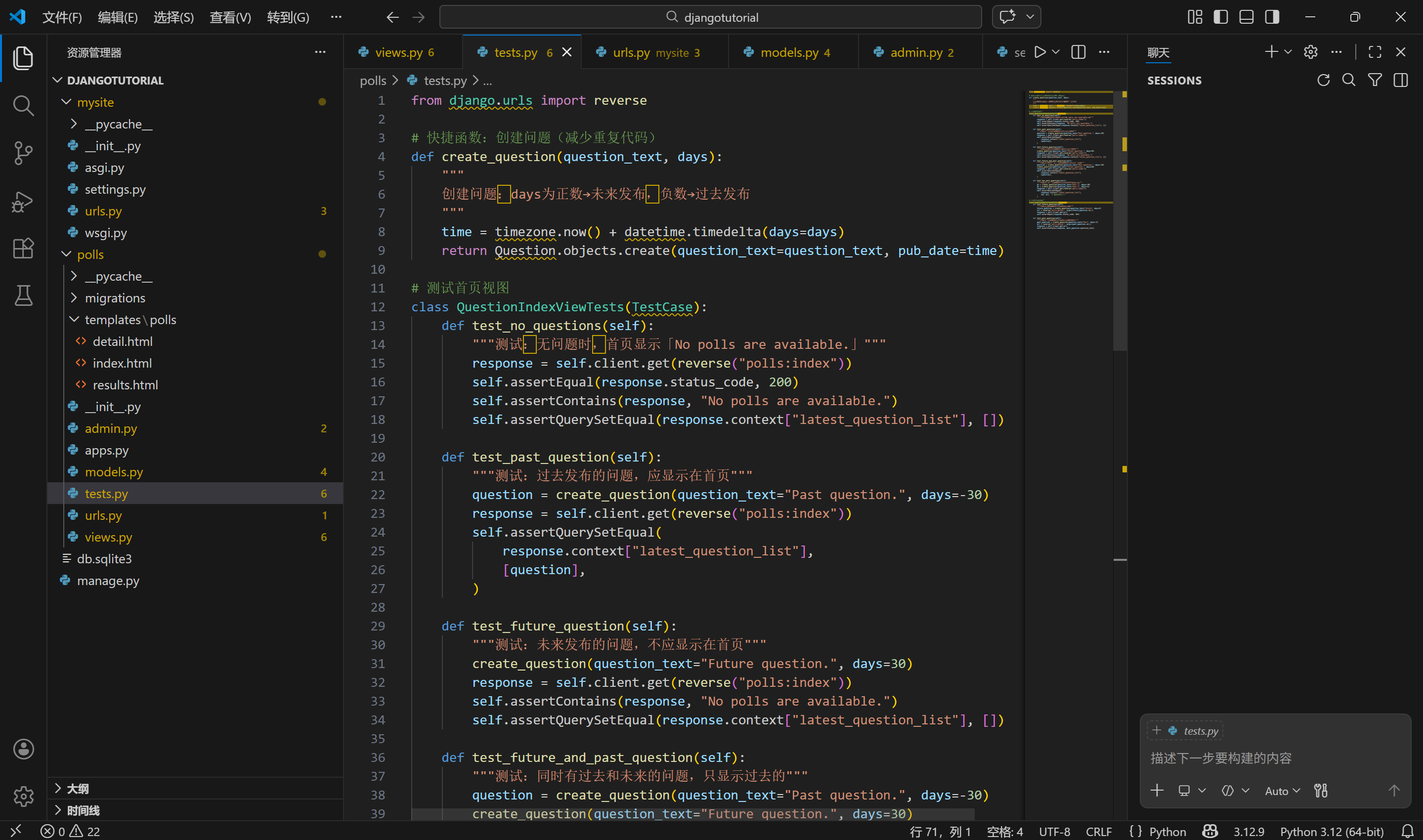
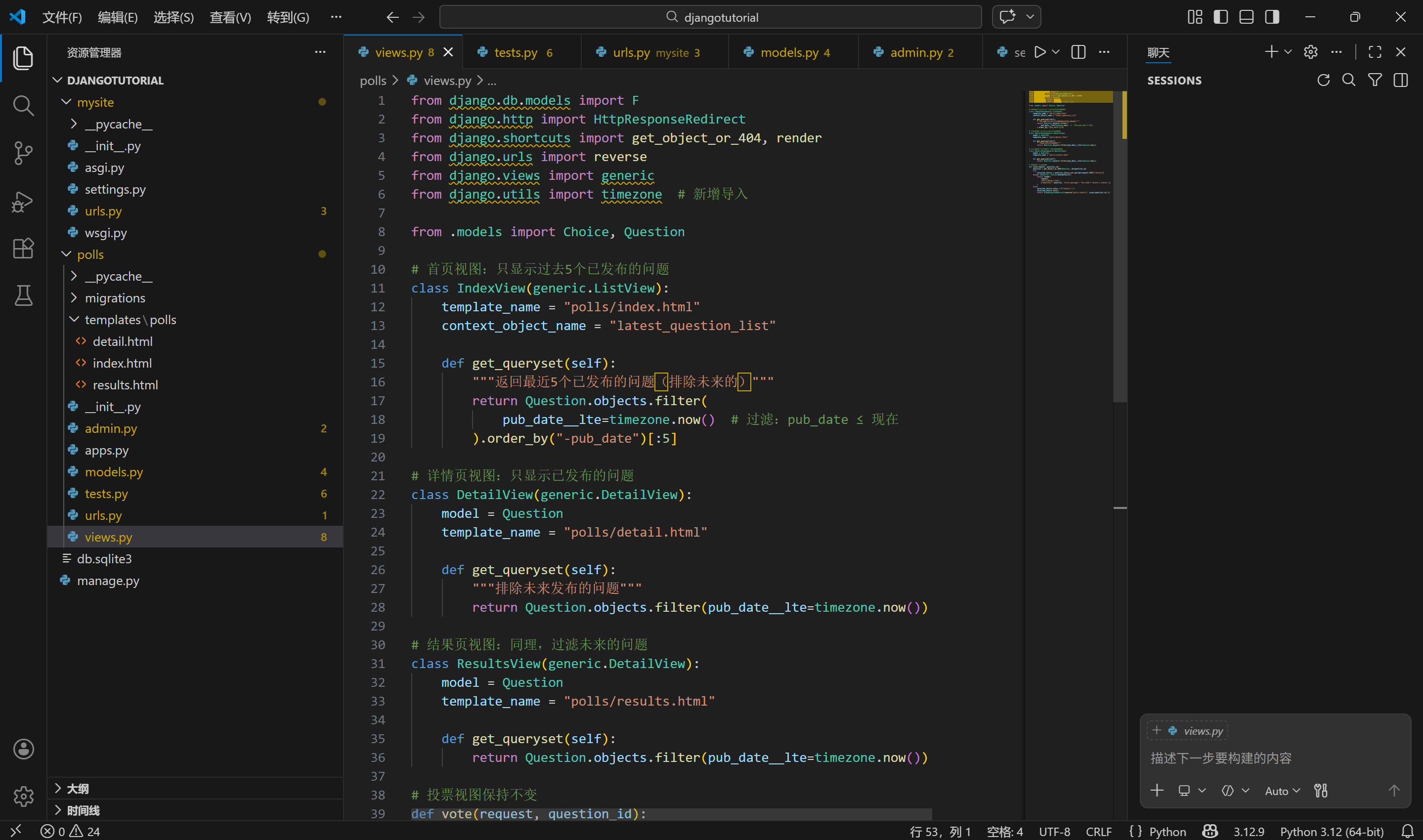
(3)修复视图:过滤未来的问题
修改 polls/views.py,让视图只显示「已发布(pub_date ≤ 现在)」的问题:
运行
from django.db.models import F
from django.http import HttpResponseRedirect
from django.shortcuts import get_object_or_404, render
from django.urls import reverse
from django.views import generic
from django.utils import timezone  # 新增导入

from .models import Choice, Question

# 首页视图:只显示过去5个已发布的问题
class IndexView(generic.ListView):
    template_name = "polls/index.html"
    context_object_name = "latest_question_list"

    def get_queryset(self):
        """返回最近5个已发布的问题(排除未来的)"""
        return Question.objects.filter(
            pub_date__lte=timezone.now()  # 过滤:pub_date ≤ 现在
        ).order_by("-pub_date")[:5]

# 详情页视图:只显示已发布的问题
class DetailView(generic.DetailView):
    model = Question
    template_name = "polls/detail.html"

    def get_queryset(self):
        """排除未来发布的问题"""
        return Question.objects.filter(pub_date__lte=timezone.now())

# 结果页视图:同理,过滤未来的问题
class ResultsView(generic.DetailView):
    model = Question
    template_name = "polls/results.html"

    def get_queryset(self):
        return Question.objects.filter(pub_date__lte=timezone.now())

# 投票视图保持不变
def vote(request, question_id):
    question = get_object_or_404(Question, pk=question_id)
    try:
        selected_choice = question.choice_set.get(pk=request.POST["choice"])
    except (KeyError, Choice.DoesNotExist):
        return render(
            request,
            "polls/detail.html",
            {"question": question, "error_message": "You didn't select a choice."},
        )
    else:
        selected_choice.votes = F("votes") + 1
        selected_choice.save()
        return HttpResponseRedirect(reverse("polls:results", args=(question.id,)))
(4)运行视图测试(验证修复)
运行
python manage.py test polls
所有测试通过,说明视图已正确过滤未来的问题:
- 首页不显示未来的问题;
- 直接访问未来问题的详情页,返回 404;
- 过去的问题正常显示。
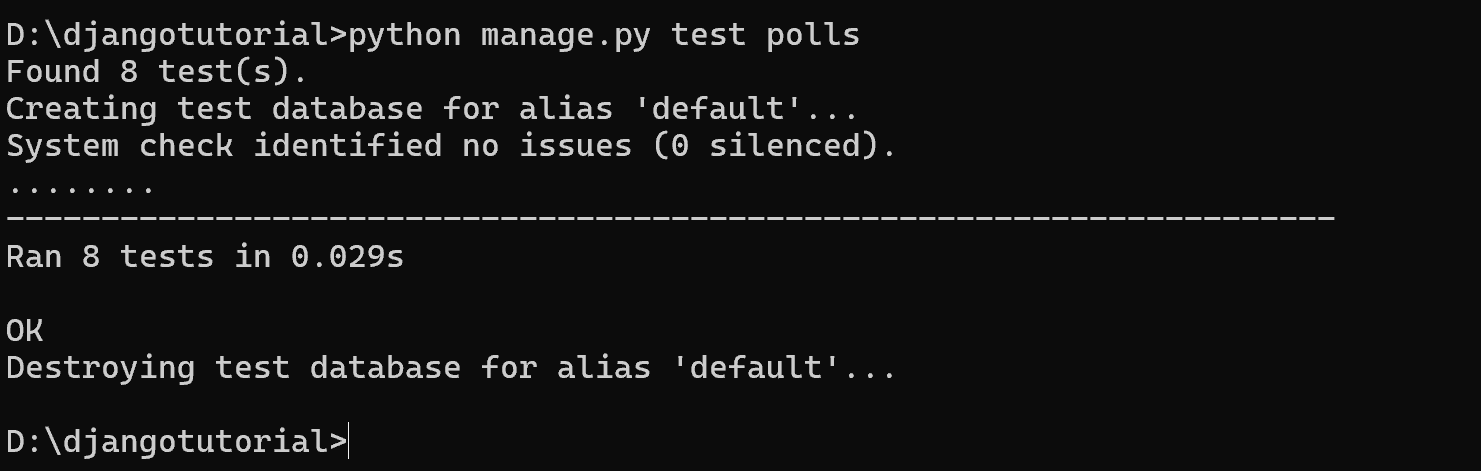
所有 8 个测试全部通过,这意味着:
- 模型测试(
QuestionModelTests):修复了was_published_recently()的 Bug,覆盖了「未来 / 过去 / 最近」三种场景; - 视图测试(
QuestionIndexViewTests/QuestionDetailViewTests):验证了首页 / 详情页能正确过滤未来的问题; - 测试数据库自动创建 / 销毁,没有任何配置错误。
4. 关键测试知识点解析
(1)核心测试工具
| 工具 / 方法 | 作用 |
|---|---|
django.test.TestCase |
测试基类,提供测试数据库(每次测试自动创建 / 销毁)、客户端、断言方法 |
self.client |
模拟用户请求(get()/post()),测试视图响应 |
reverse("polls:index") |
反向解析 URL(避免硬编码),测试中优先使用 |
assertIs(a, b) |
断言 a 和 b 是否相等(布尔值 / 对象) |
assertContains(res, txt) |
断言响应内容包含指定文本 |
assertQuerySetEqual() |
断言查询集(QuerySet)的内容符合预期 |
(2) 测试原则
- 一个测试方法只测一个功能:比如
test_future_question只测「未来问题是否显示」; - 测试方法名清晰:用
test_xxx_xxx命名,一眼能看出测试目的; - 复用测试代码:比如
create_question函数减少重复创建问题的代码; - 测试覆盖边界场景:比如「无问题」「只有未来问题」「多个过去问题」。
(3)运行测试的常用命令
运行
# 运行polls应用的所有测试
python manage.py test polls

# 运行指定测试类
python manage.py test polls.tests.QuestionModelTests

# 运行指定测试方法
python manage.py test polls.tests.QuestionModelTests.test_was_published_recently_with_future_question

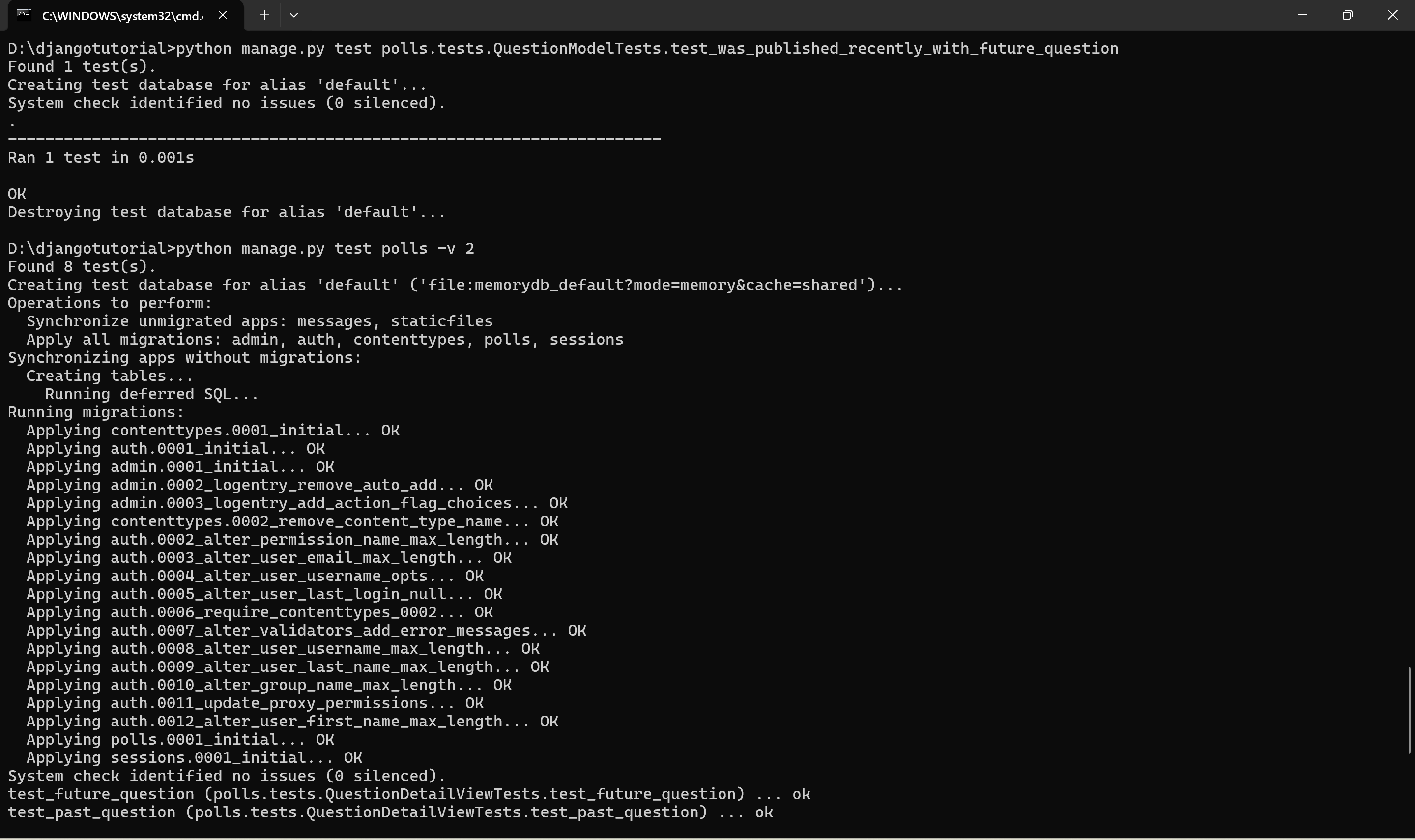
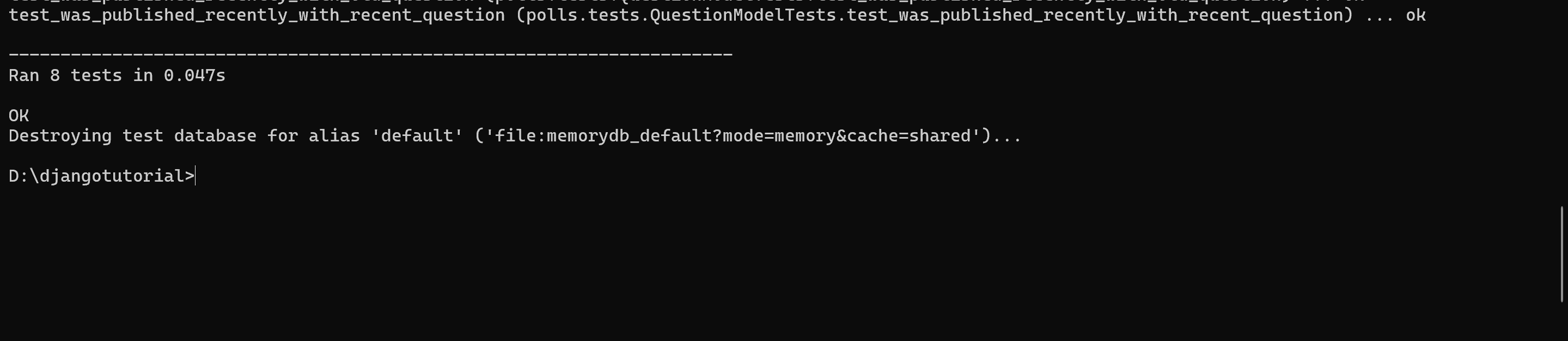
# 显示测试详情(比如每个测试的执行时间)
python manage.py test polls -v 2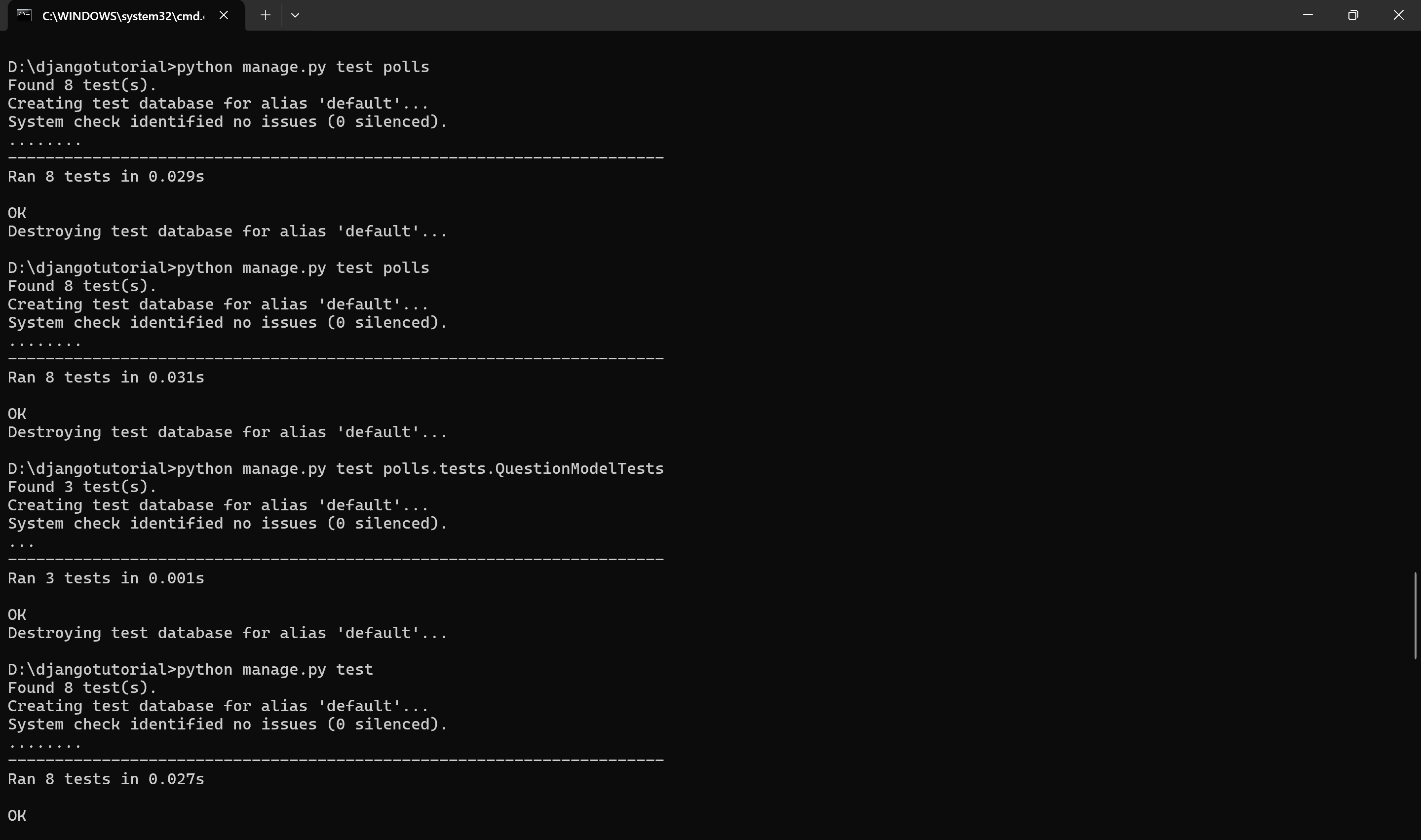
十四、静态文件(CSS / 图片)配置
为投票应用添加静态文件(CSS 样式表、背景图片),让页面更美观。
1. 概念
- 静态文件:CSS、JS、图片、字体等非 Django 动态生成的文件;
- Django 处理逻辑:
django.contrib.staticfiles会自动收集所有应用下static目录的文件,开发环境中通过runserver直接提供访问,生产环境需收集到统一目录; - 命名空间:在
static下创建与应用同名的子目录(如static/polls/),避免不同应用的静态文件重名冲突。
2. 添加 CSS 样式表
(1)创建静态文件目录结构
按以下路径创建目录(必须严格匹配,Django 会自动识别):
polls/
└── static/          # 应用级静态文件根目录
    └── polls/       # 命名空间(与应用同名,避免冲突)
        └── style.css # 样式文件
创建命令(可选,手动创建也可):
运行
# 进入项目根目录 D:\djangotutorial
mkdir -p polls/static/polls  # Windows 用 md polls\static\polls
(2)编写 CSS 样式文件
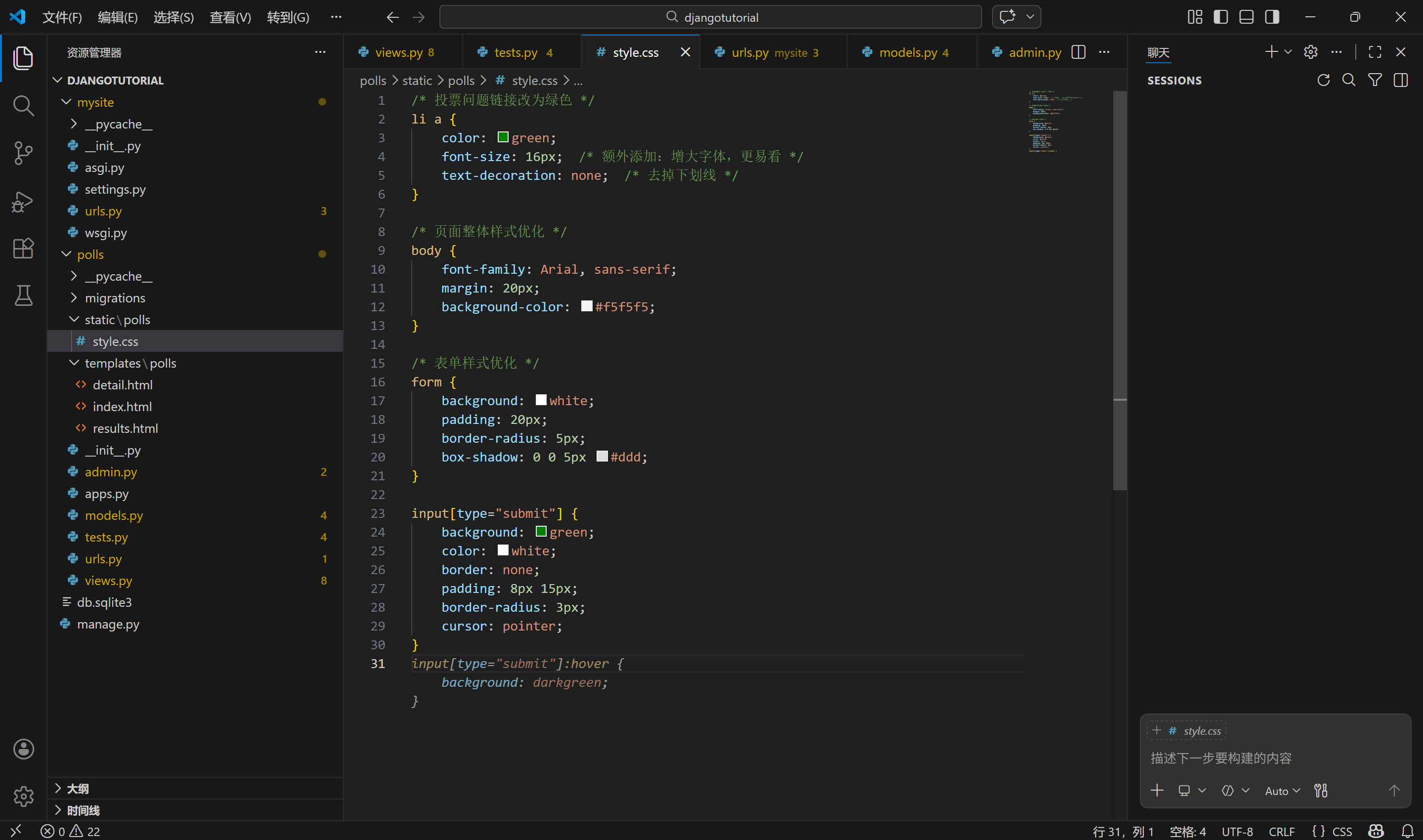
在 polls/static/polls/style.css 中写入以下样式(将投票链接改为绿色):
/* 投票问题链接改为绿色 */
li a {
    color: green;
    font-size: 16px;  /* 额外添加:增大字体,更易看 */
    text-decoration: none;  /* 去掉下划线 */
}

/* 页面整体样式优化 */
body {
    font-family: Arial, sans-serif;
    margin: 20px;
    background-color: #f5f5f5;
}

/* 表单样式优化 */
form {
    background: white;
    padding: 20px;
    border-radius: 5px;
    box-shadow: 0 0 5px #ddd;
}

input[type="submit"] {
    background: green;
    color: white;
    border: none;
    padding: 8px 15px;
    border-radius: 3px;
    cursor: pointer;
}
(3)在模板中加载 CSS
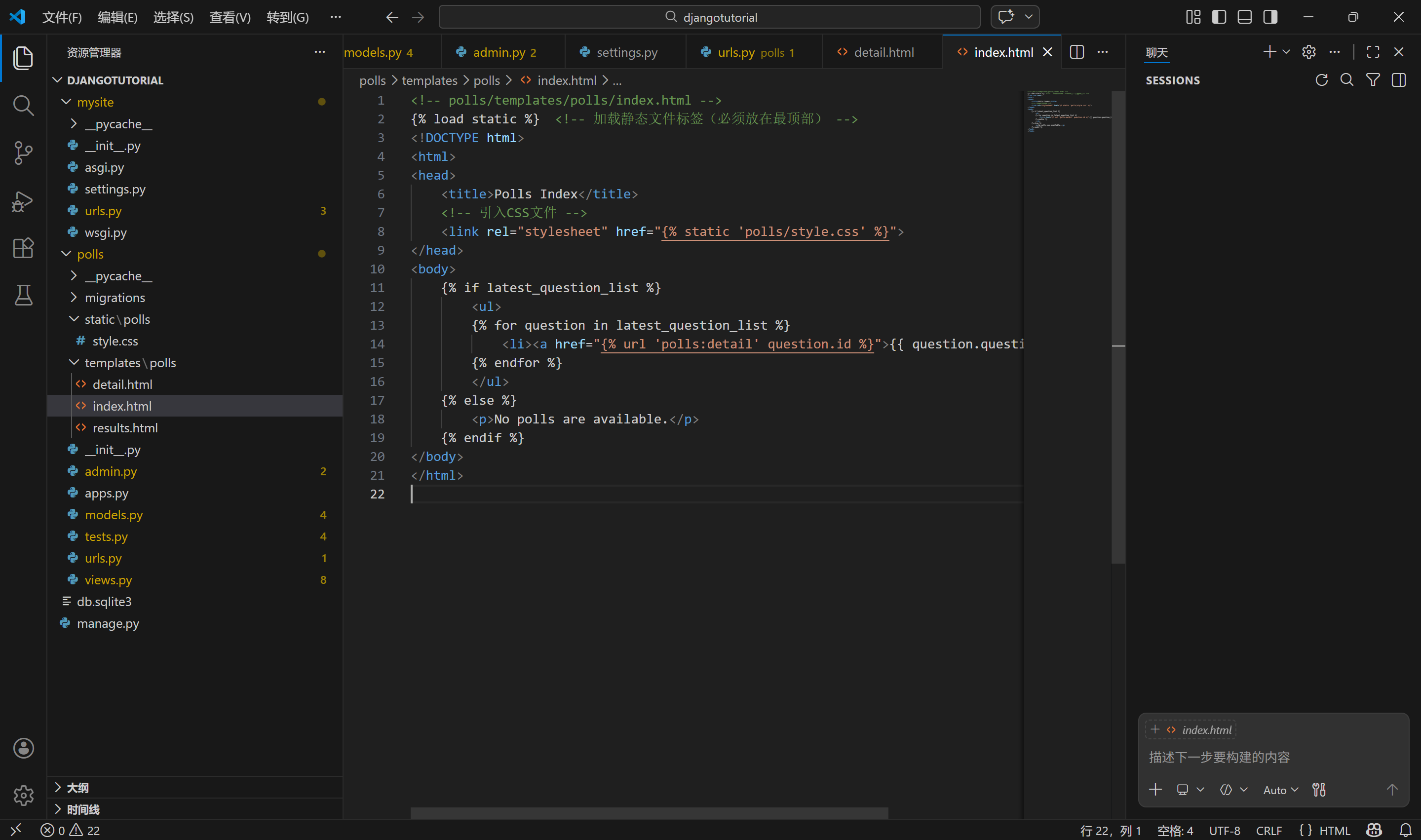
修改 polls/templates/polls/index.html,在文件顶部添加静态文件加载标签,引入 CSS:
预览
<!-- polls/templates/polls/index.html -->
{% load static %}  <!-- 加载静态文件标签(必须放在最顶部) -->
<!DOCTYPE html>
<html>
<head>
    <title>Polls Index</title>
    <!-- 引入CSS文件 -->
    <link rel="stylesheet" href="{% static 'polls/style.css' %}">
</head>
<body>
    {% if latest_question_list %}
        <ul>
        {% for question in latest_question_list %}
            <li><a href="{% url 'polls:detail' question.id %}">{{ question.question_text }}</a></li>
        {% endfor %}
        </ul>
    {% else %}
        <p>No polls are available.</p>
    {% endif %}
</body>
</html>
关键说明:
{% load static %}:必须放在模板开头,加载静态文件模板标签;{% static 'polls/style.css' %}:生成 CSS 文件的绝对路径(如http://127.0.0.1:8000/static/polls/style.css);- 无需手动配置 URL,Django 开发服务器会自动处理静态文件请求。
(4)测试 CSS 效果
- 重启开发服务器(确保静态文件加载):
运行
python manage.py runserver
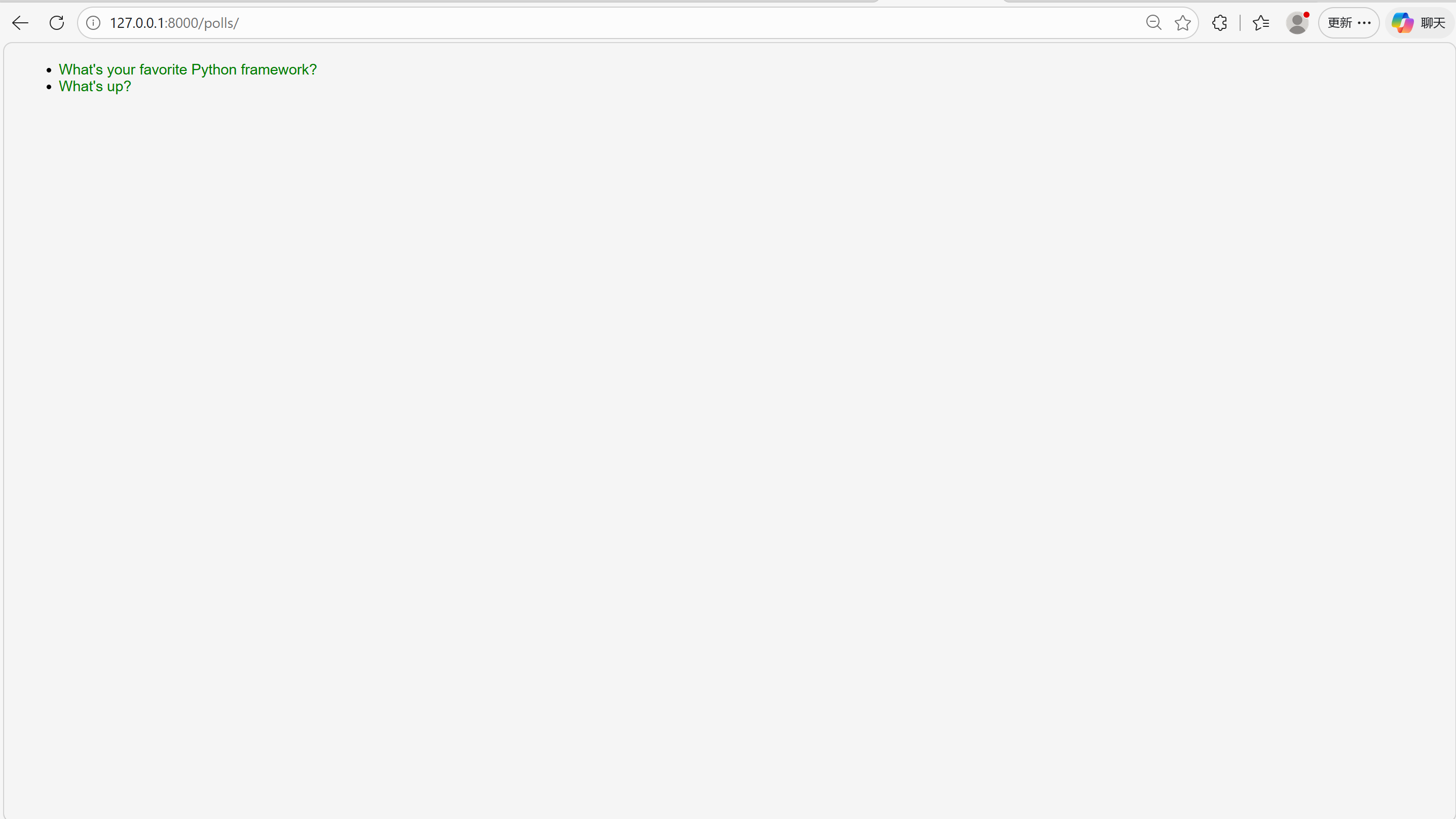
- 访问
http://127.0.0.1:8000/polls/ - 投票问题链接变为绿色、无下划线、字体增大;
- 页面背景变为浅灰色,整体样式更美观。
3. 添加背景图片
(1) 创建图片目录并放入图片
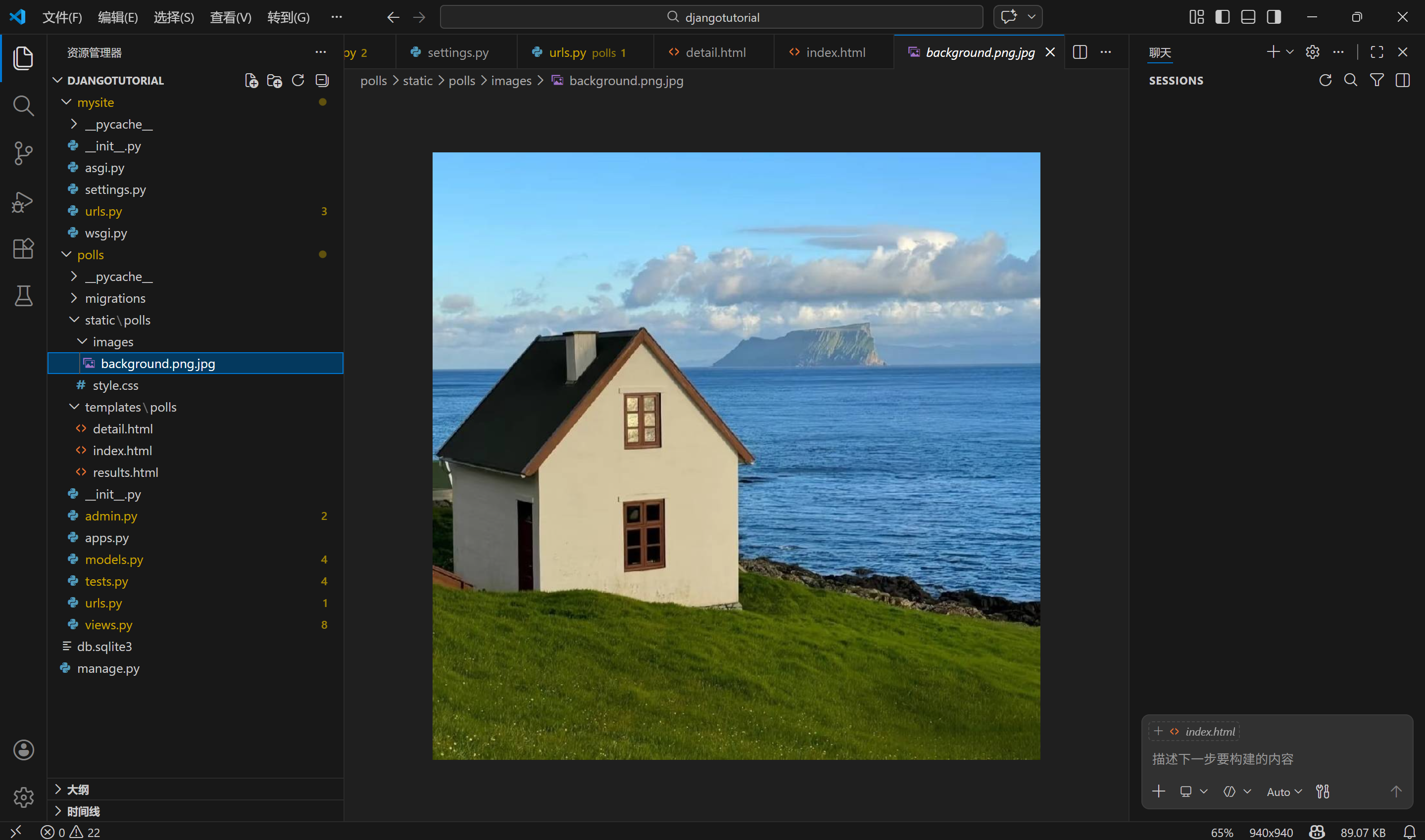
按以下路径创建目录并放入背景图片(任意图片均可,命名为 background.png):
polls/
└── static/
    └── polls/
        ├── style.css
        └── images/          # 图片目录
            └── background.png # 背景图片
- 找一张任意图片(比如 PNG/JPG 格式),重命名为
background.png,放入polls/static/polls/images/; - 如果没有图片,可跳过此步骤,或用在线图片链接替代。
(2)修改 CSS 引入背景图片
更新 polls/static/polls/style.css,添加背景图片样式:
/* polls/static/polls/style.css */
li a {
    color: green;
    font-size: 16px;
    text-decoration: none;
}

body {
    font-family: Arial, sans-serif;
    margin: 20px;
    background-color: #f5f5f5;
    /* 添加背景图片:左上角显示,不重复 */
    background: #f5f5f5 url("images/background.png") no-repeat top left;
    /* 可选:调整背景图片位置/大小 */
    background-size: 200px auto;  /* 宽度200px,高度自适应 */
    padding-left: 220px;  /* 避免文字覆盖图片 */
}

form {
    background: white;
    padding: 20px;
    border-radius: 5px;
    box-shadow: 0 0 5px #ddd;
}

input[type="submit"] {
    background: green;
    color: white;
    border: none;
    padding: 8px 15px;
    border-radius: 3px;
    cursor: pointer;
}
关键说明:
- 静态文件内部引用用相对路径(
images/background.png),不要用{% static %}(模板标签仅在 HTML 中生效); - 如果图片不显示,检查路径是否正确(比如
images/是否在static/polls/下)。
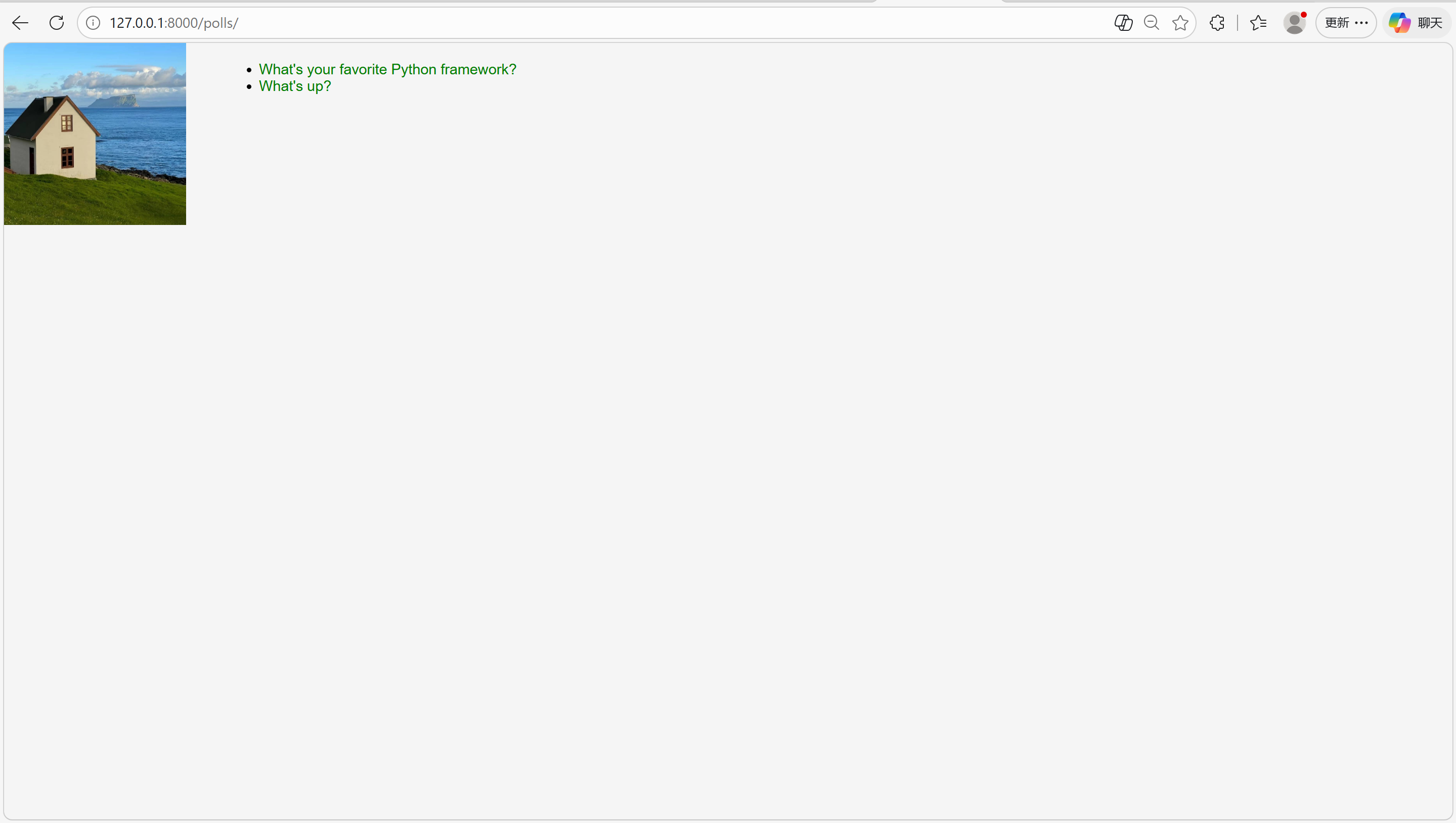
(3)测试背景图片效果
刷新 http://127.0.0.1:8000/polls/,会看到页面左上角显示背景图片,文字向右偏移避免覆盖。
4. 为其他模板添加样式(可选,优化体验)
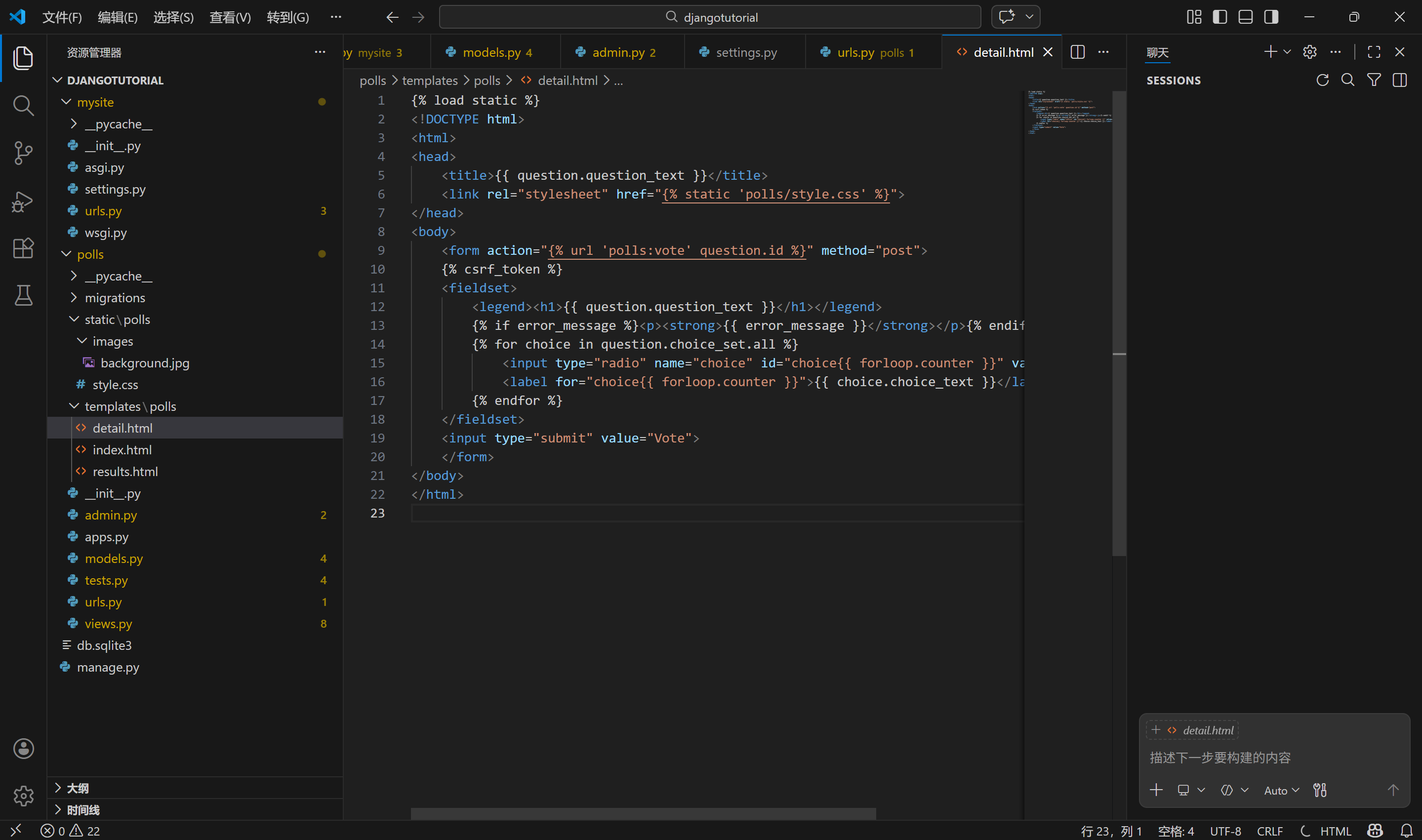
为 detail.html 和 results.html 也添加相同样式,确保所有页面风格统一:
(1)修改 polls/templates/polls/detail.html
预览
{% load static %}
<!DOCTYPE html>
<html>
<head>
    <title>{{ question.question_text }}</title>
    <link rel="stylesheet" href="{% static 'polls/style.css' %}">
</head>
<body>
    <form action="{% url 'polls:vote' question.id %}" method="post">
    {% csrf_token %}
    <fieldset>
        <legend><h1>{{ question.question_text }}</h1></legend>
        {% if error_message %}<p><strong>{{ error_message }}</strong></p>{% endif %}
        {% for choice in question.choice_set.all %}
            <input type="radio" name="choice" id="choice{{ forloop.counter }}" value="{{ choice.id }}">
            <label for="choice{{ forloop.counter }}">{{ choice.choice_text }}</label><br>
        {% endfor %}
    </fieldset>
    <input type="submit" value="Vote">
    </form>
</body>
</html>
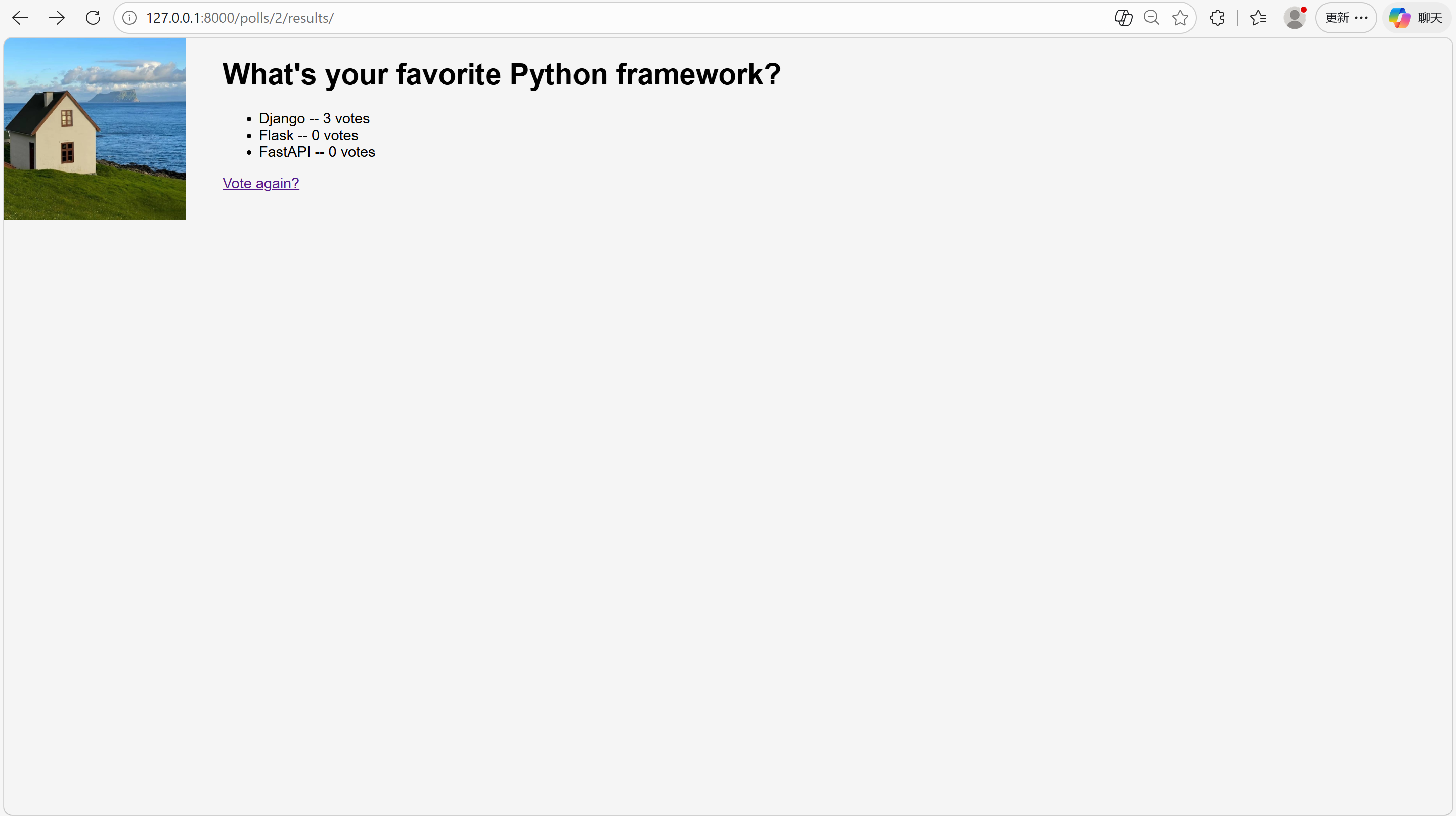
(2)修改 polls/templates/polls/results.html
预览
{% load static %}
<!DOCTYPE html>
<html>
<head>
    <title>{{ question.question_text }} Results</title>
    <link rel="stylesheet" href="{% static 'polls/style.css' %}">
</head>
<body>
    <h1>{{ question.question_text }}</h1>

    <ul>
    {% for choice in question.choice_set.all %}
        <li>{{ choice.choice_text }} -- {{ choice.votes }} vote{{ choice.votes|pluralize }}</li>
    {% endfor %}
    </ul>

    <a href="{% url 'polls:detail' question.id %}">Vote again?</a>
</body>
</html>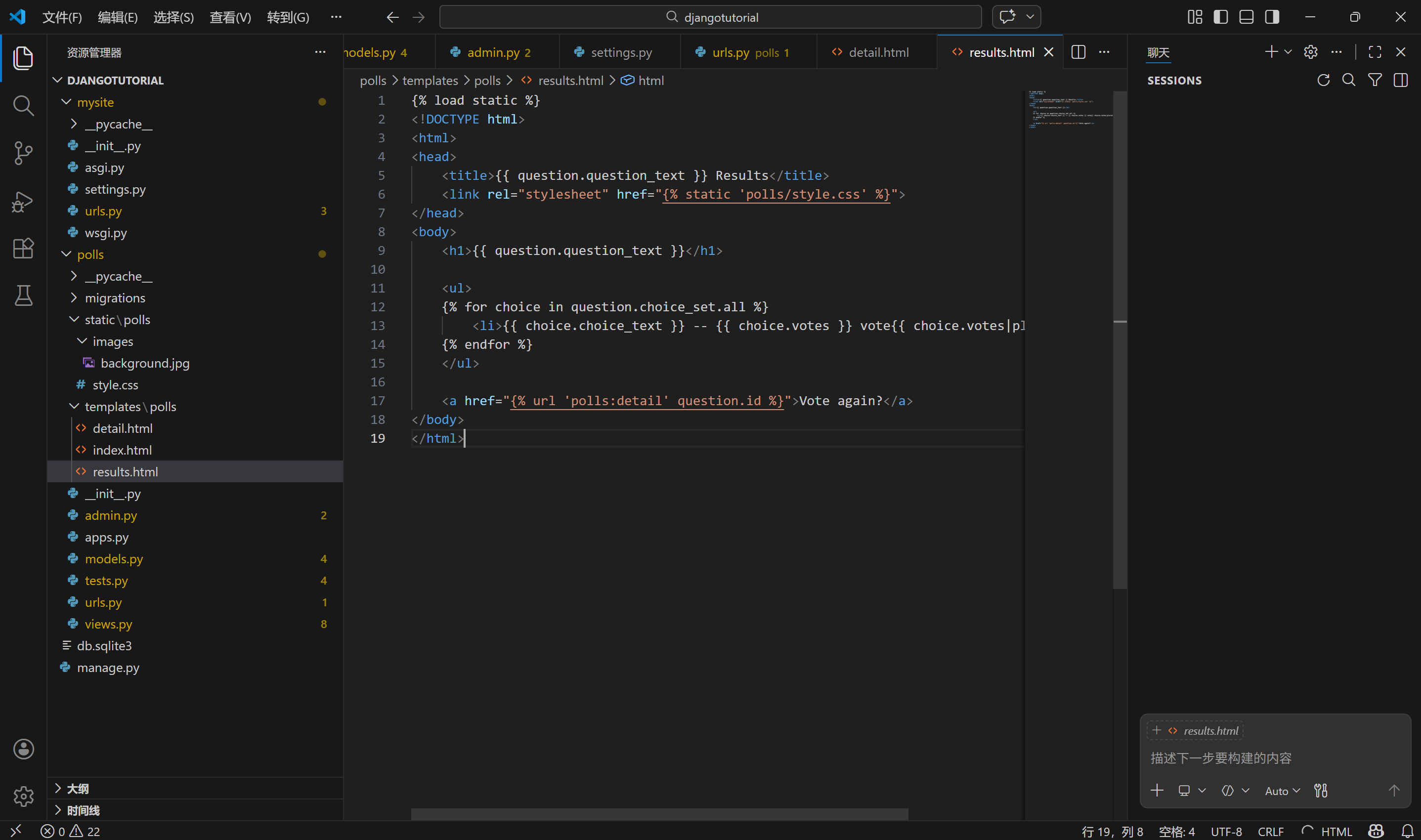
十五、自定义管理后台
深度自定义 Django 自动生成的管理后台,包括调整表单布局、关联对象编辑、列表页优化、自定义后台样式等,让管理后台更贴合业务需求。
1. 核心目标
Django 默认的 admin 后台虽然能用,但布局、功能比较基础,本次自定义主要实现:
- 调整 Question 表单的字段布局(分栏、排序);
- 在 Question 后台页直接编辑关联的 Choice(无需单独注册 Choice);
- 优化 Question 列表页(显示多字段、添加筛选 / 搜索);
- 自定义后台标题、样式等界面元素。
2. 自定义后台表单(Question 模型)
(1)基础:调整字段顺序
修改 polls/admin.py,替换默认的注册方式,自定义表单字段顺序:
运行
from django.contrib import admin
from .models import Question, Choice

# 1. 定义后台管理类(继承admin.ModelAdmin)
class QuestionAdmin(admin.ModelAdmin):
    # 调整表单字段顺序:pub_date 显示在 question_text 前面
    fields = ["pub_date", "question_text"]

# 2. 注册模型时关联管理类
admin.site.register(Question, QuestionAdmin)
# 先临时注册Choice(后续会优化)
admin.site.register(Choice)
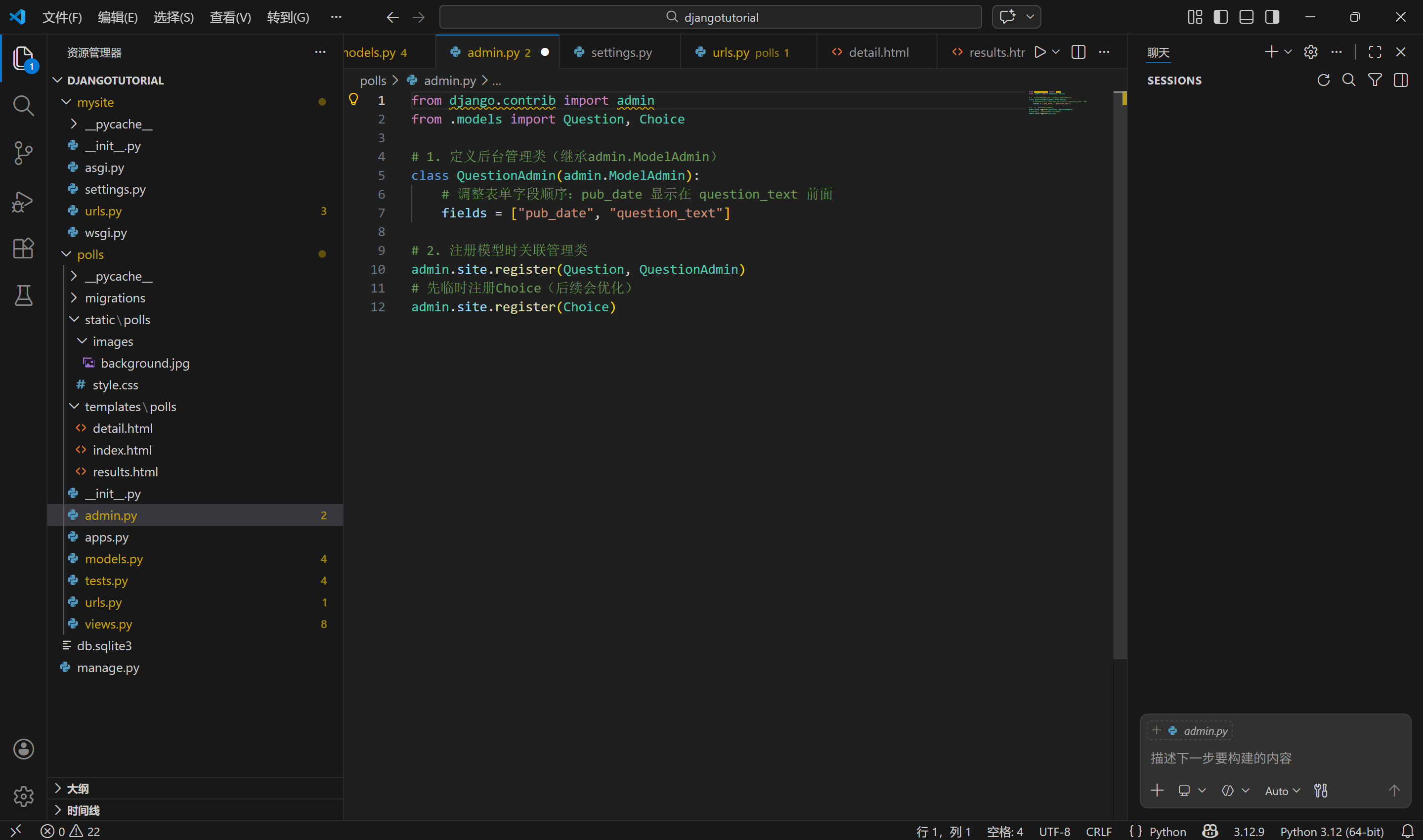
启动服务器,访问 http://127.0.0.1:8000/admin/polls/question/add/,会看到「发布日期」字段在「问题文本」前面。
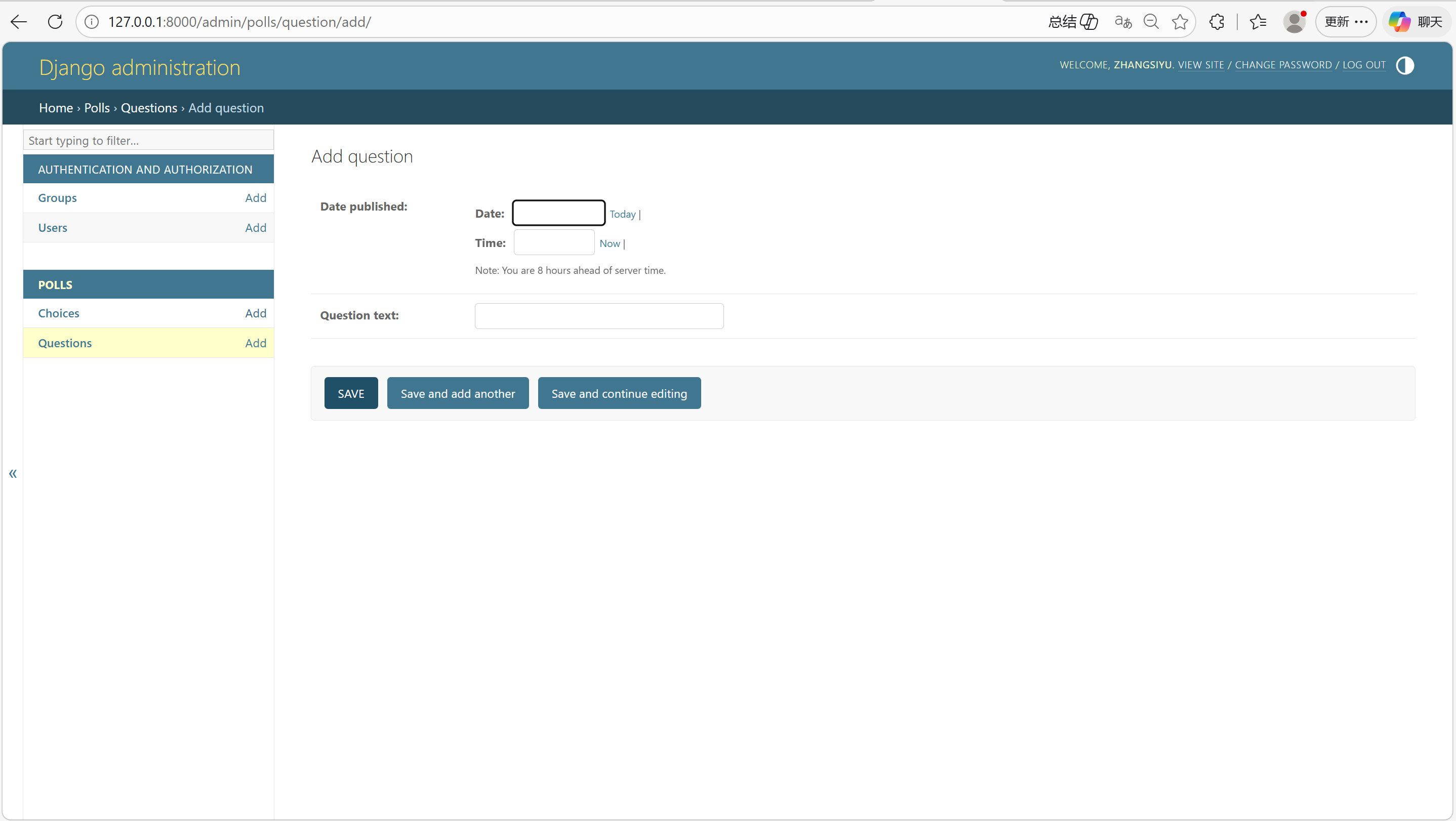
(2)进阶:分栏显示字段(字段集)
将表单分为「基本信息」和「日期信息」两栏,更清晰:
运行
class QuestionAdmin(admin.ModelAdmin):
    # 字段集:(标题, 配置字典)
    fieldsets = [
        (None, {"fields": ["question_text"]}),  # 无标题栏
        ("Date information", {  # 带标题的栏
            "fields": ["pub_date"],
            "classes": ["collapse"]  # 可折叠(点击标题展开/收起)
        }),
    ]

admin.site.register(Question, QuestionAdmin)
admin.site.register(Choice)
效果:「Date information」栏默认折叠,点击可展开,适合非核心字段。
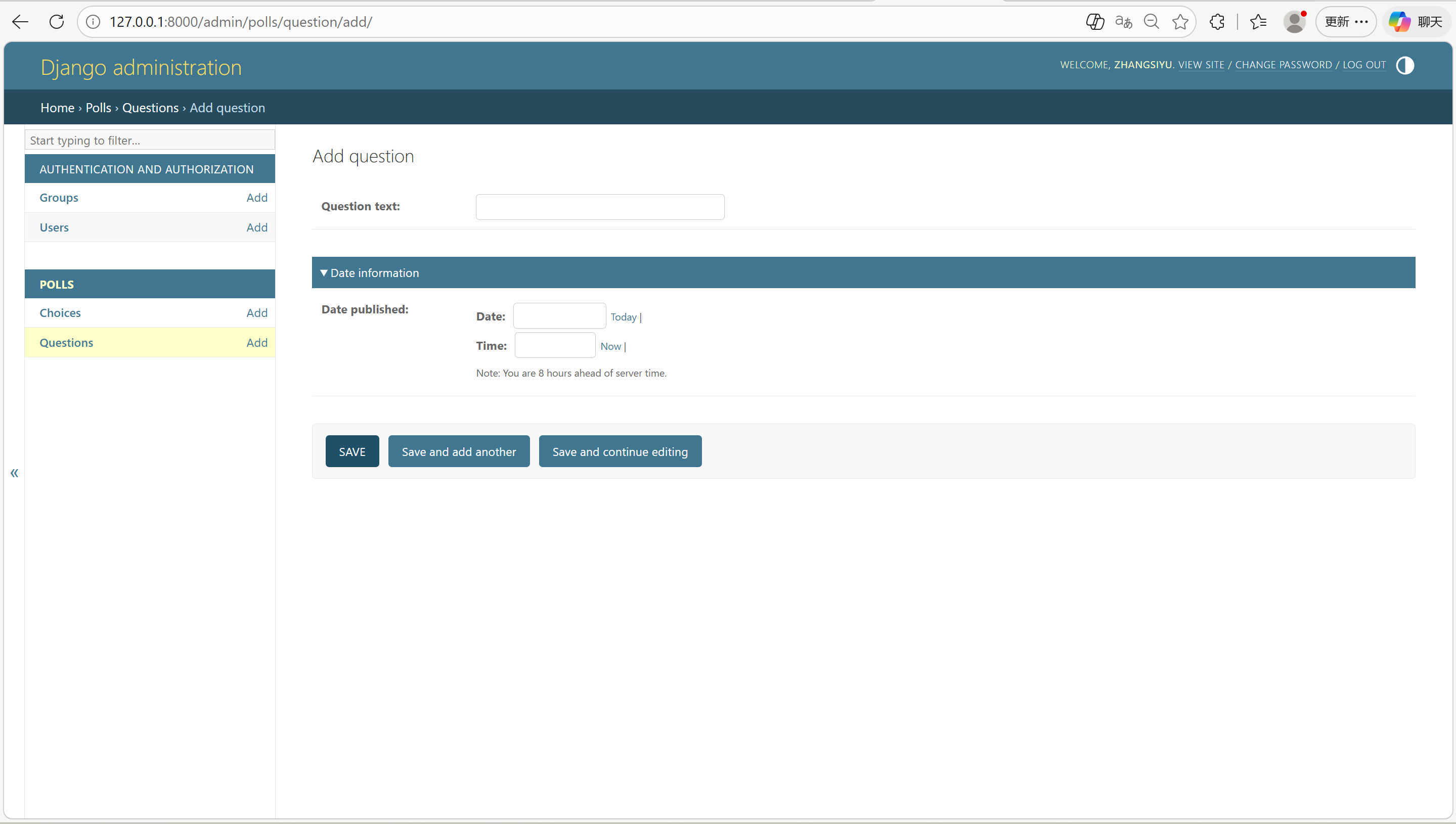
3. 关联 Choice 到 Question 后台(内联编辑)
默认单独注册 Choice 时,添加选项需要先选 Question,效率低。优化为:在编辑 Question 时直接添加 Choice。
(1)定义内联类(Inline)
修改 polls/admin.py,移除 Choice 的单独注册,添加内联编辑:
运行
from django.contrib import admin
from .models import Question, Choice

# 1. 定义Choice的内联类(TabularInline 表格式,StackedInline 堆叠式)
class ChoiceInline(admin.TabularInline):
    model = Choice  # 关联的模型
    extra = 3       # 默认显示3个空白选项框

# 2. 定义Question的后台管理类
class QuestionAdmin(admin.ModelAdmin):
    fieldsets = [
        (None, {"fields": ["question_text"]}),
        ("Date information", {"fields": ["pub_date"], "classes": ["collapse"]}),
    ]
    inlines = [ChoiceInline]  # 关联内联类

# 3. 注册模型(无需单独注册Choice)
admin.site.register(Question, QuestionAdmin)
关键说明:
TabularInline:表格式显示(紧凑,推荐);StackedInline:堆叠式显示(占空间大);extra=3:默认显示 3 个空白选项框,可动态添加 / 删除。
(2)测试效果
访问 http://127.0.0.1:8000/admin/polls/question/add/,会看到 Question 表单下方直接显示 3 个 Choice 编辑框,添加 Question 时可直接填写选项,无需单独添加 Choice。
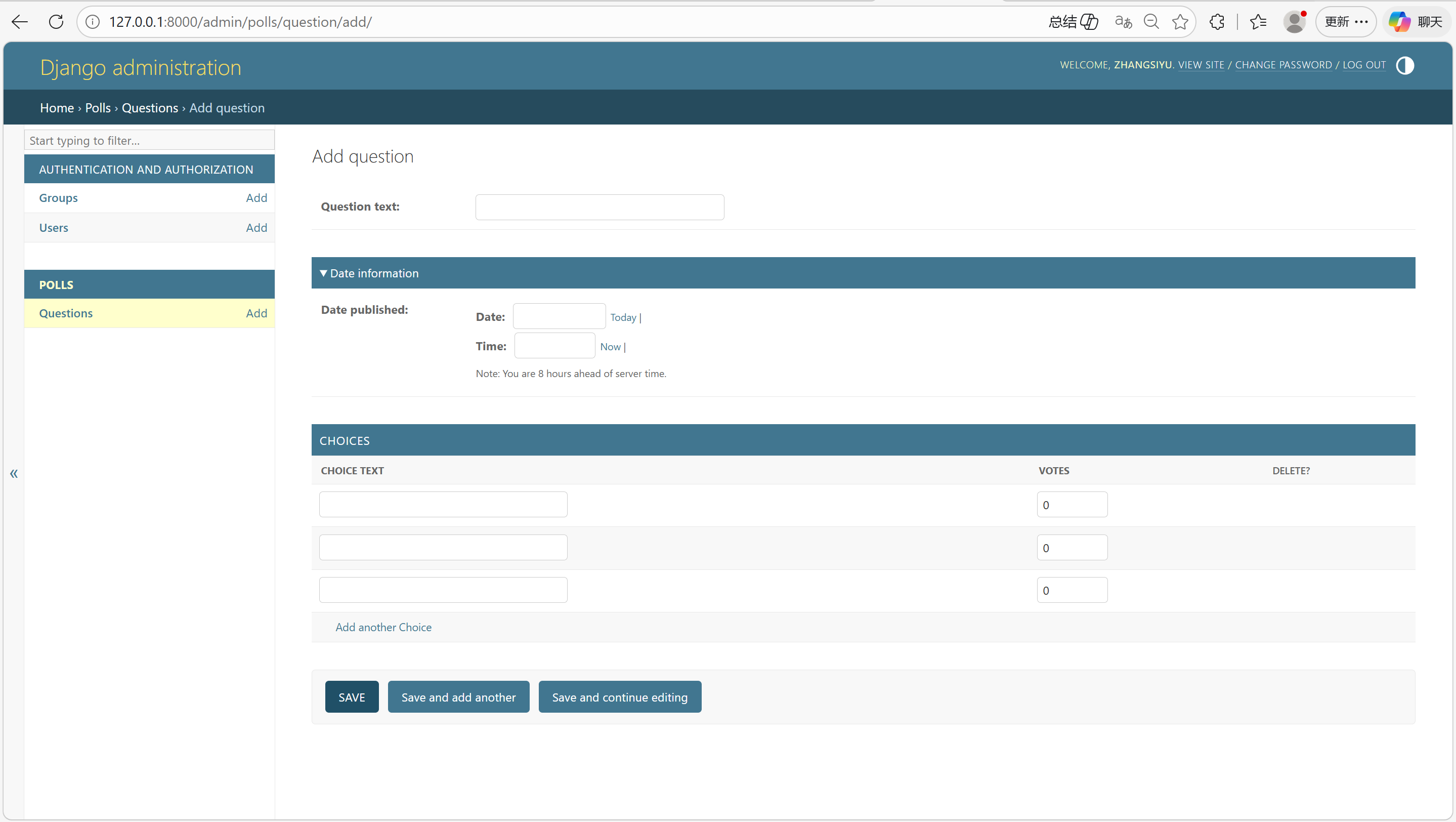
4. 自定义后台列表页(Question 列表)
默认列表页只显示 __str__ 方法的内容,优化为显示多字段、添加筛选 / 搜索。
(1)显示多字段
修改 QuestionAdmin,添加 list_display:
运行
class QuestionAdmin(admin.ModelAdmin):
    fieldsets = [
        (None, {"fields": ["question_text"]}),
        ("Date information", {"fields": ["pub_date"], "classes": ["collapse"]}),
    ]
    inlines = [ChoiceInline]
    # 列表页显示的字段(可显示模型字段/方法)
    list_display = ["question_text", "pub_date", "was_published_recently"]

admin.site.register(Question, QuestionAdmin)
此时 was_published_recently 列显示为字符串,且无法排序,需要优化模型方法。
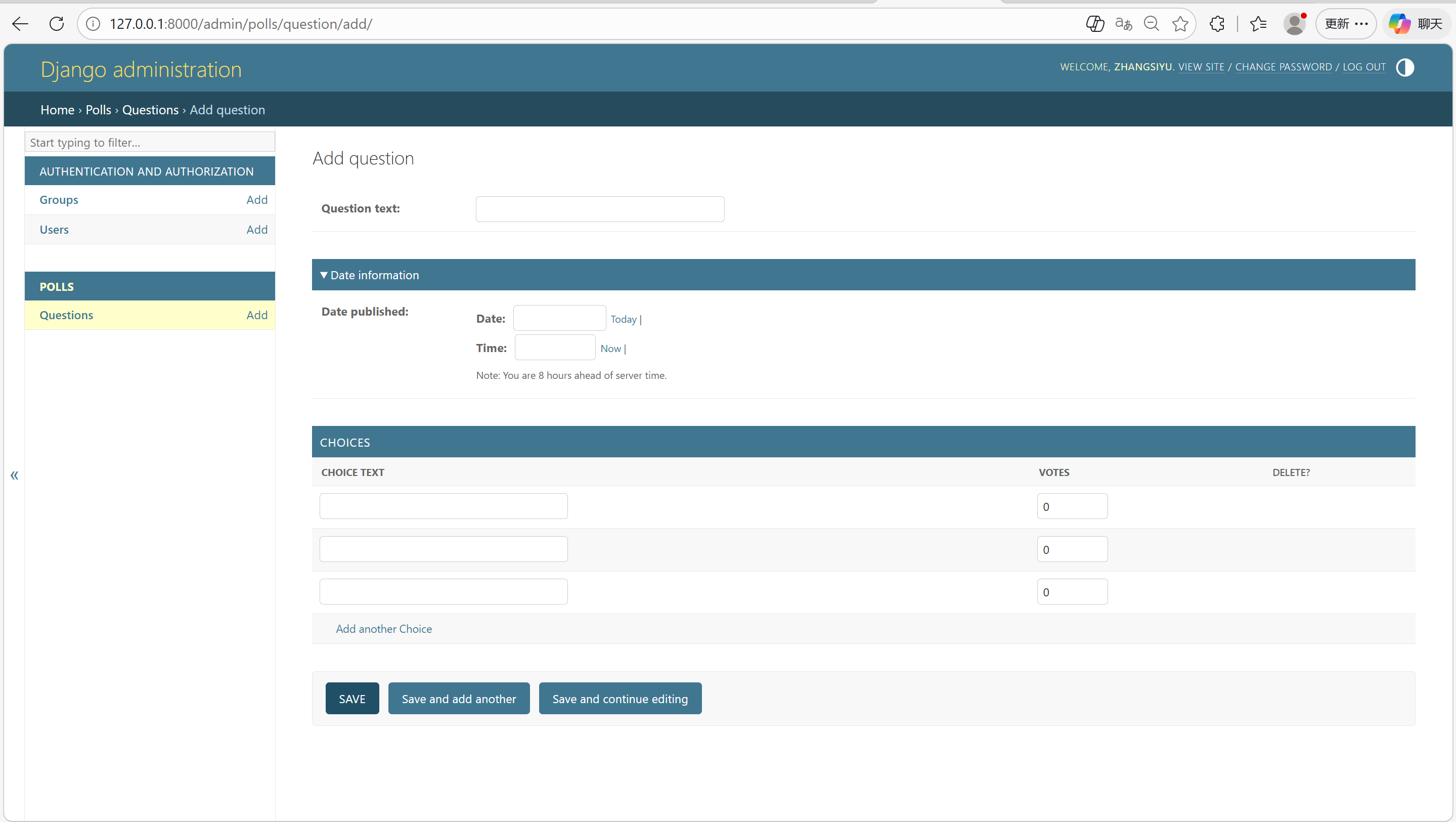
(2)优化 was_published_recently 显示
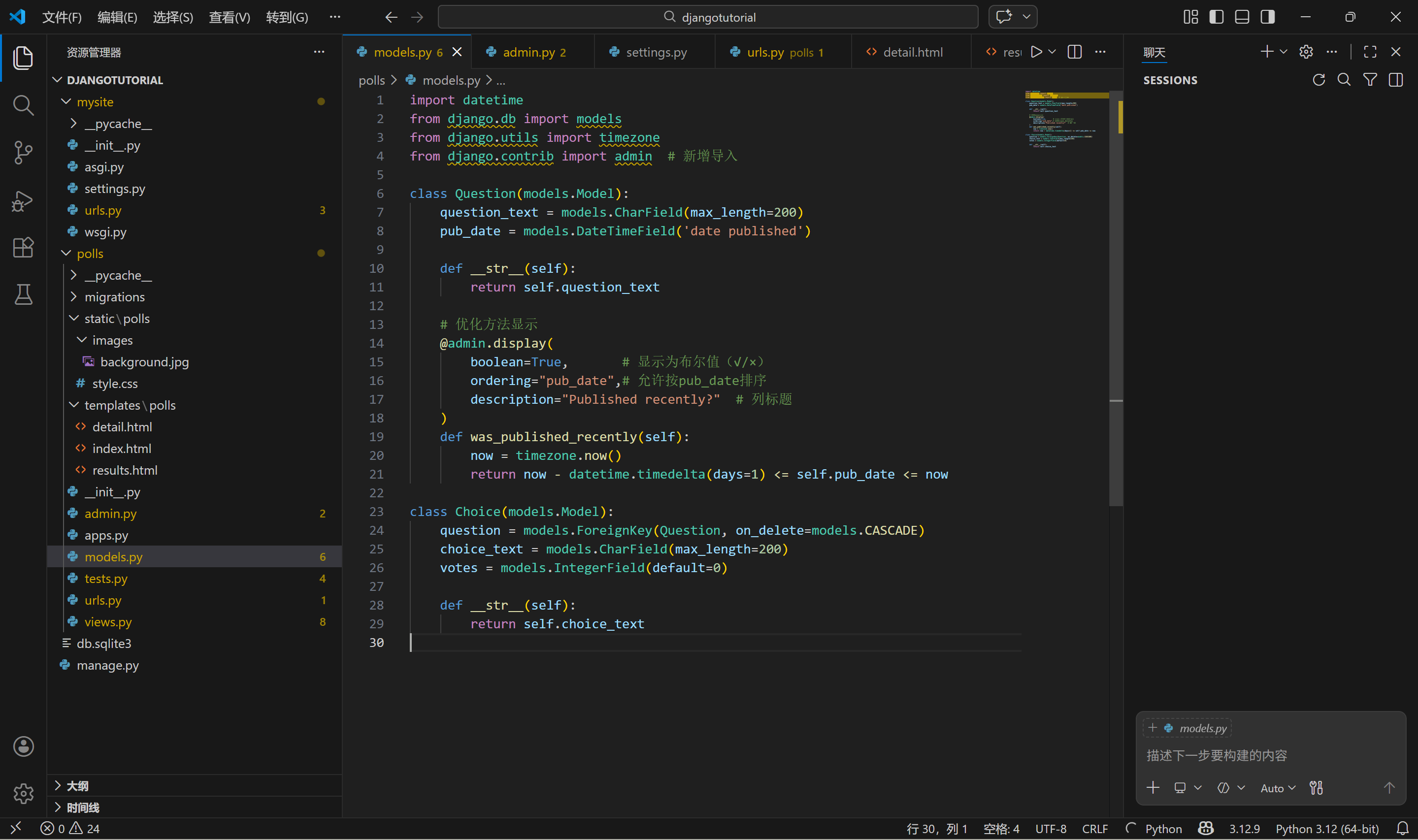
修改 polls/models.py,给方法添加 @admin.display 装饰器:
运行
import datetime
from django.db import models
from django.utils import timezone
from django.contrib import admin  # 新增导入

class Question(models.Model):
    question_text = models.CharField(max_length=200)
    pub_date = models.DateTimeField('date published')

    def __str__(self):
        return self.question_text

    # 优化方法显示
    @admin.display(
        boolean=True,       # 显示为布尔值(√/×)
        ordering="pub_date",# 允许按pub_date排序
        description="Published recently?"  # 列标题
    )
    def was_published_recently(self):
        now = timezone.now()
        return now - datetime.timedelta(days=1) <= self.pub_date <= now

class Choice(models.Model):
    question = models.ForeignKey(Question, on_delete=models.CASCADE)
    choice_text = models.CharField(max_length=200)
    votes = models.IntegerField(default=0)

    def __str__(self):
        return self.choice_text
(3)添加筛选和搜索
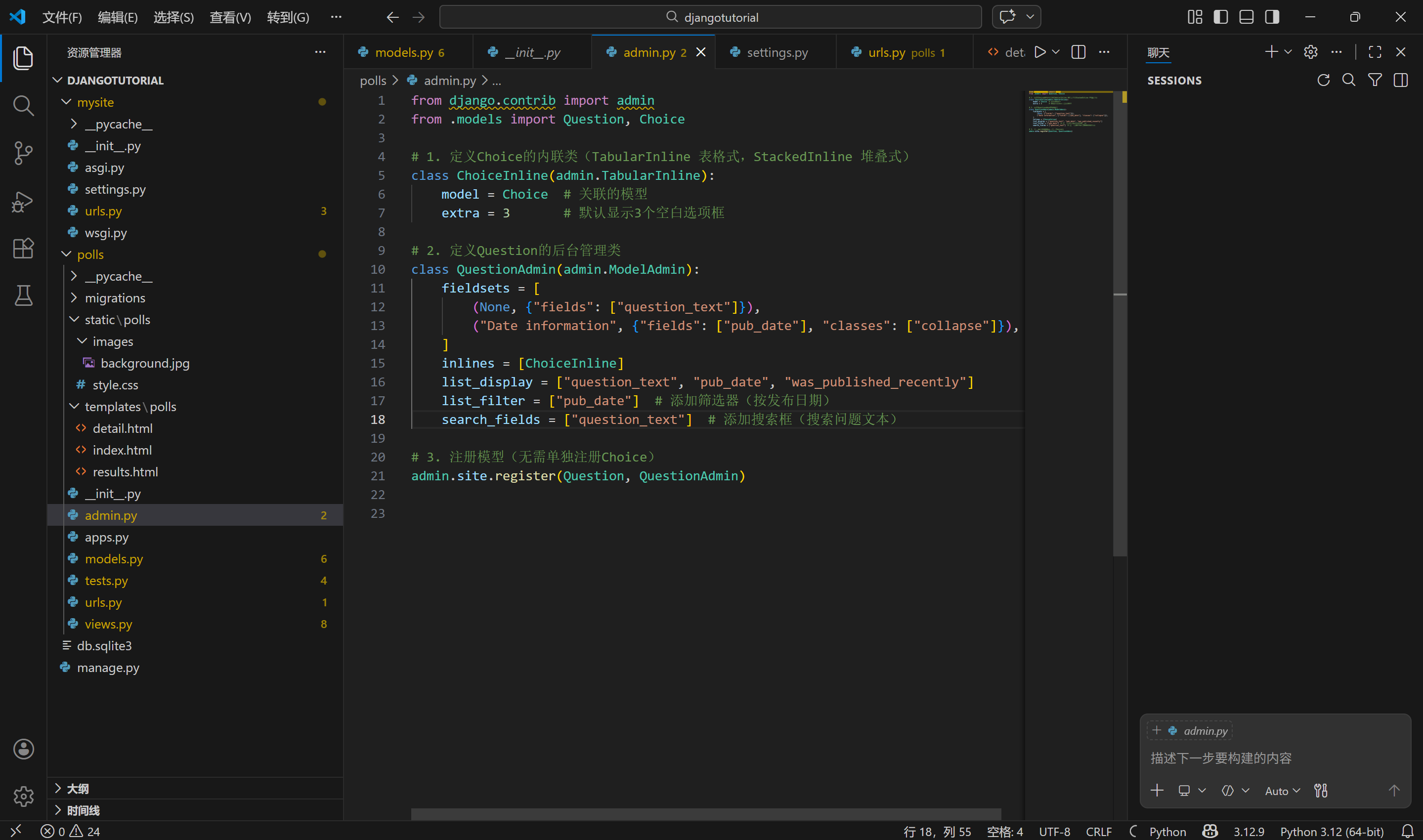
继续修改 QuestionAdmin,添加筛选器和搜索框:
运行
class QuestionAdmin(admin.ModelAdmin):
    fieldsets = [
        (None, {"fields": ["question_text"]}),
        ("Date information", {"fields": ["pub_date"], "classes": ["collapse"]}),
    ]
    inlines = [ChoiceInline]
    list_display = ["question_text", "pub_date", "was_published_recently"]
    list_filter = ["pub_date"]  # 添加筛选器(按发布日期)
    search_fields = ["question_text"]  # 添加搜索框(搜索问题文本)

admin.site.register(Question, QuestionAdmin)
效果:
- 列表页右侧出现「筛选器」(按时间筛选:今天、过去 7 天、本月等);
- 列表页顶部出现「搜索框」,输入关键词可搜索
question_text; - 列表页默认分页(每页 100 条),点击列标题可排序。
5. 自定义后台界面样式(修改标题 / 模板)
(1)配置项目级模板目录
默认 Django 加载 admin 模板从 django.contrib.admin 的模板目录,我们需要自定义模板覆盖默认样式。
步骤 1:创建模板目录
在项目根目录(djangotutorial)下创建:
djangotutorial/
└── templates/          # 项目级模板目录
    └── admin/          # admin模板目录
        └── base_site.html  # 自定义admin标题的模板
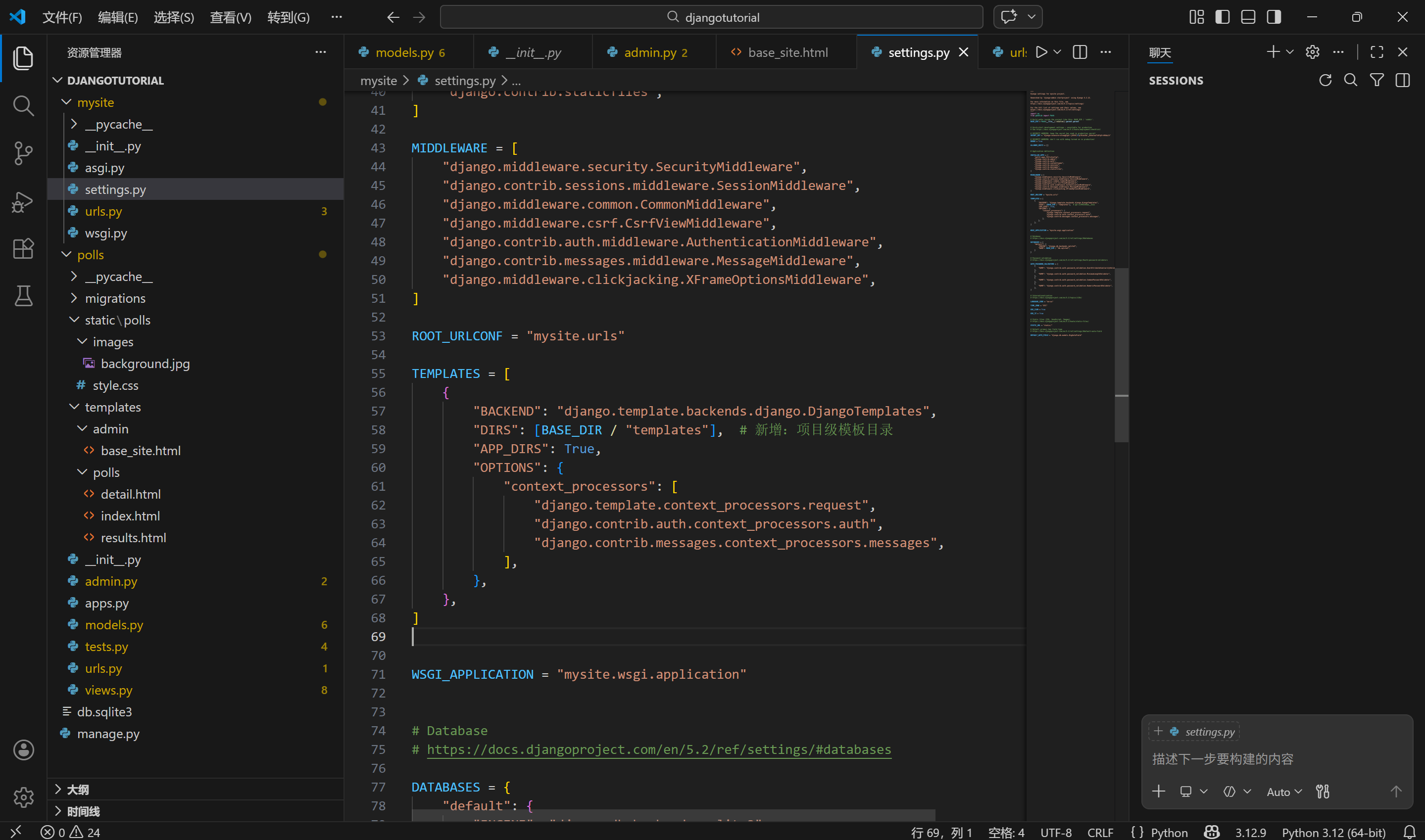
步骤 2:修改 settings.py 配置
打开 mysite/settings.py,修改 TEMPLATES 中的 DIRS:
运行
import os  # 若未导入需添加
from pathlib import Path

# Build paths inside the project like this: BASE_DIR / 'subdir'.
BASE_DIR = Path(__file__).resolve().parent.parent

TEMPLATES = [
    {
        "BACKEND": "django.template.backends.django.DjangoTemplates",
        "DIRS": [BASE_DIR / "templates"],  # 新增:项目级模板目录
        "APP_DIRS": True,
        "OPTIONS": {
            "context_processors": [
                "django.template.context_processors.request",
                "django.contrib.auth.context_processors.auth",
                "django.contrib.messages.context_processors.messages",
            ],
        },
    },
]
(2)自定义 admin 标题
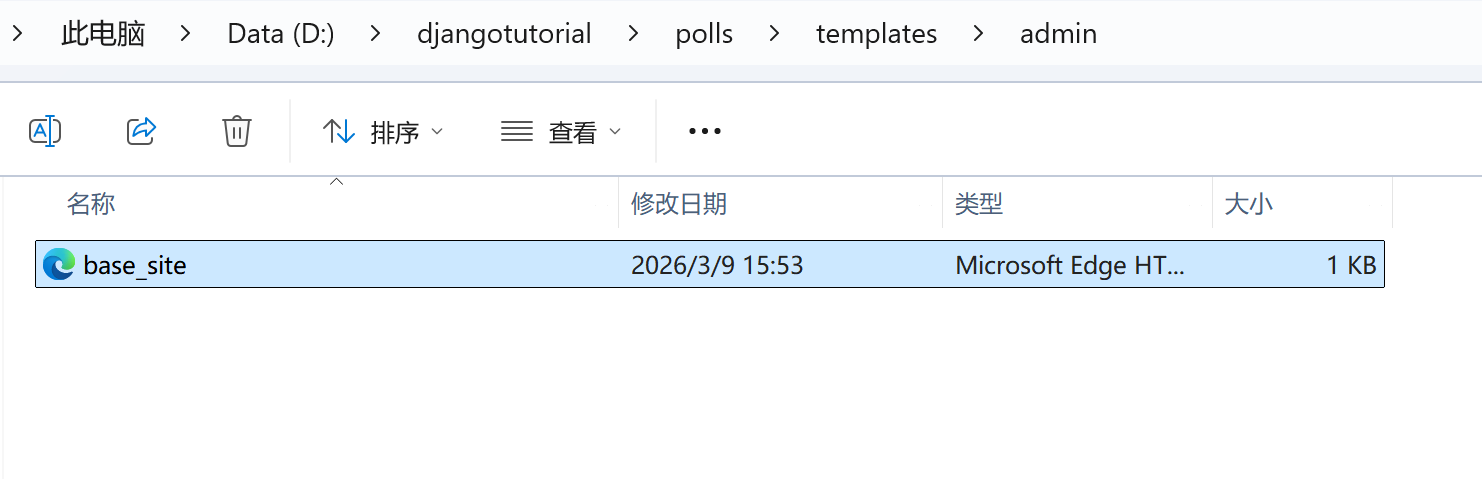
步骤 1:复制默认模板
先找到 Django 自带的 base_site.html 路径:
运行
# 终端执行,查看Django源码路径
python -c "import django; print(django.__path__)"
输出示例:['C:\\Users\\xxx\\anaconda3\\Lib\\site-packages\\django']

进入该路径,找到 contrib/admin/templates/admin/base_site.html
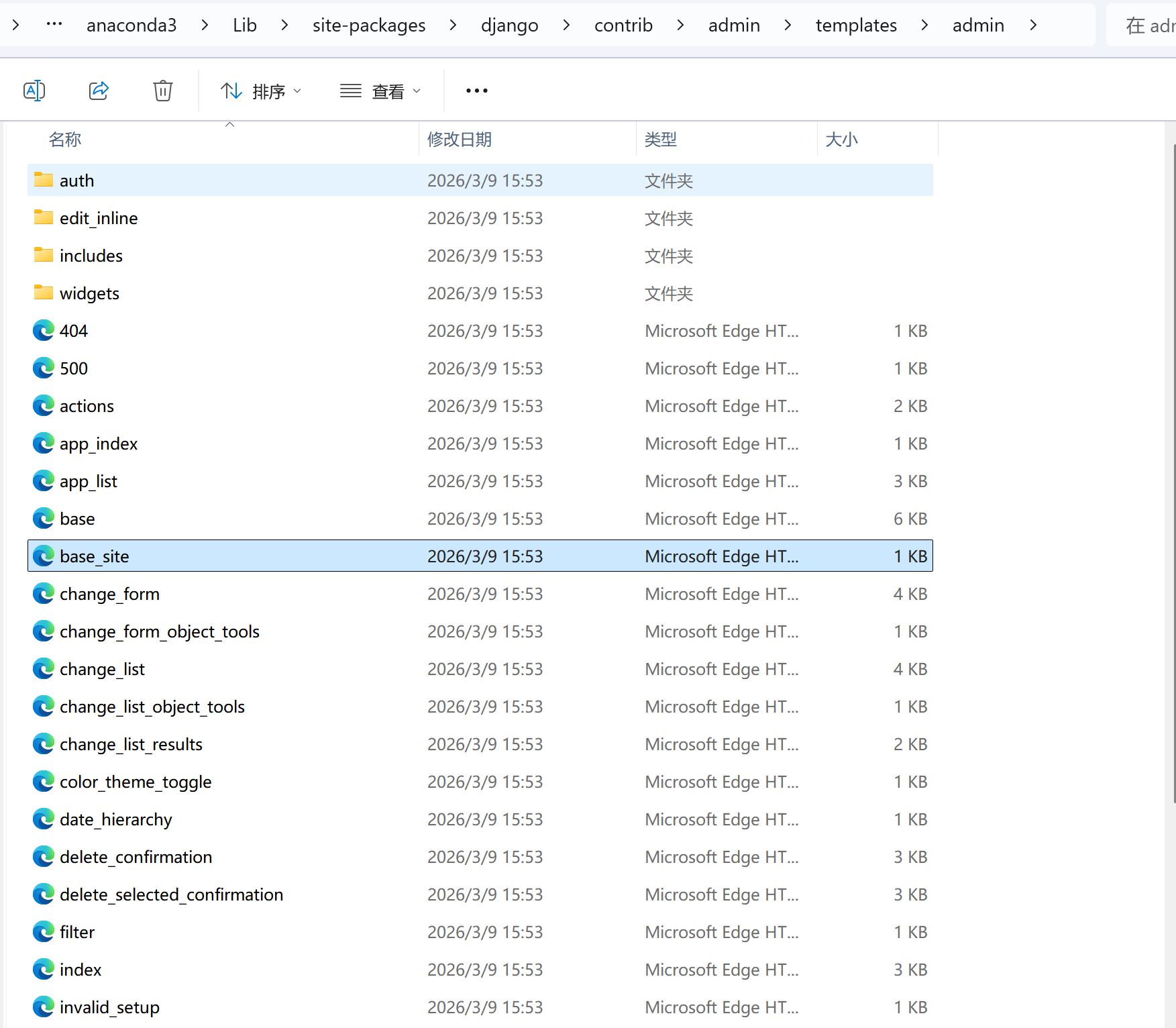
复制到我们创建的 templates/admin/ 目录下。
步骤 2:修改模板内容
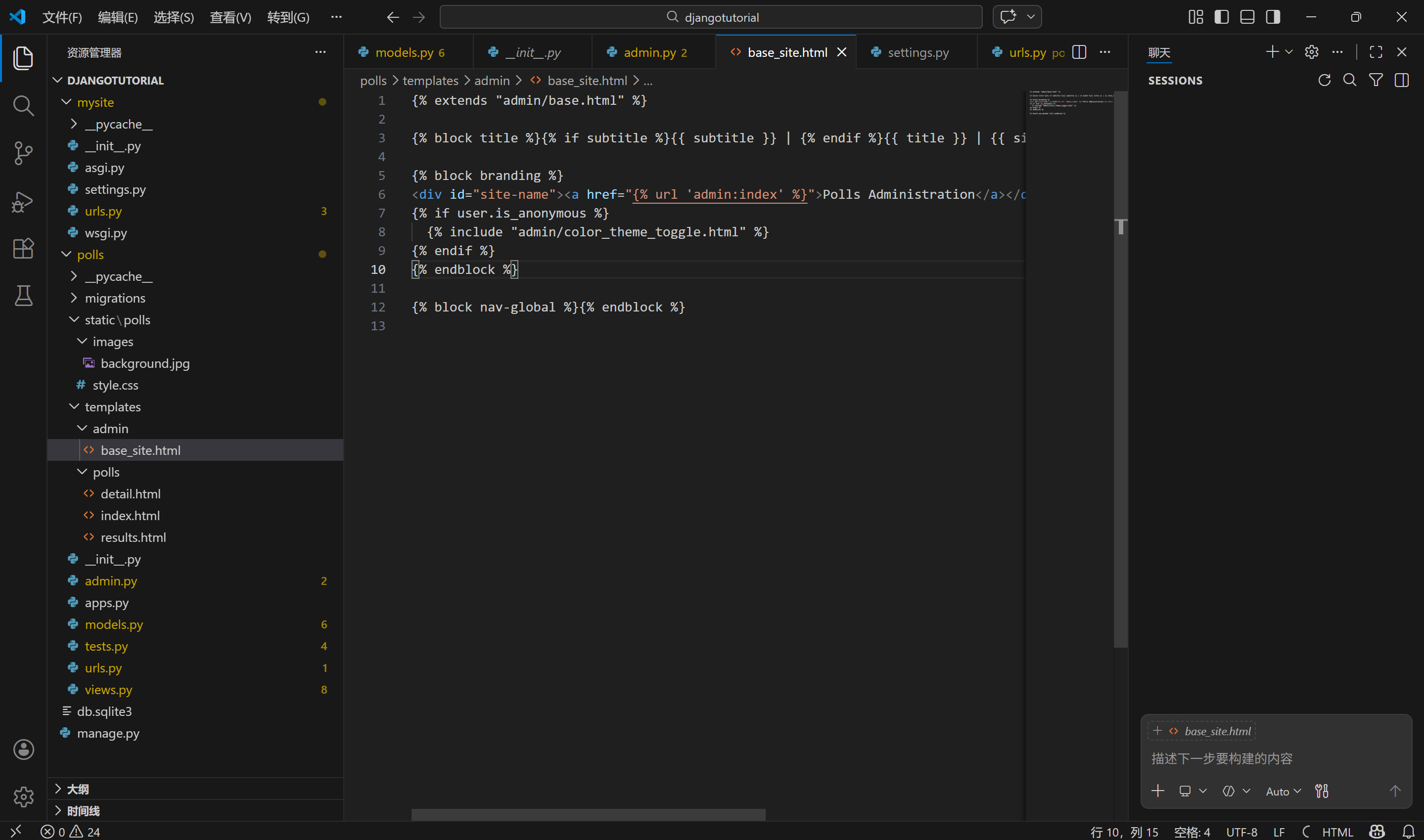
打开 templates/admin/base_site.html,找到 {% block branding %} 块,修改为:
预览
{% block branding %}
<div id="site-name"><a href="{% url 'admin:index' %}">Polls Administration</a></div>
{% if user.is_anonymous %}
  {% include "admin/color_theme_toggle.html" %}
{% endif %}
{% endblock %}
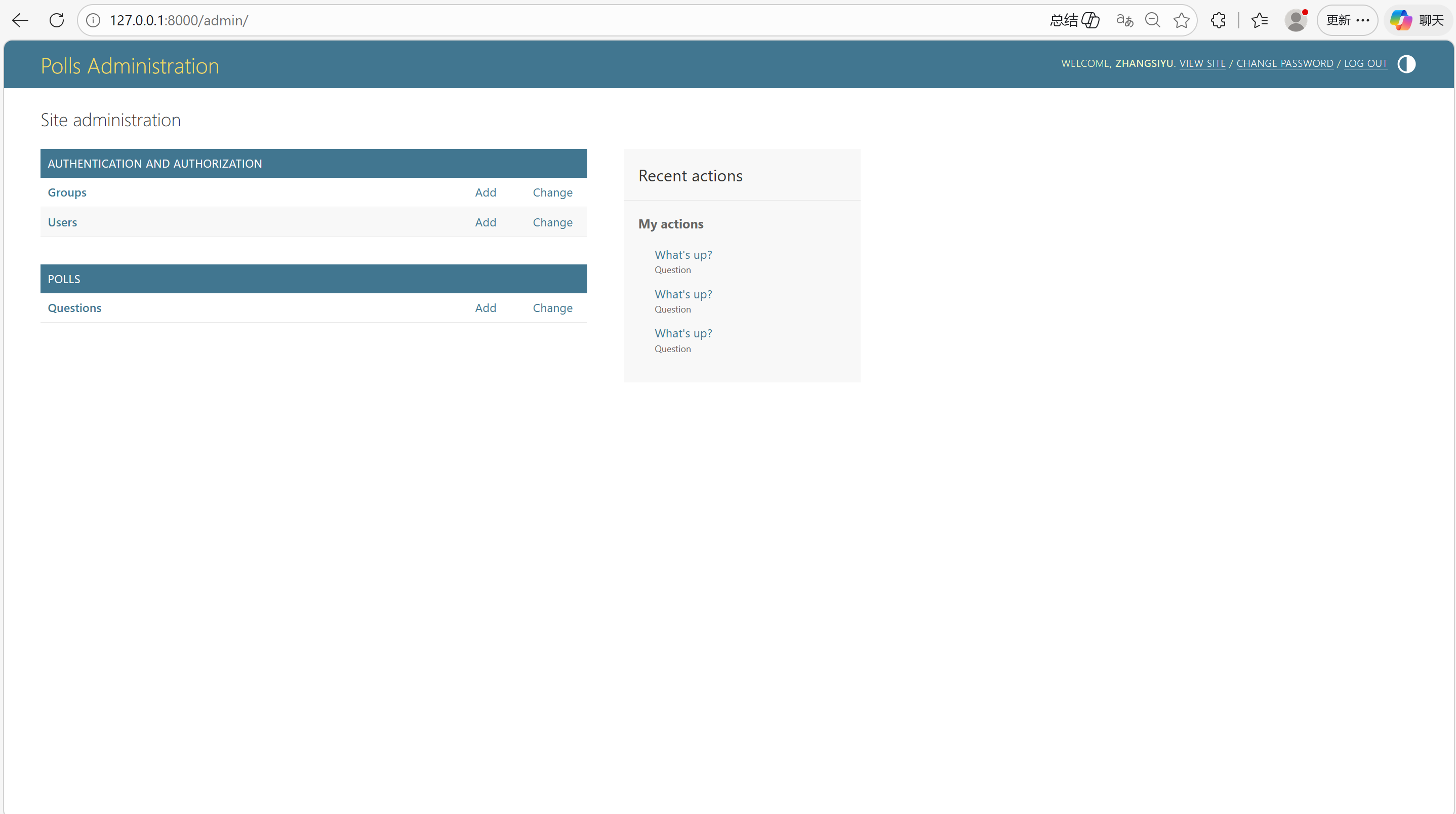
效果:
访问 http://127.0.0.1:8000/admin/,顶部标题从「Django administration」改为「Polls Administration」。
(3)自定义 admin 主页(可选)
若想修改 admin 主页(显示所有应用的页面),复制 admin/index.html 到 templates/admin/,修改 app_list 相关逻辑即可(比如调整应用顺序、隐藏某些应用)。
十六、集成第三方包(Django Debug Toolbar)
学习集成第三方包(以 Django Debug Toolbar 为例),这是 Django 生态的核心优势之一。
1. 核心目标
Django Debug Toolbar 是 Django 开发中最常用的调试工具,能实时显示:
- 请求 / 响应信息(HTTP 头、GET/POST 参数);
- SQL 查询(执行的 SQL 语句、执行时间、重复查询);
- 模板渲染、缓存、信号等核心信息;
- 帮助快速定位性能问题、调试代码逻辑。
2. 安装 Django Debug Toolbar
(1) 激活虚拟环境(可选但推荐)
先创建虚拟环境再安装:
运行
# 1. 进入项目根目录(确保当前路径是 D:\djangotutorial)
cd D:\djangotutorial

# 2. 创建名为 venv 的虚拟环境
python -m venv venv

# 3. 激活虚拟环境(此时路径正确,不会报错)
venv\Scripts\activate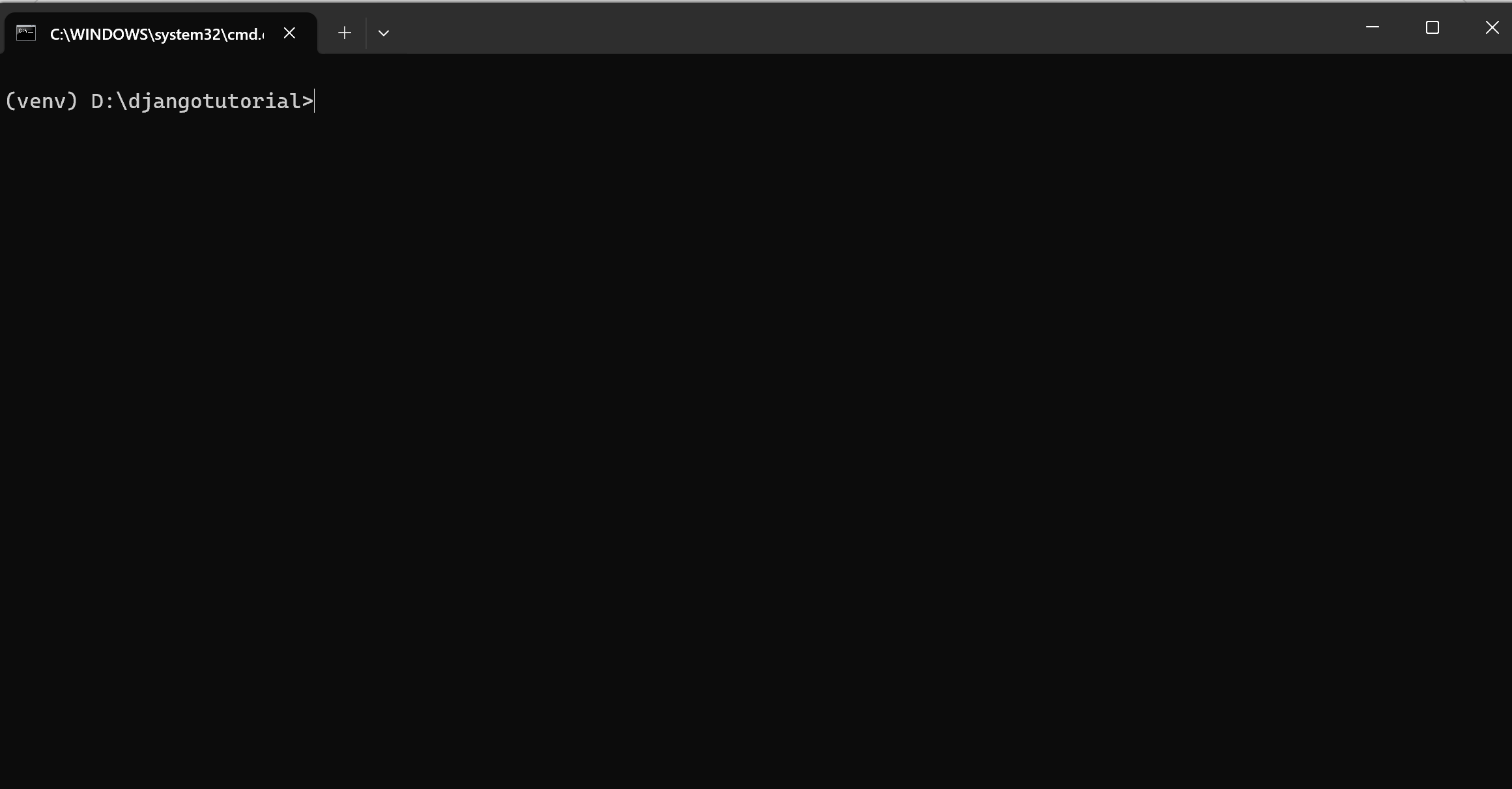
(2)安装包
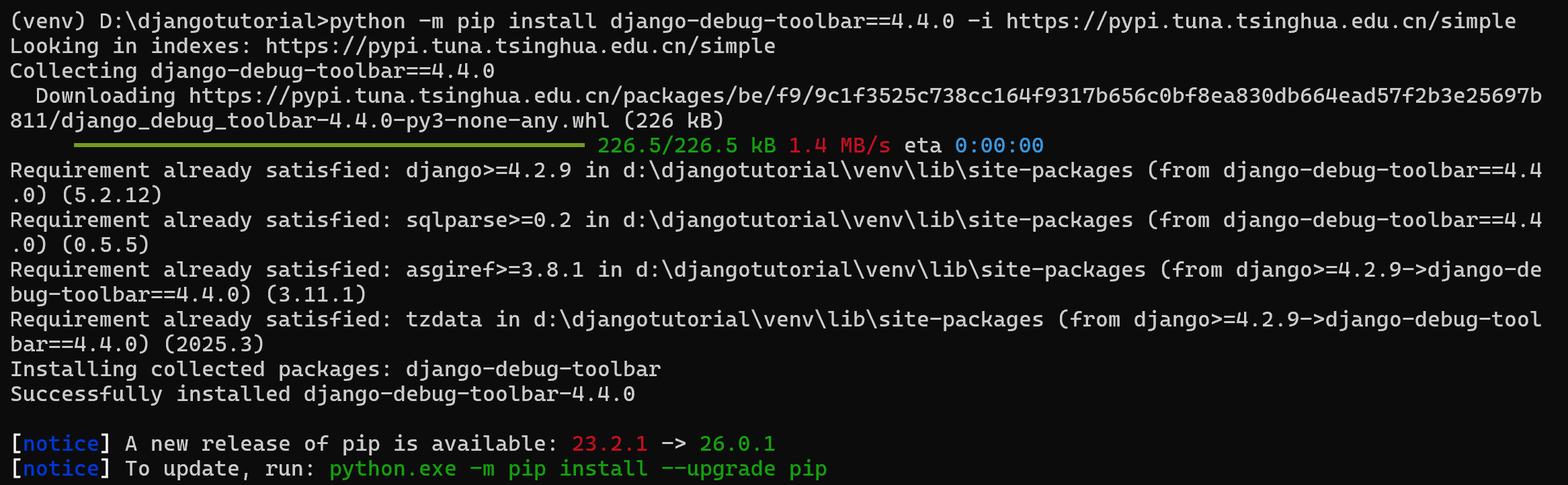
执行 pip 安装命令(确保网络正常):
运行
python -m pip install django-debug-toolbar==4.4.0 -i https://pypi.tuna.tsinghua.edu.cn/simple
✅ 验证安装:安装完成后,执行 pip list | findstr django-debug-toolbar(Windows)/ pip list | grep django-debug-toolbar(Mac/Linux),能看到包名和版本即成功。
3. 配置 Django Debug Toolbar(关键)
Debug Toolbar 需要修改 3 个核心配置文件:settings.py、urls.py、(可选)middleware,以下是完整配置步骤:
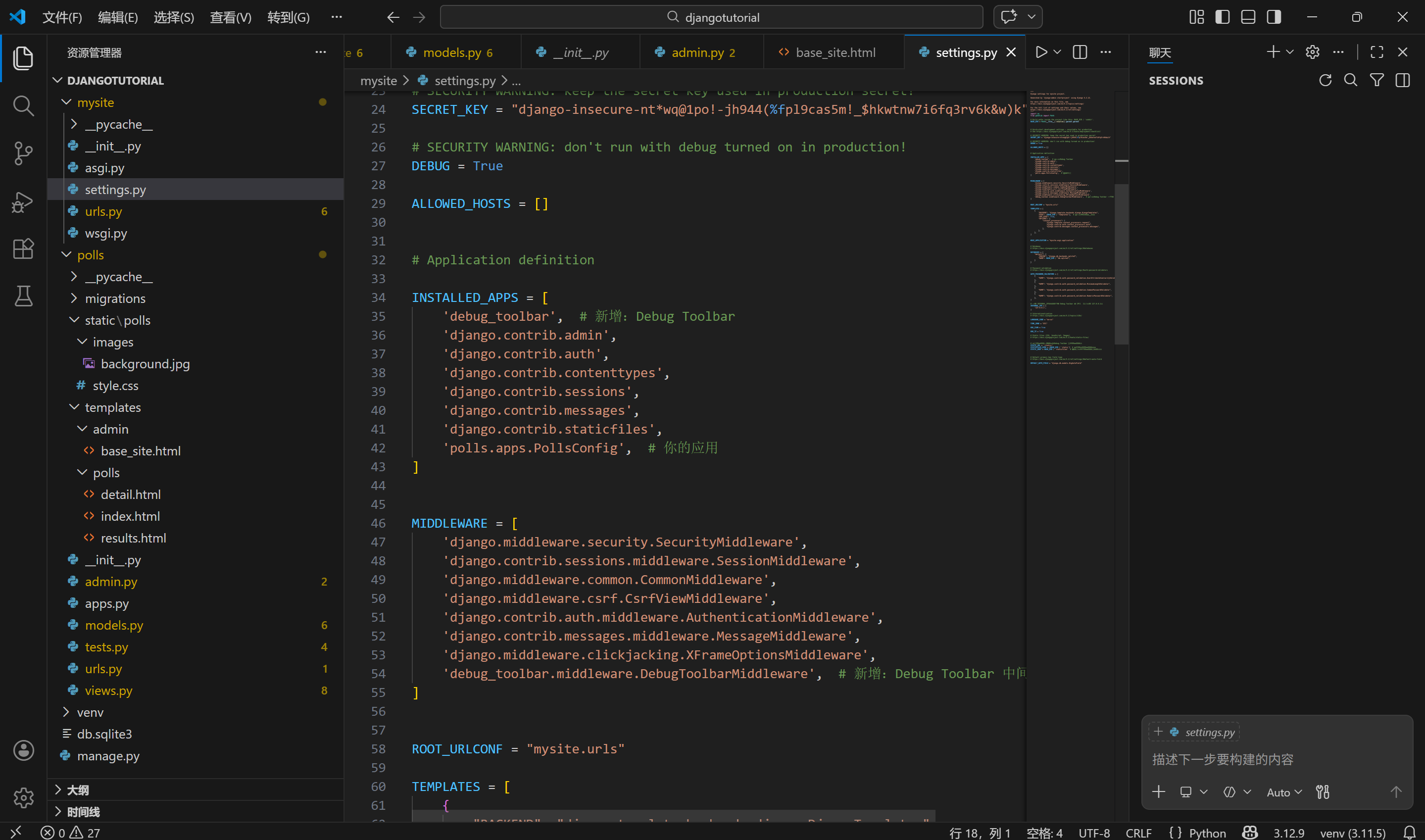
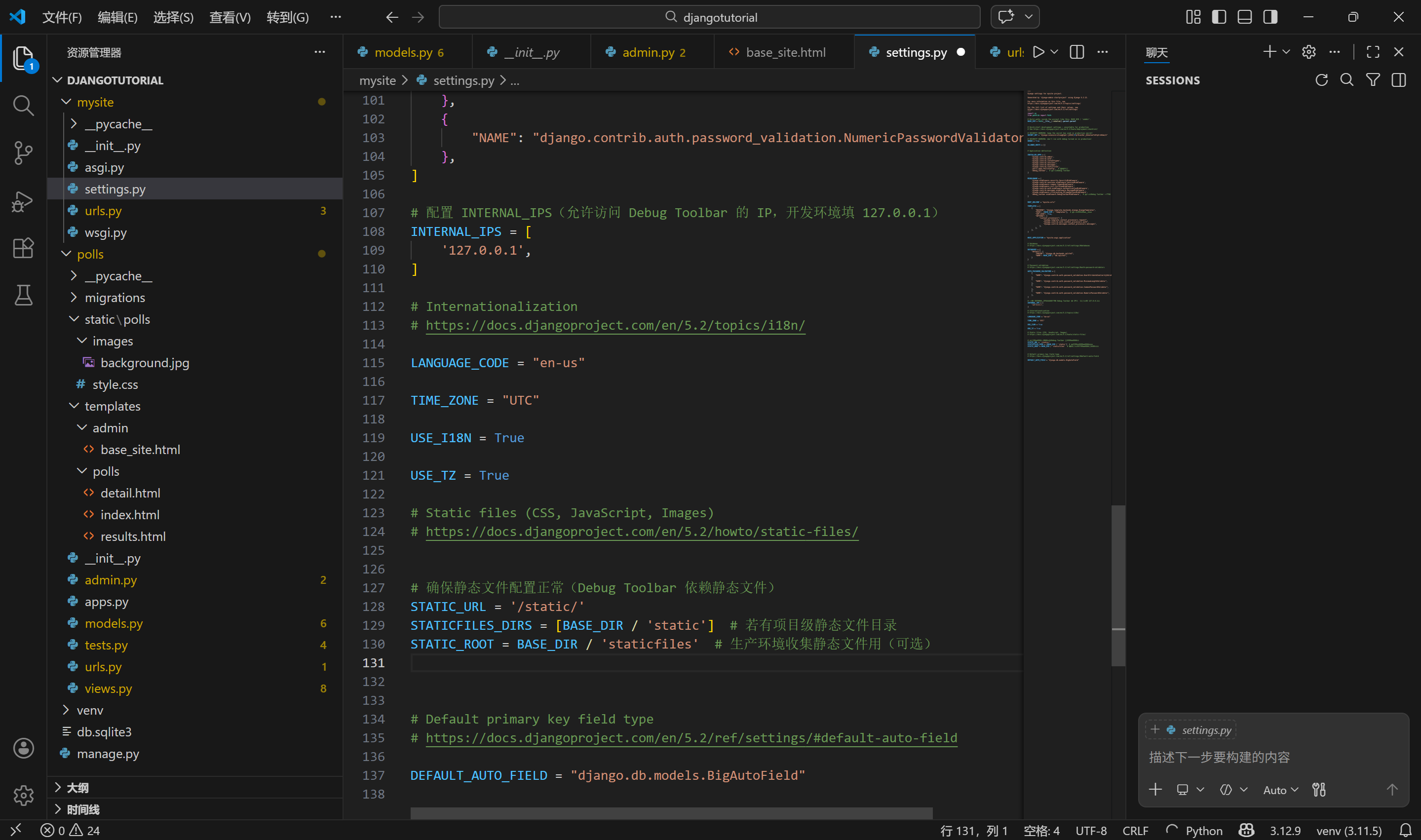
(1)修改 mysite/settings.py
添加以下配置(按顺序,不要漏项):
运行
# mysite/settings.py
import os
from pathlib import Path

BASE_DIR = Path(__file__).resolve().parent.parent

# 1. 添加到 INSTALLED_APPS
INSTALLED_APPS = [
    'debug_toolbar',  # 新增:Debug Toolbar
    'django.contrib.admin',
    'django.contrib.auth',
    'django.contrib.contenttypes',
    'django.contrib.sessions',
    'django.contrib.messages',
    'django.contrib.staticfiles',
    'polls.apps.PollsConfig',  # 你的应用
]

# 2. 添加中间件(必须放在 CommonMiddleware 之后,尽量靠前)
MIDDLEWARE = [
    'debug_toolbar.middleware.DebugToolbarMiddleware',  # 新增:Debug Toolbar 中间件
    'django.middleware.security.SecurityMiddleware',
    'django.contrib.sessions.middleware.SessionMiddleware',
    'django.middleware.common.CommonMiddleware',
    'django.middleware.csrf.CsrfViewMiddleware',
    'django.contrib.auth.middleware.AuthenticationMiddleware',
    'django.contrib.messages.middleware.MessageMiddleware',
    'django.middleware.clickjacking.XFrameOptionsMiddleware',
]

# 3. 配置 INTERNAL_IPS(允许访问 Debug Toolbar 的 IP,开发环境填 127.0.0.1)
INTERNAL_IPS = [
    '127.0.0.1',
]

# 4. 确保静态文件配置正常(Debug Toolbar 依赖静态文件)
STATIC_URL = '/static/'
STATICFILES_DIRS = [BASE_DIR / 'static']  # 若有项目级静态文件目录
STATIC_ROOT = BASE_DIR / 'staticfiles'  # 生产环境收集静态文件用(可选)
(2)修改 mysite/urls.py
添加 Debug Toolbar 的 URL 配置:
运行
from django.contrib import admin
from django.urls import path, include
from django.conf import settings  # 确保导入
from django.conf.urls.static import static  # 可选

urlpatterns = [
    path('admin/', admin.site.urls),
    path('polls/', include('polls.urls')),
]

# 仅在 DEBUG 模式下加载 Debug Toolbar
if settings.DEBUG:
    import debug_toolbar
    urlpatterns = [
        path('__debug__/', include(debug_toolbar.urls)),
    ] + urlpatterns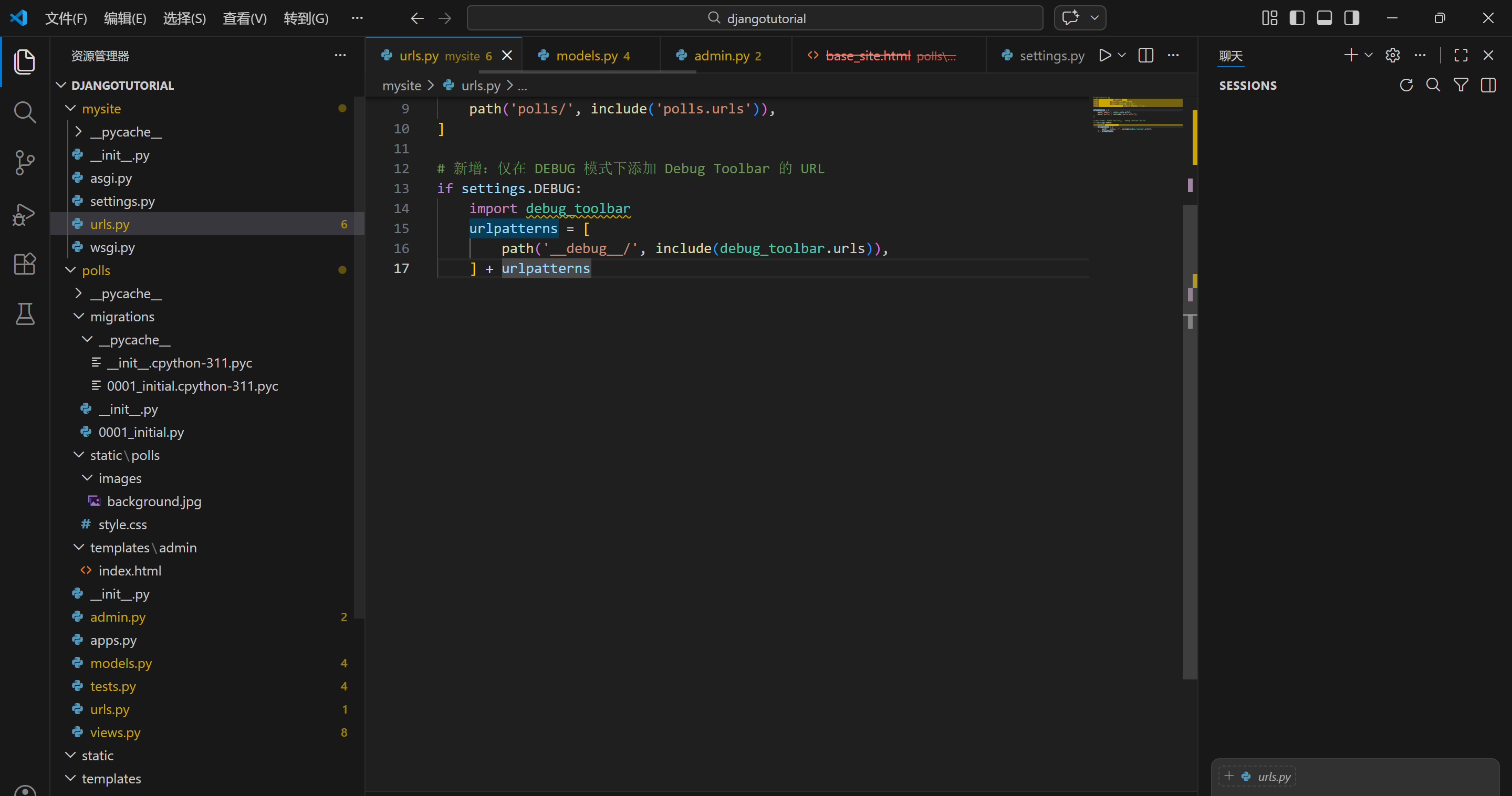
(3)验证 DEBUG 模式
确保 settings.py 中 DEBUG = True(开发环境默认是 True,生产环境需改为 False):
运行
DEBUG = True # 必须为 True,Debug Toolbar 才会生效
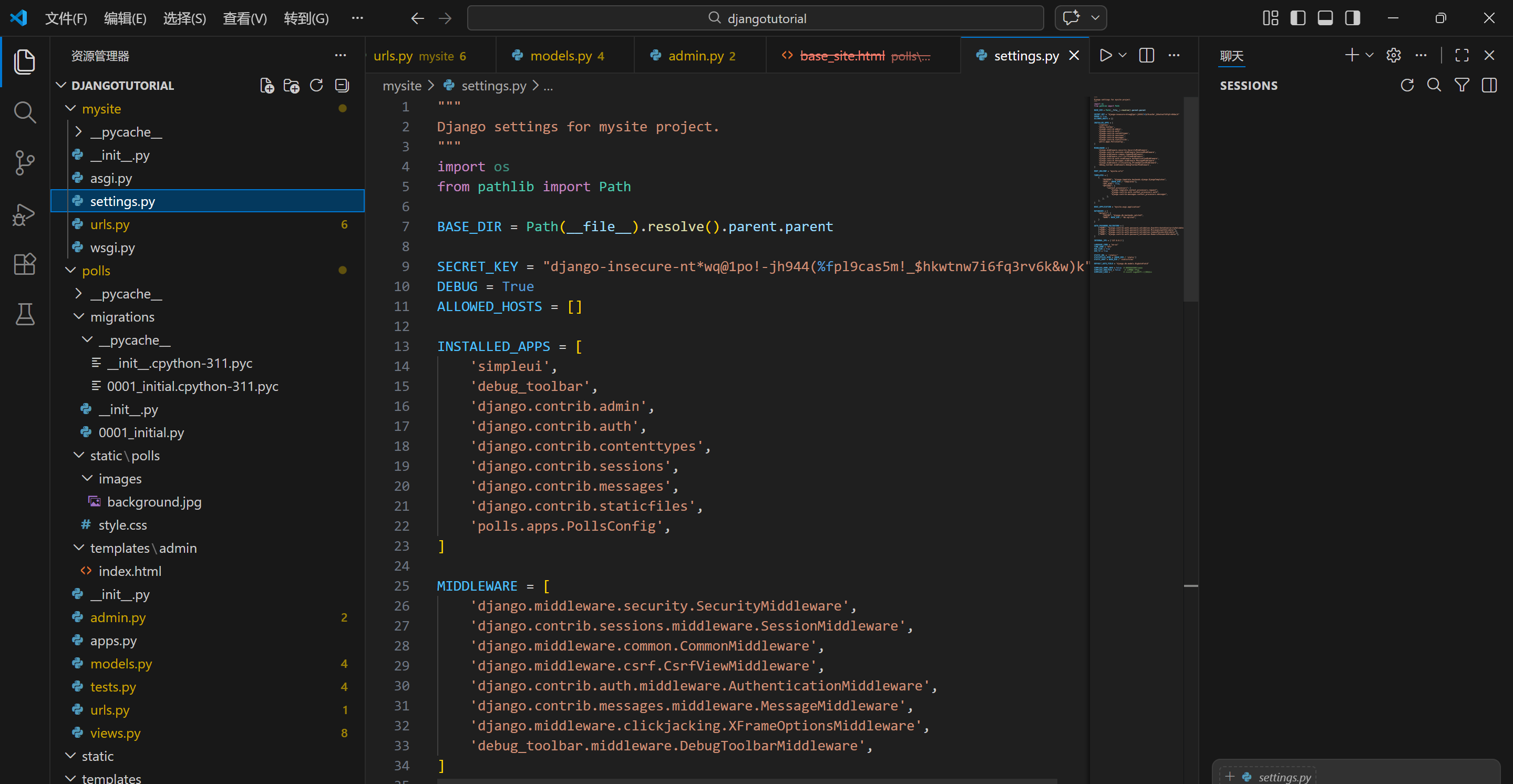
4. 测试 Debug Toolbar
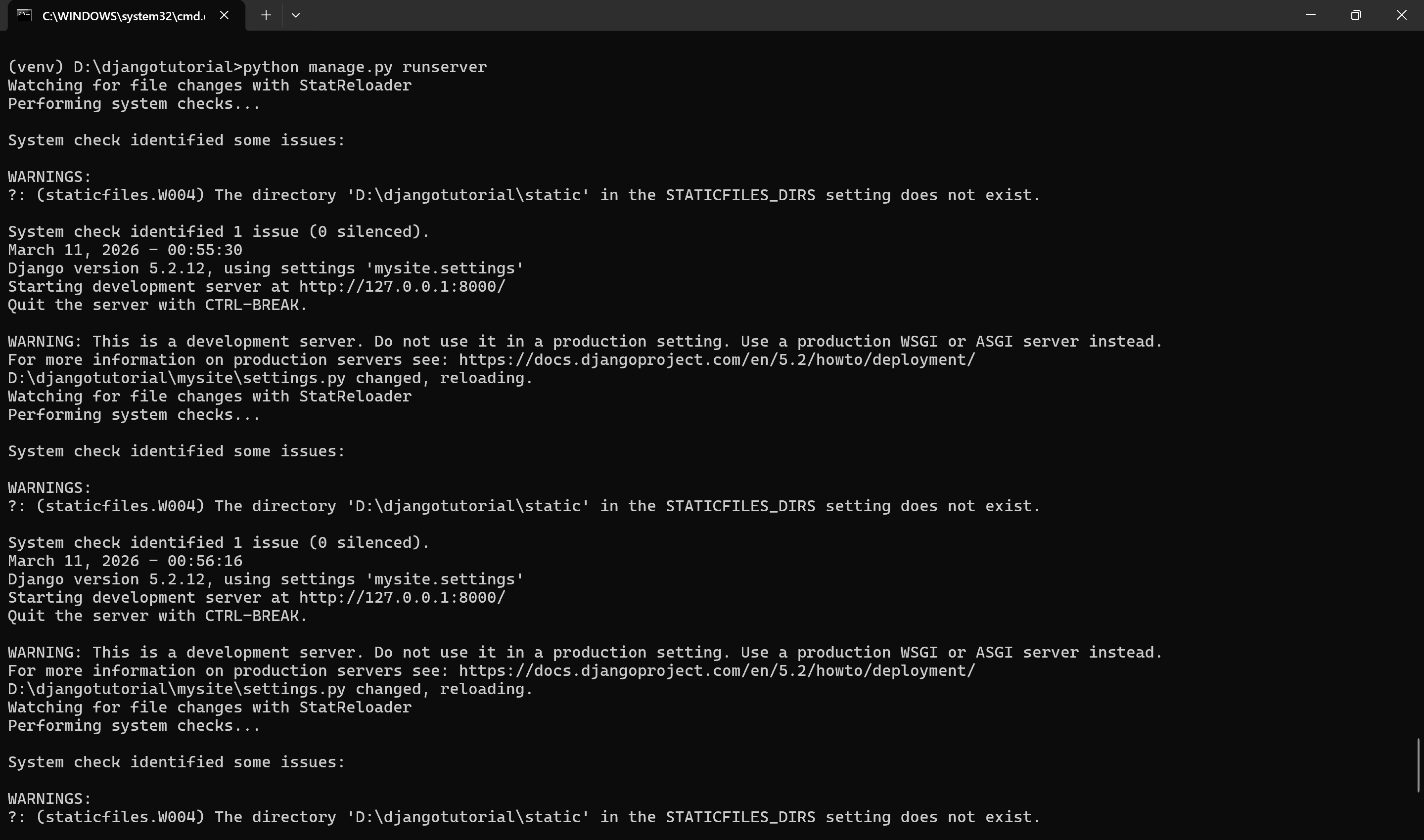
(1)重启开发服务器
运行
python manage.py runserver
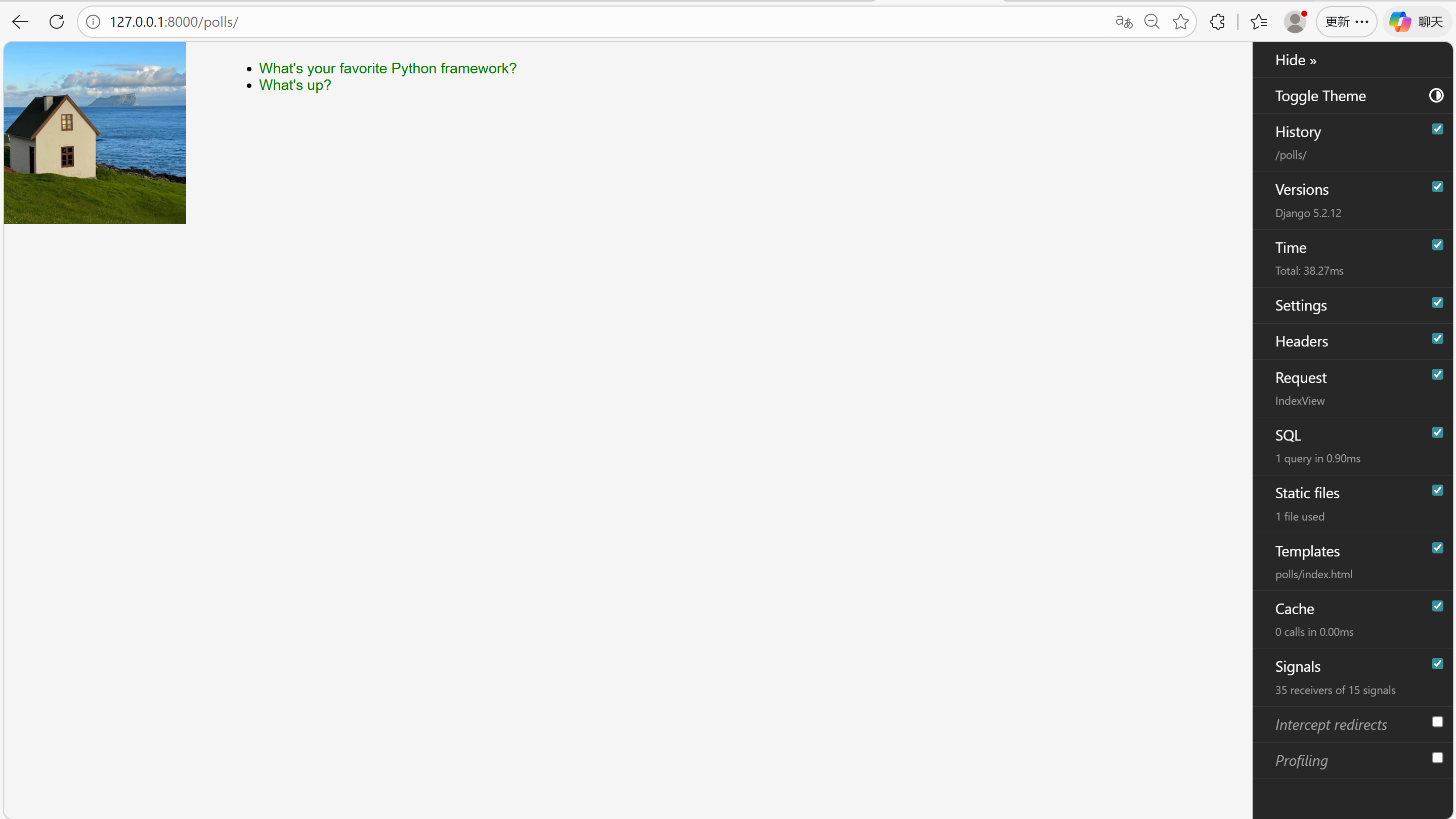
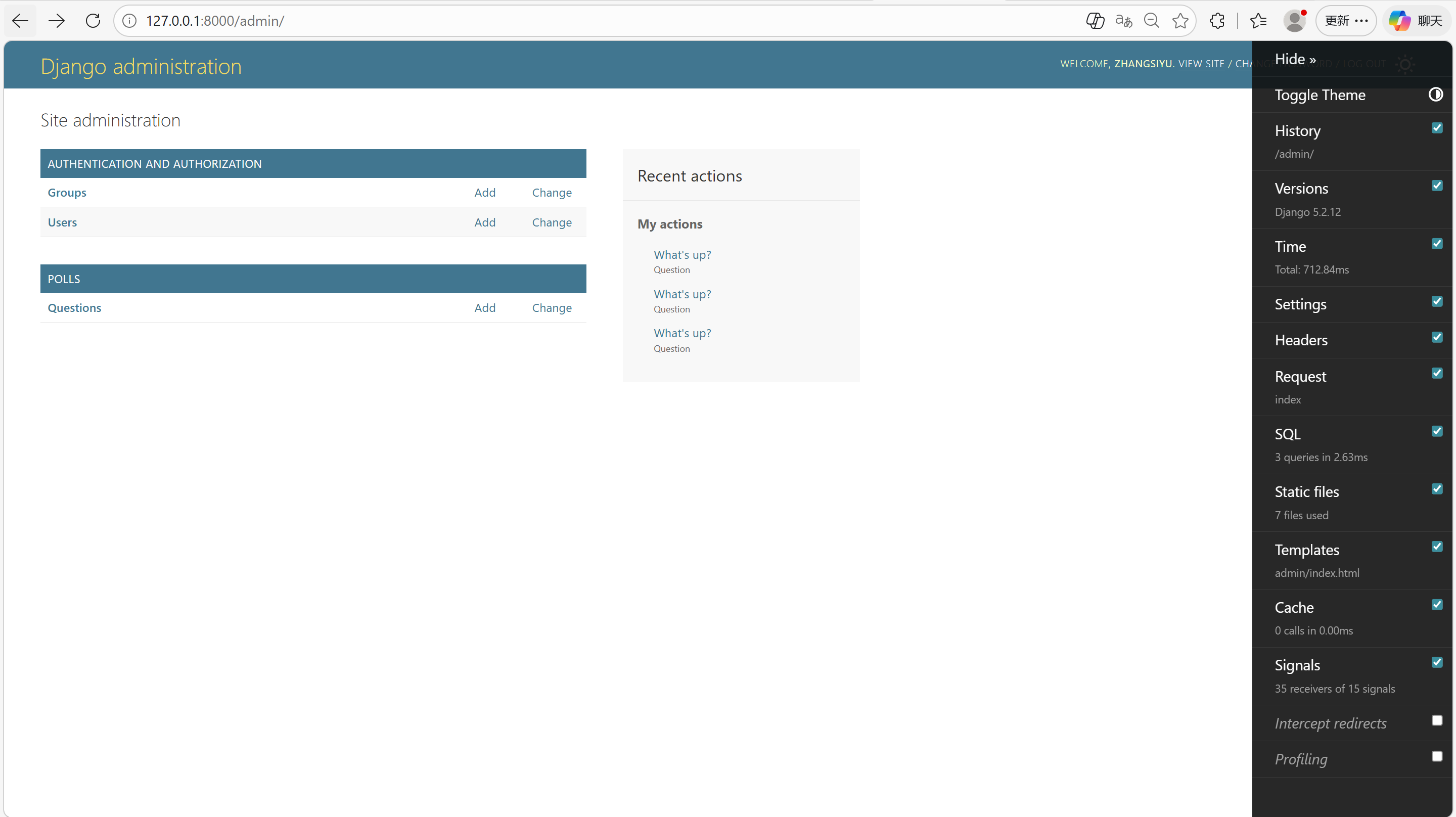
(2)访问页面查看效果
访问以下任意页面:
http://127.0.0.1:8000/polls/
http://127.0.0.1:8000/admin/
✅ 成功效果:
- 页面右侧会出现一个灰色的「DjDT」手柄(竖条);
- 点击手柄,会展开调试面板,包含「Versions」「Request」「SQL」「Templates」等标签;
- 点击「SQL」标签,能看到当前请求执行的所有 SQL 语句、执行时间、行数等。
5. 安装 SimpleUI
在你的虚拟环境中执行安装命令:
运行
(venv) D:\djangotutorial>pip install django-simpleui
(1)配置 settings.py
在 INSTALLED_APPS 中把 simpleui 放在最前面(必须优先加载,否则样式会被覆盖):
运行
# mysite/settings.py
INSTALLED_APPS = [
    'simpleui',  # 放在最顶部
    'debug_toolbar',
    'django.contrib.admin',
    'django.contrib.auth',
    'django.contrib.contenttypes',
    'django.contrib.sessions',
    'django.contrib.messages',
    'django.contrib.staticfiles',
    'polls.apps.PollsConfig',
]
(可选)添加 SimpleUI 基础配置(放在 settings.py 末尾):
运行
# mysite/settings.py
# SimpleUI 配置
SIMPLEUI_HOME_INFO = False  # 隐藏首页版本信息
SIMPLEUI_ANALYSIS = False    # 关闭统计分析
SIMPLEUI_LOGO = ''          # 自定义 Logo(留空用默认)
(2)验证接入
重启 Django 服务器:
运行
(venv) D:\djangotutorial>python manage.py runserver
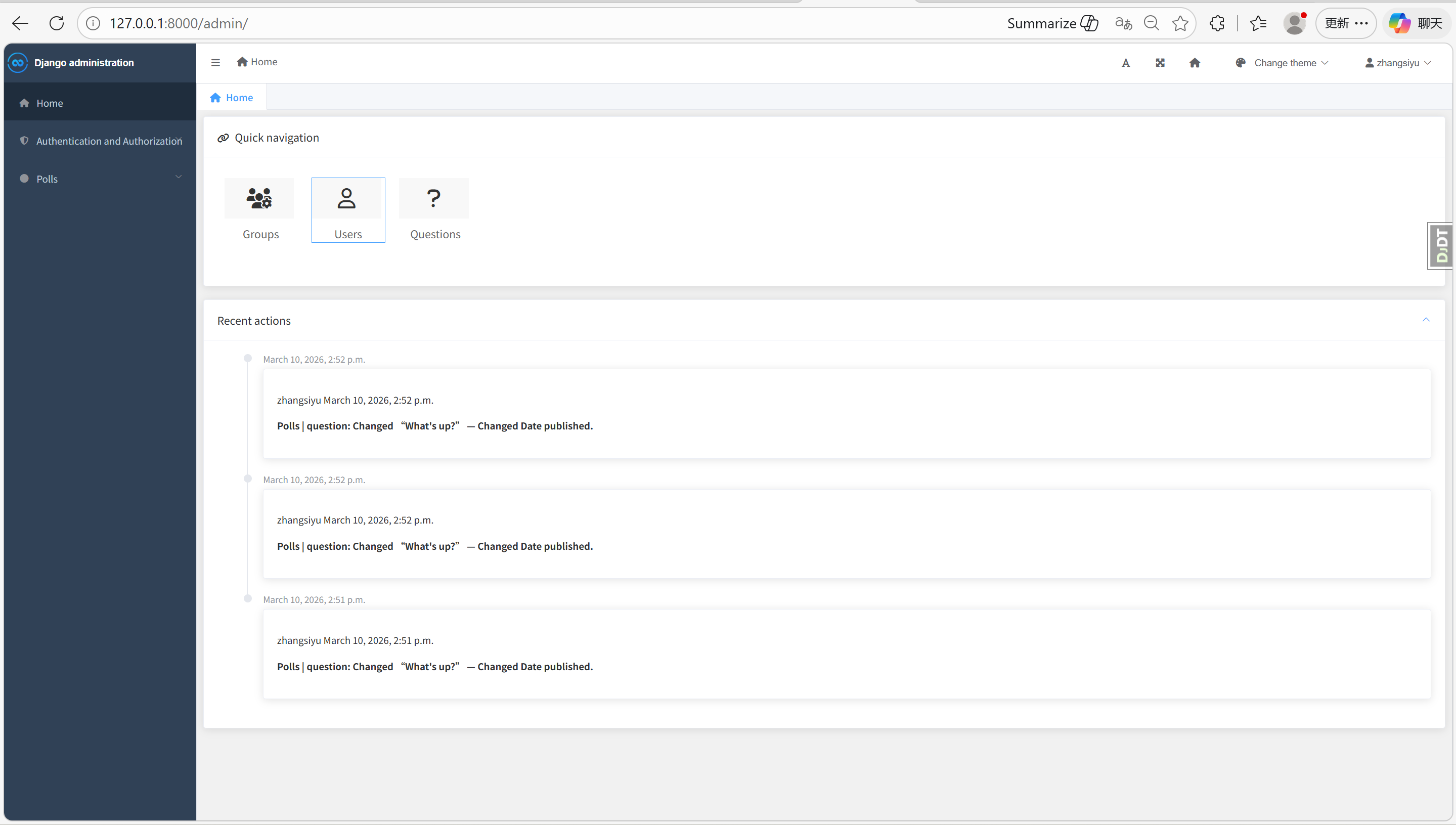
- 访问 Admin 后台:
http://127.0.0.1:8000/admin/ - 会看到界面已经变成 SimpleUI 的风格。
(3)自定义首页(可选)
如果你想修改首页内容(比如替换链接、版本号),可以通过自定义 Admin 模板实现:
- 在项目
templates/admin/目录下创建index.html; - 继承 SimpleUI 模板并修改内容,示例:
预览
{% extends 'admin/index.html' %}
{% block content %}
    <div class="simpleui-home">
        <h1>我的投票应用管理后台</h1>
        <p>版本:1.0.0</p>
        <a href="https://gitee.com/你的账号" target="_blank">Gitee</a>
        <a href="https://github.com/你的账号" target="_blank">GitHub</a>
    </div>
{% endblock %}
十七、实战总结
1. Django 开发核心逻辑
| 模块 | 关键知识点 |
|---|---|
| 项目结构 | 项目(mysite)+ 应用(polls)分离,遵循「高内聚、低耦合」设计原则; |
| ORM 模型 | 定义模型类、外键关联(Choice → Question)、模型方法、数据库迁移(makemigrations/migrate); |
| 视图与模板 | 视图函数处理业务逻辑、模板渲染(变量 / 标签 / 过滤器)、模板继承; |
| URL 配置 | 项目级 urls.py 分发路由、应用级 urls.py 定义具体路径、命名 URL 避免硬编码; |
| 静态文件 | 应用级静态文件目录(static/polls/)、模板中 {% static %} 标签引用; |
| Admin 自定义 | ModelAdmin 配置、内联编辑(TabularInline)、列表页优化(list_display/list_filter); |
| 第三方包集成 | pip 安装、INSTALLED_APPS 注册、中间件 / URL 配置、版本兼容问题排查; |
| 调试工具 | Debug Toolbar 核心配置(INTERNAL_IPS / 中间件 / URL),调试 SQL / 请求 / 模板; |
2. 实战避坑:新手常见问题与解决方案
- 静态文件不显示:检查路径(命名空间)、重启服务器、清除浏览器缓存;
- Admin 内联编辑失效:确认外键关联、内联类配置、重启服务器;
- 第三方包导入失败:验证安装环境(虚拟环境 / 全局)、检查 INSTALLED_APPS 配置;
- Debug Toolbar 不显示:确保 DEBUG=True、INTERNAL_IPS 包含 127.0.0.1、禁用浏览器拦截插件;
- 数据库迁移报错:删除无效迁移文件、检查模型字段修改、重新执行 migrate。
3. 下一步学习方向(进阶)
- 可复用应用开发:将 polls 应用打包,发布到 PyPI 或复用在其他项目;
- 生产环境部署:Nginx + Gunicorn 部署 Django 应用、配置静态文件收集(collectstatic);
- 核心进阶:自定义用户模型、缓存优化、信号机制、中间件开发、RESTful API(Django REST framework);
- 实战项目:基于 Django 开发博客、电商、管理系统等,整合更多第三方包(富文本、验证码、支付等)。
【附页】
代码仓库
 https://gitee.com/Zhang-Siyu0066/djangotutorial
AtomGit 是由开放原子开源基金会联合 CSDN 等生态伙伴共同推出的新一代开源与人工智能协作平台。平台坚持“开放、中立、公益”的理念,把代码托管、模型共享、数据集托管、智能体开发体验和算力服务整合在一起,为开发者提供从开发、训练到部署的一站式体验。
更多推荐



 26
26 0
0- 0


 已为社区贡献6条内容

所有评论(0)