高级进阶 React Native 鸿蒙跨平台开发:react-native-fs 文件系统
欢迎加入开源鸿蒙跨平台社区:https://openharmonycrossplatform.csdn.net
📋 前言
react-native-fs 是 React Native 生态中最流行的文件系统操作库,提供了跨平台的文件系统访问能力。该库支持文件的读取、写入、删除、移动、复制等操作,以及目录管理、文件下载等功能。它为应用提供了与原生文件系统交互的能力,广泛应用于数据持久化、文件缓存、资源管理等场景,是实现文件处理功能的标准选择。
🎯 库简介
基本信息
- 库名称: react-native-fs
- 版本信息:
- RN 0.72:
@react-native-ohos/react-native-fs(2.20.1) - RN 0.77:
@react-native-ohos/react-native-fs(2.21.0)
- RN 0.72:
- 官方仓库: https://gitcode.com/openharmony-sig/rntpc_react-native-fs
- 主要功能:
- 文件读写操作(readFile、writeFile、appendFile)
- 目录管理(mkdir、readDir、exists)
- 文件操作(copyFile、moveFile、unlink)
- 文件信息获取(stat、hash)
- 静态目录路径(DocumentDirectoryPath、CachesDirectoryPath 等)
- 文件下载功能(downloadFile)
- 资源文件读取(readFileAssets)
- 兼容性验证:
- RNOH: 0.72.20; SDK: HarmonyOS NEXT Developer Beta1; IDE: DevEco Studio 5.0.3.200; ROM: 3.0.0.18;
- RNOH: 0.77.18; SDK: HarmonyOS 6.0.0 Release SDK; IDE: DevEco Studio 6.0.0.868; ROM: 6.0.0.112;
为什么需要这个库?
- 跨平台一致: 提供统一的文件系统 API
- 功能完整: 支持文件、目录、下载等多种操作
- 易于使用: API 简洁,符合 Node.js 风格
- 性能优异: 原生实现,性能高效
- 权限友好: 在 HarmonyOS 上正确处理文件权限
- 广泛应用: 数据持久化、缓存、资源管理等必备工具
📦 安装步骤
1. 使用 npm 安装
npm install @react-native-ohos/react-native-fs@2.20.1-rc.1
2. 使用 yarn 安装
yarn add @react-native-ohos/react-native-fs
3. 验证安装
安装完成后,检查 package.json 文件,应该能看到新增的依赖:
{
  "dependencies": {
    "@react-native-ohos/react-native-fs": "^2.20.1-rc.1",
    // ... 其他依赖
  }
}
🔧 HarmonyOS 平台配置 ⭐
重要说明
- Autolink 支持: 版本 >= 2.20.2 支持 Autolink(仅 RN 0.72),版本 < 2.20.2 不支持 Autolink
- 导入库名: 使用
react-native-fs导入 - 目录路径: HarmonyOS 上的目录路径与 Android/iOS 不同,需要注意
手动配置步骤
1. 配置 overrides 字段
在工程根目录的 oh-package.json5 添加 overrides 字段:
{
  "overrides": {
    "@rnoh/react-native-openharmony": "./react_native_openharmony"
  }
}
2. 引入原生端代码
方法一:通过 har 包引入(不推荐)
打开 entry/oh-package.json5,添加以下依赖:
"dependencies": {
  "@rnoh/react-native-openharmony": "file:../react_native_openharmony",
  "@react-native-ohos/react-native-fs": "file:../../node_modules/@react-native-ohos/react-native-fs/harmony/fs.har"
}
点击右上角的 sync 按钮或在终端执行:
cd entry
ohpm install
方法二:直接链接源码
把 <RN工程>/node_modules/@react-native-ohos/react-native-fs/harmony 目录下的源码 fs 复制到 harmony 工程根目录下。
在 harmony 工程根目录的 build-profile.json5 添加模块:
modules: [
  ...
  {
    name: 'fs',
    srcPath: './fs',
  }
]
打开 fs/oh-package.json5,修改 react-native-openharmony 版本与项目一致。
打开 entry/oh-package.json5,添加依赖:
"dependencies": {
  "@rnoh/react-native-openharmony": "0.72.90",
  "@react-native-ohos/react-native-fs": "file:../fs"
}
点击 DevEco Studio 右上角的 sync 按钮。
3. 配置 CMakeLists 和引入 RNFSPackage
打开 entry/src/main/cpp/CMakeLists.txt,添加:
+ set(OH_MODULES "${CMAKE_CURRENT_SOURCE_DIR}/../../../oh_modules")

# RNOH_BEGIN: manual_package_linking_1

+ add_subdirectory("${OH_MODULES}/@react-native-ohos/react-native-fs/src/main/cpp" ./fs)
# RNOH_END: manual_package_linking_1

add_library(rnoh_app SHARED
    ${GENERATED_CPP_FILES}
    "./PackageProvider.cpp"
    "${RNOH_CPP_DIR}/RNOHAppNapiBridge.cpp"
)
target_link_libraries(rnoh_app PUBLIC rnoh)

# RNOH_BEGIN: manual_package_linking_2
+ target_link_libraries(rnoh_app PUBLIC rnoh_fs)
# RNOH_END: manual_package_linking_2
打开 entry/src/main/cpp/PackageProvider.cpp,添加:
+ #include "RNFSPackage.h"

std::vector<std::shared_ptr<Package>> PackageProvider::getPackages(Package::Context ctx) {
    return {
        std::make_shared<RNOHGeneratedPackage>(ctx),
        std::make_shared<SamplePackage>(ctx),
+       std::make_shared<RNFSPackage>(ctx),
    };
}
4. 在 ArkTs 侧引入 FsPackage
打开 entry/src/main/ets/RNPackagesFactory.ts,添加:
+ import {FsPackage} from '@react-native-ohos/react-native-fs/ts';

export function createRNPackages(ctx: RNPackageContext): RNPackage[] {
  return [
    new SamplePackage(ctx),
+   new FsPackage(ctx)
  ];
}
💻 完整代码示例
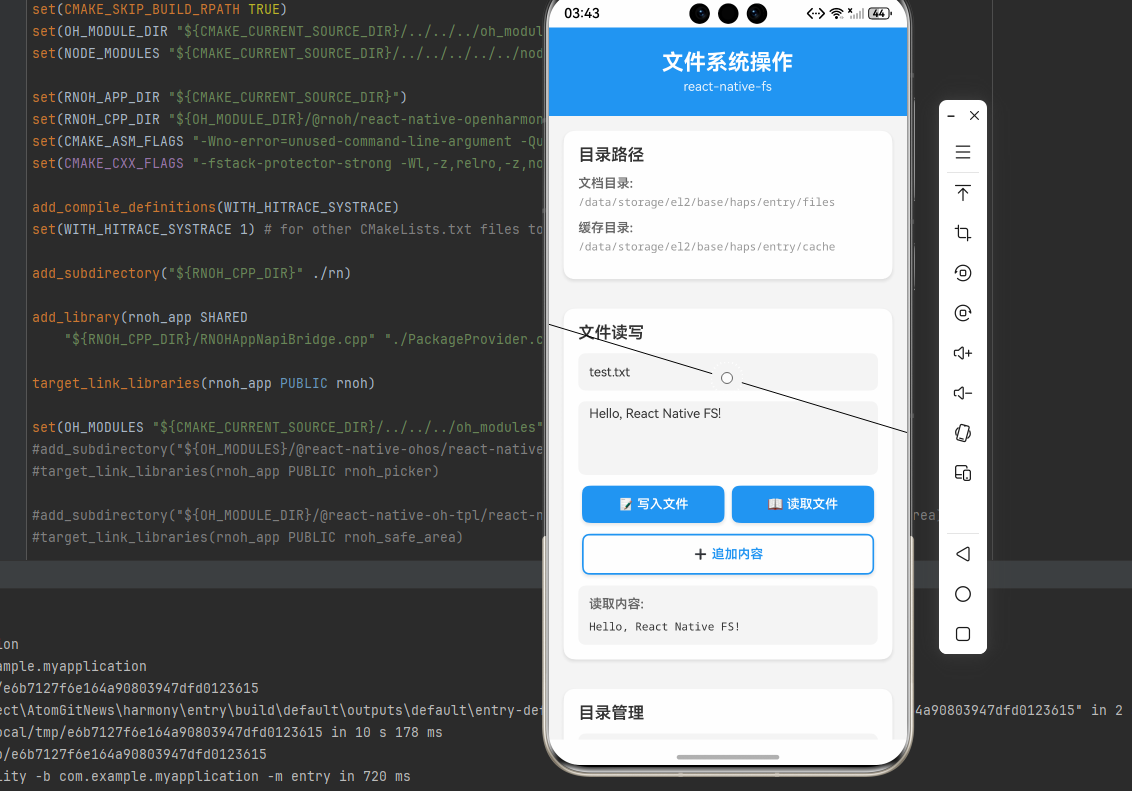
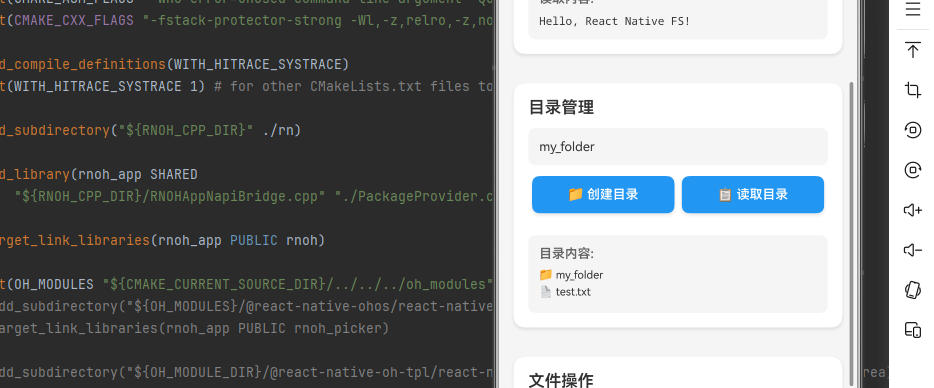
下面展示了 react-native-fs 的完整使用场景,包括文件读写、目录管理、文件操作等功能:
import React, { useState } from 'react';
import {
  StyleSheet,
  ScrollView,
  View,
  Text,
  TouchableOpacity,
  TextInput,
  Alert,
  SafeAreaView,
} from 'react-native';
import RNFS from 'react-native-fs';

/**
 * react-native-fs 文件系统操作示例
 * 功能演示:
 * 1. 文件读写操作
 * 2. 目录管理
 * 3. 文件操作(复制、移动、删除)
 * 4. 文件信息获取
 * 5. 文件下载
 */
const FileSystemExample = () => {
  const [fileName, setFileName] = useState<string>('test.txt');
  const [fileContent, setFileContent] = useState<string>('Hello, React Native FS!');
  const [readContent, setReadContent] = useState<string>('');
  const [folderName, setFolderName] = useState<string>('my_folder');
  const [directoryContents, setDirectoryContents] = useState<string[]>([]);
  const [fileStats, setFileStats] = useState<any>(null);
  const [downloadUrl, setDownloadUrl] = useState<string>(
    'https://example.com/file.txt'
  );

  // 目录路径
  const documentPath = RNFS.DocumentDirectoryPath;
  const cachePath = RNFS.CachesDirectoryPath;

  /**
   * 写入文件
   */
  const writeFile = async () => {
    try {
      const filePath = `${documentPath}/${fileName}`;
      await RNFS.writeFile(filePath, fileContent, 'utf8');
      Alert.alert('成功', `文件已写入: ${filePath}`);
    } catch (error: any) {
      Alert.alert('错误', error.message || '写入文件失败');
    }
  };

  /**
   * 读取文件
   */
  const readFile = async () => {
    try {
      const filePath = `${documentPath}/${fileName}`;
      const content = await RNFS.readFile(filePath, 'utf8');
      setReadContent(content);
      Alert.alert('成功', '文件读取成功');
    } catch (error: any) {
      Alert.alert('错误', error.message || '读取文件失败');
    }
  };

  /**
   * 追加内容到文件
   */
  const appendFile = async () => {
    try {
      const filePath = `${documentPath}/${fileName}`;
      await RNFS.appendFile(filePath, '\n' + fileContent, 'utf8');
      Alert.alert('成功', '内容已追加到文件');
    } catch (error: any) {
      Alert.alert('错误', error.message || '追加内容失败');
    }
  };

  /**
   * 创建目录
   */
  const mkdir = async () => {
    try {
      const folderPath = `${documentPath}/${folderName}`;
      await RNFS.mkdir(folderPath);
      Alert.alert('成功', `目录已创建: ${folderPath}`);
    } catch (error: any) {
      Alert.alert('错误', error.message || '创建目录失败');
    }
  };

  /**
   * 读取目录
   */
  const readDir = async () => {
    try {
      const files = await RNFS.readDir(documentPath);
      const fileNames = files.map((file) => {
        return file.isFile() ? `📄 ${file.name}` : `📁 ${file.name}`;
      });
      setDirectoryContents(fileNames);
      Alert.alert('成功', `共找到 ${files.length} 个文件/目录`);
    } catch (error: any) {
      Alert.alert('错误', error.message || '读取目录失败');
    }
  };

  /**
   * 检查文件是否存在
   */
  const checkExists = async () => {
    try {
      const filePath = `${documentPath}/${fileName}`;
      const exists = await RNFS.exists(filePath);
      Alert.alert('结果', exists ? '文件存在' : '文件不存在');
    } catch (error: any) {
      Alert.alert('错误', error.message || '检查失败');
    }
  };

  /**
   * 获取文件信息
   */
  const getStats = async () => {
    try {
      const filePath = `${documentPath}/${fileName}`;
      const stats = await RNFS.stat(filePath);
      setFileStats(stats);
      Alert.alert('成功', '文件信息获取成功');
    } catch (error: any) {
      Alert.alert('错误', error.message || '获取文件信息失败');
    }
  };

  /**
   * 复制文件
   */
  const copyFile = async () => {
    try {
      const sourcePath = `${documentPath}/${fileName}`;
      const destPath = `${documentPath}/copy_${fileName}`;
      await RNFS.copyFile(sourcePath, destPath);
      Alert.alert('成功', `文件已复制到: ${destPath}`);
    } catch (error: any) {
      Alert.alert('错误', error.message || '复制文件失败');
    }
  };

  /**
   * 移动文件
   */
  const moveFile = async () => {
    try {
      const sourcePath = `${documentPath}/${fileName}`;
      const destPath = `${documentPath}/moved_${fileName}`;
      await RNFS.moveFile(sourcePath, destPath);
      Alert.alert('成功', `文件已移动到: ${destPath}`);
    } catch (error: any) {
      Alert.alert('错误', error.message || '移动文件失败');
    }
  };

  /**
   * 删除文件
   */
  const deleteFile = async () => {
    try {
      const filePath = `${documentPath}/${fileName}`;
      await RNFS.unlink(filePath);
      Alert.alert('成功', '文件已删除');
    } catch (error: any) {
      Alert.alert('错误', error.message || '删除文件失败');
    }
  };

  /**
   * 下载文件
   */
  const downloadFile = async () => {
    try {
      const downloadDest = `${cachePath}/downloaded_file.txt`;
      const result = await RNFS.downloadFile({
        fromUrl: downloadUrl,
        toFile: downloadDest,
      }).promise;

      if (result.statusCode === 200) {
        Alert.alert('成功', `文件已下载到: ${downloadDest}`);
      } else {
        Alert.alert('错误', `下载失败,状态码: ${result.statusCode}`);
      }
    } catch (error: any) {
      Alert.alert('错误', error.message || '下载文件失败');
    }
  };

  return (
    <SafeAreaView style={styles.container}>
      <ScrollView style={styles.scrollView}>
        <View style={styles.header}>
          <Text style={styles.headerTitle}>文件系统操作</Text>
          <Text style={styles.headerSubtitle}>react-native-fs</Text>
        </View>

        {/* 目录信息 */}
        <View style={styles.infoContainer}>
          <Text style={styles.sectionTitle}>目录路径</Text>
          <View style={styles.infoRow}>
            <Text style={styles.infoLabel}>文档目录:</Text>
            <Text style={styles.infoValue}>{documentPath}</Text>
          </View>
          <View style={styles.infoRow}>
            <Text style={styles.infoLabel}>缓存目录:</Text>
            <Text style={styles.infoValue}>{cachePath}</Text>
          </View>
        </View>

        {/* 文件读写 */}
        <View style={styles.sectionContainer}>
          <Text style={styles.sectionTitle}>文件读写</Text>

          <TextInput
            style={styles.input}
            placeholder="文件名"
            value={fileName}
            onChangeText={setFileName}
          />

          <TextInput
            style={[styles.input, styles.textArea]}
            placeholder="文件内容"
            value={fileContent}
            onChangeText={setFileContent}
            multiline
            numberOfLines={3}
          />

          <View style={styles.buttonRow}>
            <TouchableOpacity style={styles.button} onPress={writeFile}>
              <Text style={styles.buttonText}>📝 写入文件</Text>
            </TouchableOpacity>
            <TouchableOpacity style={styles.button} onPress={readFile}>
              <Text style={styles.buttonText}>📖 读取文件</Text>
            </TouchableOpacity>
          </View>

          <TouchableOpacity
            style={[styles.button, styles.buttonSecondary]}
            onPress={appendFile}
          >
            <Text style={[styles.buttonText, styles.buttonSecondaryText]}>
              ➕ 追加内容
            </Text>
          </TouchableOpacity>

          {readContent ? (
            <View style={styles.resultBox}>
              <Text style={styles.resultTitle}>读取内容:</Text>
              <Text style={styles.resultContent}>{readContent}</Text>
            </View>
          ) : null}
        </View>

        {/* 目录管理 */}
        <View style={styles.sectionContainer}>
          <Text style={styles.sectionTitle}>目录管理</Text>

          <TextInput
            style={styles.input}
            placeholder="目录名"
            value={folderName}
            onChangeText={setFolderName}
          />

          <View style={styles.buttonRow}>
            <TouchableOpacity style={styles.button} onPress={mkdir}>
              <Text style={styles.buttonText}>📁 创建目录</Text>
            </TouchableOpacity>
            <TouchableOpacity style={styles.button} onPress={readDir}>
              <Text style={styles.buttonText}>📋 读取目录</Text>
            </TouchableOpacity>
          </View>

          {directoryContents.length > 0 ? (
            <View style={styles.resultBox}>
              <Text style={styles.resultTitle}>目录内容:</Text>
              {directoryContents.map((item, index) => (
                <Text key={index} style={styles.resultItem}>
                  {item}
                </Text>
              ))}
            </View>
          ) : null}
        </View>

        {/* 文件操作 */}
        <View style={styles.sectionContainer}>
          <Text style={styles.sectionTitle}>文件操作</Text>

          <View style={styles.buttonRow}>
            <TouchableOpacity style={styles.button} onPress={checkExists}>
              <Text style={styles.buttonText}>🔍 检查存在</Text>
            </TouchableOpacity>
            <TouchableOpacity style={styles.button} onPress={getStats}>
              <Text style={styles.buttonText}>📊 文件信息</Text>
            </TouchableOpacity>
          </View>

          <View style={styles.buttonRow}>
            <TouchableOpacity style={styles.button} onPress={copyFile}>
              <Text style={styles.buttonText}>📋 复制文件</Text>
            </TouchableOpacity>
            <TouchableOpacity style={styles.button} onPress={moveFile}>
              <Text style={styles.buttonText}>🔄 移动文件</Text>
            </TouchableOpacity>
          </View>

          <TouchableOpacity
            style={[styles.button, styles.buttonDanger]}
            onPress={deleteFile}
          >
            <Text style={styles.buttonText}>🗑️ 删除文件</Text>
          </TouchableOpacity>

          {fileStats ? (
            <View style={styles.resultBox}>
              <Text style={styles.resultTitle}>文件信息:</Text>
              <Text style={styles.resultItem}>
                大小: {(fileStats.size / 1024).toFixed(2)} KB
              </Text>
              <Text style={styles.resultItem}>
                类型: {fileStats.isFile() ? '文件' : '目录'}
              </Text>
              <Text style={styles.resultItem}>
                修改时间: {new Date(fileStats.mtime * 1000).toLocaleString()}
              </Text>
            </View>
          ) : null}
        </View>

        {/* 文件下载 */}
        <View style={styles.sectionContainer}>
          <Text style={styles.sectionTitle}>文件下载</Text>

          <TextInput
            style={styles.input}
            placeholder="下载 URL"
            value={downloadUrl}
            onChangeText={setDownloadUrl}
          />

          <TouchableOpacity style={styles.button} onPress={downloadFile}>
            <Text style={styles.buttonText}>⬇️ 下载文件</Text>
          </TouchableOpacity>
        </View>

        {/* 使用说明 */}
        <View style={styles.tipsContainer}>
          <Text style={styles.sectionTitle}>使用说明</Text>
          <Text style={styles.tipText}>• 文件读写: 支持文本和二进制文件</Text>
          <Text style={styles.tipText}>• 目录管理: 创建、读取、检查目录</Text>
          <Text style={styles.tipText}>• 文件操作: 复制、移动、删除文件</Text>
          <Text style={styles.tipText}>• 文件信息: 获取大小、类型、修改时间</Text>
          <Text style={styles.tipText}>• 文件下载: 支持从网络下载文件</Text>
          <Text style={styles.tipText}>• 权限处理: HarmonyOS 自动处理文件权限</Text>
        </View>
      </ScrollView>
    </SafeAreaView>
  );
};

const styles = StyleSheet.create({
  container: {
    flex: 1,
    backgroundColor: '#F5F5F5',
  },
  scrollView: {
    flex: 1,
  },
  header: {
    backgroundColor: '#2196F3',
    paddingVertical: 24,
    paddingHorizontal: 20,
    alignItems: 'center',
  },
  headerTitle: {
    fontSize: 24,
    fontWeight: 'bold',
    color: '#FFFFFF',
    marginBottom: 4,
  },
  headerSubtitle: {
    fontSize: 14,
    color: 'rgba(255, 255, 255, 0.9)',
  },
  infoContainer: {
    backgroundColor: '#FFFFFF',
    margin: 16,
    borderRadius: 12,
    padding: 16,
    elevation: 2,
    shadowColor: '#000',
    shadowOffset: { width: 0, height: 2 },
    shadowOpacity: 0.1,
    shadowRadius: 4,
  },
  infoRow: {
    marginBottom: 12,
  },
  infoLabel: {
    fontSize: 14,
    fontWeight: '600',
    color: '#666666',
    marginBottom: 4,
  },
  infoValue: {
    fontSize: 12,
    color: '#999999',
    fontFamily: 'monospace',
  },
  sectionContainer: {
    backgroundColor: '#FFFFFF',
    margin: 16,
    borderRadius: 12,
    padding: 16,
    elevation: 2,
    shadowColor: '#000',
    shadowOffset: { width: 0, height: 2 },
    shadowOpacity: 0.1,
    shadowRadius: 4,
  },
  sectionTitle: {
    fontSize: 18,
    fontWeight: '600',
    color: '#333333',
    marginBottom: 12,
  },
  input: {
    backgroundColor: '#F5F5F5',
    borderRadius: 8,
    padding: 12,
    marginBottom: 12,
    fontSize: 14,
    color: '#333333',
  },
  textArea: {
    height: 80,
    textAlignVertical: 'top',
  },
  buttonRow: {
    flexDirection: 'row',
    justifyContent: 'space-between',
    marginBottom: 12,
  },
  button: {
    flex: 1,
    backgroundColor: '#2196F3',
    paddingVertical: 12,
    borderRadius: 8,
    alignItems: 'center',
    marginHorizontal: 4,
    elevation: 2,
    shadowColor: '#000',
    shadowOffset: { width: 0, height: 2 },
    shadowOpacity: 0.1,
    shadowRadius: 4,
  },
  buttonSecondary: {
    backgroundColor: '#FFFFFF',
    borderWidth: 2,
    borderColor: '#2196F3',
  },
  buttonSecondaryText: {
    color: '#2196F3',
  },
  buttonDanger: {
    backgroundColor: '#FF5252',
  },
  buttonText: {
    fontSize: 14,
    fontWeight: '600',
    color: '#FFFFFF',
  },
  resultBox: {
    backgroundColor: '#F5F5F5',
    borderRadius: 8,
    padding: 12,
    marginTop: 12,
  },
  resultTitle: {
    fontSize: 14,
    fontWeight: '600',
    color: '#666666',
    marginBottom: 8,
  },
  resultContent: {
    fontSize: 12,
    color: '#333333',
    fontFamily: 'monospace',
  },
  resultItem: {
    fontSize: 12,
    color: '#333333',
    marginBottom: 4,
  },
  tipsContainer: {
    backgroundColor: '#FFFFFF',
    margin: 16,
    borderRadius: 12,
    padding: 16,
    elevation: 2,
    shadowColor: '#000',
    shadowOffset: { width: 0, height: 2 },
    shadowOpacity: 0.1,
    shadowRadius: 4,
    marginBottom: 32,
  },
  tipText: {
    fontSize: 14,
    color: '#666666',
    lineHeight: 22,
    marginBottom: 4,
  },
});

export default FileSystemExample;
🎨 实际应用场景
react-native-fs 可以应用于以下实际场景:
- 数据持久化: 保存应用配置、用户数据
- 文件缓存: 缓存图片、视频等资源文件
- 离线存储: 保存离线数据,支持离线访问
- 日志记录: 记录应用运行日志
- 文件下载: 下载并保存网络资源
- 资源管理: 管理应用内的各种资源文件
⚠️ 注意事项与最佳实践
1. 文件写入
// ✅ 推荐: 写入文件时指定编码
const writeContent = async (content: string) => {
  try {
    const filePath = `${RNFS.DocumentDirectoryPath}/data.txt`;
    await RNFS.writeFile(filePath, content, 'utf8');
    console.log('文件写入成功');
  } catch (error) {
    console.error('文件写入失败:', error);
  }
};
2. 文件读取
// ✅ 推荐: 读取文件时处理编码
const readContent = async () => {
  try {
    const filePath = `${RNFS.DocumentDirectoryPath}/data.txt`;
    const content = await RNFS.readFile(filePath, 'utf8');
    console.log('文件内容:', content);
    return content;
  } catch (error) {
    console.error('文件读取失败:', error);
    return null;
  }
};
3. 目录管理
// ✅ 推荐: 创建目录前检查是否存在
const createDirectory = async (dirName: string) => {
  try {
    const dirPath = `${RNFS.DocumentDirectoryPath}/${dirName}`;
    const exists = await RNFS.exists(dirPath);

    if (!exists) {
      await RNFS.mkdir(dirPath);
      console.log('目录创建成功');
    } else {
      console.log('目录已存在');
    }
  } catch (error) {
    console.error('目录创建失败:', error);
  }
};
4. 文件操作
// ✅ 推荐: 操作文件前检查是否存在
const deleteFile = async (fileName: string) => {
  try {
    const filePath = `${RNFS.DocumentDirectoryPath}/${fileName}`;
    const exists = await RNFS.exists(filePath);

    if (exists) {
      await RNFS.unlink(filePath);
      console.log('文件删除成功');
    } else {
      console.log('文件不存在');
    }
  } catch (error) {
    console.error('文件删除失败:', error);
  }
};
5. 文件下载
// ✅ 推荐: 下载文件时处理进度和错误
const downloadFile = async (url: string, fileName: string) => {
  try {
    const downloadDest = `${RNFS.CachesDirectoryPath}/${fileName}`;
    const result = await RNFS.downloadFile({
      fromUrl: url,
      toFile: downloadDest,
      progress: (res) => {
        const progress = (res.bytesWritten / res.contentLength) * 100;
        console.log(`下载进度: ${progress.toFixed(2)}%`);
      },
      progressDivider: 10,
    }).promise;

    if (result.statusCode === 200) {
      console.log('文件下载成功:', downloadDest);
    } else {
      console.error('下载失败,状态码:', result.statusCode);
    }
  } catch (error) {
    console.error('文件下载失败:', error);
  }
};
6. HarmonyOS 特殊处理
在 HarmonyOS 上使用时,需要注意:
- 目录路径: HarmonyOS 的目录路径与 Android/iOS 不同
- 权限处理: HarmonyOS 自动处理文件权限,无需额外配置
- Autolink 支持: 版本 >= 2.20.2 支持(仅 RN 0.72),版本 < 2.20.2 不支持
- 需要 Codegen: 使用前需要执行 Codegen 生成桥接代码
7. 最佳实践
// ✅ 推荐: 封装文件操作工具类
class FileSystemHelper {
  // 保存数据
  static async saveData(fileName: string, data: string): Promise<boolean> {
    try {
      const filePath = `${RNFS.DocumentDirectoryPath}/${fileName}`;
      await RNFS.writeFile(filePath, data, 'utf8');
      return true;
    } catch (error) {
      console.error('保存数据失败:', error);
      return false;
    }
  }

  // 读取数据
  static async loadData(fileName: string): Promise<string | null> {
    try {
      const filePath = `${RNFS.DocumentDirectoryPath}/${fileName}`;
      const exists = await RNFS.exists(filePath);

      if (!exists) {
        return null;
      }

      const content = await RNFS.readFile(filePath, 'utf8');
      return content;
    } catch (error) {
      console.error('读取数据失败:', error);
      return null;
    }
  }

  // 删除数据
  static async deleteData(fileName: string): Promise<boolean> {
    try {
      const filePath = `${RNFS.DocumentDirectoryPath}/${fileName}`;
      const exists = await RNFS.exists(filePath);

      if (exists) {
        await RNFS.unlink(filePath);
      }

      return true;
    } catch (error) {
      console.error('删除数据失败:', error);
      return false;
    }
  }

  // 清理缓存
  static async clearCache(): Promise<boolean> {
    try {
      const files = await RNFS.readDir(RNFS.CachesDirectoryPath);

      for (const file of files) {
        if (file.isFile()) {
          await RNFS.unlink(file.path);
        }
      }

      return true;
    } catch (error) {
      console.error('清理缓存失败:', error);
      return false;
    }
  }
}
🧪 测试验证
1. Android 平台测试
npm run android
测试要点:
- 测试文件读写
- 验证目录管理
- 检查文件操作
- 测试文件下载
2. iOS 平台测试
npm run ios
测试要点:
- 测试基本功能
- 验证文件权限
- 检查文件路径
3. HarmonyOS 平台测试
npm run harmony
测试要点:
- 验证 Codegen 配置
- 测试基本功能
- 检查目录路径
- 验证文件操作
4. 常见问题排查
问题 1: 文件写入失败
- 检查目录路径是否正确
- 确认目录是否存在
- 验证文件名是否合法
问题 2: 文件读取失败
- 检查文件是否存在
- 确认文件路径是否正确
- 验证编码格式
问题 3: 目录创建失败
- 检查父目录是否存在
- 确认目录名是否合法
- 验证权限设置
问题 4: 文件下载失败
- 检查网络连接
- 确认 URL 是否有效
- 验证目标路径是否可写
📊 API 参考
静态属性
| 属性 | 类型 | 描述 | HarmonyOS 路径示例 |
|---|---|---|---|
| DocumentDirectoryPath | string | 文档目录 | /data/storage/el2/base/haps/entry/files |
| CachesDirectoryPath | string | 缓存目录 | /data/storage/el2/base/haps/entry/cache |
| TemporaryDirectoryPath | string | 临时目录 | /data/storage/el2/base/temp |
| LibraryDirectoryPath | string | 库目录 | /data/storage/el2/base/preferences |
| MainBundlePath | string | 主包目录 | /data/storage/el2/base/haps/entry/files |
核心方法
| 方法 | 描述 | 参数类型 | 返回类型 |
|---|---|---|---|
| mkdir() | 创建目录 | (filepath: string) | Promise <void> |
| exists() | 检查文件是否存在 | (filepath: string) | Promise <boolean> |
| readFile() | 读取文件 | (filepath: string) | Promise <string> |
| writeFile() | 写入文件 | (filepath, content) | Promise <void> |
| appendFile() | 追加内容 | (filepath, content) | Promise <void> |
| copyFile() | 复制文件 | (filepath, destPath) | Promise <void> |
| moveFile() | 移动文件 | (filepath, destPath) | Promise <void> |
| unlink() | 删除文件 | (filepath: string) | Promise <void> |
| stat() | 获取文件信息 | (filepath: string) | Promise <Stat> |
| readDir() | 读取目录 | (dirpath: string) | Promise <FileInfo[]> |
| downloadFile() | 下载文件 | (options) | Promise <DownloadResult> |
📝 总结
通过集成 react-native-fs,我们为项目添加了完整的文件系统操作功能。这个库提供了统一的跨平台文件 API,支持文件读写、目录管理、文件操作等多种功能,广泛应用于数据持久化、文件缓存、资源管理等场景,是实现文件处理功能的标准选择。
关键要点回顾
- ✅ 安装依赖:
npm install @react-native-ohos/react-native-fs - ✅ 配置平台: 版本 >= 2.20.2 支持 Autolink(仅 RN 0.72),版本 < 2.20.2 不支持
- ✅ Codegen: 需要执行生成三方库桥接代码
- ✅ 导入库名: 使用
react-native-fs导入 - ✅ 统一 API: 跨平台一致的文件系统接口
- ✅ 功能完整: 支持文件读写、目录管理、文件操作、下载等
- ✅ 重要: HarmonyOS 的目录路径与 Android/iOS 不同
实际效果
- Android: 完整支持,功能丰富
- iOS: 完整支持,功能丰富
- HarmonyOS: 完整支持,目录路径不同

AtomGit 是由开放原子开源基金会联合 CSDN 等生态伙伴共同推出的新一代开源与人工智能协作平台。平台坚持“开放、中立、公益”的理念,把代码托管、模型共享、数据集托管、智能体开发体验和算力服务整合在一起,为开发者提供从开发、训练到部署的一站式体验。
更多推荐


 7
7 0
0- 0


 已为社区贡献50条内容

所有评论(0)