Flutter for OpenHarmony 电子合同签署App实战 - 关于应用实现
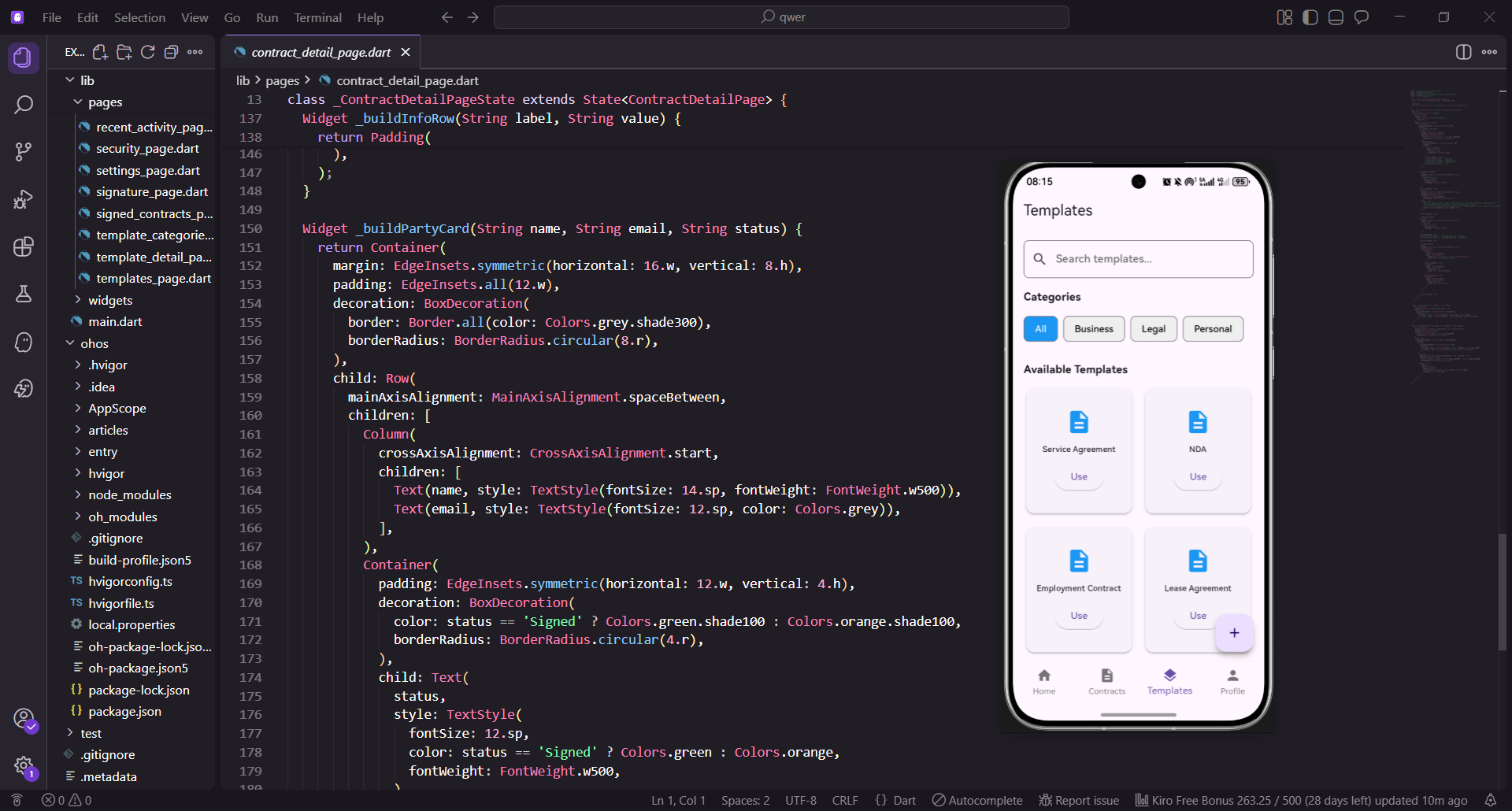
关于应用页面展示了应用的基本信息,包括版本号、开发者信息、许可证、功能特性和反馈渠道。这个页面是用户了解应用的重要窗口,需要提供清晰、完整的应用信息。在这篇文章中,我们将详细讲解如何实现一个功能完整、信息丰富的关于应用页面。
关于应用页面的设计目标
关于应用页面需要实现以下设计目标:
- 应用基本信息展示:展示应用名称、版本号、开发者等信息,让用户了解应用的基本情况
- 功能特性列表:展示应用的主要功能特性,帮助用户了解应用的能力
- 许可证信息:展示应用的许可证类型和条款,确保法律合规
- 反馈和评分:提供用户反馈和应用评分的入口,收集用户意见
- 社区链接:提供社区、文档等相关链接,方便用户获取更多信息
- 更新检查:检查应用是否有新版本可用,提醒用户更新
应用信息数据模型的定义
首先,我们需要定义应用信息的数据模型。这个模型会包含所有需要展示的应用信息。数据模型是应用与数据之间的桥梁,通过定义清晰的模型,我们可以确保数据的一致性和类型安全。
class AppInfo {
  final String appName;
  final String version;
  final String buildNumber;
  final String developer;
  final String developerEmail;
  final String developerWebsite;
  final String description;
  final String license;
  final DateTime releaseDate;
  final List<String> features;
  final List<SocialLink> socialLinks;
  final List<Contributor> contributors;

  AppInfo({
    required this.appName,
    required this.version,
    required this.buildNumber,
    required this.developer,
    required this.developerEmail,
    required this.developerWebsite,
    required this.description,
    required this.license,
    required this.releaseDate,
    required this.features,
    required this.socialLinks,
    required this.contributors,
  });
}
应用信息模型包含了应用的所有基本信息。通过这个模型,我们可以统一管理应用信息,避免数据散落在各个地方。这样的设计使得我们可以轻松地修改应用信息,而不需要修改UI代码。模型中的features列表包含了应用的主要功能,socialLinks列表包含了社交媒体链接,contributors列表包含了开发团队成员。通过使用这个模型,我们可以将应用信息与UI分离,提高代码的可维护性。在实际应用中,这个模型可以从配置文件或API获取,实现动态的应用信息管理。
社交链接和贡献者数据模型
社交链接和贡献者模型用于展示应用的社交媒体链接和开发团队成员。这些模型提供了结构化的方式来管理相关信息。通过定义这些模型,我们可以更好地组织和管理应用的社交信息。
class SocialLink {
  final String name;
  final String url;
  final IconData icon;

  SocialLink({
    required this.name,
    required this.url,
    required this.icon,
  });
}

class Contributor {
  final String name;
  final String role;
  final String? avatar;

  Contributor({
    required this.name,
    required this.role,
    this.avatar,
  });
}
这些模型提供了结构化的方式来管理社交链接和贡献者信息。通过使用这些模型,我们可以轻松地添加新的社交链接或贡献者,而不需要修改UI代码。SocialLink模型包含了链接的名称、URL和图标,这样我们可以为每个社交媒体提供不同的图标。Contributor模型包含了贡献者的名称、角色和头像,这样我们可以展示开发团队的信息。通过使用这些模型,我们可以实现高度可配置的应用信息管理。在实际应用中,这些数据可以从后端API获取,实现动态的社交链接和贡献者列表。
关于应用页面的基本结构
现在让我们实现一个完整的关于应用页面。这个页面会展示应用信息、功能特性、社交链接等内容。页面使用StatefulWidget来管理状态,这样我们可以在用户交互时更新UI。
import 'package:flutter/material.dart';
import 'package:flutter_screenutil/flutter_screenutil.dart';
import 'package:get/get.dart';
import 'package:url_launcher/url_launcher.dart';
class AboutPage extends StatefulWidget {
const AboutPage({Key? key}) : super(key: key);
State<AboutPage> createState() => _AboutPageState();
}
class _AboutPageState extends State<AboutPage> {
late AppInfo _appInfo;
bool _isCheckingUpdate = false;
void initState() {
super.initState();
_initializeAppInfo();
}
}
关于应用页面使用StatefulWidget来管理状态。在initState中,我们初始化应用信息。这样可以确保应用信息在页面加载时就已经准备好了。_isCheckingUpdate标志用于跟踪是否正在检查更新,这样我们可以在检查更新时禁用按钮。通过使用StatefulWidget,我们可以在用户交互时动态更新UI。在initState中初始化应用信息是一个很好的实践,可以确保页面加载时所有数据都已准备好。这种设计模式在Flutter应用中是标准做法。
初始化应用信息
初始化应用信息是页面加载的第一步。我们在这里设置应用的所有基本信息,包括名称、版本号、功能特性等。这些信息会在页面加载时显示给用户。
void _initializeAppInfo() {
  _appInfo = AppInfo(
    appName: 'E-Contract Signature',
    version: '1.0.0',
    buildNumber: '1',
    developer: 'OpenHarmony Cross Platform Community',
    developerEmail: 'support@openharmonycrossplatform.csdn.net',
    developerWebsite: 'https://openharmonycrossplatform.csdn.net',
    description: 'A comprehensive electronic contract signing application',
    license: 'MIT License',
    releaseDate: DateTime(2024, 1, 15),
    features: [
      'Electronic contract management',
      'Digital signature support',
      'Contract templates',
      'Real-time collaboration',
      'Secure document storage',
      'Multi-language support',
      'Offline mode',
      'Advanced search and filtering',
    ],
    socialLinks: [
      SocialLink(
        name: 'GitHub',
        url: 'https://github.com/openharmony',
        icon: Icons.code,
      ),
      SocialLink(
        name: 'Website',
        url: 'https://openharmonycrossplatform.csdn.net',
        icon: Icons.language,
      ),
      SocialLink(
        name: 'Email',
        url: 'mailto:support@openharmonycrossplatform.csdn.net',
        icon: Icons.email,
      ),
    ],
    contributors: [
      Contributor(name: 'John Doe', role: 'Lead Developer'),
      Contributor(name: 'Jane Smith', role: 'UI/UX Designer'),
      Contributor(name: 'Bob Johnson', role: 'Backend Developer'),
    ],
  );
}
初始化应用信息时,我们设置了应用的所有基本信息。这些信息包括应用名称、版本号、开发者信息、功能特性、社交链接和贡献者信息。通过这样的设计,我们可以轻松地修改应用信息。features列表包含了应用的主要功能,这些功能会在功能特性部分展示。socialLinks列表包含了社交媒体链接,用户可以通过这些链接访问社交媒体。contributors列表包含了开发团队成员,这可以增强用户对应用的信任。通过集中管理这些信息,我们可以确保应用信息的一致性。
构建页面的主体结构
页面的主体使用SingleChildScrollView来支持滚动。这样当内容超过屏幕高度时,用户可以滚动查看所有内容。页面包含多个部分,每个部分展示不同的信息。
Widget build(BuildContext context) {
return Scaffold(
appBar: AppBar(
title: const Text('About App'),
centerTitle: true,
elevation: 0,
),
body: SingleChildScrollView(
child: Column(
children: [
_buildAppHeader(),
_buildDescriptionSection(),
_buildFeaturesSection(),
_buildSocialLinksSection(),
_buildContributorsSection(),
_buildLicenseSection(),
_buildActionButtonsSection(),
SizedBox(height: 20.h),
],
),
),
);
}
页面的主体使用SingleChildScrollView来支持滚动。这样当内容超过屏幕高度时,用户可以滚动查看所有内容。页面包含多个部分,每个部分展示不同的信息。Column组件用于垂直排列各个部分。通过使用SingleChildScrollView,我们可以确保所有内容都可以被用户访问,即使屏幕空间有限。这种设计模式在展示大量信息的页面中非常常见。通过将页面分成多个部分,我们可以使页面结构更加清晰和易于维护。
应用头部信息的展示
应用头部展示了应用的图标、名称和版本号。这是用户首先看到的内容,所以设计要吸引人。头部使用渐变色背景来增强视觉效果,应用图标使用圆角设计。
Widget _buildAppHeader() {
  return Container(
    padding: EdgeInsets.all(24.w),
    decoration: BoxDecoration(
      gradient: LinearGradient(
        colors: [Colors.blue.shade400, Colors.blue.shade600],
      ),
    ),
    child: Column(
      children: [
        Container(
          width: 80.w,
          height: 80.w,
          decoration: BoxDecoration(
            color: Colors.white,
            borderRadius: BorderRadius.circular(16.r),
            boxShadow: [
              BoxShadow(
                color: Colors.black.withOpacity(0.2),
                blurRadius: 8,
                offset: const Offset(0, 4),
              ),
            ],
          ),
          child: Icon(
            Icons.description,
            size: 40.sp,
            color: Colors.blue,
          ),
        ),
        SizedBox(height: 16.h),
        Text(
          _appInfo.appName,
          style: TextStyle(
            fontSize: 24.sp,
            fontWeight: FontWeight.bold,
            color: Colors.white,
          ),
        ),
        SizedBox(height: 8.h),
        Container(
          padding: EdgeInsets.symmetric(horizontal: 12.w, vertical: 6.h),
          decoration: BoxDecoration(
            color: Colors.white.withOpacity(0.2),
            borderRadius: BorderRadius.circular(12.r),
          ),
          child: Text(
            'Version ${_appInfo.version} (Build ${_appInfo.buildNumber})',
            style: TextStyle(
              fontSize: 12.sp,
              color: Colors.white,
            ),
          ),
        ),
      ],
    ),
  );
}
应用头部使用渐变色背景来增强视觉效果。应用图标使用圆角设计,版本信息显示在下方。这样的设计使得头部看起来更加专业和吸引人。LinearGradient用于创建渐变色背景,从浅蓝色到深蓝色。通过使用BoxShadow,我们为应用图标添加了阴影效果,使其看起来更加立体。Container用于创建圆角的应用图标容器。通过使用borderRadius,我们可以创建圆角效果。这种设计模式在现代应用中非常常见,可以显著提升应用的视觉效果。
应用描述部分的实现
应用描述部分展示了应用的详细描述和发布日期。这部分使用灰色背景来区分,使得内容更加清晰。描述信息帮助用户快速了解应用的用途和功能。
Widget _buildDescriptionSection() {
  return Container(
    padding: EdgeInsets.all(16.w),
    child: Column(
      crossAxisAlignment: CrossAxisAlignment.start,
      children: [
        Text(
          'About This App',
          style: TextStyle(
            fontSize: 16.sp,
            fontWeight: FontWeight.bold,
          ),
        ),
        SizedBox(height: 12.h),
        Container(
          padding: EdgeInsets.all(12.w),
          decoration: BoxDecoration(
            color: Colors.grey.shade100,
            borderRadius: BorderRadius.circular(8.r),
          ),
          child: Column(
            crossAxisAlignment: CrossAxisAlignment.start,
            children: [
              Text(
                _appInfo.description,
                style: TextStyle(
                  fontSize: 13.sp,
                  height: 1.6,
                  color: Colors.grey.shade800,
                ),
              ),
              SizedBox(height: 8.h),
              Text(
                'Released on ${_formatDate(_appInfo.releaseDate)}',
                style: TextStyle(
                  fontSize: 11.sp,
                  color: Colors.grey,
                ),
              ),
            ],
          ),
        ),
      ],
    ),
  );
}
应用描述使用灰色背景来区分。这样用户可以清晰地看到应用的描述信息。通过展示发布日期,用户可以了解应用的发布时间。Container使用灰色背景和圆角边框来创建一个卡片效果。通过使用height: 1.6的行高,我们可以使文本更加易读。_formatDate方法用于格式化发布日期,使其更加易读。这种设计模式可以帮助用户快速了解应用的基本信息。通过提供发布日期,我们可以让用户了解应用的更新频率。
功能特性列表的展示
功能特性列表展示了应用的主要功能。这可以帮助用户了解应用的能力。每个功能都使用勾号图标来表示,这样用户可以快速了解应用的功能。
Widget _buildFeaturesSection() {
  return Container(
    padding: EdgeInsets.all(16.w),
    child: Column(
      crossAxisAlignment: CrossAxisAlignment.start,
      children: [
        Text(
          'Key Features',
          style: TextStyle(
            fontSize: 16.sp,
            fontWeight: FontWeight.bold,
          ),
        ),
        SizedBox(height: 12.h),
        ..._appInfo.features.map((feature) {
          return Padding(
            padding: EdgeInsets.symmetric(vertical: 8.h),
            child: Row(
              children: [
                Container(
                  width: 24.w,
                  height: 24.w,
                  decoration: BoxDecoration(
                    color: Colors.blue.shade100,
                    borderRadius: BorderRadius.circular(4.r),
                  ),
                  child: Icon(
                    Icons.check,
                    color: Colors.blue,
                    size: 16.sp,
                  ),
                ),
                SizedBox(width: 12.w),
                Expanded(
                  child: Text(
                    feature,
                    style: TextStyle(fontSize: 13.sp),
                  ),
                ),
              ],
            ),
          );
        }).toList(),
      ],
    ),
  );
}
功能特性使用勾号图标来表示。这样用户可以快速了解应用的功能。通过使用蓝色背景的勾号,我们使得功能列表看起来更加清晰和专业。map方法用于遍历功能列表,为每个功能创建一个UI元素。通过使用Container和BoxDecoration,我们为勾号创建了一个蓝色背景。Expanded组件用于让功能文本占据剩余空间。通过这种设计,用户可以快速扫描应用的功能列表。这种设计模式在展示功能列表时非常有效。
社交链接部分的实现
社交链接提供了用户与开发团队联系的方式。这部分使用水平布局展示多个社交链接。用户可以点击这些链接来访问相应的社交媒体或网站。
Widget _buildSocialLinksSection() {
  return Container(
    padding: EdgeInsets.all(16.w),
    child: Column(
      crossAxisAlignment: CrossAxisAlignment.start,
      children: [
        Text(
          'Connect With Us',
          style: TextStyle(
            fontSize: 16.sp,
            fontWeight: FontWeight.bold,
          ),
        ),
        SizedBox(height: 12.h),
        Row(
          mainAxisAlignment: MainAxisAlignment.spaceAround,
          children: _appInfo.socialLinks.map((link) {
            return _buildSocialButton(link);
          }).toList(),
        ),
      ],
    ),
  );
}
社交链接使用水平布局展示。这样用户可以快速访问各个社交媒体。通过使用spaceAround布局,我们确保了社交按钮之间的间距均匀。Row组件用于水平排列社交按钮。通过使用map方法,我们可以动态生成社交按钮。mainAxisAlignment: MainAxisAlignment.spaceAround确保了按钮之间的间距均匀分布。这种设计模式可以让用户快速访问各个社交媒体。通过提供多个社交链接,我们可以增加用户与开发团队的互动机会。
单个社交按钮的实现
每个社交按钮都包含一个图标和标签。用户点击按钮时会打开相应的链接。社交按钮使用蓝色背景和图标来表示,这样用户可以快速识别按钮的功能。
Widget _buildSocialButton(SocialLink link) {
  return GestureDetector(
    onTap: () => _launchUrl(link.url),
    child: Column(
      children: [
        Container(
          width: 50.w,
          height: 50.w,
          decoration: BoxDecoration(
            color: Colors.blue.shade100,
            borderRadius: BorderRadius.circular(12.r),
          ),
          child: Icon(
            link.icon,
            color: Colors.blue,
            size: 24.sp,
          ),
        ),
        SizedBox(height: 8.h),
        Text(
          link.name,
          style: TextStyle(fontSize: 12.sp),
        ),
      ],
    ),
  );
}
社交按钮使用蓝色背景和图标来表示。这样用户可以快速识别按钮的功能。通过使用GestureDetector,我们可以检测用户的点击事件。Column组件用于垂直排列图标和标签。通过使用Container和BoxDecoration,我们为按钮创建了一个蓝色背景。onTap回调在用户点击按钮时被触发,调用_launchUrl方法打开相应的链接。这种设计模式提供了一个直观的社交链接访问方式。通过提供图标和标签,用户可以清晰地识别每个社交媒体。
贡献者信息的展示
贡献者信息展示了应用的开发团队成员。这可以增强用户对应用的信任。每个贡献者都有一个头像、名称和角色。这样用户可以了解应用背后的团队。
Widget _buildContributorsSection() {
  return Container(
    padding: EdgeInsets.all(16.w),
    child: Column(
      crossAxisAlignment: CrossAxisAlignment.start,
      children: [
        Text(
          'Contributors',
          style: TextStyle(
            fontSize: 16.sp,
            fontWeight: FontWeight.bold,
          ),
        ),
        SizedBox(height: 12.h),
        ..._appInfo.contributors.map((contributor) {
          return Container(
            margin: EdgeInsets.only(bottom: 12.h),
            padding: EdgeInsets.all(12.w),
            decoration: BoxDecoration(
              border: Border.all(color: Colors.grey.shade300),
              borderRadius: BorderRadius.circular(8.r),
            ),
            child: Row(
              children: [
                Container(
                  width: 40.w,
                  height: 40.w,
                  decoration: BoxDecoration(
                    color: Colors.blue.shade100,
                    borderRadius: BorderRadius.circular(20.r),
                  ),
                  child: Icon(
                    Icons.person,
                    color: Colors.blue,
                    size: 20.sp,
                  ),
                ),
                SizedBox(width: 12.w),
                Expanded(
                  child: Column(
                    crossAxisAlignment: CrossAxisAlignment.start,
                    children: [
                      Text(
                        contributor.name,
                        style: TextStyle(
                          fontSize: 13.sp,
                          fontWeight: FontWeight.bold,
                        ),
                      ),
                      Text(
                        contributor.role,
                        style: TextStyle(
                          fontSize: 11.sp,
                          color: Colors.grey,
                        ),
                      ),
                    ],
                  ),
                ),
              ],
            ),
          );
        }).toList(),
      ],
    ),
  );
}
贡献者信息使用卡片布局展示。每个贡献者都有一个头像、名称和角色。通过展示贡献者信息,我们可以增强用户对应用的信任。map方法用于遍历贡献者列表,为每个贡献者创建一个卡片。通过使用Container和BoxDecoration,我们为每个贡献者创建了一个卡片效果。Row组件用于水平排列头像和信息。通过使用Expanded,我们让贡献者信息占据剩余空间。这种设计模式可以有效地展示开发团队的信息,增强用户对应用的信任。
许可证信息的展示
许可证信息展示了应用的许可证类型和条款。这对于法律合规非常重要。许可证信息使用灰色背景来展示,这样用户可以清晰地看到许可证条款。
Widget _buildLicenseSection() {
  return Container(
    padding: EdgeInsets.all(16.w),
    child: Column(
      crossAxisAlignment: CrossAxisAlignment.start,
      children: [
        Text(
          'License',
          style: TextStyle(
            fontSize: 16.sp,
            fontWeight: FontWeight.bold,
          ),
        ),
        SizedBox(height: 12.h),
        Container(
          padding: EdgeInsets.all(12.w),
          decoration: BoxDecoration(
            color: Colors.grey.shade100,
            borderRadius: BorderRadius.circular(8.r),
          ),
          child: Column(
            crossAxisAlignment: CrossAxisAlignment.start,
            children: [
              Text(
                _appInfo.license,
                style: TextStyle(
                  fontSize: 13.sp,
                  fontWeight: FontWeight.bold,
                ),
              ),
              SizedBox(height: 8.h),
              Text(
                'This application is released under the ${_appInfo.license}. '
                'You are free to use, modify, and distribute this software '
                'in accordance with the terms of the license.',
                style: TextStyle(
                  fontSize: 12.sp,
                  height: 1.6,
                  color: Colors.grey.shade700,
                ),
              ),
            ],
          ),
        ),
      ],
    ),
  );
}
许可证信息使用灰色背景来展示。这样用户可以清晰地看到许可证条款。通过展示许可证信息,我们确保了应用的法律合规性。Container使用灰色背景和圆角边框来创建一个卡片效果。通过提供许可证类型和详细条款,我们让用户了解应用的使用条件。Text组件用于展示许可证信息。通过使用height: 1.6的行高,我们可以使文本更加易读。这种设计模式可以帮助用户快速了解应用的许可证信息。
操作按钮的实现
操作按钮提供了用户可以执行的各种操作,如检查更新、发送反馈等。操作按钮使用不同的样式来区分主要操作和次要操作。主要操作使用ElevatedButton,次要操作使用OutlinedButton。
Widget _buildActionButtonsSection() {
  return Container(
    padding: EdgeInsets.symmetric(horizontal: 16.w, vertical: 12.h),
    child: Column(
      children: [
        SizedBox(
          width: double.infinity,
          child: ElevatedButton(
            onPressed: _isCheckingUpdate ? null : _checkForUpdates,
            child: _isCheckingUpdate
                ? SizedBox(
                    height: 20.h,
                    width: 20.w,
                    child: const CircularProgressIndicator(
                      strokeWidth: 2,
                      valueColor: AlwaysStoppedAnimation<Color>(Colors.white),
                    ),
                  )
                : const Text('Check for Updates'),
          ),
        ),
        SizedBox(height: 12.h),
        SizedBox(
          width: double.infinity,
          child: OutlinedButton(
            onPressed: _sendFeedback,
            child: const Text('Send Feedback'),
          ),
        ),
        SizedBox(height: 12.h),
        SizedBox(
          width: double.infinity,
          child: OutlinedButton(
            onPressed: _rateApp,
            child: const Text('Rate This App'),
          ),
        ),
      ],
    ),
  );
}
操作按钮使用不同的样式来区分主要操作和次要操作。主要操作使用ElevatedButton,次要操作使用OutlinedButton。通过这样的设计,用户可以快速识别哪些是主要操作。SizedBox用于让按钮占据全宽。通过使用_isCheckingUpdate标志,我们可以在检查更新时禁用按钮并显示加载动画。CircularProgressIndicator用于显示加载状态。通过提供多个操作按钮,我们可以让用户快速执行各种操作。这种设计模式在应用中非常常见。
检查更新功能的实现
检查更新功能允许用户检查是否有新版本可用。这个功能会显示一个加载指示器,让用户知道应用正在检查更新。检查完成后,会显示一个提示信息。
Future<void> _checkForUpdates() async {
  setState(() {
    _isCheckingUpdate = true;
  });

  try {
    await Future.delayed(const Duration(seconds: 2));
    Get.snackbar(
      'Update Check',
      'You are using the latest version',
      snackPosition: SnackPosition.BOTTOM,
    );
  } finally {
    setState(() {
      _isCheckingUpdate = false;
    });
  }
}
检查更新方法模拟了从服务器检查新版本的过程。实际应用中,我们会调用真实的API来检查更新。通过使用setState,我们可以更新UI来显示加载状态。_isCheckingUpdate标志用于跟踪检查更新的状态。通过使用Future.delayed,我们模拟了网络请求的延迟。Get.snackbar用于显示检查结果。通过使用try-finally块,我们确保无论操作成功还是失败,都能正确更新加载状态。这种设计模式可以提供良好的用户反馈。
发送反馈功能的实现
发送反馈功能允许用户向开发团队发送反馈。这个功能会显示一个对话框,允许用户输入反馈内容。用户可以在对话框中输入他们的反馈,然后点击发送按钮。
void _sendFeedback() {
  Get.dialog(
    AlertDialog(
      title: const Text('Send Feedback'),
      content: TextField(
        maxLines: 5,
        decoration: InputDecoration(
          hintText: 'Enter your feedback here...',
          border: OutlineInputBorder(
            borderRadius: BorderRadius.circular(8.r),
          ),
        ),
      ),
      actions: [
        TextButton(
          onPressed: () => Get.back(),
          child: const Text('Cancel'),
        ),
        TextButton(
          onPressed: () {
            Get.back();
            Get.snackbar('Success', 'Feedback sent successfully');
          },
          child: const Text('Send'),
        ),
      ],
    ),
  );
}
发送反馈功能显示一个对话框,允许用户输入反馈内容。通过使用Get.dialog,我们可以显示一个对话框。用户可以在对话框中输入反馈,然后点击发送按钮。TextField用于接收用户的反馈输入。通过设置maxLines: 5,我们允许用户输入多行反馈。AlertDialog提供了一个标准的对话框界面。通过提供取消和发送两个按钮,用户可以灵活地选择操作。这种设计模式可以有效地收集用户反馈。
应用评分功能的实现
应用评分功能允许用户在应用商店中评分应用。这个功能会打开应用商店,让用户评分应用。通过提供评分功能,我们可以收集用户的反馈。
void _rateApp() {
  Get.snackbar(
    'Rate App',
    'Opening app store...',
    snackPosition: SnackPosition.BOTTOM,
  );
}
应用评分功能会打开应用商店,让用户评分应用。通过使用Get.snackbar,我们可以显示一个提示信息。实际应用中,我们会使用url_launcher包来打开应用商店。通过提供评分功能,我们可以收集用户的反馈。Get.snackbar提供了一个非侵入式的提示方式。通过在提示中告知用户应用商店正在打开,我们可以提供良好的用户反馈。这种设计模式可以鼓励用户评分应用。
打开URL的功能实现
打开URL的功能允许用户访问社交链接和其他外部链接。这个功能使用url_launcher包来打开链接。当用户点击社交按钮时,这个功能会被调用。
Future<void> _launchUrl(String url) async {
  if (await canLaunchUrl(Uri.parse(url))) {
    await launchUrl(Uri.parse(url));
  } else {
    Get.snackbar('Error', 'Could not launch $url');
  }
}
打开URL功能使用url_launcher包来打开链接。通过检查URL是否可以打开,我们可以避免错误。如果URL无法打开,我们会显示一个错误提示。canLaunchUrl方法用于检查URL是否可以打开。launchUrl方法用于打开URL。通过使用Uri.parse,我们可以将字符串转换为URI对象。Get.snackbar用于显示错误信息。这种设计模式可以确保应用的稳定性和用户体验。
日期格式化功能的实现
日期格式化功能用于将日期转换为可读的格式。这个功能将日期转换为YYYY-MM-DD格式。通过格式化日期,我们可以使日期更加易读。
String _formatDate(DateTime date) {
  return '${date.year}-${date.month.toString().padLeft(2, '0')}-${date.day.toString().padLeft(2, '0')}';
}
日期格式化功能将日期转换为YYYY-MM-DD格式。通过使用padLeft方法,我们可以确保月份和日期都是两位数。这样的格式更加标准和易读。toString().padLeft(2, '0')确保了月份和日期始终是两位数字。通过这种方式,我们可以生成一致的日期格式。这种设计模式在处理日期显示时非常有用。通过提供标准的日期格式,我们可以提高应用的专业性。
总结
这个关于应用页面为用户提供了一个完整的应用信息界面,帮助用户了解应用的功能、开发团队和许可证信息。通过提供反馈、评分和更新检查等功能,我们能够与用户保持良好的互动。这样的设计使得用户可以更好地了解应用,并与开发团队保持联系。
欢迎加入开源鸿蒙跨平台社区:https://openharmonycrossplatform.csdn.net

AtomGit 是由开放原子开源基金会联合 CSDN 等生态伙伴共同推出的新一代开源与人工智能协作平台。平台坚持“开放、中立、公益”的理念,把代码托管、模型共享、数据集托管、智能体开发体验和算力服务整合在一起,为开发者提供从开发、训练到部署的一站式体验。
更多推荐

 12
12 0
0- 0


 已为社区贡献24条内容

所有评论(0)