Flutter for OpenHarmony 三方库适配教学 - image_editor_dove 翻转功能
三方库开源地址:https://atomgit.com/nutpi/flutter_ohos_image_editor_dove
前言
翻转是图片编辑器里另一个基础功能。自拍的时候前置摄像头拍出来的照片是镜像的,想翻过来变成正常的?翻转一下就行了。
这篇文章就来聊聊 image_editor_dove 是怎么实现翻转功能的。Flutter 提供了 Transform 组件配合 Matrix4,可以实现各种变换效果,翻转只是其中之一。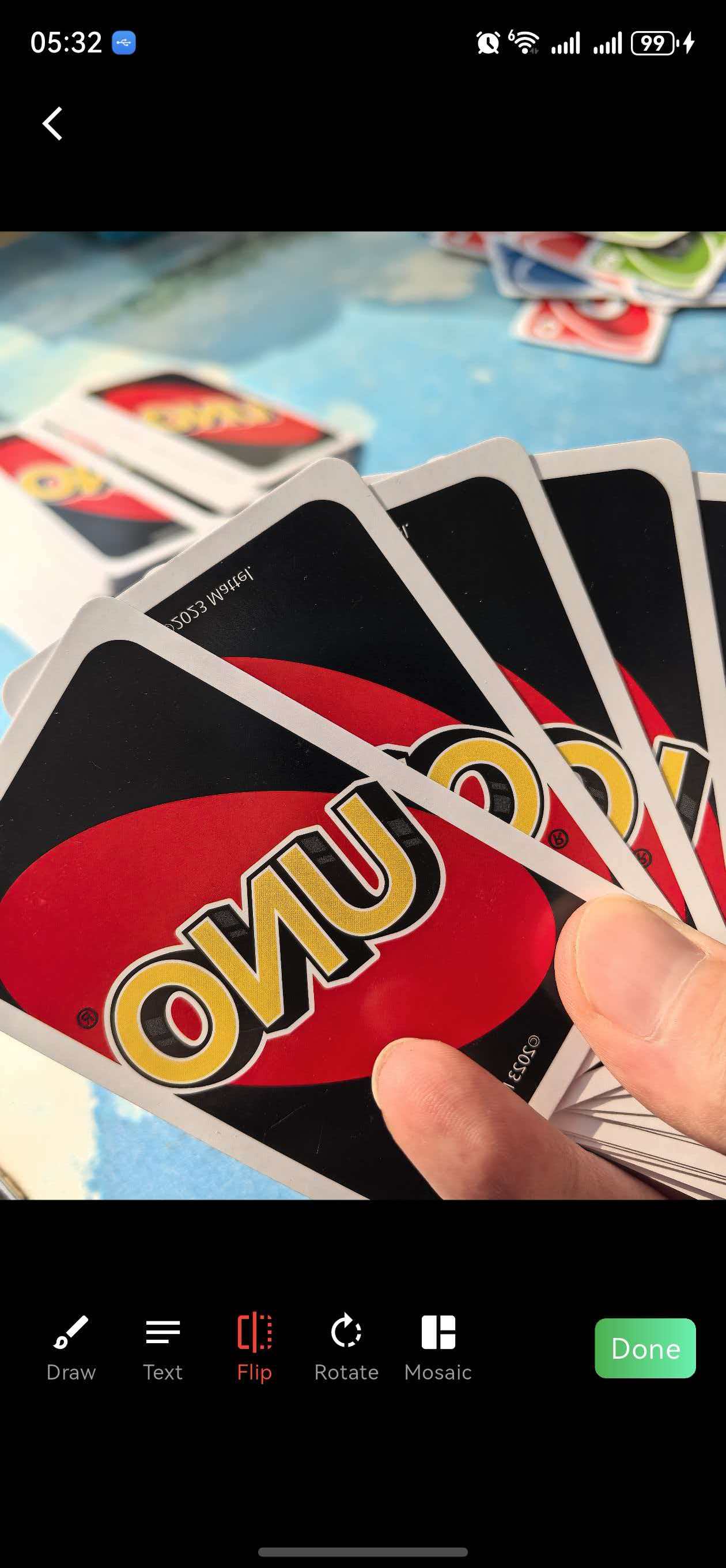
翻转的本质
翻转就是让图片沿着某条轴镜像,就像照镜子一样。在 image_editor_dove 里,翻转是水平翻转——左右镜像。
想象一下,你站在镜子前面,镜子里的你和真实的你是左右相反的。图片翻转就是这个效果。
RotateCanvasBinding - 状态管理
翻转的状态也是通过 RotateCanvasBinding Mixin 来管理的:
mixin RotateCanvasBinding<T extends StatefulWidget> on State<T> {
  int rotateValue = 0;
  double flipValue = 0;
flipValue 是一个浮点数:
- 0 → 正常显示
- π(约 3.14159)→ 翻转
为什么用 π?因为后面要用 Matrix4.rotationY() 来实现翻转,这个方法接收的是弧度值。π 弧度就是 180 度,刚好是完全翻转。
翻转方法
void flipCanvas() {
  flipValue = flipValue == 0 ? math.pi : 0;
  setState(() {});
}
逻辑很简单:如果当前是正常状态(0),就翻转(π);如果当前是翻转状态(π),就恢复正常(0)。每次点击都是在两个状态之间切换。
这是一个典型的"开关"逻辑,点一下翻转,再点一下恢复。
Transform - 实现翻转
翻转用的是 Transform 组件配合 Matrix4:
Widget _buildImage() {
  return Transform(
    alignment: Alignment.center,
    transform: Matrix4.rotationY(flipValue),
    child: Container(
      alignment: Alignment.center,
      child: Image.file(widget.originImage),
    ),
  );
}
三个关键点:
alignment: Alignment.center- 变换的中心点是组件的中心transform: Matrix4.rotationY(flipValue)- 绕 Y 轴旋转的变换矩阵child- 被变换的内容
alignment 的重要性
alignment 指定变换的中心点。如果不设置,默认是左上角。
// 以中心点为轴翻转(正确)
Transform(
  alignment: Alignment.center,
  transform: Matrix4.rotationY(math.pi),
  child: Image(...),
)

// 以左上角为轴翻转(错误,图片会跑到屏幕外面)
Transform(
  // alignment 默认是 Alignment.topLeft
  transform: Matrix4.rotationY(math.pi),
  child: Image(...),
)
如果以左上角为轴翻转,图片会绕着左上角转 180 度,结果就是图片跑到屏幕左边去了,看不见。
Matrix4.rotationY 的原理
你可能好奇,绕 Y 轴旋转怎么就变成水平翻转了?
想象一下三维空间:
- X 轴是水平的,从左到右
- Y 轴是垂直的,从下到上
- Z 轴是垂直于屏幕的,从屏幕里面指向你
绕 Y 轴旋转 180 度,就相当于把图片像翻书一样翻过去。从正面看,图片就是左右镜像的。
数学上,Matrix4.rotationY(π) 生成的变换矩阵是这样的:
| -1   0   0   0 |
|  0   1   0   0 |
|  0   0  -1   0 |
|  0   0   0   1 |
这个矩阵的效果是:X 坐标取反,Y 坐标不变。所以原来在左边的像素跑到右边去了,原来在右边的像素跑到左边去了——这就是镜像翻转。
flipValue 的取值
flipValue 只有两个有意义的值:
- 0 → 正常显示(单位矩阵,不做任何变换)
- π → 水平翻转(X 坐标取反)
中间的值(比如 π/2)会产生一个"侧面"的效果,图片会变成一条线。这在翻转动画里可能有用,但作为最终状态没有意义。
翻转只影响图片
注意看代码,Transform 只包裹了图片,没有包裹涂鸦层和文字层:
RotatedBox(
  quarterTurns: rotateValue,
  child: Stack(
    children: [
      InteractiveViewer(child: _buildImage()),  // 只有图片被翻转
      _buildBrushCanvas(),  // 涂鸦不翻转
      buildTextCanvas(),    // 文字不翻转
    ],
  ),
)
这是故意的设计。翻转通常是为了纠正自拍的镜像问题,涂鸦和文字是用户后加的,不应该被翻转。
如果你想让涂鸦和文字也一起翻转,可以把 Transform 移到 Stack 外面:
RotatedBox(
  quarterTurns: rotateValue,
  child: Transform(
    alignment: Alignment.center,
    transform: Matrix4.rotationY(flipValue),
    child: Stack(
      children: [
        InteractiveViewer(child: Image.file(widget.originImage)),
        _buildBrushCanvas(),
        buildTextCanvas(),
      ],
    ),
  ),
)
操作按钮的实现
用户通过底部的按钮来触发翻转:
Widget _buildControlBar() {
  return Container(
    child: Row(
      children: [
        _buildButton(OperateType.flip, 'Flip', onPressed: flipCanvas),
        // 其他按钮...
      ],
    ),
  );
}
点击 Flip 按钮就会调用 flipCanvas() 方法,切换翻转状态。
翻转动画
默认的实现是瞬间翻转的,没有动画效果。如果想要平滑的翻转动画,可以用 AnimationController:
late AnimationController _flipController;
late Animation<double> _flipAnimation;
void initState() {
super.initState();
_flipController = AnimationController(
duration: Duration(milliseconds: 300),
vsync: this,
);
_flipAnimation = Tween<double>(begin: 0, end: math.pi).animate(
CurvedAnimation(parent: _flipController, curve: Curves.easeInOut),
);
}
创建一个从 0 到 π 的动画。
void flipCanvas() {
  if (_flipController.status == AnimationStatus.completed) {
    _flipController.reverse();
  } else {
    _flipController.forward();
  }
}
点击时,如果当前是翻转状态就反向播放动画(恢复正常),否则正向播放动画(翻转)。
Widget build(BuildContext context) {
return AnimatedBuilder(
animation: _flipAnimation,
builder: (context, child) {
return Transform(
alignment: Alignment.center,
transform: Matrix4.rotationY(_flipAnimation.value),
child: child,
);
},
child: Image.file(widget.originImage),
);
}
用 AnimatedBuilder 监听动画值的变化,每一帧都用新的角度值来变换。
动画效果是图片像翻书一样翻过去,中间会有一个"侧面"的过渡状态。
垂直翻转
image_editor_dove 默认只实现了水平翻转。如果你想要垂直翻转(上下镜像),可以用 Matrix4.rotationX:
Transform(
  alignment: Alignment.center,
  transform: Matrix4.rotationX(flipValue),  // 绕 X 轴旋转
  child: Image(...),
)
绕 X 轴旋转 180 度,就是上下翻转。
同时支持水平和垂直翻转
如果想同时支持两种翻转,可以用两个状态变量:
double flipX = 0;  // 垂直翻转
double flipY = 0;  // 水平翻转

Transform(
  alignment: Alignment.center,
  transform: Matrix4.rotationX(flipX)..rotateY(flipY),
  child: Image(...),
)
Matrix4 支持链式调用,可以组合多个变换。
OpenHarmony 适配:检测图片 EXIF 方向
有些图片文件里包含 EXIF 信息,记录了拍摄时的方向。可以读取这个信息来自动翻转图片。
Dart 端定义方法
import 'package:flutter/services.dart';

const platform = MethodChannel('image_editor');

Future<Map<String, dynamic>?> getImageExifInfo(String filePath) async {
  try {
    final result = await platform.invokeMethod('getImageExifInfo', {
      'filePath': filePath,
    });
    return Map<String, dynamic>.from(result);
  } catch (e) {
    print('获取 EXIF 信息失败: $e');
    return null;
  }
}
传入图片路径,返回 EXIF 信息。
鸿蒙端实现
import {
  FlutterPlugin,
  FlutterPluginBinding,
  MethodCall,
  MethodCallHandler,
  MethodChannel,
  MethodResult,
} from '@ohos/flutter_ohos';
import { image } from '@kit.ImageKit';

export default class ImageEditorPlugin implements FlutterPlugin, MethodCallHandler {
  private channel: MethodChannel | null = null;

  onAttachedToEngine(binding: FlutterPluginBinding): void {
    this.channel = new MethodChannel(binding.getBinaryMessenger(), "image_editor");
    this.channel.setMethodCallHandler(this);
  }

  onMethodCall(call: MethodCall, result: MethodResult): void {
    if (call.method == "getImageExifInfo") {
      this.getImageExifInfo(call, result);
    } else {
      result.notImplemented();
    }
  }
设置 MethodChannel 并分发方法调用。
  private async getImageExifInfo(call: MethodCall, result: MethodResult): Promise<void> {
    try {
      const filePath = call.argument('filePath') as string;

      // 创建 ImageSource
      const imageSource = image.createImageSource(filePath);

      // 获取图片属性
      const properties = await imageSource.getImageProperty(image.PropertyKey.ORIENTATION);
使用鸿蒙的 image 模块读取图片的 EXIF 属性。
      // EXIF 方向值的含义:
      // 1: 正常
      // 2: 水平翻转
      // 3: 旋转 180 度
      // 4: 垂直翻转
      // 5: 顺时针 90 度 + 水平翻转
      // 6: 顺时针 90 度
      // 7: 逆时针 90 度 + 水平翻转
      // 8: 逆时针 90 度

      result.success({
        'orientation': properties,
        'needFlip': properties == '2' || properties == '4' || properties == '5' || properties == '7',
        'rotation': this.getRotationFromOrientation(properties),
      });
    } catch (e) {
      result.error("ExifError", e.toString(), null);
    }
  }

  private getRotationFromOrientation(orientation: string): number {
    switch (orientation) {
      case '3': return 180;
      case '6': return 90;
      case '8': return 270;
      default: return 0;
    }
  }
}
解析 EXIF 方向值,返回是否需要翻转以及需要旋转多少度。
根据 EXIF 自动调整
Future<void> autoAdjustByExif(String filePath) async {
  final exifInfo = await getImageExifInfo(filePath);
  if (exifInfo == null) return;

  // 自动翻转
  if (exifInfo['needFlip'] == true) {
    flipValue = math.pi;
  }

  // 自动旋转
  final rotation = exifInfo['rotation'] as int;
  rotateValue = rotation ~/ 90;

  setState(() {});
}
在打开图片时调用这个方法,可以自动根据 EXIF 信息调整图片方向。
保存翻转后的图片
翻转后的图片在截图时会被正确保存。因为 RepaintBoundary 截取的是渲染后的内容,包括所有变换效果。
final paintCanvas = Positioned.fromRect(
  rect: Rect.fromLTWH(0, headerHeight, screenWidth, canvasHeight),
  child: RepaintBoundary(
    key: _canvasKey,
    child: RotatedBox(
      quarterTurns: rotateValue,
      child: Stack(
        children: [
          InteractiveViewer(child: _buildImage()),  // _buildImage 里有 Transform
          _buildBrushCanvas(),
          buildTextCanvas(),
        ],
      ),
    ),
  ),
);
截图时,_buildImage() 返回的是经过 Transform 变换后的图片,所以翻转效果会被保留。
常见问题
翻转后图片消失
可能是 Transform 的 alignment 没设置对。确保设置了 alignment: Alignment.center,让翻转以中心点为轴。
翻转后图片位置偏移
检查 Transform 的父组件是否有正确的约束。Transform 不会改变布局大小,如果父组件的约束不对,可能会导致位置偏移。
翻转动画中间有闪烁
可能是动画曲线的问题。试试用 Curves.linear 代替 Curves.easeInOut,看看是否有改善。
想要垂直翻转
把 Matrix4.rotationY 改成 Matrix4.rotationX。
小结
翻转功能的核心要点:
Transform+Matrix4.rotationY实现水平翻转alignment: Alignment.center确保以中心点为轴翻转flipValue在 0 和 π 之间切换- 翻转只影响图片,不影响涂鸦和文字
- 翻转动画需要用
AnimationController - 可以读取 EXIF 信息自动调整图片方向
Transform 和 Matrix4 是 Flutter 里实现各种变换效果的基础,理解了翻转的原理,旋转、缩放、倾斜等效果也就不难了。
欢迎加入开源鸿蒙跨平台社区:https://openharmonycrossplatform.csdn.net

AtomGit 是由开放原子开源基金会联合 CSDN 等生态伙伴共同推出的新一代开源与人工智能协作平台。平台坚持“开放、中立、公益”的理念,把代码托管、模型共享、数据集托管、智能体开发体验和算力服务整合在一起,为开发者提供从开发、训练到部署的一站式体验。
更多推荐
 21
21 0
0- 0


 已为社区贡献14条内容

所有评论(0)