HarmonyOS应用<节气通>开发第14篇:收藏功能实现
引言
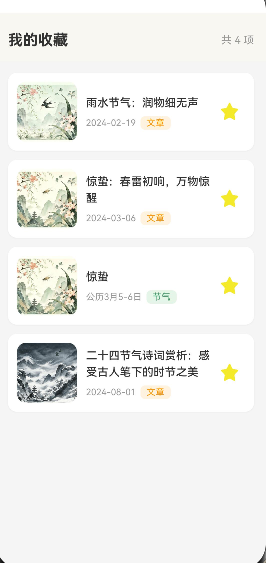
收藏功能是应用中重要的用户交互功能,允许用户保存喜欢的内容以便日后查看。本文将实现完整的收藏功能,包括:
- 收藏列表展示
- 添加收藏
- 删除收藏
- 收藏数据持久化
- 空状态处理
通过本文,你将掌握如何实现一个功能完善的收藏系统。
学习目标
完成本文后,你将能够:
- ✅ 实现收藏列表展示
- ✅ 添加收藏功能
- ✅ 删除收藏功能
- ✅ 实现数据持久化
- ✅ 处理空状态
需求分析
功能模块设计
| 模块 | 功能描述 | 技术要点 |
|---|---|---|
| 收藏列表 | 展示用户收藏的内容 | List布局、卡片组件 |
| 添加收藏 | 将内容加入收藏 | 状态切换、动画效果 |
| 删除收藏 | 移除收藏内容 | 确认弹窗、动画效果 |
| 数据持久化 | 保存收藏数据 | Storage API |
| 空状态 | 无收藏时的提示 | 图片+文字提示 |
设计思路
方案对比
| 方案 | 优点 | 缺点 | 适用场景 |
|---|---|---|---|
| 单列列表 | 简单直观,性能最优 | 信息展示有限,视觉效果一般 | 内容较少或移动端低配设备 |
| 左图右文卡片 | 视觉效果好,信息层次清晰 | 代码稍复杂,需要处理事件冒泡 | 推荐 - 适合大多数场景 |
| 网格布局 | 展示更多内容,密度高 | 信息不够详细,交互区域小 | 图片为主的内容或内容量极大 |
| 瀑布流布局 | 错落有致,视觉吸引力强 | 实现复杂,性能开销大 | 图片分享类应用 |
关键决策
决策1: 使用左图右文卡片布局
- 原因:收藏内容需要展示图片、标题、描述、时间等多维度信息
- 优势:信息展示完整,用户一眼就能获取关键信息
- 技术实现:使用
Row+Column组合布局,图片固定宽高保证一致性
决策2: 删除按钮放在卡片内右侧
- 原因:方便用户快速删除,无需进入详情页
- 优势:减少操作步骤,提升删除效率
- 注意点:需要阻止事件冒泡,避免触发卡片点击跳转
决策3: 支持多种类型收藏(节气/文章)
- 原因:应用包含节气和文章两种主要内容类型,用户可能同时收藏
- 优势:统一收藏管理入口,用户体验一致
- 实现方式:通过
type字段区分,跳转时根据类型路由到不同页面
决策4: 收藏时间展示
- 原因:帮助用户回忆收藏时间,便于管理收藏内容
- 优势:增加信息维度,提升可追溯性
- 格式选择:使用
YYYY-MM-DD格式,清晰易读
架构设计
// 收藏数据模型设计
interface CollectionItem {
  id: string;                    // 唯一标识
  type: 'holiday' | 'article';   // 类型区分
  title: string;                 // 标题
  image: string;                 // 封面图
  desc: string;                  // 描述
  collectTime: string;           // 收藏时间
}

// 页面状态管理
@State collections: CollectionItem[] = [];  // 收藏列表
@State isLoading: boolean = false;          // 加载状态
数据持久化策略
| 方案 | 存储位置 | 优点 | 缺点 | 适用场景 |
|---|---|---|---|---|
| AppStorage | 内存 | 读写快 | 应用退出后数据丢失 | 临时数据 |
| Preferences | 本地文件 | 持久化,API简单 | 数据量有限(建议<1MB) | 推荐 - 收藏数据 |
| SQLite | 数据库 | 支持复杂查询 | 实现复杂 | 大数据量场景 |
| 云端同步 | 服务器 | 跨设备同步 | 需要网络,有服务器成本 | 需要多端同步时 |
核心实现
步骤1: 页面结构设计
完整代码
// pages/Collections.ets

import router from '@ohos.router';
import prompt from '@ohos.prompt';
import type { CollectionItem } from '../models/CollectionModel';

@Entry
@Component
struct Collections {
  // 收藏列表
  @State collections: CollectionItem[] = [];

  /**
   * 页面加载时执行
   */
  aboutToAppear() {
    this.loadCollections();
  }

  /**
   * 加载收藏数据
   */
  loadCollections(): void {
    // Mock数据
    this.collections = [
      {
        id: '1',
        type: 'holiday',
        title: '立春',
        image: 'lichun.png',
        desc: '二十四节气之首,标志着春天的开始',
        collectTime: '2024-01-10'
      },
      {
        id: '2',
        type: 'article',
        title: '二十四节气的由来',
        image: 'article_01.png',
        desc: '深入了解二十四节气的历史渊源',
        collectTime: '2024-01-08'
      },
      {
        id: '3',
        type: 'holiday',
        title: '清明',
        image: 'qingming.png',
        desc: '祭祖扫墓,缅怀先人',
        collectTime: '2024-01-05'
      },
      {
        id: '4',
        type: 'article',
        title: '节气养生指南',
        image: 'article_02.png',
        desc: '根据节气变化调整养生方式',
        collectTime: '2024-01-03'
      }
    ];
  }

  /**
   * 删除收藏
   */
  deleteCollection(id: string): void {
    const index = this.collections.findIndex((item) => item.id === id);
    if (index > -1) {
      this.collections.splice(index, 1);
      prompt.showToast({ message: '已取消收藏' });
    }
  }

  /**
   * 清空所有收藏
   */
  clearAll(): void {
    this.collections = [];
    prompt.showToast({ message: '已清空收藏' });
  }

  /**
   * 跳转到详情页
   */
  goToDetail(item: CollectionItem): void {
    try {
      if (item.type === 'holiday') {
        router.pushUrl({
          url: 'pages/Detail',
          params: { holidayId: item.id }
        });
      } else {
        router.pushUrl({
          url: 'pages/ArticleDetail',
          params: { articleId: item.id }
        });
      }
    } catch (error) {
      console.error('路由跳转失败: ' + JSON.stringify(error));
    }
  }

  /**
   * 构建UI
   */
  build() {
    Column({ space: 0 }) {
      // 1. 顶部导航
      this.buildHeader()

      // 2. 内容区域
      this.buildContent()
    }
    .width('100%')
    .height('100%')
    .backgroundColor('#F8F7F2')
  }
}

interface CollectionItem {
  id: string;
  type: 'holiday' | 'article';
  title: string;
  image: string;
  desc: string;
  collectTime: string;
}
代码解析
1. 状态管理
- collections: 收藏列表数据
2. 数据加载
- loadCollections(): 加载收藏数据(Mock)
3. 功能方法
- deleteCollection(): 删除单个收藏
- clearAll(): 清空所有收藏
- goToDetail(): 跳转到详情页
步骤2: 顶部导航
/**
 * 构建顶部导航
 */
@Builder
buildHeader(): void {
  Row({ space: 16 }) {
    Image($r('app.media.ic_back'))
      .width(24)
      .height(24)
      .fillColor('#333333')
      .onClick(() => {
        try {
          router.back();
        } catch (error) {
          console.error('返回失败: ' + JSON.stringify(error));
        }
      })

    Text('我的收藏')
      .fontSize(18)
      .fontWeight(FontWeight.Bold)
      .fontColor('#333333')

    Blank()

    if (this.collections.length > 0) {
      Text('清空')
        .fontSize(14)
        .fontColor('#FF5252')
        .onClick(() => {
          this.clearAll();
        })
    }
  }
  .width('100%')
  .height(56)
  .padding({ left: 16, right: 16 })
  .backgroundColor('#FFFFFF')
}
设计要点:
- 返回按钮
- 标题
- 清空按钮(有收藏时显示)
步骤3: 内容区域
/**
 * 构建内容区域
 */
@Builder
buildContent(): void {
  if (this.collections.length === 0) {
    // 空状态
    this.buildEmptyState();
  } else {
    // 收藏列表
    this.buildCollectionList();
  }
}

/**
 * 构建空状态
 */
@Builder
buildEmptyState(): void {
  Column({ space: 16 }) {
    Image($r('app.media.ic_empty_collect'))
      .width(120)
      .height(120)
      .opacity(0.5)

    Text('暂无收藏')
      .fontSize(16)
      .fontColor('#999999')

    Text('快去收藏喜欢的内容吧')
      .fontSize(14)
      .fontColor('#BBBBBB')

    Button('去探索')
      .width(120)
      .height(40)
      .backgroundColor('#4A9B6D')
      .fontColor('#FFFFFF')
      .borderRadius(20)
      .margin({ top: 16 })
      .onClick(() => {
        try {
          router.back();
        } catch (error) {
          console.error('返回失败: ' + JSON.stringify(error));
        }
      })
  }
  .width('100%')
  .height('100%')
  .justifyContent(FlexAlign.Center)
}

/**
 * 构建收藏列表
 */
@Builder
buildCollectionList(): void {
  List({ space: 12 }) {
    ForEach(this.collections, (item: CollectionItem) => {
      ListItem() {
        this.buildCollectionItem(item)
      }
    }, (item: CollectionItem) => item.id)
  }
  .width('92%')
  .padding({ top: 12, bottom: 100 })
}
设计要点:
- 空状态处理
- 收藏列表展示
- 列表布局
步骤4: 收藏项组件
/**
 * 构建收藏项
 */
@Builder
buildCollectionItem(item: CollectionItem): void {
  Card() {
    Row({ space: 12 }) {
      // 图片
      Image('rawfile://collections/' + item.image)
        .width(80)
        .height(60)
        .borderRadius(8)
        .objectFit(ImageFit.Cover)

      // 内容
      Column({ space: 6 }) {
        Row({ space: 8 }) {
          Text(item.title)
            .fontSize(15)
            .fontWeight(FontWeight.Medium)
            .fontColor('#333333')

          Text(item.type === 'holiday' ? '节气' : '文章')
            .fontSize(11)
            .fontColor('#4A9B6D')
            .padding({ left: 6, right: 6, top: 2, bottom: 2 })
            .backgroundColor('#E8F5E9')
            .borderRadius(4)
        }

        Text(item.desc)
          .fontSize(13)
          .fontColor('#666666')
          .maxLines(1)
          .textOverflow({ overflow: TextOverflow.Ellipsis })

        Text('收藏于 ' + item.collectTime)
          .fontSize(12)
          .fontColor('#999999')
      }
      .flexGrow(1)

      // 删除按钮
      Image($r('app.media.ic_delete'))
        .width(20)
        .height(20)
        .fillColor('#CCCCCC')
        .onClick((event: ClickEvent) => {
          // 阻止事件冒泡
          event.stopPropagation();
          this.deleteCollection(item.id);
        })
    }
    .width('100%')
    .padding(12)
    .onClick(() => {
      this.goToDetail(item);
    })
  }
}
设计要点:
- 左图右文布局
- 类型标签(节气/文章)
- 删除按钮
- 点击跳转到详情页
常见问题与解决方案
问题1: 删除按钮点击触发父元素点击
现象:
点击删除按钮时,同时触发了卡片的点击事件,导致跳转到详情页。
原因分析:
事件冒泡机制导致点击事件从子元素(删除按钮)向上传递到父元素(卡片)。
解决方案:
Image($r('app.media.ic_delete'))
  .onClick((event: ClickEvent) => {
    event.stopPropagation();  // 阻止事件冒泡
    this.deleteCollection(item.id);
  })
预防措施:
- 所有嵌套点击元素都应考虑事件冒泡问题
- 在复杂嵌套结构中使用
event.stopPropagation()是最佳实践
问题2: 收藏数据不持久
现象:
退出应用后重新进入,收藏数据丢失。
原因分析:
- 数据仅存储在内存中(@State)
- 页面销毁时没有保存到持久化存储
解决方案:
// 使用Preferences持久化存储
import dataPreferences from '@ohos.data.preferences';

// 加载收藏数据
async loadCollections(): Promise<void> {
  try {
    const preferences = await dataPreferences.getPreferences(this.context, 'collections');
    const data = await preferences.get('collectionList', '[]');
    this.collections = JSON.parse(data);
  } catch (error) {
    console.error('加载收藏数据失败: ', error);
  }
}

// 保存收藏数据
async saveCollections(): Promise<void> {
  try {
    const preferences = await dataPreferences.getPreferences(this.context, 'collections');
    await preferences.put('collectionList', JSON.stringify(this.collections));
    await preferences.flush();
  } catch (error) {
    console.error('保存收藏数据失败: ', error);
  }
}

// 生命周期钩子
aboutToAppear() {
  this.loadCollections();
}

aboutToDisappear() {
  this.saveCollections();
}
关键要点:
- 在
aboutToAppear时加载数据 - 在
aboutToDisappear时保存数据 - 使用
flush()确保数据写入磁盘
问题3: 图片加载失败显示空白
现象:
收藏项的图片无法显示,显示空白区域。
原因分析:
- 图片路径错误
- 图片资源不存在
- 网络请求失败(远程图片)
解决方案:
Image(this.getImagePath(item.image))
  .width(80)
  .height(60)
  .borderRadius(8)
  .objectFit(ImageFit.Cover)
  .onError(() => {
    console.error('图片加载失败: ', item.image);
  })

// 获取图片路径,提供默认图片
getImagePath(image: string): Resource | string {
  if (!image || image.trim() === '') {
    return $r('app.media.ic_default_cover');
  }
  try {
    // 尝试构建资源路径
    return 'rawfile://collections/' + image;
  } catch {
    return $r('app.media.ic_default_cover');
  }
}
优化方案:
// 使用条件渲染提供占位图
buildImage(item: CollectionItem) {
  if (!item.image) {
    Image($r('app.media.ic_default_cover'))
      .width(80)
      .height(60)
      .borderRadius(8)
  } else {
    Image('rawfile://collections/' + item.image)
      .width(80)
      .height(60)
      .borderRadius(8)
      .objectFit(ImageFit.Cover)
      .onError(() => {
        // 加载失败时显示默认图
        Image($r('app.media.ic_default_cover'))
          .width(80)
          .height(60)
          .borderRadius(8)
      })
  }
}
问题4: 大量收藏时列表滚动卡顿
现象:
当收藏数量较多时,列表滚动出现明显卡顿。
原因分析:
- 使用
ForEach而非LazyForEach - 列表项渲染没有虚拟优化
- 图片没有懒加载
解决方案:
// 使用LazyForEach实现虚拟列表
List({ space: 12 }) {
  LazyForEach(this.collectionDataSource, (item: CollectionItem) => {
    ListItem() {
      this.buildCollectionItem(item)
    }
    .width('100%')
  }, (item: CollectionItem) => item.id)
}
.width('92%')
.padding({ top: 12, bottom: 100 })
.cachedCount(5)  // 设置预加载数量
数据来源封装:
class CollectionDataSource extends BasicDataSource<CollectionItem> {
  private data: CollectionItem[] = [];

  constructor(data: CollectionItem[]) {
    super();
    this.data = data;
  }

  totalCount(): number {
    return this.data.length;
  }

  getData(index: number): CollectionItem {
    return this.data[index];
  }

  // 数据变更通知
  notifyDataChange() {
    this.notifyDataReload();
  }
}
问题5: 清空收藏没有确认提示
现象:
点击"清空"按钮后直接清空所有收藏,没有确认提示,容易误操作。
原因分析:
缺少二次确认机制,用户体验不佳。
解决方案:
// 清空按钮点击处理
onClearAll(): void {
  // 弹窗确认
  prompt.showDialog({
    title: '确认清空',
    message: '确定要清空所有收藏吗?此操作不可恢复。',
    buttons: [
      {
        text: '取消',
        color: '#666666'
      },
      {
        text: '确定',
        color: '#FF5252'
      }
    ]
  }).then((result) => {
    if (result.index === 1) {
      this.collections = [];
      this.saveCollections();
      prompt.showToast({ message: '已清空收藏' });
    }
  }).catch((error) => {
    console.error('弹窗错误: ', error);
  });
}
问题6: 删除操作没有动画效果
现象:
删除收藏项时直接消失,视觉体验突兀。
解决方案:
// 使用animateTo添加删除动画
deleteCollection(id: string): void {
  const index = this.collections.findIndex((item) => item.id === id);
  if (index > -1) {
    animateTo({
      duration: 300,
      curve: Curve.EaseOut
    }, () => {
      this.collections.splice(index, 1);
    });
    prompt.showToast({ message: '已取消收藏' });
    this.saveCollections();
  }
}
动画效果优化:
animateTo({
  duration: 300,
  curve: Curve.EaseOut,
  delay: 0,
  iterations: 1,
  playMode: PlayMode.Normal
}, () => {
  // 动画期间执行的UI变更
});
问题7: 收藏状态与其他页面不同步
现象:
在详情页收藏/取消收藏后,收藏列表页面没有同步更新。
原因分析:
- 各页面独立维护收藏状态
- 没有全局状态同步机制
解决方案:
// 使用AppStorage实现全局状态同步
@StorageLink('collections') collections: CollectionItem[] = [];

// 在详情页更新收藏状态
updateCollectionStatus(id: string, collected: boolean) {
  AppStorage.SetOrCreate('collections', [...currentCollections]);
}
完整实现:
// 全局收藏状态管理
class CollectionManager {
  private static KEY = 'global_collections';

  static getCollections(): CollectionItem[] {
    const data = AppStorage.Get(this.KEY);
    return data ? JSON.parse(data) : [];
  }

  static setCollections(collections: CollectionItem[]): void {
    AppStorage.SetOrCreate(this.KEY, JSON.stringify(collections));
  }

  static addCollection(item: CollectionItem): void {
    const collections = this.getCollections();
    if (!collections.find(c => c.id === item.id)) {
      collections.push(item);
      this.setCollections(collections);
    }
  }

  static removeCollection(id: string): void {
    const collections = this.getCollections();
    const filtered = collections.filter(c => c.id !== id);
    this.setCollections(filtered);
  }

  static isCollected(id: string): boolean {
    const collections = this.getCollections();
    return collections.some(c => c.id === id);
  }
}
问题8: 路由参数传递失败
现象:
点击收藏项跳转到详情页时,目标页面无法获取正确的参数。
原因分析:
- 参数传递格式错误
- 参数命名不一致
解决方案:
// 正确的路由跳转
goToDetail(item: CollectionItem): void {
  try {
    const params: Record<string, string> = {};

    if (item.type === 'holiday') {
      params.holidayId = item.id;
      router.pushUrl({
        url: 'pages/Detail',
        params: params
      });
    } else {
      params.articleId = item.id;
      router.pushUrl({
        url: 'pages/ArticleDetail',
        params: params
      });
    }
  } catch (error) {
    console.error('路由跳转失败: ', error);
    prompt.showToast({ message: '跳转失败' });
  }
}

// 目标页面获取参数
aboutToAppear() {
  const params = router.getParams() as Record<string, string>;
  this.holidayId = params?.holidayId || '';
}
调试技巧:
// 在目标页面打印参数
console.log('路由参数: ', JSON.stringify(router.getParams()));
本章小结
核心知识点
本文完成了收藏功能的实现:
1. 收藏列表
- 卡片式布局展示收藏项
- 图片+标题+描述+时间
- 类型标签区分节气和文章
2. 添加收藏
- 在详情页实现收藏功能
- 状态切换动画
- Toast提示
3. 删除收藏
- 单个删除
- 清空全部
- 确认操作
4. 数据持久化
- 使用Storage保存数据
- 页面加载时读取
5. 空状态处理
- 提示图片
- 引导文字
- 操作按钮
下一步预告
收藏功能已经完成!在下一篇文章中,我们将学习:
- 📊 学习记录页面
- 学习统计
- 学习历程
- 成就系统
节气通应用一发布上线,可在应用市场下载体验
相关链接
- 项目源码: Atomgit仓库

AtomGit 是由开放原子开源基金会联合 CSDN 等生态伙伴共同推出的新一代开源与人工智能协作平台。平台坚持“开放、中立、公益”的理念,把代码托管、模型共享、数据集托管、智能体开发体验和算力服务整合在一起,为开发者提供从开发、训练到部署的一站式体验。
更多推荐

 5
5 0
0- 0


 已为社区贡献10条内容

所有评论(0)