docker监控与日志
第7章 容器监控
Docker自带的监控子命令
当Docker部署规模逐步变大后,可视化监控容器环境的性能和健康状态将会变得越来越重要。
ps
docker ps 是我们早已熟悉的命令了,方便我们查看当前运行的容器。前面已经有大量示例,这里就不赘述了。
[root@docker ~]# docker ps
CONTAINER ID   IMAGE          COMMAND                  CREATED          STATUS          PORTS                                   NAMES
9f8bc2c3a5c7   nginx          "/docker-entrypoint.…"   3 seconds ago    Up 2 seconds    80/tcp                                  sad_faraday
1e0b0631cf70   httpd:centos   "/bin/sh -c '/usr/sb…"   23 minutes ago   Up 23 minutes   0.0.0.0:80->80/tcp, :::80->80/tcp       myweb
4b78f371fc06   centos:ssh     "/usr/sbin/sshd -D"      32 minutes ago   Up 32 minutes   0.0.0.0:2022->22/tcp, :::2022->22/tcp   sshtest
top
查看容器的进程
[root@docker ~]# docker top --help

Usage:  docker top CONTAINER [ps OPTIONS]

Display the running processes of a container

Aliases:
  docker container top, docker top
示例:
[root@docker ~]# docker top sshtest    #sshtest是容器名
UID                 PID                 PPID                C                   STIME               TTY                 TIME                CMD
root                5220                5198                0                   21:31               ?                   00:00:00            /usr/sbin/sshd -D
命令后面还可以跟上 Linux 操作系统 ps 命令的参数显示特定的信息,比如 -au。
[root@docker ~]# docker top sshtest -au
USER                PID                 %CPU                %MEM                VSZ                 RSS                 TTY                 STAT                START               TIME                COMMAND
root                5220                0.0                 0.0                 76532               7080                ?                   Ss                  21:31               0:00                /usr/sbin/sshd -D
stats
列出容器资源使用率
[root@docker ~]# docker stats --help

Usage:  docker stats [OPTIONS] [CONTAINER...]

Display a live stream of container(s) resource usage statistics

Aliases:
  docker container stats, docker stats

Options:
  -a, --all             Show all containers (default shows just running)
      --format string   Format output using a custom template:
                        'table':            Print output in table format with column headers (default)
                        'table TEMPLATE':   Print output in table format using the given Go template
                        'json':             Print in JSON format
                        'TEMPLATE':         Print output using the given Go template.
                        Refer to https://docs.docker.com/go/formatting/ for more information about formatting output with templates
      --no-stream       Disable streaming stats and only pull the first result
      --no-trunc        Do not truncate output
示例:
[root@docker ~]# docker stats
CONTAINER ID   NAME          CPU %     MEM USAGE / LIMIT     MEM %     NET I/O          BLOCK I/O         PIDS
9f8bc2c3a5c7   sad_faraday   0.00%     5.141MiB / 15.36GiB   0.03%     866B / 0B        8.19kB / 26.6kB   5
1e0b0631cf70   myweb         0.06%     38.39MiB / 15.36GiB   0.24%     1.64kB / 609B    0B / 0B           213
4b78f371fc06   sshtest       0.00%     2.258MiB / 15.36GiB   0.01%     9.7kB / 7.99kB   8.19kB / 23.6kB   1
默认会显示一个实时变化的列表,展示每个容器的 CPU 使用率,内存使用量和可用量,网络和磁盘的 IO 数据。
注意:容器启动时如果没有特别指定内存 limit,stats 命令会显示 host 的内存总量,但这并不意味着每个 container 都能使用到这么多的内存。
cAdvisor
cAdvisor 是 google 开发的容器监控工具。
[root@docker ~]# docker run \
--volume=/:/rootfs:ro \
--volume=/var/run:/var/run:rw \
--volume=/sys:/sys:ro \
--volume=/var/lib/docker/:/var/lib/docker:ro \
--publish=8080:8080 \
--detach=true \
--name=cadvisor \
google/cadvisor:latest
也可以使用镜像hub.c.163.com/xbingo/cadvisor:latest。
通过 http://[Host_IP]:8080 访问 cAdvisor。首次打开比较慢,系统需要收集数据并绘制图表。
点击Docker Containers进去看容器具体信息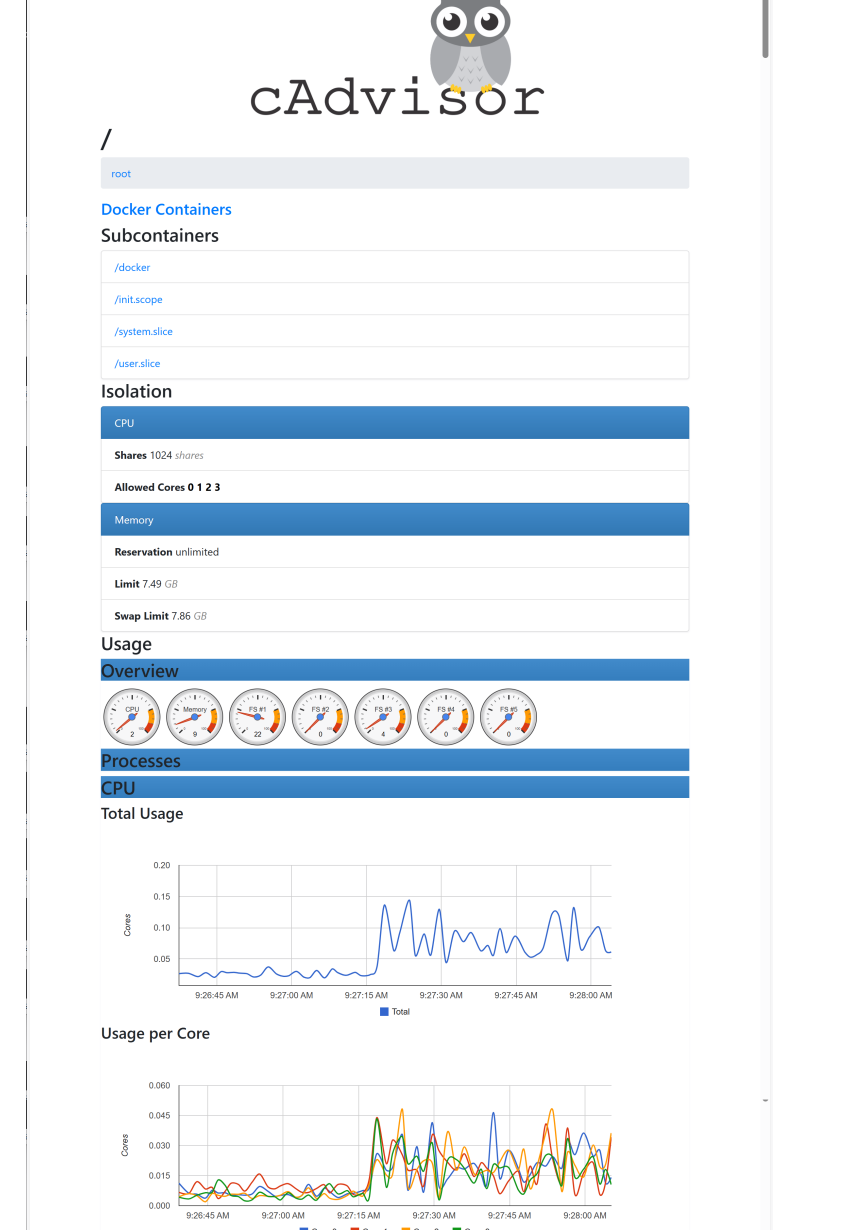
总结:
- 缺点:操作界面略显简陋,而且需要在不同页面之间跳转,并且只能监控一个 host。
- 优点:可以将监控到的数据导出给第三方工具,由这些工具进一步加工处理。
结论:我们把 cAdvisor 定位为一个监控数据收集器,并导出数据给第三方工具,而非展示数据。
第8章 容器日志
高效的监控和日志管理对保持生产系统持续稳定地运行以及排查问题至关重要。
在微服务架构中,由于容器的数量众多以及快速变化的特性使得记录日志和监控变得越来越重要。考虑到容器短暂和不固定的生命周期,当我们需要 debug 问题时有些容器可能已经不存在了。因此,一套集中式的日志管理系统是生产环境中不可或缺的组成部分。
Docker logs
对于一个运行的容器,Docker 会将日志发送到 容器标准输出设备(STDOUT)和标准错误设备(STDERR),STDOUT 和 STDERR 实际上就是容器的控制台终端。
举个例子,用下面的命令运行 httpd 容器:
[root@docker ~]# docker run -p 80:80 httpd
AH00558: httpd: Could not reliably determine the server's fully qualified domain name, using 172.17.0.3. Set the 'ServerName' directive globally to suppress this message
AH00558: httpd: Could not reliably determine the server's fully qualified domain name, using 172.17.0.3. Set the 'ServerName' directive globally to suppress this message
[Tue Oct 08 14:28:10.312876 2024] [mpm_event:notice] [pid 1:tid 1] AH00489: Apache/2.4.62 (Unix) configured -- resuming normal operations
[Tue Oct 08 14:28:10.316058 2024] [core:notice] [pid 1:tid 1] AH00094: Command line: 'httpd -D FOREGROUND'
我们在启动日志的时候没有用 -d 参数,httpd 容器以前台方式启动,日志会直接打印在当前的终端窗口。
如果加上 -d 参数以后台方式运行容器,我们就看不到输出的日志了。
[root@docker ~]# docker run -d -p 80:80 httpd
a8286845e6f8afc09fdcdf0b94248239963e3ad04495e927a68a2148814c65fd
这种情况下如果要查看容器的日志,有两种方法:
- attach 到该容器。
- 用
docker logs命令查看日志。
先来看 attach 的方法。运行 docker attach 命令。
[root@docker ~]# docker attach a8286845e6f8
attach 到了 httpd 容器,但并没有任何输出,这是因为当前没有新的日志信息。
为了产生一条新的日志,可以在 host 的另一个命令行终端执行 curl localhost。
终端B:
[root@docker ~]# curl localhost
<html><body><h1>It works!</h1></body></html>
[root@docker ~]# curl localhost
<html><body><h1>It works!</h1></body></html>
这时,attach 的终端就会打印出新的日志。
终端A:
[root@docker ~]# docker attach a8286845e6f8
172.17.0.1 - - [08/Oct/2024:14:30:24 +0000] "GET / HTTP/1.1" 200 45
172.17.0.1 - - [08/Oct/2024:14:30:25 +0000] "GET / HTTP/1.1" 200 45
attach 的方法在实际使用中不太方便,因为:
- 只能看到 attach 之后的日志,以前的日志不可见。
- 退出 attach 状态比较麻烦(Ctrl+p 然后 Ctrl+q 组合键),一不小心很容器将容器杀掉(比如按下 Ctrl+C)。
查看容器日志推荐的方法是用 docker logs 命令。
[root@docker ~]# docker logs a8286845e6f8
AH00558: httpd: Could not reliably determine the server's fully qualified domain name, using 172.17.0.3. Set the 'ServerName' directive globally to suppress this message
AH00558: httpd: Could not reliably determine the server's fully qualified domain name, using 172.17.0.3. Set the 'ServerName' directive globally to suppress this message
[Tue Oct 08 14:28:33.168712 2024] [mpm_event:notice] [pid 1:tid 1] AH00489: Apache/2.4.62 (Unix) configured -- resuming normal operations
[Tue Oct 08 14:28:33.168801 2024] [core:notice] [pid 1:tid 1] AH00094: Command line: 'httpd -D FOREGROUND'
[Tue Oct 08 14:29:37.160729 2024] [mpm_event:notice] [pid 1:tid 1] AH00491: caught SIGTERM, shutting down
AH00558: httpd: Could not reliably determine the server's fully qualified domain name, using 172.17.0.3. Set the 'ServerName' directive globally to suppress this message
AH00558: httpd: Could not reliably determine the server's fully qualified domain name, using 172.17.0.3. Set the 'ServerName' directive globally to suppress this message
[Tue Oct 08 14:30:08.379226 2024] [mpm_event:notice] [pid 1:tid 1] AH00489: Apache/2.4.62 (Unix) configured -- resuming normal operations
[Tue Oct 08 14:30:08.379375 2024] [core:notice] [pid 1:tid 1] AH00094: Command line: 'httpd -D FOREGROUND'
172.17.0.1 - - [08/Oct/2024:14:30:24 +0000] "GET / HTTP/1.1" 200 45
172.17.0.1 - - [08/Oct/2024:14:30:25 +0000] "GET / HTTP/1.1" 200 45
[Tue Oct 08 14:31:35.664386 2024] [mpm_event:notice] [pid 1:tid 1] AH00491: caught SIGTERM, shutting down
AH00558: httpd: Could not reliably determine the server's fully qualified domain name, using 172.17.0.3. Set the 'ServerName' directive globally to suppress this message
AH00558: httpd: Could not reliably determine the server's fully qualified domain name, using 172.17.0.3. Set the 'ServerName' directive globally to suppress this message
[Tue Oct 08 14:31:41.995159 2024] [mpm_event:notice] [pid 1:tid 1] AH00489: Apache/2.4.62 (Unix) configured -- resuming normal operations
[Tue Oct 08 14:31:41.995339 2024] [core:notice] [pid 1:tid 1] AH00094: Command line: 'httpd -D FOREGROUND'
172.17.0.1 - - [08/Oct/2024:14:30:24 +0000] "GET / HTTP/1.1" 200 45
172.17.0.1 - - [08/Oct/2024:14:30:25 +0000] "GET / HTTP/1.1" 200 45
docker logs 能够打印出自容器启动以来完整的日志,并且 -f 参数可以继续打印出新产生的日志,效果上与 Linux 命令 tail -f 一样。

AtomGit 是由开放原子开源基金会联合 CSDN 等生态伙伴共同推出的新一代开源与人工智能协作平台。平台坚持“开放、中立、公益”的理念,把代码托管、模型共享、数据集托管、智能体开发体验和算力服务整合在一起,为开发者提供从开发、训练到部署的一站式体验。
更多推荐



 7
7 0
0- 0


 已为社区贡献2条内容

所有评论(0)