ROS2 机器人仿真 (一):从 URDF 模型到 RVIZ 可视化全攻略
在机器人开发中,仿真是一项至关重要的技术。它允许我们在没有实体硬件的情况下,验证算法逻辑、调试传感器数据。本篇将带你走进 ROS2 机器人仿真的世界,从零开始构建你的第一个机器人模型。
一、 机器人仿真架构概览
机器人仿真系统通常由以下几个核心层次组成:
        【控制系统】 (ROS2 Nodes)
           |             |
     [传感器数据]    [执行器指令]
           |             |
        【机器人仿真平台】 (如 Gazebo)
           |
      [物理环境 + 机器人模型]
常用仿真平台:
- Gazebo:ROS 社区最主流的物理仿真引擎,支持复杂的物理碰撞和动力学。
- Webots:商业级开源仿真软件,性能优异,界面友好。
- Ignition (Gazebo Sim):Gazebo 的下一代版本,架构更现代。
二、 创建机器人模型:URDF 与 Xacro 实战
URDF (Unified Robot Description Format) 是 ROS 中用于描述机器人结构的 XML 格式文件。
1. 创建功能包
首先,我们需要创建一个专门存放机器人描述文件的功能包:
# 进入工作空间 src 目录
cd ~/chapt6_ws/src
# 创建 CMake 类型的包
ros2 pkg create fishbot_description --build-type ament_cmake --license Apache-2.0
2. 使用 URDF 创建机器人身体
新建文件 chapt6_ws/src/fishbot_description/urdf/first_robot.urdf,写入以下基础结构:
<?xml version="1.0"?>
<robot name='first_robot'>
    <!-- 机器人的身体部分 -->
    <link name='base_link'>
        <!-- 部件的外观描述 -->
        <visual>
            <!-- 沿自己几何中心的坐标系 -->
            <origin xyz="0.0 0.0 0.0" rpy="0.0 0.0 0.0"/>
            <!-- 几何形状 -->
            <geometry>
                <!-- 圆柱 半径 高度-->
                <cylinder radius="0.10" length="0.12"/>
            </geometry>
            <!-- 颜色  -->
            <material name="white">
                <color rgba="1.0 1.0 1.0 0.5"/>
            </material>
        </visual>
    </link>

    <!-- 机器人的IMU部件 惯性测量传感器-->
    <link name='imu_link'>
        <visual>
            <origin xyz="0.0 0.0 0.0" rpy="0.0 0.0 0.0"/>
            <geometry>
                <box size="0.02 0.02 0.02"/>
            </geometry>
            <material name="black">
                <color rgba="0.0 0.0 0.0 0.5"/>
            </material>
        </visual>
    </link>

    <!-- 机器人关节:用于组合机器人的部件 -->
    <joint name='imu_joint' type='fixed'>
        <parent link='base_link'/>
        <child link='imu_link'/>
        <origin xyz="0.0 0.0 0.03" rpy="0.0 0.0 0.0"/>
    </joint>

</robot>
🔍 URDF 核心标签解析:
<link>:描述机器人的刚体部件(如身体、传感器)。<visual>决定了屏幕上显示的样子,<geometry>定义形状。<joint>:描述部件之间的连接关系。type='fixed'代表固定关节,父子部件相对位置不变。
(提示:可以使用命令 urdf_to_graphviz first_robot.urdf 将模型结构导出为可视化的结构图)
3. 在 RVIZ 中可视化机器人
RVIZ 是 ROS 的 3D 可视化利器。为了让 RVIZ 能够读取并显示我们的 URDF,需要启动几个辅助节点。
3.1 安装必要工具
sudo apt update
sudo apt install ros-$ROS_DISTRO-joint-state-publisher ros-$ROS_DISTRO-robot-state-publisher -y
3.2 配置 CMakeLists.txt
为了让系统能在安装后找到我们的文件,添加安装规则:
install(DIRECTORY launch urdf
  DESTINATION share/${PROJECT_NAME}
)
3.3 编写 Launch 启动脚本
新建 chapt6_ws/src/fishbot_description/launch/display_robot.launch.py:
import launch
import launch_ros
from ament_index_python.packages import get_package_share_directory
import os

def generate_launch_description():
    # 获取默认urdf路径
    urdf_package_path = get_package_share_directory('fishbot_description')
    default_urdf_path = os.path.join(urdf_package_path, 'urdf', 'first_robot.urdf')

    # 声明参数
    action_declare_arg_mode_path = launch.actions.DeclareLaunchArgument(
        name='model',default_value=str(default_urdf_path),description='加载的模型文件路径'
    )
    # 通过文件路径获取内容,并转化为参数
    Substitutions_command_result = launch.substitutions.Command(['cat ',launch.substitutions.LaunchConfiguration('model')])
    robot_description_value = launch_ros.parameter_descriptions.ParameterValue(Substitutions_command_result,value_type=str)

    # 发布机器人 TF 树
    action_robot_state_publisher = launch_ros.actions.Node(
        package='robot_state_publisher',
        executable='robot_state_publisher',
        parameters=[{'robot_description': robot_description_value}]
    )

    # 发布关节状态
    action_joint_state_publisher = launch_ros.actions.Node(
        package='joint_state_publisher',
        executable='joint_state_publisher',
    )

    action_rviz_node = launch_ros.actions.Node(
        package='rviz2',
        executable='rviz2',
    )

    return launch.LaunchDescription([
        action_declare_arg_mode_path,
        action_robot_state_publisher,
        action_joint_state_publisher,
        action_rviz_node,
    ])
3.4 运行与 RVIZ 配置
编译后启动:
colcon build
source install/setup.bash
ros2 launch fishbot_description display_robot.launch.py
进入 RVIZ 后:
-
修改 Fixed Frame 为
base_link。 -
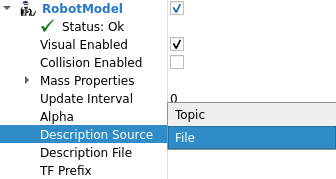
点击 Add,添加 RobotModel,即可看到模型:
-
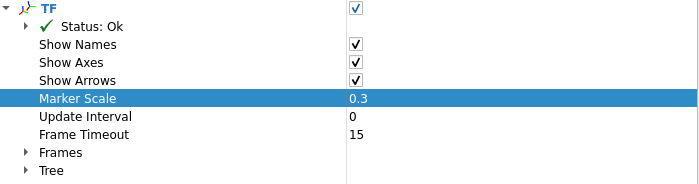
点击 Add,添加 TF 显示坐标系关系:
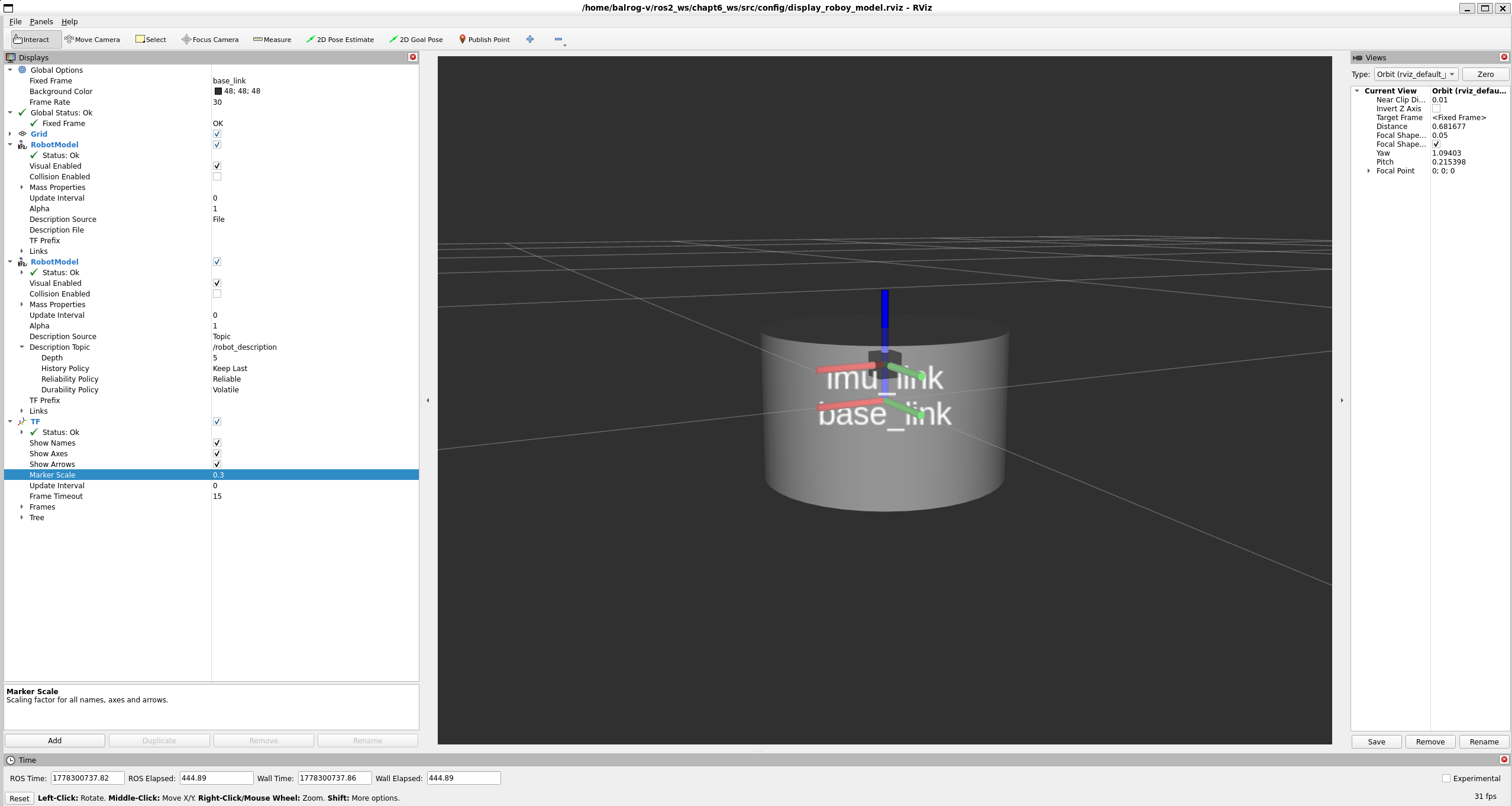
最终初始模型显示效果如下:
- 将配置保存至
chapt6_ws/src/fishbot_description/config/display_roboy_model.rviz。
修改 CMakeLists.txt 和 Launch 文件以默认加载此 RVIZ 配置:
install(DIRECTORY launch urdf config ...)
    defailt_rviz_config_path = os.path.join(urdf_package_path, 'config', 'display_roboy_model.rviz')
    action_rviz_node = launch_ros.actions.Node(
        package='rviz2', executable='rviz2',
        arguments=['-d', defailt_rviz_config_path],
    )
4. 使用 Xacro 简化 URDF
当机器人变复杂时,纯 URDF 会产生大量冗余。Xacro (XML Macros) 允许我们定义宏、使用变量,极大地提高了开发效率。
4.1 安装 Xacro
sudo apt install ros-$ROS_DISTRO-xacro
新建 src/fishbot_description/urdf/first_robot.xacro:
(💡 VS Code 提示:点击右下角“纯文本”,搜索 XML 并将此文件关联为 XML 格式以获得高亮。)
<?xml version="1.0"?>
<robot xmlns:xacro="http://www.ros.org/wiki/xacro" name='first_robot'>
    <!-- 定义基础宏 -->
    <xacro:macro name="base_link" params="length radius">
        <link name='base_link'>
            <visual>
                <origin xyz="0.0 0.0 0.0" rpy="0.0 0.0 0.0"/>
                <geometry>
                    <cylinder radius="${radius}" length="${length}"/>
                </geometry>
                <material name="white">
                    <color rgba="1.0 1.0 1.0 0.5"/>
                </material>
            </visual>
        </link>
    </xacro:macro>

    <!-- 定义 IMU 宏,支持传参指定名字和位置 -->
    <xacro:macro name="imu_link" params="imu_name xyz">
        <link name='${imu_name}_link'>
            <visual>
                <origin xyz="0.0 0.0 0.0" rpy="0.0 0.0 0.0"/>
                <geometry>
                    <box size="0.02 0.02 0.02"/>
                </geometry>
                <material name="black">
                    <color rgba="0.0 0.0 0.0 0.5"/>
                </material>
            </visual>
        </link>

        <joint name='${imu_name}_joint' type='fixed'>
            <parent link='base_link'/>
            <child link='${imu_name}_link'/>
            <origin xyz="${xyz}" rpy="0.0 0.0 0.0"/>
        </joint>
    </xacro:macro>

    <!-- 调用宏生成组件 -->
    <xacro:base_link  length="0.12" radius="0.1"/>
    <xacro:imu_link  imu_name='imu_up' xyz="0.0 0.0 0.03"/>
    <xacro:imu_link  imu_name='imu_down' xyz="0.0 0.0 -0.03"/>

</robot>
4.2 修改 Launch 解析方式
由于模型变成了 .xacro 格式,Launch 文件中的解析命令需要从 cat 改为 xacro:
Substitutions_command_result = launch.substitutions.Command(['xacro ', launch.substitutions.LaunchConfiguration('model')])
再次启动后效果如图: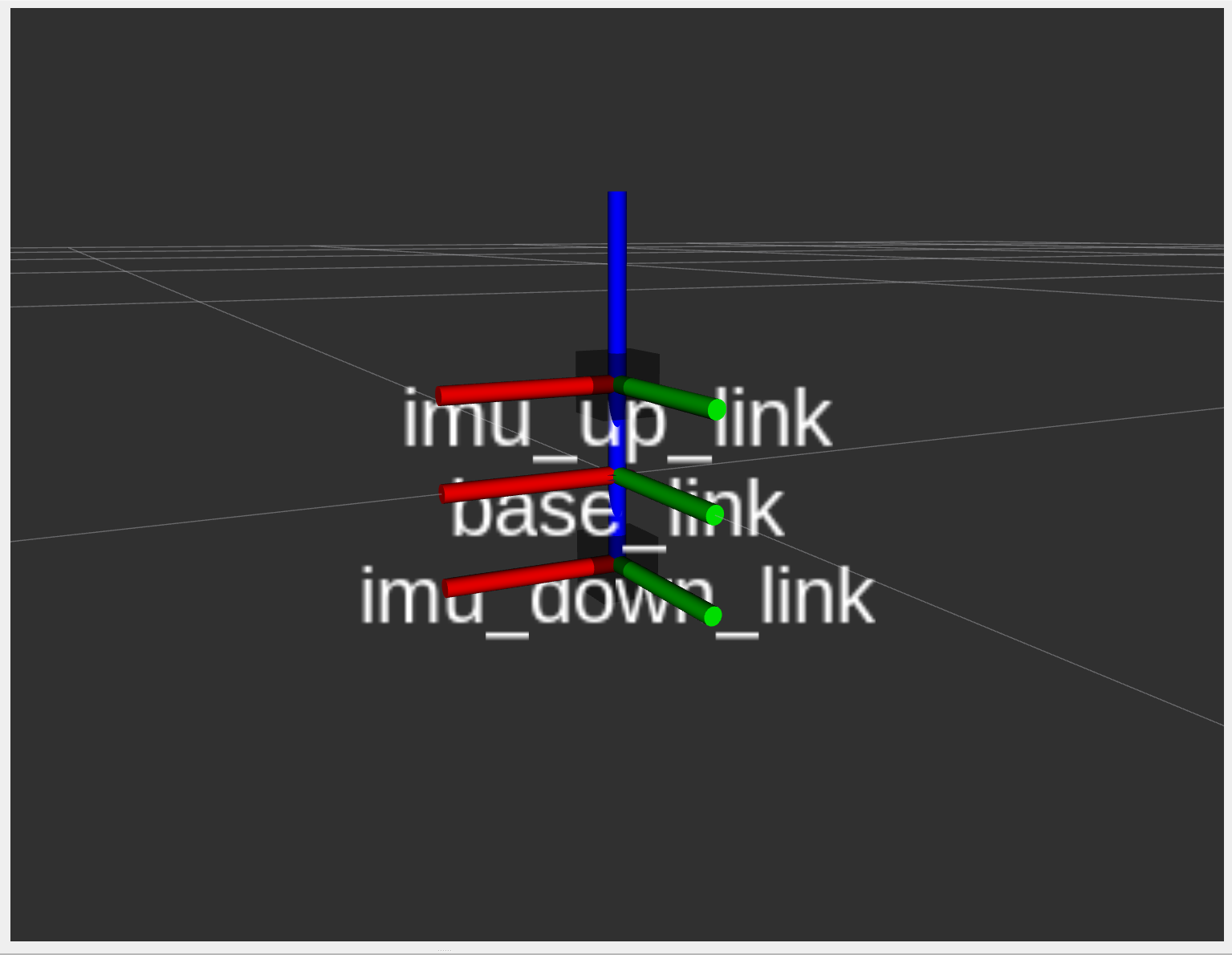
5. 模块化构建机器人
利用 Xacro 的 include 标签,我们可以将底盘、传感器、执行器拆分到不同的文件中独立维护。
5.1 传感器部分定义
底座 (base.urdf.xacro):
<?xml version="1.0"?>
<robot xmlns:xacro="http://www.ros.org/wiki/xacro" name='first_robot'>
    <xacro:macro name="base_xacro" params="length radius">
        <!-- 机器人的身体部分 -->
        <link name='base_link'>
            <visual>
                <origin xyz="0.0 0.0 0.0" rpy="0.0 0.0 0.0"/>
                <geometry>
                    <cylinder radius="${radius}" length="${length}"/>
                </geometry>
                <material name="white">
                    <color rgba="1.0 1.0 1.0 0.5"/>
                </material>
            </visual>
        </link>
    </xacro:macro>
</robot>
IMU (/sensor/imu.urdf.xacro):
<?xml version="1.0"?>
<robot xmlns:xacro="http://www.ros.org/wiki/xacro" name='first_robot'>
    <xacro:macro name="imu_xacro" params="xyz">
        <link name='imu_link'>
            <visual>
                <geometry>
                    <box size="0.02 0.02 0.02"/>
                </geometry>
                <material name="black">
                    <color rgba="0.0 0.0 0.0 0.5"/>
                </material>
            </visual>
        </link>
        <joint name='imu_joint' type='fixed'>
            <parent link='base_link'/>
            <child link='imu_link'/>
            <origin xyz="${xyz}" rpy="0.0 0.0 0.0"/>
        </joint>
    </xacro:macro>
</robot>
相机 (/sensor/camera.urdf.xacro):
<?xml version="1.0"?>
<robot xmlns:xacro="http://www.ros.org/wiki/xacro" name='first_robot'>
    <xacro:macro name="camera_xacro" params="xyz">
        <link name='camera_link'>
            <visual>
                <geometry>
                    <box size="0.02 0.10 0.02"/>
                </geometry>
                <material name="black">
                    <color rgba="0.0 0.0 0.0 0.5"/>
                </material>
            </visual>
        </link>
        <joint name='camera_joint' type='fixed'>
            <parent link='base_link'/>
            <child link='camera_link'/>
            <origin xyz="${xyz}" rpy="0.0 0.0 0.0"/>
        </joint>
    </xacro:macro>
</robot>
雷达 (/sensor/laser.urdf.xacro):
<?xml version="1.0"?>
<robot xmlns:xacro="http://www.ros.org/wiki/xacro" name='first_robot'>
    <xacro:macro name="laser_xacro" params="xyz">
        <!-- 雷达支撑杆 -->
        <link name='laser_cylinder_link'>
            <visual>
                <geometry>
                    <cylinder radius="0.01" length="0.10"/>
                </geometry>
                <material name="black">
                    <color rgba="0.0 0.0 0.0 1.0"/>
                </material>
            </visual>
        </link>
        <!-- 雷达本体 -->
        <link name='laser_link'>
            <visual>
                <geometry>
                    <cylinder radius="0.02" length="0.02"/>
                </geometry>
                <material name="black">
                    <color rgba="0.0 0.0 0.0 1.0"/>
                </material>
            </visual>
        </link>

        <joint name='laser_joint' type='fixed'>
            <parent link='laser_cylinder_link'/>
            <child link='laser_link'/>
            <origin xyz="0.0 0.0 0.05" rpy="0.0 0.0 0.0"/>
        </joint>
        <joint name='laser_cylinder_joint' type='fixed'>
            <parent link='base_link'/>
            <child link='laser_cylinder_link'/>
            <origin xyz="${xyz}" rpy="0.0 0.0 0.0"/>
        </joint>
    </xacro:macro>
</robot>
汇总文件 (fishbot.urdf.xacro):
<?xml version="1.0"?>
<robot xmlns:xacro="http://www.ros.org/wiki/xacro" name='fishbot'>
<!-- 引入各模块定义 -->
<xacro:include filename="$(find fishbot_description)/urdf/fishbot/base.urdf.xacro"/>
<xacro:include filename="$(find fishbot_description)/urdf/fishbot/sensor/imu.urdf.xacro"/>
<xacro:include filename="$(find fishbot_description)/urdf/fishbot/sensor/camera.urdf.xacro"/>
<xacro:include filename="$(find fishbot_description)/urdf/fishbot/sensor/laser.urdf.xacro"/>

<!-- 实例化机器人组件 -->
<xacro:base_xacro length="0.12" radius="0.10" />
<xacro:imu_xacro xyz="0.0 0.0 0.02" />
<xacro:camera_xacro xyz="0.10 0.0 0.075" />
<xacro:laser_xacro xyz="0.0 0.0 0.10" />
</robot>
启动测试:ros2 launch fishbot_description display_robot.launch.py model:=.../fishbot.urdf.xacro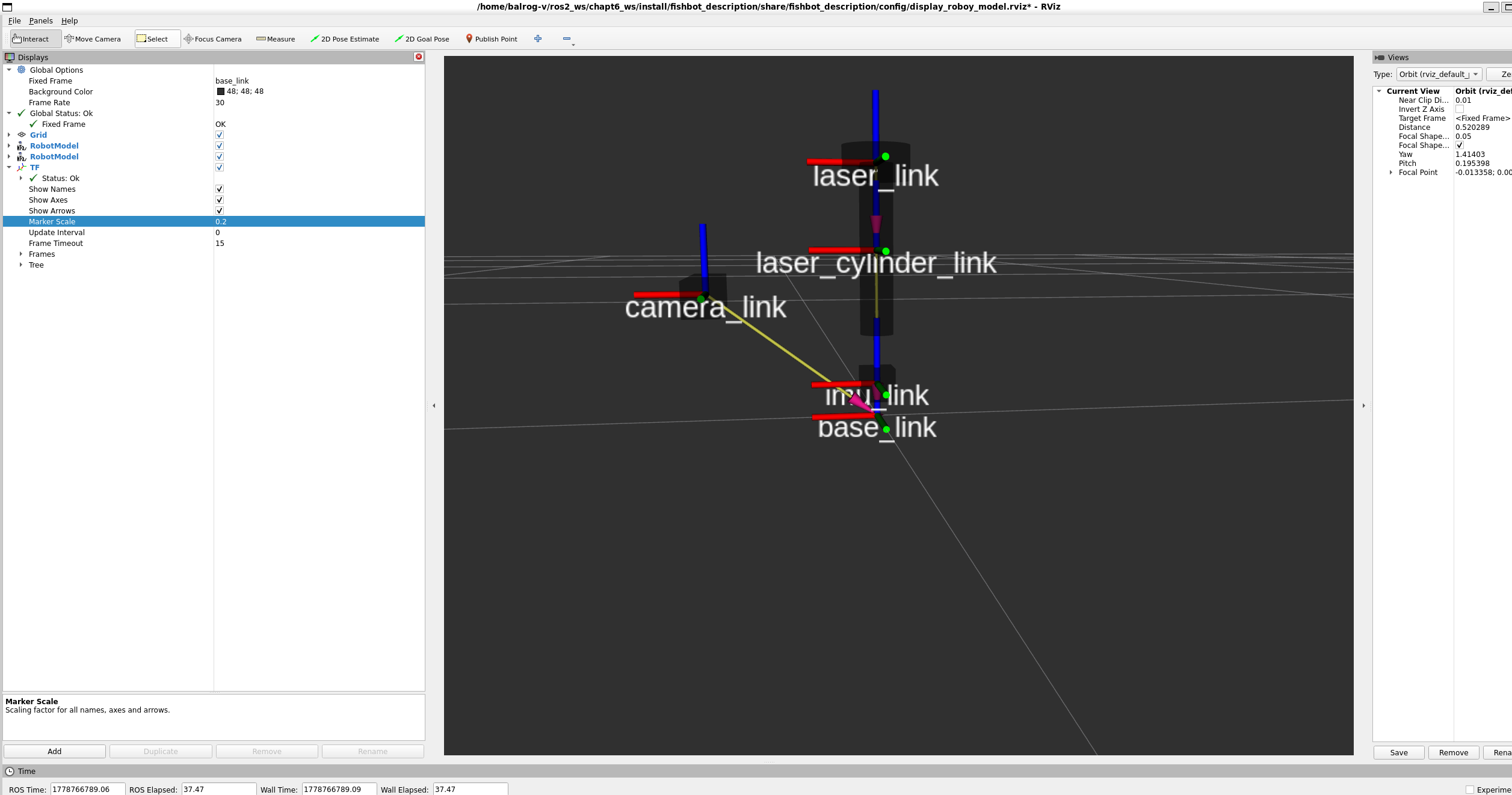
最终传感器组装效果如下: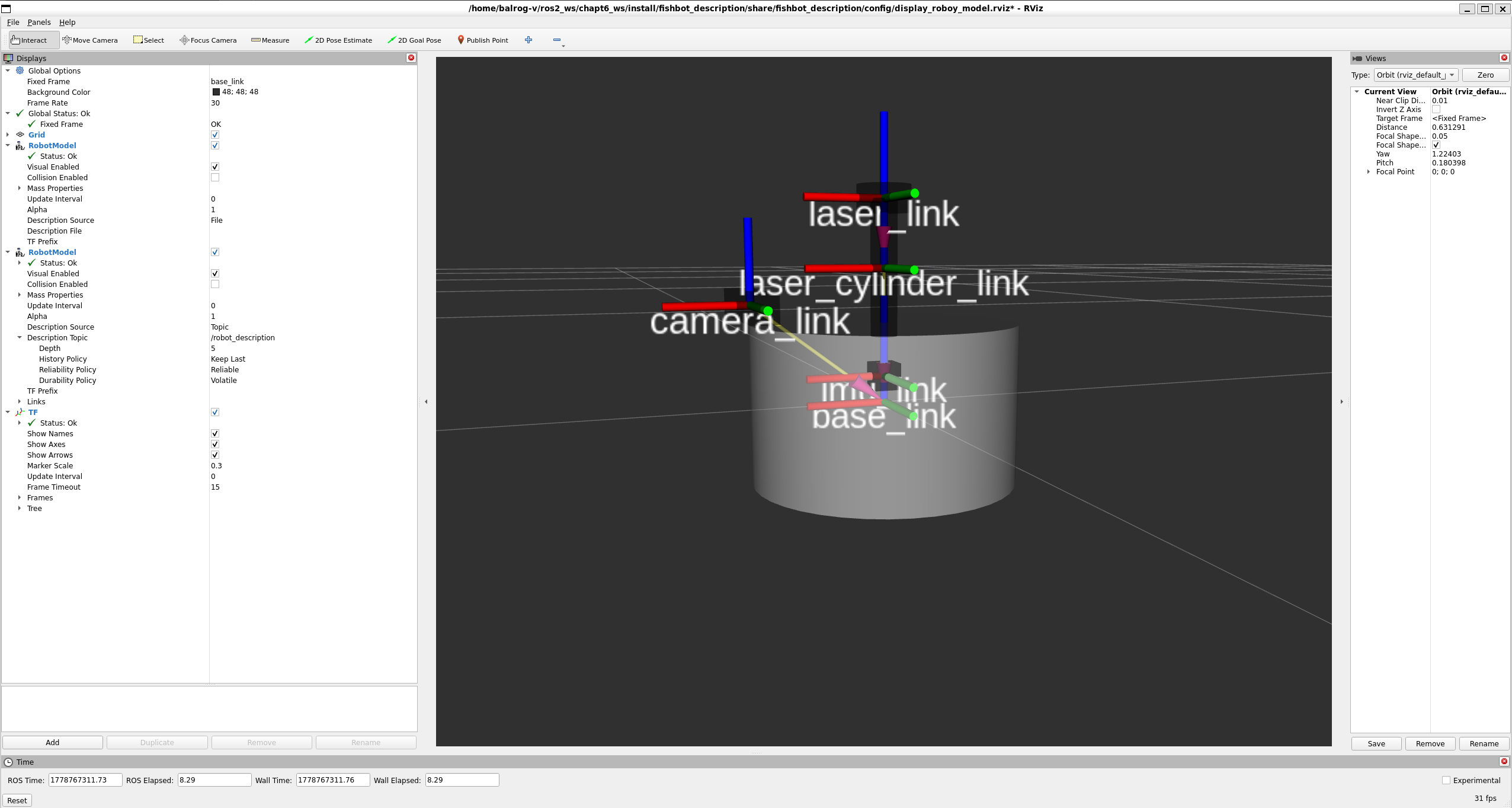
5.2 执行器部件定义 (主动轮与万向轮)
驱动轮 (/actuator/wheel.urdf.xacro):
注意关节类型变为了 continuous(连续旋转)。
<?xml version="1.0"?>
<robot xmlns:xacro="http://www.ros.org/wiki/xacro" name='first_robot'>
    <xacro:macro name="wheel_xacro" params="wheel_name xyz">
        <link name='${wheel_name}_link'>
            <visual>
                <origin xyz="0.0 0.0 0.0" rpy="1.57079 0.0 0.0"/>
                <geometry>
                    <cylinder radius="0.032" length="0.04"/>
                </geometry>
                <material name="yellow">
                    <color rgba="1.0 1.0 0.0 0.8"/>
                </material>
            </visual>
        </link>

        <joint name='${wheel_name}_joint' type='continuous'>
            <parent link='base_link'/>
            <child link='${wheel_name}_link'/>
            <origin xyz="${xyz}" rpy="0.0 0.0 0.0"/>
            <axis xyz="0 1 0"/>
        </joint>
    </xacro:macro>
</robot>
万向支撑轮 (/actuator/caster.urdf.xacro):
<?xml version="1.0"?>
<robot xmlns:xacro="http://www.ros.org/wiki/xacro" name='first_robot'>
    <xacro:macro name="caster_xacro" params="caster_name xyz">
        <link name='${caster_name}_link'>
            <visual>
                <geometry>
                    <sphere radius="0.016"/>
                </geometry>
                <material name="yellow">
                    <color rgba="1.0 1.0 0.0 0.8"/>
                </material>
            </visual>
        </link>

        <joint name='${caster_name}_joint' type='fixed'>
            <parent link='base_link'/>
            <child link='${caster_name}_link'/>
            <origin xyz="${xyz}" rpy="0.0 0.0 0.0"/>
        </joint>
    </xacro:macro>
</robot>
更新汇总文件 (fishbot.urdf.xacro):
<!-- 增加执行器引入 -->
<xacro:include filename="$(find fishbot_description)/urdf/fishbot/actuator/wheel.urdf.xacro"/>
<xacro:include filename="$(find fishbot_description)/urdf/fishbot/actuator/caster.urdf.xacro"/>

<!-- 实例化执行器 -->
<xacro:wheel_xacro wheel_name="left_wheel" xyz="0 0.10 -0.06"/>
<xacro:wheel_xacro wheel_name="right_wheel" xyz="0 -0.10 -0.06"/>
<xacro:caster_xacro caster_name="front_caster" xyz="0.08 0.0 -0.076"/>
<xacro:caster_xacro caster_name="back_caster" xyz="-0.08 0.0 -0.076"/>
构建后运行,完整的机器人形态出现: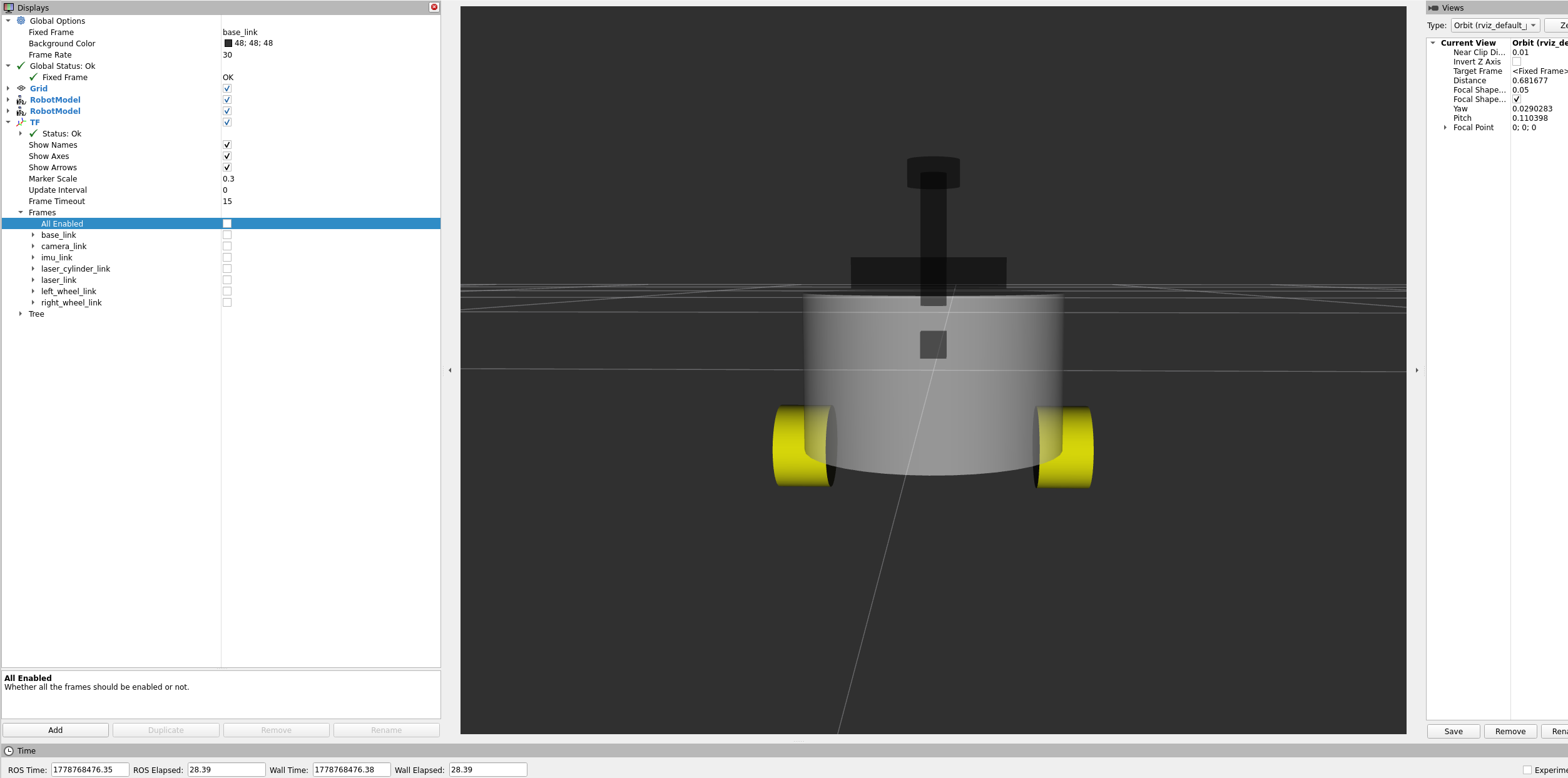
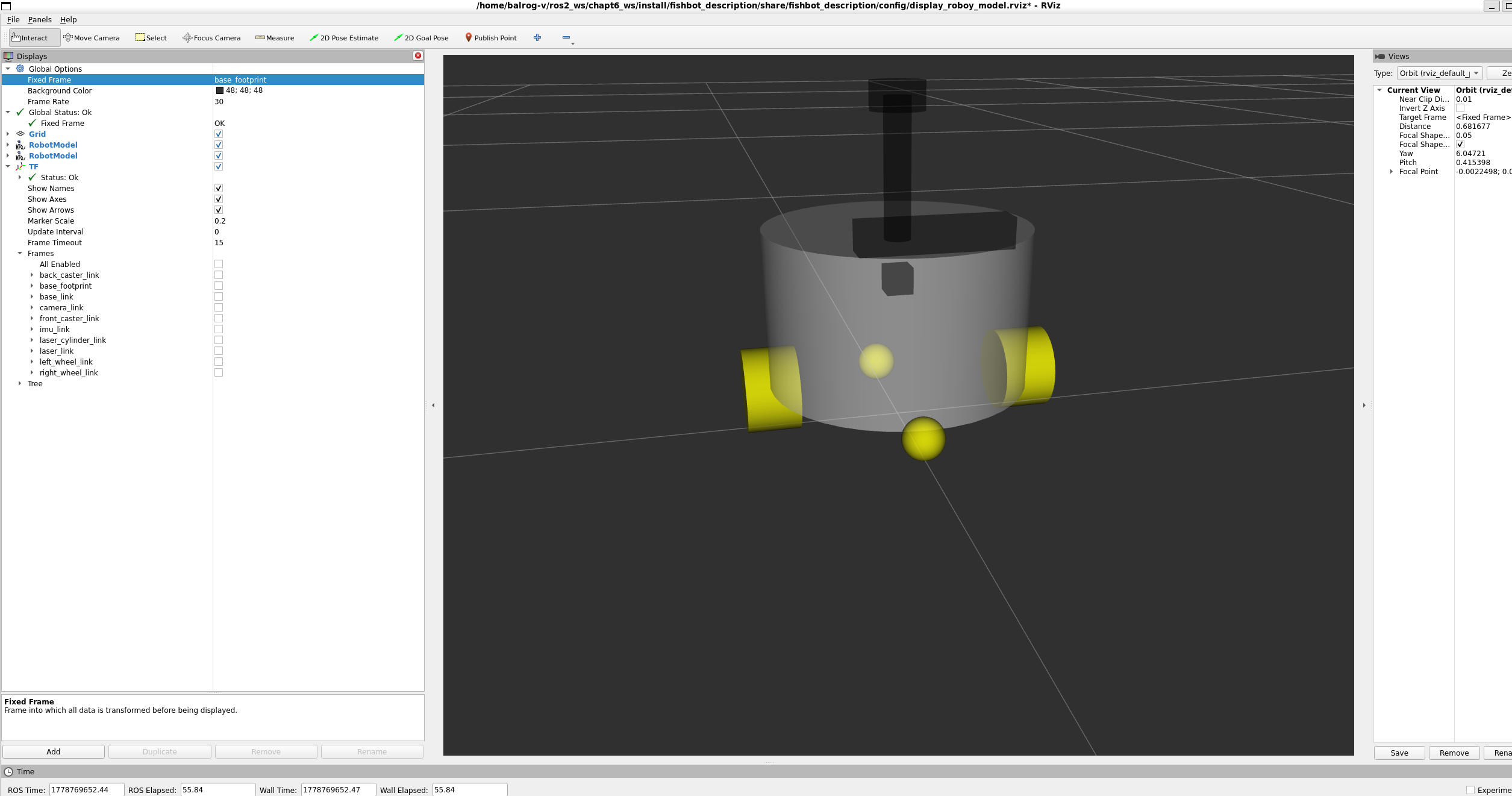
最终机器人形态展示: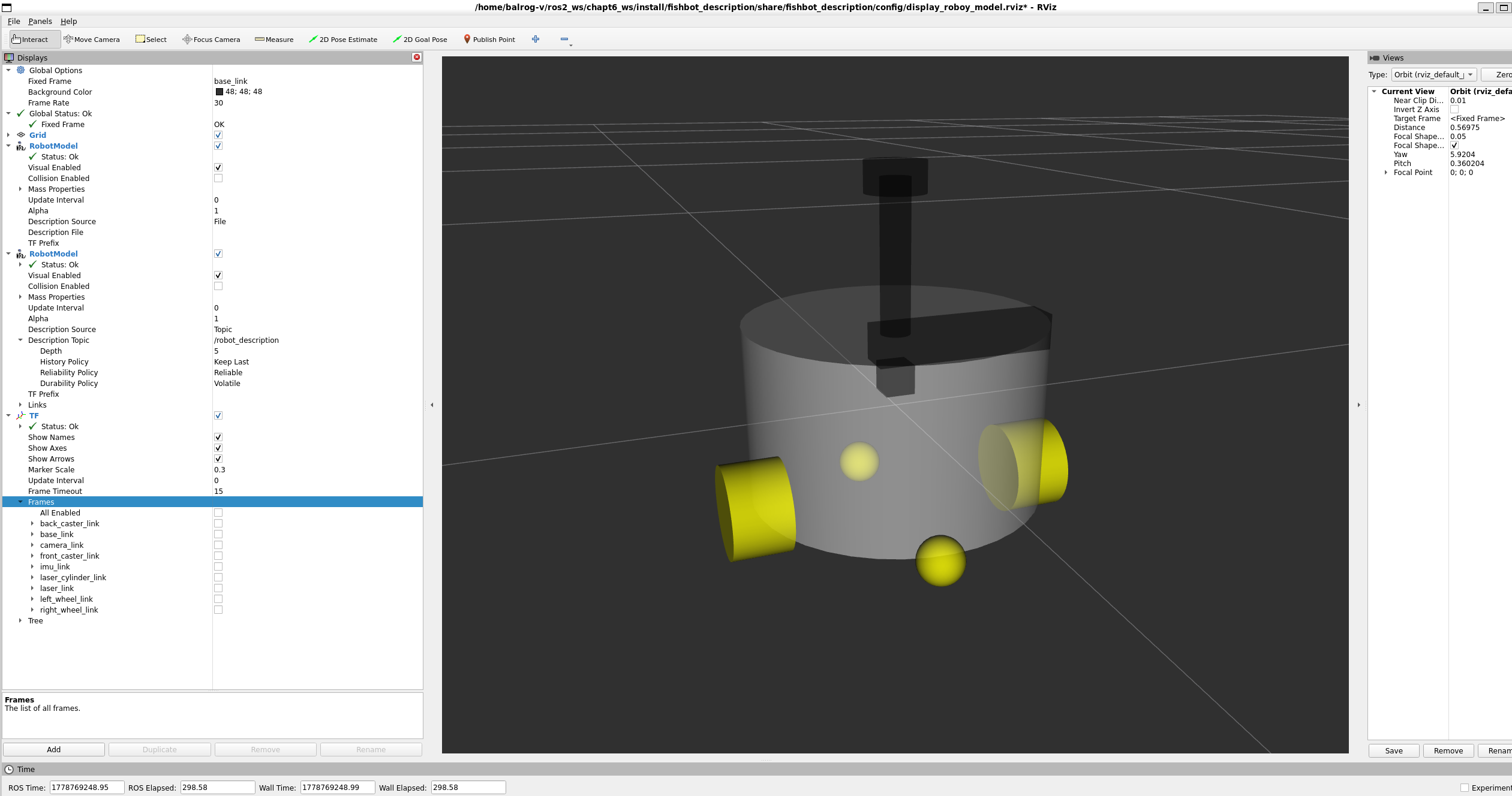
6. 虚拟部件:添加 base_footprint
在机器人底部添加一个极小的虚拟点投影到地面,方便导航算法进行计算。修改底座文件:
    <xacro:macro name="base_xacro" params="length radius">
        <!-- 虚拟触地点 -->
        <link name="base_footprint"/>

        <link name='base_link'>
            <!-- ... 原有视觉描述 ... -->
        </link>

        <joint name='joint_name' type='fixed'>
            <parent link='base_footprint'/>
            <child link='base_link'/>
            <origin xyz="0.0 0.0 ${length/2.0+0.032-0.001}" rpy="0.0 0.0 0.0"/>
        </joint>
    </xacro:macro>
三、 为机器人添加物理属性
如果只有视觉模型,机器人在物理仿真环境(如 Gazebo)中会像幽灵一样穿透物体,或者因为没有质量而无法受力。因此,我们需要为各个部件添加 碰撞 (Collision) 和 惯性 (Inertial) 属性。
1. 添加碰撞属性 (Collision)
碰撞属性定义了机器人的物理边界。通常,碰撞形状可以比视觉形状简单(例如用一个简单的圆柱体代替复杂的车轮模型),以减少物理引擎的计算量。
在 <link> 标签内,增加 <collision> 节点。以 base.urdf.xacro 为例:
<?xml version="1.0"?>
<robot xmlns:xacro="http://www.ros.org/wiki/xacro" name='first_robot'>
    <xacro:macro name="base_xacro" params="length radius">
        <!-- 虚拟触地点 -->
        <link name="base_footprint"/>

        <!-- 机器人的身体部分 -->
        <link name='base_link'>
            <!-- 视觉描述 -->
            <visual>
                <origin xyz="0.0 0.0 0.0" rpy="0.0 0.0 0.0"/>
                <geometry>
                    <cylinder radius="${radius}" length="${length}"/>
                </geometry>
                <material name="white">
                    <color rgba="1.0 1.0 1.0 0.5"/>
                </material>
            </visual>

            <!-- 碰撞描述:通常与视觉几何形状一致 -->
            <collision>
                <origin xyz="0.0 0.0 0.0" rpy="0.0 0.0 0.0"/>
                <geometry>
                    <cylinder radius="${radius}" length="${length}"/>
                </geometry>
            </collision>
        </link>

        <joint name='joint_name' type='fixed'>
            <parent link='base_footprint'/>
            <child link='base_link'/>
            <origin xyz="0.0 0.0 ${length/2.0+0.032-0.001}" rpy="0.0 0.0 0.0"/>
        </joint>
    </xacro:macro>
</robot>
(提示:使用相同的方法为 sensor 和 actuator 下的其他 5 个 xacro 文件添加 <collision> 属性。)
构建后在 RVIZ 中,关闭左侧 RobotModel 下的 Visual Enabled,打开 Collision Enabled,即可看到碰撞模型:
2. 添加质量与惯性矩阵 (Inertial)
惯性矩阵描述了物体在受到外力旋转时的阻力分布。计算这些矩阵公式繁琐,我们可以创建一个公共文件来封装标准的几何体惯性公式。
新建 common_inertial.xacro:
<?xml version="1.0"?>
<robot xmlns:xacro="http://ros.org/wiki/xacro">
    <!-- 长方体惯性矩阵 -->
    <xacro:macro name="box_inertia" params="m w h d">
        <inertial>
            <mass value="${m}" />
            <inertia ixx="${(m/12) * (h*h + d*d)}" ixy="0.0" ixz="0.0" iyy="${(m/12) * (w*w + d*d)}" iyz="0.0" izz="${(m/12) * (w*w + h*h)}" />
        </inertial>
    </xacro:macro>

    <!-- 圆柱体惯性矩阵 -->
    <xacro:macro name="cylinder_inertia" params="m r h">
        <inertial>
            <mass value="${m}" />
            <inertia ixx="${(m/12) * (3*r*r + h*h)}" ixy="0" ixz="0" iyy="${(m/12) * (3*r*r + h*h)}" iyz="0" izz="${(m/2) * (r*r)}" />
        </inertial>
    </xacro:macro>

    <!-- 球体惯性矩阵 -->
    <xacro:macro name="sphere_inertia" params="m r">
        <inertial>
            <mass value="${m}" />
            <inertia ixx="${(2/5) * m * (r*r)}" ixy="0.0" ixz="0.0" iyy="${(2/5) * m * (r*r)}" iyz="0.0" izz="${(2/5) * m * (r*r)}" />
        </inertial>
    </xacro:macro>
</robot>
修改 base.urdf.xacro 引入惯性矩阵:
<?xml version="1.0"?>
<robot xmlns:xacro="http://www.ros.org/wiki/xacro" name='first_robot'>
    <!-- 引入公共惯性计算文件 -->
    <xacro:include filename="$(find fishbot_description)/urdf/fishbot/common_inertial.xacro"/>

    <xacro:macro name="base_xacro" params="length radius">
        <link name="base_footprint"/>

        <link name='base_link'>
            <!-- 视觉与碰撞部分省略... -->
            <visual> ... </visual>
            <collision> ... </collision>

            <!-- 赋予质量 1.0kg,并计算惯性矩阵 -->
            <xacro:cylinder_inertia m="1.0" r="${radius}" h="${length}"/>
        </link>
        <!-- joint 省略... -->
    </xacro:macro>
</robot>
在 RVIZ 中打开 Mass 或 Inertial 选项,可以看到重心的分布情况: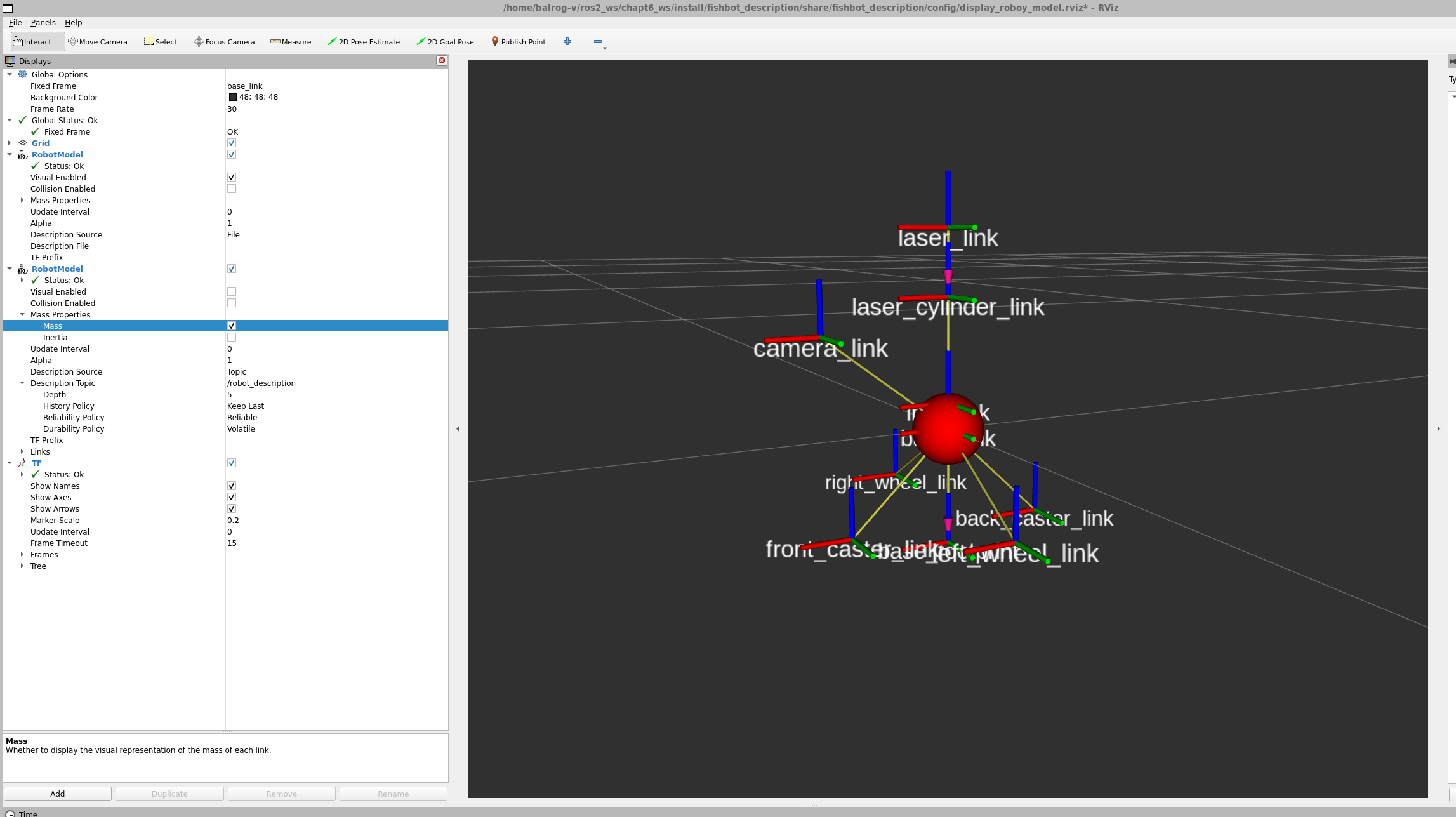
以同样方式为其他组件赋予质量:
- IMU & 相机:
<xacro:box_inertia m="0.05" w="0.02" h="0.02" d="0.02"/> - 雷达组件:
<xacro:cylinder_inertia m="0.05" r="0.01" h="0.10"/>
<xacro:cylinder_inertia m="0.10" r="0.02" h="0.02"/> - 驱动轮:
<xacro:cylinder_inertia m="0.05" r="0.032" h="0.04"/> - 万向轮:
<xacro:sphere_inertia m="0.05" r="0.016"/>
结果如图,机器人现在拥有了真实的物理属性: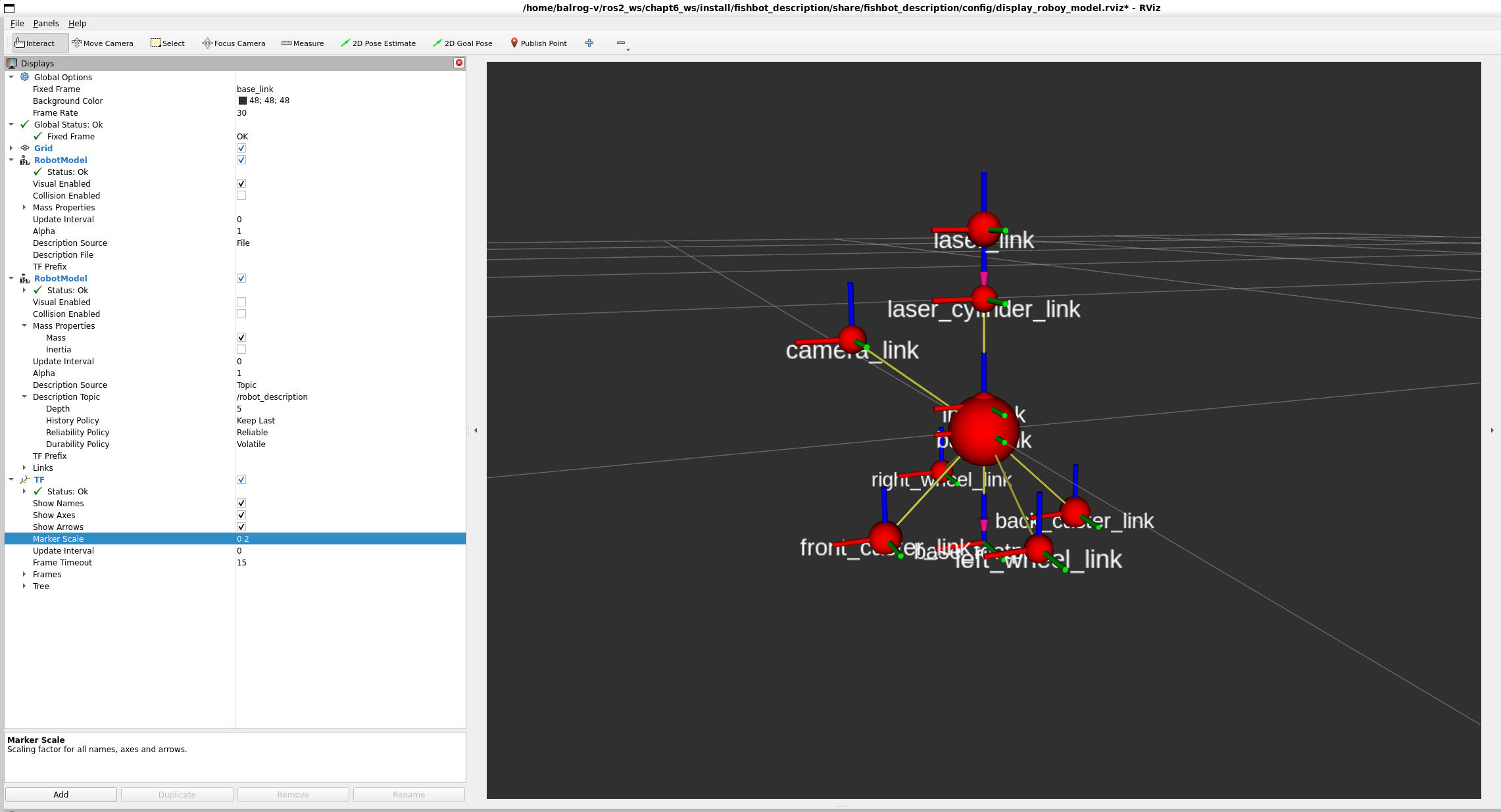
四、 在 Gazebo 中完成仿真
有了碰撞和质量属性,机器人就可以被投放进真实的物理环境了。
1. 安装 Gazebo 与模型库
sudo apt install gazebo
# 下载 Gazebo 离线模型库,避免仿真启动时卡在下载界面
mkdir -p ~/.gazebo
cd ~/.gazebo/
git clone https://gitee.com/ohhuo/gazebo_models.git ~/.gazebo/models

# 安装 ROS2 与 Gazebo 交互的插件桥梁
sudo apt install ros-$ROS_DISTRO-gazebo-ros-pkgs
2. 在 Gazebo 中加载机器人
先在终端输入 gazebo 启动软件,随意摆放一些障碍物,然后将世界保存至 chapt6_ws/src/fishbot_description/world/custom_room.world。
编写启动脚本 launch/gazebo_sim.launch.py,实现:启动 Gazebo -> 加载 World -> 将 URDF 模型注入环境中。
import launch
import launch_ros
from ament_index_python.packages import get_package_share_directory
import os

def generate_launch_description():
    urdf_package_path = get_package_share_directory('fishbot_description')
    default_xacro_path = os.path.join(urdf_package_path, 'urdf', 'fishbot/fishbot.urdf.xacro')
    defailt_gazebo_world_path = os.path.join(urdf_package_path, 'world', 'custom_room.world')

    action_declare_arg_mode_path = launch.actions.DeclareLaunchArgument(
        name='model', default_value=str(default_xacro_path)
    )

    # 编译 Xacro 到 URDF
    Substitutions_command_result = launch.substitutions.Command(['xacro ', launch.substitutions.LaunchConfiguration('model')])
    robot_description_value = launch_ros.parameter_descriptions.ParameterValue(Substitutions_command_result, value_type=str)

    # 启动 robot_state_publisher 发布 TF
    action_robot_state_publisher = launch_ros.actions.Node(
        package='robot_state_publisher',
        executable='robot_state_publisher',
        parameters=[{'robot_description': robot_description_value}]
    )

    # 嵌套启动 Gazebo,并加载保存的 World
    action_launch_gazebo = launch.actions.IncludeLaunchDescription(
        launch.launch_description_sources.PythonLaunchDescriptionSource(
            [get_package_share_directory('gazebo_ros'), '/launch/gazebo.launch.py']
        ),
        launch_arguments=[('world', defailt_gazebo_world_path), ('verbose', 'true')]
    )

    # 通过 spawn_entity 脚本将 robot_description 注入 Gazebo 物理世界
    action_spawn_entitry = launch_ros.actions.Node(
        package='gazebo_ros',
        executable='spawn_entity.py',
        arguments=['-topic', '/robot_description', '-entity', 'fishbot']
    )

    return launch.LaunchDescription([
        action_declare_arg_mode_path,
        action_robot_state_publisher,
        action_launch_gazebo,
        action_spawn_entitry,
    ])
(注意:记得在 CMakeLists.txt 中将 world 目录加入安装列表)
运行 Launch 后,可以看到机器人被加载到了 (0,0,0) 的位置: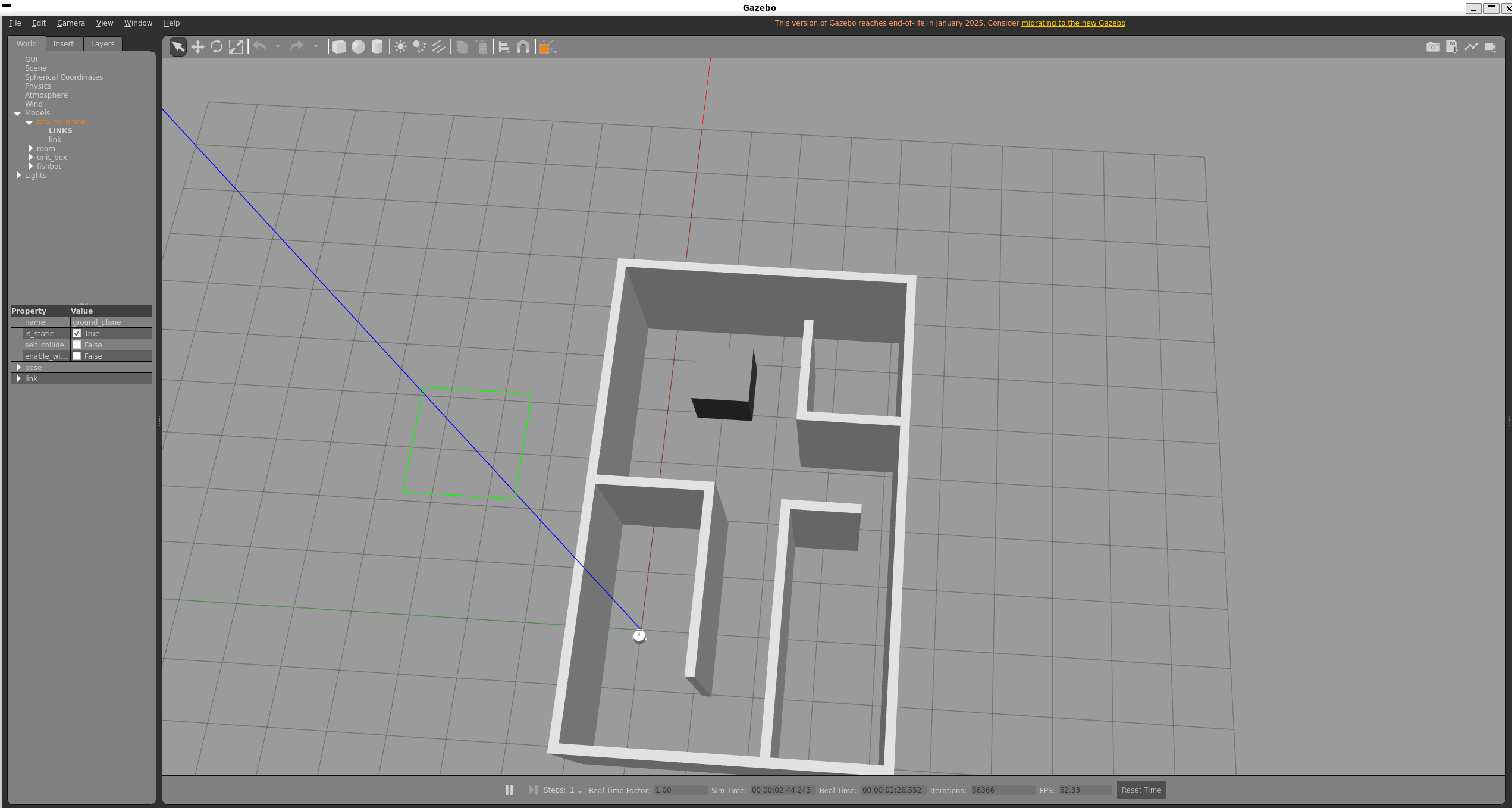
3. Gazebo 标签扩展与环境配置
URDF 标准标签主要用于 RVIZ 显示,但 Gazebo 需要额外的 <gazebo> 标签来定义物理摩擦力和渲染材质。
通过 <gazebo reference="部件名"> 为特定部件增加物理参数。
为雷达涂上黑色:
<gazebo reference="laser_cylinder_link">
    <material>Gazebo/Black</material>
</gazebo>
<gazebo reference="laser_link">
    <material>Gazebo/Black</material>
</gazebo>
设置车轮的摩擦力 (非常关键,否则机器人会打滑):
<!-- 驱动轮:高摩擦力提供抓地力 -->
<gazebo reference="${wheel_name}_link">
    <mu1 value="20.0" />
    <mu2 value="20.0" />
    <kp value="1000000000.0" />
    <kd value="1.0" />
</gazebo>

<!-- 万向轮:极低摩擦力,充当滑动支撑 -->
<gazebo reference="${caster_name}_link">
    <mu1 value="0.0" />
    <mu2 value="0.0" />
    <kp value="1000000000.0" />
    <kd value="1.0" />
</gazebo>
4.引入 ROS-Gazebo 交互插件
插件(Plugins)是 Gazebo 与 ROS2 之间通信的桥梁。如果没有插件,机器人在 Gazebo 中只是一个受重力影响的“死铁块”,无法接收控制指令,也无法向外发送传感器数据。
新建 fishbot/plugins/gazebo_control_plugin.xacro。此插件会订阅 /cmd_vel 话题以控制车轮转动,同时发布机器人的 /odom 里程计数据和 TF 变换。
<?xml version="1.0"?>
<robot xmlns:xacro="http://www.ros.org/wiki/xacro">
    <xacro:macro name="gazebo_control_plugin">
        <gazebo>
            <!-- 引入两轮差速控制器插件 -->
            <plugin name='diff_drive' filename='libgazebo_ros_diff_drive.so'>
                <ros>
                    <!-- 命名空间与话题重映射 -->
                    <namespace>/</namespace>
                    <remapping>cmd_vel:=cmd_vel</remapping>
                    <remapping>odom:=odom</remapping>
                </ros>
                <!-- 插件更新频率 (Hz) -->
                <update_rate>30</update_rate>

                <!-- 绑定我们在 URDF 中定义的左右驱动轮关节 -->
                <left_joint>left_wheel_joint</left_joint>
                <right_joint>right_wheel_joint</right_joint>

                <!-- 机器人运动学参数:轮距和轮径 (单位:米) -->
                <wheel_separation>0.2</wheel_separation>
                <wheel_diameter>0.064</wheel_diameter>

                <!-- 物理限制:最大扭矩与最大加速度 -->
                <max_wheel_torque>20</max_wheel_torque>
                <max_wheel_acceleration>1.0</max_wheel_acceleration>

                <!-- 开启各种状态和坐标变换的输出 -->
                <publish_odom>true</publish_odom>
                <publish_odom_tf>true</publish_odom_tf>
                <publish_wheel_tf>true</publish_wheel_tf>

                <!-- 指定里程计坐标系和机器人基座坐标系 -->
                <odometry_frame>odom</odometry_frame>
                <robot_base_frame>base_footprint</robot_base_frame>
            </plugin>
        </gazebo>
   </xacro:macro>
</robot>
5. 激光雷达与 IMU 传感器插件
由于雷达和 IMU 都属于传感器,我们把它们的代码整合在一起。新建 fishbot/plugins/gazebo_sensor_plugin.xacro。我们将通过 Gazebo 的射线(ray)和 IMU 仿真器,虚拟出真实的传感器物理特性,并添加高斯白噪声。
<?xml version="1.0"?>
<robot xmlns:xacro="http://www.ros.org/wiki/xacro">
    <xacro:macro name="gazebo_sensor_plugin">

        <!-- ================== 激光雷达 (LiDAR) 配置 ================== -->
        <gazebo reference="laser_link">
            <sensor name="laserscan" type="ray">
                <plugin name="laserscan" filename="libgazebo_ros_ray_sensor.so">
                    <ros>
                        <namespace>/</namespace>
                        <remapping>~/out:=scan</remapping> <!-- 发布到 /scan 话题 -->
                    </ros>
                    <output_type>sensor_msgs/LaserScan</output_type>
                    <frame_name>laser_link</frame_name>
                </plugin>
                <always_on>true</always_on>
                <visualize>true</visualize> <!-- 在 Gazebo 中可视化出红色射线 -->
                <update_rate>5</update_rate>
                <pose>0 0 0 0 0 0</pose>
                 <!-- 激光传感器扫描参数配置 -->
                <ray>
                    <!-- 设置扫描范围 -->
                    <scan>
                        <horizontal>
                            <samples>360</samples>        <!-- 一圈采 360 个点 -->
                            <resolution>1.000000</resolution>
                            <min_angle>0.000000</min_angle>
                            <max_angle>6.280000</max_angle> <!-- 0 到 2π -->
                        </horizontal>
                    </scan>
                    <!-- 设置扫描距离 -->
                    <range>
                        <min>0.120000</min>               <!-- 最近探测 12cm -->
                        <max>8.0</max>                    <!-- 最远探测 8m -->
                        <resolution>0.015000</resolution>
                    </range>
                    <!-- 高斯噪声注入,模拟真实的传感器测距误差 -->
                    <noise>
                        <type>gaussian</type>
                        <mean>0.0</mean>
                        <stddev>0.01</stddev>
                    </noise>
                </ray>
            </sensor>
        </gazebo>

        <!-- ================== 惯性测量单元 (IMU) 配置 ================== -->
        <gazebo reference="imu_link">
            <sensor name="imu_sensor" type="imu">
                <plugin name="imu_plugin" filename="libgazebo_ros_imu_sensor.so">
                    <ros>
                        <namespace>/</namespace>
                        <remapping>~/out:=imu</remapping> <!-- 发布到 /imu 话题 -->
                    </ros>
                    <initial_orientation_as_reference>false</initial_orientation_as_reference>
                </plugin>
                <update_rate>100</update_rate> <!-- IMU 通常需要高频发布 -->
                <always_on>true</always_on>
                <!-- 复杂的六轴噪声设置,模拟真实的零偏和游走误差 -->
                <imu>
                    <angular_velocity>
                        <x><noise type="gaussian"><mean>0.0</mean><stddev>2e-4</stddev><bias_mean>0.0000075</bias_mean><bias_stddev>0.0000008</bias_stddev></noise></x>
                        <y><noise type="gaussian"><mean>0.0</mean><stddev>2e-4</stddev><bias_mean>0.0000075</bias_mean><bias_stddev>0.0000008</bias_stddev></noise></y>
                        <z><noise type="gaussian"><mean>0.0</mean><stddev>2e-4</stddev><bias_mean>0.0000075</bias_mean><bias_stddev>0.0000008</bias_stddev></noise></z>
                    </angular_velocity>
                    <linear_acceleration>
                        <x><noise type="gaussian"><mean>0.0</mean><stddev>1.7e-2</stddev><bias_mean>0.1</bias_mean><bias_stddev>0.001</bias_stddev></noise></x>
                        <y><noise type="gaussian"><mean>0.0</mean><stddev>1.7e-2</stddev><bias_mean>0.1</bias_mean><bias_stddev>0.001</bias_stddev></noise></y>
                        <z><noise type="gaussian"><mean>0.0</mean><stddev>1.7e-2</stddev><bias_mean>0.1</bias_mean><bias_stddev>0.001</bias_stddev></noise></z>
                    </linear_acceleration>
                </imu>
            </sensor>
        </gazebo>
6. 深度相机传感器仿真与坐标系变换
深度相机(如 RGB-D 相机)在仿真中需要额外的光学坐标系定义。因为图像的坐标系与 ROS 标准坐标系(前方为 x)不同,图像坐标系通常以右侧为 x,下方为 y,前方为 z。
(fishbot/sensor/camera.urdf.xacro)
我们需要在原有的 camera_link 基础上增加一个虚拟的 camera_optical_link 并进行旋转翻转:
        <link name='camera_optical_link'></link>
···
        <!-- 通过翻转将其转换为标准的图像坐标系 (绕 Z 转 -90 度,绕 X 转 -90 度) -->
        <joint name='camera_optical_joint' type='fixed'>
            <parent link='camera_link'/>
            <child link='camera_optical_link'/>
            <origin xyz="0 0 0" rpy="${-pi/2} 0.0 ${-pi/2}"/>
        </joint>
在刚才的 fishbot/plugins/gazebo_sensor_plugin.xacro 文件末尾继续追加相机配置:
        <!-- ================== 深度相机 (RGB-D) 配置 ================== -->
        <gazebo reference="camera_link">
            <sensor type="depth" name="camera_sensor">
                <!-- 引入相机插件 -->
                <plugin name="depth_camera" filename="libgazebo_ros_camera.so">
                    <frame_name>camera_optical_link</frame_name> <!-- 核心:绑定到翻转后的光学坐标系 -->
                </plugin>
                <always_on>true</always_on>
                <update_rate>10</update_rate>
                <camera name="camera">
                    <horizontal_fov>1.5009831567</horizontal_fov> <!-- 视场角 -->
                    <image>
                        <!-- 图像分辨率与格式 -->
                        <width>800</width>
                        <height>600</height>
                        <format>R8G8B8</format>
                    </image>
                    <!-- 畸变参数配置(目前设为 0,代表理想相机) -->
                    <distortion>
                        <k1>0.0</k1>
                        <k2>0.0</k2>
                        <k3>0.0</k3>
                        <p1>0.0</p1>
                        <p2>0.0</p2>
                        <center>0.5 0.5</center>
                    </distortion>
                </camera>
            </sensor>
        </gazebo>
    </xacro:macro>
</robot>
将插件汇总至机器人的主 Xacro 文件
最后,不要忘记在总入口文件中引入我们写好的所有插件。
修改 fishbot/fishbot.urdf.xacro:
<!-- 引入插件宏定义文件 -->
<xacro:include filename="$(find fishbot_description)/urdf/fishbot/plugins/gazebo_control_plugin.xacro"/>
<xacro:include filename="$(find fishbot_description)/urdf/fishbot/plugins/gazebo_sensor_plugin.xacro"/>

·····
<!-- 实例化仿真插件 -->
<xacro:gazebo_control_plugin />
<xacro:gazebo_sensor_plugin />
7. 编译与可视化测试
至此,我们的 FishBot 已经在物理引擎中有了形体,也具备了感知世界的“眼睛”和“触觉”。
- 编译工作空间:
colcon build source install/setup.bash - 启动 Gazebo 仿真环境:
ros2 launch fishbot_description display_robot.launch.py model:=/home/balrog-v/ros2_ws/chapt6_ws/install/fishbot_description/share/fishbot_description/urdf/fishbot/fishbot.urdf.xacro - 使用 RQT 查看传感器图像:
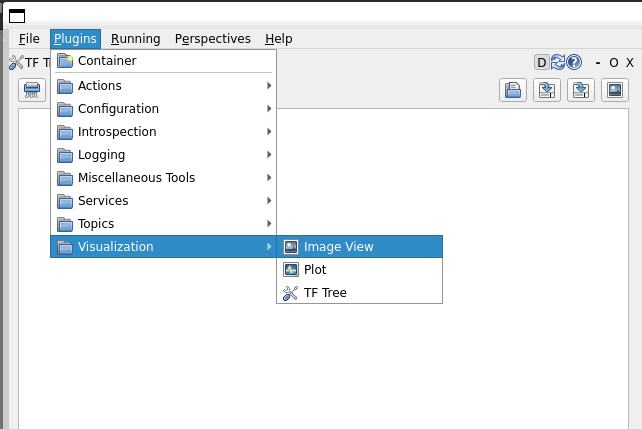
新开一个终端输入rqt。在上方菜单栏选择Plugins -> Visualization -> Image View。
开启两个 Image View 窗口,分别订阅/camera/image_raw(RGB 原图)和/camera/depth/image_raw(深度图),你将看到如下令人激动的机器视觉画面!
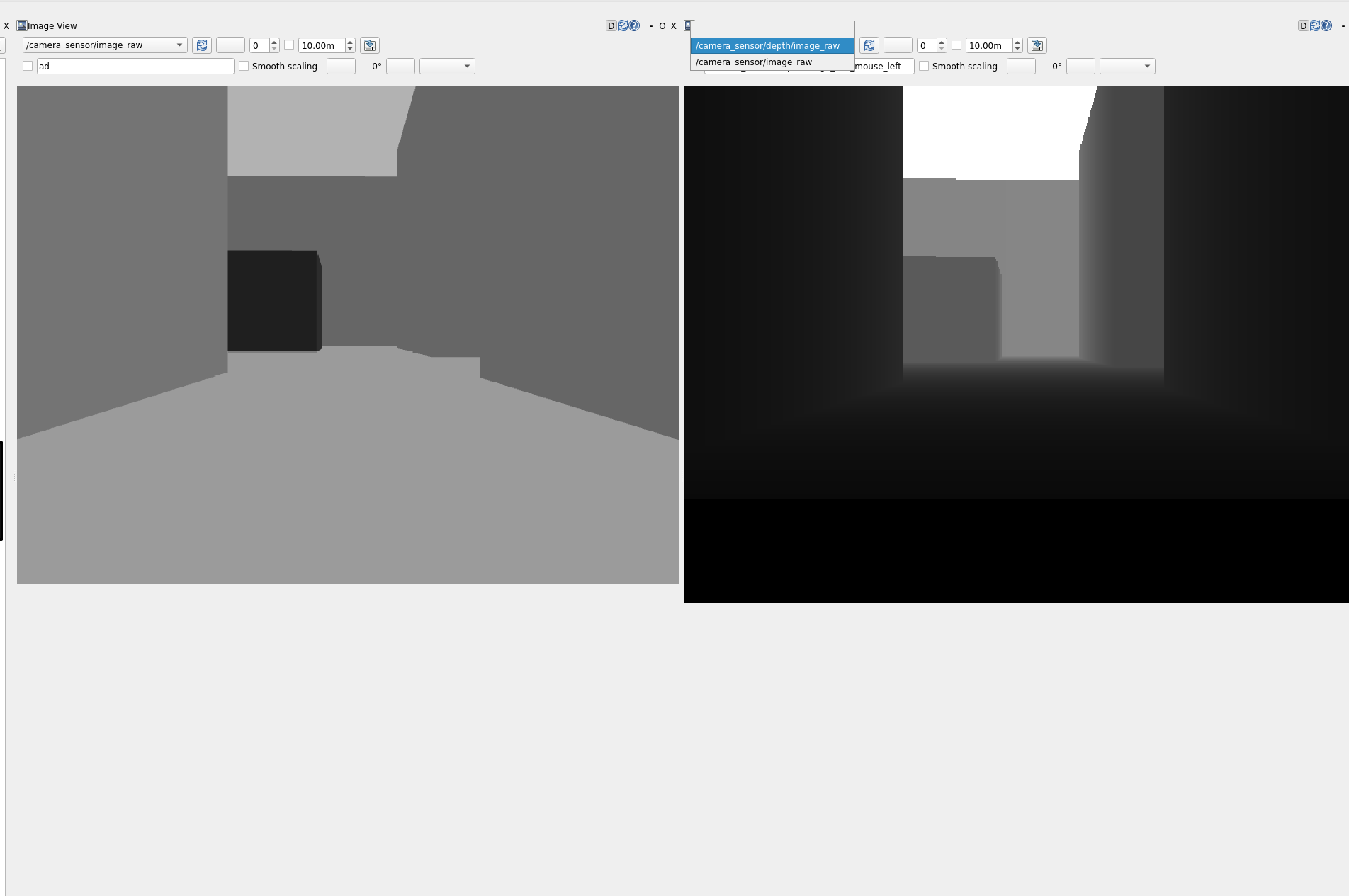
通过这些插件,你的虚拟机器人不仅能在 Gazebo 里接收 /cmd_vel 话题跑起来,还能将它看到的虚拟世界源源不断地回传给你,为后续的 SLAM 建图和视觉导航打下坚实的基础。

AtomGit 是由开放原子开源基金会联合 CSDN 等生态伙伴共同推出的新一代开源与人工智能协作平台。平台坚持“开放、中立、公益”的理念,把代码托管、模型共享、数据集托管、智能体开发体验和算力服务整合在一起,为开发者提供从开发、训练到部署的一站式体验。
更多推荐


 5
5 0
0- 0


 已为社区贡献3条内容

所有评论(0)