LLS OAI 3.0 任务流重磅发布:告别“我已完成第一步,下一步将继续……”却停在原地的 AI 开发断点,让 Copilot Chat 按计划持续推进直到任务完成
LLS OAI 3.0 任务流重磅发布:告别“我已完成第一步,下一步将继续……”却停在原地的 AI 开发断点,让 Copilot Chat 按计划持续推进直到任务完成
你有没有在 AI 辅助开发中遇到过这样的场景:明明交给模型的是一个完整需求,比如“按这个方案实现功能、修复问题并补充文档”,模型也确实开始工作了,但执行到一半,它突然输出一句:“我已完成了 xxx,下一步我将继续完成 xxx。”然后就停住了。你看着这句话,以为它会自动继续,结果发现它其实在等你再发一条“继续”。如果任务复杂一点,这个过程会反复出现:完成一点、总结一句、等待继续;再完成一点、再等待继续。最后你不得不像监工一样守在聊天窗口前,不断手动发送“继续”,否则任务流就断在半路。
LLS OAI 3.0 的任务流功能,正是为了解决这个问题而生。
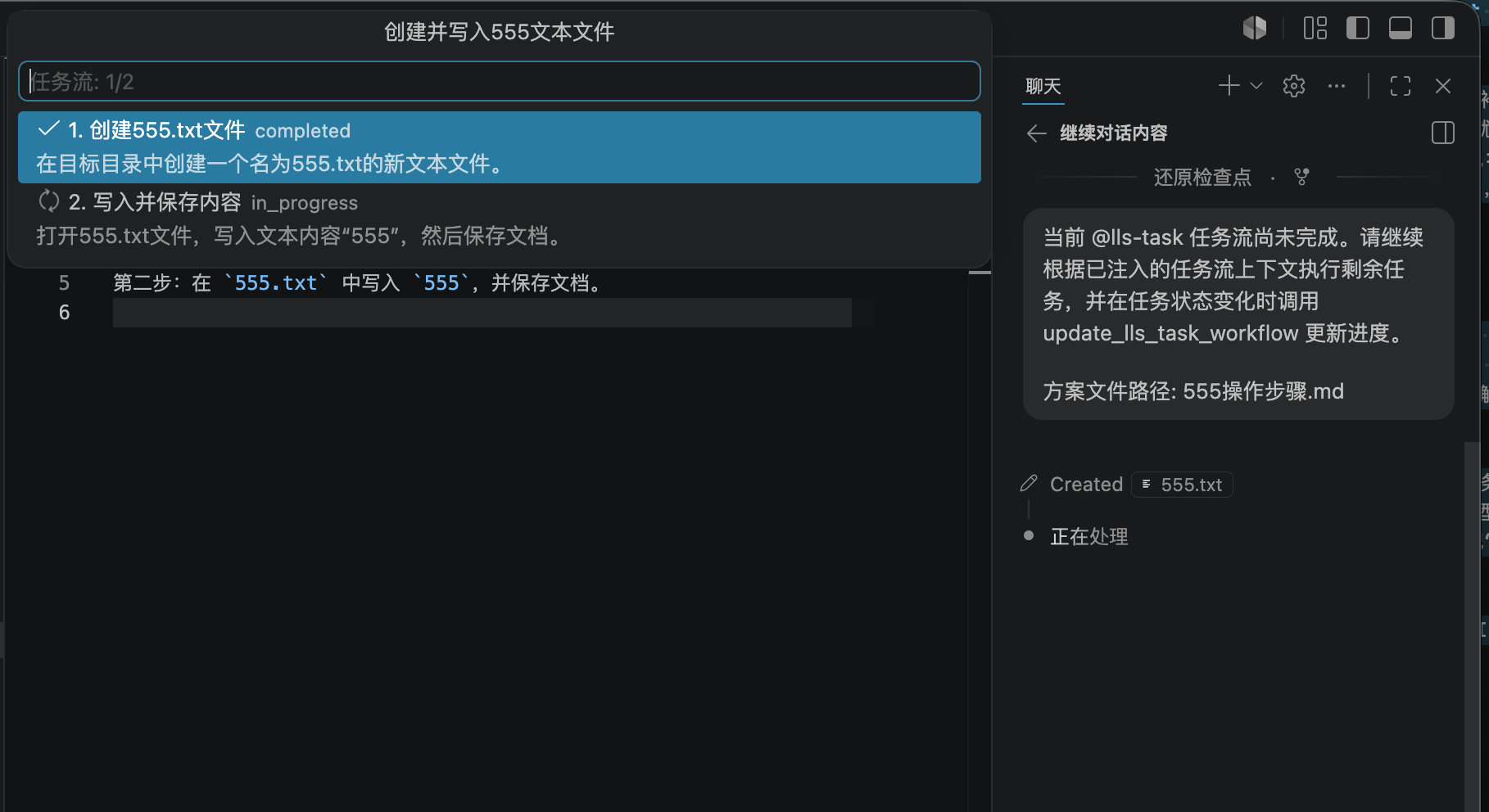
新的 @lls-task 会把“开发任务”从一次性聊天,升级为可跟踪、可续跑、可自动推进的工作流。你只需要把方案规划 Markdown 文档拖入 @lls-task 窗口,任务流模型会先分析方案,把它拆解成结构化任务列表,并显示在 VS Code 状态栏中。之后主模型在执行开发时,会自动获得当前任务流上下文和方案文件路径,不需要你反复复制计划,也不需要重新解释下一步做什么。
更重要的是,主模型不再只是口头说“我完成了某一步”。它会通过内置的 update_lls_task_workflow 工具更新任务状态,只能提交任务编号和状态,不能随意改任务内容。状态栏会实时显示完成进度,鼠标悬停还能看到完整任务列表。当模型一轮响应结束后,如果任务流还没完成,LLS OAI 会等待 15 秒检测主模型是否空闲;如果空闲且任务未完成,就会自动把“继续执行剩余任务”的提示写入聊天窗口并发送,让模型继续往下做。
这意味着,复杂开发不再依赖你一遍遍手动说“继续”。任务从规划、执行、更新进度到自动续跑,都形成了闭环。LLS OAI 任务流让 Copilot Chat 更像一个真正按计划推进的开发助手,而不是每做一步就停下来等指令的聊天机器人。
核心亮点
✅ @lls-task 任务流入口
在 Copilot Chat 中使用 @lls-task,拖入方案规划 Markdown 文档即可生成任务流。
📌 状态栏进度展示
任务流会显示在 VS Code 状态栏中,包含完成数量、总任务数和悬停任务列表。
🧠 主模型自动读取任务流
主模型执行时会自动注入任务列表和方案文件路径,不需要你重复粘贴计划。
🔒 安全的状态更新工具update_lls_task_workflow 只允许更新任务编号和状态,不能修改任务标题、描述、顺序或总结。
🔁 15 秒自动续跑
主模型一轮结束后,如果任务流未完成,扩展会在空闲时自动提交继续提示,推动任务继续执行。
🌐 多语言体验
任务流设置、状态栏提示、错误提示和自动继续提示都会跟随当前界面语言。
一句话介绍
LLS OAI 3.0 任务流,让 Copilot Chat 不再停在“下一步我将继续”,而是真的按计划继续执行直到任务完成。
推荐宣传短句
- 不要再手动发送“继续”,让任务流自动推动 Copilot Chat 往下做。
- 把方案文档拖进
@lls-task,让 AI 按任务列表持续开发。 - 状态栏看进度,工具更新状态,15 秒自动续跑。
- 让 Copilot Chat 从一次性问答,变成可跟踪的开发工作流。
- 复杂需求不再靠人盯着续命,LLS OAI 任务流自动接力。
关于 LLS OAI
LLS OAI 是一款 VS Code 扩展,让 GitHub Copilot Chat 能够连接任意 OpenAI 兼容或 Anthropic API 提供商,并提供专家模式、提示词增强、远程办公、任务流、多语言配置、本地模型接入和工具调用等能力。
快速开始
- 在 VS Code 中搜索 “LLS OAI” 并安装。
- 打开配置界面,添加你的 OpenAI 兼容或 Anthropic API 提供商。
- 在全局设置中选择 LLS Task Provider 和 LLS Task Model。
- 点击状态栏任务流入口,或在 Chat 中输入
@lls-task。 - 拖入方案规划 Markdown 文档,开始自动任务流。
立即体验: VS Code Marketplace | GitHub
LLS OAI 3.0 Task Workflow Major Release: Stop Getting Stuck at “I’ve Completed Step One, Next I Will Continue…” and Let Copilot Chat Keep Moving Until the Plan Is Done
Have you ever run into this during AI-assisted development? You give the model a complete request, such as “implement this feature according to the plan, fix the related issues, and update the documentation.” The model starts working, makes some progress, and then suddenly replies: “I’ve completed xxx. Next, I will continue with xxx.” Then it stops. At first, it sounds like the model is about to keep going automatically. But in reality, it is waiting for you to send another “continue.” When the task is more complex, this repeats again and again: finish a small part, summarize, wait for continuation; finish another part, stop again. In the end, you have to sit in front of the chat window like a supervisor, repeatedly prompting the model to continue, or the whole development flow gets stuck halfway.
LLS OAI 3.0 Task Workflow was created to solve exactly this problem.
The new @lls-task turns a development request from a one-off chat into a trackable, resumable, and automatically advancing workflow. Just drag a planning Markdown document into the @lls-task window. The task workflow model analyzes the plan, breaks it into a structured task list, and shows the workflow in the VS Code status bar. After that, whenever the main model works on the project, it automatically receives the active workflow context and the original planning document path. You no longer need to paste the plan repeatedly or explain the next step again and again.
More importantly, the main model no longer just says “I finished one step.” It updates real task progress through the built-in update_lls_task_workflow tool, which only accepts task IDs and task statuses. It cannot freely modify task titles, descriptions, order, or summary. The status bar shows live progress, and hovering over it displays the full task list. When a model turn ends and the workflow is still incomplete, LLS OAI waits 15 seconds, checks whether the main model is idle, and if unfinished tasks remain, it automatically writes and submits a “continue the remaining tasks” prompt back into Chat.
This means complex development no longer depends on you manually typing “continue” over and over. Planning, execution, progress updates, and automatic continuation form a closed loop. LLS OAI Task Workflow makes Copilot Chat feel more like a development assistant that truly follows a plan, instead of a chatbot that pauses after every step waiting for another instruction.
Core Highlights
✅ @lls-task Workflow Entry
Use @lls-task in Copilot Chat and drag in a planning Markdown document to generate a workflow.
📌 Status Bar Progress
The workflow appears in the VS Code status bar with completed/total counts and a hoverable task list.
🧠 Main Model Reads the Workflow Automatically
The main model automatically receives the task list and planning document path while working, so you do not need to paste the plan again.
🔒 Safe Status-Only Update Toolupdate_lls_task_workflow only allows task IDs and status updates. It cannot change task titles, descriptions, order, or summary.
🔁 15-Second Automatic Continuation
After a main-model turn ends, if the workflow is not complete, the extension automatically submits a continue prompt when the model is idle.
🌐 Multilingual Experience
Workflow settings, status bar hints, error messages, and auto-continue prompts follow the current UI language.
One-Sentence Pitch
LLS OAI 3.0 Task Workflow stops Copilot Chat from getting stuck at “next I will continue” and helps it actually continue executing the plan until the task is done.
Suggested Promo Lines
- Stop manually sending “continue”; let the workflow push Copilot Chat forward automatically.
- Drag a planning document into
@lls-taskand let AI develop from a real task list. - Watch progress in the status bar, update status through tools, and auto-resume after 15 seconds.
- Turn Copilot Chat from one-off Q&A into a trackable development workflow.
- Complex tasks no longer need you to babysit the chat; LLS OAI Task Workflow keeps the momentum going.
About LLS OAI
LLS OAI is a VS Code extension that lets GitHub Copilot Chat connect to any OpenAI-compatible or Anthropic API provider. It also provides Expert Mode, Prompt Enhancement, Remote Work, Task Workflow, multilingual configuration, local model support, and complete tool-calling capabilities.
Quick Start
- Search for “LLS OAI” in VS Code and install it.
- Open the configuration UI and add your OpenAI-compatible or Anthropic API provider.
- Select LLS Task Provider and LLS Task Model in Global Settings.
- Click the task workflow status bar entry, or type
@lls-taskin Chat. - Drag in a planning Markdown document and start the automatic workflow.
Try it now: VS Code Marketplace | GitHub

AtomGit 是由开放原子开源基金会联合 CSDN 等生态伙伴共同推出的新一代开源与人工智能协作平台。平台坚持“开放、中立、公益”的理念,把代码托管、模型共享、数据集托管、智能体开发体验和算力服务整合在一起,为开发者提供从开发、训练到部署的一站式体验。
更多推荐
 8
8 0
0- 0


 已为社区贡献7条内容

所有评论(0)