Claude Code新技巧——用HTML代替Markdown输出
Claude Code新技巧——用HTML代替Markdown输出
导读:Anthropic Claude Code团队的工程师Thariq Shihipar最近发表了一篇长文,倡导开发者使用HTML而非Markdown作为AI输出格式。这个观点在技术社区引发热议,连Django联合创始人Simon Willison都表示要重新考虑自己的使用习惯。本文将深入解析这一趋势的底层逻辑,并提供5个实战案例。
一、为什么Claude Code的HTML输出值得关注
你可能还记得那个经典场景:让AI展示一组设计色板,它在Markdown里憋了半天,最后用ASCII字符拼了一排灰扑扑的方块。Hex值标得很准,但旁边这堆灰色的点阵图案,根本看不出是个啥。
全世界最强的编程AI,被困在纯文本格式里时,竟然只能用打字机字符假装自己在展示色板。
这不是AI的问题,是格式的问题。
2026年5月,Claude Code团队的Thariq Shihipar发表了一篇名为《HTML好用得离谱》的文章,主张在AI Agent时代,应该让Claude用HTML代替Markdown作为主要输出格式。他的核心观点是:Markdown是为人类写作者设计的,不是为AI设计的。
这篇文章迅速在技术社区引发热议。Django联合创始人Simon Willison评价道:“自从GPT-4时代以来,我一直默认使用Markdown。但Thariq的文章让我重新考虑这个习惯——向Claude索要HTML解释,意味着它可以加入SVG图表、交互式组件、页内导航等让信息更愉悦浏览的方式。”
这不是小众极客的尝鲜,而是来自一线工程团队的实战经验。 让我们先理解为什么Markdown在这个时代显得力不从心。
二、Markdown输出的痛点
Markdown统治开发者工具链十几年,靠的是一个核心假设:人要亲手编辑文件。标题用#,加粗用**,列表用-,所有语法都为人类手指优化。
但问题来了:
2.1 格式表达能力受限
| 需求场景 | Markdown能做什么 | Markdown做不到什么 |
|---|---|---|
| 颜色展示 | ■ #FF5733 方块字符 |
真实的色块预览 |
| 数据对比 | 上下排列的表格 | 左右并排对比 |
| 图表说明 | "如图所示"的文字 | 可交互的SVG图 |
| 代码diff | + - 符号 |
带颜色标注的可视化diff |
在Markdown里,你想展示一组设计色板?AI只能用"打字机字符拼出一排灰扑扑的方块"。你想并排比较两个方案?只能从上往下串行看完方案A,再翻回去看方案B。
2.2 长文档可读性差
一份实现计划可以几百行,一个PR解释可以把背景、改动、风险、代码片段全讲一遍。问题是:人真的会看吗?
很多开发者的真实体验是:AI生成了一份看起来很完整的Markdown,打开扫一眼,觉得大概没问题,然后就让它继续了。不是因为内容不好,而是因为它太长、太平、太像一堵文字墙。
2.3 视觉层级单一
Markdown的视觉层级只有:标题、正文、列表、代码块、引用块。当你需要:
- Tab页切换
- 折叠区域
- 色彩标注
- 侧边导航
Markdown的语法天花板就暴露出来了。
2.4 分享的"最后一公里"
Markdown文件大多数浏览器原生渲染效果都不理想。想分享一份文档,要么以附件形式发出去,要么推到GitHub上让别人看源码。
而HTML只要上传到云服务,就是一个链接。任何人在任何设备上点开就能看。
三、HTML输出的优势
说完痛点,我们来看看HTML如何解决这些问题。
3.1 信息密度更高
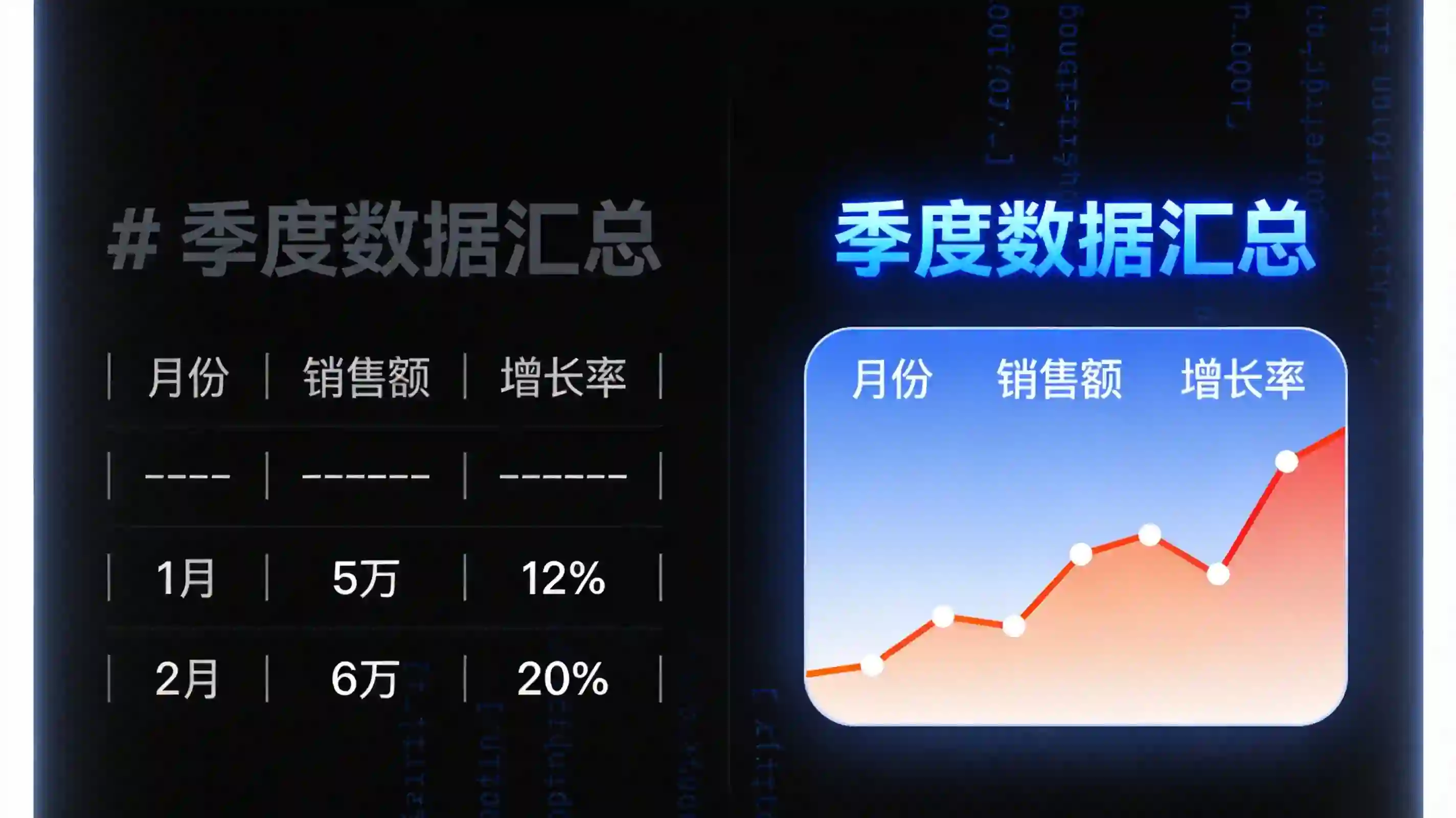
HTML是浏览器的原生语言,它可以利用完整的CSS渲染引擎、CSS Grid/Flexbox布局系统、SVG矢量绘图能力。
同样的信息,Markdown只能"记录",HTML可以"呈现"。
3.2 视觉可读性更强
HTML把内容组织成有Tab页切换、折叠区域、图表、色彩标注的"工作台",而不是让读者从头读到尾。
Thariq举了一个例子:让Claude解释一致性哈希算法。在Markdown里,AI只能输出线性文字。但在HTML里,页面上可以画一个环,4个节点、32个key分布在环上,每个节点用颜色标注管辖范围。读者可以点击"加节点"或"删节点",实时看到key的重新分配。
这种交互式教程,Markdown根本做不了。
3.3 交互能力Max
这是Markdown和HTML差距最大的维度:
- 可以拖滑块调缓动曲线的动画沙盒
- 左边编辑Prompt模板右边实时预览的调试器
- 可点击的多屏原型流程
- 内联代码运行器
你可以想象一下,用纯文字描述"拖一下这个滑块看看动画效果",和一个真的能拖的滑块,传达效率差的不是一点半点。
3.4 Claude Artifacts技术支撑
Claude的Artifacts功能可以直接渲染HTML为可交互的卡片。Thariq强调,他推荐的HTML特指Claude的Artifacts渲染环境。在Claude对话框里要求输出HTML,它会直接渲染成可交互的页面,体验是完整的。
Claude 3.5 Sonnet的系统提示中明确指出:
# Good artifacts are...
- Substantial content (>15 lines)
- Content that the user is likely to modify, iterate on, or take ownership of
- Self-contained, complex content that can be understood on its own
- Content intended for eventual use outside the conversation

# Don't use artifacts for...
- Simple, informational, or short content
- Primarily explanatory content
- Suggestions or feedback on existing artifacts
这说明Claude本身就具备强大的HTML渲染能力,关键是我们要学会用它。
四、实操演示:如何在Claude Code中切换HTML输出模式
4.1 直接在对话中请求HTML
最简单的方式是直接在Prompt末尾加上"Output HTML":
帮我分析这个PR的代码改动,输出HTML格式,带颜色标注和风险评级。
4.2 Claude Code CLI的输出格式选项
Claude Code CLI支持--output-format参数,可以指定输出格式:
# 文本输出(默认)
claude -p "Explain this code"

# JSON结构化输出
claude -p "Explain this code" --output-format json

# 流式JSON输出
claude -p "Build an application" --output-format stream-json
虽然CLI默认不直接输出渲染后的HTML,但可以通过管道配合其他工具实现:
# 使用llm工具调用Claude并生成HTML
curl https://copy.fail/exp | llm -m gpt-5.5 -s 'Explain this code in detail. Output HTML, neatly styled'
4.3 Web界面直接使用Artifacts
在Claude.ai网页版中,可以这样请求HTML输出:
Create an HTML artifact that visualizes this API architecture.
Use SVG to draw the service connections, add hover tooltips for each endpoint,
and include a color-coded legend for different service types.
Claude会自动将HTML代码包裹在<antArtifact>标签中,Web界面会直接渲染成可交互的卡片。
4.4 System Prompt配置
如果你希望Claude默认使用HTML输出,可以在Custom Instructions中配置:
When explaining technical concepts, code reviews, or data comparisons,
prefer generating self-contained HTML artifacts with embedded CSS and
JavaScript for richer presentation. Use color-coding, collapsible sections,
and inline SVG diagrams where appropriate.
五、5个实用HTML输出案例
案例1:带样式的技术文档
Prompt模板:
Create an HTML artifact documenting this code architecture.
Include:
- A sidebar navigation
- Collapsible sections for each module
- Syntax-highlighted code blocks
- An SVG flowchart of the data flow
Use a dark theme with clear visual hierarchy.
实际效果:
生成的HTML文档会有左侧导航栏,可以点击跳转到各个模块。每个模块区域可以折叠,代码块有语法高亮,数据流会用SVG箭头连接各组件。
<!-- 示例结构 -->
<!DOCTYPE html>
<html>
<head>
    <style>
        body { font-family: system-ui; background: #0f0f0f; color: #fff; }
        .sidebar { position: fixed; width: 250px; height: 100vh; padding: 20px; }
        .content { margin-left: 270px; padding: 20px; }
        .collapsible { cursor: pointer; padding: 10px; background: #1a1a1a; }
        .code-block { background: #1e1e1e; padding: 15px; border-radius: 8px; }
    </style>
</head>
<body>
    <nav class="sidebar">...</nav>
    <main class="content">
        <section class="collapsible">模块A</section>
        <section class="collapsible">模块B</section>
    </main>
</body>
</html>
案例2:数据可视化表格
Prompt模板:
Generate an HTML table comparing these machine learning models.
Requirements:
- Sortable columns (click header to sort)
- Color-coded performance indicators (green=good, red=poor)
- Hover highlights for each row
- A summary card at the top showing best performer
效果说明:
| 特性 | Markdown | HTML |
|---|---|---|
| 排序 | 无 | 点击表头可排序 |
| 颜色标注 | 文字描述 | 真实的色块和渐变 |
| 交互 | 无 | 行悬停高亮 |
| 汇总 | 纯文字 | 可视化卡片 |
<style>
table { border-collapse: collapse; width: 100%; }
th { cursor: pointer; background: #2d2d2d; }
tr:hover { background: #3d3d3d; }
.badge { padding: 4px 8px; border-radius: 4px; }
.good { background: #22c55e; }
.poor { background: #ef4444; }
</style>
案例3:对比布局
Prompt模板:
Create a side-by-side comparison HTML page for these two implementation approaches.
Left panel: Approach A (monolithic architecture)
Right panel: Approach B (microservices)
Each panel should show:
- Architecture diagram (use SVG)
- Pros and cons list
- Performance metrics comparison
- A "recommendation" badge at bottom
效果说明:
这是Markdown完全做不到的场景。左右两个方案可以并排展示,读者一眼就能对比优劣,而不是在脑子里来回翻页。
<div class="comparison-container">
    <div class="panel left">
        <h2>Approach A: Monolithic</h2>
        <svg viewBox="0 0 200 200">...architecture diagram...</svg>
        <ul class="pros"><li>...</li></ul>
        <ul class="cons"><li>...</li></ul>
    </div>
    <div class="panel right">
        <h2>Approach B: Microservices</h2>
        <svg viewBox="0 0 200 200">...architecture diagram...</svg>
        <ul class="pros"><li>...</li></ul>
        <ul class="cons"><li>...</li></ul>
    </div>
</div>
案例4:交互式代码展示
Prompt模板:
Build an interactive code playground in HTML.
Features needed:
- Code editor area (use contenteditable or a simple textarea)
- "Run" button that executes the code in an iframe
- Output console area below
- Reset button
- Error display with line numbers
Use a dark IDE-like theme.
效果说明:
这是Thariq强烈推荐的场景。HTML不只能展示代码,还能让读者直接修改运行。从"看代码"变成"用代码",学习效率大幅提升。
// 示例:内联代码执行器
function runCode() {
    const code = document.getElementById('editor').innerText;
    const output = document.getElementById('output');
    const iframe = document.getElementById('sandbox');

    iframe.srcdoc = `<script>${code}<\/script>`;
    iframe.onload = () => {
        try {
            const result = iframe.contentWindow.eval(code);
            output.innerHTML = result;
        } catch (e) {
            output.innerHTML = `<span style="color:red">Error: ${e.message}</span>`;
        }
    };
}
案例5:API文档美化
Prompt模板:
Create a beautiful API documentation page in HTML.
Structure:
- Header with API name and version
- Endpoint cards, each showing:
  - Method badge (GET=green, POST=blue, DELETE=red)
  - URL with syntax highlighting
  - Parameters table (name, type, required, description)
  - Request/response examples with JSON syntax highlighting
  - "Try it" button (non-functional but styled)
Add a search bar at the top.
效果说明:
生成的API文档不再是干巴巴的Markdown表格,而是一个有色彩、有交互、美观的专业文档站。
六、进阶技巧:自定义HTML模板
6.1 创建可复用的Prompt模板
创建一个模板文件,保存常用的HTML输出Prompt:
# html-doc-template.md
---
template: technical-documentation
theme: dark
features:
  - sidebar-navigation
  - collapsible-sections
  - syntax-highlighting
  - svg-diagrams
  - code-runner
---
[ 여기에 문서 내용을 붙여넣기 ]
6.2 预设CSS样式
在请求HTML时,可以要求Claude使用你偏好的设计系统:
Use this CSS design system:
- Font: Inter (headings), JetBrains Mono (code)
- Colors: Primary #3B82F6, Background #0F172A, Surface #1E293B
- Spacing: 8px base unit
- Border radius: 8px for cards, 4px for buttons
6.3 使用JavaScript增强交互
Thariq强调HTML的真正力量在于JavaScript:
<script>
// 数据驱动的表格
const data = [
    { name: 'Alice', score: 92, status: 'active' },
    { name: 'Bob', score: 78, status: 'inactive' }
];

// 可交互的图表
document.querySelectorAll('.metric-card').forEach(card => {
    card.addEventListener('click', () => {
        card.classList.toggle('expanded');
        updateChart(card.dataset.metric);
    });
});
</script>
七、与其他工具的配合
7.1 导出PDF
生成的HTML可以直接用浏览器打印为PDF:
# macOS
# 在浏览器中打开HTML文件,使用 Cmd+P 打印为PDF

# 使用命令行工具
wkhtmltopdf output.html output.pdf
7.2 部署到静态托管
将HTML上传到免费托管服务:
# 部署到 GitHub Pages
git init
git add index.html
git commit -m "Add HTML output"
git push origin main

# 或者使用 Cloudflare Pages
wrangler pages deploy .
7.3 与Notion/飞书配合
虽然Notion和飞书对复杂HTML兼容性不佳,但可以:
- 在浏览器中打开HTML
- 截图插入到文档中
- 或者导出为图片:
html2canvas库
// 使用html2canvas截图
import html2canvas from 'html2canvas';
html2canvas(document.querySelector('#report')).then(canvas => {
    canvas.toBlob(blob => {
        // 保存为图片
    });
});
7.4 Claude Code + llm工具链
# 组合使用:让Claude Code生成内容,通过llm生成HTML
claude -p "分析这个代码仓库的结构" > analysis.txt
cat analysis.txt | llm -m claude-3-5-sonnet -s 'Convert this analysis to a beautiful HTML report'

# 或者一条命令搞定
curl https://api.github.com/repos/owner/repo | llm -m gpt-4 -s 'Create an HTML dashboard showing repo stats'
八、注意事项和局限性
8.1 Token消耗问题
HTML标签天然比Markdown语法冗长。 在极长上下文的边界场景里(如超过100K tokens),这个成本不是零。
建议:
- 日常使用(几十K上下文)可以忽略不计
- 超长文档考虑是否真的需要完整HTML
- 可以用
--max-tokens限制输出长度
8.2 版本管理难题
Git diff对Markdown友好,对HTML不友好。一份HTML文档多人协作时,版本控制会成问题。
建议:
- 永久性文档(README、Changelog)继续用Markdown
- 临时性/展示性内容用HTML
- 考虑用HTML模板 + 数据分离的方式
8.3 输出质量不稳定
不同模型的前端审美差异很大,输出的HTML样式可能完全不符合预期。
建议:
- 在Prompt中明确指定设计系统
- 提供示例HTML作为参考
- 准备好"调教"的心理预期
8.4 平台兼容性
- 微信内置浏览器对复杂HTML兼容性差
- 复制到飞书/Notion可能丢样式
- 移动端加载大体积HTML速度慢
建议:超过300KB的页面考虑拆分或改用Markdown。
8.5 人类参与度下降
如果脑子里已经有了想说的内容,却不能用简洁的Markdown直接手动修改,那人和AI的共同创作会进一步萎缩。
建议:HTML用于AI输出的最终呈现,日常记录和快速编辑继续用Markdown。
九、总结
不是"谁替代谁",而是"该用谁的时候用谁"。
Thariq的核心观点不是Markdown做错了什么,而是AI能做的事情变了。当Claude能从多个数据源拉信息、能画图、能做动画、能设计交互流程时,你还让它只能用"标题加段落加列表"这种线性语言交作业——这不是格式偏好问题,而是信息维度的系统性丢失。
适用场景对照
| 场景 | 推荐格式 | 原因 |
|---|---|---|
| README文档 | Markdown | 需要版本控制、多人编辑 |
| PR代码审查 | HTML | 颜色标注、可视化diff |
| 技术方案对比 | HTML | 左右并排、一目了然 |
| API文档(内部) | HTML | 美观、可交互 |
| API文档(GitHub) | Markdown | 必须适配Git生态 |
| 快速笔记 | Markdown | 轻量、快速 |
| 复杂报告 | HTML | 丰富的视觉层级 |
| 演示幻灯片 | HTML | 一个文件搞定,不用导出 |
核心心法
当你想让AI输出「结构化+视觉化+可交互」的东西时,
HTML是你能给它的最好格式。
下次你需要Claude给你一份复杂的技术文档时,试试在Prompt末尾加一句:
Output HTML, neatly styled with CSS and JavaScript where appropriate.
记住这个原则:Markdown是给机器读的,HTML是给人看的。 当你的输出目标是"被阅读、被理解、被用于做判断"时,让AI用HTML给你一份"成品"而不是"半成品"。
参考资料:
- Thariq Shihipar, “The Unreasonable Effectiveness of HTML”, 2026
- Simon Willison, “Using Claude Code: The Unreasonable Effectiveness of HTML”
- Claude Documentation, Artifacts System Prompt
- Anthropic Claude Code SDK Documentation
如果你觉得这篇文章有帮助,欢迎点赞、评论、转发。

AtomGit 是由开放原子开源基金会联合 CSDN 等生态伙伴共同推出的新一代开源与人工智能协作平台。平台坚持“开放、中立、公益”的理念,把代码托管、模型共享、数据集托管、智能体开发体验和算力服务整合在一起,为开发者提供从开发、训练到部署的一站式体验。
更多推荐
 19
19 0
0- 0



 已为社区贡献39条内容

所有评论(0)