Linux setfacl command with Example
The setfacl command allows assigning detailed read, write, and execute permissions to specific users or groups on files and directories, offering more control than standard Unix permissions.
- setfacl extends standard Linux permissions by allowing specific permissions for multiple users/groups on the same file
- Use -m to modify/add ACL entries, -x to remove specific entries, and -b to remove all ACL entries
- Default ACLs (-d) on directories automatically apply permissions to newly created files
- More flexible than chmod as you can assign different permissions to different users without changing ownership
- The + sign in ls -l output indicates ACL entries are set on a file
Here is the basic example:
Command:
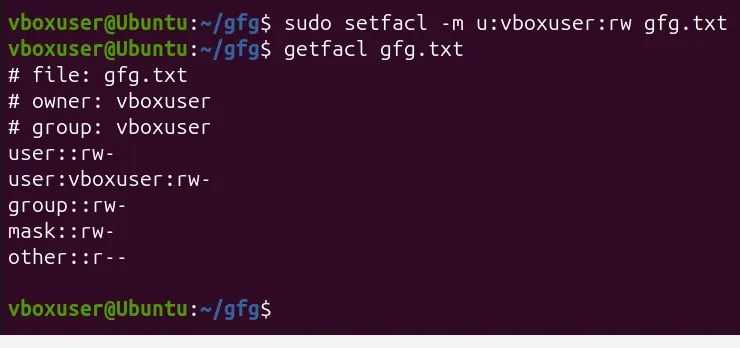
setfacl -m u:vboxuser:rw gfg.txt
Verify the ACL:
getfacl gfg.txt
This command grants user vboxuser read and write permissions on gfg.txt without changing the file's owner or group.
Output:
Syntax
setfacl -option file_owner:file_permission filename
Where:
- -option: Action to perform (e.g., -m for modify, -x for remove, -b for remove all)
- file_owner: User (u), Group (g), or Other (o)
- file_permission: Read (r), Write (w), Execute (x)
- filename: Target file or directory
Options for setfacl
Here are options that are available for setfacl command:
| Option | Description |
|---|---|
| -m, --modify | Modify or add an ACL entry |
| -x, --remove | Remove a specific ACL entry |
| -b, --remove-all | Remove all ACL entries from a file |
| -d, --default | Set default ACL for directories (inherited by new files) |
| -R, --recursive | Apply ACL changes recursively to all files/directories |
| -k, --remove-default | Remove default ACL entries from a directory |
| -n, --no-mask | Do not recalculate the effective rights mask |
| --mask | Specify the effective rights mask for ACL |
| -M, --restore=file | Restore ACL from a specific file |
| --set-file | Apply permissions to specific files or directories |
Examples
Step 1: Set file permission to users on a specific file
It is used to configure the permission on one file or more than one file based on user type(user, group, other). we can assign multiple users for the same file.
Command:
setfacl -m u:kali:rw gfg.txt
Output:

Step 2: set the permission to user for multiple files and directories
As we have the advantage of setfacl, we can assign permission on multiple files and directories at the same time.
Command:
setfacl -m u:kali:rx f1.txt f2.txt d1
Output:

Step 3: Deny all permission on a Wespecific directory
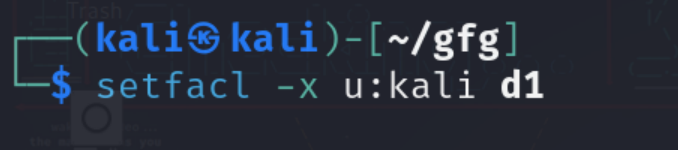
We can remove the ACL permission using the (-x) option while specifying the user type and file(s) or directory(s) name.
Command:
setfacl -x u:kali d1
Output:
Step 4: Display the file access control list
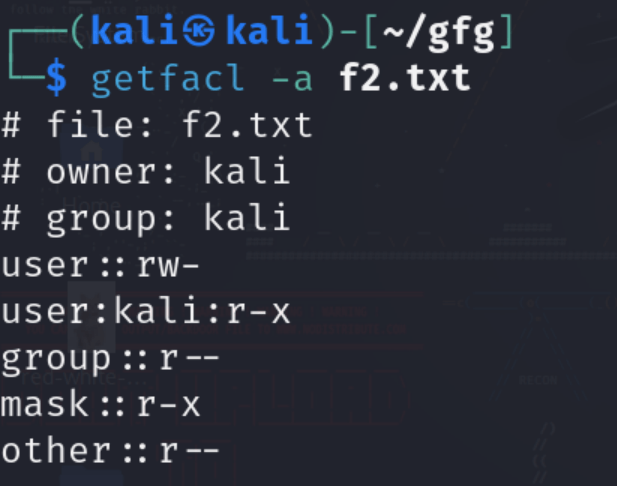
It is used to display the details of ACL on a specific file or directory. It contains information like file_name, owner and group name, file permission, and umask.
Command:
getfacl -a f2.txt
Output:
Step 5: Display the default access control list
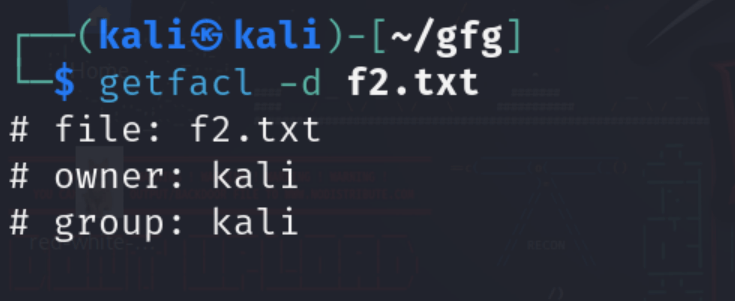
It is used to display basic information like file_name, and owner/group name.
Command:
getfacl -d f2.txt
Output:
File Owner Types
File owner types for setfacl:
| Type | Description |
|---|---|
| u | Specify the User/Owner for configuring the ACL |
| g | Specify the Group for configuring the ACL |
| o | Specify Other for configuring the ACL |
File Permission Types
Here are file permission types for setfacl:
| Type | Description |
|---|---|
| r | Read - allows the user to view the file contents |
| w | Write - allows the user to modify the file |
| x | Execute - allows the user to run the file as a program |
As we have discussed in this topic, setfacl is a tool used to set an Access Control List(ACL) on Files and Directories. It is a more powerful tool for configuring permission than general file permission. With the help of setfacl we can configure multiple permissions simultaneously in terms of users, groups and others.

AtomGit 是由开放原子开源基金会联合 CSDN 等生态伙伴共同推出的新一代开源与人工智能协作平台。平台坚持“开放、中立、公益”的理念,把代码托管、模型共享、数据集托管、智能体开发体验和算力服务整合在一起,为开发者提供从开发、训练到部署的一站式体验。
更多推荐
 5
5 0
0- 0


 已为社区贡献38条内容

所有评论(0)