5 分钟搞定用户系统?uni-id 统一用户中心,登录/权限/角色全拿下
引言
从零开始搭建一套完整的用户系统,包含注册、登录、权限管理、角色控制,再集成微信/QQ/苹果等第三方登录,对于一个全栈开发者来说,至少需要数天时间。如果还要考虑安全性、Token 管理、RBAC 权限模型,工作量更是翻倍。
今天推荐的这个 DCloud 插件市场上的 uni-id,为我们提供了一个开箱即用的用户中心解决方案。它基于 uniCloud 云开发,内置了完整的用户管理体系,让你能在 5 分钟内为项目集成专业的用户系统。
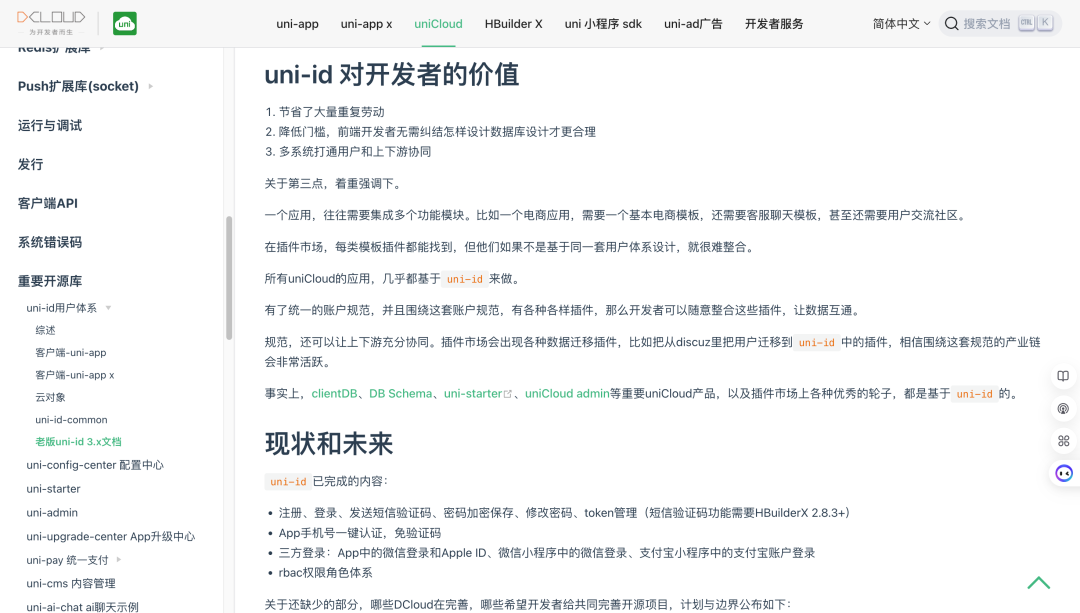
一、实战案例:SaaS 平台用户体系快速搭建
背景: 我们正在开发一个面向中小企业的 SaaS 管理平台,需要支持多租户、多角色的用户体系。
问题: 团队规模小,没有专职的后端开发人员,自己实现用户系统需要大量时间,而且安全性难以保证。
解决方案: 我们选择了 uni-id 作为用户中心,利用其内置的 RBAC 权限模型和第三方登录支持,快速搭建了完整的用户体系。
结果: 原本预计需要 1 周的用户系统开发,最终只用了 2 天就完成了,并且安全性、扩展性都达到了生产级标准。
二、核心功能一览
uni-id 几乎涵盖了用户系统的所有核心功能,你可以直接基于它进行二次开发。
-
完整的认证体系: 支持账号密码、短信、邮箱、微信、QQ、苹果等多种登录方式
-
RBAC 权限模型: 内置角色管理、权限管理、菜单权限、按钮权限
-
多租户支持: 天然支持多租户架构,适合 SaaS 场景
-
Token 管理: 自动处理 Token 生成、刷新、验证
-
安全机制: 密码加密、登录保护、IP 限制
-
云开发集成: 与 uniCloud 无缝集成,无需额外部署
如何快速跑起来?
开发者提供了非常详尽的文档,这里简要概括步骤。
-
安装插件:
-
在 HBuilderX 中打开项目
-
在插件市场搜索
uni-id -
点击安装,选择安装到当前项目
-
-
配置 uniCloud:
-
在项目中关联 uniCloud 空间
-
上传 uni-id 云函数目录
-
配置
config.json中的密钥和参数
-
-
前端调用:
-
引入
uni-id客户端 SDK -
调用
uni-id.login()进行登录 -
调用
uni-id.getInfo()获取用户信息
-
三、可直接运行的代码
下面是一个完整的登录注册示例,包含了账号密码登录、注册、获取用户信息的完整流程。你可以直接复制到你的项目中使用。
<template>
	<view class="container">
		<view class="form-box">
			<view class="form-item">
				<text class="label">用户名</text>
				<input
					class="input"
					v-model="username"
					placeholder="请输入用户名"
					type="text"
				/>
			</view>
			<view class="form-item">
				<text class="label">密码</text>
				<input
					class="input"
					v-model="password"
					placeholder="请输入密码"
					type="password"
				/>
			</view>
			<view class="button-group">
				<button class="btn login-btn" @click="handleLogin">登录</button>
				<button class="btn register-btn" @click="handleRegister">注册</button>
			</view>
			<view class="third-login">
				<text class="tips">第三方登录</text>
				<view class="third-icons">
					<view class="icon" @click="wxLogin">
						<text>微信</text>
					</view>
					<view class="icon" @click="appleLogin">
						<text>苹果</text>
					</view>
				</view>
			</view>
		</view>
		<view v-if="userInfo" class="user-info-box">
			<text>当前用户:{{ userInfo.username }}</text>
			<text>角色:{{ userInfo.roles.join(', ') }}</text>
			<button class="btn logout-btn" @click="handleLogout">退出登录</button>
		</view>
	</view>
</template>

<script>
	// 引入 uni-id 客户端
	import uniId from '@/components/uni-id/uni-id.js';

	export default {
		data() {
			return {
				username: '',
				password: '',
				userInfo: null
			}
		},
		onLoad() {
			// 检查登录状态
			this.checkLoginStatus();
		},
		methods: {
			// 检查登录状态
			async checkLoginStatus() {
				const token = uni.getStorageSync('uni_id_token');
				if (token) {
					try {
						const res = await uniId.getInfo();
						if (res.code === 0) {
							this.userInfo = res.userInfo;
						}
					} catch (e) {
						console.log('Token 已过期');
					}
				}
			},
			// 账号密码登录
			async handleLogin() {
				if (!this.username || !this.password) {
					uni.showToast({
						title: '请输入用户名和密码',
						icon: 'none'
					});
					return;
				}

				try {
					const res = await uniId.login({
						username: this.username,
						password: this.password
					});

					if (res.code === 0) {
						// 登录成功,保存 Token
						uni.setStorageSync('uni_id_token', res.token);
						this.userInfo = res.userInfo;

						uni.showToast({
							title: '登录成功',
							icon: 'success'
						});

						// 跳转到首页
						uni.switchTab({
							url: '/pages/index/index'
						});
					} else {
						uni.showToast({
							title: res.msg || '登录失败',
							icon: 'none'
						});
					}
				} catch (error) {
					console.error('登录异常:', error);
					uni.showToast({
						title: '登录失败',
						icon: 'none'
					});
				}
			},
			// 注册
			async handleRegister() {
				if (!this.username || !this.password) {
					uni.showToast({
						title: '请输入用户名和密码',
						icon: 'none'
					});
					return;
				}

				try {
					const res = await uniId.register({
						username: this.username,
						password: this.password
					});

					if (res.code === 0) {
						uni.showToast({
							title: '注册成功',
							icon: 'success'
						});
						// 注册成功后自动登录
						this.handleLogin();
					} else {
						uni.showToast({
							title: res.msg || '注册失败',
							icon: 'none'
						});
					}
				} catch (error) {
					console.error('注册异常:', error);
					uni.showToast({
						title: '注册失败',
						icon: 'none'
					});
				}
			},
			// 微信登录
			async wxLogin() {
				try {
					// 获取微信登录 code
					const loginRes = await uni.login({
						provider: 'weixin'
					});

					if (loginRes.code) {
						const res = await uniId.loginByWeixin({
							code: loginRes.code
						});

						if (res.code === 0) {
							uni.setStorageSync('uni_id_token', res.token);
							this.userInfo = res.userInfo;
							uni.showToast({
								title: '登录成功',
								icon: 'success'
							});
						}
					}
				} catch (error) {
					console.error('微信登录异常:', error);
					uni.showToast({
						title: '微信登录失败',
						icon: 'none'
					});
				}
			},
			// 苹果登录
			async appleLogin() {
				try {
					const loginRes = await uni.login({
						provider: 'apple'
					});

					if (loginRes.authResult) {
						const res = await uniId.loginByApple({
							identityToken: loginRes.authResult.identityToken
						});

						if (res.code === 0) {
							uni.setStorageSync('uni_id_token', res.token);
							this.userInfo = res.userInfo;
							uni.showToast({
								title: '登录成功',
								icon: 'success'
							});
						}
					}
				} catch (error) {
					console.error('苹果登录异常:', error);
					uni.showToast({
						title: '苹果登录失败',
						icon: 'none'
					});
				}
			},
			// 退出登录
			handleLogout() {
				uni.removeStorageSync('uni_id_token');
				this.userInfo = null;
				this.username = '';
				this.password = '';
				uni.showToast({
					title: '已退出登录',
					icon: 'success'
				});
			}
		}
	}
</script>

<style>
	.container {
		padding: 30rpx;
	}

	.form-box {
		background-color: #fff;
		border-radius: 10rpx;
		padding: 30rpx;
		box-shadow: 0 2rpx 10rpx rgba(0, 0, 0, 0.1);
	}

	.form-item {
		margin-bottom: 30rpx;
	}

	.label {
		display: block;
		font-size: 28rpx;
		color: #666;
		margin-bottom: 10rpx;
	}

	.input {
		width: 100%;
		height: 80rpx;
		background-color: #f5f5f5;
		border-radius: 8rpx;
		padding: 0 20rpx;
		font-size: 30rpx;
	}

	.button-group {
		display: flex;
		justify-content: space-between;
		margin-top: 40rpx;
	}

	.btn {
		width: 48%;
		height: 80rpx;
		line-height: 80rpx;
		font-size: 30rpx;
		border-radius: 8rpx;
	}

	.login-btn {
		background-color: #007aff;
		color: #fff;
	}

	.register-btn {
		background-color: #07c160;
		color: #fff;
	}

	.third-login {
		margin-top: 40rpx;
		text-align: center;
	}

	.tips {
		font-size: 26rpx;
		color: #999;
	}

	.third-icons {
		display: flex;
		justify-content: center;
		margin-top: 20rpx;
	}

	.icon {
		margin: 0 20rpx;
		padding: 10rpx 20rpx;
		background-color: #f5f5f5;
		border-radius: 8rpx;
	}

	.user-info-box {
		margin-top: 40rpx;
		background-color: #fff;
		border-radius: 10rpx;
		padding: 30rpx;
		box-shadow: 0 2rpx 10rpx rgba(0, 0, 0, 0.1);
	}

	.user-info-box text {
		display: block;
		margin-bottom: 20rpx;
		font-size: 28rpx;
		color: #333;
	}

	.logout-btn {
		background-color: #ff4d4f;
		color: #fff;
		margin-top: 20rpx;
	}
</style>
四、踩坑记录
问题 1: 在小程序端微信登录时,提示"code 无效"。解决办法: 微信登录 code 只能使用一次,且有效期只有 5 分钟。确保在获取 code 后立即调用登录接口,不要重复使用。
问题 2: Token 刷新后,用户信息没有同步更新。解决办法: uni-id 的 Token 刷新是自动的,但用户信息需要手动调用 getInfo() 获取。可以在 Token 刷新后,主动调用一次 getInfo() 更新本地缓存。
问题 3: 多租户场景下,用户权限混乱。解决办法: uni-id 支持多租户,需要在创建用户时指定 tenant_id,在查询权限时也要带上租户 ID。参考文档中的多租户章节进行配置。
建议先收藏,用到的时候直接来查。
项目文档: https://doc.dcloud.net.cn/uniCloud/uni-id/old.html

AtomGit 是由开放原子开源基金会联合 CSDN 等生态伙伴共同推出的新一代开源与人工智能协作平台。平台坚持“开放、中立、公益”的理念,把代码托管、模型共享、数据集托管、智能体开发体验和算力服务整合在一起,为开发者提供从开发、训练到部署的一站式体验。
更多推荐

 9
9 0
0- 0


 已为社区贡献6条内容

所有评论(0)