基于YOLOV5的手势识别检测系统
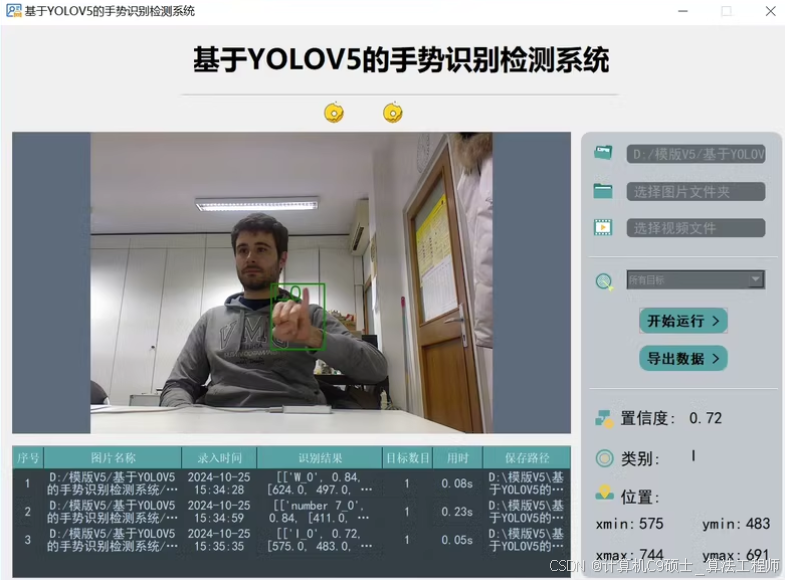
基于YOLOV5的手势识别检测系统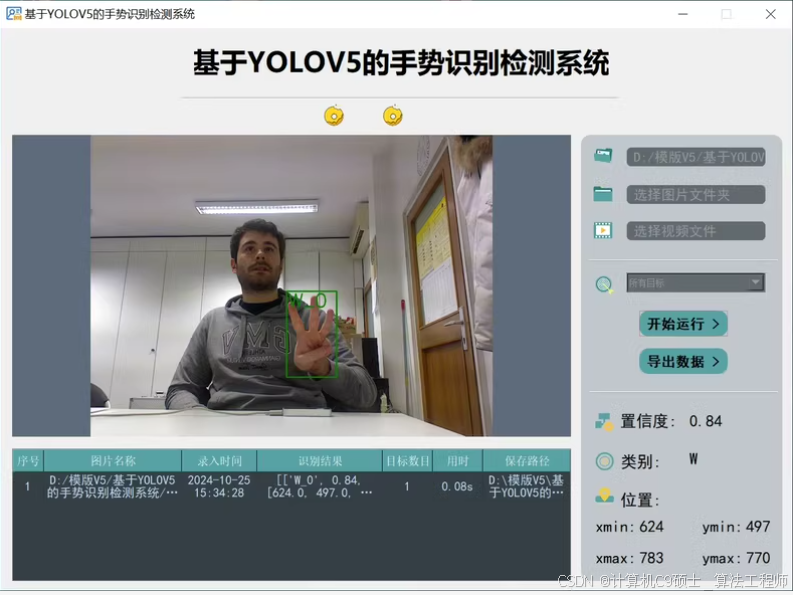
项目介绍:
软件:Pycharm+Anaconda
环境:python=3.8 opencv_python PyQt5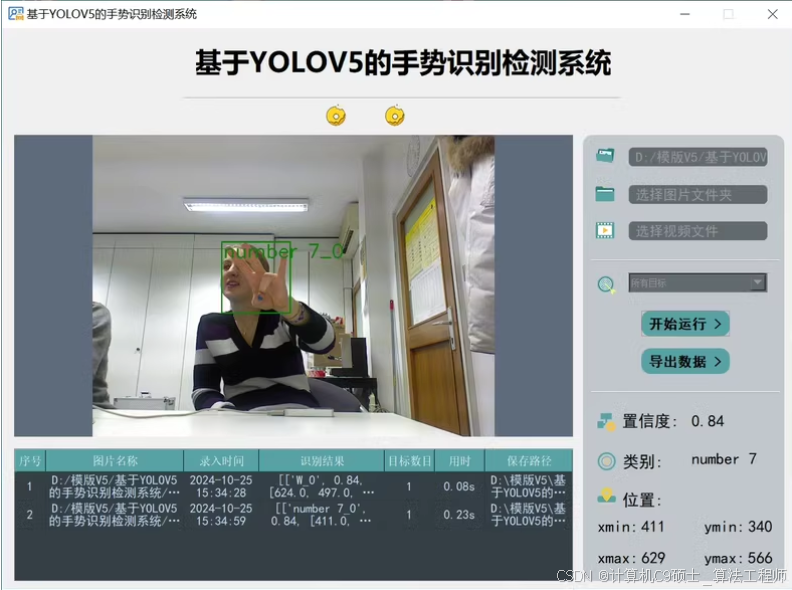
文件:
1.完整程序文件(.py等)
2.UI界面源文件、图标(.ui、.qrc、.py等)
3.测试图片、视频文件(.jpeg、.mp4、.avi等)
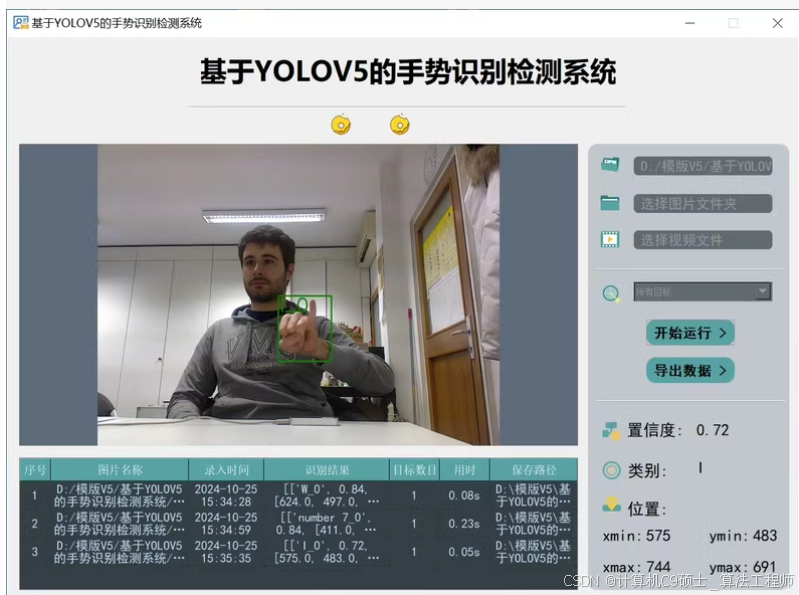
功能: 系统实现了对于10种手势的识别检测
功能:10种手势为’A’, ‘7’,‘D’, ‘I’, ‘L’, ‘V’, ‘W’, 'Y, ‘I love you’, ‘5’
包括通过选择图片、视频进行实时识别;检测速度快、识别精度较高。
实现一个基于 YOLOv5 的手势识别检测系统。以下是详细的步骤:
- 数据准备:收集和准备手势数据集。
- 环境部署:安装必要的库。
- 模型训练:使用 YOLOv5 训练目标检测模型。
- 评估模型:评估训练好的模型性能。
- PyQt5 GUI 开发:创建一个简单的 GUI 来加载和运行模型进行实时预测。
**
提示:文章代码仅供参考!
**
数据准备
假设你已经有一个包含 10 种手势的数据集,并且标注格式为 YOLO 格式的 TXT 文件。
数据集结构示例
dataset/
├── images/
│   ├── train/
│   │   ├── image1.jpg
│   │   ├── image2.jpg
│   │   └── ...
│   ├── test/
│   │   ├── image3.jpg
│   │   ├── image4.jpg
│   │   └── ...
│   └── valid/
│       ├── image5.jpg
│       ├── image6.jpg
│       └── ...
├── labels/
│   ├── train/
│   │   ├── image1.txt
│   │   ├── image2.txt
│   │   └── ...
│   ├── test/
│   │   ├── image3.txt
│   │   ├── image4.txt
│   │   └── ...
│   └── valid/
│       ├── image5.txt
│       ├── image6.txt
│       └── ...
└── dataset.yaml
dataset.yaml 内容如下:
train: ./images/train
val: ./images/valid
test: ./images/test

nc: 10
names: ['A', '7', 'D', 'I', 'L', 'V', 'W', 'Y', 'I_love_you', '5']
每个图像对应的标签文件是一个文本文件,每行表示一个边界框,格式为:
<class_id> <x_center> <y_center> <width> <height>
环境部署说明
确保你已经安装了必要的库,如上所述。
安装依赖
# 创建虚拟环境(可选)
conda create -n gesture_recognition_env python=3.8
conda activate gesture_recognition_env

# 安装PyTorch
pip install torch==1.9 torchvision torchaudio --extra-index-url https://download.pytorch.org/whl/cu111

# 安装其他依赖
pip install opencv-python pyqt5 ultralytics scikit-learn pandas matplotlib seaborn onnxruntime xml.etree.ElementTree
模型训练权重和指标可视化展示
我们将使用 YOLOv5 进行目标检测任务。
下载 YOLOv5 仓库
git clone https://github.com/ultralytics/yolov5
cd yolov5
pip install -r requirements.txt
训练 YOLOv5
[<title="Training YOLOv5 for Gesture Recognition">]
import os
from pathlib import Path

# Define paths
dataset_path = 'path/to/dataset'
weights_path = 'runs/train/exp/weights/best.pt'

# Create dataset.yaml
yaml_content = f"""
train: {Path(dataset_path) / 'images/train'}
val: {Path(dataset_path) / 'images/valid'}
test: {Path(dataset_path) / 'images/test'}

nc: 10
names: ['A', '7', 'D', 'I', 'L', 'V', 'W', 'Y', 'I_love_you', '5']
"""

with open(Path(dataset_path) / 'dataset.yaml', 'w') as f:
    f.write(yaml_content)

# Train YOLOv5
!python train.py --img 640 --batch 16 --epochs 100 --data {Path(dataset_path) / 'dataset.yaml'} --cfg yolov5s.yaml --weights yolov5s.pt --name exp
请将 path/to/dataset 替换为实际的数据集路径。
模型评估
我们将使用 YOLOv5 提供的评估功能来评估训练好的模型性能。
评估 YOLOv5 模型
[<title="Evaluating YOLOv5 Model for Gesture Recognition">]
from pathlib import Path
from ultralytics.yolo.engine.trainer import Trainer

# Load the trained model
model_path = 'runs/train/exp/weights/best.pt'

# Evaluate the model
trainer = Trainer(overrides={'task': 'detect', 'mode': 'val', 'data': 'path/to/dataset/dataset.yaml', 'weights': model_path})
results = trainer.val()

# Print evaluation results
metrics = results.metrics
print(metrics)
请将 path/to/dataset 替换为实际的数据集路径。
使用说明
-
配置路径:
- 将
path/to/dataset设置为存放数据集的目录路径。 - 确保
runs/train/exp/weights/best.pt是训练好的 YOLOv5 模型权重路径。
- 将
-
运行脚本:
- 在终端中运行
train_yolov5.py脚本来训练模型。 - 在终端中运行
evaluate_yolov5.py来评估模型性能。
- 在终端中运行
-
注意事项:
- 确保所有必要的工具箱已安装,特别是 PyTorch 和 ultralytics。
- 根据需要调整参数,如
epochs和imgsz。
PyQt5 GUI 开发
我们将使用 PyQt5 创建一个简单的 GUI 来加载和运行 YOLOv5 模型进行实时预测。
主窗口代码 main_window.py
[<title="PyQt5 Main Window for Gesture Recognition">]
import sys
import cv2
import numpy as np
from PyQt5.QtWidgets import QApplication, QMainWindow, QLabel, QPushButton, QVBoxLayout, QWidget, QFileDialog
from PyQt5.QtGui import QImage, QPixmap
from PyQt5.QtCore import Qt, QTimer
from ultralytics import YOLO

class MainWindow(QMainWindow):
    def __init__(self):
        super().__init__()

        self.setWindowTitle("Gesture Recognition System")
        self.setGeometry(100, 100, 800, 600)

        self.model = YOLO('runs/train/exp/weights/best.pt')

        self.initUI()

    def initUI(self):
        self.central_widget = QWidget()
        self.setCentralWidget(self.central_widget)

        self.layout = QVBoxLayout()

        self.image_label = QLabel(self)
        self.image_label.setAlignment(Qt.AlignCenter)
        self.layout.addWidget(self.image_label)

        self.load_image_button = QPushButton("Load Image", self)
        self.load_image_button.clicked.connect(self.load_image)
        self.layout.addWidget(self.load_image_button)

        self.load_video_button = QPushButton("Load Video", self)
        self.load_video_button.clicked.connect(self.load_video)
        self.layout.addWidget(self.load_video_button)

        self.start_detection_button = QPushButton("Start Detection", self)
        self.start_detection_button.clicked.connect(self.start_detection)
        self.layout.addWidget(self.start_detection_button)

        self.stop_detection_button = QPushButton("Stop Detection", self)
        self.stop_detection_button.clicked.connect(self.stop_detection)
        self.layout.addWidget(self.stop_detection_button)

        self.central_widget.setLayout(self.layout)

        self.cap = None
        self.timer = QTimer()
        self.timer.timeout.connect(self.update_frame)

    def load_image(self):
        options = QFileDialog.Options()
        file_name, _ = QFileDialog.getOpenFileName(self, "QFileDialog.getOpenFileName()", "", "Images (*.png *.xpm *.jpg *.jpeg);;All Files (*)", options=options)
        if file_name:
            self.image_path = file_name
            self.display_image(file_name)

    def display_image(self, path):
        pixmap = QPixmap(path)
        scaled_pixmap = pixmap.scaled(self.image_label.width(), self.image_label.height(), Qt.KeepAspectRatio)
        self.image_label.setPixmap(scaled_pixmap)

    def load_video(self):
        options = QFileDialog.Options()
        file_name, _ = QFileDialog.getOpenFileName(self, "QFileDialog.getOpenFileName()", "", "Videos (*.mp4 *.avi);;All Files (*)", options=options)
        if file_name:
            self.video_path = file_name
            self.cap = cv2.VideoCapture(self.video_path)
            self.start_detection()

    def start_detection(self):
        if self.cap is not None and not self.timer.isActive():
            self.timer.start(30)  # Update frame every 30 ms

    def stop_detection(self):
        if self.timer.isActive():
            self.timer.stop()
            self.cap.release()
            self.image_label.clear()

    def update_frame(self):
        ret, frame = self.cap.read()
        if ret:
            processed_frame = self.process_frame(frame)
            rgb_image = cv2.cvtColor(processed_frame, cv2.COLOR_BGR2RGB)
            h, w, ch = rgb_image.shape
            bytes_per_line = ch * w
            qt_image = QImage(rgb_image.data, w, h, bytes_per_line, QImage.Format_RGB888)
            pixmap = QPixmap.fromImage(qt_image)
            scaled_pixmap = pixmap.scaled(self.image_label.width(), self.image_label.height(), Qt.KeepAspectRatio)
            self.image_label.setPixmap(scaled_pixmap)
        else:
            self.stop_detection()

    def process_frame(self, frame):
        results = self.model(frame)

        for result in results:
            boxes = result.boxes.cpu().numpy()
            for box in boxes:
                r = box.xyxy[0].astype(int)
                cls = int(box.cls[0])
                conf = box.conf[0]

                label = self.model.names[cls]
                text = f'{label}: {conf:.2f}'
                color = (0, 255, 0)  # Green color for bounding box

                cv2.rectangle(frame, (r[0], r[1]), (r[2], r[3]), color, 2)
                cv2.putText(frame, text, (r[0], r[1] - 10), cv2.FONT_HERSHEY_SIMPLEX, 0.9, color, 2)

        return frame

if __name__ == "__main__":
    app = QApplication(sys.argv)
    window = MainWindow()
    window.show()
    sys.exit(app.exec_())
使用说明
-
配置路径:
- 将
path/to/dataset设置为存放数据集的目录路径。 - 确保
runs/train/exp/weights/best.pt是训练好的 YOLOv5 模型权重路径。
- 将
-
运行脚本:
- 在终端中运行
train_yolov5.py脚本来训练模型。 - 在终端中运行
evaluate_yolov5.py来评估模型性能。 - 在终端中运行
main_window.py来启动 GUI 应用程序。 - 点击“Load Image”按钮加载图像。
- 点击“Load Video”按钮加载视频。
- 点击“Start Detection”按钮开始检测。
- 点击“Stop Detection”按钮停止检测。
- 在终端中运行
-
注意事项:
- 确保所有必要的工具箱已安装,特别是 PyTorch 和 PyQt5。
- 根据需要调整参数,如
epochs和imgsz。
示例
假设你的数据文件夹结构如下:
dataset/
├── images/
│   ├── train/
│   │   ├── image1.jpg
│   │   ├── image2.jpg
│   │   └── ...
│   ├── test/
│   │   ├── image3.jpg
│   │   ├── image4.jpg
│   │   └── ...
│   └── valid/
│       ├── image5.jpg
│       ├── image6.jpg
│       └── ...
├── labels/
│   ├── train/
│   │   ├── image1.txt
│   │   ├── image2.txt
│   │   └── ...
│   ├── test/
│   │   ├── image3.txt
│   │   ├── image4.txt
│   │   └── ...
│   └── valid/
│       ├── image5.txt
│       ├── image6.txt
│       └── ...
└── dataset.yaml
并且每个 .txt 文件中都有正确的 YOLO 标签。运行 main_window.py 后,你可以通过点击按钮来加载图像或视频并进行手势识别检测。
总结
通过上述步骤,我们可以构建一个完整的基于 YOLOv5 的手势识别检测系统,包括数据集准备、环境部署、模型训练、指标可视化展示、评估和 PyQt5 GUI 开发。以下是所有相关的代码文件:
- 训练 YOLOv5 脚本 (
train_yolov5.py) - 评估 YOLOv5 模型脚本 (
evaluate_yolov5.py) - PyQt5 主窗口代码 (
main_window.py)

AtomGit 是由开放原子开源基金会联合 CSDN 等生态伙伴共同推出的新一代开源与人工智能协作平台。平台坚持“开放、中立、公益”的理念,把代码托管、模型共享、数据集托管、智能体开发体验和算力服务整合在一起,为开发者提供从开发、训练到部署的一站式体验。
更多推荐
 8
8 0
0- 0


 已为社区贡献6条内容

所有评论(0)