【Linux】系统下的文件传输与定时任务
·
Linux基础命令(四)
1. 秘钥登录(Linux设备间登录)
1.1 环境准备
- 克隆2台虚拟设备【server1、server2】
# 新增2台设备的基本信息
server1 ip:10.1.8.21/24 hostname: server1.harvy.iCloud
server2 ip: 10.1.8.22/24 hostname: server2.harvy.iCloud
- 配置服务器 - 修改网络配置【以server1为例】
# 设置hostname
[root@server1 ~ 09:31:13]# hostnamectl set-hostname server1.harvy.iCloud

# 设置ip地址
[root@server1 ~ 09:31:13]# cd /etc/sysconfig/network-scripts/
[root@server1 network-scripts 09:24:52]# vim ifcfg-ens33

# 修改IP地址为 10.1.8.11
IPADDR=10.1.8.11

# 重新加载配置文件
[root@server1 network-scripts 09:24:52]# nmcli connection reload
# 激活配置
[root@server1 network-scripts 09:24:52]# nmcli connection up ens33

# 修改hosts配置
[root@server1 ~ 09:49:22]# vim /etc/hosts
127.0.0.1   localhost localhost.localdomain localhost4 localhost4.localdomain4
::1         localhost localhost.localdomain localhost6 localhost6.localdomain6
# 最后追加解析记录
10.1.8.21 server1.harvy.iCloud server1
10.1.8.22 server2.harvy.iCloud server2

#ping server2 测试hosts配置效果
[root@server1 ~ 09:47:30]# ping server2
PING server2.harvy.iCloud (10.1.8.22) 56(84) bytes of data.
64 bytes from server2.harvy.iCloud (10.1.8.22): icmp_seq=1 ttl=64 time=0.845 ms
64 bytes from server2.harvy.iCloud (10.1.8.22): icmp_seq=2 ttl=64 time=6.70 ms
1.2 配置过程
配置server1秘钥登录server2
[root@server1 ~ 10:01:12]# ssh-keygen
Generating public/private rsa key pair.
Enter file in which to save the key (/root/.ssh/id_rsa):
Created directory '/root/.ssh'.
Enter passphrase (empty for no passphrase):
Enter same passphrase again:
Your identification has been saved in /root/.ssh/id_rsa.
Your public key has been saved in /root/.ssh/id_rsa.pub.
The key fingerprint is:
SHA256:EBTcgjW7Nak3gf/VT5PYM0eOXBjZwgZoWxPvGtMyl0E root@server1.harvy.icloud
The key's randomart image is:
+---[RSA 2048]----+
|     =*o   .o+Eo |
|    . o=..o oo=o.|
|      +.=. o o+.o|
|       * o.  =oB.|
|      o S   *.O*+|
|       . o . B o=|
|          . .   .|
|                 |
|                 |
+----[SHA256]-----+
# 将秘钥转发给server2服务器
[root@server1 ~ 10:06:59]# ssh-copy-id harvy@server2
/usr/bin/ssh-copy-id: INFO: Source of key(s) to be installed: "/root/.ssh/id_rsa.pub"
The authenticity of host 'server2 (10.1.8.22)' can't be established.
ECDSA key fingerprint is SHA256:/19YcQjixIz/nHvrkswn5fVTQ+o/qlbsC8TdZEFQ128.
ECDSA key fingerprint is MD5:31:7c:9e:87:6d:fd:b8:98:39:5a:44:e7:9e:79:9b:a8.
Are you sure you want to continue connecting (yes/no)? yes
/usr/bin/ssh-copy-id: INFO: attempting to log in with the new key(s), to filter out any that are already installed
/usr/bin/ssh-copy-id: INFO: 1 key(s) remain to be installed -- if you are prompted now it is to install the new keys
harvy@server2's password:
Permission denied, please try again.
harvy@server2's password:

Number of key(s) added: 1

Now try logging into the machine, with:   "ssh 'harvy@server2'"
and check to make sure that only the key(s) you wanted were added.
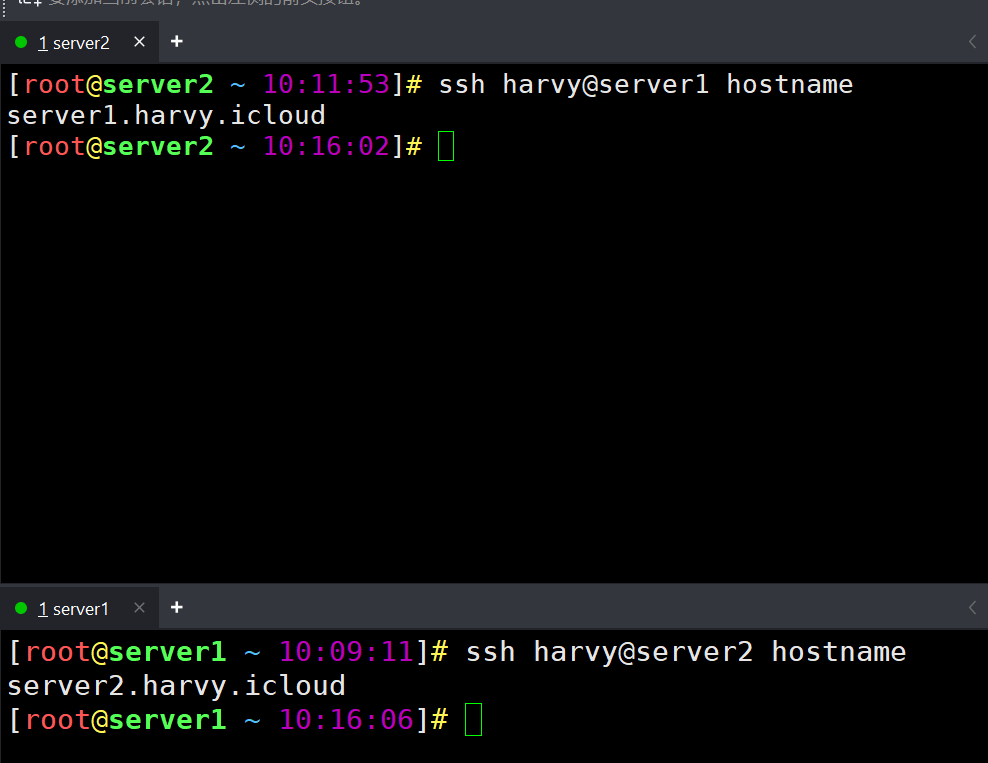
# 免密登录执行命令验证
[root@server1 ~ 10:08:46]# ssh harvy@server2 hostname
server2.harvy.icloud
免密互登效果
2. 时间设置
2.1 DATE命令
[root@server1 ~ 10:16:06]# date
Tue Apr  7 10:33:59 CST 2026
# 查看LANG变量值
[root@server1 ~ 10:34:03]# echo $LANG
en_US.UTF-8
# 设置LANG变量值
[root@server1 ~ 10:37:45]# LANG=zh_CN.UTF-8
# 验证date命令效果
[root@server1 ~ 10:38:28]# date
2026年 04月 07日 星期二 10:38:37 CST
# 格式化时间命令
[root@server1 ~ 10:38:37]# date -s 'Tue Apr 7  10:28:27 CST 2026'
2026年 04月 07日 星期二 10:28:27 CST
2.2 设置东八区的时间
[root@server1 ~ 10:28:27]# tzselect
Please identify a location so that time zone rules can be set correctly.
Please select a continent or ocean.
 1) Africa
 2) Americas
 3) Antarctica
 4) Arctic Ocean
 5) Asia
 6) Atlantic Ocean
 7) Australia
 8) Europe
 9) Indian Ocean
10) Pacific Ocean
11) none - I want to specify the time zone using the Posix TZ format.
#? 5
Please select a country.
 1) Afghanistan		  18) Israel		    35) Palestine
 2) Armenia		  19) Japan		    36) Philippines
 3) Azerbaijan		  20) Jordan		    37) Qatar
 4) Bahrain		  21) Kazakhstan	    38) Russia
 5) Bangladesh		  22) Korea (North)	    39) Saudi Arabia
 6) Bhutan		  23) Korea (South)	    40) Singapore
 7) Brunei		  24) Kuwait		    41) Sri Lanka
 8) Cambodia		  25) Kyrgyzstan	    42) Syria
 9) China		  26) Laos		    43) Taiwan
10) Cyprus		  27) Lebanon		    44) Tajikistan
11) East Timor		  28) Macau		    45) Thailand
12) Georgia		  29) Malaysia		    46) Turkmenistan
13) Hong Kong		  30) Mongolia		    47) United Arab Emirates
14) India		  31) Myanmar (Burma)	    48) Uzbekistan
15) Indonesia		  32) Nepal		    49) Vietnam
16) Iran		  33) Oman		    50) Yemen
17) Iraq		  34) Pakistan
#? 9
Please select one of the following time zone regions.
1) Beijing Time
2) Xinjiang Time
#? 1

The following information has been given:

	China
	Beijing Time

Therefore TZ='Asia/Shanghai' will be used.
Local time is now:	Tue Apr  7 10:31:42 CST 2026.
Universal Time is now:	Tue Apr  7 02:31:42 UTC 2026.
Is the above information OK?
1) Yes
2) No
#? 1

You can make this change permanent for yourself by appending the line
	TZ='Asia/Shanghai'; export TZ
to the file '.profile' in your home directory; then log out and log in again.

Here is that TZ value again, this time on standard output so that you
can use the /usr/bin/tzselect command in shell scripts:
Asia/Shanghai
[root@server1 ~ 10:31:45]# date
2026年 04月 07日 星期二 10:31:47 CST
2.3 自动对时
# 安装chrony自动对时工具
[root@server1 ~ 10:34:21]# yum install chrony -y
已加载插件:fastestmirror
Loading mirror speeds from cached hostfile
 * base: mirrors.aliyun.com
...... 略
作为依赖被安装:
  libseccomp.x86_64 0:2.3.1-4.el7

完毕!

# 修改chrony的配置文件,添加aliyun的时间服务器
[root@server1 ~ 10:36:21]# vim /etc/chrony.conf
# 启动chrony服务
[root@server1 ~ 10:42:07]# systemctl start chronyd
# 时间同步有延时
[root@server1 ~ 10:42:25]# date
2026年 04月 07日 星期二 10:42:28 CST
# 时间完成同步
[root@server1 ~ 10:42:28]# date
2026年 04月 07日 星期二 10:54:07 CST
[root@server1 ~ 10:54:25]# chronyc sources -v
210 Number of sources = 1

  .-- Source mode  '^' = server, '=' = peer, '#' = local clock.
 / .- Source state '*' = current synced, '+' = combined , '-' = not combined,
| /   '?' = unreachable, 'x' = time may be in error, '~' = time too variable.
||                                                 .- xxxx [ yyyy ] +/- zzzz
||      Reachability register (octal) -.           |  xxxx = adjusted offset,
||      Log2(Polling interval) --.      |          |  yyyy = measured offset,
||                                \     |          |  zzzz = estimated error.
||                                 |    |           \
MS Name/IP address         Stratum Poll Reach LastRx Last sample
===============================================================================
^* 203.107.6.88                  2   6    17    39    +15ms[  +22ms] +/-   79ms
3. 网络管理
3.1 网络查看
ip命令
[root@server1 ~ 10:58:27]# ip -br a
lo               UNKNOWN        127.0.0.1/8 ::1/128
ens33            UP             10.1.8.21/24 fe80::20c:29ff:fe83:b423/64
# -br ==>> -brief 简介模式

# 查看特定网卡IP地址
[root@server1 ~ 11:21:56]# ip -br a show ens33
ens33            UP             10.1.8.21/24 fe80::20c:29ff:fe83:b423/64

# 查看MAC地址
[root@server1 ~ 11:23:06]# ip -br link
lo               UNKNOWN        00:00:00:00:00:00 <LOOPBACK,UP,LOWER_UP>
ens33            UP             00:0c:29:83:b4:23 <BROADCAST,MULTICAST,UP,LOWER_UP>

# 查看网关
root@server1 ~ 11:23:49]# ip route
default via 10.1.8.2 dev ens33 proto static metric 100
10.1.8.0/24 dev ens33 proto kernel scope link src 10.1.8.21 metric 100
# default 开头的条目是网关

# 查看 DNS
[root@server1 ~ 11:23:55]# cat /etc/resolv.conf
# Generated by NetworkManager
search harvy.icloud
nameserver 223.5.5.5
nameserver 223.6.6.6
3.2 网络配置
nmcli 命令
# 通过配置文件修改网络配置
[root@server1 ~ 11:25:09]# vim /etc/sysconfig/network-scripts/ifcfg-ens33
# ifcfg-ens33配置内容,不用修改
TYPE=Ethernet
PROXY_METHOD=none
BROWSER_ONLY=no
BOOTPROTO=none
DEFROUTE=yes
IPV4_FAILURE_FATAL=no
IPV6INIT=no
IPV6_AUTOCONF=yes
IPV6_DEFROUTE=yes
IPV6_FAILURE_FATAL=no
IPV6_ADDR_GEN_MODE=stable-privacy
NAME=ens33
UUID=6097beaa-8776-400d-b1d2-5c5649547947
DEVICE=ens33
ONBOOT=yes
IPADDR=10.1.8.21
PREFIX=24
GATEWAY=10.1.8.2
DNS1=223.5.5.5
DNS2=223.6.6.6

# 修改完成后需要重新加载和激活配置文件
[root@server1 ~ 11:27:58]# nmcli connection reload
[root@server1 ~ 11:28:14]# nmcli connection up ens33
连接已成功激活(D-Bus 活动路径:/org/freedesktop/NetworkManager/ActiveConnection/3)
通过命令行修改网络配置
- device:设备、网卡
- connection:连接、网卡配置
device和connection之间的关系是:网络设备需要一个网络配置,同一时刻一个device只能激活一个网络配置
3.3 管理设备
# 查看设备清单
[root@server1 ~ 11:28:28]# nmcli device
DEVICE  TYPE      STATE   CONNECTION
ens33   ethernet  已连接  ens33
lo      loopback  未托管  --

# 断开网络连接
[root@server1 ~ 11:33:05]# nmcli device disconnect ens33

# 重新连接网络
[root@server1 ~ 11:33:05]# nmcli device connect ens33

# 查看网卡的详细配置
[root@server1 ~ 11:31:52]# nmcli device show ens33
GENERAL.DEVICE:                         ens33
GENERAL.TYPE:                           ethernet
GENERAL.HWADDR:                         00:0C:29:83:B4:23
GENERAL.MTU:                            1500
GENERAL.STATE:                          100(已连接)
GENERAL.CONNECTION:                     ens33
GENERAL.CON-PATH:                       /org/freedesktop/NetworkManager/Active
WIRED-PROPERTIES.CARRIER:               开
IP4.ADDRESS[1]:                         10.1.8.21/24
IP4.GATEWAY:                            10.1.8.2
IP4.ROUTE[1]:                           dst = 10.1.8.0/24, nh = 0.0.0.0, mt =
IP4.ROUTE[2]:                           dst = 0.0.0.0/0, nh = 10.1.8.2, mt = 1
IP4.DNS[1]:                             223.5.5.5
IP4.DNS[2]:                             223.6.6.6
IP6.ADDRESS[1]:                         fe80::20c:29ff:fe83:b423/64
IP6.GATEWAY:                            --
IP6.ROUTE[1]:                           dst = ff00::/8, nh = ::, mt = 256, tab
IP6.ROUTE[2]:                           dst = fe80::/64, nh = ::, mt = 256
3.4 命令对照
| 特性 | ip 命令 |
nmcli 命令 |
|---|---|---|
| 持久性 | 临时修改,重启失效 | 永久配置,写入文件 |
| 复杂度 | 简单直接 | 功能丰富复杂 |
| 配置方式 | 直接内核操作 | 抽象连接管理 |
| 配置文件 | 不生成配置文件 | 生成 /etc/sysconfig/network-scripts/ |
| 适用场景 | 临时调试、脚本、紧急修复 | 系统配置、桌面环境、服务器管理 |
| 依赖服务 | 无需服务 | 需要NetworkManager服务 |
3.5 命令补充
接口管理
# 查看所有网络接口
ip link show
ip -s link show              # 带统计信息
ip -c link show              # 彩色输出

# 启用/禁用接口
ip link set ens33 up
ip link set ens33 down

# 重命名接口
ip link set ens33 name ens333

# 设置MTU
# 用于进行大文件吞吐配置,要求上下游链路上都要统一配置,没有特殊的场景要求,不可以单节点配置,会断网
ip link set ens33 mtu 9000
路由管理
# 查看路由表
ip route show
ip route list

# 添加默认网关
ip route add default via 192.168.1.1 dev ens33

# 添加静态路由
ip route add 10.0.0.0/24 via 192.168.1.1

# 删除路由
ip route del default
ip route del 10.0.0.0/24

# 查看特定路由
ip route get 8.8.8.8
ARP/邻居表
# 查看ARP缓存
ip neighbor show
ip neigh
[root@server1 ~ 11:45:46]# ip neigh
10.1.8.2 dev ens33 lladdr 00:50:56:f0:f1:5f STALE
10.1.8.1 dev ens33 lladdr 00:50:56:c0:00:08 DELAY

# 添加静态ARP条目
ip neigh add 192.168.1.1 lladdr 00:11:22:33:44:55 dev ens33

# 删除ARP条目
ip neigh del 192.168.1.1 dev eth0
连接管理
# 查看所有连接配置
nmcli connection show
nmcli con show --active          # 仅活动连接

# 激活/停用连接
nmcli connection up "Wired connection 1"
nmcli connection down "Wired connection 1"

# 创建连接
# DHCP连接
nmcli con add type ethernet ifname eth0 con-name "My-Ethernet"

# 静态IP连接
nmcli con add type ethernet ifname eth0 con-name "Static-IP" \
    ip4 192.168.1.100/24 gw4 192.168.1.1 \
    ipv4.dns "8.8.8.8 8.8.4.4"

# Wi-Fi连接
nmcli con add type wifi ifname wlan0 con-name "My-WiFi" \
    ssid "Network-SSID" wifi-sec.key-mgmt wpa-psk \
    wifi-sec.psk "password"
修改连接配置
# 修改IP地址
nmcli con mod "Static-IP" ipv4.addresses "192.168.1.200/24"
nmcli con mod "Static-IP" ipv4.gateway "192.168.1.1"

# 修改DNS
nmcli con mod "Static-IP" ipv4.dns "1.1.1.1 8.8.8.8"

# 添加额外DNS
nmcli con mod "Static-IP" +ipv4.dns "9.9.9.9"

# 修改连接方法
nmcli con mod "Static-IP" ipv4.method manual    # 静态
nmcli con mod "Static-IP" ipv4.method auto      # DHCP

# 设置MTU
nmcli con mod "Static-IP" 802-3-ethernet.mtu 9000
实用技巧
- 别名简化:
alias ips='ip -c addr show'
alias nms='nmcli device status'
- 脚本中使用:
# 检测接口是否存在
if ip link show ens33 >/dev/null 2>&1; then
    echo "eth0 exists"
fi

# 等待NetworkManager就绪
while ! nmcli networking connectivity check; do
    sleep 1
done
- JSON输出(nmcli 1.30+):
nmcli -t -f name,device,state con show --format json
- 备份/恢复配置:
# 备份
nmcli con show > network-backup.txt
# 恢复(需要重新创建连接)
网络实验
- 添加一个虚拟网卡,并设置连接方式为
仅主机

实验一:设置动态获取ip配置
# 添加一个类型为以太网的连接,使用ens36网卡,连接名位dynamic,ipv4的ip值动态自动获取
[root@CentOS7 ~ 13:37:26]# nmcli connection add type ethernet ifname ens36 con-name dynamic ipv4.method auto
Connection 'dynamic' (ca4717f7-b5e1-4621-9539-27634ea2e88d) successfully added.
# 激活dynamic配置的网卡
[root@CentOS7 ~ 13:44:36]# nmcli connection up dynamic
Connection successfully activated (D-Bus active path: /org/freedesktop/NetworkManager/ActiveConnection/3)
# 查看ens36网卡的情况
[root@CentOS7 ~ 13:45:07]# nmcli device show ens36
GENERAL.DEVICE:                         ens36
GENERAL.TYPE:                           ethernet
GENERAL.HWADDR:                         00:0C:29:C1:A7:6E
GENERAL.MTU:                            1500
GENERAL.STATE:                          100 (connected)
GENERAL.CONNECTION:                     dynamic
GENERAL.CON-PATH:                       /org/freedesktop/NetworkManager/ActiveConnection/3
WIRED-PROPERTIES.CARRIER:               on
IP4.ADDRESS[1]:                         10.1.1.2/24
IP4.GATEWAY:                            --
IP4.ROUTE[1]:                           dst = 10.1.1.0/24, nh = 0.0.0.0, mt = 101
IP4.DNS[1]:                             10.1.1.1
IP4.DOMAIN[1]:                          localdomain
IP6.ADDRESS[1]:                         fe80::e043:587f:3489:5e91/64
IP6.GATEWAY:                            --
IP6.ROUTE[1]:                           dst = fe80::/64, nh = ::, mt = 101
IP6.ROUTE[2]:                           dst = ff00::/8, nh = ::, mt = 256, table=255
# 查看设备当前的各网卡的情况,dynamic被启用
[root@CentOS7 ~ 13:45:41]# nmcli connection
NAME                UUID                                  TYPE      DEVICE
ens33               6097beaa-8776-400d-b1d2-5c5649547947  ethernet  ens33
dynamic             ca4717f7-b5e1-4621-9539-27634ea2e88d  ethernet  ens36
Wired connection 1  eb27f20c-6216-3ea1-a5d9-64186fd75436  ethernet  --
实验二:设置静态获取ip配置
root@CentOS7 ~ 13:45:50]# nmcli connection add type ethernet ifname ens36 con-name static ipv4.method manual ipv4.addresses 10.1.1.100/24
Connection 'static' (e5db24c3-3934-4cce-94cc-25e4d48bc92f) successfully added.
[root@CentOS7 ~ 13:58:05]# nmcli connection up static
Connection successfully activated (D-Bus active path: /org/freedesktop/NetworkManager/ActiveConnection/4)
[root@CentOS7 ~ 13:59:12]# nmcli device show ens36
GENERAL.DEVICE:                         ens36
GENERAL.TYPE:                           ethernet
GENERAL.HWADDR:                         00:0C:29:C1:A7:6E
GENERAL.MTU:                            1500
GENERAL.STATE:                          100 (connected)
GENERAL.CONNECTION:                     static
GENERAL.CON-PATH:                       /org/freedesktop/NetworkManager/ActiveConnection/4
WIRED-PROPERTIES.CARRIER:               on
IP4.ADDRESS[1]:                         10.1.1.100/24
IP4.GATEWAY:                            --
IP4.ROUTE[1]:                           dst = 10.1.1.0/24, nh = 0.0.0.0, mt = 101
IP6.ADDRESS[1]:                         fe80::9287:7921:37ff:373c/64
IP6.GATEWAY:                            --
IP6.ROUTE[1]:                           dst = fe80::/64, nh = ::, mt = 101
IP6.ROUTE[2]:                           dst = ff00::/8, nh = ::, mt = 256, table=255
[root@CentOS7 ~ 13:59:49]# nmcli connection
NAME                UUID                                  TYPE      DEVICE
ens33               6097beaa-8776-400d-b1d2-5c5649547947  ethernet  ens33
static              e5db24c3-3934-4cce-94cc-25e4d48bc92f  ethernet  ens36
dynamic             ca4717f7-b5e1-4621-9539-27634ea2e88d  ethernet  --
Wired connection 1  eb27f20c-6216-3ea1-a5d9-64186fd75436  ethernet  --
实验三:修改网卡配置内容
[root@CentOS7 ~ 14:00:31]# nmcli connection
NAME                UUID                                  TYPE      DEVICE
ens33               6097beaa-8776-400d-b1d2-5c5649547947  ethernet  ens33
static              e5db24c3-3934-4cce-94cc-25e4d48bc92f  ethernet  ens36
dynamic             ca4717f7-b5e1-4621-9539-27634ea2e88d  ethernet  --
Wired connection 1  eb27f20c-6216-3ea1-a5d9-64186fd75436  ethernet  --
[root@CentOS7 ~ 14:12:35]# nmcli connection modify static ipv4.addresses 10.1.1.110/24
[root@CentOS7 ~ 14:13:27]# nmcli connection up static
Connection successfully activated (D-Bus active path: /org/freedesktop/NetworkManager/ActiveConnection/5)
[root@CentOS7 ~ 14:13:43]# ip -br addr show ens36
ens36            UP             10.1.1.110/24 fe80::9287:7921:37ff:373c/64

# 修改ens33的DNS
[root@CentOS7 ~ 14:16:18]# cat /etc/resolv.conf
# Generated by NetworkManager
search harvy.iCloud
nameserver 223.5.5.5
nameserver 223.6.6.6
[root@CentOS7 ~ 14:17:14]# nmcli connection modify ens33 ipv4.dns 10.1.8.11
[root@CentOS7 ~ 14:18:05]# nmcli connection up ens33
Connection successfully activated (D-Bus active path: /org/freedesktop/NetworkManager/ActiveConnection/6)
[root@CentOS7 ~ 14:18:16]# cat /etc/resolv.conf
# Generated by NetworkManager
search harvy.iCloud
nameserver 10.1.8.11
[root@CentOS7 ~ 14:18:19]# nmcli connection modify ens33 ipv4.dns 223.5.5.5 +ipv4.dns 223.6.6.6
[root@CentOS7 ~ 14:18:56]# nmcli connection up ens33
Connection successfully activated (D-Bus active path: /org/freedesktop/NetworkManager/ActiveConnection/7)
[root@CentOS7 ~ 14:19:10]# cat /etc/resolv.conf
# Generated by NetworkManager
search harvy.iCloud
nameserver 223.5.5.5
nameserver 223.6.6.6
实验四:删除网络配置
[root@CentOS7 ~ 14:14:19]# nmcli connection delete Wired\ connection\ 1
Connection 'Wired connection 1' (eb27f20c-6216-3ea1-a5d9-64186fd75436) successfully deleted.
[root@CentOS7 ~ 14:15:29]# nmcli connection
NAME     UUID                                  TYPE      DEVICE
ens33    6097beaa-8776-400d-b1d2-5c5649547947  ethernet  ens33
static   e5db24c3-3934-4cce-94cc-25e4d48bc92f  ethernet  ens36
dynamic  ca4717f7-b5e1-4621-9539-27634ea2e88d  ethernet  --
[root@CentOS7 ~ 14:15:36]# nmcli connection delete dynamic
Connection 'dynamic' (ca4717f7-b5e1-4621-9539-27634ea2e88d) successfully deleted.
[root@CentOS7 ~ 14:15:50]# nmcli connection
NAME    UUID                                  TYPE      DEVICE
ens33   6097beaa-8776-400d-b1d2-5c5649547947  ethernet  ens33
static  e5db24c3-3934-4cce-94cc-25e4d48bc92f  ethernet  ens36
[root@CentOS7 ~ 14:15:58]# nmcli connection delete static
Connection 'static' (e5db24c3-3934-4cce-94cc-25e4d48bc92f) successfully deleted.
[root@CentOS7 ~ 14:16:13]# nmcli connection
NAME   UUID                                  TYPE      DEVICE
ens33  6097beaa-8776-400d-b1d2-5c5649547947  ethernet  ens33
4. 系统间复制文档
windows与Linux
使用 ftp 相关工具
提示:前提条件是Linux服务器开启了sshd 服务。
使用 lrzsz
提示:前提条件是Linux服务器安装了lrzsz工具。
适合传送小文件,因为速度慢。
- sz file,传输文件到windows中。
- rz file,上传到Linux中,直接拖拽方式更方便
Linux与Linux
scp(secure copy)
全量复制:每次传输都是完整的传输,不支持比对传输。
[root@server1 ~ 17:42:44]# ll /root/tmp/scp/
总用量 0
-rw-r--r-- 1 root root  0 4月   7 17:40 index1.js
drwxr-xr-x 2 root root 96 4月   7 17:42 scp_src
[root@server1 ~ 18:35:38]# scp /root/tmp/scp/index1.js server2:/root/tmp/
index1.js

# server2验证
[root@server2 ~ 18:36:09]# ll /root/tmp/
total 0
-rw-r--r-- 1 root root 0 Apr  7 18:36 index1.js
# scp文件目录
[root@server1 ~ 18:36:19]# scp -r /root/tmp/scp/scp_src/ server2:/root/tmp/
mylog1.log                                            100%    0     0.0KB/s   00:00
mylog2.log                                            100%    0     0.0KB/s   00:00
mylog3.log                                            100%    0     0.0KB/s   00:00
mylog4.log                                            100%    0     0.0KB/s   00:00
mylog5.log                                            100%    0     0.0KB/s   00:00

# 验证结果
[root@server2 ~ 18:38:06]# ll /root/tmp/scp_src/
total 0
-rw-r--r-- 1 root root 0 Apr  7 18:37 mylog1.log
-rw-r--r-- 1 root root 0 Apr  7 18:38 mylog2.log
-rw-r--r-- 1 root root 0 Apr  7 18:38 mylog3.log
-rw-r--r-- 1 root root 0 Apr  7 18:38 mylog4.log
-rw-r--r-- 1 root root 0 Apr  7 18:38 mylog5.log
rsync
全量和增量同步:每次传输的时候,比对目标位置是否有相同的文件。如果有相同的文件,则不重复传输。
[root@server1 ~ 18:43:09]# rsync -av /root/tmp/rsync/index.js server2:/root/tmp/rsync/
sending incremental file list
index.js

sent 90 bytes  received 35 bytes  250.00 bytes/sec
total size is 0  speedup is 0.00

# 在server2上验证文件是否成功同步
[root@server2 ~ 18:44:44]# ll /root/tmp/rsync/
total 0
-rw-r--r-- 1 root root 0 Apr  7 17:34 index.js

# 从server2服务器上拉取server1上的文件目录
[root@server2 ~ 18:45:50]# rsync -av server1:/root/tmp/rsync/src /root/tmp/rsync/
receiving incremental file list
src/
src/20260407-1-runtime.log
src/20260407-2-runtime.log
src/20260407-3-runtime.log
src/20260407-4-runtime.log
src/20260407-5-runtime.log
src/20260407-6-runtime.log
src/20260407-7-runtime.log
src/20260407-8-runtime.log
src/20260407-9-runtime.log

sent 199 bytes  received 647 bytes  1,692.00 bytes/sec
total size is 0  speedup is 0.00
[root@server2 ~ 18:46:41]# ll /root/tmp/rsync/src/
total 0
-rw-r--r-- 1 root root 0 Apr  7 17:36 20260407-1-runtime.log
-rw-r--r-- 1 root root 0 Apr  7 17:36 20260407-2-runtime.log
-rw-r--r-- 1 root root 0 Apr  7 17:36 20260407-3-runtime.log
-rw-r--r-- 1 root root 0 Apr  7 17:36 20260407-4-runtime.log
-rw-r--r-- 1 root root 0 Apr  7 17:36 20260407-5-runtime.log
-rw-r--r-- 1 root root 0 Apr  7 17:36 20260407-6-runtime.log
-rw-r--r-- 1 root root 0 Apr  7 17:36 20260407-7-runtime.log
-rw-r--r-- 1 root root 0 Apr  7 17:36 20260407-8-runtime.log
-rw-r--r-- 1 root root 0 Apr  7 17:36 20260407-9-runtime.log
5. 周期性计划作业
定个闹钟:每天 7:00 起床。
计算机也要定时要完成自己的事情:
- 每天巡检系统资源使用情况。
- 每小时检查一次异常日志
- 每天夜里 0:00 备份数据
crond 服务,提供定制任务功能,定期触发执行相应命令。
实践
每分钟同步一次server1上/root/tmp/rsync/log目录中的内容到server2.
前提条件:
- server1可以秘钥登录server2
- server1上要准备好相应的目录
[root@server1 ~ 18:49:48]# ll /root/tmp/rsync/log/
总用量 0
-rw-r--r-- 1 root root 0 4月   7 18:49 server1-1.log
-rw-r--r-- 1 root root 0 4月   7 18:49 server1-2.log
-rw-r--r-- 1 root root 0 4月   7 18:49 server1-3.log
-rw-r--r-- 1 root root 0 4月   7 18:49 server1-4.log
-rw-r--r-- 1 root root 0 4月   7 18:49 server1-5.log
步骤1:确保 crond服务启动
[root@server2 ~ 18:46:49]# systemctl is-active crond
active
步骤2:设置定时任务
[root@server2 ~ 18:46:49]# systemctl is-active crond
active
[root@server2 ~ 18:52:19]# crontab -l
no crontab for root
[root@server2 ~ 18:53:45]# export EDITOR=vim
[root@server2 ~ 18:54:21]# crontab -e
no crontab for root - using an empty one
crontab: installing new crontab
[root@server2 ~ 18:55:52]# crontab -l
* * * * * rsync -av server1:/root/tmp/rsync/log /root/tmp/rsync/ >> /dev/null
[root@server2 ~ 18:56:17]# tail -f /var/log/cron
Apr  7 18:01:02 CentOS7 run-parts(/etc/cron.hourly)[12451]: starting 0anacron
...略
Apr  7 18:55:52 CentOS7 crontab[12597]: (root) END EDIT (root)
Apr  7 18:56:01 CentOS7 CROND[12600]: (root) CMD (rsync -av server1:/root/tmp/rsync/log /root/tmp/rsync/ >> /dev/null)
Apr  7 18:56:17 CentOS7 crontab[12605]: (root) LIST (root)
补充
crontab配置模板
[root@server1 ~ 15:38:05]# cat /etc/crontab
SHELL=/bin/bash
PATH=/sbin:/bin:/usr/sbin:/usr/bin
MAILTO=root

# For details see man 4 crontabs

# Example of job definition:
# .---------------- minute (0 - 59)
# |  .------------- hour (0 - 23)
# |  |  .---------- day of month (1 - 31)
# |  |  |  .------- month (1 - 12) OR jan,feb,mar,apr ...
# |  |  |  |  .---- day of week (0 - 6) (Sunday=0 or 7) OR sun,mon,tue,wed,thu,fri,sat
# |  |  |  |  |
# *  *  *  *  * user-name  command to be executed
其他
每年2月2日上午9点执行年度备份脚本:
0 9 2 2 * /usr/local/bin/yearly_backup
7月每周五9:00-16:00,每5分钟发送包含「Chime」的邮件给任务所有者:
*/5 9-16 * Jul 5 echo "Chime"
每个工作日(周一至周五)23:58执行每日报告脚本:
58 23 * * 1-5 /usr/local/bin/daily_report
每个工作日9:00发送邮件给老板(% 表示换行,后续内容为邮件正文):
0 9 * * 1-5 mutt -s "Checking in" boss@example.com % Hi boss, just checking in.

AtomGit 是由开放原子开源基金会联合 CSDN 等生态伙伴共同推出的新一代开源与人工智能协作平台。平台坚持“开放、中立、公益”的理念,把代码托管、模型共享、数据集托管、智能体开发体验和算力服务整合在一起,为开发者提供从开发、训练到部署的一站式体验。
更多推荐

 4
4 0
0- 0


 已为社区贡献16条内容

所有评论(0)