31、自定义代理---------Model/View模型视图
自定义代理
同学们也注意到了,我们实现模型和视图,但是显示的内容都是文字化的,有时候我想实现特定的显示,比如在双击某个单元格后显示的是一个编辑器,有时候是一个下拉列表,那该怎么办呢?
我们可以通过自定义代理实现,前面我们提到了三要素,其中Delegate就是用来管理数据显示和编辑的。
QStyledItemDelegate
QAbstractItemDelegate类是所有代理类的基类,我们不用关注,我们要实现自己的代理,需要继承的是QStyledItemDelegate
QStyledItemDelegate 是视图组件使用的默认代理类,一般使用 QStyledItemDelegate 作为自定 义代理类的父类。要自定义一个代理类,必须重新实现 QStyledItemDelegate 中定义的 4 个虚函数。 这 4 个函数是由模型/视图系统自动调用的。
**1.函数 createEditor() **
函数 createEditor()可创建用于编辑模型数据的界面组件,称为代理编辑器,例如 QSpinBox 组件,或 QComboBox 组件。其函数原型定义如下:
QWidget *QStyledItemDelegate::createEditor(QWidget *parent, const QStyleOptionViewItem &option, const QModelIndex &index) 其中,parent 是要创建的组件的父组件,一般就是窗口对象;
option 是项的一些显示选项,是 QStyleOptionViewItem 类型的,包含字体、对齐方式、背景色等属性;
index 是项在数据模型中的 模型索引,通过 index->model()可以获取项所属数据模型的对象指针。
在 QTableView 视图组件上双击一个单元格使其进入编辑状态时,系统就会自动调用 createEditor()创建代理编辑器,例如创建 QSpinBox 组件,然后将其显示在单元格里。
2.函数 setEditorData()
函数 setEditorData()的功能是从数据模型获取项的某个角色(一般是 EditRole 角色)的数据, 然后将其设置为代理编辑器上显示的数据。
其函数原型定义如下:
void QStyledItemDelegate::setEditorData(QWidget *editor, const QModelIndex &index)设置了自定义代理后 单元格处于编辑状态的效果 ,参数 editor 就是前面用函数 createEditor()创建的代理编辑器。
通过 index->model()可以获取项 所属数据模型的对象指针,从而获取项的数据,然后将其显示在代理编辑器上。
3.函数 setModelData()
完成对当前单元格的编辑,例如输入焦点移到其他单元格时,系统会自动调用函数 setModelData(), 其功能是将代理编辑器里的输入数据保存到数据模型的项里。
其函数原型定义如下:
void QStyledItemDelegate::setModelData(QWidget *editor, QAbstractItemModel *model, const QModelIndex &index) 其中,editor 是代理编辑器,model 是数据模型,index 是所编辑的项在模型中的模型索引。
4.函数 updateEditorGeometry()
视图组件在界面上显示代理编辑器时,需要调用 updateEditorGeometry()函数为组件设置合适 的大小,例如在一个单元格里显示一个 QSpinBox 代理编辑器时,一般将其设置为单元格的大小。
其函数原型定义如下:
void QStyledItemDelegate::updateEditorGeometry(QWidget *editor, const QStyleOptionViewItem &option, const QModelIndex &index) 其中,变量 option->rect 是 QRect 类型,表示代理编辑器的建议大小。一般将代理编辑器大小设 置为建议大小即可,即用下面的一行代码:
editor->setGeometry(option.rect);定制化显示和编辑案例
样式要求
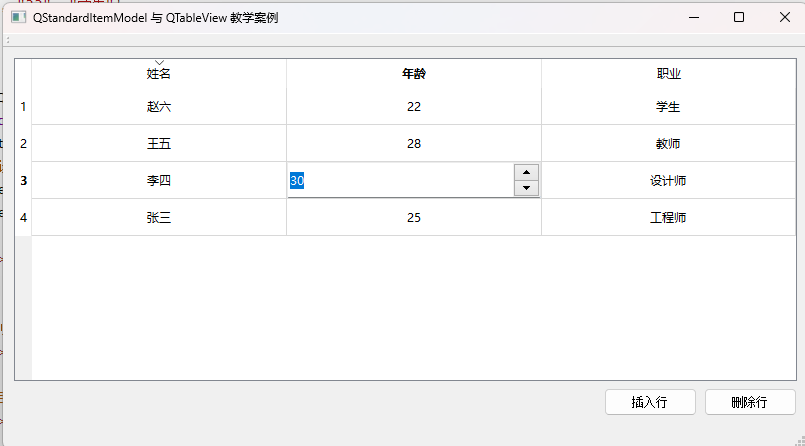
1 要求实现自定义的代理,完成姓名,年龄,以及职业的编辑。
2 双击姓名进行编辑,弹出编辑框
3 双击年龄进行编辑,弹出spinbox
4 双击职业进行编辑,弹出下拉框
如下图:
开发讲解
1 声明自定义的代理类CustomDelegate
class CustomDelegate : public QStyledItemDelegate
{
    Q_OBJECT
public:
    //构造函数
    CustomDelegate(QObject *parent = nullptr);
    //创建编辑器
    QWidget *createEditor(QWidget *parent,
                          const QStyleOptionViewItem &option,
                          const QModelIndex &index) const override;

    //设置编辑器的数据
    void setEditorData(QWidget *editor, const QModelIndex &index) const override;

    //将编辑器的数据设置到模型
    void setModelData(QWidget *editor,
                      QAbstractItemModel *model,
                      const QModelIndex &index) const override;

    //设置编辑器的尺寸匹配单元格
    void updateEditorGeometry(QWidget *editor,
                              const QStyleOptionViewItem &option,
                              const QModelIndex &index) const override;
};构造函数的参数模仿基类QStyledItemDelegate添加了parent参数,另外声明了实现代理的必备的四个成员函数
2 实现构造函数
CustomDelegate::CustomDelegate(QObject *parent):QStyledItemDelegate (parent)
{

}
因为基类需要parent参数来构造,所以子类调用了基类的构造函数。
3 创建编辑器
实现createEditor函数,目的是为了在用户双击不同的单元格时,弹出不同的控件。
//实现双击的时候创建不同的控件
QWidget *CustomDelegate::createEditor(QWidget *parent, const QStyleOptionViewItem &option,
                                      const QModelIndex &index) const
{
    //姓名在第0列,年龄在第1列,职业在第2列
    //获取index对应的列数
    auto column = index.column();
    if(column == 0){
        //双击name列的时候创建一个QLineEdit
        QLineEdit * editor = new QLineEdit(parent);
        //设置最大长度
        editor->setMaxLength(50);
        return editor;
    }

    //如果年龄这一列被点击
    if(column == 1){
        //创建spinbox管理年龄
        QSpinBox* spinBox = new QSpinBox(parent);
        //设置合理的年龄范围
        spinBox->setRange(0,150);
        return spinBox;
    }

    //如果点击的是职业这一列
    if(column == 2){
        //创建下拉框comboBox
        QComboBox* comboBox = new QComboBox(parent);
        //添加职业选项
        comboBox->addItems({"工程师","设计师","教师","学生","法师"});
        return comboBox;
    }

    //条件都不满足,调用基类默认的处理方式
    return QStyledItemDelegate::createEditor(parent,option,index);
}
根据列号 (index.column()),返回不同类型的编辑器:
- 姓名(第0列):
QLineEdit,用于输入文本。可以设置最大长度以限制输入。 - 年龄(第1列):
QSpinBox,用于输入数值,设置合理的范围(如0-150)。 - 职业(第2列):
QComboBox,提供下拉菜单供选择预定义的职业。
4 将模型数据设置到控件
为了将模型数据设置到控件,我们需要使用setEditorData函数, 同样根据不同的列采用不同的设置方式
//将模型的数据设置到editor中
void CustomDelegate::setEditorData(QWidget *editor, const QModelIndex &index) const
{
    //根据index获取模型,再根据模型获取数据,
    //因为我们想获取可编辑类型,所以传递Qt::EditRole
    QVariant value = index.model()->data(index, Qt::EditRole);
    //获取列数
    auto column = index.column();
    //根据列数判断,如果列数为0则向编辑器中设置姓名数据
    if(column == 0){
        //需要将eitor由QWidget*转化为QLineEdit*
        auto * lineEdit = qobject_cast<QLineEdit*>(editor);
        if(lineEdit){
            //将名字设置到lineEdit里
            lineEdit->setText(value.toString());
        }
        return;
    }

    //如果是年龄列,则将数据设置到spinBox中
    if(column == 1){
        //将editor转为QSpinBox
        QSpinBox *spinBox = qobject_cast<QSpinBox*>(editor);
        if (spinBox) {
            //设置年龄
            spinBox->setValue(value.toInt());
        }
        return;
    }

    //如果是职业,则从下拉框寻找对应文本,并设置索引
    if(column == 2){
        //转化为下拉框
        QComboBox* comboBox = qobject_cast<QComboBox*>(editor);
        if(comboBox){
            int idx = comboBox->findText(value.toString());
            if(idx >= 0){
                //如果找到了就设置索引
                comboBox->setCurrentIndex(idx);
            }
        }

        return;
    }


    //都不满足,调用基类默认的函数
    QStyledItemDelegate::setEditorData(editor, index);
    return;
}
将模型中的数据设置到编辑器中:
- 姓名:将文本设置到
QLineEdit。 - 年龄:将数值设置到
QSpinBox。 - 职业:将当前文本设置到
QComboBox中的对应项。
5 将修改写入模型中
我们编辑完数据后,需要将修改写入模型中,此时采用setModelData即可
//将控件内容设置到model中
void CustomDelegate::setModelData(QWidget *editor, QAbstractItemModel *model, const QModelIndex &index) const
{
    //获取列数
    auto column = index.column();
    //设置姓名改变到model中
    if(column == 0){
        auto * lineEdit = dynamic_cast<QLineEdit*>(editor);
        if(lineEdit){
            //设置当前文本到model中
            model->setData(index,lineEdit->text(),Qt::EditRole);
        }
        return;
    }

    //设置年龄改变到model中
    if(column == 1){
        auto * spinBox = dynamic_cast<QSpinBox*>(editor);
        if(spinBox){
            //设置spinbox的值到model中
            model->setData(index,spinBox->value(),Qt::EditRole);
        }
       return;
    }

    //设置职业改变到model中
    if(column == 2){
        auto * comboBox = dynamic_cast<QComboBox*>(editor);
        if(comboBox){
            //设置下拉框文本到model中
            model->setData(index,comboBox->currentText(),Qt::EditRole);
        }
        return;
    }

    //都不满足,调用基类默认的设置
    QStyledItemDelegate::setModelData(editor,model,index);
}
将编辑器中的数据保存回模型:
- 姓名:从
QLineEdit获取文本并设置到模型中。 - 年龄:从
QSpinBox获取数值并设置到模型中。 - 职业:从
QComboBox获取当前选中的文本并设置到模型中。
6 更新编辑框区域
我们需要更新编辑区域的大小,防止区域过大或者过小,采用updateEditorGeometry函数
void CustomDelegate::updateEditorGeometry(QWidget *editor, const QStyleOptionViewItem &option, const QModelIndex &index) const
{
    //设置编辑器几何区域,使其不超过单元格大小
    editor->setGeometry(option.rect);
}
7 将代理应用到特定的列
在 MainWindow 的构造函数中,需要实例化 CustomDelegate 并将其应用到 QTableView 的特定列。可以选择应用到整个视图,也可以仅应用到特定的列。
因为我们在代理中判断了不同列的处理,所以我们将代理直接应用到整个视图即可,在mainwindow中添加
// 创建自定义代理
auto * custom_delegate = new CustomDelegate(this);
// 设置代理
tableView->setItemDelegate(custom_delegate);
AtomGit 是由开放原子开源基金会联合 CSDN 等生态伙伴共同推出的新一代开源与人工智能协作平台。平台坚持“开放、中立、公益”的理念,把代码托管、模型共享、数据集托管、智能体开发体验和算力服务整合在一起,为开发者提供从开发、训练到部署的一站式体验。
更多推荐
 7
7 0
0- 0


 已为社区贡献6条内容

所有评论(0)