threepp:移植Three.js 的 C++ 3D图形开发库
目录
2.2.核心元素:几何体(Geometry)与网格(Mesh)
3.2.CMake FetchContent(自动拉取 + 编译)
1.简介
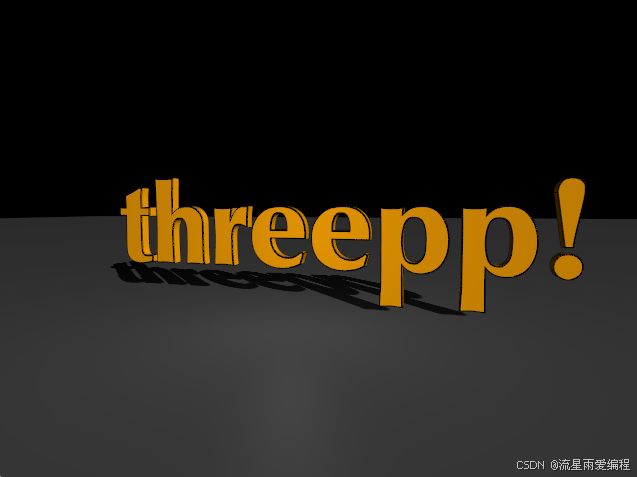
threepp 是 Three.js 的 C++ 移植版,专为希望在 C++ 环境中开发 3D 图形应用(如游戏、可视化工具)的开发者设计,保留了 Three.js 核心的 API 设计思想和 3D 渲染逻辑,同时适配 C++ 的语言特性(如 RAII、智能指针)。将 Three.js 成熟的 3D 开发范式(场景 - 相机 - 渲染器)移植到 C++,支持跨平台(Windows/macOS/Linux),无需依赖 JavaScript 运行时,适合高性能 3D 应用开发。
核心优势:
- 完全兼容 Three.js 的核心概念(场景、相机、几何体、材质等),降低前端 3D 开发者转 C++ 的学习成本;
- 轻量级,依赖少(核心仅依赖 OpenGL/GLFW,可选支持 Assimp 模型加载、imgui 界面);
- 利用 C++ 特性优化性能(如内存管理、多线程),适合高性能 3D 渲染场景;
- 原生支持硬件加速渲染,底层对接 OpenGL 3.3+(部分版本支持 Vulkan/Metal)。
2.核心模块与核心概念
threepp 的核心模块与 Three.js 一一对应,以下是最核心的模块及使用方式:
2.1.基础架构:场景 - 相机 - 渲染器(核心三要素)
这是 threepp 3D 渲染的基础流程,与 Three.js 完全一致:
- Scene(场景):3D 元素的容器,用于管理所有待渲染的物体、灯光、雾效等;
- Camera(相机):定义 “观察视角”,决定哪些内容会被渲染到屏幕;
- Renderer(渲染器):将场景和相机的视角渲染到窗口 / 画布。
示例:最小化 3D 窗口(核心三要素)
#include <threepp/threepp.hpp>  // 核心头文件,包含所有基础模块

int main() {
    // 1. 创建渲染器(绑定窗口,尺寸800x600,标题"threepp demo")
    auto renderer = threepp::GLRenderer(threepp::RendererParameters());
    renderer.setSize(800, 600);  // 设置渲染窗口尺寸
    auto window = threepp::Window::create(renderer.size(), "threepp Basic Demo");  // 创建窗口

    // 2. 创建场景(容器)
    auto scene = threepp::Scene::create();
    scene->background = threepp::Color(0x111111);  // 设置场景背景色(深灰色)

    // 3. 创建相机(透视相机,参数:视角75°、宽高比、近裁剪面、远裁剪面)
    auto camera = threepp::PerspectiveCamera::create(75, renderer.getSize().aspect(), 0.1f, 1000.f);
    camera->position.z = 5;  // 相机沿Z轴远离原点(观察物体)

    // 渲染循环(窗口关闭前持续执行)
    while (!window->shouldClose()) {
        // 清空缓冲区,渲染场景+相机
        renderer.render(*scene, *camera);
        window->swapBuffers();  // 交换前后缓冲区(避免闪烁)
        threepp::GLFW::pollEvents();  // 处理窗口事件(如关闭、调整大小)
    }

    return 0;
}
2.2.核心元素:几何体(Geometry)与网格(Mesh)
- Geometry(几何体):定义 3D 物体的形状(如立方体、球体、自定义顶点);
- Material(材质):定义物体的外观(颜色、纹理、反光、透明度);
- Mesh(网格):几何体 + 材质的组合,是场景中可渲染的具体物体。
示例:添加立方体到场景
#include <threepp/threepp.hpp>

int main() {
    // 初始化渲染器、窗口、场景、相机(同上文)
    auto renderer = threepp::GLRenderer(threepp::RendererParameters());
    renderer.setSize(800, 600);
    auto window = threepp::Window::create(renderer.size(), "threepp Cube Demo");
    auto scene = threepp::Scene::create();
    auto camera = threepp::PerspectiveCamera::create(75, renderer.getSize().aspect(), 0.1f, 1000.f);
    camera->position.z = 5;

    // 1. 创建几何体:立方体(尺寸1x1x1)
    auto geometry = threepp::BoxGeometry::create(1, 1, 1);
    // 2. 创建材质:基础网格材质(纯色,无光照影响)
    auto material = threepp::MeshBasicMaterial::create();
    material->color = threepp::Color(0x00ff00);  // 绿色
    material->wireframe = true;  // 线框模式(方便看形状)

    // 3. 创建网格(几何体+材质),并添加到场景
    auto cube = threepp::Mesh::create(geometry, material);
    scene->add(cube);

    // 渲染循环(添加物体旋转逻辑)
    while (!window->shouldClose()) {
        // 物体旋转(沿X、Y轴逐帧旋转)
        cube->rotation.x += 0.01f;
        cube->rotation.y += 0.01f;

        renderer.render(*scene, *camera);
        window->swapBuffers();
        threepp::GLFW::pollEvents();
    }

    return 0;
}
2.3.光照(Light):让物体有明暗效果
MeshBasicMaterial 不受光照影响,若要实现真实的明暗效果,需使用受光照影响的材质(如 MeshPhongMaterial)+ 光源:
- AmbientLight(环境光):全局漫射光,无方向,均匀照亮所有物体;
- DirectionalLight(平行光):模拟太阳光,有方向,产生明显的明暗面;
- PointLight(点光源):模拟灯泡,从一点向四周发射光线。
示例:添加平行光和环境光
// 在创建立方体后添加:
// 1. 环境光(低强度,避免全黑)
auto ambientLight = threepp::AmbientLight::create(threepp::Color(0xffffff), 0.2f);
scene->add(ambientLight);

// 2. 平行光(白色,高强度,设置光源位置)
auto dirLight = threepp::DirectionalLight::create(threepp::Color(0xffffff), 0.8f);
dirLight->position.set(2, 2, 5);  // 光源在场景中的位置
scene->add(dirLight);

// 替换材质为受光照影响的Phong材质
auto material = threepp::MeshPhongMaterial::create();
material->color = threepp::Color(0x00ff00);
material->shininess = 50;  // 高光强度
2.4.交互:轨道控制器(OrbitControls)
threepp 提供 OrbitControls 实现鼠标交互(旋转、平移、缩放相机),无需手动处理鼠标事件:
// 在创建相机后添加:
auto controls = threepp::OrbitControls::create(*camera, *window);
controls->enableDamping = true;  // 阻尼效果(平滑移动)

// 渲染循环中更新控制器:
while (!window->shouldClose()) {
    controls->update();  // 必须调用,处理鼠标输入
    renderer.render(*scene, *camera);
    // ... 其他逻辑
}
2.5.模型加载(Assimp 集成)
threepp 支持通过 Assimp 加载外部 3D 模型(如 glTF、OBJ、FBX),需先链接 Assimp 库:
#include <threepp/loaders/GLTFLoader.hpp>  // glTF加载器

// 加载glTF模型
auto loader = threepp::GLTFLoader();
auto gltf = loader.load("model.gltf");  // 模型文件路径
scene->add(gltf->scene);  // 将模型场景添加到当前场景
3.安装与集成
国内地址:https://gitcode.com/gh_mirrors/th/threepp
3.1.核心依赖
- GLFW:窗口管理、输入处理(必须);
- OpenGL 3.3+:底层渲染 API(必须);
- Assimp(可选):模型加载;
- imgui(可选):调试界面;
- stb_image(可选):纹理加载。
3.2.CMake FetchContent(自动拉取 + 编译)
这是新手最友好的方式,无需手动下载 / 编译 threepp,CMake 会自动拉取源码、编译并链接到你的项目,步骤如下:
创建项目结构:
threepp_demo/
├── CMakeLists.txt  # CMake 配置文件
└── main.cpp        # 测试代码
编写 CMakeLists.txt:
# CMakeLists.txt
cmake_minimum_required(VERSION 3.16)
project(threepp_demo)  # 项目名

# 设置C++标准(必须C++17及以上)
set(CMAKE_CXX_STANDARD 17)
set(CMAKE_CXX_STANDARD_REQUIRED ON)

# 自动拉取threepp源码(无需手动下载)
include(FetchContent)
FetchContent_Declare(
    threepp
    GIT_REPOSITORY https://github.com/markaren/threepp.git  # threepp仓库地址
    GIT_TAG main  # 使用main分支(稳定版可指定标签,如v0.12.0)
)
# 自动编译threepp(包含GLFW等依赖,无需手动装)
FetchContent_MakeAvailable(threepp)

# 添加可执行文件(关联main.cpp)
add_executable(${PROJECT_NAME} main.cpp)

# 链接threepp库(核心步骤)
target_link_libraries(${PROJECT_NAME} threepp::threepp)
编写测试代码 main.cpp:
// main.cpp
#include <threepp/threepp.hpp>

int main() {
    // 初始化渲染器、窗口
    auto renderer = threepp::GLRenderer(threepp::RendererParameters());
    renderer.setSize(800, 600);
    auto window = threepp::Window::create(renderer.size(), "threepp Test");

    // 场景、相机
    auto scene = threepp::Scene::create();
    scene->background = threepp::Color(0x111111);
    auto camera = threepp::PerspectiveCamera::create(75, renderer.getSize().aspect(), 0.1f, 1000.f);
    camera->position.z = 5;

    // 添加立方体
    auto cube = threepp::Mesh::create(
        threepp::BoxGeometry::create(1, 1, 1),
        threepp::MeshBasicMaterial::create({{"color", threepp::Color(0x00ff00)}, {"wireframe", true}})
    );
    scene->add(cube);

    // 渲染循环
    while (!window->shouldClose()) {
        cube->rotation.x += 0.01f;
        cube->rotation.y += 0.01f;

        renderer.render(*scene, *camera);
        window->swapBuffers();
        threepp::GLFW::pollEvents();
    }

    return 0;
}
Windows(VS2022)
从「x64 Native Tools Command Prompt for VS 2022」命令行进入,执行命令:
mkdir build && cd build
cmake .. -G "Visual Studio 17 2022" -A x64
cmake --build . --config Release
macOS/Linux
mkdir build && cd build
cmake ..
make -j4  # -j4 多核编译,加快速度
3.3.手动编译安装 threepp
若需要将 threepp 安装到系统目录(如 /usr/local),可手动编译:
克隆源码:
git clone https://github.com/markaren/threepp.git
cd threepp
编译与安装:
mkdir build && cd build
cmake .. -DCMAKE_INSTALL_PREFIX=/usr/local  # 指定安装路径(Windows可设为C:\threepp)
cmake --build . --config Release -j4
cmake --install .  # 安装到系统目录(Windows需管理员权限)
在自己的项目中使用:
修改 CMakeLists.txt,直接链接系统中的 threepp:
cmake_minimum_required(VERSION 3.16)
project(threepp_demo)

set(CMAKE_CXX_STANDARD 17)

# 查找系统中的threepp
find_package(threepp REQUIRED)

add_executable(${PROJECT_NAME} main.cpp)
target_link_libraries(${PROJECT_NAME} threepp::threepp)
4.常见问题解决
1.GLFW 找不到
- FetchContent 方式会自动拉取 GLFW,无需手动处理;
- 手动编译时若提示找不到 GLFW,可通过 CMake 指定 GLFW 路径:
cmake .. -DGLFW_DIR=/path/to/glfw。
2.编译器不支持 C++17
更新编译器(如 GCC 升级到 8+,VS 升级到 2019+)。
3.Windows 下中文路径报错
项目路径不要包含中文 / 空格,否则 CMake 可能解析失败。
4.macOS 下 OpenGL 版本不足
threepp 要求 OpenGL 3.3+,老旧 Mac 可能不支持,可尝试升级系统或使用 Metal 后端(需编译时开启:-DTHREEPP_USE_METAL=ON)。
5.与 Three.js 的关键差异
| 特性 | threepp (C++) | Three.js (JavaScript) |
|---|---|---|
| 内存管理 | 手动 / 智能指针(std::shared_ptr) |
自动垃圾回收 |
| 类型系统 | 静态类型,编译期检查 | 动态类型,运行时检查 |
| 性能 | 更高(直接编译为机器码) | 依赖 JS 引擎,性能略低 |
| API 风格 | 类成员函数(如 mesh->rotateX()) |
原型方法(如 mesh.rotateX()) |
| 跨平台 | 需编译对应平台二进制 | 浏览器跨平台,无需编译 |
6.总结
threepp是 Three.js 的 C++ 移植版,核心遵循 “场景 - 相机 - 渲染器” 范式,API 与 Three.js 高度兼容;- 核心模块包括场景 / 相机 / 渲染器、几何体 / 材质 / 网格、光照、控制器,可快速实现基础 3D 渲染;
- 适合需要 C++ 高性能、跨平台的 3D 应用开发,编译需依赖 GLFW/OpenGL,可选集成 Assimp 加载模型。

AtomGit 是由开放原子开源基金会联合 CSDN 等生态伙伴共同推出的新一代开源与人工智能协作平台。平台坚持“开放、中立、公益”的理念,把代码托管、模型共享、数据集托管、智能体开发体验和算力服务整合在一起,为开发者提供从开发、训练到部署的一站式体验。
更多推荐

 8
8 0
0- 0


 已为社区贡献14条内容

所有评论(0)