书签太多难管理?试试这个开源神器Linkding,Docker部署教程
Linkding是什么?
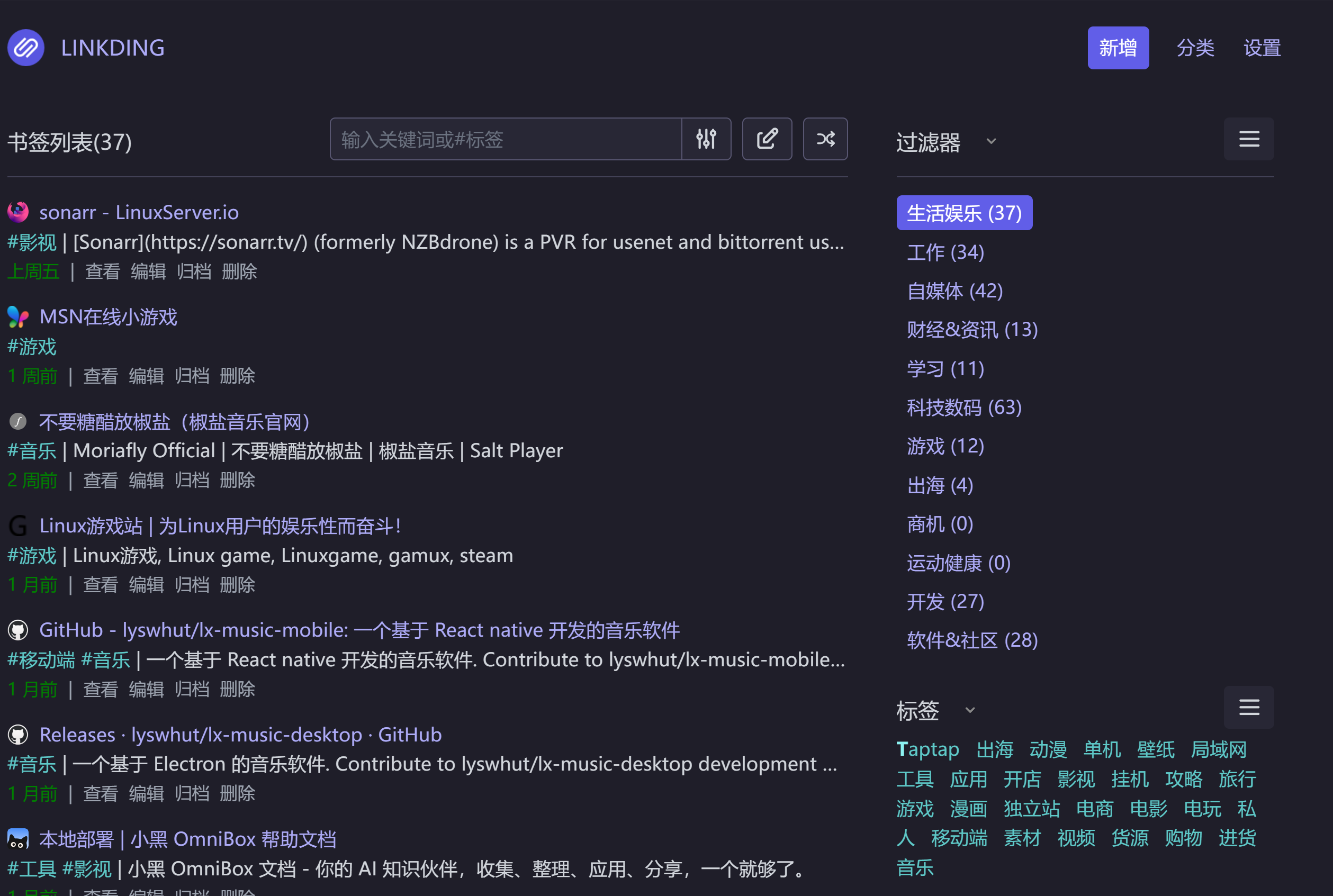
Linkding 是一个开源的书签管理应用,它以其简洁、高效和高度可定制性而著称。它允许用户快速添加、管理和检索书签,同时提供了丰富的功能,如自动元数据抓取、网站快照存档、批量编辑等,以满足不同用户的需求。
性能不错,几万+标签依然很流畅,检索很灵活,支标题、备注、网页正文检索,支持高级语法(日期、未读、标签过滤)
界面简洁美观,支持书签和过滤器(类似分类和文件夹)
支持网页图标和元数据自动获取
Linkding安装部署
1、创建本地存储路径
方便数据持久化
 mkdir -p /opt/linkding /opt/linkding/data
 #进入数据存储目录
 cd /opt/linkding
2、Docker Compose方式创建应用
1)Docker Compose配置文件
 services:
   linkding:
     container_name: "${LD_CONTAINER_NAME}"
     image: woohoodai/linkding-cn:latest
     ports:
       - "${LD_HOST_PORT:-9090}:9090"
     volumes:
       - "${LD_HOST_DATA_DIR:-./data}:/etc/linkding/data"
     env_file:
       - .env
     restart: unless-stopped
     deploy:
       resources:
         limits:
           memory: 1024m  # 限制为使用1GB内存
2).env 配置文件
.env 配置文件,根据官网提供的例子进行修改
.env文件放在/opt/linkding,跟docker compose文件放在一起
# Docker container name
LD_CONTAINER_NAME=linkding-cn
# Port on the host system that the application should be published on
LD_HOST_PORT=9090
# Directory on the host system that should be mounted as data dir into the Docker container
LD_HOST_DATA_DIR=./data
# Can be used to run linkding under a context path, for example: linkding/
# Must end with a slash `/`
LD_CONTEXT_PATH=
# Username of the initial superuser to create, leave empty to not create one
LD_SUPERUSER_NAME=admin
# Password for the initial superuser, leave empty to disable credentials authentication and rely on proxy authentication instead
LD_SUPERUSER_PASSWORD=123456
# Option to disable background tasks
LD_DISABLE_BACKGROUND_TASKS=False
# Option to disable URL validation for bookmarks completely
LD_DISABLE_URL_VALIDATION=False
# Enables support for authentication proxies such as Authelia
LD_ENABLE_AUTH_PROXY=False
# Name of the request header that the auth proxy passes to the application to identify the user
# See docs/Options.md for more details
LD_AUTH_PROXY_USERNAME_HEADER=
# The URL that linkding should redirect to after a logout, when using an auth proxy
# See docs/Options.md for more details
LD_AUTH_PROXY_LOGOUT_URL=
# List of trusted origins from which to accept POST requests
# See docs/Options.md for more details
LD_CSRF_TRUSTED_ORIGINS=
# Database settings
# These are currently only required for configuring PostreSQL.
# By default, linkding uses SQLite for which you don't need to configure anything.
 # Database engine, can be sqlite (default) or postgres
 LD_DB_ENGINE=postgres
 # Database name (default: linkding)
 LD_DB_DATABASE=linkding
 # Username to connect to the database server  (default: linkding)
 LD_DB_USER=admin
 # Password to connect to the database server
 LD_DB_PASSWORD=123456
 # The hostname where the database is hosted (default: localhost)
 LD_DB_HOST=192.168.50.1
 # Port use to connect to the database server
 # Should use the default port if not set
 LD_DB_PORT=5433
 # Any additional options to pass to the database (default: {})
 LD_DB_OPTIONS=
参数说明:
主要修改数据库和容器设置部分,其他可不修改
1、数据库相关配置
数据库支持postgres和sqlite,postgres性能,使用postgres创建linkding
# Database engine, can be sqlite (default) or postgres
LD_DB_ENGINE=postgres
# Database name (default: linkding)
LD_DB_DATABASE=linkding
# Username to connect to the database server (default: linkding)
LD_DB_USER=admin
# Password to connect to the database server
LD_DB_PASSWORD=123456
# The hostname where the database is hosted (default: localhost)
LD_DB_HOST=192.168.50.1
# Port use to connect to the database server
# Should use the default port if not set
LD_DB_PORT=5433
# Any additional options to pass to the database (default: {})
LD_DB_OPTIONS=
2、容器相关配置
容器名、容器端口,容器数据存储路径,主目录下data
 # Docker container name
 LD_CONTAINER_NAME=linkding-cn
 # Port on the host system that the application should be published on
 LD_HOST_PORT=9090
 # Directory on the host system that should be mounted as data dir into the Docker container
 LD_HOST_DATA_DIR=./data
配置管理员:
 LD_SUPERUSER_NAME=admin
 # Password for the initial superuser, leave empty to disable credentials authentication and rely on proxy authentication instead
 LD_SUPERUSER_PASSWORD=123456
 # Option to disable background tasks
3、Docker 命令启动
docker run --name "${LD_CONTAINER_NAME}" -p "${LD_HOST_PORT:-9090}:9090" -v "${LD_HOST_DATA_DIR:-./data}:/etc/linkding/data" -e $(cat .env) --restart unless-stopped -m 1024m --rm woohoodai/linkding-cn:latest
.env文件参考2-Docker Compose
Linkding使用智能
1、添加书签
点击右上角新增按钮,新增一个书签
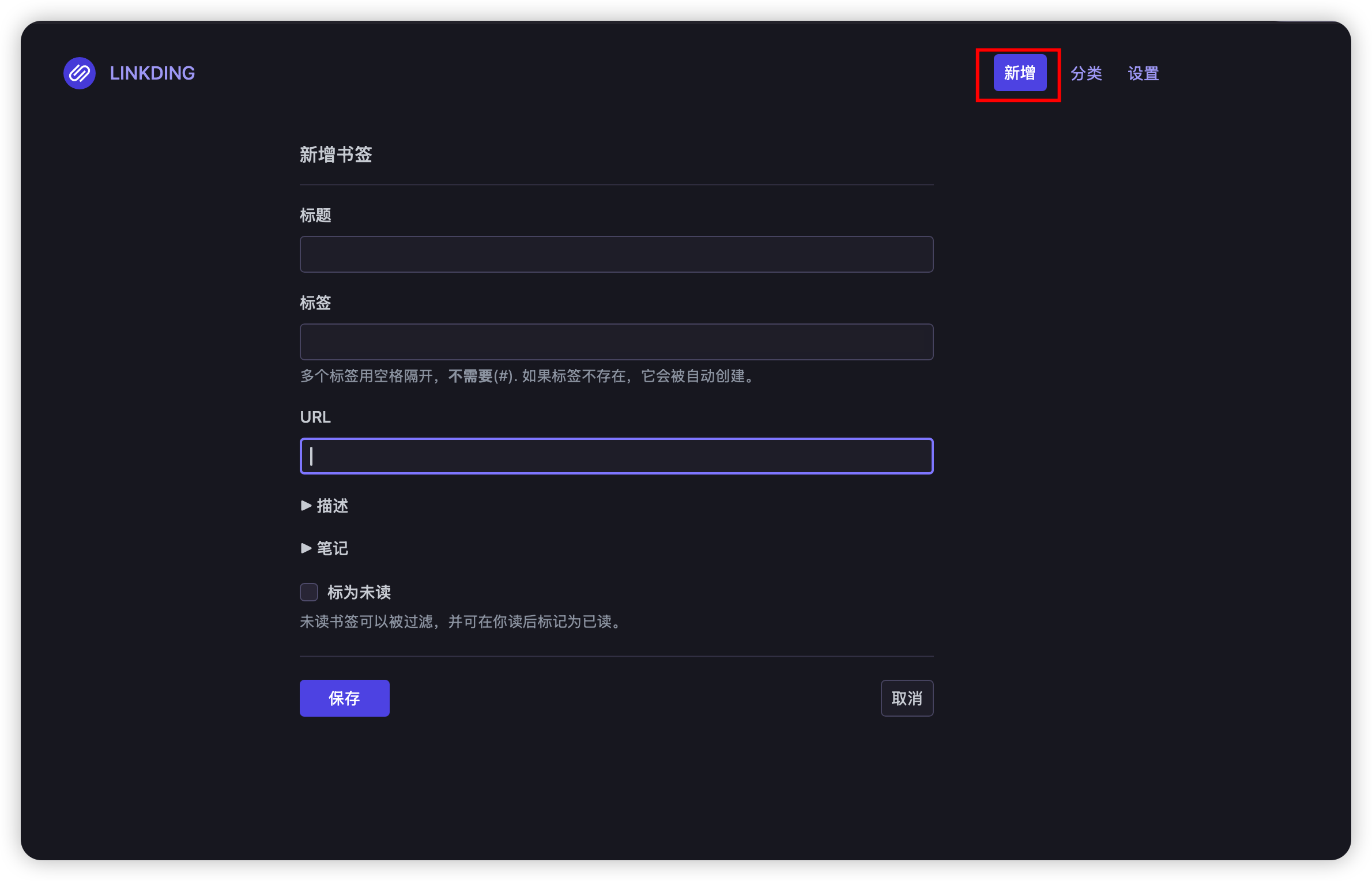
光标默认聚焦在URL,一般我们只要填入网页地址URL、标签即可
标题、地址描述、图标可以自动获取
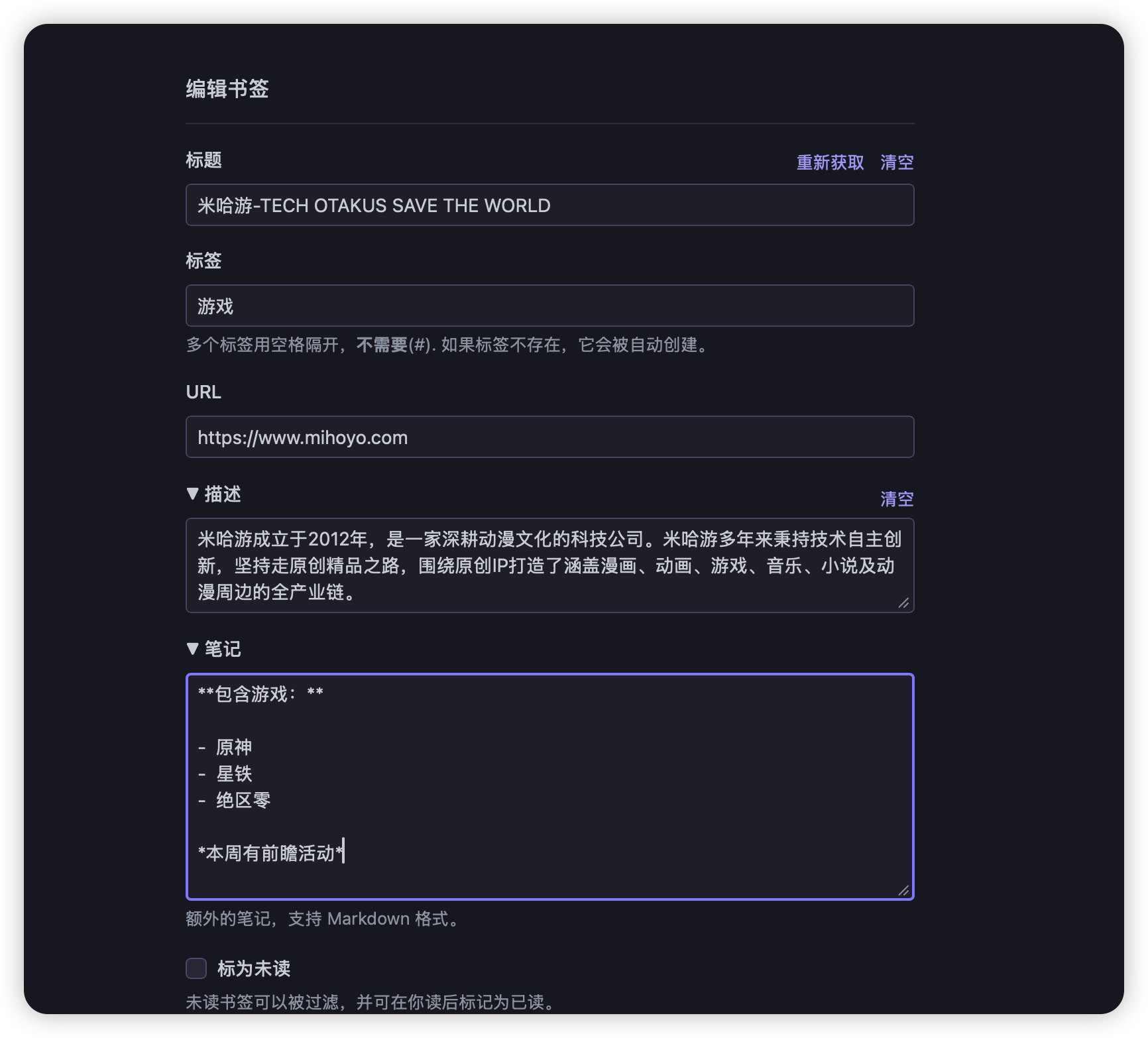
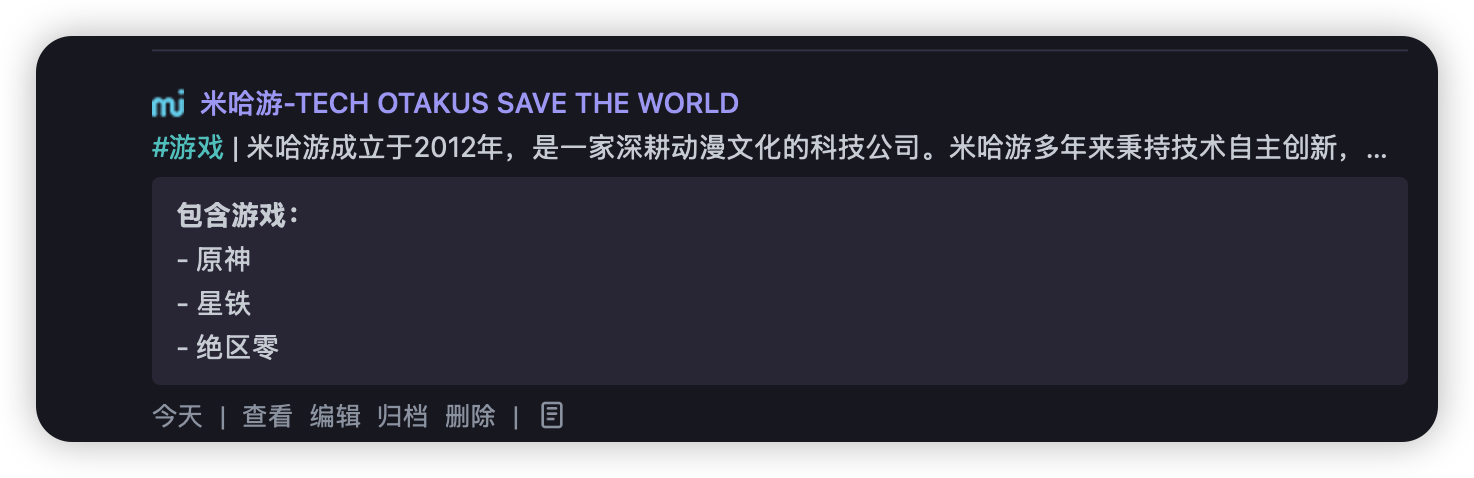
笔记支持Markdown语法
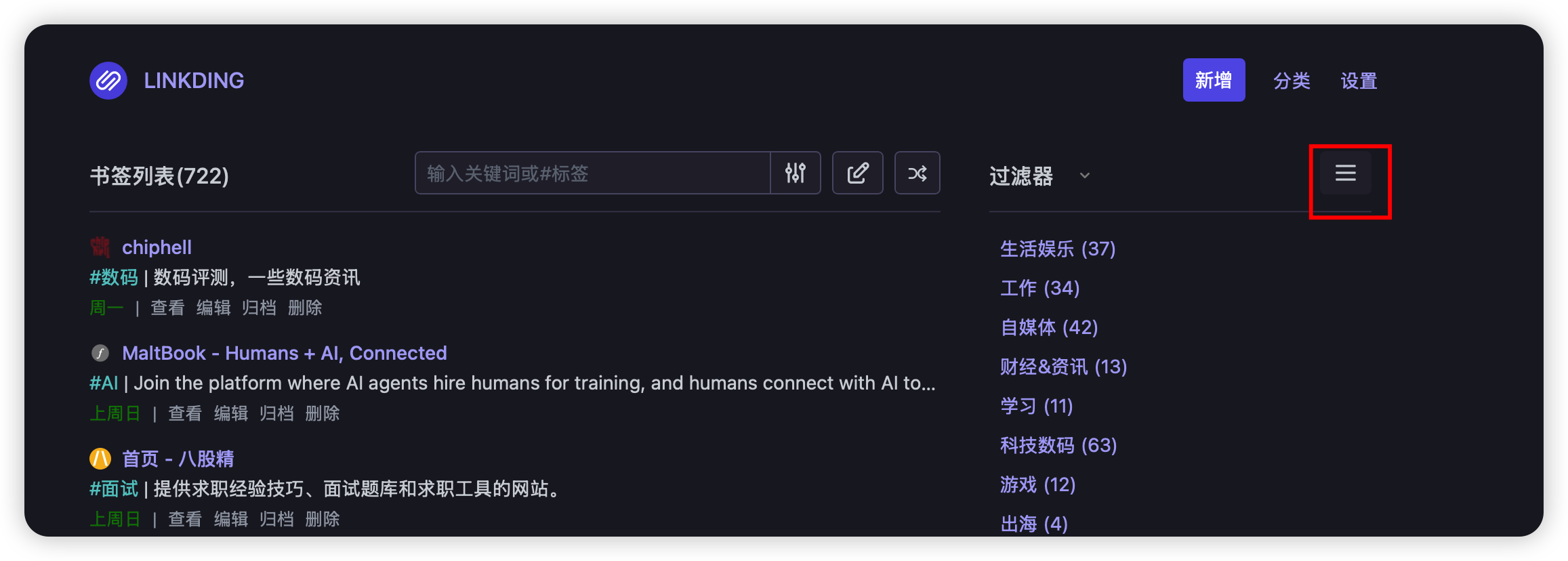
2、设置过滤器
类似文件夹或标签集合的概念
将统一类别的标签、搜索词聚集到一起
1)通过过滤器附近的标签,点击管理过滤器
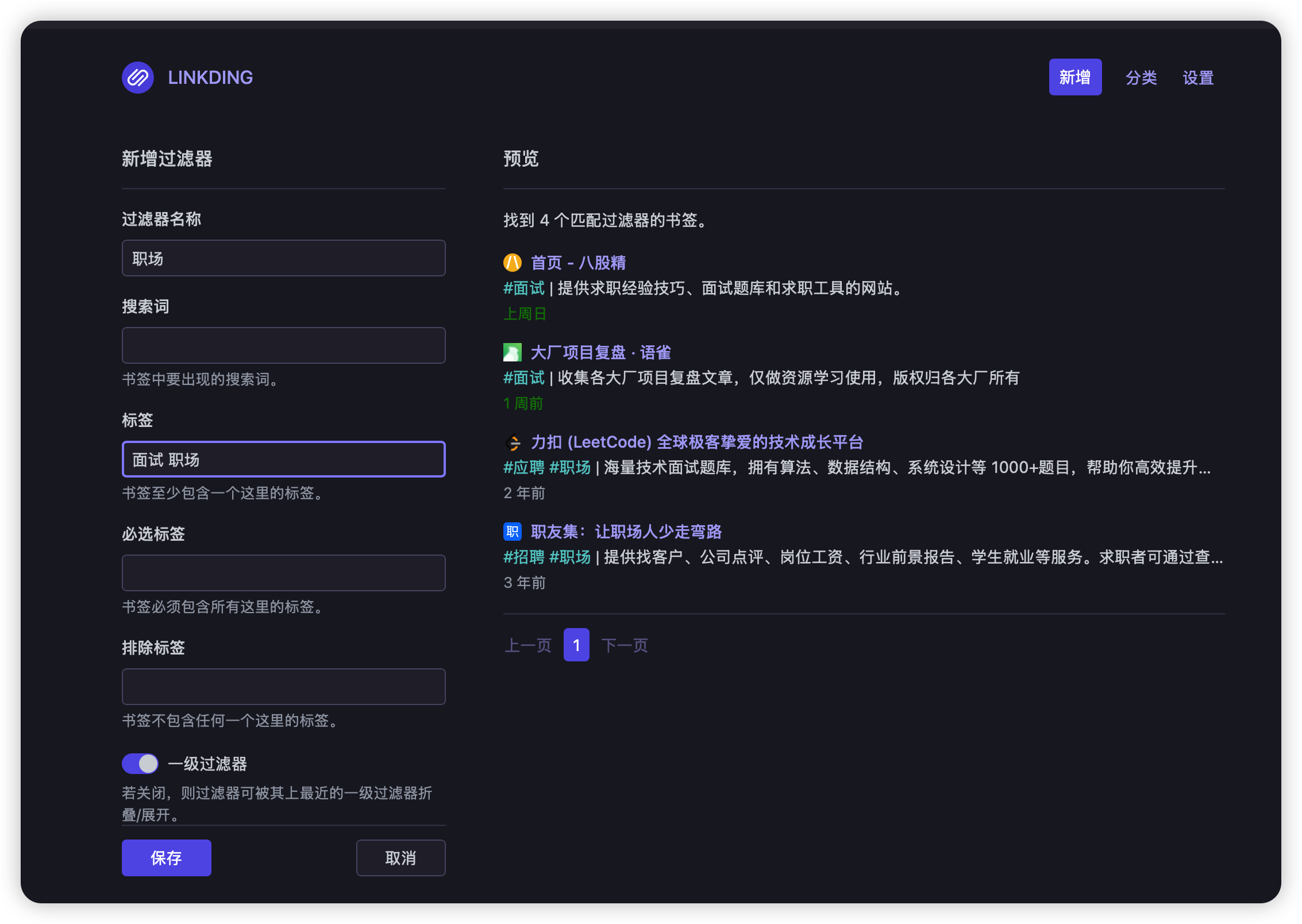
2)新增过滤器
可根据搜索词、标签,必选标签、排除标签等多个条件组合
比如
-
搜索词+排除标签
-
多个标签
生活娱乐类过滤器为例,我们可以将电视、电影、音乐、视频、听歌、听书、K歌、跳舞放到一起,作为一个过滤器

AtomGit 是由开放原子开源基金会联合 CSDN 等生态伙伴共同推出的新一代开源与人工智能协作平台。平台坚持“开放、中立、公益”的理念,把代码托管、模型共享、数据集托管、智能体开发体验和算力服务整合在一起,为开发者提供从开发、训练到部署的一站式体验。
更多推荐
 8
8 0
0- 0


 已为社区贡献21条内容

所有评论(0)