不知道大家有没有同样的感觉:
今年的 “金三银四”,似乎没有想象中那么热闹。
尤其是 前端岗位,不少公司都在收缩,机会明显少了很多。
我最近也参加了几场大厂面试(我面的是 AI 全栈开发岗)。
有一件事让我挺意外的。
某度的面试官在面试完后加微信聊天的时候说:
“刚看到你简历上的个人网站时,就明显感觉到你是一个有技术追求的同学,还让 hr 赶快联系一下面试。”
然后就把这个网站发到分享到小红书上,b站上去了(之前看过类似的效果,特地复刻了一版),反响很不错,所以特此非常以下里面的技术细节。
效果如下:
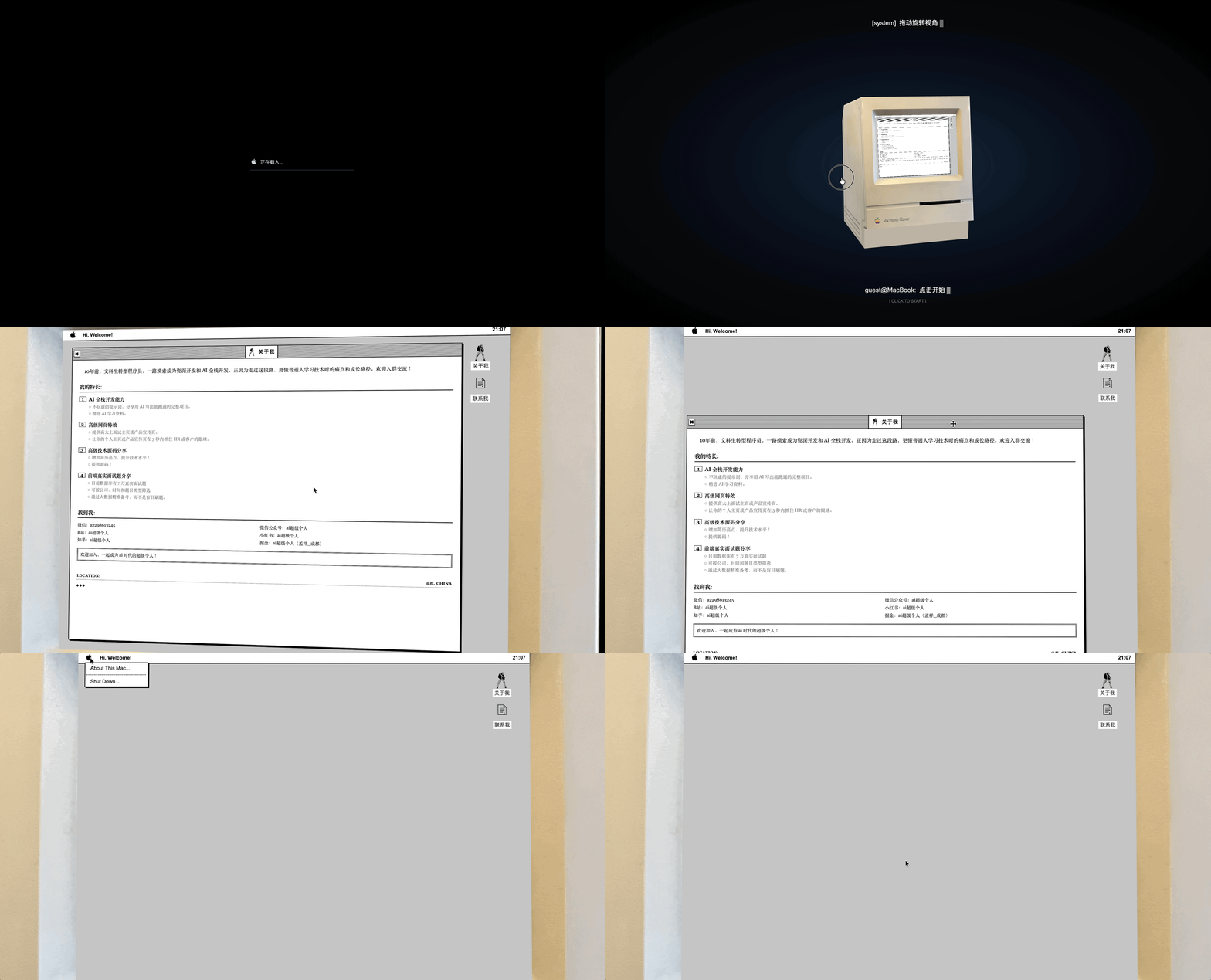
点击跳转在线地址
同时,欢迎大家关注我的微信公众号:ai超级个人,会有更多的炫酷网页分享
这篇文章会稍微偏技术一些。
如果你:
- 对网页动效感兴趣
- 或者几乎没有 Three.js 基础
- 甚至不太懂 3D
这些思路依然很有价值。
尤其是在 你让 AI 帮你调试代码、改造项目的时候,理解这些结构会非常有帮助。
如果你想系统学习 Three.js,我只推荐一套教程:
Three.js Journey(点击跳转 B 站)
这是我心中目前全球范围内,从 0 到 1 最完美的 Three.js 课程。说实话,市面上很多所谓的基础教程,且不说是否存在“割韭菜”的行为,单是乏味的教学逻辑就在浪费你的学习生命。
好了,回到正文。今天我们要深度拆解上面网站效果,以及解决如下三个核心问题:
1. 空间定位:如何在网页中调试模型位置?
在 3D 世界里,任何模型都有它的坐标。以下面这个电脑模型为例:
![image]()
模型默认被放置在原点 $(0, 0, 0)$,这通常没问题。但真正的痛点在于:摄像机应该架在哪?
打个比方,这就好比现实中的人像摄影:
- 被拍的人 → 相当于 3D 模型
- 摄影师 → 相当于 Camera(相机)
模型在那不动,但摄影师的位置(Position)和对焦的方向(LookAt)决定了最终的画面。
而且我们能不能像在 Blender(知名的 3D 图形软件)里一样,在网页端也能直观地旋转、调整远近,从而找到那个最完美的视觉角度?如下图是 blender 的界面:
![image]()
2. 跨次元融合:如何将真实网页嵌入 3D 场景?
请看下图:
![image]()
在这台 3D 电脑模型的屏幕中央,其实嵌套了一个真实的网页(前端术语叫 iframe)。
所以问题来了,在 three.js 中如何嵌套一个别的网站的网页呢?
3. 精准对位:如何调试 iframe 的 3D 坐标?
这是上一个问题的延伸。iframe(网页) 作为一个平面,在 3D 空间中同样拥有自己的坐标和旋转参数。但问题是:
你很难凭直觉盲猜出电脑模型那块屏幕的精确数值。
因此,我们需要一套可视化的调试界面。然后配合我们第一步提到的工具,让我们可以在页面上手动微调 iframe 的位置,直到它与模型屏幕完美贴合。
最后,直接将调试好的坐标参数“写死”在代码里就能保证初始化电脑模型和网页都在合适的坐标上。
接下来,我们一步一步,从 0 到 1 实现这个过程:
网页中调整相机位置小技巧
初始的时候,我们假设有如下代码(精简后的 demo )。代码主要做的是将电脑的模型贴图加载进来。
如果你有不了解的代码块可以借助 ai 了解详细信息,因为已经是最基础的 three.js 代码,如果缺乏必要的基础,建议学习上面的教程。
注:代码使用了 react 框架,你也可以让 ai 改造为你的熟悉的技术栈,例如 vue 或者 html:
import * as THREE from "three";
import { GLTFLoader } from "three/addons/loaders/GLTFLoader.js";
export interface Computer3DConfig {
container: HTMLElement;
modelPath: string;
texturePath: string;
modelScale?: number;
}
export class Computer3D {
private scene: THREE.Scene = new THREE.Scene();
private camera: THREE.PerspectiveCamera;
private renderer: THREE.WebGLRenderer;
private container: HTMLElement;
private config: Computer3DConfig;
constructor(config: Computer3DConfig) {
this.config = { …config };
this.container = config.container;
<span class="hljs-comment">// 1. 初始化相机</span>
<span class="hljs-keyword">const</span> aspect = <span class="hljs-variable language_">window</span>.<span class="hljs-property">innerWidth</span> / <span class="hljs-variable language_">window</span>.<span class="hljs-property">innerHeight</span>;
<span class="hljs-variable language_">this</span>.<span class="hljs-property">camera</span> = <span class="hljs-keyword">new</span> <span class="hljs-variable constant_">THREE</span>.<span class="hljs-title class_">PerspectiveCamera</span>(<span class="hljs-number">35</span>, aspect, <span class="hljs-number">10</span>, <span class="hljs-number">100000</span>);

<span class="hljs-comment">// 2. 初始化渲染器 (WebGL)</span>
<span class="hljs-variable language_">this</span>.<span class="hljs-property">renderer</span> = <span class="hljs-keyword">new</span> <span class="hljs-variable constant_">THREE</span>.<span class="hljs-title class_">WebGLRenderer</span>({ <span class="hljs-attr">antialias</span>: <span class="hljs-literal">true</span>, <span class="hljs-attr">alpha</span>: <span class="hljs-literal">true</span> });
<span class="hljs-variable language_">this</span>.<span class="hljs-property">renderer</span>.<span class="hljs-title function_">setSize</span>(<span class="hljs-variable language_">window</span>.<span class="hljs-property">innerWidth</span>, <span class="hljs-variable language_">window</span>.<span class="hljs-property">innerHeight</span>);
<span class="hljs-variable language_">this</span>.<span class="hljs-property">renderer</span>.<span class="hljs-title function_">setPixelRatio</span>(<span class="hljs-title class_">Math</span>.<span class="hljs-title function_">min</span>(<span class="hljs-variable language_">window</span>.<span class="hljs-property">devicePixelRatio</span>, <span class="hljs-number">2</span>));
<span class="hljs-variable language_">this</span>.<span class="hljs-property">renderer</span>.<span class="hljs-property">domElement</span>.<span class="hljs-property">style</span>.<span class="hljs-property">position</span> = <span class="hljs-string">"absolute"</span>;
<span class="hljs-variable language_">this</span>.<span class="hljs-property">renderer</span>.<span class="hljs-property">domElement</span>.<span class="hljs-property">style</span>.<span class="hljs-property">top</span> = <span class="hljs-string">"0"</span>;
<span class="hljs-variable language_">this</span>.<span class="hljs-property">renderer</span>.<span class="hljs-property">domElement</span>.<span class="hljs-property">style</span>.<span class="hljs-property">zIndex</span> = <span class="hljs-string">"1"</span>;
<span class="hljs-variable language_">this</span>.<span class="hljs-property">container</span>.<span class="hljs-title function_">appendChild</span>(<span class="hljs-variable language_">this</span>.<span class="hljs-property">renderer</span>.<span class="hljs-property">domElement</span>);

<span class="hljs-variable language_">this</span>.<span class="hljs-title function_">render</span>();
}
public async load(): Promise<void> {
const loader = new GLTFLoader();
const textureLoader = new THREE.TextureLoader();
<span class="hljs-comment">// 并行加载模型和贴图</span>
<span class="hljs-keyword">const</span> [gltf, texture] = <span class="hljs-keyword">await</span> <span class="hljs-title class_">Promise</span>.<span class="hljs-title function_">all</span>([
loader.<span class="hljs-title function_">loadAsync</span>(<span class="hljs-variable language_">this</span>.<span class="hljs-property">config</span>.<span class="hljs-property">modelPath</span>),
textureLoader.<span class="hljs-title function_">loadAsync</span>(<span class="hljs-variable language_">this</span>.<span class="hljs-property">config</span>.<span class="hljs-property">texturePath</span>),
]);
<span class="hljs-comment">// 贴图配置</span>
texture.<span class="hljs-property">flipY</span> = <span class="hljs-literal">false</span>;
texture.<span class="hljs-property">colorSpace</span> = <span class="hljs-variable constant_">THREE</span>.<span class="hljs-property">SRGBColorSpace</span>;
<span class="hljs-keyword">const</span> material = <span class="hljs-keyword">new</span> <span class="hljs-variable constant_">THREE</span>.<span class="hljs-title class_">MeshBasicMaterial</span>({ <span class="hljs-attr">map</span>: texture });
<span class="hljs-comment">// 遍历模型应用材质</span>
gltf.<span class="hljs-property">scene</span>.<span class="hljs-title function_">traverse</span>(<span class="hljs-function">(<span class="hljs-params">child: any</span>) =></span> {
<span class="hljs-keyword">if</span> (child <span class="hljs-keyword">instanceof</span> <span class="hljs-variable constant_">THREE</span>.<span class="hljs-property">Mesh</span>) {
child.<span class="hljs-property">material</span> = material;
}
});
<span class="hljs-variable language_">this</span>.<span class="hljs-property">scene</span>.<span class="hljs-title function_">add</span>(gltf.<span class="hljs-property">scene</span>);
}
private render(): void {
requestAnimationFrame(this.render.bind(this));
this.renderer.render(this.scene, this.camera);
}
public onWindowResize(): void {
const width = window.innerWidth;
const height = window.innerHeight;
this.camera.aspect = width / height;
this.camera.updateProjectionMatrix();
this.renderer.setSize(width, height);
}
}
export default Computer3D;
避坑指南:为什么初始化你的 3D 世界是一团黑?
很多同学在加载代码后,满怀期待地打开页面,结果发现是一片漆黑。例如我们上面的代码。
别担心,并不是模型消失了,只是你正“站在模型肚子里”!(模型内部)默认情况下,相机的初始坐标在 (0, 0, 0)。而模型加载进来也通常在原点。
这种“合二为一”的状态让你什么也看不见。为了解决这个问题,我们需要像真正的摄影师一样,完成以下三个层层递进的步骤。
首先就是让相机能够完整的看到电脑模型:
第一步:开启“自动对焦”,给模型一个完美的全身照
首先模型的大小是不可控的,有的只有几厘米,有的却有几百米。
所以我们需要一个通用的“自动对焦”函数,让相机自动根据模型的大小调整距离,起码能看清楚模型的全身,然后再后续微调相机位置。
核心逻辑: 用一个隐形的方框把模型包起来(Box3),测量它的尺寸,然后把相机推到足够远的地方。
private autoFitCamera(object: THREE.Object3D): void {
const box = new THREE.Box3().setFromObject(object);
const size = box.getSize(new THREE.Vector3());
const center = box.getCenter(new THREE.Vector3());
const maxDim = Math.max(size.x, size.y, size.z);
const fov = this.camera.fov * (Math.PI / 180);
const cameraDistance = Math.abs(maxDim / 2 / Math.tan(fov / 2)) * 1.5;
this.camera.position.set(
center.x + maxDim * 0.2,
center.y + maxDim * 0.3,
center.z + cameraDistance,
);
this.controls.target.copy(center);
this.controls.update();
}
第二步:引入“上帝视角”,让场景动起来
有了对焦还不够,如果你想 360 度观察模型,就需要 OrbitControls(轨道控制器)。它能让你的鼠标变成相机的“推进器”和“转盘”。
也就是有了 OrbitControls,我们就可以动态调整相机的位置,让相机上下左右移动,并且旋转相机视角。
代码集成方案:
import { OrbitControls } from "three/examples/jsm/controls/OrbitControls.js";
private controls: OrbitControls;
this.controls = new OrbitControls(this.camera, this.renderer.domElement);
this.controls.enableDamping = true;
this.controls.dampingFactor = 0.05;
private render(): void {
requestAnimationFrame(this.render.bind(this));
this.controls.update();
this.renderer.render(this.scene, this.camera);
}
第三步:搭建“导演工作站”,用键盘寻找黄金视角
上面 OrbitControls 虽然能动态调整相机位置,但是毕竟鼠标不好控制,我们还需要增加一些精细的微调方法。
我们采取的是通过键盘微调相机位置,找到感觉最好的那一刻,记录下坐标。也就是键盘一些快捷键能小范围的移动相机视角。
功能说明:
private setupDebugControls(): void {
const gridHelper = new THREE.GridHelper(10000, 100);
const axesHelper = new THREE.AxesHelper(5000);
this.scene.add(gridHelper, axesHelper);
window.addEventListener(“keydown”, (e) => {
const step = 100;
const moveMap: Record<string, [number, number, number]> = {
ArrowUp: [0, step, 0],
ArrowDown: [0, -step, 0],
ArrowLeft: [-step, 0, 0],
ArrowRight: [step, 0, 0],
w: [0, 0, -step],
s: [0, 0, step],
};
<span class="hljs-keyword">if</span> (moveMap[e.<span class="hljs-property">key</span>]) {
  <span class="hljs-keyword">const</span> [x, y, z] = moveMap[e.<span class="hljs-property">key</span>];
  <span class="hljs-variable language_">this</span>.<span class="hljs-property">camera</span>.<span class="hljs-property">position</span>.<span class="hljs-title function_">addScaledVector</span>(<span class="hljs-keyword">new</span> <span class="hljs-variable constant_">THREE</span>.<span class="hljs-title class_">Vector3</span>(x, y, z), <span class="hljs-number">1</span>);
}

<span class="hljs-comment">// ✅ 导出视角:当你调到满意的角度时,按 P 打印参数</span>
<span class="hljs-keyword">if</span> (e.<span class="hljs-property">key</span> === <span class="hljs-string">"p"</span>) {
  <span class="hljs-variable language_">console</span>.<span class="hljs-title function_">log</span>(<span class="hljs-string">`--- 记录当前黄金视角 ---`</span>);
  <span class="hljs-variable language_">console</span>.<span class="hljs-title function_">log</span>(<span class="hljs-string">`相机位置: .set(<span class="hljs-subst">${<span class="hljs-variable language_">this</span>.camera.position.x}</span>, <span class="hljs-subst">${<span class="hljs-variable language_">this</span>.camera.position.y}</span>, <span class="hljs-subst">${<span class="hljs-variable language_">this</span>.camera.position.z}</span>)`</span>);
  <span class="hljs-variable language_">console</span>.<span class="hljs-title function_">log</span>(<span class="hljs-string">`盯着看的目标点: .set(<span class="hljs-subst">${<span class="hljs-variable language_">this</span>.controls.target.x}</span>, <span class="hljs-subst">${<span class="hljs-variable language_">this</span>.controls.target.y}</span>, <span class="hljs-subst">${<span class="hljs-variable language_">this</span>.controls.target.z}</span>)`</span>);
}
});
}
综上所述,大概就能模拟一个 3D 模型软件的 Camera 视角了。
将网页加入到 three.js 中
这一章节我们进入最酷的部分:让你的 3D 电脑真正“联网”(嵌入网页)。
在普通的 3D 场景中,物体通常只是死板的几何体。但 Three.js 提供了一个强大的“传送门” —— CSS3DObject。
它能把真实的 HTML 元素(如 div、iframe、video)直接塞进 3D 空间,让网页像贴纸一样贴在模型的屏幕上,且依然保持可点击、可交互。
要实现这个效果,我们需要同时运行两个渲染器:
我们将这两个渲染器的画布重叠在一起,并让它们共享同一个相机(Camera)。这样当你旋转镜头时,网页和模型就会同步运动,看起来就像网页长在模型上一样。
最小实现 Demo 代码:
以下是整合了模型加载与 iframe 屏幕渲染的完整代码:
import * as THREE from "three";
import { GLTFLoader } from "three/addons/loaders/GLTFLoader.js";
import { OrbitControls } from "three/addons/controls/OrbitControls.js";
import {
  CSS3DRenderer,
  CSS3DObject,
} from "three/addons/renderers/CSS3DRenderer.js";
export interface Computer3DConfig {
container: HTMLElement;
modelPath: string;
texturePath: string;
screenUrl: string;
modelScale?: number;
}
export class Computer3D {
private scene: THREE.Scene = new THREE.Scene();
private cssScene: THREE.Scene = new THREE.Scene();
private camera: THREE.PerspectiveCamera;
private renderer: THREE.WebGLRenderer;
private cssRenderer: CSS3DRenderer;
private controls: OrbitControls;
private container: HTMLElement;
private config: Computer3DConfig;
constructor(config: Computer3DConfig) {
this.config = { modelScale: 4200, …config };
this.container = config.container;
<span class="hljs-keyword">const</span> width = <span class="hljs-variable language_">window</span>.<span class="hljs-property">innerWidth</span>;
<span class="hljs-keyword">const</span> height = <span class="hljs-variable language_">window</span>.<span class="hljs-property">innerHeight</span>;
<span class="hljs-comment">// 1. 初始化相机</span>
<span class="hljs-variable language_">this</span>.<span class="hljs-property">camera</span> = <span class="hljs-keyword">new</span> <span class="hljs-variable constant_">THREE</span>.<span class="hljs-title class_">PerspectiveCamera</span>(<span class="hljs-number">35</span>, width / height, <span class="hljs-number">10</span>, <span class="hljs-number">100000</span>);
<span class="hljs-variable language_">this</span>.<span class="hljs-property">camera</span>.<span class="hljs-property">position</span>.<span class="hljs-title function_">set</span>(<span class="hljs-number">930</span>, <span class="hljs-number">600</span>, <span class="hljs-number">4500</span>);
<span class="hljs-comment">// 2. 初始化 WebGL 渲染器 (渲染底层模型)</span>
<span class="hljs-variable language_">this</span>.<span class="hljs-property">renderer</span> = <span class="hljs-keyword">new</span> <span class="hljs-variable constant_">THREE</span>.<span class="hljs-title class_">WebGLRenderer</span>({ <span class="hljs-attr">antialias</span>: <span class="hljs-literal">true</span>, <span class="hljs-attr">alpha</span>: <span class="hljs-literal">true</span> });
<span class="hljs-variable language_">this</span>.<span class="hljs-property">renderer</span>.<span class="hljs-title function_">setSize</span>(width, height);
<span class="hljs-variable language_">this</span>.<span class="hljs-property">renderer</span>.<span class="hljs-title function_">setPixelRatio</span>(<span class="hljs-title class_">Math</span>.<span class="hljs-title function_">min</span>(<span class="hljs-variable language_">window</span>.<span class="hljs-property">devicePixelRatio</span>, <span class="hljs-number">2</span>));
<span class="hljs-variable language_">this</span>.<span class="hljs-property">renderer</span>.<span class="hljs-property">domElement</span>.<span class="hljs-property">style</span>.<span class="hljs-property">position</span> = <span class="hljs-string">"absolute"</span>;
<span class="hljs-variable language_">this</span>.<span class="hljs-property">renderer</span>.<span class="hljs-property">domElement</span>.<span class="hljs-property">style</span>.<span class="hljs-property">top</span> = <span class="hljs-string">"0"</span>;
<span class="hljs-variable language_">this</span>.<span class="hljs-property">renderer</span>.<span class="hljs-property">domElement</span>.<span class="hljs-property">style</span>.<span class="hljs-property">zIndex</span> = <span class="hljs-string">"1"</span>; <span class="hljs-comment">// 确保在底层</span>
<span class="hljs-variable language_">this</span>.<span class="hljs-property">container</span>.<span class="hljs-title function_">appendChild</span>(<span class="hljs-variable language_">this</span>.<span class="hljs-property">renderer</span>.<span class="hljs-property">domElement</span>);
<span class="hljs-comment">// 3. 初始化 CSS3D 渲染器 (渲染顶层网页)</span>
<span class="hljs-variable language_">this</span>.<span class="hljs-property">cssRenderer</span> = <span class="hljs-keyword">new</span> <span class="hljs-title class_">CSS3DRenderer</span>();
<span class="hljs-variable language_">this</span>.<span class="hljs-property">cssRenderer</span>.<span class="hljs-title function_">setSize</span>(width, height);
<span class="hljs-variable language_">this</span>.<span class="hljs-property">cssRenderer</span>.<span class="hljs-property">domElement</span>.<span class="hljs-property">style</span>.<span class="hljs-property">position</span> = <span class="hljs-string">"absolute"</span>;
<span class="hljs-variable language_">this</span>.<span class="hljs-property">cssRenderer</span>.<span class="hljs-property">domElement</span>.<span class="hljs-property">style</span>.<span class="hljs-property">top</span> = <span class="hljs-string">"0"</span>;
<span class="hljs-variable language_">this</span>.<span class="hljs-property">cssRenderer</span>.<span class="hljs-property">domElement</span>.<span class="hljs-property">style</span>.<span class="hljs-property">zIndex</span> = <span class="hljs-string">"2"</span>; <span class="hljs-comment">// 盖在模型上面</span>
<span class="hljs-variable language_">this</span>.<span class="hljs-property">container</span>.<span class="hljs-title function_">appendChild</span>(<span class="hljs-variable language_">this</span>.<span class="hljs-property">cssRenderer</span>.<span class="hljs-property">domElement</span>);
<span class="hljs-comment">// 4. 初始化轨道控制器</span>
<span class="hljs-comment">// 💡 注意:事件监听要绑定在最上层的 cssRenderer 元素上,否则会被遮挡</span>
<span class="hljs-variable language_">this</span>.<span class="hljs-property">controls</span> = <span class="hljs-keyword">new</span> <span class="hljs-title class_">OrbitControls</span>(<span class="hljs-variable language_">this</span>.<span class="hljs-property">camera</span>, <span class="hljs-variable language_">this</span>.<span class="hljs-property">cssRenderer</span>.<span class="hljs-property">domElement</span>);
<span class="hljs-variable language_">this</span>.<span class="hljs-property">controls</span>.<span class="hljs-property">enableDamping</span> = <span class="hljs-literal">true</span>;
<span class="hljs-variable language_">this</span>.<span class="hljs-property">controls</span>.<span class="hljs-property">target</span>.<span class="hljs-title function_">set</span>(<span class="hljs-number">925</span>, <span class="hljs-number">310</span>, -<span class="hljs-number">300</span>);
<span class="hljs-variable language_">this</span>.<span class="hljs-title function_">render</span>();
<span class="hljs-variable language_">window</span>.<span class="hljs-title function_">addEventListener</span>(<span class="hljs-string">"resize"</span>, <span class="hljs-function">() =></span> <span class="hljs-variable language_">this</span>.<span class="hljs-title function_">onWindowResize</span>());
}
public async load(): Promise<void> {
const loader = new GLTFLoader();
const textureLoader = new THREE.TextureLoader();
<span class="hljs-keyword">const</span> [gltf, texture] = <span class="hljs-keyword">await</span> <span class="hljs-title class_">Promise</span>.<span class="hljs-title function_">all</span>([
loader.<span class="hljs-title function_">loadAsync</span>(<span class="hljs-variable language_">this</span>.<span class="hljs-property">config</span>.<span class="hljs-property">modelPath</span>),
textureLoader.<span class="hljs-title function_">loadAsync</span>(<span class="hljs-variable language_">this</span>.<span class="hljs-property">config</span>.<span class="hljs-property">texturePath</span>),
]);
texture.<span class="hljs-property">flipY</span> = <span class="hljs-literal">false</span>;
texture.<span class="hljs-property">colorSpace</span> = <span class="hljs-variable constant_">THREE</span>.<span class="hljs-property">SRGBColorSpace</span>;
<span class="hljs-keyword">const</span> material = <span class="hljs-keyword">new</span> <span class="hljs-variable constant_">THREE</span>.<span class="hljs-title class_">MeshBasicMaterial</span>({ <span class="hljs-attr">map</span>: texture });
gltf.<span class="hljs-property">scene</span>.<span class="hljs-title function_">traverse</span>(<span class="hljs-function">(<span class="hljs-params">child: any</span>) =></span> {
<span class="hljs-keyword">if</span> (child <span class="hljs-keyword">instanceof</span> <span class="hljs-variable constant_">THREE</span>.<span class="hljs-property">Mesh</span>) {
child.<span class="hljs-property">scale</span>.<span class="hljs-title function_">setScalar</span>(<span class="hljs-variable language_">this</span>.<span class="hljs-property">config</span>.<span class="hljs-property">modelScale</span>!);
child.<span class="hljs-property">material</span> = material;
}
});
<span class="hljs-variable language_">this</span>.<span class="hljs-property">scene</span>.<span class="hljs-title function_">add</span>(gltf.<span class="hljs-property">scene</span>);
<span class="hljs-comment">// 🔥 模型加载完后,开始在 3D 空间“插”一个网页</span>
<span class="hljs-variable language_">this</span>.<span class="hljs-title function_">initIframeScreen</span>();
}
private initIframeScreen(): void {
const SCREEN_W = 1480;
const SCREEN_H = 1100;
<span class="hljs-comment">// 创建原生 iframe</span>
<span class="hljs-keyword">const</span> iframe = <span class="hljs-variable language_">document</span>.<span class="hljs-title function_">createElement</span>(<span class="hljs-string">"iframe"</span>);
iframe.<span class="hljs-property">src</span> = <span class="hljs-variable language_">this</span>.<span class="hljs-property">config</span>.<span class="hljs-property">screenUrl</span>;
iframe.<span class="hljs-property">style</span>.<span class="hljs-property">width</span> = <span class="hljs-string">`<span class="hljs-subst">${SCREEN_W}</span>px`</span>;
iframe.<span class="hljs-property">style</span>.<span class="hljs-property">height</span> = <span class="hljs-string">`<span class="hljs-subst">${SCREEN_H}</span>px`</span>;
iframe.<span class="hljs-property">style</span>.<span class="hljs-property">border</span> = <span class="hljs-string">"none"</span>;
iframe.<span class="hljs-property">style</span>.<span class="hljs-property">backgroundColor</span> = <span class="hljs-string">"#000"</span>;

<span class="hljs-comment">// 包装成 3D 对象</span>
<span class="hljs-keyword">const</span> cssObject = <span class="hljs-keyword">new</span> <span class="hljs-title class_">CSS3DObject</span>(iframe);

<span class="hljs-comment">/**
 * 🛠 坐标微调:
 * 这是最关键也最耗时的一步。你需要根据模型屏幕的具体位置,
 * 反复调整 position 和 rotation,直到 iframe 严丝合缝地贴在模型框里。
 * 下一小节会有微调的方法
 */</span>
cssObject.<span class="hljs-property">position</span>.<span class="hljs-title function_">set</span>(<span class="hljs-number">900</span>, <span class="hljs-number">458</span>, <span class="hljs-number">765</span>);
cssObject.<span class="hljs-property">rotation</span>.<span class="hljs-property">x</span> = -<span class="hljs-number">1</span>; <span class="hljs-comment">// 配合模型显示器的后仰角度</span>

<span class="hljs-variable language_">this</span>.<span class="hljs-property">cssScene</span>.<span class="hljs-title function_">add</span>(cssObject);
}
private onWindowResize(): void {
const w = window.innerWidth;
const h = window.innerHeight;
this.camera.aspect = w / h;
this.camera.updateProjectionMatrix();
this.renderer.setSize(w, h);
this.cssRenderer.setSize(w, h);
}
private render(): void {
requestAnimationFrame(this.render.bind(this));
this.controls.update();
<span class="hljs-comment">// 💡 必须同时渲染 WebGL 和 CSS3D 两个场景</span>
<span class="hljs-variable language_">this</span>.<span class="hljs-property">renderer</span>.<span class="hljs-title function_">render</span>(<span class="hljs-variable language_">this</span>.<span class="hljs-property">scene</span>, <span class="hljs-variable language_">this</span>.<span class="hljs-property">camera</span>);
<span class="hljs-variable language_">this</span>.<span class="hljs-property">cssRenderer</span>.<span class="hljs-title function_">render</span>(<span class="hljs-variable language_">this</span>.<span class="hljs-property">cssScene</span>, <span class="hljs-variable language_">this</span>.<span class="hljs-property">camera</span>);
}
}
闭坑指南:
我们将 cssRenderer 的 zIndex 设为 2(放在模型上面, 模型的 zIndex 是 1,谁的 zIndex 大,谁就在上面)。所以我们需要我们的网页(用 cssRenderer 渲染)层级更高。
这样你才能直接在 3D 场景里点击网页上的按钮、滑动网页。如果 WebGL 渲染器在上面,网页就只能看不能摸了。
现在的实现方式有一个小缺陷:因为 cssRenderer 永远在 WebGL 模型之上,所以即便你把电脑转到背面,网页依然会“穿过”模型显示在最前面。
因为 cssRender 渲染的是 HTML 元素, 又因为 html 支持 css 中的 backfaceVisibility 属性可以隐藏背面不可见。
所以自然给 cssRender 元素增加 backfaceVisibility = true 即可解决穿模问题。
如何让网页严丝合缝地“贴”到模型屏幕上?
接下来就是最后一个问题了,如何把网页贴在电脑模型的屏幕上。介绍一种常见的微调方法。
我们引入调试利器:Tweakpane。
有类似功能的调试库有很多,如常见的有 dat.GUI,lil-gui 等等,我们使用的是 ai 建议的 Tweakpane 库,并且调试代码完全可以交给 ai 来写。
调试的界面如下:
![image]()
这部分代码 ai 实现很容易,你可以用以下 prompt 生成对应代码即可,如下:
“我正在使用 Three.js 和 CSS3DObject。请帮我引入 Tweakpane 库,为我的 cssObject 创建一个调试面板。
需求:
1. 添加 position (x,y,z) 的调试滑块,范围设置在 -2000 到 2000。
2. 添加 rotation (x,y,z) 的调试滑块,范围是 -Math.PI 到 Math.PI。
3. 添加一个 ‘Export’ 按钮,点击后能在控制台直接打印出当前的 position.set(x,y,z) 和 rotation.set(x,y,z) 代码,方便我复制固定死。请给我完整的 TypeScript 代码片段。”
通过上面的学习,我们发现 3D 网页开发不仅仅是写代码,更是一场关于“寻找最佳视角”的艺术。
最后,欢迎大家加群一起讨论全栈 AI 的实践,讨论酷炫动画的实现。我们下期再见!


 已为社区贡献4条内容

所有评论(0)