Docker——harbor
0、前言
1. Harbor,是一个英文单词,意思是港湾,港湾是干什么的呢,就是停放货物的,而货物呢,是装在集装箱中的,说到集装箱,就不得不提到Docker容器,因为docker容器的技术正是借鉴了集装箱的原理。所以,Harbor正是一个用于存储Docker镜像的企业级Registry服务。Harbor是构建企业级私有docker镜像的仓库的开源解决方案,它是Docker Registry的更高级封装
2. Registry是Dcoker官方的一个私有仓库镜像,可以将本地的镜像打标签进行标记然后push到以Registry起的容器的私有仓库中。企业可以根据自己的需求,使用Dokcerfile生成自己的镜像,并推到私有仓库中,这样可以大大提高拉取镜像的效率。
1、harbor核心组件解释
• Proxy:他是一个nginx的前端代理,代理Harbor的registry,UI, token等服务。
• db:负责储存用户权限、审计日志、Dockerimage分组信息等数据。
• UI:提供图形化界面,帮助用户管理registry上的镜像, 并对用户进行授权。
• jobsevice:jobsevice是负责镜像复制工作的,他和registry通信,从一个registry pull镜像然后push到另一个registry,并记录job_log。
• Adminserver:是系统的配置管理中心附带检查存储用量,ui和jobserver启动时候回需要加载adminserver的配置。
• Registry:镜像仓库,负责存储镜像文件。
• Log:为了帮助监控Harbor运行,负责收集其他组件的log,供日后 进行分析。
2、harbor和registry的比较
Harbor和Registry都是Docker的镜像仓库,但是Harbor作为更多企业的选择,是因为相比较于Regisrty来说,它具有很多的优势。
1.提供分层传输机制,优化网络传输
Docker镜像是是分层的,而如果每次传输都使用全量文件(所以用FTP的方式并不适合),显然不经济。必须提供识别分层传输的机制,以层的UUID为标识,确定传输的对象。
2.提供WEB界面,优化用户体验
只用镜像的名字来进行上传下载显然很不方便,需要有一个用户界面可以支持登陆、搜索功能,包括区分公有、私有镜像。
3.支持水平扩展集群
当有用户对镜像的上传下载操作集中在某服务器,需要对相应的访问压力作分解。
4.良好的安全机制
企业中的开发团队有很多不同的职位,对于不同的职位人员,分配不同的权限,具有更好的安全性。
5.Harbor提供了基于角色的访问控制机制,并通过项目来对镜像进行组织和访问权限的控制。kubernetes中通过namespace来对资源进行隔离,在企业级应用场景中,通过将两者进行结合可以有效将kubernetes使用的镜像资源进行管理和访问控制,增强镜像使用的安全性。尤其是在多租户场景下,可以通过租户、namespace和项目相结合的方式来实现对多租户镜像资源的管理和访问控制。
3、部署
(1)获取包
[root@Anolist ~]# wget https://github.com/goharbor/harbor/releases/download/v2.14.1/harbor-offline-installer-v2.14.1.tgz
(2)解压缩
[root@Anolist ~]# tar -xvf harbor-offline-installer-v2.14.1.tgz -C /usr/local/
harbor/harbor.v2.14.1.tar.gz
harbor/prepare
harbor/LICENSE
harbor/install.sh
harbor/common.sh
harbor/harbor.yml.tmpl
(3)拷贝文件
[root@Anolist harbor]# cd /usr/local/harbor/
[root@Anolist harbor]# cp harbor.yml.tmpl harbor.yml
(4)修改配置文件
修改为你的hostname,记得要在/etc/hosts下解析
[root@Anolis harbor]# more harbor.yml | grep '^hostname'
hostname: Anolis可以修改http的端口
[root@Anolis harbor]# more harbor.yml | grep 8848
port: 8848
https的内容可以先注释,先测试
#https:
# https port for harbor, default is 443
# port: 443
# The path of cert and key files for nginx
# certificate: /your/certificate/path
# private_key: /your/private/key/path可以修改密码
[root@Anolis harbor]# more harbor.yml | grep Harbor12345
harbor_admin_password: Harbor12345
(5)安装
执行安装脚本
[root@Anolis harbor]# ./install.sh
[Step 5]: starting Harbor ...
——————————省略
✔ ----Harbor has been installed and started successfully.----
[root@Anolis harbor]#
最后出现successfully即安装成功
可以查看组件都运行了
[root@Anolis harbor]# docker ps -a
CONTAINER ID IMAGE COMMAND CREATED STATUS PORTS NAMES
4fba57be75f4 goharbor/harbor-jobservice:v2.14.1 "/harbor/entrypoint.…" About a minute ago Up About a minute (healthy) harbor-jobservice
3047b95e7860 goharbor/nginx-photon:v2.14.1 "nginx -g 'daemon of…" About a minute ago Up About a minute (healthy) 0.0.0.0:8848->8080/tcp, :::8848->8080/tcp nginx
2341598f226b goharbor/harbor-core:v2.14.1 "/harbor/entrypoint.…" About a minute ago Up About a minute (healthy) harbor-core
398cece77041 goharbor/harbor-portal:v2.14.1 "nginx -g 'daemon of…" About a minute ago Up About a minute (healthy) harbor-portal
5e3e5cfdf78f goharbor/harbor-db:v2.14.1 "/docker-entrypoint.…" About a minute ago Up About a minute (healthy) harbor-db
44e292fc8f35 goharbor/redis-photon:v2.14.1 "redis-server /etc/r…" About a minute ago Up About a minute (healthy) redis
e589ef81f50c goharbor/harbor-registryctl:v2.14.1 "/home/harbor/start.…" About a minute ago Up About a minute (healthy) registryctl
26d9cfad7d13 goharbor/registry-photon:v2.14.1 "/home/harbor/entryp…" About a minute ago Up About a minute (healthy) registry
15e57e598bd9 goharbor/harbor-log:v2.14.1 "/bin/sh -c /usr/loc…" About a minute ago Up About a minute (healthy) 127.0.0.1:1514->10514/tcp harbor-log
或者用docker-compose
[root@Anolis harbor]# docker-compose up -d
[+] up 9/9
✔ Container harbor-log Started 0.2s
✔ Container harbor-portal Started 0.6s
✔ Container harbor-db Started 0.6s
✔ Container redis Started 0.7s
✔ Container registryctl Started 0.7s
✔ Container registry Started 0.7s
✔ Container harbor-core Started 0.8s
✔ Container nginx Started 1.2s
✔ Container harbor-jobservice Started 1.1s
[root@Anolis harbor]# docker-compose ps
NAME IMAGE COMMAND SERVICE CREATED STATUS PORTS
harbor-core goharbor/harbor-core:v2.14.1 "/harbor/entrypoint.…" core 7 seconds ago Up 5 seconds (health: starting)
harbor-db goharbor/harbor-db:v2.14.1 "/docker-entrypoint.…" postgresql 7 seconds ago Up 5 seconds (health: starting)
harbor-jobservice goharbor/harbor-jobservice:v2.14.1 "/harbor/entrypoint.…" jobservice 7 seconds ago Up 5 seconds (health: starting)
harbor-log goharbor/harbor-log:v2.14.1 "/bin/sh -c /usr/loc…" log 7 seconds ago Up 6 seconds (health: starting) 127.0.0.1:1514->10514/tcp
harbor-portal goharbor/harbor-portal:v2.14.1 "nginx -g 'daemon of…" portal 7 seconds ago Up 5 seconds (health: starting)
nginx goharbor/nginx-photon:v2.14.1 "nginx -g 'daemon of…" proxy 7 seconds ago Up 5 seconds (health: starting) 0.0.0.0:8848->8080/tcp, [::]:8848->8080/tcp
redis goharbor/redis-photon:v2.14.1 "redis-server /etc/r…" redis 7 seconds ago Up 5 seconds (health: starting)
registry goharbor/registry-photon:v2.14.1 "/home/harbor/entryp…" registry 7 seconds ago Up 5 seconds (health: starting)
registryctl goharbor/harbor-registryctl:v2.14.1 "/home/harbor/start.…" registryctl 7 seconds ago Up 5 seconds (health: starting)
[root@Anolis harbor]#[root@Anolis harbor]# ss -anplt
State Recv-Q Send-Q Local Address:Port Peer Address:Port Process
LISTEN 0 4096 127.0.0.1:1514 0.0.0.0:* users:(("docker-proxy",pid=21165,fd=4))
LISTEN 0 4096 0.0.0.0:8848 0.0.0.0:* users:(("docker-proxy",pid=21731,fd=4))
LISTEN 0 128 0.0.0.0:22 0.0.0.0:* users:(("sshd",pid=919,fd=3))
LISTEN 0 4096 [::]:8848 [::]:* users:(("docker-proxy",pid=21736,fd=4))
LISTEN 0 128 [::]:22 [::]:* users:(("sshd",pid=919,fd=4))
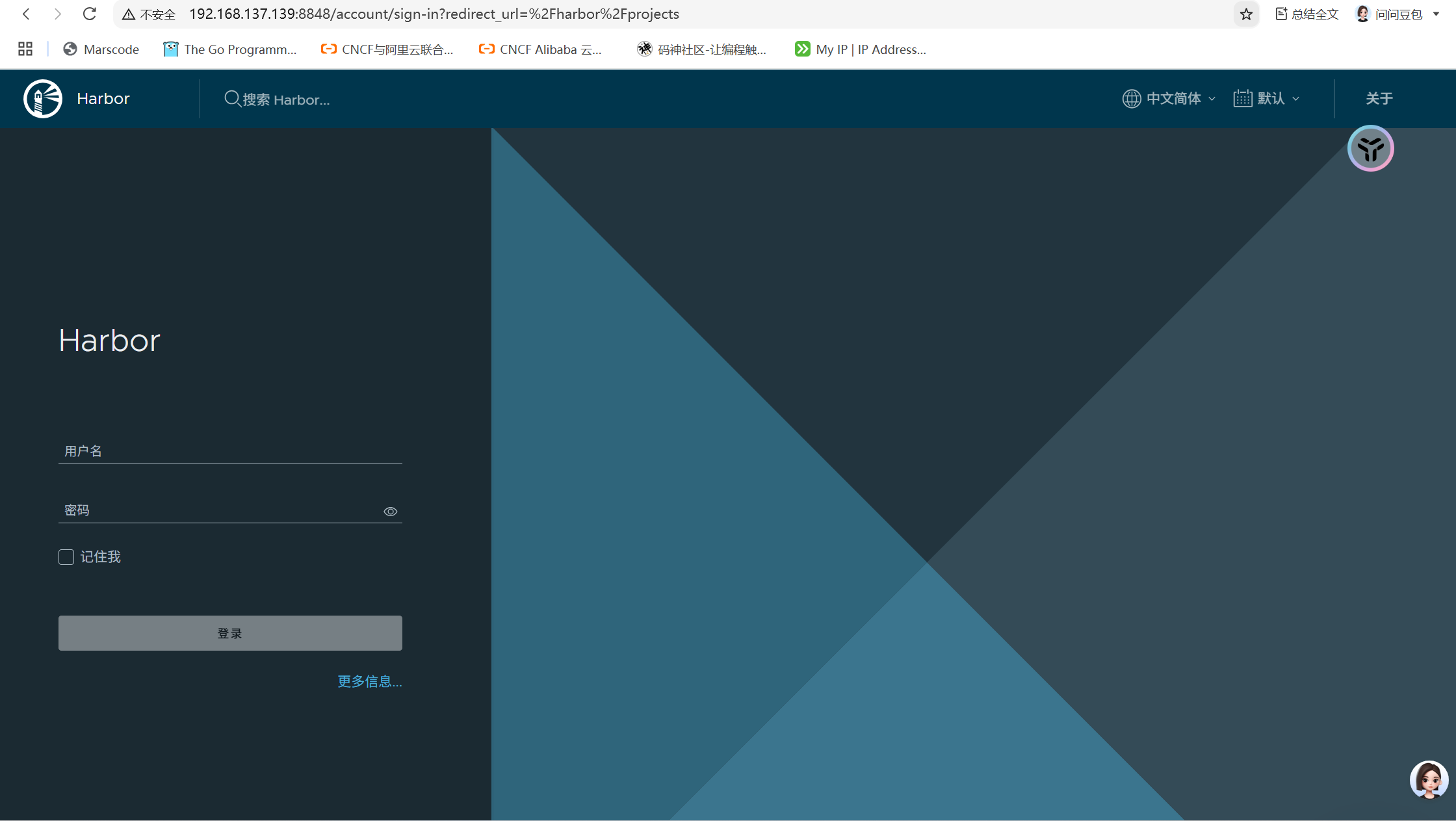
4、修改仓库地址
部署完成后,为了让Docker客户端能够正常与Harbor交互(特别是如果你使用了HTTP而非HTTPS),你还需要在使用Harbor的客户端机器(包括你自己的服务器)上修改Docker配置
添加insecure-registries配置项,指向你的Harbor地址
[root@Anolis harbor]# cp /etc/docker/daemon.json /etc/docker/daemon.json_bak
[root@Anolis harbor]# more /etc/docker/daemon.json
{
"insecure-registries" : ["192.168.139.139:8848"]
}[root@Anolis harbor]# systemctl daemon-reload
[root@Anolis harbor]# systemctl restart docker
修改配置文件后需要
根据 harbor.yml 中的配置(端口、证书等)动态生成 Nginx 的配置
[root@Anolis harbor]# ./prepare
测试访问
[root@Anolis harbor]# docker login localhost:8848 -u admin -p Harbor12345
WARNING! Using --password via the CLI is insecure. Use --password-stdin.
WARNING! Your password will be stored unencrypted in /root/.docker/config.json.
Configure a credential helper to remove this warning. See
https://docs.docker.com/engine/reference/commandline/login/#credentials-storeLogin Succeeded
登录成功
5、配置证书
(1)创建证书存放目录
[root@Anolis ~]# mkdir -p ~/harbor_certs && cd ~/harbor_certs
[root@Anolis harbor_certs]# pwd
/root/harbor_certs
(2)生成证书
生成ca私钥
[root@Anolis harbor_certs]# openssl genrsa -out ca.key 4096
Generating RSA private key, 4096 bit long modulus (2 primes)
...............................................++++
..........................................................++++
e is 65537 (0x010001)
生成ca根证书
[root@Anolis harbor_certs]# openssl req -x509 -new -nodes -sha512 -days 3650 -subj "/C=CN/ST=Beijing/L=Beijing/O=example/OU=Personal/CN=MySelfSignedCA" -key ca.key -out ca.crt
生成服务器证书私钥
[root@Anolis harbor_certs]# openssl genrsa -out your_ip.key 4096
Generating RSA private key, 4096 bit long modulus (2 primes)
.......................................................................................................................................................................................++++
.......................................................................................................................................................................................................................................................................................++++
e is 65537 (0x010001)
在-subj里面将CN参数设置为你harbor服务区的地址
[root@Anolis harbor_certs]# openssl req -sha512 -new -subj "/C=CN/ST=Beijing/L=Beijing/O=example/OU=Personal/CN=192.168.137.139" -key your_ip.key -out your_ip.csr
这是最关键的一步,它允许证书绑定到特定的 IP 地址。我们用 IP.1 这个字段来指定
[root@Anolis harbor_certs]# openssl req -sha512 -new -subj "/C=CN/ST=Beijing/L=Beijing/O=example/OU=Personal/CN=192.168.137.139" -key your_ip.key -out your_ip.csr
[root@Anolis harbor_certs]# cat > v3.ext <<-EOF
> authorityKeyIdentifier=keyid,issuer
> basicConstraints=CA:FALSE
> keyUsage = digitalSignature, nonRepudiation, keyEncipherment, dataEncipherment
> extendedKeyUsage = serverAuth
> subjectAltName = @alt_names
>
> [alt_names]
> IP.1 = 192.168.137.139
> EOF
使用 CA 根证书签署并生成服务器证书
[root@Anolis harbor_certs]# openssl x509 -req -sha512 -days 3650 -extfile v3.ext -CA ca.crt -CAkey ca.key -CAcreateserial -in your_ip.csr -out your_ip.crt
Signature ok
subject=C = CN, ST = Beijing, L = Beijing, O = example, OU = Personal, CN = 192.168.137.139
Getting CA Private Key
(3)配置harbor使用https证书
创建目录,harbor默认从/data/cert读取,cp证书到目录
[root@Anolis harbor_certs]# mkdir -p /data/cert/
[root@Anolis harbor_certs]# ls -l
总用量 28
-rw-r--r-- 1 root root 2053 3月 12 16:32 ca.crt
-rw------- 1 root root 3243 3月 12 16:30 ca.key
-rw-r--r-- 1 root root 41 3月 12 16:36 ca.srl
-rw-r--r-- 1 root root 235 3月 12 16:34 v3.ext
-rw-r--r-- 1 root root 2074 3月 12 16:36 your_ip.crt
-rw-r--r-- 1 root root 1708 3月 12 16:33 your_ip.csr
-rw------- 1 root root 3243 3月 12 16:32 your_ip.key
[root@Anolis harbor_certs]# cp your_ip.key your_ip.crt /data/cert/
(4)为docker客户端准备证书
Docker 守护进程需要特定的文件格式和目录结构来信任你的证书
将 .crt 文件转换为 .cert 文件(供 Docker 使用)
[root@Anolis harbor_certs]# openssl x509 -inform PEM -in your_ip.crt -out your_ip.cert
为你的 Harbor 地址创建 Docker 证书目录(注意端口 8848)
[root@Anolis harbor_certs]# mkdir -p /etc/docker/certs.d/192.168.137.139:8848复制所有需要的证书文件到 Docker 证书目录
[root@Anolis harbor_certs]# cp your_ip.cert your_ip.key ca.crt /etc/docker/certs.d/192.168.137.139:8848/修改harbor的配置,找到https的部分放开注释
[root@Anolis harbor_certs]# vim /usr/local/harbor/harbor.yml
如下:
# https related config
https:
# https port for harbor, default is 443
port: 8843
# The path of cert and key files for nginx
certificate: /data/cert/your_ip.crt
private_key: /data/cert/your_ip.key
重新生成并启动
[root@Anolis harbor_certs]# cd /usr/local/harbor
# 停止运行中的 Harbor 实例
[root@Anolis harbor]# docker-compose down -v# 重新生成配置
[root@Anolis harbor]# ./prepare# 启动 Harbor
[root@Anolis harbor]# docker-compose up -d重启docker,确保可以加载到新证书
[root@Anolis harbor]# systemctl restart docker
测试登录
[root@Anolis harbor]# docker login 192.168.137.139:8843 -u admin -p Harbor12345
WARNING! Using --password via the CLI is insecure. Use --password-stdin.
Error response from daemon: Get "https://192.168.137.139:8843/v2/": tls: failed to verify certificate: x509: certificate signed by unknown authority
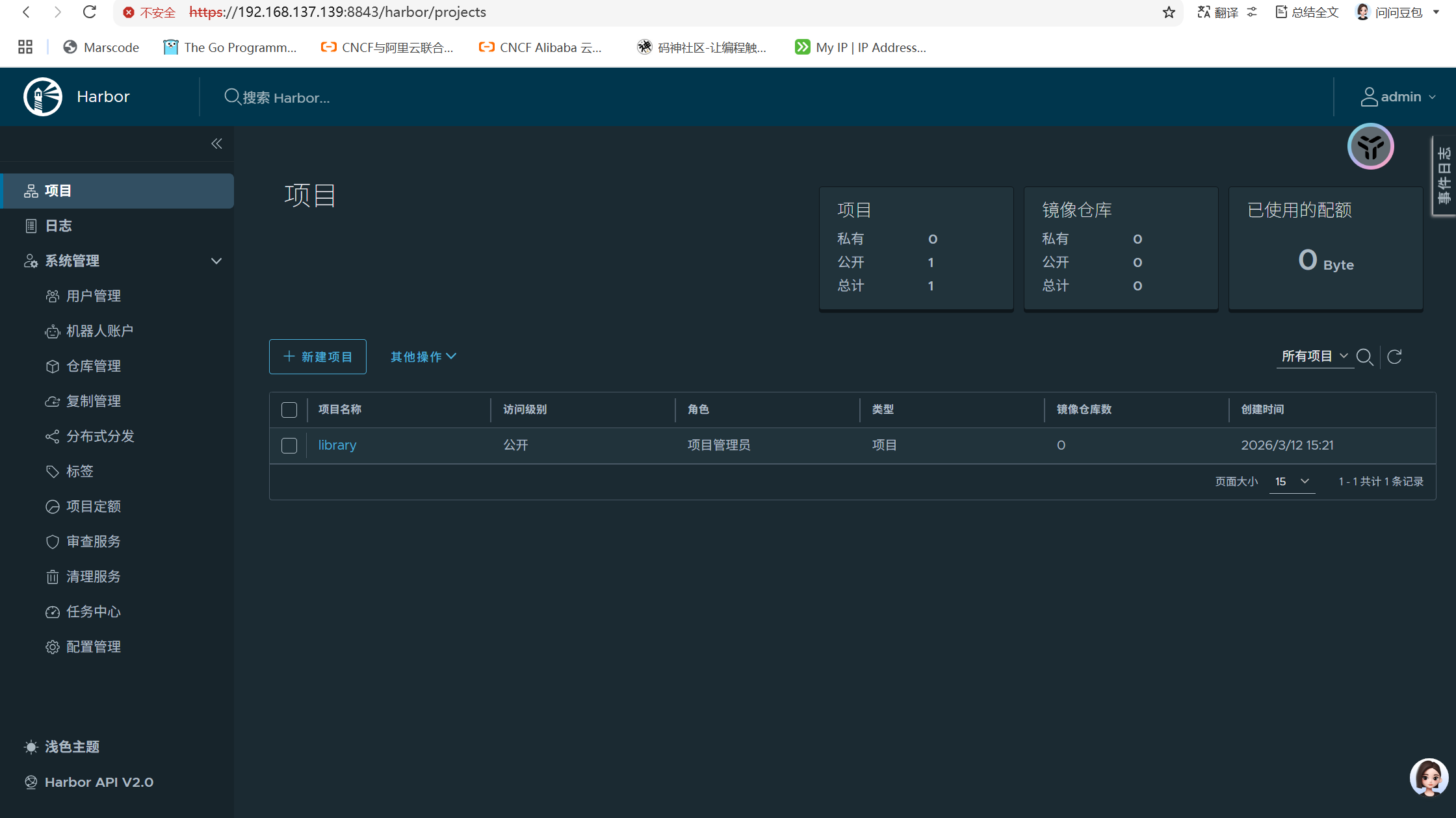
6、推送镜像
这里假装我的harbor没有镜像,从另一台拷贝过去
docker save -o 保存镜像
[root@Anolis2 local]# docker images
REPOSITORY TAG IMAGE ID CREATED SIZE
nginx latest 99133eed2307 2 days ago 161MB
grafana/grafana latest beafdfed0240 3 days ago 761MB
prom/prometheus latest 5a2c7fe42427 2 weeks ago 390MB
redis latest c234a24851ba 2 weeks ago 140MB
mysql latest 8458fdfc578c 3 weeks ago 922MB
tomcat latest a76ed56adf24 3 weeks ago 416MB
ubuntu 22.04 8ea4cbcf3a26 4 weeks ago 77.9MB[root@Anolis2 local]# docker save -o all_images.tar nginx:latest grafana/grafana:latest prom/prometheus:latest redis:latest mysql:latest tomcat:latest ubuntu:22.04
[root@Anolis2 local]# ls -l all_images.tar
-rw------- 1 root root 2833082368 3月 13 14:12 all_images.tar
[root@Anolis2 local]# scp all_images.tar root@192.168.137.139:/root/
root@192.168.137.139's password:
all_images.tar 100% 2702MB 12.8MB/s 03:31
harbor:
导入images
[root@Anolis ~]# docker load -i all_images.tar
打标签
[root@Anolis harbor]# docker tag nginx:latest 192.168.137.138:8843/image/nginx:latest
[root@Anolis harbor]# docker images | grep nginx
192.168.137.138:8843/image/nginx latest 99133eed2307 38 hours ago 161MB
nginx latest 99133eed2307 38 hours ago 161MB
goharbor/nginx-photon v2.14.1 021984c1f38b 3 months ago 158MB推送
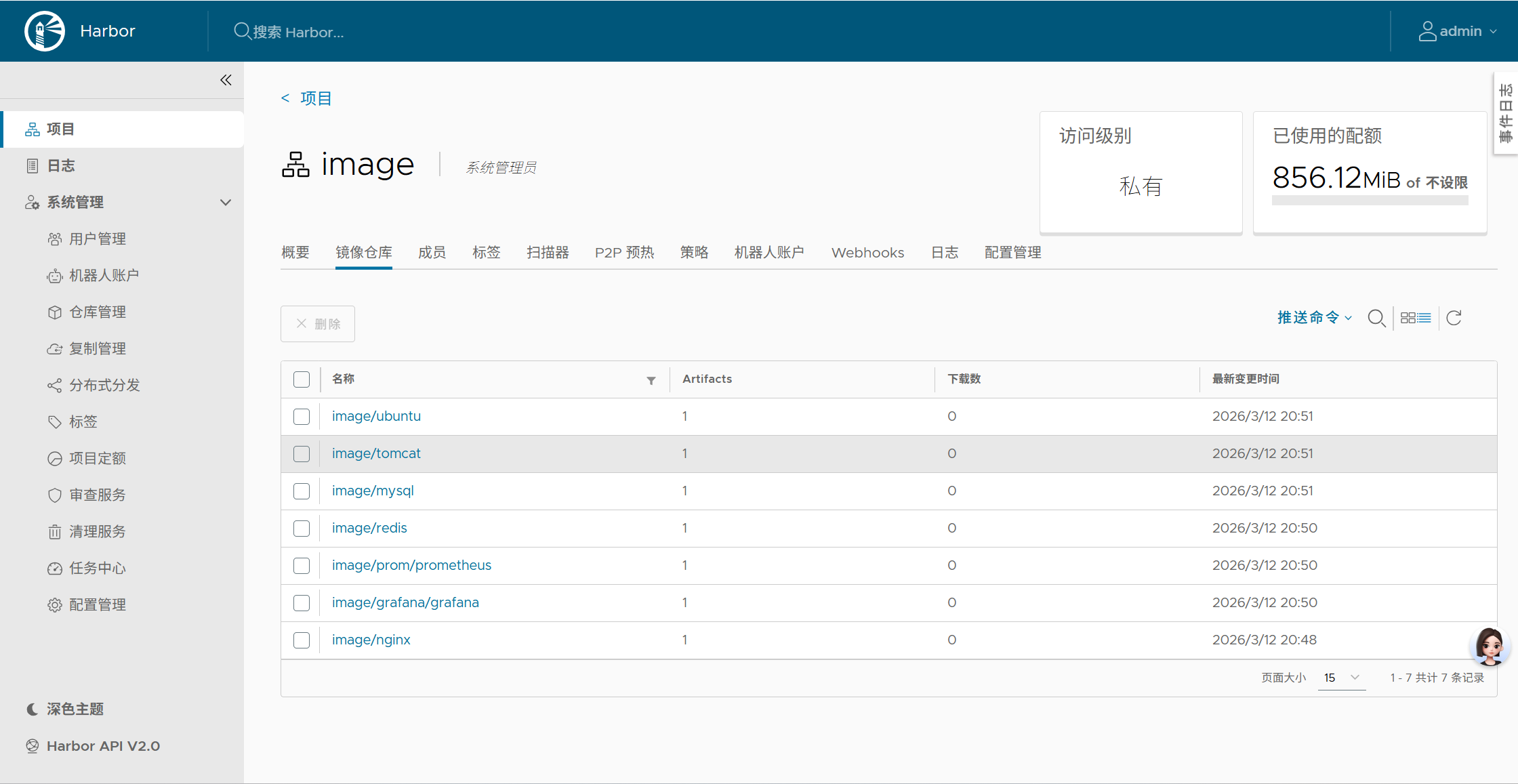
[root@Anolis harbor]# docker push 192.168.137.139:8843/image/nginx:latest
The push refers to repository [192.168.137.139:8843/image/nginx]
349873755873: Pushed
29b2c44d0fb6: Pushed
4e1fa3adae02: Pushed
dd02449feb6b: Pushed
78dca4a0a512: Pushed
3fe1b6ebcb54: Pushed
a257f20c716c: Pushed
latest: digest: sha256:cb25815488f2927c693ddcb46ebd3310d684b042108d230cf6a63f47a4a50649 size: 1778

AtomGit 是由开放原子开源基金会联合 CSDN 等生态伙伴共同推出的新一代开源与人工智能协作平台。平台坚持“开放、中立、公益”的理念,把代码托管、模型共享、数据集托管、智能体开发体验和算力服务整合在一起,为开发者提供从开发、训练到部署的一站式体验。
更多推荐


 10
10 0
0- 0


 已为社区贡献5条内容

所有评论(0)