Electron for OpenHarmony 实战:Notification 通知组件实现 PC适配
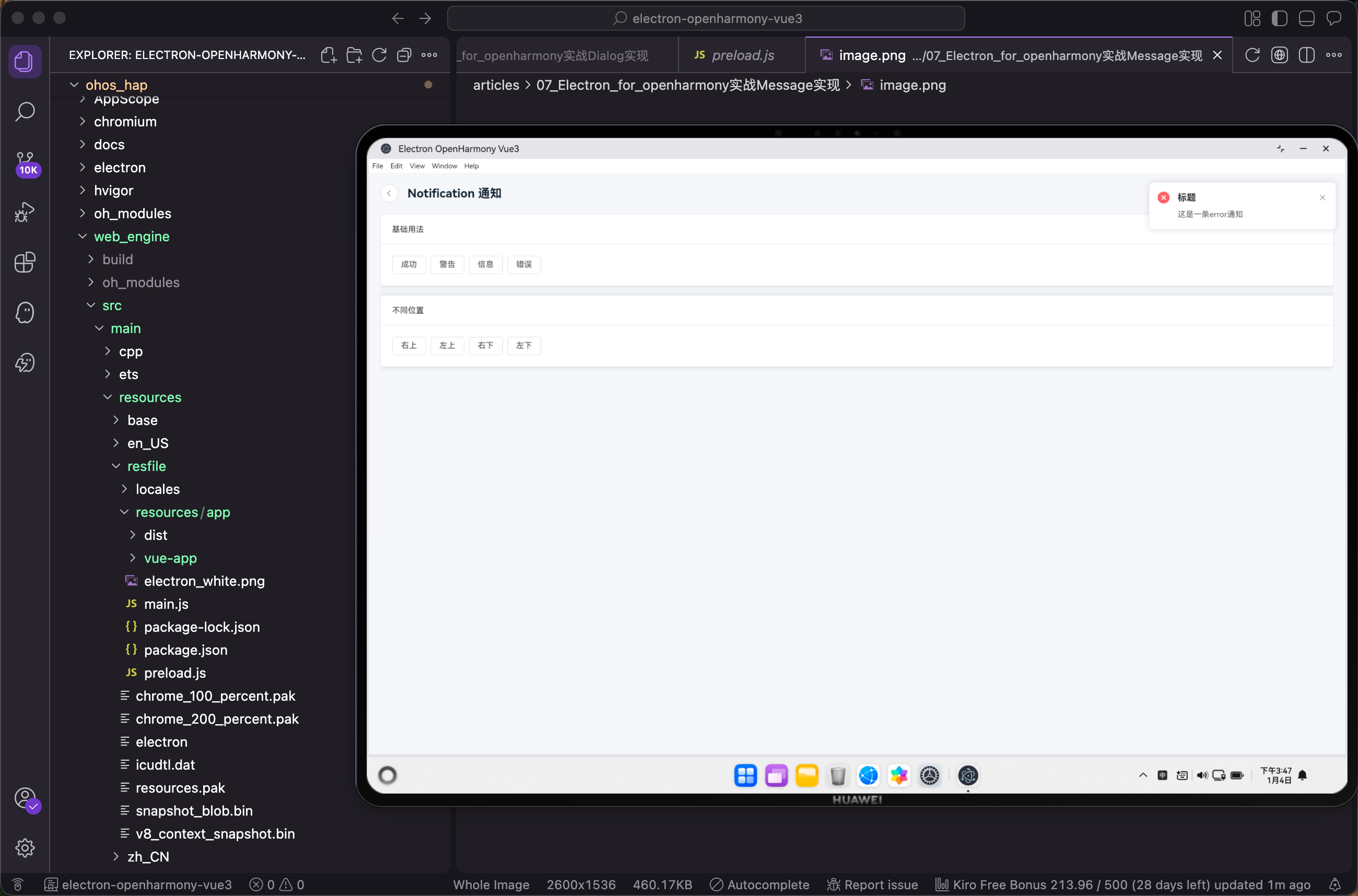
有些消息比较重要,需要用户注意但又不想打断当前操作,这时候就需要 Notification 通知组件。它会在页面角落弹出一个通知卡片,用户可以选择查看或者忽略。这篇文章来聊聊在 Electron for OpenHarmony 项目中如何使用 Notification 通知组件。
Notification 的特点
和 Message 相比,Notification 有几个明显的区别:
显示位置不同,Message 在页面顶部居中,Notification 在页面四个角落之一;内容更丰富,Notification 有标题和正文,Message 只有一行文字;停留时间更长,默认 4.5 秒,Message 是 3 秒;交互方式不同,Notification 更像一个小卡片,可以承载更多信息。
Notification 适合用于:后台任务完成通知、新消息提醒、系统公告、操作结果的详细反馈等场景。
基础用法
Notification 也是通过函数调用的方式使用:
<script setup lang="ts">
import { useRouter } from 'vue-router'
import { ElNotification } from 'element-plus'
const router = useRouter()
const showNotify = (type: 'success' | 'warning' | 'info' | 'error') => {
  ElNotification({ title: '标题', message: `这是一条${type}通知`, type })
}
const showPosition = (position: 'top-right' | 'top-left' | 'bottom-right' | 'bottom-left') => {
  ElNotification({ title: '标题', message: `位置: ${position}`, position })
}
</script>
从 element-plus 导入 ElNotification,调用时传入配置对象。title 是通知标题,message 是通知内容,type 是通知类型。
和 Message 一样,type 有四种:success、warning、info、error,分别对应不同的图标和颜色。
四种通知类型
页面上放四个按钮来触发不同类型的通知:
<el-card class="demo-card">
  <template #header>基础用法</template>
  <el-space wrap>
    <el-button @click="showNotify('success')">成功</el-button>
    <el-button @click="showNotify('warning')">警告</el-button>
    <el-button @click="showNotify('info')">信息</el-button>
    <el-button @click="showNotify('error')">错误</el-button>
  </el-space>
</el-card>
点击按钮后,通知会从页面右上角滑入,显示标题、图标和内容。右上角有关闭按钮,用户可以手动关闭,也可以等它自动消失。
不同显示位置
Notification 可以显示在页面的四个角落:
<el-card class="demo-card">
  <template #header>不同位置</template>
  <el-space wrap>
    <el-button @click="showPosition('top-right')">右上</el-button>
    <el-button @click="showPosition('top-left')">左上</el-button>
    <el-button @click="showPosition('bottom-right')">右下</el-button>
    <el-button @click="showPosition('bottom-left')">左下</el-button>
  </el-space>
</el-card>
position 属性控制显示位置,可选值是 top-right(默认)、top-left、bottom-right、bottom-left。
右上角是最常用的位置,符合大多数用户的阅读习惯。如果页面右上角有其他重要元素,可以考虑换到其他位置。
快捷调用方式
和 Message 一样,Notification 也有快捷方法:
<script setup lang="ts">
import { ElNotification } from 'element-plus'

const notifySuccess = () => {
  ElNotification.success({
    title: '成功',
    message: '操作已完成'
  })
}

const notifyError = () => {
  ElNotification.error({
    title: '错误',
    message: '操作失败,请重试'
  })
}

// 最简写法,只传消息
const notifySimple = () => {
  ElNotification({
    title: '提示',
    message: '这是一条简单的通知'
  })
}
</script>
ElNotification.success()、ElNotification.error() 这种写法会自动设置对应的 type,代码更简洁。
自定义显示时长
默认通知显示 4.5 秒后消失,可以通过 duration 调整:
<script setup lang="ts">
import { ElNotification } from 'element-plus'

const showLongNotify = () => {
  ElNotification({
    title: '重要通知',
    message: '这条通知会显示 10 秒',
    type: 'warning',
    duration: 10000
  })
}

const showPermanentNotify = () => {
  ElNotification({
    title: '系统公告',
    message: '这条通知不会自动关闭,请手动关闭',
    type: 'info',
    duration: 0
  })
}
</script>
duration 单位是毫秒,设为 0 表示不自动关闭。重要的通知可以设置更长的显示时间或者不自动关闭,确保用户能看到。
隐藏关闭按钮
有时候不想让用户手动关闭通知:
<script setup lang="ts">
import { ElNotification } from 'element-plus'

const showNoCloseNotify = () => {
  ElNotification({
    title: '处理中',
    message: '正在处理,请稍候...',
    type: 'info',
    showClose: false,
    duration: 3000
  })
}
</script>
showClose: false 隐藏关闭按钮。这种情况下一定要设置合理的 duration,不然通知会一直显示。
自定义偏移量
调整通知距离视口边缘的距离:
<script setup lang="ts">
import { ElNotification } from 'element-plus'

const showOffsetNotify = () => {
  ElNotification({
    title: '提示',
    message: '这条通知距离顶部 100px',
    offset: 100
  })
}
</script>
offset 设置垂直方向的偏移量。如果页面有固定的头部导航,可以设置 offset 让通知显示在导航下方。
通知内容支持 HTML
需要富文本内容时可以使用 HTML:
<script setup lang="ts">
import { ElNotification } from 'element-plus'

const showHtmlNotify = () => {
  ElNotification({
    title: '新消息',
    dangerouslyUseHTMLString: true,
    message: '<strong>张三</strong> 给你发送了一条消息:<br/><span style="color: #909399;">你好,在吗?</span>',
    type: 'info'
  })
}
</script>
dangerouslyUseHTMLString: true 开启 HTML 渲染。同样要注意安全问题,不要渲染用户输入的内容。
点击通知执行操作
通知可以绑定点击事件:
<script setup lang="ts">
import { ElNotification } from 'element-plus'
import { useRouter } from 'vue-router'

const router = useRouter()

const showClickableNotify = () => {
  ElNotification({
    title: '新订单',
    message: '您有一个新订单,点击查看详情',
    type: 'success',
    onClick: () => {
      router.push('/orders/123')
    }
  })
}
</script>
onClick 回调在用户点击通知时触发,可以用来跳转页面或执行其他操作。这让通知不仅仅是展示信息,还能引导用户进行下一步操作。
关闭回调
通知关闭时可以执行一些清理操作:
<script setup lang="ts">
import { ElNotification } from 'element-plus'

const showNotifyWithCallback = () => {
  ElNotification({
    title: '下载完成',
    message: '文件已下载到本地',
    type: 'success',
    onClose: () => {
      console.log('通知已关闭')
      // 可以在这里做一些清理工作
    }
  })
}
</script>
onClose 回调在通知关闭时触发,无论是自动关闭还是用户手动关闭。
手动关闭通知
有时候需要在代码中主动关闭通知:
<script setup lang="ts">
import { ref } from 'vue'
import { ElNotification } from 'element-plus'
import type { NotificationHandle } from 'element-plus'

const notificationInstance = ref<NotificationHandle | null>(null)

const showNotify = () => {
  notificationInstance.value = ElNotification({
    title: '处理中',
    message: '正在上传文件...',
    type: 'info',
    duration: 0
  })
}

const closeNotify = () => {
  notificationInstance.value?.close()
}

const updateAndClose = () => {
  // 模拟上传完成
  setTimeout(() => {
    notificationInstance.value?.close()
    ElNotification.success({
      title: '上传完成',
      message: '文件上传成功'
    })
  }, 2000)
}
</script>

<template>
  <el-space>
    <el-button @click="showNotify">开始上传</el-button>
    <el-button @click="closeNotify">取消</el-button>
    <el-button @click="updateAndClose">模拟完成</el-button>
  </el-space>
</template>
ElNotification() 返回一个通知实例,调用实例的 close() 方法可以关闭通知。这在需要根据异步操作结果更新通知状态时很有用。
关闭所有通知
一次性关闭所有通知:
<script setup lang="ts">
import { ElNotification } from 'element-plus'

const showMultiple = () => {
  ElNotification.success({ title: '通知 1', message: '内容 1' })
  ElNotification.warning({ title: '通知 2', message: '内容 2' })
  ElNotification.error({ title: '通知 3', message: '内容 3' })
}

const closeAll = () => {
  ElNotification.closeAll()
}
</script>

<template>
  <el-space>
    <el-button @click="showMultiple">显示多条通知</el-button>
    <el-button @click="closeAll">关闭所有</el-button>
  </el-space>
</template>
ElNotification.closeAll() 关闭当前显示的所有通知。页面切换时可能需要调用这个方法清理残留的通知。
与鸿蒙原生能力结合
在 Electron for OpenHarmony 项目中,应用内的 Notification 可以和系统级的通知配合使用:
<script setup lang="ts">
import { ref } from 'vue'
import { ElNotification } from 'element-plus'
import { useOhos } from '@/composables/useOhos'

const { showNotification, openFile } = useOhos()

const handleFileDownload = async () => {
  // 显示应用内通知
  const notify = ElNotification({
    title: '下载中',
    message: '正在下载文件,请稍候...',
    type: 'info',
    duration: 0
  })

  // 模拟下载过程
  setTimeout(async () => {
    notify.close()

    // 下载完成,显示成功通知
    ElNotification.success({
      title: '下载完成',
      message: '文件已保存到本地',
      onClick: async () => {
        // 点击通知打开文件
        const files = await openFile({
          title: '打开下载的文件'
        })
        console.log('打开文件:', files)
      }
    })

    // 同时发送系统通知,即使应用在后台也能看到
    await showNotification('下载完成', '文件已保存到本地')
  }, 3000)
}

const handleNewMessage = async () => {
  // 应用内通知
  ElNotification({
    title: '新消息',
    message: '您收到一条新消息',
    type: 'info',
    position: 'bottom-right'
  })

  // 系统通知
  await showNotification('新消息', '您收到一条新消息')
}

const handleTaskComplete = async () => {
  ElNotification.success({
    title: '任务完成',
    message: '后台任务已处理完毕',
    duration: 0,
    onClose: async () => {
      await showNotification('任务完成', '所有后台任务已处理完毕')
    }
  })
}
</script>

<template>
  <el-space direction="vertical">
    <el-button @click="handleFileDownload">模拟文件下载</el-button>
    <el-button @click="handleNewMessage">模拟新消息</el-button>
    <el-button @click="handleTaskComplete">模拟任务完成</el-button>
  </el-space>
</template>
这个例子展示了几种场景:
文件下载时先显示"下载中"的通知,完成后更新为"下载完成",点击通知可以打开文件,同时发送系统通知;收到新消息时同时显示应用内通知和系统通知;后台任务完成时显示应用内通知,关闭后发送系统通知。
应用内的 ElNotification 只有在应用处于前台时才能看到,系统级的 showNotification 即使应用在后台也能收到。两者配合使用可以确保用户不会错过重要信息。
样式定制
Notification 的样式可以通过 CSS 变量调整:
:root {
  --el-notification-width: 330px;
  --el-notification-padding: 14px 26px 14px 13px;
  --el-notification-radius: 8px;
  --el-notification-shadow: 0 2px 12px 0 rgba(0, 0, 0, 0.1);
  --el-notification-border-color: #ebeef5;
  --el-notification-icon-size: 24px;
  --el-notification-title-font-size: 16px;
  --el-notification-content-font-size: 14px;
}
通过这些变量可以调整通知的宽度、内边距、圆角、阴影等样式,让它和你的设计风格保持一致。
小结
Notification 通知组件适合展示需要用户注意但不紧急的信息,这篇文章介绍了它的各种用法:四种通知类型、四个显示位置、自定义时长、HTML 内容、点击事件、关闭回调、手动关闭,以及与鸿蒙原生能力的结合。Notification 和 Message 各有适用场景,Message 适合简短的操作反馈,Notification 适合需要更多信息展示的通知场景。根据实际需求选择合适的组件,才能给用户最好的体验。
欢迎加入开源鸿蒙PC社区:https://harmonypc.csdn.net/

AtomGit 是由开放原子开源基金会联合 CSDN 等生态伙伴共同推出的新一代开源与人工智能协作平台。平台坚持“开放、中立、公益”的理念,把代码托管、模型共享、数据集托管、智能体开发体验和算力服务整合在一起,为开发者提供从开发、训练到部署的一站式体验。
更多推荐

 5
5 0
0- 0


 已为社区贡献17条内容

所有评论(0)