React Native for OpenHarmony 实战:BMI计算实现
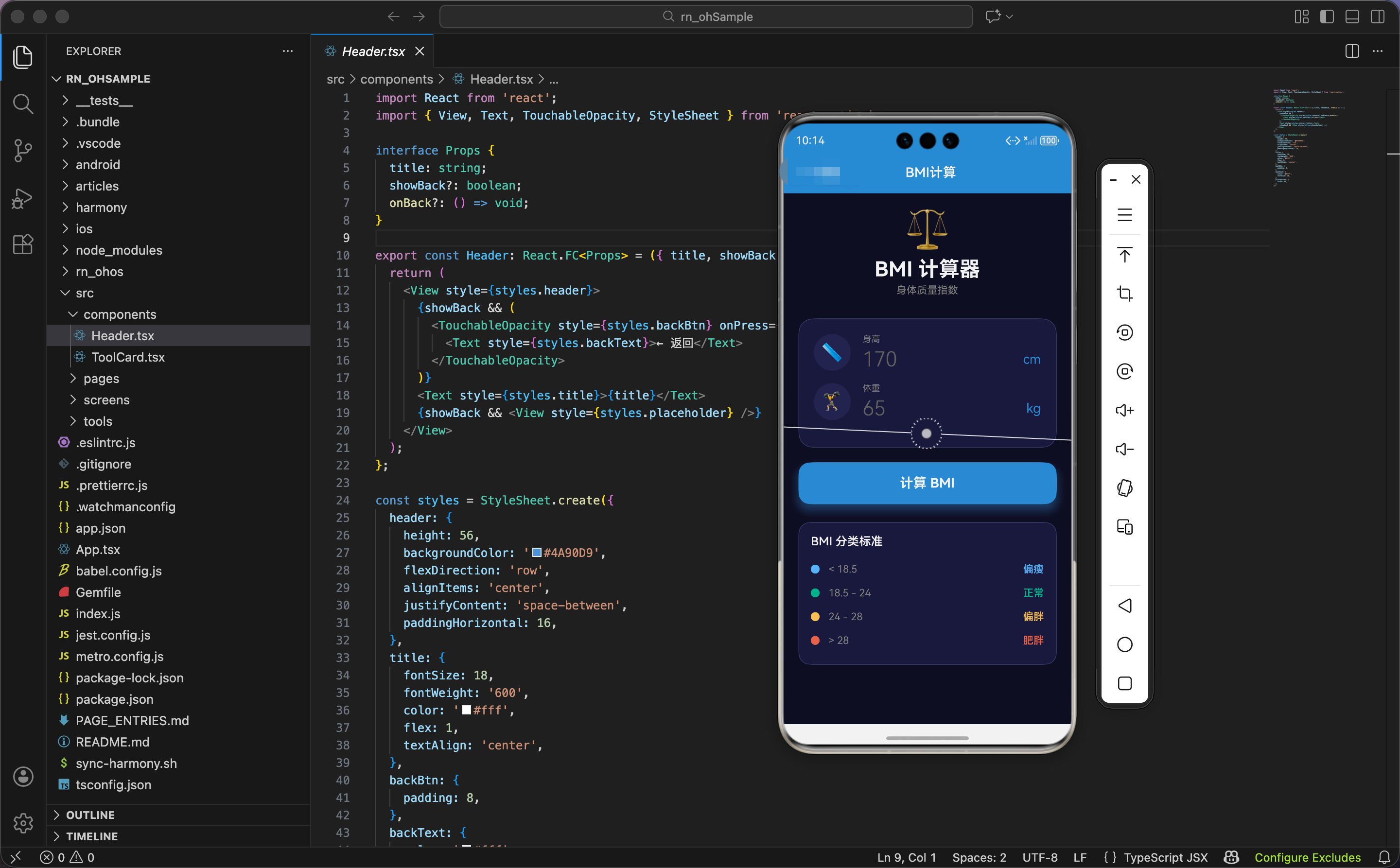
BMI(Body Mass Index,身体质量指数)是衡量人体胖瘦程度的常用指标。今天我们用 React Native 实现一个 BMI 计算器,不仅能计算 BMI 值,还能通过可视化的刻度尺直观展示结果所在的区间。
什么是 BMI
BMI 的计算公式很简单:体重(公斤)除以身高(米)的平方。比如一个身高 1.7 米、体重 65 公斤的人,BMI = 65 / (1.7 × 1.7) ≈ 22.5。
根据中国的标准,BMI 的分类如下:
- 小于 18.5:偏瘦
- 18.5 到 24:正常
- 24 到 28:偏胖
- 大于 28:肥胖
这个工具不仅要计算 BMI,还要给出直观的视觉反馈,让用户一眼就能看出自己的健康状况。
状态和动画定义
import React, { useState, useRef } from 'react';
import { View, Text, TextInput, TouchableOpacity, StyleSheet, Animated, ScrollView } from 'react-native';

export const BMICalculator: React.FC = () => {
  const [height, setHeight] = useState('');
  const [weight, setWeight] = useState('');
  const [result, setResult] = useState<any>(null);
  const scaleAnim = useRef(new Animated.Value(0)).current;
  const slideAnim = useRef(new Animated.Value(0)).current;
这里我们定义了两个输入状态 height 和 weight,分别存储用户输入的身高和体重。result 用来存储计算结果,包括 BMI 值、健康状态、对应的颜色等信息。
动画方面,scaleAnim 用于结果卡片的弹出效果,从 0 放大到 1,给用户一个"结果出来了"的视觉反馈。slideAnim 则用于刻度尺上指示器的滑动动画,让指示器从左边滑动到对应的位置,这个动画能让用户更直观地感受到自己的 BMI 在整个范围中的位置。
鸿蒙 ArkTS 对比:状态定义
@Entry
@Component
struct BMICalculator {
  @State height: string = ''
  @State weight: string = ''
  @State result: BMIResult | null = null
  @State scaleValue: number = 0
  @State slidePosition: number = 0

interface BMIResult {
  bmi: string
  status: string
  color: string
  idealWeight: string
  emoji: string
}
在 ArkTS 中,我们同样使用 @State 装饰器来声明响应式状态。不同的是,ArkTS 推荐使用接口来定义复杂数据的类型,这样代码的可读性和可维护性更好。当 result 的类型明确后,在使用时 IDE 能提供更好的代码提示。
React Native 中我们用了 any 类型,虽然灵活但牺牲了类型安全。在实际项目中,建议也定义明确的接口类型。
核心计算逻辑
  const calculate = () => {
    const h = parseFloat(height) / 100;
    const w = parseFloat(weight);
    if (!h || !w) return;

    const bmi = w / (h * h);
    let status = '', color = '#4A90D9', emoji = '😊';

    if (bmi < 18.5) { status = '偏瘦'; color = '#74b9ff'; emoji = '🥗'; }
    else if (bmi < 24) { status = '正常'; color = '#00b894'; emoji = '💪'; }
    else if (bmi < 28) { status = '偏胖'; color = '#fdcb6e'; emoji = '🏃'; }
    else { status = '肥胖'; color = '#e17055'; emoji = '⚠️'; }

    const idealWeight = 22 * h * h;
计算函数首先把身高从厘米转换成米(除以 100),然后用标准公式计算 BMI。这里有个小细节:if (!h || !w) return; 这行代码确保了用户必须输入有效的数值才能计算,避免出现 NaN 或 Infinity 的情况。
根据 BMI 值,我们设置不同的状态文字、颜色和 emoji。颜色的选择很有讲究:蓝色表示偏瘦(需要多吃点),绿色表示正常(健康状态),黄色表示偏胖(需要注意),红色表示肥胖(需要重视)。这种颜色编码符合用户的直觉认知。
理想体重的计算用的是 BMI = 22 时的体重,这是正常范围的中间值,被认为是最健康的 BMI 值。
鸿蒙 ArkTS 对比:BMI 计算
calculate() {
  let h = parseFloat(this.height) / 100
  let w = parseFloat(this.weight)

  if (!h || !w) return

  let bmi = w / (h * h)
  let status = ''
  let color = '#4A90D9'
  let emoji = '😊'

  if (bmi < 18.5) {
    status = '偏瘦'
    color = '#74b9ff'
    emoji = '🥗'
  } else if (bmi < 24) {
    status = '正常'
    color = '#00b894'
    emoji = '💪'
  } else if (bmi < 28) {
    status = '偏胖'
    color = '#fdcb6e'
    emoji = '🏃'
  } else {
    status = '肥胖'
    color = '#e17055'
    emoji = '⚠️'
  }

  let idealWeight = 22 * h * h

  this.result = {
    bmi: bmi.toFixed(1),
    status: status,
    color: color,
    idealWeight: idealWeight.toFixed(1),
    emoji: emoji
  }
}
计算逻辑在 ArkTS 中完全一样,这就是跨平台开发的优势——业务逻辑代码可以直接复用。唯一的区别是 ArkTS 中访问状态变量需要用 this.,而 React 的函数组件中直接使用变量名。
动画触发
    // 动画
    scaleAnim.setValue(0);
    slideAnim.setValue(0);
    Animated.parallel([
      Animated.spring(scaleAnim, { toValue: 1, friction: 4, useNativeDriver: true }),
      Animated.timing(slideAnim, { toValue: (bmi - 15) / 20, duration: 800, useNativeDriver: false }),
    ]).start();

    setResult({ bmi: bmi.toFixed(1), status, color, idealWeight: idealWeight.toFixed(1), emoji });
  };
动画部分值得详细解释。首先我们把两个动画值都重置为 0,这样每次计算都能看到完整的动画效果。
Animated.parallel 让两个动画同时执行:
scaleAnim使用弹簧动画从 0 到 1,friction: 4设置较小的摩擦力,让动画有一点弹性效果slideAnim使用时间动画,800 毫秒内从 0 滑动到目标位置
指示器位置的计算 (bmi - 15) / 20 需要解释一下:我们的刻度尺范围是 15 到 35,总共 20 个单位。把 BMI 减去 15 再除以 20,就得到了 0 到 1 之间的比例值,正好可以映射到刻度尺的百分比位置。
注意 slideAnim 的 useNativeDriver 设为 false,因为我们要动态改变 left 属性的百分比值,这个属性不支持原生驱动。
界面渲染:头部
  return (
    <ScrollView style={styles.container}>
      <View style={styles.header}>
        <Text style={styles.headerEmoji}>⚖️</Text>
        <Text style={styles.headerTitle}>BMI 计算器</Text>
        <Text style={styles.headerSubtitle}>身体质量指数</Text>
      </View>
头部设计简洁明了,用天平 emoji 作为图标,直观表达"称重"的概念。标题和副标题让用户一眼就知道这个工具的用途。
输入区域
      <View style={styles.inputCard}>
        <View style={styles.inputGroup}>
          <View style={styles.inputIcon}>
            <Text style={styles.inputIconText}>📏</Text>
          </View>
          <View style={styles.inputWrapper}>
            <Text style={styles.inputLabel}>身高</Text>
            <View style={styles.inputRow}>
              <TextInput
                style={styles.input}
                value={height}
                onChangeText={setHeight}
                keyboardType="numeric"
                placeholder="170"
                placeholderTextColor="#666"
              />
              <Text style={styles.inputUnit}>cm</Text>
            </View>
          </View>
        </View>

        <View style={styles.inputGroup}>
          <View style={styles.inputIcon}>
            <Text style={styles.inputIconText}>🏋️</Text>
          </View>
          <View style={styles.inputWrapper}>
            <Text style={styles.inputLabel}>体重</Text>
            <View style={styles.inputRow}>
              <TextInput
                style={styles.input}
                value={weight}
                onChangeText={setWeight}
                keyboardType="numeric"
                placeholder="65"
                placeholderTextColor="#666"
              />
              <Text style={styles.inputUnit}>kg</Text>
            </View>
          </View>
        </View>
      </View>
输入区域的设计考虑了用户体验的多个方面:
- 图标提示:每个输入框前面都有一个圆形图标(📏 表示身高,🏋️ 表示体重),让用户不用看文字就能理解输入内容
- 标签说明:小字的标签"身高"和"体重"进一步明确输入内容
- 单位显示:输入框后面显示单位(cm 和 kg),避免用户输入错误的单位
- 占位符:placeholder 显示示例值(170 和 65),给用户一个参考
- 数字键盘:
keyboardType="numeric"确保弹出数字键盘,减少输入错误
这种设计模式在表单输入中很常见,值得在其他项目中复用。
鸿蒙 ArkTS 对比:输入组件
Row() {
  Column() {
    Text('📏')
      .fontSize(24)
  }
  .width(50)
  .height(50)
  .borderRadius(25)
  .backgroundColor('#252550')
  .justifyContent(FlexAlign.Center)

  Column() {
    Text('身高')
      .fontSize(12)
      .fontColor('#888888')

    Row() {
      TextInput({ placeholder: '170' })
        .layoutWeight(1)
        .fontSize(28)
        .fontColor(Color.White)
        .type(InputType.Number)
        .onChange((value: string) => {
          this.height = value
        })

      Text('cm')
        .fontSize(18)
        .fontColor('#4A90D9')
    }
  }
  .layoutWeight(1)
  .alignItems(HorizontalAlign.Start)
}
.width('100%')
.padding(16)
ArkTS 中实现相同的布局需要嵌套 Row 和 Column 组件。layoutWeight(1) 相当于 React Native 中的 flex: 1,让组件占据剩余空间。InputType.Number 对应 keyboardType="numeric"。
两种写法的结构类似,只是语法风格不同。React Native 用 JSX 和 style 对象,ArkTS 用声明式 UI 和链式调用。
结果显示:BMI 值和状态
      {result && (
        <Animated.View style={[styles.resultCard, { transform: [{ scale: scaleAnim }] }]}>
          <View style={styles.resultHeader}>
            <Text style={styles.resultEmoji}>{result.emoji}</Text>
            <View style={[styles.bmiCircle, { borderColor: result.color }]}>
              <Text style={[styles.bmiValue, { color: result.color }]}>{result.bmi}</Text>
            </View>
            <Text style={[styles.statusText, { color: result.color }]}>{result.status}</Text>
          </View>
结果区域的设计突出了最重要的信息:BMI 值。用一个大圆圈包裹数字,边框颜色和文字颜色都根据健康状态动态变化。上面的 emoji 和下面的状态文字形成完整的信息层次。
Animated.View 包裹整个结果卡片,应用缩放动画。style 数组的写法 [styles.resultCard, { transform: [...] }] 是 React Native 中组合静态样式和动态样式的常用方式。
刻度尺可视化
          <View style={styles.scaleContainer}>
            <View style={styles.scale}>
              <View style={[styles.scaleSection, { flex: 3.5, backgroundColor: '#74b9ff' }]} />
              <View style={[styles.scaleSection, { flex: 5.5, backgroundColor: '#00b894' }]} />
              <View style={[styles.scaleSection, { flex: 4, backgroundColor: '#fdcb6e' }]} />
              <View style={[styles.scaleSection, { flex: 7, backgroundColor: '#e17055' }]} />
            </View>
            <Animated.View
              style={[
                styles.scaleIndicator,
                { left: slideAnim.interpolate({ inputRange: [0, 1], outputRange: ['0%', '100%'] }) },
              ]}
            >
              <View style={styles.indicatorArrow} />
            </Animated.View>
            <View style={styles.scaleLabels}>
              <Text style={styles.scaleLabel}>15</Text>
              <Text style={styles.scaleLabel}>18.5</Text>
              <Text style={styles.scaleLabel}>24</Text>
              <Text style={styles.scaleLabel}>28</Text>
              <Text style={styles.scaleLabel}>35</Text>
            </View>
          </View>
刻度尺是这个组件最有特色的部分。它由三层组成:
- 彩色条:用四个
View组成,每个代表一个 BMI 区间。flex值按照区间宽度比例设置(3.5:5.5:4:7 对应 15-18.5:18.5-24:24-28:28-35) - 指示器:一个白色的倒三角形,通过
left属性定位。interpolate把 0-1 的动画值映射成 0%-100% 的位置 - 刻度标签:显示关键的 BMI 值,帮助用户理解刻度
这种可视化设计比单纯显示数字更直观,用户一眼就能看出自己的 BMI 在整个范围中的位置。
附加信息
          <View style={styles.infoRow}>
            <View style={styles.infoItem}>
              <Text style={styles.infoLabel}>理想体重</Text>
              <Text style={styles.infoValue}>{result.idealWeight} kg</Text>
            </View>
            <View style={styles.infoItem}>
              <Text style={styles.infoLabel}>BMI范围</Text>
              <Text style={styles.infoValue}>18.5 - 24</Text>
            </View>
          </View>
        </Animated.View>
      )}
除了 BMI 值,我们还显示了理想体重和正常 BMI 范围。理想体重给用户一个具体的目标,正常范围让用户知道健康的标准是什么。
图例说明
      <View style={styles.legend}>
        <Text style={styles.legendTitle}>BMI 分类标准</Text>
        {[
          { range: '< 18.5', status: '偏瘦', color: '#74b9ff' },
          { range: '18.5 - 24', status: '正常', color: '#00b894' },
          { range: '24 - 28', status: '偏胖', color: '#fdcb6e' },
          { range: '> 28', status: '肥胖', color: '#e17055' },
        ].map((item, i) => (
          <View key={i} style={styles.legendItem}>
            <View style={[styles.legendDot, { backgroundColor: item.color }]} />
            <Text style={styles.legendRange}>{item.range}</Text>
            <Text style={[styles.legendStatus, { color: item.color }]}>{item.status}</Text>
          </View>
        ))}
      </View>
    </ScrollView>
  );
};
底部的图例解释了颜色和 BMI 范围的对应关系。用数组和 map 渲染,代码简洁且易于维护。如果将来需要修改分类标准,只需要改数组数据就行。
每个图例项包含三个元素:颜色圆点、BMI 范围、状态文字。颜色圆点和刻度尺的颜色一致,形成视觉上的关联。
样式定义:输入区域
const styles = StyleSheet.create({
  container: { flex: 1, backgroundColor: '#0f0f23', padding: 20 },
  header: { alignItems: 'center', marginBottom: 30 },
  headerEmoji: { fontSize: 50, marginBottom: 8 },
  headerTitle: { fontSize: 28, fontWeight: '700', color: '#fff' },
  headerSubtitle: { fontSize: 14, color: '#888', marginTop: 4 },
  inputCard: {
    backgroundColor: '#1a1a3e',
    borderRadius: 20,
    padding: 20,
    marginBottom: 20,
    borderWidth: 1,
    borderColor: '#3a3a6a',
  },
  inputGroup: { flexDirection: 'row', alignItems: 'center', marginBottom: 16 },
  inputIcon: {
    width: 50,
    height: 50,
    borderRadius: 25,
    backgroundColor: '#252550',
    justifyContent: 'center',
    alignItems: 'center',
    marginRight: 16,
  },
  inputIconText: { fontSize: 24 },
  inputWrapper: { flex: 1 },
  inputLabel: { color: '#888', fontSize: 12, marginBottom: 4 },
  inputRow: { flexDirection: 'row', alignItems: 'center' },
  input: { flex: 1, fontSize: 28, color: '#fff', fontWeight: '300' },
  inputUnit: { color: '#4A90D9', fontSize: 18, marginLeft: 8 },
输入区域的样式设计遵循了几个原则:
- 层次分明:卡片背景
#1a1a3e,图标背景#252550,形成视觉层次 - 圆角统一:卡片圆角 20,图标圆角 25(正圆),保持风格一致
- 字号对比:输入框字号 28(大),标签字号 12(小),突出重要信息
- 颜色语义:单位用蓝色
#4A90D9,和主题色一致
样式定义:结果区域
  btn: {
    backgroundColor: '#4A90D9',
    borderRadius: 16,
    marginBottom: 24,
    shadowColor: '#4A90D9',
    shadowOffset: { width: 0, height: 8 },
    shadowOpacity: 0.4,
    shadowRadius: 15,
    elevation: 10,
  },
  btnInner: { paddingVertical: 18, alignItems: 'center' },
  btnText: { color: '#fff', fontSize: 18, fontWeight: '700' },
  resultCard: {
    backgroundColor: '#1a1a3e',
    borderRadius: 20,
    padding: 24,
    marginBottom: 20,
    borderWidth: 1,
    borderColor: '#3a3a6a',
  },
  resultHeader: { alignItems: 'center', marginBottom: 24 },
  resultEmoji: { fontSize: 40, marginBottom: 12 },
  bmiCircle: {
    width: 120,
    height: 120,
    borderRadius: 60,
    borderWidth: 6,
    justifyContent: 'center',
    alignItems: 'center',
    marginBottom: 12,
  },
  bmiValue: { fontSize: 40, fontWeight: '700' },
  statusText: { fontSize: 24, fontWeight: '600' },
BMI 圆圈用 6 像素的粗边框,让它成为视觉焦点。边框颜色动态变化,和健康状态对应。
样式定义:刻度尺
  scaleContainer: { marginBottom: 24 },
  scale: { flexDirection: 'row', height: 12, borderRadius: 6, overflow: 'hidden' },
  scaleSection: {},
  scaleIndicator: { position: 'absolute', top: -8, marginLeft: -8 },
  indicatorArrow: {
    width: 0,
    height: 0,
    borderLeftWidth: 8,
    borderRightWidth: 8,
    borderTopWidth: 12,
    borderLeftColor: 'transparent',
    borderRightColor: 'transparent',
    borderTopColor: '#fff',
  },
  scaleLabels: { flexDirection: 'row', justifyContent: 'space-between', marginTop: 8 },
  scaleLabel: { color: '#888', fontSize: 10 },
指示器的三角形用 CSS 边框技巧实现:设置左右边框为透明,上边框为白色,宽度和高度都为 0,就形成了一个向下的三角形。这是一个经典的 CSS 技巧,在 React Native 中同样适用。
overflow: 'hidden' 确保彩色条的圆角不会被子元素覆盖。
样式定义:图例
  infoRow: { flexDirection: 'row' },
  infoItem: { flex: 1, alignItems: 'center' },
  infoLabel: { color: '#888', fontSize: 12, marginBottom: 4 },
  infoValue: { color: '#fff', fontSize: 18, fontWeight: '600' },
  legend: {
    backgroundColor: '#1a1a3e',
    borderRadius: 16,
    padding: 16,
    borderWidth: 1,
    borderColor: '#3a3a6a',
  },
  legendTitle: { color: '#fff', fontSize: 16, fontWeight: '600', marginBottom: 12 },
  legendItem: { flexDirection: 'row', alignItems: 'center', paddingVertical: 8 },
  legendDot: { width: 12, height: 12, borderRadius: 6, marginRight: 12 },
  legendRange: { flex: 1, color: '#888', fontSize: 14 },
  legendStatus: { fontSize: 14, fontWeight: '600' },
});
图例的布局用 flexDirection: 'row' 实现水平排列,flex: 1 让范围文字占据中间的空间,状态文字靠右对齐。
小结
这个 BMI 计算器展示了如何用 React Native 实现一个既实用又美观的健康工具。刻度尺的可视化设计是亮点,让用户直观地理解自己的健康状况。动画效果增强了交互体验,颜色编码传达了健康信息。
在 OpenHarmony 平台上,这些功能都能正常工作。BMI 计算是纯数学运算,动画使用 React Native 的 Animated API,都是跨平台兼容的。
欢迎加入开源鸿蒙跨平台社区:https://openharmonycrossplatform.csdn.net

AtomGit 是由开放原子开源基金会联合 CSDN 等生态伙伴共同推出的新一代开源与人工智能协作平台。平台坚持“开放、中立、公益”的理念,把代码托管、模型共享、数据集托管、智能体开发体验和算力服务整合在一起,为开发者提供从开发、训练到部署的一站式体验。
更多推荐

 5
5 0
0- 0


 已为社区贡献19条内容

所有评论(0)