Expanded + Flexible弹性布局 Flutter OpenHarmony
案例概述
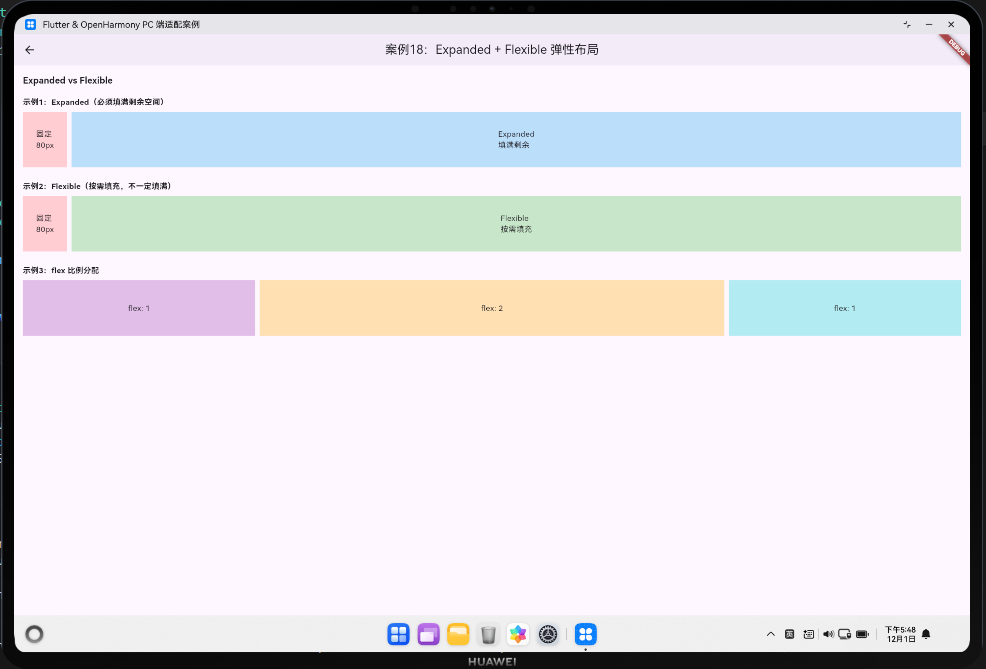
本案例展示 Expanded 和 Flexible 两个弹性布局组件的区别与用法。这两个组件都用于在 Row 或 Column 中分配剩余空间,但行为略有不同,理解它们的差异对构建响应式布局至关重要。
核心概念
1. Expanded(必须填满)
Expanded 会强制子组件填满所有剩余空间:
- 如果没有剩余空间,会报错;
- 通常用于需要充分利用空间的场景。
2. Flexible(按需填充)
Flexible 允许子组件按需填充剩余空间,但不强制:
- 如果子组件有自己的大小,会保持该大小;
- 如果有剩余空间,可以选择填充或不填充。
3. flex 参数
两个组件都支持 flex 参数,用于控制空间分配比例:
flex: 1(默认):占 1 份;flex: 2:占 2 份;- 比例 = 该组件的 flex / 所有组件 flex 之和。
代码详解
1. Expanded 示例
SizedBox(
  height: 100,
  child: Row(
    children: [
      Container(width: 80, color: Colors.red.shade100),
      const SizedBox(width: 8),
      Expanded(
        child: Container(color: Colors.blue.shade100),
      ),
    ],
  ),
)
说明:
- 左侧固定 80px,右侧
Expanded填满剩余空间; - 无论屏幕多宽,右侧总是占满剩余空间。
2. Flexible 示例
SizedBox(
  height: 100,
  child: Row(
    children: [
      Container(width: 80, color: Colors.red.shade100),
      const SizedBox(width: 8),
      Flexible(
        child: Container(color: Colors.green.shade100),
      ),
    ],
  ),
)
说明:
- 如果子组件有固定宽度,
Flexible会保持该宽度; - 如果子组件没有固定宽度,才会填充剩余空间。
3. flex 比例分配
SizedBox(
  height: 100,
  child: Row(
    children: [
      Expanded(flex: 1, child: Container(color: Colors.purple.shade100)),
      const SizedBox(width: 8),
      Expanded(flex: 2, child: Container(color: Colors.orange.shade100)),
      const SizedBox(width: 8),
      Expanded(flex: 1, child: Container(color: Colors.cyan.shade100)),
    ],
  ),
)
说明:
- 总 flex = 1 + 2 + 1 = 4;
- 第一个占 1/4,第二个占 2/4,第三个占 1/4。
深入理解:弹性布局的设计原理
1. 为什么需要弹性布局?
在响应式设计中,屏幕宽度不固定,需要动态分配空间:
- 固定宽度:在某些屏幕上浪费空间,在某些屏幕上不足;
- 弹性宽度:自动适应屏幕宽度,充分利用空间。
Expanded 和 Flexible 正是为了解决这个问题。
2. Expanded vs Flexible:何时使用哪一个?
-
Expanded:
- 优点:强制填满空间,代码简单;
- 缺点:必须有剩余空间,否则报错;
- 适用:需要充分利用空间的场景(如导航栏、工具栏)。
-
Flexible:
- 优点:灵活,不强制填满;
- 缺点:行为不如 Expanded 直观;
- 适用:内容可能有自己的大小,但也可以扩展的场景。
3. 弹性布局与响应式设计
弹性布局是响应式设计的基础:
- 在手机上,可能只有一列,用
Expanded填满宽度; - 在平板上,可能有两列,用
Expanded各占 50%; - 在 PC 上,可能有三列,用
Expanded各占 33%。
通过 flex 参数,可以轻松实现这些变化。
4. 弹性布局与嵌套
在复杂的布局中,可能需要嵌套多个 Row 和 Column:
- 外层
Row用Expanded分配水平空间; - 内层
Column用Expanded分配竖直空间; - 通过嵌套,可以构建复杂的响应式布局。
5. 弹性布局的性能考量
Expanded 和 Flexible 本身性能开销很小,但需要注意:
- 避免过度嵌套:嵌套层级过多会影响性能;
- 结合其他布局:与
SizedBox、Container等配合使用; - 测试多个屏幕宽度:确保在不同宽度下都能正确显示。
通过掌握 Expanded 和 Flexible,你可以构建出真正响应式的、自适应各种屏幕宽度的布局。
高级话题:弹性布局的高级技巧
1. Expanded vs Flexible 的实战对比
// 场景1:导航栏(需要充分利用空间)
Row(
  children: [
    IconButton(icon: Icon(Icons.menu), onPressed: () {}),
    Expanded(child: Text('标题')),  // 充分利用中间空间
    IconButton(icon: Icon(Icons.search), onPressed: () {}),
  ],
)

// 场景2:表单(某些字段可能有固定宽度)
Row(
  children: [
    SizedBox(width: 100, child: TextField()),
    const SizedBox(width: 8),
    Flexible(child: TextField()),  // 按需填充
  ],
)
2. 多层嵌套的 Expanded
在复杂布局中,可能需要多层嵌套:
Column(
  children: [
    Expanded(
      flex: 1,
      child: Row(
        children: [
          Expanded(flex: 1, child: Container()),
          Expanded(flex: 2, child: Container()),
        ],
      ),
    ),
    Expanded(
      flex: 2,
      child: Container(),
    ),
  ],
)
3. Expanded 与 ListView 的结合
在 Column 中使用 Expanded 包裹 ListView:
Column(
  children: [
    Container(height: 100, child: Text('Header')),
    Expanded(
      child: ListView.builder(
        itemCount: 100,
        itemBuilder: (context, index) => ListTile(title: Text('Item $index')),
      ),
    ),
    Container(height: 50, child: Text('Footer')),
  ],
)
4. Flexible 的 fit 参数
Flexible 有 fit 参数控制填充行为:
// fit: FlexFit.tight(默认):强制填满
Flexible(
  fit: FlexFit.tight,
  child: Container(color: Colors.blue),
)

// fit: FlexFit.loose:按需填充
Flexible(
  fit: FlexFit.loose,
  child: Container(color: Colors.green, width: 100),
)
5. 动态 flex 比例
根据条件动态调整 flex 比例:
Row(
  children: [
    Expanded(
      flex: isWideScreen ? 2 : 1,
      child: Container(),
    ),
    Expanded(
      flex: isWideScreen ? 3 : 2,
      child: Container(),
    ),
  ],
)
6. Expanded 与 Spacer 的区别
Spacer 是 Expanded 的简化版本:
// 使用 Expanded
Row(
  children: [
    Text('Left'),
    Expanded(child: SizedBox()),  // 占满中间空间
    Text('Right'),
  ],
)

// 使用 Spacer(更简洁)
Row(
  children: [
    Text('Left'),
    Spacer(),  // 等价于 Expanded(child: SizedBox())
    Text('Right'),
  ],
)
7. 处理 Expanded 的溢出错误
当没有足够空间时,Expanded 会报错:
// 错误:没有足够空间
Row(
  children: [
    Container(width: 500),
    Expanded(child: Container()),  // 如果父容器宽度 < 500,会报错
  ],
)

// 解决:使用 SingleChildScrollView
SingleChildScrollView(
  scrollDirection: Axis.horizontal,
  child: Row(
    children: [
      Container(width: 500),
      Expanded(child: Container()),
    ],
  ),
)
8. Expanded 与响应式设计
结合 MediaQuery 做响应式调整:
final isWideScreen = MediaQuery.of(context).size.width > 600;

Row(
  children: [
    if (isWideScreen)
      Expanded(flex: 1, child: Sidebar()),
    Expanded(
      flex: isWideScreen ? 3 : 1,
      child: MainContent(),
    ),
  ],
)
9. Expanded 的性能考量
避免过度使用 Expanded:
// 不推荐:过度嵌套
Expanded(
  child: Expanded(
    child: Expanded(
      child: Container(),
    ),
  ),
)

// 推荐:只在必要的地方使用
Expanded(
  child: Container(),
)
10. 使用 LayoutBuilder 替代 Expanded
在某些情况下,LayoutBuilder 比 Expanded 更灵活:
// 使用 Expanded
Row(
  children: [
    Expanded(flex: 1, child: Container()),
    Expanded(flex: 2, child: Container()),
  ],
)

// 使用 LayoutBuilder
LayoutBuilder(
  builder: (context, constraints) {
    final width1 = constraints.maxWidth / 3;
    final width2 = constraints.maxWidth * 2 / 3;
    return Row(
      children: [
        SizedBox(width: width1, child: Container()),
        SizedBox(width: width2, child: Container()),
      ],
    );
  },
)
11. Expanded 与 Column 的交互
在 Column 中使用 Expanded 时需要注意高度:
// 错误:Column 没有固定高度
Column(
  children: [
    Expanded(child: Container()),  // 报错:Column 高度不确定
  ],
)

// 解决:为 Column 指定高度
SizedBox(
  height: 300,
  child: Column(
    children: [
      Expanded(child: Container()),  // 正确
    ],
  ),
)
12. 实战案例:响应式表单布局
LayoutBuilder(
  builder: (context, constraints) {
    final isWide = constraints.maxWidth > 600;

    return Column(
      children: [
        if (isWide)
          Row(
            children: [
              Expanded(child: TextField(decoration: InputDecoration(labelText: 'First Name'))),
              SizedBox(width: 16),
              Expanded(child: TextField(decoration: InputDecoration(labelText: 'Last Name'))),
            ],
          )
        else
          Column(
            children: [
              TextField(decoration: InputDecoration(labelText: 'First Name')),
              SizedBox(height: 16),
              TextField(decoration: InputDecoration(labelText: 'Last Name')),
            ],
          ),
      ],
    );
  },
)
通过掌握这些高级技巧,你可以构建出复杂、灵活、高效的响应式布局。
欢迎加入开源鸿蒙跨平台社区:https://openharmonycrossplatform.csdn.net

AtomGit 是由开放原子开源基金会联合 CSDN 等生态伙伴共同推出的新一代开源与人工智能协作平台。平台坚持“开放、中立、公益”的理念,把代码托管、模型共享、数据集托管、智能体开发体验和算力服务整合在一起,为开发者提供从开发、训练到部署的一站式体验。
更多推荐
 17
17 0
0- 0


 已为社区贡献19条内容

所有评论(0)