React Native for OpenHarmony 实战:随机颜色实现
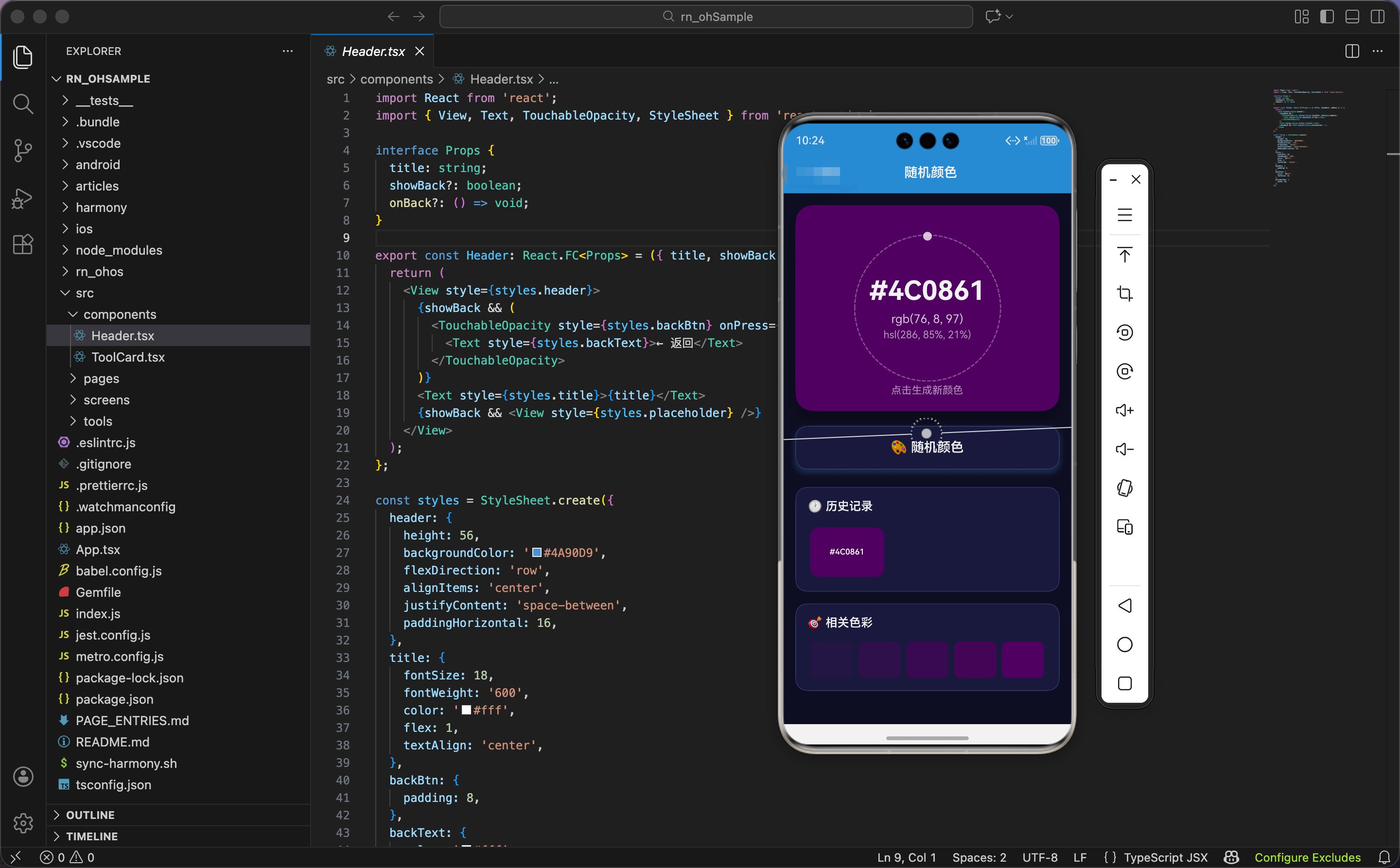
今天我们用 React Native 实现一个随机颜色生成器,支持 HEX、RGB、HSL 三种格式显示,带有历史记录和相关色彩展示。
状态和动画设计
import React, { useState, useRef } from 'react';
import { View, Text, TouchableOpacity, StyleSheet, ScrollView, Animated } from 'react-native';

export const RandomColor: React.FC = () => {
  const [color, setColor] = useState('#4A90D9');
  const [history, setHistory] = useState<string[]>([]);
  const scaleAnim = useRef(new Animated.Value(1)).current;
  const rotateAnim = useRef(new Animated.Value(0)).current;
状态设计包含当前颜色、历史记录、两个动画值。
当前颜色:color 是 HEX 格式的颜色字符串,比如 '#4A90D9'。初始值是蓝色。
历史记录:history 是一个数组,存储最近 12 个生成的颜色。每次生成新颜色时,插入数组开头,保留前 12 个。
缩放动画:scaleAnim 控制颜色框的缩放,生成新颜色时缩小再弹回,给用户反馈。
旋转动画:rotateAnim 控制颜色框内圆环的旋转,从 0 到 1,后面会用插值映射到 0-360 度。
为什么用 HEX 格式存储颜色?因为 HEX 是最紧凑的格式,6 个字符就能表示 1600 万种颜色。RGB 需要 3 个数字,HSL 需要 3 个数字加单位,都比 HEX 长。存储用 HEX,显示时再转换成其他格式。
随机颜色生成
  const generate = () => {
    // 动画
    Animated.parallel([
      Animated.sequence([
        Animated.timing(scaleAnim, { toValue: 0.9, duration: 100, useNativeDriver: true }),
        Animated.spring(scaleAnim, { toValue: 1, friction: 3, useNativeDriver: true }),
      ]),
      Animated.timing(rotateAnim, { toValue: 1, duration: 300, useNativeDriver: true }),
    ]).start(() => rotateAnim.setValue(0));

    const newColor = '#' + Math.floor(Math.random() * 16777215).toString(16).padStart(6, '0');
    setColor(newColor);
    setHistory([newColor, ...history.slice(0, 11)]);
  };
生成函数包含动画和颜色生成两部分。
并行动画:Animated.parallel 让两个动画同时运行。
缩放动画:序列动画,先缩小到 90%(100ms),再弹回到 100%。friction: 3 让弹簧有明显的回弹效果。
旋转动画:从 0 到 1(300ms),完成后重置为 0。旋转一圈,给用户"刷新"的视觉反馈。
随机颜色算法:
Math.random() * 16777215:生成 0 到 16777215 的随机浮点数Math.floor(...):向下取整,得到整数.toString(16):转换成 16 进制字符串.padStart(6, '0'):补齐到 6 位,不足的前面补 0'#' + ...:加上 # 前缀,得到 HEX 颜色
为什么是 16777215?因为 RGB 每个通道是 0-255,总共 256 × 256 × 256 = 16777216 种颜色。16777215 是最大值(对应 #FFFFFF 白色)。
为什么要 padStart(6, '0')?因为某些颜色的 16 进制表示不足 6 位。比如黑色是 0,转成 16 进制是 ‘0’,需要补齐成 ‘000000’。如果不补齐,'#0' 不是有效的颜色格式。
更新历史记录:[newColor, ...history.slice(0, 11)] 把新颜色插入数组开头,保留前 11 个旧记录,总共 12 个。
对比度计算
  const getContrastColor = (hex: string) => {
    const r = parseInt(hex.slice(1, 3), 16);
    const g = parseInt(hex.slice(3, 5), 16);
    const b = parseInt(hex.slice(5, 7), 16);
    return (r * 299 + g * 587 + b * 114) / 1000 > 128 ? '#000' : '#fff';
  };
对比度函数计算背景色的亮度,返回黑色或白色文字。
提取 RGB 值:
hex.slice(1, 3):提取第 2-3 位,红色通道hex.slice(3, 5):提取第 4-5 位,绿色通道hex.slice(5, 7):提取第 6-7 位,蓝色通道parseInt(..., 16):把 16 进制字符串转成 10 进制整数
亮度计算:(r * 299 + g * 587 + b * 114) / 1000
这是 YIQ 颜色空间的亮度公式。人眼对绿色最敏感(权重 587),对蓝色最不敏感(权重 114),红色居中(权重 299)。权重和是 1000,除以 1000 得到 0-255 的亮度值。
为什么用 YIQ 而不是简单的平均值?因为人眼对不同颜色的敏感度不同。简单平均 (r + g + b) / 3 会高估蓝色的亮度,低估绿色的亮度。YIQ 公式考虑了人眼的感知特性,计算出的亮度更准确。
阈值判断:亮度大于 128(中间值),背景是亮色,用黑色文字;否则背景是暗色,用白色文字。
HEX 转 RGB
  const hexToRgb = (hex: string) => {
    const r = parseInt(hex.slice(1, 3), 16);
    const g = parseInt(hex.slice(3, 5), 16);
    const b = parseInt(hex.slice(5, 7), 16);
    return `rgb(${r}, ${g}, ${b})`;
  };
HEX 转 RGB 很简单,提取三个通道的值,拼接成 rgb(r, g, b) 格式。
示例:'#4A90D9' → 'rgb(74, 144, 217)'
'4A'→ 74'90'→ 144'D9'→ 217
HEX 转 HSL
  const hexToHsl = (hex: string) => {
    let r = parseInt(hex.slice(1, 3), 16) / 255;
    let g = parseInt(hex.slice(3, 5), 16) / 255;
    let b = parseInt(hex.slice(5, 7), 16) / 255;
    const max = Math.max(r, g, b), min = Math.min(r, g, b);
    let h = 0, s = 0, l = (max + min) / 2;
    if (max !== min) {
      const d = max - min;
      s = l > 0.5 ? d / (2 - max - min) : d / (max + min);
      switch (max) {
        case r: h = ((g - b) / d + (g < b ? 6 : 0)) / 6; break;
        case g: h = ((b - r) / d + 2) / 6; break;
        case b: h = ((r - g) / d + 4) / 6; break;
      }
    }
    return `hsl(${Math.round(h * 360)}, ${Math.round(s * 100)}%, ${Math.round(l * 100)}%)`;
  };
HEX 转 HSL 比较复杂,需要先转成 RGB,再计算色相、饱和度、亮度。
归一化 RGB:把 0-255 的值除以 255,得到 0-1 的浮点数。后续计算都用归一化的值。
计算亮度 L:(max + min) / 2,最大值和最小值的平均。
计算饱和度 S:
- 如果
max === min,说明 RGB 三个值相等,是灰色,饱和度为 0 - 否则,
d = max - min是色彩的"跨度" - 如果
l > 0.5(亮色),s = d / (2 - max - min) - 否则(暗色),
s = d / (max + min)
为什么饱和度的公式分两种情况?因为亮色和暗色的饱和度计算方式不同。亮色的饱和度受"离白色有多远"影响,暗色的饱和度受"离黑色有多远"影响。分两种情况能得到更准确的饱和度。
计算色相 H:
- 色相取决于哪个通道最大
- 如果红色最大,
h = ((g - b) / d + (g < b ? 6 : 0)) / 6 - 如果绿色最大,
h = ((b - r) / d + 2) / 6 - 如果蓝色最大,
h = ((r - g) / d + 4) / 6
为什么色相的公式这么复杂?因为色相是一个环形的值(0-360 度),需要根据 RGB 的相对大小计算在色环上的位置。公式中的 + 2 和 + 4 是偏移量,让不同通道的色相分布在色环的不同区域。(g < b ? 6 : 0) 处理红色通道的边界情况,确保色相在 0-1 范围内。
转换成标准格式:
- 色相:
h * 360,转成 0-360 度 - 饱和度:
s * 100,转成 0-100% - 亮度:
l * 100,转成 0-100% - 拼接成
hsl(h, s%, l%)格式
旋转插值
  const rotate = rotateAnim.interpolate({
    inputRange: [0, 1],
    outputRange: ['0deg', '360deg'],
  });
插值把动画值 0-1 映射到旋转角度 0-360 度。圆环旋转一圈,给用户"刷新"的视觉反馈。
颜色框渲染
  return (
    <ScrollView style={styles.container}>
      <TouchableOpacity onPress={generate} activeOpacity={0.9}>
        <Animated.View
          style={[
            styles.colorBox,
            { backgroundColor: color, transform: [{ scale: scaleAnim }] },
          ]}
        >
          <Animated.View style={[styles.colorRing, { transform: [{ rotate }] }]}>
            <View style={styles.ringDot} />
          </Animated.View>
          <View style={styles.colorInfo}>
            <Text style={[styles.colorHex, { color: getContrastColor(color) }]}>
              {color.toUpperCase()}
            </Text>
            <Text style={[styles.colorRgb, { color: getContrastColor(color) }]}>
              {hexToRgb(color)}
            </Text>
            <Text style={[styles.colorHsl, { color: getContrastColor(color) }]}>
              {hexToHsl(color)}
            </Text>
          </View>
          <Text style={[styles.hint, { color: getContrastColor(color) }]}>
            点击生成新颜色
          </Text>
        </Animated.View>
      </TouchableOpacity>
颜色框是一个大的可点击区域,背景色是当前颜色。
背景色动态设置:backgroundColor: color,背景色随状态变化。
缩放动画:transform: [{ scale: scaleAnim }],点击时缩小再弹回。
旋转圆环:
- 虚线圆环,半透明白色
- 圆环上有一个小圆点,位于顶部中心
- 圆环旋转,小圆点跟着旋转
为什么用虚线圆环?因为虚线圆环看起来像"加载中"的指示器,配合旋转动画,给用户"正在生成"的视觉反馈。实线圆环太实,不够轻盈。
颜色信息:
- HEX 格式:大字号(36),粗体,醒目
- RGB 格式:中字号(16),半透明
- HSL 格式:小字号(14),更透明
文字颜色:用 getContrastColor(color) 计算,确保文字在任何背景色上都清晰可见。
提示文字:绝对定位在底部,提示用户可以点击。
按钮和历史记录
      <TouchableOpacity style={styles.btn} onPress={generate} activeOpacity={0.8}>
        <View style={styles.btnInner}>
          <Text style={styles.btnText}>🎨 随机颜色</Text>
        </View>
      </TouchableOpacity>

      {history.length > 0 && (
        <View style={styles.history}>
          <Text style={styles.historyTitle}>🕐 历史记录</Text>
          <View style={styles.historyGrid}>
            {history.map((c, i) => (
              <TouchableOpacity
                key={i}
                style={[styles.historyItem, { backgroundColor: c }]}
                onPress={() => setColor(c)}
              >
                <View style={styles.historyItemInner}>
                  <Text style={[styles.historyText, { color: getContrastColor(c) }]}>
                    {c.toUpperCase()}
                  </Text>
                </View>
              </TouchableOpacity>
            ))}
          </View>
        </View>
      )}
按钮:深蓝色背景,圆角,边框,蓝色阴影。点击时触发 generate 函数。
历史记录:
- 只在有记录时显示(
history.length > 0) - 网格布局,每个颜色占 31% 宽度(3 列),纵横比 1.5
- 每个颜色块可点击,点击时把该颜色设为当前颜色
为什么历史记录可点击?因为用户可能想回到之前生成的颜色。点击历史记录,快速切换到该颜色,不需要重新生成。
为什么用 31% 而不是 33.33%?因为 31% × 3 = 93%,剩余 7% 用于间距(每个 1%,左右各 1%,中间 2 个间隙各 2%)。如果用 33.33%,没有间距,颜色块会紧贴在一起。
相关色彩
      <View style={styles.palette}>
        <Text style={styles.paletteTitle}>🎯 相关色彩</Text>
        <View style={styles.paletteRow}>
          {[0.2, 0.4, 0.6, 0.8, 1].map((opacity, i) => {
            const r = parseInt(color.slice(1, 3), 16);
            const g = parseInt(color.slice(3, 5), 16);
            const b = parseInt(color.slice(5, 7), 16);
            return (
              <View
                key={i}
                style={[
                  styles.paletteItem,
                  { backgroundColor: `rgba(${r},${g},${b},${opacity})` },
                ]}
              />
            );
          })}
        </View>
      </View>
    </ScrollView>
  );
};
相关色彩展示当前颜色的 5 个透明度变体:20%、40%、60%、80%、100%。
提取 RGB 值:从 HEX 颜色提取 RGB 三个通道的值。
生成 RGBA 颜色:rgba(r, g, b, opacity),透明度从 0.2 到 1。
为什么显示透明度变体?因为透明度变体是最常用的"相关色彩"。设计师经常需要同一颜色的不同透明度版本,用于阴影、遮罩、渐变等。显示 5 个透明度变体,让用户快速预览效果。
为什么是 5 个而不是 10 个?因为 5 个刚好,既能展示从淡到浓的渐变,又不会太多占用空间。如果是 10 个,每个色块会很窄,不容易看清。
鸿蒙 ArkTS 对比:颜色转换
@State color: string = '#4A90D9'
@State history: string[] = []

generate() {
  const newColor = '#' + Math.floor(Math.random() * 16777215).toString(16).padStart(6, '0')
  this.color = newColor
  this.history = [newColor, ...this.history.slice(0, 11)]
}

getContrastColor(hex: string): string {
  const r = parseInt(hex.slice(1, 3), 16)
  const g = parseInt(hex.slice(3, 5), 16)
  const b = parseInt(hex.slice(5, 7), 16)
  return (r * 299 + g * 587 + b * 114) / 1000 > 128 ? '#000' : '#fff'
}

hexToRgb(hex: string): string {
  const r = parseInt(hex.slice(1, 3), 16)
  const g = parseInt(hex.slice(3, 5), 16)
  const b = parseInt(hex.slice(5, 7), 16)
  return `rgb(${r}, ${g}, ${b})`
}
ArkTS 中的颜色生成和转换逻辑完全一样,因为都是纯 JavaScript 算法。字符串方法(slice、toString、padStart)、数学方法(parseInt、Math.random、Math.floor)都是标准 API,跨平台通用。
样式定义:容器和颜色框
const styles = StyleSheet.create({
  container: { flex: 1, backgroundColor: '#0f0f23', padding: 16 },
  colorBox: {
    height: 280,
    borderRadius: 24,
    justifyContent: 'center',
    alignItems: 'center',
    marginBottom: 20,
    shadowColor: '#000',
    shadowOffset: { width: 0, height: 10 },
    shadowOpacity: 0.3,
    shadowRadius: 20,
    elevation: 15,
    overflow: 'hidden',
  },
  colorRing: {
    position: 'absolute',
    width: 200,
    height: 200,
    borderRadius: 100,
    borderWidth: 2,
    borderColor: 'rgba(255,255,255,0.3)',
    borderStyle: 'dashed',
  },
  ringDot: {
    position: 'absolute',
    top: -6,
    left: '50%',
    marginLeft: -6,
    width: 12,
    height: 12,
    borderRadius: 6,
    backgroundColor: 'rgba(255,255,255,0.8)',
  },
容器用深蓝黑色背景(#0f0f23),营造深色主题。
颜色框:
- 高度 280,大圆角 24
- 黑色阴影,向下偏移 10 像素,模拟"悬浮"效果
overflow: 'hidden':裁剪超出边界的内容,确保圆角生效
旋转圆环:
- 绝对定位,居中
- 圆形(200×200,圆角 100)
- 虚线边框(
borderStyle: 'dashed'),半透明白色
圆环小圆点:
- 绝对定位,顶部中心
left: '50%', marginLeft: -6:水平居中(50% 减去自身宽度的一半)top: -6:向上偏移 6 像素,让圆点的中心在圆环边框上
为什么小圆点要向上偏移?因为小圆点的定位原点是左上角。如果 top: 0,圆点的上边缘在圆环边框上,圆点的中心在圆环内部。向上偏移 6 像素(圆点半径),让圆点的中心在圆环边框上,视觉上更准确。
样式定义:文字和按钮
  colorInfo: { alignItems: 'center' },
  colorHex: { fontSize: 36, fontWeight: '700', marginBottom: 8 },
  colorRgb: { fontSize: 16, opacity: 0.8, marginBottom: 4 },
  colorHsl: { fontSize: 14, opacity: 0.6 },
  hint: { position: 'absolute', bottom: 20, fontSize: 14, opacity: 0.6 },
  btn: {
    backgroundColor: '#1a1a3e',
    borderRadius: 16,
    marginBottom: 24,
    borderWidth: 1,
    borderColor: '#3a3a6a',
    shadowColor: '#4A90D9',
    shadowOffset: { width: 0, height: 4 },
    shadowOpacity: 0.3,
    shadowRadius: 10,
  },
  btnInner: { paddingVertical: 18, alignItems: 'center' },
  btnText: { color: '#fff', fontSize: 18, fontWeight: '600' },
颜色信息:
- HEX:字号 36,粗体 700,最醒目
- RGB:字号 16,透明度 0.8,次要
- HSL:字号 14,透明度 0.6,更次要
提示文字:绝对定位在底部,字号 14,透明度 0.6,不抢眼。
按钮:深蓝色背景,圆角 16,边框,蓝色阴影。阴影向下偏移 4 像素,模拟"按钮"效果。
样式定义:历史记录和色板
  history: {
    backgroundColor: '#1a1a3e',
    padding: 16,
    borderRadius: 16,
    marginBottom: 16,
    borderWidth: 1,
    borderColor: '#3a3a6a',
  },
  historyTitle: { color: '#fff', fontSize: 16, fontWeight: '600', marginBottom: 16 },
  historyGrid: { flexDirection: 'row', flexWrap: 'wrap' },
  historyItem: {
    width: '31%',
    aspectRatio: 1.5,
    margin: '1%',
    borderRadius: 12,
    overflow: 'hidden',
  },
  historyItemInner: { flex: 1, justifyContent: 'center', alignItems: 'center' },
  historyText: { fontSize: 11, fontWeight: '600' },
  palette: {
    backgroundColor: '#1a1a3e',
    padding: 16,
    borderRadius: 16,
    borderWidth: 1,
    borderColor: '#3a3a6a',
  },
  paletteTitle: { color: '#fff', fontSize: 16, fontWeight: '600', marginBottom: 16 },
  paletteRow: { flexDirection: 'row' },
  paletteItem: { flex: 1, height: 50, marginHorizontal: 4, borderRadius: 8 },
});
历史记录和色板用相同的背景色、圆角、边框,保持视觉统一。
历史记录项:
- 宽度 31%,纵横比 1.5(宽高比 3:2)
- 外边距 1%,形成间隙
- 圆角 12,
overflow: 'hidden'确保圆角生效
历史记录文字:字号 11,很小,粗体 600。
色板项:
flex: 1:平分剩余空间,5 个色块等宽- 高度 50,固定
- 水平外边距 4,形成间隙
- 圆角 8,比历史记录的圆角小
为什么色板项用 flex: 1 而历史记录用百分比?因为色板项的数量固定(5 个),用 flex: 1 平分空间最简单。历史记录项的数量不固定(最多 12 个),用百分比控制每行显示 3 个,更灵活。
小结
这个随机颜色工具展示了颜色格式转换和对比度计算的实现。HEX 转 RGB 很简单,HEX 转 HSL 需要复杂的数学计算。对比度计算用 YIQ 公式,考虑人眼对不同颜色的敏感度。历史记录和相关色彩让用户快速预览和选择颜色。
欢迎加入开源鸿蒙跨平台社区:https://openharmonycrossplatform.csdn.net

AtomGit 是由开放原子开源基金会联合 CSDN 等生态伙伴共同推出的新一代开源与人工智能协作平台。平台坚持“开放、中立、公益”的理念,把代码托管、模型共享、数据集托管、智能体开发体验和算力服务整合在一起,为开发者提供从开发、训练到部署的一站式体验。
更多推荐

 25
25 0
0- 0


 已为社区贡献20条内容

所有评论(0)