简单文本输入表单 Flutter & OpenHarmony PC
·
案例概述
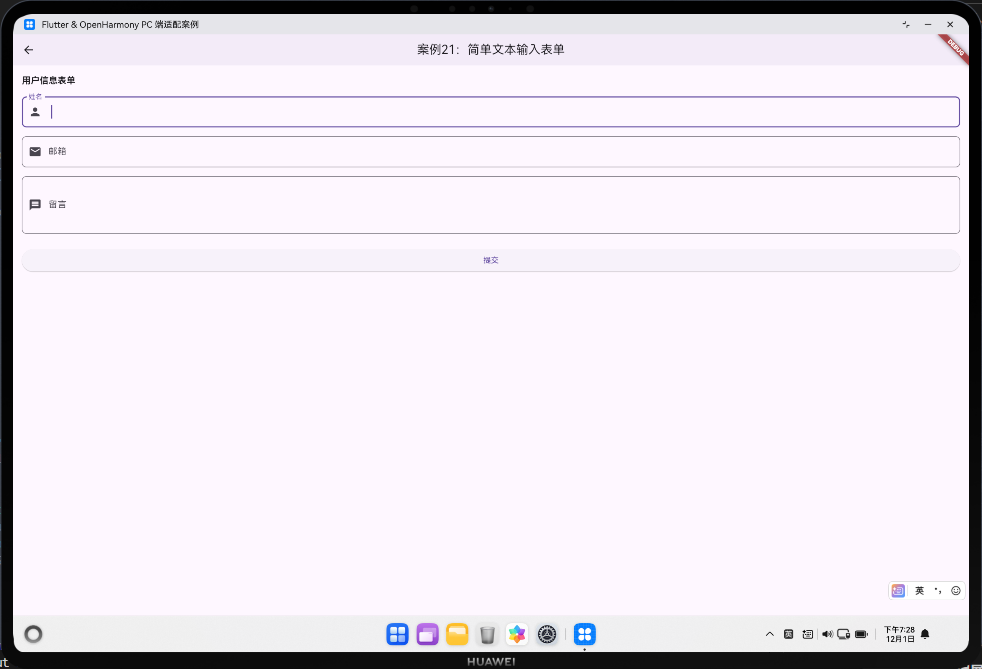
本案例展示如何构建一个简单的文本输入表单,包含姓名、邮箱、留言等字段。演示了 TextFormField、Form 和基础表单验证的用法。
核心概念
1. Form 与 FormState
Form:表单容器,管理多个表单字段;FormState:表单状态,提供validate()和save()方法。
2. TextFormField
- 带验证功能的文本输入框;
- 支持
validator回调进行字段验证; - 支持
onSaved回调保存字段值。
3. 基础验证
- 非空验证;
- 格式验证(如邮箱格式);
- 长度验证。
代码详解
1. 表单结构
Form(
  key: _formKey,
  child: Column(
    children: [
      TextFormField(...),
      TextFormField(...),
      ElevatedButton(onPressed: _submitForm, child: Text('提交')),
    ],
  ),
)
2. 字段验证
TextFormField(
  validator: (value) {
    if (value == null || value.isEmpty) {
      return '姓名不能为空';
    }
    return null;
  },
)
3. 表单提交
void _submitForm() {
  if (_formKey.currentState!.validate()) {
    _formKey.currentState!.save();
    // 处理提交
  }
}
高级话题:表单设计的最佳实践
1. 表单字段的组织
- 逻辑分组:将相关字段分组显示;
- 视觉层次:使用标题、间距等区分不同部分;
- 响应式布局:在不同屏幕宽度上调整布局。
2. 表单验证的策略
- 实时验证:在用户输入时验证(需要谨慎,避免过度提示);
- 提交时验证:在用户点击提交时验证(推荐);
- 混合验证:某些字段实时验证,某些字段提交时验证。
3. 错误提示的设计
TextFormField(
  decoration: InputDecoration(
    errorText: _errorMessage,
    errorStyle: TextStyle(color: Colors.red),
  ),
)
4. 表单加载状态
在提交表单时显示加载状态:
ElevatedButton(
  onPressed: _isLoading ? null : _submitForm,
  child: _isLoading ? CircularProgressIndicator() : Text('提交'),
)
5. 表单重置
void _resetForm() {
  _formKey.currentState!.reset();
}
6. 多步表单
对于复杂表单,可以分步骤显示:
if (_currentStep == 0) {
  // 显示第一步
} else if (_currentStep == 1) {
  // 显示第二步
}
7. 表单数据持久化
保存用户输入的数据,以便用户返回时恢复:
void initState() {
super.initState();
_loadSavedData();
}
Future<void> _loadSavedData() async {
final prefs = await SharedPreferences.getInstance();
_nameController.text = prefs.getString('name') ?? '';
}
8. 表单验证的高级技巧
跨字段验证(如确认密码):
TextFormField(
  validator: (value) {
    if (value != _passwordController.text) {
      return '两次输入的密码不一致';
    }
    return null;
  },
)
9. 表单的键盘处理
TextFormField(
  textInputAction: TextInputAction.next,
  onFieldSubmitted: (value) {
    FocusScope.of(context).nextFocus();
  },
)
10. 表单的无障碍支持
TextFormField(
  decoration: InputDecoration(
    labelText: '邮箱',
    semanticCounterText: '邮箱地址输入框',
  ),
)
通过这些最佳实践,你可以构建出用户友好、易用的表单。
高级话题:表单设计的深度优化
1. 表单状态管理
使用 Provider 或 Riverpod 管理复杂表单状态:
class FormProvider extends ChangeNotifier {
  String _name = '';
  String? _nameError;
  bool _isSubmitting = false;

  void setName(String value) {
    _name = value;
    _nameError = _validateName(value);
    notifyListeners();
  }

  Future<void> submitForm() async {
    _isSubmitting = true;
    notifyListeners();
    try {
      await submitToServer(_name);
    } finally {
      _isSubmitting = false;
      notifyListeners();
    }
  }
}
2. 表单字段的自动填充
从本地存储或 API 预填充表单:
void initState() {
super.initState();
_loadUserData();
}
Future<void> _loadUserData() async {
final user = await fetchUserProfile();
_nameController.text = user.name;
_emailController.text = user.email;
}
3. 表单的撤销/重做功能
class FormHistory {
  final List<Map<String, String>> _history = [];
  int _currentIndex = -1;

  void addState(Map<String, String> state) {
    _history.add(state);
    _currentIndex++;
  }

  void undo() {
    if (_currentIndex > 0) _currentIndex--;
  }

  void redo() {
    if (_currentIndex < _history.length - 1) _currentIndex++;
  }
}
4. 表单的自动保存
定期保存用户输入,防止数据丢失:
Timer? _autoSaveTimer;
void initState() {
super.initState();
_autoSaveTimer = Timer.periodic(Duration(seconds: 30), (_) {
_autoSaveForm();
});
}
Future<void> _autoSaveForm() async {
final prefs = await SharedPreferences.getInstance();
await prefs.setString('form_data', jsonEncode({
'name': _nameController.text,
'email': _emailController.text,
}));
}
void dispose() {
_autoSaveTimer?.cancel();
super.dispose();
}
5. 表单的多语言支持
String getErrorMessage(String key, BuildContext context) {
  final locale = Localizations.localeOf(context);
  final messages = locale.languageCode == 'zh'
      ? {
          'empty': '不能为空',
          'invalid_email': '邮箱格式不正确',
        }
      : {
          'empty': 'Cannot be empty',
          'invalid_email': 'Invalid email format',
        };
  return messages[key] ?? '';
}
6. 表单的动态字段
根据条件动态添加或移除字段:
List<String> _fields = ['name', 'email'];

void addField(String fieldName) {
  setState(() {
    _fields.add(fieldName);
  });
}

void removeField(String fieldName) {
  setState(() {
    _fields.remove(fieldName);
  });
}

Column(
  children: _fields.map((field) {
    return TextFormField(
      decoration: InputDecoration(labelText: field),
    );
  }).toList(),
)
7. 表单的条件验证
根据其他字段的值进行条件验证:
validator: (value) {
  if (_userType == 'business' && (value == null || value.isEmpty)) {
    return '企业用户必须填写营业执照';
  }
  return null;
}
8. 表单的分步骤提交
对于长表单,分步骤收集数据:
int _currentStep = 0;

Stepper(
  currentStep: _currentStep,
  steps: [
    Step(
      title: Text('基本信息'),
      content: Column(children: [/* 第一步字段 */]),
    ),
    Step(
      title: Text('联系方式'),
      content: Column(children: [/* 第二步字段 */]),
    ),
  ],
  onStepContinue: () {
    if (_currentStep < 1) {
      setState(() => _currentStep++);
    }
  },
)
9. 表单的实时预览
显示表单数据的实时预览:
Column(
  children: [
    TextFormField(
      onChanged: (value) => setState(() {}),
    ),
    Container(
      padding: EdgeInsets.all(16),
      color: Colors.grey.shade100,
      child: Text('预览:${_nameController.text}'),
    ),
  ],
)
10. 表单的离线支持
在离线状态下保存表单,在线时同步:
Future<void> _submitFormWithOfflineSupport() async {
  final isOnline = await _checkConnectivity();
  if (isOnline) {
    await _submitToServer();
  } else {
    await _saveFormLocally();
    ScaffoldMessenger.of(context).showSnackBar(
      SnackBar(content: Text('离线保存,恢复连接后自动同步')),
    );
  }
}
通过这些高级优化,你可以构建出专业级的表单系统。
欢迎加入开源鸿蒙跨平台社区:https://openharmonycrossplatform.csdn.net

AtomGit 是由开放原子开源基金会联合 CSDN 等生态伙伴共同推出的新一代开源与人工智能协作平台。平台坚持“开放、中立、公益”的理念,把代码托管、模型共享、数据集托管、智能体开发体验和算力服务整合在一起,为开发者提供从开发、训练到部署的一站式体验。
更多推荐



 15
15 0
0- 0


 已为社区贡献19条内容

所有评论(0)