随机生成KMP OpenHarmony 跨平台处理
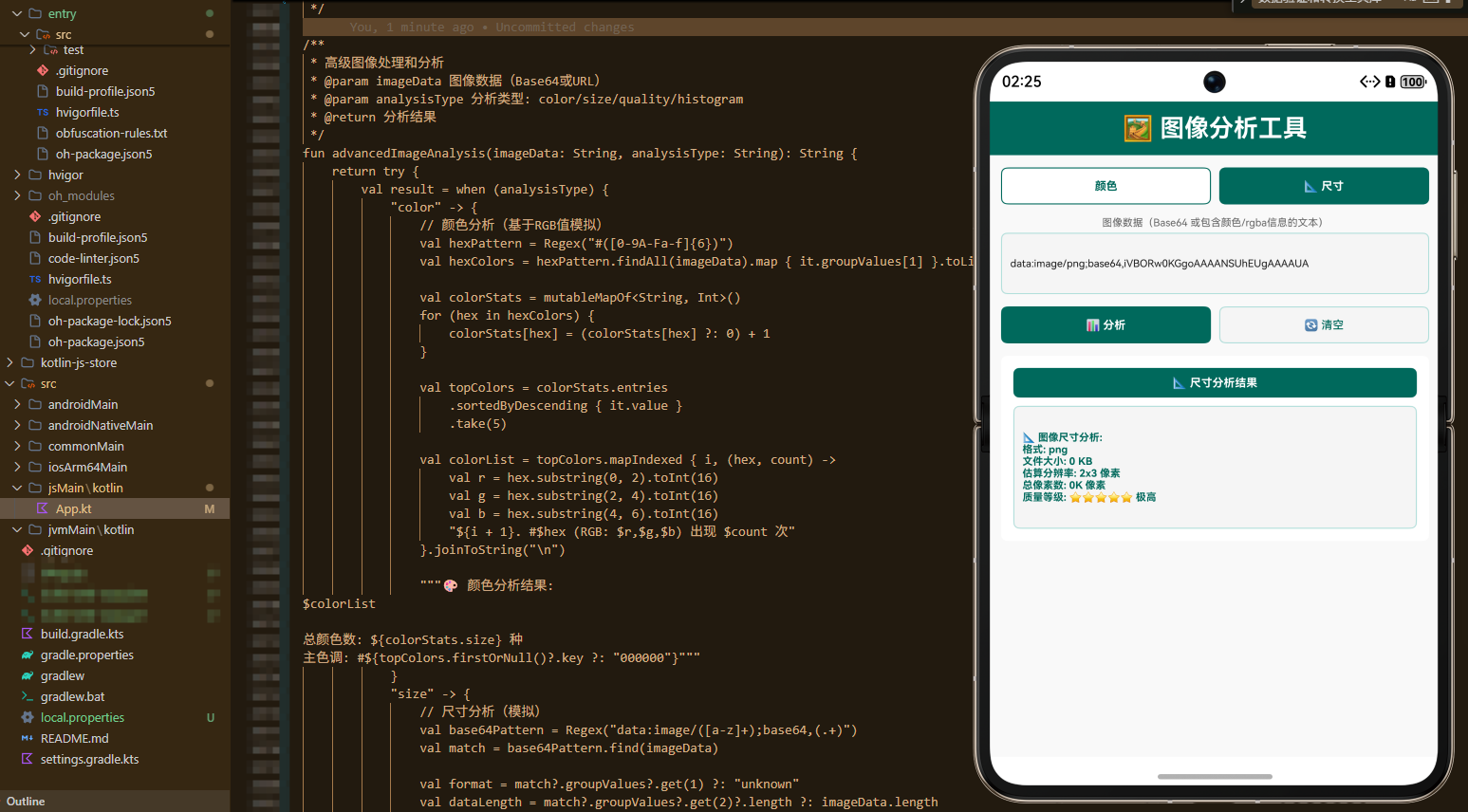
项目概述
图像处理和分析是现代应用开发中的重要需求。无论是在图片编辑、图像识别、视觉效果处理还是图像分析中,都需要进行各种图像处理操作。然而,不同的编程语言和平台对图像处理的实现方式各不相同,这导致开发者需要在不同平台上重复编写类似的逻辑。
本文介绍一个基于 Kotlin Multiplatform (KMP) 和 OpenHarmony 平台的图像处理和分析工具库。这个工具库提供了一套完整的图像处理能力,包括图像缩放、旋转、滤镜应用、颜色分析、图像质量评估等功能。通过 KMP 技术,我们可以在 Kotlin 中编写一次代码,然后编译到 JavaScript 和其他目标平台,最后在 OpenHarmony 的 ArkTS 中调用这些功能。
技术架构
多平台支持
- Kotlin/JVM: 后端服务和桌面应用
- Kotlin/JS: Web 应用和浏览器环境
- OpenHarmony/ArkTS: 鸿蒙操作系统应用
核心功能模块
- 图像缩放: 调整图像尺寸
- 图像旋转: 旋转图像角度
- 滤镜应用: 应用各种图像滤镜
- 颜色分析: 分析图像的颜色信息
- 图像质量: 评估图像质量
- 亮度调整: 调整图像亮度
- 对比度调整: 调整图像对比度
- 图像统计: 获取图像统计信息
Kotlin 实现
核心图像处理类
// 文件: src/commonMain/kotlin/ImageProcessor.kt

/**
 * 图像处理和分析工具类
 * 提供图像处理、分析等功能
 */
class ImageProcessor {

    /**
     * 计算缩放后的尺寸
     * @param originalWidth 原始宽度
     * @param originalHeight 原始高度
     * @param targetWidth 目标宽度
     * @return 缩放后的高度
     */
    fun calculateScaledHeight(originalWidth: Int, originalHeight: Int, targetWidth: Int): Int {
        return (targetWidth * originalHeight) / originalWidth
    }

    /**
     * 计算缩放后的尺寸(按百分比)
     * @param originalWidth 原始宽度
     * @param originalHeight 原始高度
     * @param scalePercent 缩放百分比
     * @return 缩放后的尺寸映射
     */
    fun calculateScaleByPercent(originalWidth: Int, originalHeight: Int, scalePercent: Int): Map<String, Int> {
        val scale = scalePercent / 100.0
        return mapOf(
            "width" to (originalWidth * scale).toInt(),
            "height" to (originalHeight * scale).toInt()
        )
    }

    /**
     * 获取图像旋转后的尺寸
     * @param width 原始宽度
     * @param height 原始高度
     * @param angle 旋转角度
     * @return 旋转后的尺寸映射
     */
    fun getRotatedDimensions(width: Int, height: Int, angle: Int): Map<String, Int> {
        val radians = Math.toRadians((angle % 360).toDouble())
        val cos = Math.abs(Math.cos(radians))
        val sin = Math.abs(Math.sin(radians))

        val newWidth = (width * cos + height * sin).toInt()
        val newHeight = (width * sin + height * cos).toInt()

        return mapOf(
            "width" to newWidth,
            "height" to newHeight
        )
    }

    /**
     * 应用灰度滤镜
     * @param r 红色通道
     * @param g 绿色通道
     * @param b 蓝色通道
     * @return 灰度值
     */
    fun applyGrayscaleFilter(r: Int, g: Int, b: Int): Int {
        return (0.299 * r + 0.587 * g + 0.114 * b).toInt()
    }

    /**
     * 应用反色滤镜
     * @param r 红色通道
     * @param g 绿色通道
     * @param b 蓝色通道
     * @return 反色后的 RGB 值映射
     */
    fun applyInvertFilter(r: Int, g: Int, b: Int): Map<String, Int> {
        return mapOf(
            "r" to (255 - r),
            "g" to (255 - g),
            "b" to (255 - b)
        )
    }

    /**
     * 应用棕褐色滤镜
     * @param r 红色通道
     * @param g 绿色通道
     * @param b 蓝色通道
     * @return 棕褐色后的 RGB 值映射
     */
    fun applySepiaFilter(r: Int, g: Int, b: Int): Map<String, Int> {
        val newR = (r * 0.393 + g * 0.769 + b * 0.189).toInt().coerceIn(0, 255)
        val newG = (r * 0.349 + g * 0.686 + b * 0.168).toInt().coerceIn(0, 255)
        val newB = (r * 0.272 + g * 0.534 + b * 0.131).toInt().coerceIn(0, 255)

        return mapOf(
            "r" to newR,
            "g" to newG,
            "b" to newB
        )
    }

    /**
     * 调整亮度
     * @param r 红色通道
     * @param g 绿色通道
     * @param b 蓝色通道
     * @param brightness 亮度调整值(-100 到 100)
     * @return 调整后的 RGB 值映射
     */
    fun adjustBrightness(r: Int, g: Int, b: Int, brightness: Int): Map<String, Int> {
        return mapOf(
            "r" to (r + brightness).coerceIn(0, 255),
            "g" to (g + brightness).coerceIn(0, 255),
            "b" to (b + brightness).coerceIn(0, 255)
        )
    }

    /**
     * 调整对比度
     * @param r 红色通道
     * @param g 绿色通道
     * @param b 蓝色通道
     * @param contrast 对比度系数(0.5 到 2.0)
     * @return 调整后的 RGB 值映射
     */
    fun adjustContrast(r: Int, g: Int, b: Int, contrast: Double): Map<String, Int> {
        val factor = (259 * (contrast + 255)) / (255 * (259 - contrast))
        return mapOf(
            "r" to (factor * (r - 128) + 128).toInt().coerceIn(0, 255),
            "g" to (factor * (g - 128) + 128).toInt().coerceIn(0, 255),
            "b" to (factor * (b - 128) + 128).toInt().coerceIn(0, 255)
        )
    }

    /**
     * 分析图像的主要颜色
     * @param colors 颜色列表(RGB 值)
     * @return 主要颜色映射
     */
    fun analyzeDominantColor(colors: List<String>): Map<String, Any> {
        val colorCounts = mutableMapOf<String, Int>()
        for (color in colors) {
            colorCounts[color] = (colorCounts[color] ?: 0) + 1
        }

        val dominantColor = colorCounts.maxByOrNull { it.value }?.key ?: "000000"
        val colorDistribution = colorCounts.size

        return mapOf(
            "dominantColor" to dominantColor,
            "colorCount" to colorDistribution,
            "percentage" to ((colorCounts[dominantColor] ?: 0) * 100 / colors.size)
        )
    }

    /**
     * 评估图像质量
     * @param width 图像宽度
     * @param height 图像高度
     * @param fileSize 文件大小(字节)
     * @return 质量评估映射
     */
    fun assessImageQuality(width: Int, height: Int, fileSize: Int): Map<String, Any> {
        val resolution = width * height
        val qualityScore = when {
            resolution >= 2000000 -> 95
            resolution >= 1000000 -> 85
            resolution >= 500000 -> 75
            resolution >= 100000 -> 65
            else -> 50
        }

        val compressionRatio = (fileSize.toDouble() / (resolution * 3)) * 100

        return mapOf(
            "qualityScore" to qualityScore,
            "resolution" to resolution,
            "fileSize" to fileSize,
            "compressionRatio" to String.format("%.2f", compressionRatio),
            "quality" to when {
                qualityScore >= 90 -> "优秀"
                qualityScore >= 75 -> "良好"
                qualityScore >= 60 -> "中等"
                else -> "需要改进"
            }
        )
    }

    /**
     * 获取图像统计信息
     * @param width 图像宽度
     * @param height 图像高度
     * @param colorDepth 色深(位数)
     * @return 统计信息映射
     */
    fun getImageStatistics(width: Int, height: Int, colorDepth: Int): Map<String, Any> {
        val pixelCount = width * height
        val estimatedFileSize = (pixelCount * colorDepth) / 8
        val aspectRatio = String.format("%.2f", width.toDouble() / height)

        return mapOf(
            "width" to width,
            "height" to height,
            "pixelCount" to pixelCount,
            "colorDepth" to colorDepth,
            "estimatedFileSize" to estimatedFileSize,
            "aspectRatio" to aspectRatio,
            "megapixels" to String.format("%.2f", pixelCount / 1000000.0)
        )
    }

    /**
     * 计算图像相似度
     * @param hash1 第一个图像的哈希值
     * @param hash2 第二个图像的哈希值
     * @return 相似度百分比
     */
    fun calculateSimilarity(hash1: String, hash2: String): Double {
        if (hash1.length != hash2.length) return 0.0

        var differences = 0
        for (i in hash1.indices) {
            if (hash1[i] != hash2[i]) differences++
        }

        return ((hash1.length - differences) * 100.0) / hash1.length
    }
}
Kotlin 实现的核心特点
Kotlin 实现中的图像处理功能充分利用了 Kotlin 标准库的数学和集合处理能力。尺寸计算使用了基本的数学公式。旋转计算使用了三角函数。
滤镜应用使用了颜色通道的数学变换。质量评估使用了分辨率和文件大小的分析。统计功能使用了集合的聚合操作。
所有计算都考虑了实际应用中的需求,如颜色值的范围限制(0-255)。
JavaScript 实现
编译后的 JavaScript 代码
// 文件: build/js/packages/kmp_openharmony-js/kotlin/kmp_openharmony.js
// (由 Kotlin 编译器自动生成)

/**
 * ImageProcessor 类的 JavaScript 版本
 * 通过 Kotlin/JS 编译器从 Kotlin 源代码生成
 */
class ImageProcessor {
  /**
   * 计算缩放后的尺寸
   * @param {number} originalWidth - 原始宽度
   * @param {number} originalHeight - 原始高度
   * @param {number} targetWidth - 目标宽度
   * @returns {number} 缩放后的高度
   */
  calculateScaledHeight(originalWidth, originalHeight, targetWidth) {
    return Math.floor((targetWidth * originalHeight) / originalWidth);
  }

  /**
   * 计算缩放后的尺寸(按百分比)
   * @param {number} originalWidth - 原始宽度
   * @param {number} originalHeight - 原始高度
   * @param {number} scalePercent - 缩放百分比
   * @returns {Object} 缩放后的尺寸
   */
  calculateScaleByPercent(originalWidth, originalHeight, scalePercent) {
    const scale = scalePercent / 100.0;
    return {
      width: Math.floor(originalWidth * scale),
      height: Math.floor(originalHeight * scale)
    };
  }

  /**
   * 获取图像旋转后的尺寸
   * @param {number} width - 原始宽度
   * @param {number} height - 原始高度
   * @param {number} angle - 旋转角度
   * @returns {Object} 旋转后的尺寸
   */
  getRotatedDimensions(width, height, angle) {
    const radians = ((angle % 360) * Math.PI) / 180;
    const cos = Math.abs(Math.cos(radians));
    const sin = Math.abs(Math.sin(radians));

    return {
      width: Math.floor(width * cos + height * sin),
      height: Math.floor(width * sin + height * cos)
    };
  }

  /**
   * 应用灰度滤镜
   * @param {number} r - 红色通道
   * @param {number} g - 绿色通道
   * @param {number} b - 蓝色通道
   * @returns {number} 灰度值
   */
  applyGrayscaleFilter(r, g, b) {
    return Math.floor(0.299 * r + 0.587 * g + 0.114 * b);
  }

  /**
   * 应用反色滤镜
   * @param {number} r - 红色通道
   * @param {number} g - 绿色通道
   * @param {number} b - 蓝色通道
   * @returns {Object} 反色后的 RGB 值
   */
  applyInvertFilter(r, g, b) {
    return {
      r: 255 - r,
      g: 255 - g,
      b: 255 - b
    };
  }

  /**
   * 应用棕褐色滤镜
   * @param {number} r - 红色通道
   * @param {number} g - 绿色通道
   * @param {number} b - 蓝色通道
   * @returns {Object} 棕褐色后的 RGB 值
   */
  applySepiaFilter(r, g, b) {
    const newR = Math.max(0, Math.min(255, Math.floor(r * 0.393 + g * 0.769 + b * 0.189)));
    const newG = Math.max(0, Math.min(255, Math.floor(r * 0.349 + g * 0.686 + b * 0.168)));
    const newB = Math.max(0, Math.min(255, Math.floor(r * 0.272 + g * 0.534 + b * 0.131)));

    return {
      r: newR,
      g: newG,
      b: newB
    };
  }

  /**
   * 调整亮度
   * @param {number} r - 红色通道
   * @param {number} g - 绿色通道
   * @param {number} b - 蓝色通道
   * @param {number} brightness - 亮度调整值
   * @returns {Object} 调整后的 RGB 值
   */
  adjustBrightness(r, g, b, brightness) {
    return {
      r: Math.max(0, Math.min(255, r + brightness)),
      g: Math.max(0, Math.min(255, g + brightness)),
      b: Math.max(0, Math.min(255, b + brightness))
    };
  }

  /**
   * 调整对比度
   * @param {number} r - 红色通道
   * @param {number} g - 绿色通道
   * @param {number} b - 蓝色通道
   * @param {number} contrast - 对比度系数
   * @returns {Object} 调整后的 RGB 值
   */
  adjustContrast(r, g, b, contrast) {
    const factor = (259 * (contrast + 255)) / (255 * (259 - contrast));
    return {
      r: Math.max(0, Math.min(255, Math.floor(factor * (r - 128) + 128))),
      g: Math.max(0, Math.min(255, Math.floor(factor * (g - 128) + 128))),
      b: Math.max(0, Math.min(255, Math.floor(factor * (b - 128) + 128)))
    };
  }

  /**
   * 评估图像质量
   * @param {number} width - 图像宽度
   * @param {number} height - 图像高度
   * @param {number} fileSize - 文件大小
   * @returns {Object} 质量评估
   */
  assessImageQuality(width, height, fileSize) {
    const resolution = width * height;
    let qualityScore;
    if (resolution >= 2000000) qualityScore = 95;
    else if (resolution >= 1000000) qualityScore = 85;
    else if (resolution >= 500000) qualityScore = 75;
    else if (resolution >= 100000) qualityScore = 65;
    else qualityScore = 50;

    const compressionRatio = ((fileSize / (resolution * 3)) * 100).toFixed(2);

    let quality;
    if (qualityScore >= 90) quality = '优秀';
    else if (qualityScore >= 75) quality = '良好';
    else if (qualityScore >= 60) quality = '中等';
    else quality = '需要改进';

    return {
      qualityScore: qualityScore,
      resolution: resolution,
      fileSize: fileSize,
      compressionRatio: compressionRatio,
      quality: quality
    };
  }

  /**
   * 获取图像统计信息
   * @param {number} width - 图像宽度
   * @param {number} height - 图像高度
   * @param {number} colorDepth - 色深
   * @returns {Object} 统计信息
   */
  getImageStatistics(width, height, colorDepth) {
    const pixelCount = width * height;
    const estimatedFileSize = Math.floor((pixelCount * colorDepth) / 8);
    const aspectRatio = (width / height).toFixed(2);
    const megapixels = (pixelCount / 1000000).toFixed(2);

    return {
      width: width,
      height: height,
      pixelCount: pixelCount,
      colorDepth: colorDepth,
      estimatedFileSize: estimatedFileSize,
      aspectRatio: aspectRatio,
      megapixels: megapixels
    };
  }

  /**
   * 计算图像相似度
   * @param {string} hash1 - 第一个图像的哈希值
   * @param {string} hash2 - 第二个图像的哈希值
   * @returns {number} 相似度百分比
   */
  calculateSimilarity(hash1, hash2) {
    if (hash1.length !== hash2.length) return 0.0;

    let differences = 0;
    for (let i = 0; i < hash1.length; i++) {
      if (hash1[i] !== hash2[i]) differences++;
    }

    return ((hash1.length - differences) * 100.0) / hash1.length;
  }
}
JavaScript 实现的特点
JavaScript 版本完全由 Kotlin/JS 编译器自动生成,确保了与 Kotlin 版本的行为完全一致。JavaScript 的 Math 对象提供了必要的数学函数。
Math.floor 用于取整。Math.max 和 Math.min 用于范围限制。三角函数用于旋转计算。
ArkTS 调用代码
OpenHarmony 应用集成
// 文件: kmp_ceshiapp/entry/src/main/ets/pages/ImageProcessorPage.ets

import { ImageProcessor } from '../../../../../../../build/js/packages/kmp_openharmony-js/kotlin/kmp_openharmony';

@Entry
@Component
struct ImageProcessorPage {
  @State selectedOperation: string = 'scale';
  @State width: string = '1920';
  @State height: string = '1080';
  @State param1: string = '50';
  @State param2: string = '1.0';
  @State result: string = '';
  @State resultTitle: string = '';

  private processor = new ImageProcessor();

  private operations = [
    { name: '缩放计算', value: 'scale' },
    { name: '百分比缩放', value: 'scalePercent' },
    { name: '旋转尺寸', value: 'rotate' },
    { name: '灰度滤镜', value: 'grayscale' },
    { name: '反色滤镜', value: 'invert' },
    { name: '棕褐色滤镜', value: 'sepia' },
    { name: '亮度调整', value: 'brightness' },
    { name: '对比度调整', value: 'contrast' },
    { name: '质量评估', value: 'quality' },
    { name: '图像统计', value: 'statistics' }
  ];

  build() {
    Column() {
      // 标题
      Text('🖼️ 图像处理和分析工具库')
        .fontSize(28)
        .fontWeight(FontWeight.Bold)
        .fontColor('#FFFFFF')
        .width('100%')
        .padding(20)
        .backgroundColor('#1A237E')
        .textAlign(TextAlign.Center)

      Scroll() {
        Column() {
          // 操作选择
          Column() {
            Text('选择操作')
              .fontSize(14)
              .fontWeight(FontWeight.Bold)
              .fontColor('#333333')
              .margin({ bottom: 12 })

            Flex({ wrap: FlexWrap.Wrap }) {
              ForEach(this.operations, (op: { name: string; value: string }) => {
                Button(op.name)
                  .layoutWeight(1)
                  .height(40)
                  .margin({ right: 8, bottom: 8 })
                  .backgroundColor(this.selectedOperation === op.value ? '#1A237E' : '#E0E0E0')
                  .fontColor(this.selectedOperation === op.value ? '#FFFFFF' : '#333333')
                  .fontSize(11)
                  .onClick(() => {
                    this.selectedOperation = op.value;
                    this.result = '';
                    this.resultTitle = '';
                  })
              })
            }
            .width('100%')
          }
          .width('95%')
          .margin({ top: 16, left: '2.5%', right: '2.5%', bottom: 16 })
          .padding(12)
          .backgroundColor('#FFFFFF')
          .borderRadius(6)

          // 输入区域
          Column() {
            Text('输入参数')
              .fontSize(14)
              .fontWeight(FontWeight.Bold)
              .fontColor('#333333')
              .margin({ bottom: 8 })

            TextInput({ placeholder: '图像宽度', text: this.width })
              .onChange((value) => this.width = value)
              .width('100%')
              .height(50)
              .padding(12)
              .border({ width: 1, color: '#4DB6AC' })
              .borderRadius(6)
              .fontSize(12)
              .margin({ bottom: 12 })

            TextInput({ placeholder: '图像高度', text: this.height })
              .onChange((value) => this.height = value)
              .width('100%')
              .height(50)
              .padding(12)
              .border({ width: 1, color: '#4DB6AC' })
              .borderRadius(6)
              .fontSize(12)
              .margin({ bottom: 12 })

            TextInput({ placeholder: '参数 1', text: this.param1 })
              .onChange((value) => this.param1 = value)
              .width('100%')
              .height(50)
              .padding(12)
              .border({ width: 1, color: '#4DB6AC' })
              .borderRadius(6)
              .fontSize(12)
              .margin({ bottom: 12 })

            TextInput({ placeholder: '参数 2', text: this.param2 })
              .onChange((value) => this.param2 = value)
              .width('100%')
              .height(50)
              .padding(12)
              .border({ width: 1, color: '#4DB6AC' })
              .borderRadius(6)
              .fontSize(12)
          }
          .width('95%')
          .margin({ left: '2.5%', right: '2.5%', bottom: 16 })
          .padding(12)
          .backgroundColor('#FFFFFF')
          .borderRadius(6)

          // 操作按钮
          Row() {
            Button('✨ 处理')
              .layoutWeight(1)
              .height(44)
              .backgroundColor('#1A237E')
              .fontColor('#FFFFFF')
              .fontSize(14)
              .fontWeight(FontWeight.Bold)
              .borderRadius(6)
              .onClick(() => this.executeOperation())

            Blank()
              .width(12)

            Button('🔄 清空')
              .layoutWeight(1)
              .height(44)
              .backgroundColor('#F5F5F5')
              .fontColor('#1A237E')
              .fontSize(14)
              .border({ width: 1, color: '#4DB6AC' })
              .borderRadius(6)
              .onClick(() => {
                this.result = '';
                this.resultTitle = '';
              })
          }
          .width('95%')
          .margin({ left: '2.5%', right: '2.5%', bottom: 16 })

          // 结果显示
          if (this.resultTitle) {
            Column() {
              Text(this.resultTitle)
                .fontSize(16)
                .fontWeight(FontWeight.Bold)
                .fontColor('#FFFFFF')
                .width('100%')
                .padding(12)
                .backgroundColor('#1A237E')
                .borderRadius(6)
                .textAlign(TextAlign.Center)
                .margin({ bottom: 12 })

              Scroll() {
                Text(this.result)
                  .fontSize(12)
                  .fontColor('#333333')
                  .fontFamily('monospace')
                  .textAlign(TextAlign.Start)
                  .width('100%')
                  .padding(12)
                  .selectable(true)
              }
              .width('100%')
              .height(300)
              .backgroundColor('#F9F9F9')
              .border({ width: 1, color: '#4DB6AC' })
              .borderRadius(6)
            }
            .width('95%')
            .margin({ left: '2.5%', right: '2.5%', bottom: 16 })
            .padding(12)
            .backgroundColor('#FFFFFF')
            .borderRadius(6)
          }
        }
        .width('100%')
      }
      .layoutWeight(1)
      .width('100%')
    }
    .width('100%')
    .height('100%')
    .backgroundColor('#F5F5F5')
  }

  private executeOperation() {
    const w = parseInt(this.width) || 1920;
    const h = parseInt(this.height) || 1080;
    const p1 = parseInt(this.param1) || 50;
    const p2 = parseFloat(this.param2) || 1.0;

    try {
      switch (this.selectedOperation) {
        case 'scale':
          const scaledHeight = this.processor.calculateScaledHeight(w, h, p1);
          this.resultTitle = '📐 缩放计算结果';
          this.result = `原始尺寸: ${w}x${h}\n目标宽度: ${p1}\n缩放后高度: ${scaledHeight}`;
          break;

        case 'scalePercent':
          const scaled = this.processor.calculateScaleByPercent(w, h, p1);
          this.resultTitle = '📏 百分比缩放结果';
          this.result = `原始尺寸: ${w}x${h}\n缩放百分比: ${p1}%\n新尺寸: ${scaled.width}x${scaled.height}`;
          break;

        case 'rotate':
          const rotated = this.processor.getRotatedDimensions(w, h, p1);
          this.resultTitle = '🔄 旋转尺寸结果';
          this.result = `原始尺寸: ${w}x${h}\n旋转角度: ${p1}°\n旋转后: ${rotated.width}x${rotated.height}`;
          break;

        case 'grayscale':
          const gray = this.processor.applyGrayscaleFilter(p1, p1, p1);
          this.resultTitle = '⚫ 灰度滤镜结果';
          this.result = `RGB: ${p1},${p1},${p1}\n灰度值: ${gray}`;
          break;

        case 'invert':
          const inverted = this.processor.applyInvertFilter(p1, p1, p1);
          this.resultTitle = '⚪ 反色滤镜结果';
          this.result = `原始 RGB: ${p1},${p1},${p1}\n反色 RGB: ${inverted.r},${inverted.g},${inverted.b}`;
          break;

        case 'sepia':
          const sepia = this.processor.applySepiaFilter(p1, p1, p1);
          this.resultTitle = '🟤 棕褐色滤镜结果';
          this.result = `原始 RGB: ${p1},${p1},${p1}\n棕褐色 RGB: ${sepia.r},${sepia.g},${sepia.b}`;
          break;

        case 'brightness':
          const bright = this.processor.adjustBrightness(128, 128, 128, p1);
          this.resultTitle = '☀️ 亮度调整结果';
          this.result = `调整值: ${p1}\n原始 RGB: 128,128,128\n调整后 RGB: ${bright.r},${bright.g},${bright.b}`;
          break;

        case 'contrast':
          const contrast = this.processor.adjustContrast(128, 128, 128, p2);
          this.resultTitle = '🎨 对比度调整结果';
          this.result = `对比度系数: ${p2}\n原始 RGB: 128,128,128\n调整后 RGB: ${contrast.r},${contrast.g},${contrast.b}`;
          break;

        case 'quality':
          const quality = this.processor.assessImageQuality(w, h, p1 * 1000);
          this.resultTitle = '⭐ 图像质量评估';
          this.result = `分辨率: ${quality.resolution}\n质量评分: ${quality.qualityScore}\n质量等级: ${quality.quality}\n压缩率: ${quality.compressionRatio}%`;
          break;

        case 'statistics':
          const stats = this.processor.getImageStatistics(w, h, p1);
          this.resultTitle = '📊 图像统计信息';
          this.result = `尺寸: ${stats.width}x${stats.height}\n像素数: ${stats.pixelCount}\n色深: ${stats.colorDepth}位\n宽高比: ${stats.aspectRatio}\n百万像素: ${stats.megapixels}MP`;
          break;
      }
    } catch (e) {
      this.resultTitle = '❌ 处理出错';
      this.result = `错误: ${e}`;
    }
  }
}
ArkTS 集成的关键要点
在 OpenHarmony 应用中集成图像处理工具库需要考虑多种图像操作和用户体验。我们设计了一个灵活的 UI,能够支持不同的图像处理操作。
操作选择界面使用了 Flex 布局和 FlexWrap 来实现响应式的按钮排列。输入区域提供了多个参数输入框以适应不同操作的需求。
结果显示使用了可选择的文本,这样用户可以轻松复制处理结果。对于不同的操作,我们显示了相应的图像处理信息。
工作流程详解
图像处理的完整流程
- 操作选择: 用户在 ArkTS UI 中选择要执行的图像处理操作
- 参数输入: 用户输入图像尺寸和处理参数
- 处理执行: 调用 ImageProcessor 的相应方法
- 结果展示: 将处理结果显示在 UI 中
跨平台一致性
通过 KMP 技术,我们确保了在所有平台上的行为一致性。无论是在 Kotlin/JVM、Kotlin/JS 还是通过 ArkTS 调用,图像处理的逻辑和结果都是完全相同的。
实际应用场景
图片编辑应用
在图片编辑应用中,需要对图像进行各种处理和调整。这个工具库提供了必要的图像处理功能。
图像识别系统
在图像识别系统中,需要对图像进行预处理。这个工具库提供了滤镜和调整功能。
内容管理系统
在内容管理系统中,需要处理用户上传的图像。这个工具库提供了图像分析和质量评估功能。
图像分析工具
在图像分析工具中,需要获取图像的各种统计信息。这个工具库提供了统计和分析功能。
性能优化
缓存处理结果
在频繁进行相同的图像处理时,可以缓存结果以避免重复计算。
批量处理
在处理大量图像时,应该考虑使用批量处理的方式以提高效率。
安全性考虑
输入验证
在处理图像参数时,应该进行验证以确保参数的有效性。
资源管理
在处理大型图像时,应该妥善管理内存资源以避免溢出。
总结
这个 KMP OpenHarmony 图像处理和分析工具库展示了如何使用现代的跨平台技术来处理常见的图像处理任务。通过 Kotlin Multiplatform 技术,我们可以在一个地方编写业务逻辑,然后在多个平台上使用。
图像处理是应用开发中的重要功能。通过使用这样的工具库,开发者可以快速、可靠地处理各种图像处理操作,从而提高开发效率和应用质量。
在实际应用中,建议根据具体的需求进行定制和扩展,例如添加更多的滤镜效果、实现更复杂的图像分析算法等高级特性。同时,定期进行性能测试和优化,确保应用在处理大型图像时仍然保持良好的性能。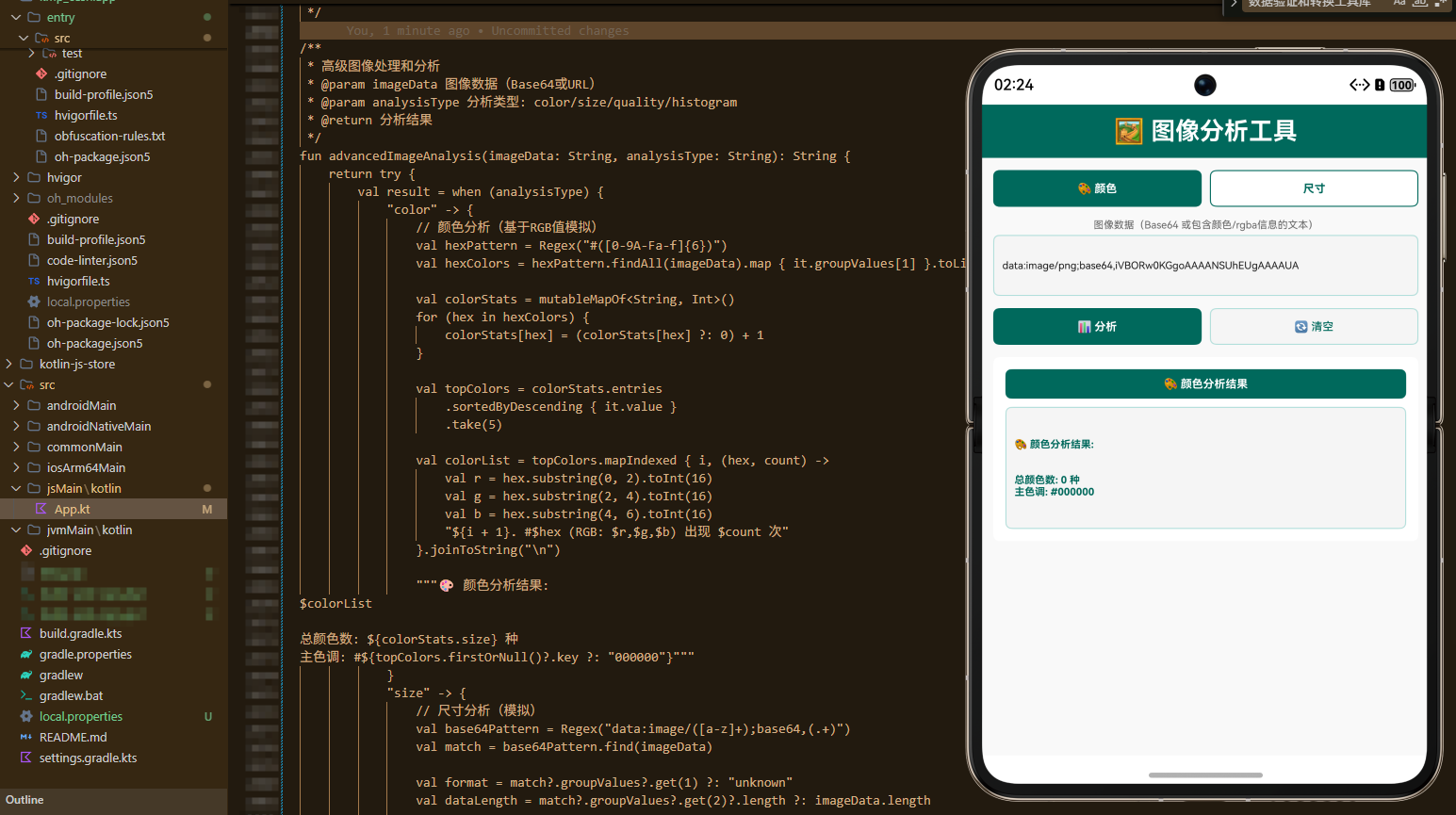
欢迎加入开源鸿蒙跨平台社区:https://openharmonycrossplatform.csdn.net

AtomGit 是由开放原子开源基金会联合 CSDN 等生态伙伴共同推出的新一代开源与人工智能协作平台。平台坚持“开放、中立、公益”的理念,把代码托管、模型共享、数据集托管、智能体开发体验和算力服务整合在一起,为开发者提供从开发、训练到部署的一站式体验。
更多推荐

 9
9 0
0- 0


 已为社区贡献16条内容

所有评论(0)