flutter适配openHarmony Flow 布局
案例概述
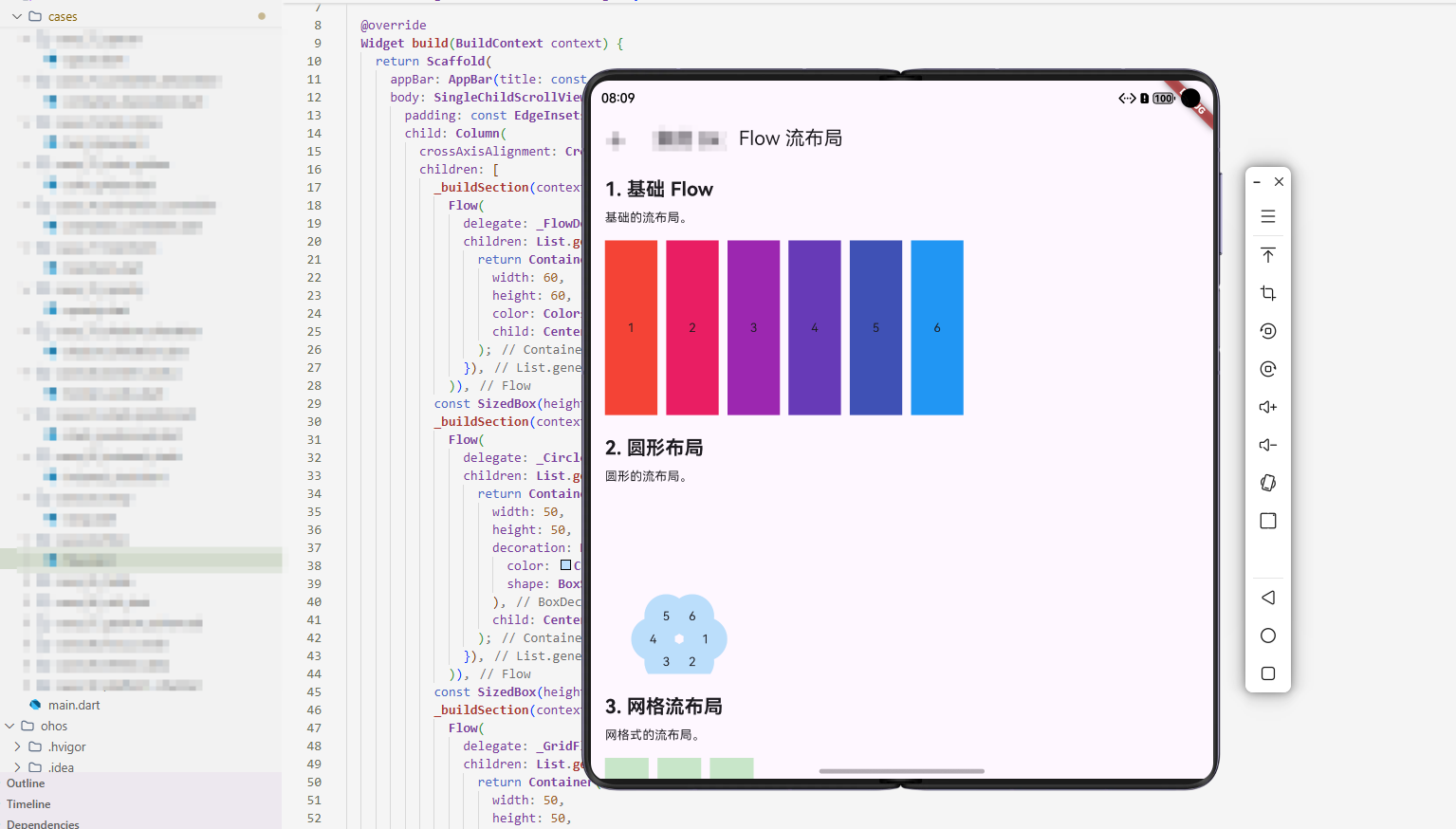
Flow 是一个高性能的布局组件,用于创建复杂的布局。本案例展示了如何使用 Flow。
核心概念
1. Flow 基础
Flow 是高性能的布局组件。
2. FlowDelegate
通过 FlowDelegate 控制子组件的位置和大小。
3. 性能优化
Flow 比其他布局更高效。
代码详解
示例 1:基础 Flow
class BasicFlowExample extends StatelessWidget {
Widget build(BuildContext context) {
return Flow(
delegate: SimpleFlowDelegate(),
children: List.generate(5, (index) {
return Container(
width: 50,
height: 50,
color: Colors.primaries[index % Colors.primaries.length],
);
}),
);
}
}
class SimpleFlowDelegate extends FlowDelegate {
void paintChildren(FlowPaintingContext context) {
for (int i = 0; i < context.childCount; i++) {
context.paintChild(i, transform: Matrix4.translationValues(i * 60.0, 0, 0));
}
}
bool shouldRepaint(SimpleFlowDelegate oldDelegate) => false;
}
代码解释: Flow 通过 FlowDelegate 实现完全自定义布局。SimpleFlowDelegate 在 paintChildren 中遍历所有子组件,使用 Matrix4.translationValues 平移每个子组件。这里每个子组件向右偏移 60 像素,形成水平排列。Flow 性能优异,适合复杂自定义布局。
示例 2:圆形布局
class CircularFlowExample extends StatelessWidget {
Widget build(BuildContext context) {
return Flow(
delegate: CircularFlowDelegate(),
children: List.generate(8, (index) {
return Container(
width: 50,
height: 50,
decoration: BoxDecoration(
shape: BoxShape.circle,
color: Colors.primaries[index % Colors.primaries.length],
),
);
}),
);
}
}
class CircularFlowDelegate extends FlowDelegate {
void paintChildren(FlowPaintingContext context) {
final radius = 100.0;
for (int i = 0; i < context.childCount; i++) {
final angle = (i / context.childCount) * 2 * 3.14159;
final x = radius * cos(angle);
final y = radius * sin(angle);
context.paintChild(i, transform: Matrix4.translationValues(x, y, 0));
}
}
bool shouldRepaint(CircularFlowDelegate oldDelegate) => false;
}
代码解释: 这个示例展示了圆形布局。使用三角函数(cos/sin)计算每个子组件在圆周上的位置。这种高级布局在菜单、导航、展示等场景中很有用。Flow 的强大之处在于可以实现任意数学公式驱动的布局。
示例 3:网格布局
class GridFlowExample extends StatelessWidget {
Widget build(BuildContext context) {
return Flow(
delegate: GridFlowDelegate(),
children: List.generate(12, (index) {
return Container(
width: 50,
height: 50,
color: Colors.primaries[index % Colors.primaries.length],
);
}),
);
}
}
class GridFlowDelegate extends FlowDelegate {
void paintChildren(FlowPaintingContext context) {
for (int i = 0; i < context.childCount; i++) {
final row = i ~/ 4;
final col = i % 4;
context.paintChild(i,
transform: Matrix4.translationValues(col * 60.0, row * 60.0, 0));
}
}
bool shouldRepaint(GridFlowDelegate oldDelegate) => false;
}
代码解释: 这个示例展示了网格布局。通过行列计算(row = i ~/ 4, col = i % 4)将子组件排列成 4 列网格。虽然 GridView 更简单,但 Flow 提供了更多控制,如动画、响应式调整等。
示例 4:动画 Flow
class AnimatedFlowExample extends StatefulWidget {
State<AnimatedFlowExample> createState() => _AnimatedFlowExampleState();
}
class _AnimatedFlowExampleState extends State<AnimatedFlowExample>
with SingleTickerProviderStateMixin {
late AnimationController _controller;
void initState() {
super.initState();
_controller = AnimationController(
duration: const Duration(seconds: 2),
vsync: this,
)..repeat();
}
void dispose() {
_controller.dispose();
super.dispose();
}
Widget build(BuildContext context) {
return AnimatedBuilder(
animation: _controller,
builder: (context, child) {
return Flow(
delegate: AnimatedFlowDelegate(_controller.value),
children: List.generate(5, (index) {
return Container(
width: 50,
height: 50,
color: Colors.primaries[index % Colors.primaries.length],
);
}),
);
},
);
}
}
class AnimatedFlowDelegate extends FlowDelegate {
final double animationValue;
AnimatedFlowDelegate(this.animationValue);
void paintChildren(FlowPaintingContext context) {
for (int i = 0; i < context.childCount; i++) {
final angle = (i / context.childCount) * 2 * 3.14159 + animationValue * 2 * 3.14159;
final radius = 100.0;
final x = radius * cos(angle);
final y = radius * sin(angle);
context.paintChild(i, transform: Matrix4.translationValues(x, y, 0));
}
}
bool shouldRepaint(AnimatedFlowDelegate oldDelegate) =>
oldDelegate.animationValue != animationValue;
}
代码解释: 这个示例展示了动画 Flow。AnimatedBuilder 驱动 AnimationController,每帧更新 FlowDelegate 的 animationValue。在 paintChildren 中,animationValue 被加到角度计算中,使子组件围绕中心旋转。这展示了 Flow 与动画的完美结合,可实现复杂的动画布局效果。
示例 5:响应式 Flow
class ResponsiveFlowExample extends StatelessWidget {
Widget build(BuildContext context) {
final size = MediaQuery.of(context).size;
return Flow(
delegate: ResponsiveFlowDelegate(size),
children: List.generate(20, (index) {
return Container(
width: 40,
height: 40,
color: Colors.primaries[index % Colors.primaries.length],
);
}),
);
}
}
class ResponsiveFlowDelegate extends FlowDelegate {
final Size screenSize;
ResponsiveFlowDelegate(this.screenSize);
void paintChildren(FlowPaintingContext context) {
final cols = (screenSize.width / 50).toInt();
for (int i = 0; i < context.childCount; i++) {
final row = i ~/ cols;
final col = i % cols;
context.paintChild(i,
transform: Matrix4.translationValues(col * 50.0, row * 50.0, 0));
}
}
bool shouldRepaint(ResponsiveFlowDelegate oldDelegate) =>
oldDelegate.screenSize != screenSize;
}
代码解释: 这个示例展示了响应式 Flow。根据屏幕宽度动态计算列数(cols),然后按网格排列子组件。shouldRepaint 在屏幕大小变化时返回 true,触发重新布局。这种方式比固定网格更灵活,能适应各种屏幕尺寸。
高级话题
1. 动态/响应式设计
根据屏幕大小调整 Flow。
2. 动画与过渡
自定义 Flow 动画。
3. 搜索/过滤/排序
过滤 Flow 项。
4. 选择与批量操作
支持多选。
5. 加载与缓存
显示加载状态。
6. 键盘导航
支持键盘快捷键。
7. 无障碍支持
提供无障碍支持。
8. 样式自定义
自定义样式。
9. 数据持久化/导出
保存状态。
10. 单元测试与集成测试
测试功能。
PC 端适配要点
- 根据屏幕大小调整 Flow
- 支持键盘快捷键
- 提供清晰的布局
实际应用场景
- 复杂布局:创建复杂布局
- 动画布局:创建动画布局
- 高性能布局:创建高性能布局
- 自定义布局:创建自定义布局
扩展建议
- 学习高级布局库
- 研究性能优化
- 探索自定义效果
- 集成布局库
总结
Flow 是创建高性能复杂布局的强大工具。通过灵活使用 Flow,可以创建各种布局效果。欢迎加入开源鸿蒙跨平台社区:https://openharmonycrossplatform.csdn.net

AtomGit 是由开放原子开源基金会联合 CSDN 等生态伙伴共同推出的新一代开源与人工智能协作平台。平台坚持“开放、中立、公益”的理念,把代码托管、模型共享、数据集托管、智能体开发体验和算力服务整合在一起,为开发者提供从开发、训练到部署的一站式体验。
更多推荐

 3
3 0
0- 0


 已为社区贡献10条内容

所有评论(0)