高级进阶 React Native 鸿蒙跨平台开发:react-native-performance 性能监控
欢迎加入开源鸿蒙跨平台社区:https://openharmonycrossplatform.csdn.net
📋 前言
react-native-performance 是一个强大的性能监控库,它为 React Native 应用提供了完整的性能监测能力,包括时间戳标记、性能测量、自定义指标、网络资源监控等功能。该库基于 Web Performance API 标准,提供了跨平台统一的性能监控接口,支持 Android、iOS 和 HarmonyOS 三端,特别适合需要实时监控应用性能、优化用户体验的场景,如粒子动画性能监控、页面加载性能分析、网络请求性能追踪等。
🎯 库简介
基本信息
-
库名称: react-native-performance
-
版本信息:
5.1.3: 支持 RN 0.72 版本(@react-native-ohos/react-native-performance)5.2.0: 支持 RN 0.77 版本(@react-native-ohos/react-native-performance)
-
官方仓库: https://github.com/oblador/react-native-performance
-
主要功能:
- 高精度时间戳:提供高分辨率时间戳,支持精确的性能测量
- 性能标记:创建性能标记点,用于测量特定操作耗时
- 性能测量:测量两个标记点之间的时间差
- 自定义指标:支持自定义性能指标,记录非时间相关的性能数据
- 网络监控:监控网络资源加载性能
- 性能观察:通过 PerformanceObserver 监听性能事件
- 数据查询:支持多种方式查询性能数据
-
兼容性验证: 该第三方库的仓库已迁移至 Gitcode,且支持直接从 npm 下载,新的包名为:
@react-native-ohos/react-native-performance
为什么需要这个库?
- Web 标准 API: 基于 Web Performance API 标准,使用方式与浏览器一致
- 高精度测量: 提供高分辨率时间戳,精确到毫秒级
- 功能全面: 涵盖时间测量、指标记录、网络监控等各类性能监控需求
- 使用简单: API 设计简洁明了,易于集成和使用
- 跨平台: 支持 Android、iOS、HarmonyOS 三端,统一的 API
- 性能分析: 帮助开发者快速定位性能瓶颈,优化应用体验
- 鸿蒙支持: 完整支持 HarmonyOS 平台,实现真正的跨平台
📦 安装步骤
1. 使用 npm 安装
根据您的 RN 版本选择对应的包名:
RN 0.72 版本:
npm install react-native-performance@5.1.3
npm install @react-native-ohos/react-native-performance@5.1.3-rc.1
RN 0.77 版本:
npm install react-native-performance@5.2.0
npm install @react-native-ohos/react-native-performance
2. 验证安装
安装完成后,检查 package.json 文件,应该能看到新增的依赖:
{
  "dependencies": {
    "@react-native-ohos/react-native-performance": "^5.1.3-rc.1,
    // ... 其他依赖
  }
}
🔧 HarmonyOS 平台配置 ⭐
1. 引入原生端代码
目前有两种方法:
方法一:通过 har 包引入(推荐)
[!TIP] har 包位于三方库安装路径的
harmony文件夹下。
打开 harmony/entry/oh-package.json5,添加以下依赖:
"dependencies": {
    "@rnoh/react-native-openharmony": "file:../react_native_openharmony",
    "@react-native-ohos/react-native-performance": "file:../../node_modules/@react-native-ohos/react-native-performance/harmony/react_native_performance.har"
}
点击右上角的 sync 按钮
或者在终端执行:
cd harmony/entry
ohpm install
方法二:直接链接源码
[!TIP] 如需使用直接链接源码,请参考直接链接源码说明
步骤 1: 把 <RN工程>/node_modules/@react-native-ohos/react-native-performance/harmony 目录下的源码 react_native_performance 复制到 harmony 工程根目录下。
步骤 2: 在 harmony 工程根目录的 build-profile.json5 添加以下模块:
modules: [
  ...
  {
    name: 'react_native_performance',
    srcPath: './react_native_performance',
  }
]
步骤 3: 打开 react_native_performance/oh-package.json5,修改 @rnoh/react-native-openharmony 和项目的版本一致。
步骤 4: 打开 harmony/entry/oh-package.json5,添加以下依赖:
"dependencies": {
  "@rnoh/react-native-openharmony": "0.72.90",
  "@react-native-ohos/react-native-performance": "file:../react_native_performance"
}
步骤 5: 点击 DevEco Studio 右上角的 sync 按钮
2. 在 ArkTs 侧引入 RNPerformancePackage
打开 harmony/entry/src/main/ets/RNPackagesFactory.ts,添加:
  ...
+ import {RNPerformancePackage} from '@react-native-ohos/react-native-performance/ts';

export function createRNPackages(ctx: RNPackageContext): RNPackage[] {
  return [
    new SamplePackage(ctx),
+   new RNPerformancePackage(ctx)
  ];
}
3. 配置 CMakeLists 和引入 PerformancePackage
[!WARNING] 若使用的是 <=5.1.2-0.0.3 版本,请跳过本章。
打开 harmony/entry/src/main/cpp/CMakeLists.txt,添加:
project(rnapp)
cmake_minimum_required(VERSION 3.4.1)
set(CMAKE_SKIP_BUILD_RPATH TRUE)
set(RNOH_APP_DIR "${CMAKE_CURRENT_SOURCE_DIR}")
set(NODE_MODULES "${CMAKE_CURRENT_SOURCE_DIR}/../../../../../node_modules")
+ set(OH_MODULES "${CMAKE_CURRENT_SOURCE_DIR}/../../../oh_modules")
set(RNOH_CPP_DIR "${CMAKE_CURRENT_SOURCE_DIR}/../../../../../../react-native-harmony/harmony/cpp")
set(LOG_VERBOSITY_LEVEL 1)
set(CMAKE_ASM_FLAGS "-Wno-error=unused-command-line-argument -Qunused-arguments")
set(CMAKE_CXX_FLAGS "-fstack-protector-strong -Wl,-z,relro,-z,now,-z,noexecstack -s -fPIE -pie")
set(WITH_HITRACE_SYSTRACE 1) # for other CMakeLists.txt files to use
add_compile_definitions(WITH_HITRACE_SYSTRACE)

add_subdirectory("${RNOH_CPP_DIR}" ./rn)

# RNOH_BEGIN: manual_package_linking_1
add_subdirectory("../../../../sample_package/src/main/cpp" ./sample-package)
+ add_subdirectory("${OH_MODULES}/@react-native-ohos/react-native-performance/src/main/cpp" ./performance)

# RNOH_END: manual_package_linking_1

file(GLOB GENERATED_CPP_FILES "./generated/*.cpp")

add_library(rnoh_app SHARED
    ${GENERATED_CPP_FILES}
    "./PackageProvider.cpp"
    "${RNOH_CPP_DIR}/RNOHAppNapiBridge.cpp"
)
target_link_libraries(rnoh_app PUBLIC rnoh)

# RNOH_BEGIN: manual_package_linking_2
target_link_libraries(rnoh_app PUBLIC rnoh_sample_package)
+ target_link_libraries(rnoh_app PUBLIC rnoh_performance)
# RNOH_END: manual_package_linking_2
打开 harmony/entry/src/main/cpp/PackageProvider.cpp,添加:
#include "RNOH/PackageProvider.h"
#include "generated/RNOHGeneratedPackage.h"
#include "SamplePackage.h"
+ #include "PerformancePackage.h"

using namespace rnoh;

std::vector<std::shared_ptr<Package>> PackageProvider::getPackages(Package::Context ctx) {
    return {
        std::make_shared<RNOHGeneratedPackage>(ctx),
        std::make_shared<SamplePackage>(ctx),
+       std::make_shared<PerformancePackage>(ctx),
    };
}
4. 运行
点击右上角的 sync 按钮
或者在终端执行:
cd harmony/entry
ohpm install
然后编译、运行即可。
5.如果遇到编译命令太长,运行报错
在hvigor/hvigor-config.json5文件中添加配置
{
     "properties": {
       "ohos.nativeResolver": false
     },
     "module": {
       // ... 其他配置
     }
}
💻 完整代码示例
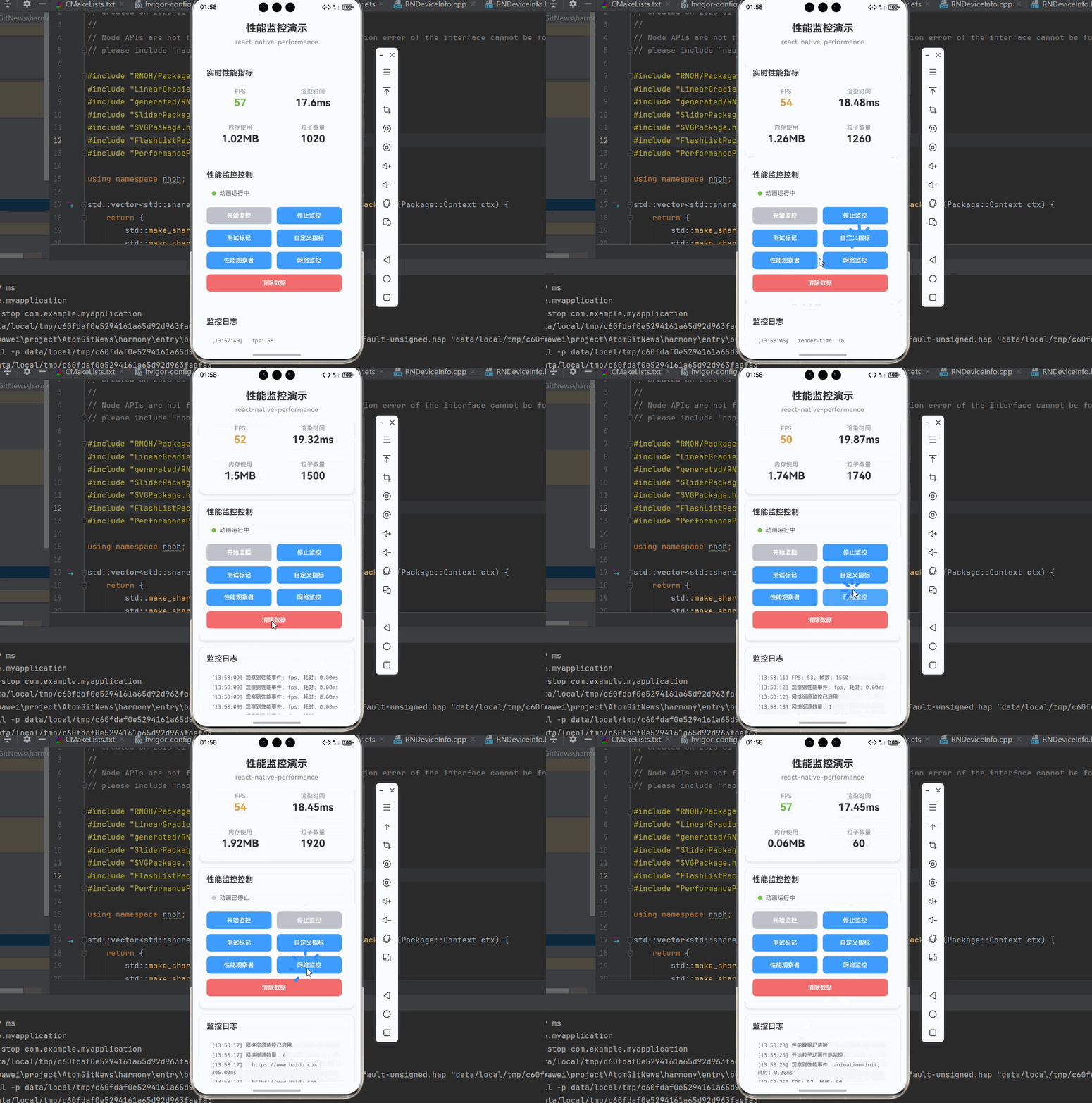
下面是一个完整的示例,展示了如何使用 react-native-performance 监控粒子动画的性能:
import React, { useState, useEffect, useRef } from 'react';
import {
  View,
  StyleSheet,
  TouchableOpacity,
  SafeAreaView,
  Animated,
  Easing,
  Text,
  ScrollView,
} from 'react-native';
import performance, {
  PerformanceObserver,
  setResourceLoggingEnabled,
} from 'react-native-performance';

interface PerformanceMetrics {
  fps: number;
  renderTime: number;
  memoryUsage: number;
  particleCount: number;
  animationTime: number;
}

function PerformanceMonitoringDemo() {
  const [metrics, setMetrics] = useState<PerformanceMetrics>({
    fps: 60,
    renderTime: 0,
    memoryUsage: 0,
    particleCount: 0,
    animationTime: 0,
  });
  const [logs, setLogs] = useState<string[]>([]);
  const [isMonitoring, setIsMonitoring] = useState(false);
  const [isAnimating, setIsAnimating] = useState(false);
  const animationFrameRef = useRef<number>();
  const lastTimeRef = useRef<number>(Date.now());
  const frameCountRef = useRef<number>(0);
  const isMonitoringRef = useRef(false);

  // 添加日志
  const addLog = (message: string) => {
    const now = new Date();
    const hours = now.getHours().toString().padStart(2, '0');
    const minutes = now.getMinutes().toString().padStart(2, '0');
    const seconds = now.getSeconds().toString().padStart(2, '0');
    const timestamp = `${hours}:${minutes}:${seconds}`;
    setLogs(prev => [...prev, `[${timestamp}] ${message}`].slice(-20));
  };

  // 监控粒子动画性能
  const startParticleAnimationMonitoring = () => {
    setIsMonitoring(true);
    setIsAnimating(true);
    isMonitoringRef.current = true;
    addLog('开始粒子动画性能监控');

    // 标记动画开始
    performance.mark('animation-start');
    performance.mark('animation-end');

    // 创建性能测量
    performance.measure('animation-init', 'animation-start', 'animation-start');

    // 重置计数器
    frameCountRef.current = 0;
    lastTimeRef.current = Date.now();

    // 模拟粒子动画
    const animate = () => {
      if (!isMonitoringRef.current) {
        setIsAnimating(false);
        return;
      }

      frameCountRef.current++;

      // 每 60 帧计算一次 FPS
      if (frameCountRef.current % 60 === 0) {
        const currentTime = Date.now();
        const deltaTime = currentTime - lastTimeRef.current;
        const fps = Math.round(60000 / deltaTime);

        lastTimeRef.current = currentTime;

        // 使用 performance API 记录 FPS
        performance.metric('fps', fps);

        // 计算渲染时间(每帧的时间)
        const renderTime = deltaTime / 60;

        // 估算内存使用(基于粒子数量)
        const memoryUsage = Math.round((frameCountRef.current * 0.001) * 100) / 100;

        // 更新指标
        setMetrics(prev => ({
          ...prev,
          fps,
          renderTime: Math.round(renderTime * 100) / 100,
          memoryUsage,
          particleCount: frameCountRef.current,
          animationTime: deltaTime,
        }));

        addLog(`FPS: ${fps}, 帧数: ${frameCountRef.current}`);
      }

      animationFrameRef.current = requestAnimationFrame(animate);
    };

    animate();
  };

  // 停止监控
  const stopMonitoring = () => {
    setIsMonitoring(false);
    setIsAnimating(false);
    isMonitoringRef.current = false;

    if (animationFrameRef.current) {
      cancelAnimationFrame(animationFrameRef.current);
    }

    // 标记动画结束
    performance.mark('animation-end');

    // 测量动画总时长
    performance.measure('animation-duration', 'animation-start', 'animation-end');

    // 获取测量结果
    const measures = performance.getEntriesByType('measure');
    const animationDuration = measures.find(m => m.name === 'animation-duration');

    const duration = animationDuration ? (animationDuration as any).duration : 0;
    addLog(`动画总时长: ${typeof duration === 'number' ? duration.toFixed(2) : '0'}ms`);
    addLog('粒子动画性能监控已停止');
  };

  // 测试性能标记
  const testPerformanceMark = () => {
    performance.mark('test-start');
    performance.mark('test-end');

    // 模拟耗时操作
    const start = Date.now();
    while (Date.now() - start < 100) {
      // 模拟 CPU 密集型操作
    }

    performance.mark('test-end');
    performance.measure('test-operation', 'test-start', 'test-end');

    const measures = performance.getEntriesByName('test-operation');
    const testMeasure = measures[0];
    const duration = testMeasure ? (testMeasure as any).duration : 0;
    addLog(`测试操作耗时: ${typeof duration === 'number' ? duration.toFixed(2) : '0'}ms`);
  };

  // 测试自定义指标
  const testCustomMetrics = () => {
    performance.metric('particle-count', 1000);
    performance.metric('memory-usage', 50);
    performance.metric('render-time', 16);

    const metrics = performance.getEntriesByType('metric');
    addLog(`自定义指标数量: ${metrics.length}`);
    metrics.forEach(m => {
      addLog(`  ${m.name}: ${m.value}`);
    });
  };

  // 测试性能观察者
  const testPerformanceObserver = () => {
    const observer = new PerformanceObserver((list, obs) => {
      const entries = list.getEntries();
      entries.forEach(entry => {
        addLog(`观察到性能事件: ${entry.name}, 耗时: ${(entry as any).duration?.toFixed(2) || 0}ms`);
      });
    });

    observer.observe({ type: 'measure', buffered: true });
    observer.observe({ type: 'metric', buffered: true });

    // 创建一些性能事件
    performance.mark('observer-test-start');
    setTimeout(() => {
      performance.mark('observer-test-end');
      performance.measure('observer-test', 'observer-test-start', 'observer-test-end');
      addLog('性能观察者测试完成');
    }, 100);
  };

  // 测试网络资源监控
  const testNetworkMonitoring = async () => {
    setResourceLoggingEnabled(true);
    addLog('网络资源监控已启用');

    try {
      const response = await fetch('https://www.baidu.com');
      await response.text();

      const resources = performance.getEntriesByType('resource');
      addLog(`网络资源数量: ${resources.length}`);
      resources.forEach(r => {
        addLog(`  ${(r as any).name}: ${(r as any).duration ? (typeof (r as any).duration === 'number' ? (r as any).duration.toFixed(2) : '0') : '0'}ms`);
      });
    } catch (error) {
      addLog('网络请求失败: ' + (error as Error).message);
    }
  };

  // 清除性能数据
  const clearPerformanceData = () => {
    performance.clearMarks();
    performance.clearMeasures();
    setLogs([]);
    addLog('性能数据已清除');
  };

  // 组件卸载时清理
  useEffect(() => {
    return () => {
      if (animationFrameRef.current) {
        cancelAnimationFrame(animationFrameRef.current);
      }
    };
  }, []);

  return (
    <SafeAreaView style={styles.container}>
      <View style={styles.header}>
        <Text style={styles.headerTitle}>性能监控演示</Text>
        <Text style={styles.headerSubtitle}>react-native-performance</Text>
      </View>

      <ScrollView style={styles.content}>
        {/* 性能指标卡片 */}
        <View style={styles.card}>
          <Text style={styles.cardTitle}>实时性能指标</Text>
          <View style={styles.metricsGrid}>
            <View style={styles.metricItem}>
              <Text style={styles.metricLabel}>FPS</Text>
              <Text style={[styles.metricValue, metrics.fps >= 55 ? styles.good : styles.warning]}>
                {metrics.fps}
              </Text>
            </View>
            <View style={styles.metricItem}>
              <Text style={styles.metricLabel}>渲染时间</Text>
              <Text style={styles.metricValue}>{metrics.renderTime}ms</Text>
            </View>
            <View style={styles.metricItem}>
              <Text style={styles.metricLabel}>内存使用</Text>
              <Text style={styles.metricValue}>{metrics.memoryUsage}MB</Text>
            </View>
            <View style={styles.metricItem}>
              <Text style={styles.metricLabel}>粒子数量</Text>
              <Text style={styles.metricValue}>{metrics.particleCount}</Text>
            </View>
          </View>
        </View>

        {/* 控制按钮 */}
        <View style={styles.card}>
          <Text style={styles.cardTitle}>性能监控控制</Text>
          <View style={styles.statusIndicator}>
            <View style={[styles.statusDot, isAnimating && styles.statusDotActive]} />
            <Text style={styles.statusText}>
              {isAnimating ? '动画运行中' : '动画已停止'}
            </Text>
          </View>
          <View style={styles.buttonGrid}>
            <TouchableOpacity
              style={[styles.button, isMonitoring && styles.buttonDisabled]}
              onPress={startParticleAnimationMonitoring}
              disabled={isMonitoring}
            >
              <Text style={styles.buttonText}>开始监控</Text>
            </TouchableOpacity>
            <TouchableOpacity
              style={[styles.button, !isMonitoring && styles.buttonDisabled]}
              onPress={stopMonitoring}
              disabled={!isMonitoring}
            >
              <Text style={styles.buttonText}>停止监控</Text>
            </TouchableOpacity>
            <TouchableOpacity style={styles.button} onPress={testPerformanceMark}>
              <Text style={styles.buttonText}>测试标记</Text>
            </TouchableOpacity>
            <TouchableOpacity style={styles.button} onPress={testCustomMetrics}>
              <Text style={styles.buttonText}>自定义指标</Text>
            </TouchableOpacity>
            <TouchableOpacity style={styles.button} onPress={testPerformanceObserver}>
              <Text style={styles.buttonText}>性能观察者</Text>
            </TouchableOpacity>
            <TouchableOpacity style={styles.button} onPress={testNetworkMonitoring}>
              <Text style={styles.buttonText}>网络监控</Text>
            </TouchableOpacity>
            <TouchableOpacity
              style={[styles.button, styles.clearButton]}
              onPress={clearPerformanceData}
            >
              <Text style={styles.buttonText}>清除数据</Text>
            </TouchableOpacity>
          </View>
        </View>

        {/* 日志输出 */}
        <View style={styles.card}>
          <Text style={styles.cardTitle}>监控日志</Text>
          <View style={styles.logContainer}>
            {logs.length === 0 ? (
              <Text style={styles.emptyText}>暂无日志</Text>
            ) : (
              logs.map((log, index) => (
                <Text key={index} style={styles.logText}>
                  {log}
                </Text>
              ))
            )}
          </View>
        </View>

        {/* 使用说明 */}
        <View style={styles.card}>
          <Text style={styles.cardTitle}>💡 使用说明</Text>
          <Text style={styles.infoText}>• 开始监控:启动粒子动画性能监控,实时显示 FPS</Text>
          <Text style={styles.infoText}>• 测试标记:测试性能标记和测量功能</Text>
          <Text style={styles.infoText}>• 自定义指标:记录自定义性能指标</Text>
          <Text style={styles.infoText}>• 性能观察者:使用 PerformanceObserver 监听性能事件</Text>
          <Text style={styles.infoText}>• 网络监控:监控网络资源加载性能</Text>
          <Text style={styles.infoText}>• 清除数据:清除所有性能数据和日志</Text>
          <Text style={styles.infoText}>• 鸿蒙适配:所有 API 在鸿蒙端完美兼容</Text>
        </View>
      </ScrollView>
    </SafeAreaView>
  );
}

const styles = StyleSheet.create({
  container: {
    flex: 1,
    backgroundColor: '#F5F7FA',
  },
  header: {
    padding: 20,
    backgroundColor: '#FFFFFF',
    borderBottomWidth: 1,
    borderBottomColor: '#EBEEF5',
  },
  headerTitle: {
    fontSize: 24,
    fontWeight: '700',
    color: '#303133',
    textAlign: 'center',
    marginBottom: 8,
  },
  headerSubtitle: {
    fontSize: 16,
    fontWeight: '500',
    color: '#909399',
    textAlign: 'center',
  },
  content: {
    flex: 1,
    padding: 16,
  },
  card: {
    backgroundColor: '#FFFFFF',
    borderRadius: 12,
    marginBottom: 16,
    padding: 16,
    shadowColor: '#000000',
    shadowOffset: { width: 0, height: 2 },
    shadowOpacity: 0.08,
    shadowRadius: 8,
    elevation: 4,
  },
  cardTitle: {
    fontSize: 18,
    fontWeight: '600',
    color: '#303133',
    marginBottom: 12,
  },
  metricsGrid: {
    flexDirection: 'row',
    flexWrap: 'wrap',
    gap: 12,
  },
  metricItem: {
    flex: 1,
    minWidth: '45%',
    backgroundColor: '#F5F7FA',
    borderRadius: 8,
    padding: 12,
    alignItems: 'center',
  },
  metricLabel: {
    fontSize: 14,
    color: '#909399',
    marginBottom: 4,
  },
  metricValue: {
    fontSize: 24,
    fontWeight: '700',
    color: '#303133',
  },
  good: {
    color: '#67C23A',
  },
  warning: {
    color: '#E6A23C',
  },
  buttonGrid: {
    flexDirection: 'row',
    flexWrap: 'wrap',
  },
  statusIndicator: {
    flexDirection: 'row',
    alignItems: 'center',
    backgroundColor: '#F5F7FA',
    padding: 12,
    borderRadius: 8,
    marginBottom: 12,
  },
  statusDot: {
    width: 10,
    height: 10,
    borderRadius: 5,
    backgroundColor: '#C0C4CC',
  },
  statusDotActive: {
    backgroundColor: '#67C23A',
  },
  statusText: {
    fontSize: 14,
    color: '#606266',
    marginLeft: 8,
  },
  button: {
    flex: 1,
    minWidth: '45%',
    backgroundColor: '#409EFF',
    borderRadius: 8,
    padding: 12,
    alignItems: 'center',
    marginRight: 12,
    marginBottom: 12,
  },
  buttonDisabled: {
    backgroundColor: '#C0C4CC',
  },
  clearButton: {
    backgroundColor: '#F56C6C',
  },
  buttonText: {
    color: '#FFFFFF',
    fontSize: 14,
    fontWeight: '600',
  },
  logContainer: {
    backgroundColor: '#F5F7FA',
    borderRadius: 8,
    padding: 12,
    minHeight: 150,
  },
  logText: {
    fontSize: 12,
    color: '#606266',
    lineHeight: 18,
    marginBottom: 4,
    fontFamily: 'monospace',
  },
  emptyText: {
    fontSize: 14,
    color: '#909399',
    textAlign: 'center',
    paddingVertical: 20,
  },
  infoText: {
    fontSize: 14,
    color: '#606266',
    lineHeight: 22,
    marginBottom: 6,
  },
});

export default PerformanceMonitoringDemo;
🎨 实际应用场景
完整示例代码已展示了以下实际应用场景:
- 粒子动画性能监控: 实时监控粒子动画的 FPS 和渲染性能
- 性能标记和测量: 使用 mark 和 measure 测量特定操作的耗时
- 自定义性能指标: 记录自定义的性能指标,如粒子数量、内存使用等
- 性能观察者: 使用 PerformanceObserver 监听性能事件
- 网络资源监控: 监控网络请求的性能指标
- 实时性能展示: 实时显示 FPS、渲染时间、内存使用等指标
⚠️ 注意事项与最佳实践
1. Codegen 配置(重要)
[!WARNING] 本库必须配置 Codegen,否则无法使用!
# 在 package.json 中添加脚本
"codegen": "react-native codegen-harmony --cpp-output-path ./harmony/entry/src/main/cpp/generated --rnoh-module-path ./harmony/entry/oh_modules/@rnoh/react-native-openharmony"

# 执行 codegen
npm run codegen

# 在 CMakeLists.txt 中添加生成的代码
file(GLOB GENERATED_CPP_FILES "./generated/*.cpp")
add_library(rnoh_app SHARED ${GENERATED_CPP_FILES} ...)

# 在 PackageProvider.cpp 中添加生成的包
#include "generated/RNOHGeneratedPackage.h"
std::make_shared<RNOHGeneratedPackage>(ctx),
2. 性能标记使用
合理使用性能标记,避免过度标记影响性能:
// 正确:标记关键操作
performance.mark('animation-start');
// ... 执行动画
performance.mark('animation-end');
performance.measure('animation-duration', 'animation-start', 'animation-end');

// 错误:过度标记
performance.mark('step-1');
performance.mark('step-2');
// ... 太多标记
3. 性能观察者使用
及时清理性能观察者,避免内存泄漏:
// 创建观察者
const observer = new PerformanceObserver((list, obs) => {
  // 处理性能事件
});

// 开始观察
observer.observe({ type: 'measure', buffered: true });

// 组件卸载时清理
useEffect(() => {
  return () => {
    observer.disconnect();
  };
}, []);
4. 网络资源监控
网络资源监控需要手动启用:
// 启用网络资源监控
setResourceLoggingEnabled(true);

// 发起网络请求
await fetch('https://api.example.com/data');

// 获取网络资源性能数据
const resources = performance.getEntriesByType('resource');
5. 自定义指标
使用自定义指标记录非时间相关的性能数据:
// 记录粒子数量
performance.metric('particle-count', 1000);

// 记录内存使用(MB)
performance.metric('memory-usage', 50);

// 记录渲染时间(ms)
performance.metric('render-time', 16);
6. 性能数据查询
使用合适的查询方法获取性能数据:
// 获取所有性能数据
const allEntries = performance.getEntries();

// 按名称查询
const specificEntries = performance.getEntriesByName('animation-duration');

// 按类型查询
const measures = performance.getEntriesByType('measure');
const metrics = performance.getEntriesByType('metric');
const resources = performance.getEntriesByType('resource');
7. 清理性能数据
定期清理性能数据,避免内存占用过高:
// 清除所有标记
performance.clearMarks();

// 清除所有测量
performance.clearMeasures();

// 清除特定名称的标记
performance.clearMarks('animation-start');

// 清除特定名称的测量
performance.clearMeasures('animation-duration');
8. 版本兼容性
根据 RN 版本选择对应的库版本:
| RN 版本 | 库版本 | 包名 |
|---|---|---|
| 0.72 | 5.1.3 | @react-native-ohos/react-native-performance |
| 0.77 | 5.2.0 | @react-native-ohos/react-native-performance |
📊 对比:原生性能监控 vs react-native-performance
| 特性 | 原生性能监控 | react-native-performance |
|---|---|---|
| 跨平台 | ❌ 需要分别实现 | ✅ 统一接口 |
| 开发效率 | ⚠️ 需要编写原生代码 | ✅ 开箱即用 |
| API 标准 | ⚠️ 平台差异大 | ✅ Web 标准 API |
| 功能完整性 | ✅ 可定制化强 | ✅ 功能全面 |
| 学习成本 | ⚠️ 需要了解各平台 API | ✅ API 简单统一 |
| 性能精度 | ✅ 最高 | ✅ 高精度 |
| 性能观察者 | ❌ 不支持 | ✅ 支持 |
| 自定义指标 | ❌ 不支持 | ✅ 支持 |
📝 总结
通过集成 react-native-performance,我们为项目添加了强大的性能监控能力。这个库基于 Web Performance API 标准,提供了跨平台统一的性能监控接口,可以轻松测量各种性能指标,帮助开发者快速定位性能瓶颈,优化应用体验。
关键要点回顾
- ✅ 安装依赖:
npm install react-native-performancenpm install @react-native-ohos/react-native-performance
- ✅ 配置 Codegen: 必须执行 Codegen 生成桥接代码
- ✅ 配置平台: 通过 har 包或直接链接源码,配置 CMakeLists.txt 和 PackageProvider.cpp
- ✅ 集成代码: 使用 performance 对象提供的各种 API
- ✅ 支持功能: 性能标记、性能测量、自定义指标、性能观察者、网络监控等
- ✅ 测试验证: 确保三端表现一致
- ✅ 重要提醒: 本库必须配置 Codegen,否则无法使用
常用 API 快速参考
// 性能标记
performance.mark('start-mark');
performance.mark('end-mark');

// 性能测量
performance.measure('operation-duration', 'start-mark', 'end-mark');

// 自定义指标
performance.metric('fps', 60);
performance.metric('memory-usage', 50);

// 获取性能数据
performance.getEntries();
performance.getEntriesByName('operation-duration');
performance.getEntriesByType('measure');

// 清理性能数据
performance.clearMarks();
performance.clearMeasures();

// 性能观察者
const observer = new PerformanceObserver((list, obs) => {
  // 处理性能事件
});
observer.observe({ type: 'measure', buffered: true });

// 网络资源监控
setResourceLoggingEnabled(true);
const resources = performance.getEntriesByType('resource');

AtomGit 是由开放原子开源基金会联合 CSDN 等生态伙伴共同推出的新一代开源与人工智能协作平台。平台坚持“开放、中立、公益”的理念,把代码托管、模型共享、数据集托管、智能体开发体验和算力服务整合在一起,为开发者提供从开发、训练到部署的一站式体验。
更多推荐

 4
4 0
0- 0


 已为社区贡献50条内容

所有评论(0)