Flutter与OpenHarmony打卡统计卡片组件
前言
在打卡工具类应用中,统计卡片是展示用户打卡成就的重要组件。通过直观的数据展示,用户可以清晰地了解自己的打卡情况,包括连续打卡天数、累计打卡次数、本月打卡率等关键指标。一个设计精良的统计卡片不仅能够激励用户保持打卡习惯,还能增强应用的专业感和可信度。本文将详细介绍如何在Flutter和OpenHarmony两个平台上实现美观实用的打卡统计卡片组件。
统计卡片的设计需要在信息丰富性和视觉简洁性之间找到平衡。过多的数据会让用户感到困惑,而过少的信息又无法满足用户了解自己打卡情况的需求。我们将采用卡片式布局,将不同类型的统计数据分组展示,让用户能够快速获取所需信息。
Flutter统计卡片基础结构
首先定义统计数据模型和卡片组件:
class CheckInStats {
  final int consecutiveDays;
  final int totalCheckIns;
  final double monthlyRate;
  final int currentStreak;

  const CheckInStats({
    required this.consecutiveDays,
    required this.totalCheckIns,
    required this.monthlyRate,
    required this.currentStreak,
  });
}
数据模型的设计是组件开发的基础。CheckInStats类封装了四个核心统计指标:consecutiveDays表示历史最长连续打卡天数,totalCheckIns表示累计打卡总次数,monthlyRate表示本月打卡完成率,currentStreak表示当前连续打卡天数。使用不可变类(通过const构造函数)可以确保数据的一致性,避免意外修改导致的bug。
创建统计卡片组件:
class StatsCard extends StatelessWidget {
final CheckInStats stats;
const StatsCard({Key? key, required this.stats}) : super(key: key);
Widget build(BuildContext context) {
return Container(
margin: const EdgeInsets.all(16),
padding: const EdgeInsets.all(20),
decoration: BoxDecoration(
color: Colors.white,
borderRadius: BorderRadius.circular(16),
boxShadow: [
BoxShadow(
color: Colors.black.withOpacity(0.1),
blurRadius: 10,
offset: const Offset(0, 4),
),
],
),
child: _buildContent(),
);
}
}
卡片容器使用Container组件,通过BoxDecoration设置圆角和阴影效果。16像素的圆角让卡片看起来更加柔和友好,阴影效果则增加了层次感,使卡片从背景中"浮起"。阴影的模糊半径设为10,偏移量为(0,4),这种设置模拟了自然光从上方照射的效果,符合Material Design的设计规范。
构建统计项网格布局:
Widget _buildContent() {
  return Column(
    crossAxisAlignment: CrossAxisAlignment.start,
    children: [
      const Text(
        '打卡统计',
        style: TextStyle(
          fontSize: 20,
          fontWeight: FontWeight.bold,
          color: Colors.black87,
        ),
      ),
      const SizedBox(height: 20),
      Row(
        children: [
          Expanded(child: _buildStatItem('当前连续', '${stats.currentStreak}天', Colors.orange)),
          Expanded(child: _buildStatItem('最长连续', '${stats.consecutiveDays}天', Colors.blue)),
        ],
      ),
      const SizedBox(height: 16),
      Row(
        children: [
          Expanded(child: _buildStatItem('累计打卡', '${stats.totalCheckIns}次', Colors.green)),
          Expanded(child: _buildStatItem('本月完成', '${(stats.monthlyRate * 100).toStringAsFixed(0)}%', Colors.purple)),
        ],
      ),
    ],
  );
}
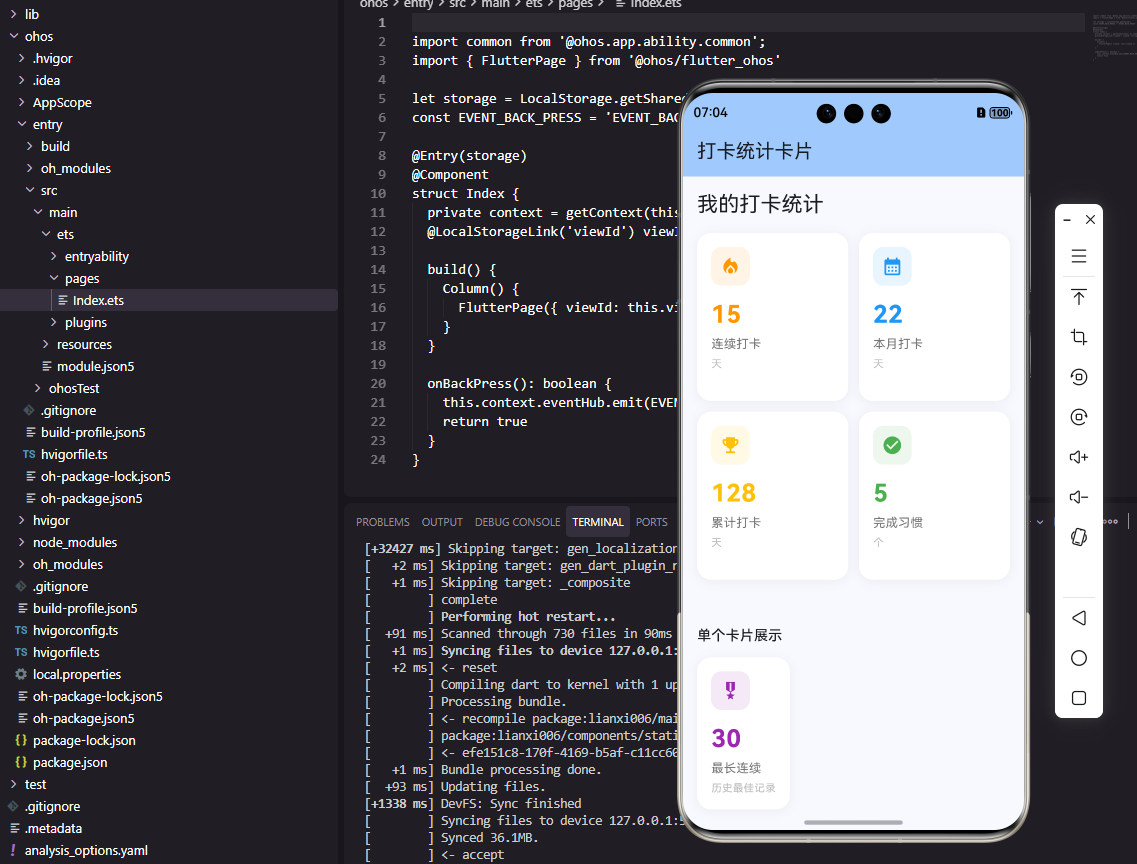
内容区域采用Column和Row的嵌套布局,将四个统计项排列成2x2的网格。每个统计项使用Expanded包裹,确保它们平均分配可用空间。不同的统计项使用不同的主题色,橙色代表当前连续天数(暖色调传达紧迫感),蓝色代表历史最长记录(冷静稳重),绿色代表累计次数(成长感),紫色代表完成率(成就感)。这种色彩策略能够帮助用户快速区分不同类型的数据。
OpenHarmony统计卡片实现
在鸿蒙系统中定义统计卡片组件:
interface CheckInStats {
  consecutiveDays: number
  totalCheckIns: number
  monthlyRate: number
  currentStreak: number
}

@Component
struct StatsCard {
  @Prop stats: CheckInStats
}
鸿蒙使用interface定义数据结构,这与TypeScript的语法完全一致。@Prop装饰器标识stats是从父组件传入的属性,当父组件更新这个属性时,StatsCard会自动重新渲染。这种单向数据流的设计模式使得组件之间的数据传递更加清晰可控。
构建卡片容器:
build() {
  Column() {
    this.CardHeader()
    this.StatsGrid()
  }
  .width('100%')
  .padding(20)
  .backgroundColor(Color.White)
  .borderRadius(16)
  .shadow({
    radius: 10,
    color: 'rgba(0,0,0,0.1)',
    offsetX: 0,
    offsetY: 4
  })
  .margin(16)
}
鸿蒙的声明式UI通过链式调用设置组件属性,代码结构清晰直观。shadow属性用于添加阴影效果,参数与Flutter的BoxShadow类似。Column作为根容器,内部包含卡片头部和统计网格两个子组件。这种将UI拆分为多个Builder方法的做法,能够提高代码的可读性和可维护性。
实现卡片头部:
@Builder
CardHeader() {
  Row() {
    Text('打卡统计')
      .fontSize(20)
      .fontWeight(FontWeight.Bold)
      .fontColor('#333333')
  }
  .width('100%')
  .margin({ bottom: 20 })
}
卡片头部使用简洁的文本标题,fontSize设为20保证足够的视觉层级。fontWeight使用Bold加粗,与正文形成对比。fontColor使用深灰色而非纯黑色,这是一个常见的设计技巧,深灰色比纯黑色更加柔和,长时间阅读不会造成视觉疲劳。底部margin为20,与下方内容保持适当间距。
构建统计网格:
@Builder
StatsGrid() {
  Column() {
    Row() {
      this.StatItem('当前连续', `${this.stats.currentStreak}天`, '#FF9500')
      this.StatItem('最长连续', `${this.stats.consecutiveDays}天`, '#007AFF')
    }
    .width('100%')
    .justifyContent(FlexAlign.SpaceBetween)

    Row() {
      this.StatItem('累计打卡', `${this.stats.totalCheckIns}次`, '#34C759')
      this.StatItem('本月完成', `${Math.round(this.stats.monthlyRate * 100)}%`, '#AF52DE')
    }
    .width('100%')
    .justifyContent(FlexAlign.SpaceBetween)
    .margin({ top: 16 })
  }
}
统计网格使用两行Row布局,每行包含两个统计项。justifyContent设为SpaceBetween让两个统计项分别靠左右对齐,中间自动留出间距。颜色值使用iOS系统色彩规范,这些颜色经过精心设计,在各种屏幕上都有良好的显示效果。第二行添加顶部margin,与第一行保持视觉间隔。
实现单个统计项:
@Builder
StatItem(label: string, value: string, color: string) {
  Column() {
    Text(value)
      .fontSize(24)
      .fontWeight(FontWeight.Bold)
      .fontColor(color)
    Text(label)
      .fontSize(14)
      .fontColor('#999999')
      .margin({ top: 4 })
  }
  .width('45%')
  .alignItems(HorizontalAlign.Start)
}
单个统计项采用上下结构,数值在上,标签在下。数值使用24号字体和粗体,配合主题色,形成强烈的视觉焦点。标签使用14号字体和浅灰色,作为辅助说明。这种大小和颜色的对比让用户能够快速扫描数值,同时通过标签了解数值的含义。宽度设为45%,为两列布局预留间距。
动画效果增强
为Flutter统计卡片添加数字动画:
class AnimatedStatValue extends StatefulWidget {
final int targetValue;
final String suffix;
final Color color;
const AnimatedStatValue({
Key? key,
required this.targetValue,
required this.suffix,
required this.color,
}) : super(key: key);
State<AnimatedStatValue> createState() => _AnimatedStatValueState();
}
数字动画能够为统计卡片增添活力。当用户打开应用或刷新数据时,数字从0逐渐增长到目标值,这种动画效果不仅视觉上更加吸引人,还能给用户一种"数据正在加载"的反馈,提升应用的专业感。AnimatedStatValue组件接收目标值、后缀和颜色三个参数,可以灵活应用于不同的统计项。
总结
本文详细介绍了在Flutter和OpenHarmony平台上实现打卡统计卡片组件的完整方案。统计卡片通过清晰的数据展示和精心的视觉设计,帮助用户了解自己的打卡成就,从而激励持续打卡。两个平台的实现都采用了卡片式布局、网格排列和色彩区分等设计策略,在保持信息丰富的同时确保了界面的简洁美观。通过添加数字动画等交互效果,可以进一步提升用户体验。
欢迎加入开源鸿蒙跨平台社区:https://openharmonycrossplatform.csdn.net

AtomGit 是由开放原子开源基金会联合 CSDN 等生态伙伴共同推出的新一代开源与人工智能协作平台。平台坚持“开放、中立、公益”的理念,把代码托管、模型共享、数据集托管、智能体开发体验和算力服务整合在一起,为开发者提供从开发、训练到部署的一站式体验。
更多推荐

 4
4 0
0- 0


 已为社区贡献27条内容

所有评论(0)