Flutter与OpenHarmony打卡主题切换组件
前言
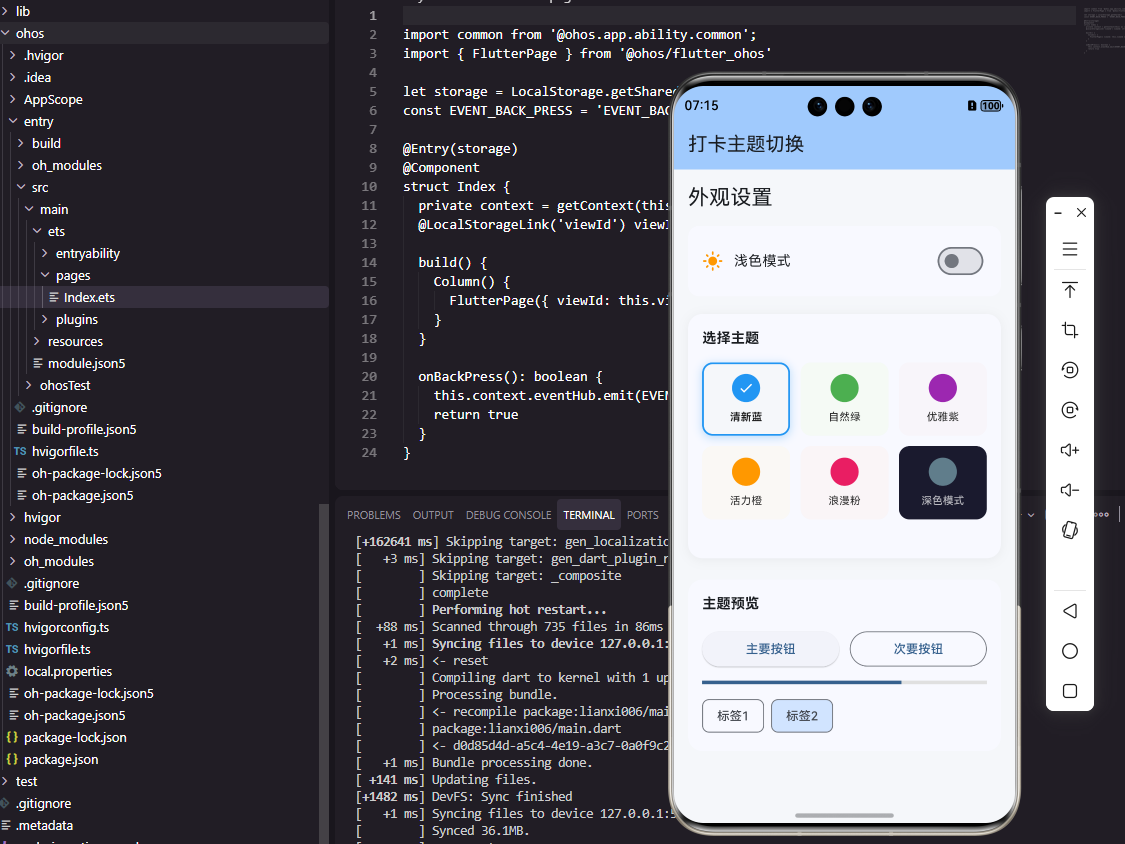
主题切换功能是现代应用的标配,它允许用户根据个人喜好和使用场景选择不同的视觉风格。在打卡工具类应用中,提供深色模式和多种主题色选择,不仅能够提升用户体验,还能减少夜间使用时的眼睛疲劳。本文将详细介绍如何在Flutter和OpenHarmony平台上实现完善的主题切换组件。
主题系统的设计需要考虑颜色一致性、切换流畅性和持久化存储。所有UI组件都应该响应主题变化,切换过程应该有平滑的过渡动画,用户的主题偏好需要保存到本地以便下次启动时恢复。我们将实现一个完整的主题管理方案,包括主题定义、切换控制和状态持久化。
Flutter主题系统实现
首先定义主题数据模型:
class AppTheme {
  final String id;
  final String name;
  final Color primaryColor;
  final Color backgroundColor;
  final Color cardColor;
  final Color textColor;
  final Brightness brightness;

  const AppTheme({
    required this.id,
    required this.name,
    required this.primaryColor,
    required this.backgroundColor,
    required this.cardColor,
    required this.textColor,
    required this.brightness,
  });
}
AppTheme类定义了主题的所有颜色属性。primaryColor是主题的主色调,用于按钮、链接等强调元素;backgroundColor是页面背景色;cardColor是卡片背景色;textColor是主要文字颜色;brightness标识是浅色还是深色主题,影响状态栏图标颜色。这种完整的颜色定义确保了主题的一致性。
创建预设主题:
class AppThemes {
  static const light = AppTheme(
    id: 'light',
    name: '浅色模式',
    primaryColor: Color(0xFF007AFF),
    backgroundColor: Color(0xFFF5F5F5),
    cardColor: Colors.white,
    textColor: Color(0xFF333333),
    brightness: Brightness.light,
  );

  static const dark = AppTheme(
    id: 'dark',
    name: '深色模式',
    primaryColor: Color(0xFF0A84FF),
    backgroundColor: Color(0xFF1C1C1E),
    cardColor: Color(0xFF2C2C2E),
    textColor: Color(0xFFFFFFFF),
    brightness: Brightness.dark,
  );

  static const List<AppTheme> all = [light, dark];
}
预设主题使用静态常量定义,包括浅色和深色两种基础模式。浅色模式使用白色和浅灰色背景,深色模式使用深灰色背景。主色调在深色模式下略微调亮,以保证在深色背景上的可见性。all列表包含所有可用主题,便于在设置界面中遍历展示。
实现主题状态管理:
class ThemeProvider extends ChangeNotifier {
  AppTheme _currentTheme = AppThemes.light;

  AppTheme get currentTheme => _currentTheme;

  void setTheme(AppTheme theme) {
    _currentTheme = theme;
    _saveTheme(theme.id);
    notifyListeners();
  }

  Future<void> loadTheme() async {
    final prefs = await SharedPreferences.getInstance();
    final themeId = prefs.getString('theme_id') ?? 'light';
    _currentTheme = AppThemes.all.firstWhere(
      (t) => t.id == themeId,
      orElse: () => AppThemes.light,
    );
    notifyListeners();
  }

  Future<void> _saveTheme(String themeId) async {
    final prefs = await SharedPreferences.getInstance();
    await prefs.setString('theme_id', themeId);
  }
}
ThemeProvider使用ChangeNotifier实现状态管理,这是Flutter中常用的状态管理模式。setTheme方法更新当前主题并保存到SharedPreferences,然后通知所有监听者更新UI。loadTheme方法在应用启动时从本地存储加载用户的主题偏好。这种设计确保了主题状态的持久化和响应式更新。
构建主题切换界面:
class ThemeSwitcher extends StatelessWidget {
Widget build(BuildContext context) {
return Consumer<ThemeProvider>(
builder: (context, provider, child) {
return Column(
crossAxisAlignment: CrossAxisAlignment.start,
children: [
const Padding(
padding: EdgeInsets.all(16),
child: Text('选择主题', style: TextStyle(fontSize: 18, fontWeight: FontWeight.bold)),
),
...AppThemes.all.map((theme) => _buildThemeOption(theme, provider)),
],
);
},
);
}
Widget _buildThemeOption(AppTheme theme, ThemeProvider provider) {
final isSelected = provider.currentTheme.id == theme.id;
return ListTile(
leading: Container(
width: 40,
height: 40,
decoration: BoxDecoration(
color: theme.primaryColor,
shape: BoxShape.circle,
),
),
title: Text(theme.name),
trailing: isSelected ? const Icon(Icons.check, color: Colors.green) : null,
onTap: () => provider.setTheme(theme),
);
}
}
主题切换界面使用Consumer监听ThemeProvider的变化。每个主题选项显示主题名称和主色调预览,当前选中的主题显示勾选图标。点击选项即可切换主题,ThemeProvider会自动通知所有使用主题的组件更新。这种设计让主题切换变得简单直观。
OpenHarmony主题系统实现
在鸿蒙系统中定义主题:
interface AppTheme {
  id: string
  name: string
  primaryColor: string
  backgroundColor: string
  cardColor: string
  textColor: string
  isDark: boolean
}

const LightTheme: AppTheme = {
  id: 'light',
  name: '浅色模式',
  primaryColor: '#007AFF',
  backgroundColor: '#F5F5F5',
  cardColor: '#FFFFFF',
  textColor: '#333333',
  isDark: false
}

const DarkTheme: AppTheme = {
  id: 'dark',
  name: '深色模式',
  primaryColor: '#0A84FF',
  backgroundColor: '#1C1C1E',
  cardColor: '#2C2C2E',
  textColor: '#FFFFFF',
  isDark: true
}
鸿蒙使用interface定义主题结构,颜色值使用字符串格式的十六进制值。LightTheme和DarkTheme是两个预设主题常量,包含了完整的颜色配置。isDark布尔值用于判断是否为深色主题,可以用于调整状态栏样式等系统级设置。
创建主题状态管理:
@Observed
class ThemeStore {
  currentTheme: AppTheme = LightTheme

  setTheme(theme: AppTheme) {
    this.currentTheme = theme
    this.saveTheme(theme.id)
  }

  async loadTheme() {
    const preferences = await dataPreferences.getPreferences(getContext(), 'settings')
    const themeId = await preferences.get('theme_id', 'light') as string
    this.currentTheme = themeId === 'dark' ? DarkTheme : LightTheme
  }

  async saveTheme(themeId: string) {
    const preferences = await dataPreferences.getPreferences(getContext(), 'settings')
    await preferences.put('theme_id', themeId)
    await preferences.flush()
  }
}
@Observed装饰器让ThemeStore成为可观察对象,当其属性变化时会自动通知依赖它的组件更新。setTheme方法更新主题并持久化保存,loadTheme方法从本地存储加载主题偏好。鸿蒙使用dataPreferences API进行数据持久化,需要调用flush方法确保数据写入磁盘。
构建主题切换组件:
@Component
struct ThemeSwitcher {
  @ObjectLink themeStore: ThemeStore

  build() {
    Column() {
      Text('选择主题')
        .fontSize(18)
        .fontWeight(FontWeight.Bold)
        .width('100%')
        .padding(16)

      this.ThemeOption(LightTheme)
      this.ThemeOption(DarkTheme)
    }
  }
}
@ObjectLink装饰器用于引用@Observed对象,当ThemeStore的属性变化时,ThemeSwitcher会自动重新渲染。组件结构简洁,包含标题和两个主题选项。这种声明式的UI定义方式让代码易于理解和维护。
实现主题选项:
@Builder
ThemeOption(theme: AppTheme) {
  Row() {
    Circle()
      .width(40)
      .height(40)
      .fill(theme.primaryColor)

    Text(theme.name)
      .fontSize(16)
      .margin({ left: 16 })
      .layoutWeight(1)

    if (this.themeStore.currentTheme.id === theme.id) {
      Image($r('app.media.check'))
        .width(24)
        .height(24)
        .fillColor('#34C759')
    }
  }
  .width('100%')
  .padding(16)
  .onClick(() => {
    this.themeStore.setTheme(theme)
  })
}
每个主题选项显示颜色预览圆点、主题名称和选中状态。Circle组件使用主题的primaryColor填充,直观展示主题的主色调。条件渲染通过if语句实现,只有当前选中的主题才显示勾选图标。点击事件调用themeStore.setTheme切换主题,由于使用了@ObjectLink,UI会自动更新。
主题切换动画
Flutter中实现平滑的主题切换动画:
class AnimatedThemeWrapper extends StatelessWidget {
final Widget child;
const AnimatedThemeWrapper({Key? key, required this.child}) : super(key: key);
Widget build(BuildContext context) {
return Consumer<ThemeProvider>(
builder: (context, provider, _) {
return AnimatedContainer(
duration: const Duration(milliseconds: 300),
color: provider.currentTheme.backgroundColor,
child: child,
);
},
);
}
}
AnimatedContainer会自动对颜色变化进行动画过渡,当主题切换时,背景色会在300毫秒内平滑变化。这种动画效果让主题切换更加自然,避免了突兀的颜色跳变。将AnimatedThemeWrapper包裹在应用的根组件外层,可以为整个应用提供主题切换动画。
应用主题到组件:
class ThemedCard extends StatelessWidget {
final Widget child;
Widget build(BuildContext context) {
return Consumer<ThemeProvider>(
builder: (context, provider, _) {
return AnimatedContainer(
duration: const Duration(milliseconds: 300),
decoration: BoxDecoration(
color: provider.currentTheme.cardColor,
borderRadius: BorderRadius.circular(12),
boxShadow: provider.currentTheme.brightness == Brightness.light
? [BoxShadow(color: Colors.black12, blurRadius: 8)]
: null,
),
child: child,
);
},
);
}
}
ThemedCard是一个响应主题变化的卡片组件。卡片背景色使用主题的cardColor,阴影效果只在浅色模式下显示(深色模式下阴影不明显)。AnimatedContainer确保颜色变化有平滑的过渡动画。这种封装方式让主题适配变得简单,只需使用ThemedCard替代普通Container即可。
跟随系统主题
实现跟随系统深色模式设置:
class SystemThemeListener extends StatefulWidget {
final Widget child;
State<SystemThemeListener> createState() => _SystemThemeListenerState();
}
class _SystemThemeListenerState extends State<SystemThemeListener>
with WidgetsBindingObserver {
void initState() {
super.initState();
WidgetsBinding.instance.addObserver(this);
}
void didChangePlatformBrightness() {
final brightness = WidgetsBinding.instance.window.platformBrightness;
final provider = context.read<ThemeProvider>();
provider.setTheme(brightness == Brightness.dark ? AppThemes.dark : AppThemes.light);
}
Widget build(BuildContext context) => widget.child;
}
SystemThemeListener监听系统深色模式的变化,当用户在系统设置中切换深色模式时,应用会自动跟随切换。WidgetsBindingObserver提供了didChangePlatformBrightness回调,在系统亮度模式变化时触发。这种跟随系统设置的功能让用户无需在每个应用中单独设置主题。
总结
本文详细介绍了在Flutter和OpenHarmony平台上实现主题切换组件的完整方案。通过定义完整的主题数据模型、实现状态管理和持久化存储、添加切换动画效果,我们为打卡应用提供了完善的主题系统。用户可以根据个人喜好选择浅色或深色模式,应用也可以跟随系统设置自动切换。两个平台的实现都采用了响应式的状态管理模式,确保主题变化能够即时反映到所有UI组件上。
欢迎加入开源鸿蒙跨平台社区:https://openharmonycrossplatform.csdn.net

AtomGit 是由开放原子开源基金会联合 CSDN 等生态伙伴共同推出的新一代开源与人工智能协作平台。平台坚持“开放、中立、公益”的理念,把代码托管、模型共享、数据集托管、智能体开发体验和算力服务整合在一起,为开发者提供从开发、训练到部署的一站式体验。
更多推荐


 5
5 0
0- 0


 已为社区贡献27条内容

所有评论(0)