在鸿蒙上使用 file_selector Flutter 包
插件介绍
file_selector 是一个功能强大的 Flutter 插件,用于管理文件和与文件对话框的交互。它提供了跨平台的文件选择能力,支持在不同操作系统上打开文件、选择多个文件、获取目录路径等操作。
该插件基于 Flutter 的平台通道机制实现,为不同平台提供了统一的 API 接口,开发者可以使用相同的代码在不同平台上实现文件选择功能。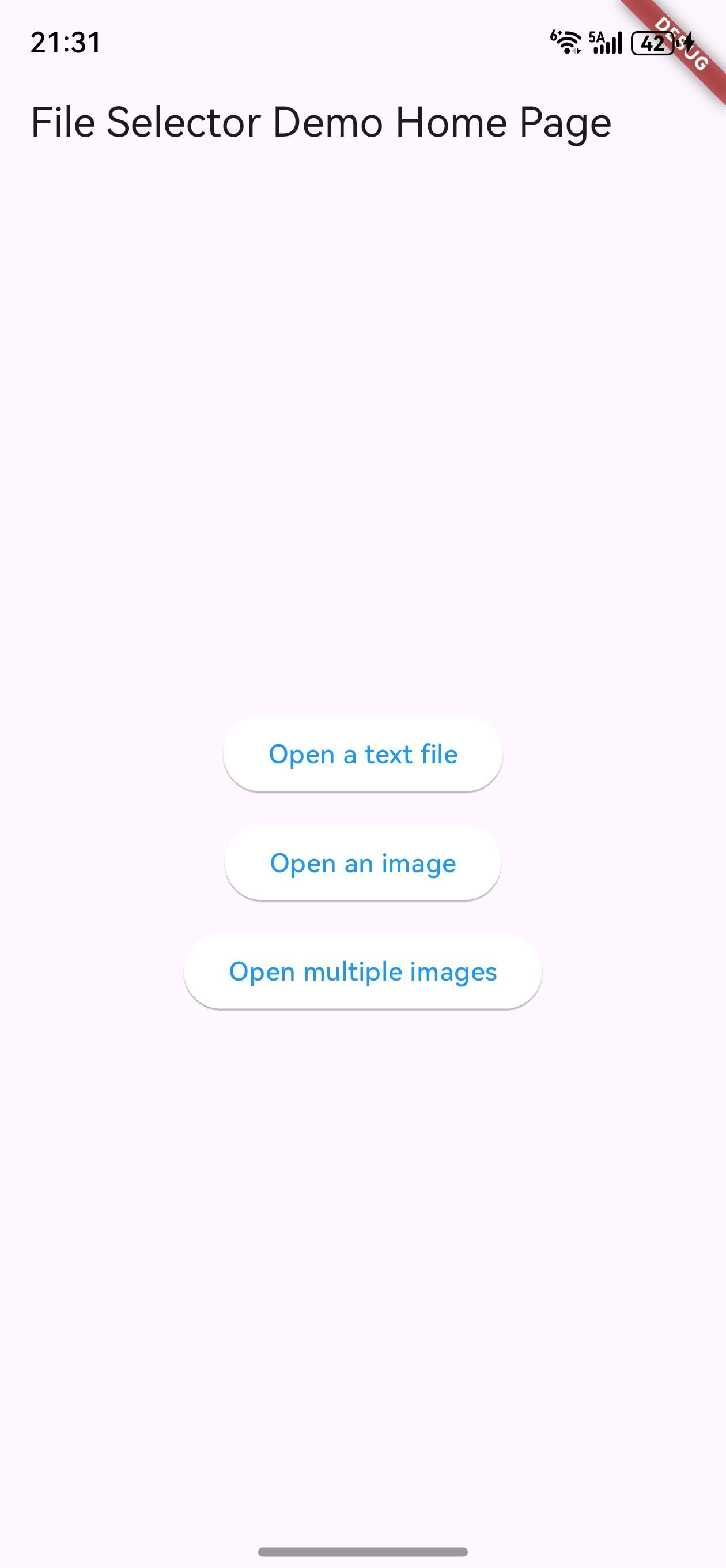
主要功能
- 选择单个文件:打开文件对话框,允许用户选择一个文件
- 选择多个文件:打开文件对话框,允许用户选择多个文件
- 获取目录路径:打开目录选择对话框,获取用户选择的目录路径
- 文件类型过滤:支持按文件扩展名、MIME 类型等过滤文件
- 跨平台支持:支持 Android、iOS、Linux、macOS、Windows、Web 和鸿蒙平台
鸿蒙平台支持
file_selector 插件为鸿蒙平台提供了专门的实现 file_selector_ohos,支持鸿蒙 API 12+。该实现充分利用了鸿蒙平台的文件系统 API,提供了与其他平台一致的文件选择体验。
如何使用插件
包的引入
由于这是一个为鸿蒙平台定制修改的版本,需要以 git 形式引入。在项目的 pubspec.yaml 文件中添加以下依赖配置:
dependencies:
  file_selector:
    git:
      url: "https://gitcode.com/openharmony-tpc/flutter_packages.git"
      path: "packages/file_selector/file_selector"
添加依赖后,运行 flutter pub get 命令来获取包:
flutter pub get
鸿蒙平台权限配置
在鸿蒙平台上使用 file_selector 插件需要配置相应的权限。
- 在 module.json5 文件中添加权限
打开 entry/src/main/module.json5 文件,在 requestPermissions 数组中添加以下权限配置:
"requestPermissions": [
  {
    "name": "ohos.permission.INTERNET",
    "reason": "$string:network_reason",
    "usedScene": {
      "abilities": [
        "EntryAbility"
      ],
      "when": "inuse"
    }
  }
]
- 在 string.json 文件中添加权限申请理由
打开 entry/src/main/resources/base/element/string.json 文件,添加以下内容:
{
  "string": [
    {
      "name": "network_reason",
      "value": "use network"
    }
  ]
}
导入包
在需要使用文件选择功能的 Dart 文件中导入 file_selector 包:
import 'package:file_selector/file_selector.dart';
API 调用
XTypeGroup - 文件类型分组
XTypeGroup 类用于定义文件类型分组,用于过滤文件选择对话框中的文件。
const XTypeGroup imageTypeGroup = XTypeGroup(
  label: 'images',
  extensions: <String>['jpg', 'png', 'gif'],
  mimeTypes: <String>['image/jpeg', 'image/png', 'image/gif'],
);

const XTypeGroup documentTypeGroup = XTypeGroup(
  label: 'documents',
  extensions: <String>['pdf', 'doc', 'docx'],
  mimeTypes: <String>['application/pdf', 'application/msword'],
);
打开单个文件
使用 openFile 方法打开文件选择对话框,允许用户选择一个文件:
Future<void> _openSingleFile() async {
  const XTypeGroup typeGroup = XTypeGroup(
    label: 'images',
    extensions: <String>['jpg', 'png'],
  );
  final XFile? file = await openFile(acceptedTypeGroups: <XTypeGroup>[typeGroup]);
  if (file != null) {
    // 处理选择的文件
    print('选择的文件路径: ${file.path}');
    print('文件名称: ${file.name}');
    print('文件大小: ${file.lengthSync()} bytes');
  }
}
打开多个文件
使用 openFiles 方法打开文件选择对话框,允许用户选择多个文件:
Future<void> _openMultipleFiles() async {
  const XTypeGroup jpgsTypeGroup = XTypeGroup(
    label: 'JPEGs',
    extensions: <String>['jpg', 'jpeg'],
  );
  const XTypeGroup pngTypeGroup = XTypeGroup(
    label: 'PNGs',
    extensions: <String>['png'],
  );
  final List<XFile> files = await openFiles(acceptedTypeGroups: <XTypeGroup>[jpgsTypeGroup, pngTypeGroup]);
  if (files.isNotEmpty) {
    // 处理选择的多个文件
    print('选择了 ${files.length} 个文件:');
    for (final XFile file in files) {
      print('- ${file.name} (${file.lengthSync()} bytes)');
    }
  }
}
获取目录路径
使用 getDirectoryPath 方法打开目录选择对话框,获取用户选择的目录路径:
Future<void> _getDirectoryPath() async {
  final String? directoryPath = await getDirectoryPath();
  if (directoryPath != null) {
    // 处理选择的目录
    print('选择的目录路径: $directoryPath');
    // 可以使用 dart:io 包操作该目录
    final Directory directory = Directory(directoryPath);
    final List<FileSystemEntity> entities = await directory.list().toList();
    print('目录中的文件和文件夹:');
    for (final FileSystemEntity entity in entities) {
      print('- ${entity.path}');
    }
  }
}
完整的示例代码
以下是一个在鸿蒙应用中使用 file_selector 插件的完整示例:
import 'dart:io';
import 'package:flutter/material.dart';
import 'package:file_selector/file_selector.dart';
void main() {
runApp(const FileSelectorExampleApp());
}
class FileSelectorExampleApp extends StatelessWidget {
const FileSelectorExampleApp({Key? key}) : super(key: key);
Widget build(BuildContext context) {
return MaterialApp(
title: 'File Selector Example',
theme: ThemeData(primarySwatch: Colors.blue),
home: const FileSelectorExamplePage(),
);
}
}
class FileSelectorExamplePage extends StatefulWidget {
const FileSelectorExamplePage({Key? key}) : super(key: key);
State<FileSelectorExamplePage> createState() => _FileSelectorExamplePageState();
}
class _FileSelectorExamplePageState extends State<FileSelectorExamplePage> {
String _selectedFilePath = '';
List<String> _selectedFilePaths = [];
String _selectedDirectoryPath = '';
Future<void> _openSingleFile() async {
const XTypeGroup typeGroup = XTypeGroup(
label: 'images',
extensions: <String>['jpg', 'png'],
);
final XFile? file = await openFile(acceptedTypeGroups: <XTypeGroup>[typeGroup]);
if (file != null) {
setState(() {
_selectedFilePath = file.path;
});
}
}
Future<void> _openMultipleFiles() async {
const XTypeGroup jpgsTypeGroup = XTypeGroup(
label: 'JPEGs',
extensions: <String>['jpg', 'jpeg'],
);
const XTypeGroup pngTypeGroup = XTypeGroup(
label: 'PNGs',
extensions: <String>['png'],
);
final List<XFile> files = await openFiles(acceptedTypeGroups: <XTypeGroup>[jpgsTypeGroup, pngTypeGroup]);
if (files.isNotEmpty) {
setState(() {
_selectedFilePaths = files.map((XFile file) => file.path).toList();
});
}
}
Future<void> _getDirectoryPath() async {
final String? directoryPath = await getDirectoryPath();
if (directoryPath != null) {
setState(() {
_selectedDirectoryPath = directoryPath;
});
}
}
Widget build(BuildContext context) {
return Scaffold(
appBar: AppBar(title: const Text('File Selector Example')),
body: Center(
child: Padding(
padding: const EdgeInsets.all(16.0),
child: Column(
mainAxisAlignment: MainAxisAlignment.center,
crossAxisAlignment: CrossAxisAlignment.stretch,
children: <Widget>[
ElevatedButton(
onPressed: _openSingleFile,
child: const Text('打开单个文件'),
),
const SizedBox(height: 16),
if (_selectedFilePath.isNotEmpty)
Text('选择的文件: $_selectedFilePath'),
const SizedBox(height: 32),
ElevatedButton(
onPressed: _openMultipleFiles,
child: const Text('打开多个文件'),
),
const SizedBox(height: 16),
if (_selectedFilePaths.isNotEmpty)
Column(
crossAxisAlignment: CrossAxisAlignment.start,
children: [
Text('选择了 ${_selectedFilePaths.length} 个文件:'),
for (final String path in _selectedFilePaths)
Padding(
padding: const EdgeInsets.only(left: 16),
child: Text('- $path'),
),
],
),
const SizedBox(height: 32),
ElevatedButton(
onPressed: _getDirectoryPath,
child: const Text('获取目录路径'),
),
const SizedBox(height: 16),
if (_selectedDirectoryPath.isNotEmpty)
Text('选择的目录: $_selectedDirectoryPath'),
],
),
),
),
);
}
}
注意事项
-
平台兼容性:
- 不同平台支持的文件类型过滤选项可能不同
- 鸿蒙平台支持
extensions、mimeTypes、uniformTypeIdentifiers和webWildCards
-
权限配置:
- 在鸿蒙平台上使用时,需要正确配置权限
- 确保在
module.json5文件中添加了必要的权限声明
-
错误处理:
- 文件选择操作可能会被用户取消,此时返回值为 null
- 建议添加适当的错误处理代码
-
性能考虑:
- 选择大量文件时可能会影响性能
- 建议限制单次选择的文件数量
-
文件操作:
XFile类提供了基本的文件操作方法- 可以使用
dart:io包进行更复杂的文件操作
总结
file_selector 是一个功能强大的 Flutter 插件,为开发者提供了跨平台的文件选择能力。通过使用这个插件,开发者可以轻松地在 Flutter 应用中实现文件选择、目录选择等功能。
在鸿蒙平台上,file_selector_ohos 实现提供了与其他平台一致的 API 接口,同时充分利用了鸿蒙平台的文件系统特性。开发者可以使用相同的代码在鸿蒙平台上实现文件选择功能,大大提高了开发效率。
使用 file_selector 插件的主要优势:
- 跨平台一致性:使用相同的 API 在不同平台上实现文件选择功能
- 丰富的功能:支持选择单个文件、多个文件、获取目录路径等操作
- 灵活的文件过滤:支持按文件扩展名、MIME 类型等过滤文件
- 易于使用:提供了简洁直观的 API 接口
- 良好的文档:提供了详细的使用文档和示例代码
通过本文的介绍,你应该已经了解了如何在鸿蒙平台上引入和使用 file_selector 插件,以及如何利用它来实现文件选择功能。无论是构建文件管理器、图片选择器还是文档编辑器,这个插件都能为你提供强大的文件选择能力,帮助你构建功能丰富、用户友好的鸿蒙应用。
欢迎加入开源鸿蒙跨平台社区: https://openharmonycrossplatform.csdn.net

AtomGit 是由开放原子开源基金会联合 CSDN 等生态伙伴共同推出的新一代开源与人工智能协作平台。平台坚持“开放、中立、公益”的理念,把代码托管、模型共享、数据集托管、智能体开发体验和算力服务整合在一起,为开发者提供从开发、训练到部署的一站式体验。
更多推荐


 4
4 0
0- 0


 已为社区贡献24条内容

所有评论(0)