Flutter与OpenHarmony打卡空状态组件
前言
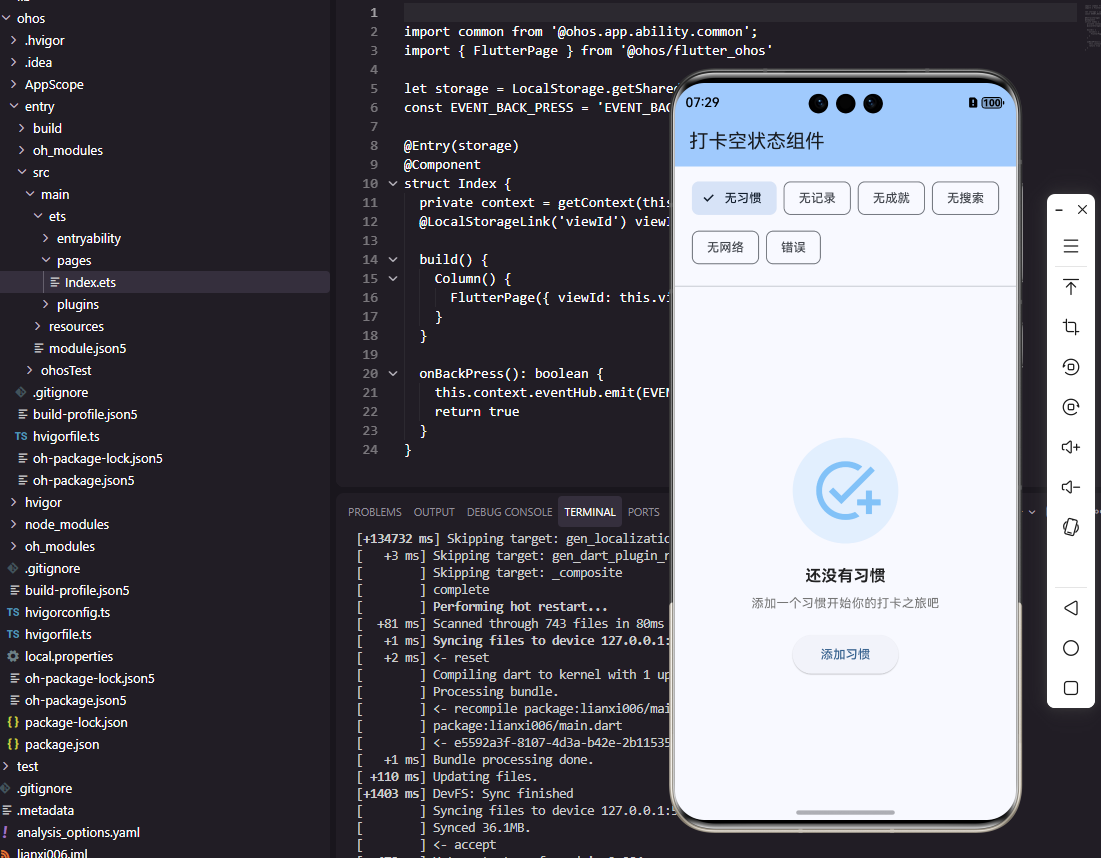
空状态是应用中经常出现但容易被忽视的界面状态。当用户还没有创建任何习惯、没有打卡记录或搜索无结果时,都需要展示空状态页面。一个设计良好的空状态不仅要告知用户当前没有内容,还要引导用户进行下一步操作。本文将详细介绍如何在Flutter和OpenHarmony平台上实现友好且有引导性的空状态组件。
空状态的设计需要考虑插图、文案和操作按钮三个要素。插图让页面不至于太空洞,文案解释当前状态并给出建议,操作按钮引导用户采取行动。我们将实现一个可配置的空状态组件,适用于各种场景。
Flutter空状态组件实现
首先创建通用空状态组件:
class EmptyState extends StatelessWidget {
final String? imagePath;
final IconData? icon;
final String title;
final String? description;
final String? actionText;
final VoidCallback? onAction;
const EmptyState({
Key? key,
this.imagePath,
this.icon,
required this.title,
this.description,
this.actionText,
this.onAction,
}) : super(key: key);
Widget build(BuildContext context) {
return Center(
child: Padding(
padding: const EdgeInsets.all(32),
child: Column(
mainAxisAlignment: MainAxisAlignment.center,
children: [
_buildIllustration(),
const SizedBox(height: 24),
Text(
title,
style: const TextStyle(
fontSize: 18,
fontWeight: FontWeight.w600,
color: Colors.black87,
),
textAlign: TextAlign.center,
),
if (description != null) ...[
const SizedBox(height: 8),
Text(
description!,
style: TextStyle(fontSize: 14, color: Colors.grey.shade600),
textAlign: TextAlign.center,
),
],
if (actionText != null && onAction != null) ...[
const SizedBox(height: 24),
ElevatedButton(
onPressed: onAction,
child: Text(actionText!),
),
],
],
),
),
);
}
Widget _buildIllustration() {
if (imagePath != null) {
return Image.asset(imagePath!, width: 200, height: 200);
}
if (icon != null) {
return Icon(icon, size: 80, color: Colors.grey.shade400);
}
return Icon(Icons.inbox_outlined, size: 80, color: Colors.grey.shade400);
}
}
EmptyState组件支持图片或图标两种插图方式,title是必填的主标题,description是可选的详细说明,actionText和onAction组合提供操作按钮。这种灵活的配置让组件能够适应各种空状态场景,从简单的无数据提示到复杂的引导页面。
OpenHarmony空状态组件实现
在鸿蒙系统中创建空状态组件:
@Component
struct EmptyState {
  @Prop icon: Resource | null = null
  @Prop title: string = ''
  @Prop description: string = ''
  @Prop actionText: string = ''
  private onAction: () => void = () => {}

  build() {
    Column() {
      if (this.icon) {
        Image(this.icon)
          .width(120)
          .height(120)
          .fillColor('#BDBDBD')
      } else {
        Image($r('app.media.empty_box'))
          .width(120)
          .height(120)
      }

      Text(this.title)
        .fontSize(18)
        .fontWeight(FontWeight.Medium)
        .fontColor('#333333')
        .margin({ top: 24 })
        .textAlign(TextAlign.Center)

      if (this.description) {
        Text(this.description)
          .fontSize(14)
          .fontColor('#999999')
          .margin({ top: 8 })
          .textAlign(TextAlign.Center)
      }

      if (this.actionText) {
        Button(this.actionText)
          .margin({ top: 24 })
          .onClick(() => this.onAction())
      }
    }
    .width('100%')
    .height('100%')
    .justifyContent(FlexAlign.Center)
    .padding(32)
  }
}
鸿蒙的空状态组件结构与Flutter版本一致。条件渲染通过if语句实现,只在有内容时显示对应元素。justifyContent设为Center让内容垂直居中,textAlign设为Center让文字水平居中。这种居中布局是空状态页面的标准设计。
预设空状态场景
创建常用的空状态预设:
class EmptyStates {
  static Widget noHabits({VoidCallback? onCreateHabit}) {
    return EmptyState(
      icon: Icons.lightbulb_outline,
      title: '还没有习惯',
      description: '创建你的第一个习惯,开始养成好习惯之旅吧!',
      actionText: '创建习惯',
      onAction: onCreateHabit,
    );
  }

  static Widget noCheckIns() {
    return const EmptyState(
      icon: Icons.event_available_outlined,
      title: '暂无打卡记录',
      description: '今天还没有打卡哦,快去完成今天的习惯吧!',
    );
  }

  static Widget searchNoResults(String query) {
    return EmptyState(
      icon: Icons.search_off,
      title: '未找到结果',
      description: '没有找到与"$query"相关的习惯',
    );
  }

  static Widget networkError({VoidCallback? onRetry}) {
    return EmptyState(
      icon: Icons.wifi_off,
      title: '网络连接失败',
      description: '请检查网络设置后重试',
      actionText: '重试',
      onAction: onRetry,
    );
  }
}
EmptyStates类提供了常用场景的预设配置。noHabits用于习惯列表为空时,提供创建习惯的引导。noCheckIns用于打卡记录为空时。searchNoResults用于搜索无结果时,动态显示搜索关键词。networkError用于网络错误时,提供重试按钮。这种预设设计让空状态的使用更加便捷统一。
动画空状态
添加动画效果增强空状态的吸引力:
class AnimatedEmptyState extends StatefulWidget {
final String title;
final String? description;
const AnimatedEmptyState({
Key? key,
required this.title,
this.description,
}) : super(key: key);
State<AnimatedEmptyState> createState() => _AnimatedEmptyStateState();
}
class _AnimatedEmptyStateState extends State<AnimatedEmptyState>
with SingleTickerProviderStateMixin {
late AnimationController _controller;
late Animation<double> _bounceAnimation;
void initState() {
super.initState();
_controller = AnimationController(
duration: const Duration(seconds: 2),
vsync: this,
)..repeat(reverse: true);
_bounceAnimation = Tween<double>(begin: 0, end: 10).animate(
CurvedAnimation(parent: _controller, curve: Curves.easeInOut),
);
}
Widget build(BuildContext context) {
return Center(
child: Column(
mainAxisAlignment: MainAxisAlignment.center,
children: [
AnimatedBuilder(
animation: _bounceAnimation,
builder: (context, child) {
return Transform.translate(
offset: Offset(0, -_bounceAnimation.value),
child: child,
);
},
child: Icon(Icons.inbox_outlined, size: 80, color: Colors.grey.shade400),
),
const SizedBox(height: 24),
Text(widget.title, style: const TextStyle(fontSize: 18, fontWeight: FontWeight.w600)),
if (widget.description != null)
Padding(
padding: const EdgeInsets.only(top: 8),
child: Text(widget.description!, style: TextStyle(color: Colors.grey.shade600)),
),
],
),
);
}
void dispose() {
_controller.dispose();
super.dispose();
}
}
动画空状态为图标添加了轻微的上下浮动效果,让页面更加生动。repeat(reverse: true)让动画来回播放,easeInOut曲线让运动更加自然。这种微妙的动画不会分散用户注意力,但能让空状态页面不那么单调。
条件渲染空状态
实现数据与空状态的条件渲染:
class ConditionalContent<T> extends StatelessWidget {
final List<T>? data;
final bool isLoading;
final Widget Function(List<T>) contentBuilder;
final Widget emptyState;
final Widget? loadingWidget;
const ConditionalContent({
Key? key,
required this.data,
this.isLoading = false,
required this.contentBuilder,
required this.emptyState,
this.loadingWidget,
}) : super(key: key);
Widget build(BuildContext context) {
if (isLoading) {
return loadingWidget ?? const Center(child: CircularProgressIndicator());
}
if (data == null || data!.isEmpty) {
return emptyState;
}
return contentBuilder(data!);
}
}
ConditionalContent封装了加载、空状态和内容三种状态的切换逻辑。isLoading为true时显示加载指示器,数据为空时显示空状态,有数据时显示实际内容。这种封装让状态切换的代码更加简洁,避免了重复的条件判断。
使用示例:
ConditionalContent<Habit>(
  data: habits,
  isLoading: isLoading,
  emptyState: EmptyStates.noHabits(onCreateHabit: _createHabit),
  contentBuilder: (habits) => HabitListView(habits: habits),
)
只需要提供数据、空状态组件和内容构建函数,ConditionalContent会自动处理状态切换。这种声明式的API让代码意图更加清晰。
OpenHarmony条件渲染
鸿蒙中实现条件渲染:
@Component
struct ConditionalContent {
  @Prop isLoading: boolean = false
  @Prop isEmpty: boolean = false
  @BuilderParam loadingBuilder: () => void = this.defaultLoading
  @BuilderParam emptyBuilder: () => void = this.defaultEmpty
  @BuilderParam contentBuilder: () => void

  @Builder
  defaultLoading() {
    LoadingProgress().width(48).height(48)
  }

  @Builder
  defaultEmpty() {
    EmptyState({ title: '暂无数据' })
  }

  build() {
    Column() {
      if (this.isLoading) {
        this.loadingBuilder()
      } else if (this.isEmpty) {
        this.emptyBuilder()
      } else {
        this.contentBuilder()
      }
    }
    .width('100%')
    .height('100%')
    .justifyContent(FlexAlign.Center)
  }
}
鸿蒙使用@BuilderParam接收构建函数,实现灵活的内容插槽。defaultLoading和defaultEmpty提供默认实现,调用者可以传入自定义的构建函数覆盖默认行为。这种设计模式在鸿蒙开发中很常见,提供了良好的扩展性。
总结
本文详细介绍了在Flutter和OpenHarmony平台上实现空状态组件的完整方案。空状态通过插图、文案和操作按钮的组合,为用户提供了清晰的状态说明和行动引导。预设场景简化了常见空状态的使用,动画效果增强了页面的生动性。条件渲染组件封装了状态切换逻辑,让代码更加简洁。两个平台的实现都注重用户体验,确保空状态页面既美观又有引导性。
欢迎加入开源鸿蒙跨平台社区:https://openharmonycrossplatform.csdn.net

AtomGit 是由开放原子开源基金会联合 CSDN 等生态伙伴共同推出的新一代开源与人工智能协作平台。平台坚持“开放、中立、公益”的理念,把代码托管、模型共享、数据集托管、智能体开发体验和算力服务整合在一起,为开发者提供从开发、训练到部署的一站式体验。
更多推荐
 20
20 0
0- 0


 已为社区贡献27条内容

所有评论(0)