Flutter框架开发鸿蒙项目——Row和Column间距控制完全指南
·
Row和Column间距控制完全指南
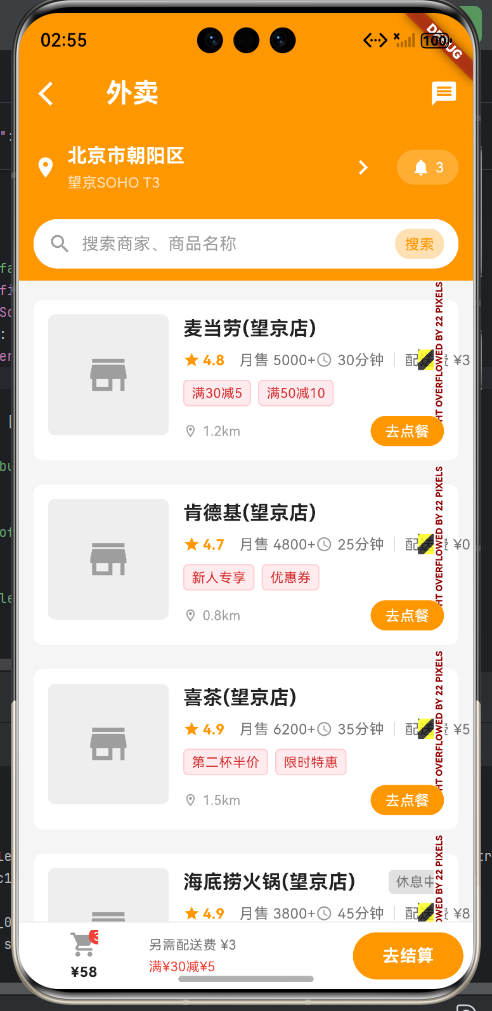
完整示例:外卖订餐应用
下面是一个完整的外卖订餐应用示例,展示了多种间距控制技巧:
import 'package:flutter/material.dart';
class FoodDeliveryPage extends StatelessWidget {
const FoodDeliveryPage({super.key});
Widget build(BuildContext context) {
return Scaffold(
backgroundColor: Colors.grey[100],
appBar: _buildAppBar(),
body: Column(
children: [
_buildAddressBar(),
_buildSearchBar(),
Expanded(
child: _buildRestaurantList(),
),
],
),
bottomNavigationBar: _buildBottomBar(),
);
}
AppBar _buildAppBar() {
return AppBar(
backgroundColor: Colors.orange,
elevation: 0,
leading: IconButton(
icon: const Icon(Icons.arrow_back_ios, color: Colors.white),
onPressed: () {},
),
title: const Text('外卖',
style: TextStyle(color: Colors.white, fontWeight: FontWeight.bold)),
actions: [
IconButton(icon: const Icon(Icons.message, color: Colors.white),
onPressed: () {}),
],
);
}
// 地址栏 - 使用 SizedBox 控制间距
Widget _buildAddressBar() {
return Container(
padding: const EdgeInsets.all(12),
color: Colors.orange,
child: Row(
children: [
const Icon(Icons.location_on, color: Colors.white, size: 20),
const SizedBox(width: 8),
const Expanded(
child: Column(
crossAxisAlignment: CrossAxisAlignment.start,
children: [
Text(
'北京市朝阳区',
style: TextStyle(
color: Colors.white,
fontSize: 16,
fontWeight: FontWeight.bold),
),
SizedBox(height: 2),
Text(
'望京SOHO T3',
style: TextStyle(color: Colors.white70, fontSize: 12),
),
],
),
),
const Icon(Icons.chevron_right, color: Colors.white),
const SizedBox(width: 16),
Container(
padding: const EdgeInsets.symmetric(horizontal: 12, vertical: 6),
decoration: BoxDecoration(
color: Colors.white.withOpacity(0.2),
borderRadius: BorderRadius.circular(16),
),
child: const Row(
children: [
Icon(Icons.notifications, color: Colors.white, size: 16),
SizedBox(width: 4),
Text('3', style: TextStyle(color: Colors.white, fontSize: 12)),
],
),
),
],
),
);
}
// 搜索栏 - 使用 padding 内边距
Widget _buildSearchBar() {
return Container(
padding: const EdgeInsets.symmetric(horizontal: 12, vertical: 10),
color: Colors.orange,
child: Container(
padding: const EdgeInsets.symmetric(horizontal: 12, vertical: 8),
decoration: BoxDecoration(
color: Colors.white,
borderRadius: BorderRadius.circular(20),
),
child: Row(
children: [
const Icon(Icons.search, color: Colors.grey, size: 20),
const SizedBox(width: 8),
const Expanded(
child: Text(
'搜索商家、商品名称',
style: TextStyle(color: Colors.grey, fontSize: 14),
),
),
Container(
padding: const EdgeInsets.symmetric(horizontal: 8, vertical: 4),
decoration: BoxDecoration(
color: Colors.orange[100],
borderRadius: BorderRadius.circular(12),
),
child: const Text('搜索',
style: TextStyle(color: Colors.orange, fontSize: 12)),
),
],
),
),
);
}
// 商家列表 - 使用 margin 外边距
Widget _buildRestaurantList() {
return ListView(
padding: const EdgeInsets.all(12),
children: [
_buildRestaurantCard(
name: '麦当劳(望京店)',
rating: 4.8,
sales: '月售 5000+',
deliveryTime: '30分钟',
deliveryFee: '配送费 ¥3',
distance: '1.2km',
tags: ['满30减5', '满50减10'],
isOpen: true,
),
const SizedBox(height: 12),
_buildRestaurantCard(
name: '肯德基(望京店)',
rating: 4.7,
sales: '月售 4800+',
deliveryTime: '25分钟',
deliveryFee: '配送费 ¥0',
distance: '0.8km',
tags: ['新人专享', '优惠券'],
isOpen: true,
),
],
);
}
Widget _buildRestaurantCard({
required String name,
required double rating,
required String sales,
required String deliveryTime,
required String deliveryFee,
required String distance,
required List<String> tags,
required bool isOpen,
}) {
return Container(
margin: const EdgeInsets.symmetric(vertical: 4),
decoration: BoxDecoration(
color: Colors.white,
borderRadius: BorderRadius.circular(8),
),
child: Padding(
padding: const EdgeInsets.all(12),
child: Row(
crossAxisAlignment: CrossAxisAlignment.start,
children: [
// 店铺图片
Container(
width: 100,
height: 100,
decoration: BoxDecoration(
color: Colors.grey[200],
borderRadius: BorderRadius.circular(6),
),
child:
const Icon(Icons.store, size: 40, color: Colors.grey),
),
const SizedBox(width: 12),
// 店铺信息
Expanded(
child: Column(
crossAxisAlignment: CrossAxisAlignment.start,
children: [
Row(
children: [
Expanded(
child: Text(
name,
style: const TextStyle(
fontSize: 16,
fontWeight: FontWeight.bold,
color: Colors.black87,
),
maxLines: 1,
overflow: TextOverflow.ellipsis,
),
),
if (!isOpen)
Container(
padding:
const EdgeInsets.symmetric(horizontal: 6, vertical: 2),
decoration: BoxDecoration(
color: Colors.grey[300],
borderRadius: BorderRadius.circular(4),
),
child: Text(
'休息中',
style: TextStyle(color: Colors.grey[600], fontSize: 11),
),
),
],
),
const SizedBox(height: 6),
// 评分和销量 - 使用 Spacer 均匀分布
Row(
children: [
Row(
children: [
const Icon(Icons.star,
color: Colors.orange, size: 14),
const SizedBox(width: 2),
Text(
rating.toString(),
style: const TextStyle(
fontSize: 12,
color: Colors.orange,
fontWeight: FontWeight.bold,
),
),
],
),
const SizedBox(width: 12),
Text(sales,
style: TextStyle(color: Colors.grey[600], fontSize: 12)),
const Spacer(),
Row(
children: [
const Icon(Icons.access_time,
size: 14, color: Colors.grey),
const SizedBox(width: 4),
Text(deliveryTime,
style: TextStyle(color: Colors.grey[600], fontSize: 12)),
const SizedBox(width: 8),
Container(width: 1, height: 12, color: Colors.grey[300]),
const SizedBox(width: 8),
Text(deliveryFee,
style: TextStyle(color: Colors.grey[600], fontSize: 12)),
],
),
],
),
const SizedBox(height: 8),
// 优惠标签
Wrap(
spacing: 6,
runSpacing: 6,
children: tags.map((tag) {
return Container(
padding: const EdgeInsets.symmetric(horizontal: 6, vertical: 2),
decoration: BoxDecoration(
color: Colors.red[50],
borderRadius: BorderRadius.circular(4),
border: Border.all(color: Colors.red[100]!),
),
child: Text(
tag,
style: TextStyle(color: Colors.red[700], fontSize: 11),
),
);
}).toList(),
),
const SizedBox(height: 8),
// 距离和配送
Row(
children: [
const Icon(Icons.location_on_outlined,
size: 12, color: Colors.grey),
const SizedBox(width: 4),
Text(distance,
style: TextStyle(color: Colors.grey[500], fontSize: 11)),
const Spacer(),
Container(
padding: const EdgeInsets.symmetric(horizontal: 12, vertical: 4),
decoration: BoxDecoration(
color: isOpen ? Colors.orange : Colors.grey[300],
borderRadius: BorderRadius.circular(16),
),
child: Text(
'去点餐',
style: TextStyle(
color: isOpen ? Colors.white : Colors.grey[600],
fontSize: 12,
),
),
),
],
),
],
),
),
],
),
),
);
}
Widget _buildBottomBar() {
return Container(
height: 56,
decoration: BoxDecoration(
color: Colors.white,
border: Border(top: BorderSide(color: Colors.grey[200]!)),
),
child: Flex(
direction: Axis.horizontal,
children: [
// 购物车图标
Expanded(
flex: 2,
child: Column(
mainAxisAlignment: MainAxisAlignment.center,
children: [
Stack(
children: [
const Icon(Icons.shopping_cart,
color: Colors.grey, size: 24),
Positioned(
right: -6,
top: -6,
child: Container(
padding: const EdgeInsets.all(4),
decoration: BoxDecoration(
color: Colors.red,
shape: BoxShape.circle,
),
child: const Text('3',
style: TextStyle(color: Colors.white, fontSize: 10)),
),
),
],
),
const SizedBox(height: 2),
Text('¥58',
style: TextStyle(
color: Colors.black87,
fontSize: 12,
fontWeight: FontWeight.bold)),
],
),
),
// 配送信息
Expanded(
flex: 3,
child: Column(
mainAxisAlignment: MainAxisAlignment.center,
crossAxisAlignment: CrossAxisAlignment.start,
children: [
Text('另需配送费 ¥3',
style: TextStyle(color: Colors.grey[600], fontSize: 11)),
const SizedBox(height: 2),
Text('满¥30减¥5',
style: TextStyle(color: Colors.red, fontSize: 11)),
],
),
),
// 去结算按钮
Expanded(
flex: 2,
child: Container(
margin: const EdgeInsets.all(8),
decoration: BoxDecoration(
color: Colors.orange,
borderRadius: BorderRadius.circular(20),
),
child: const Center(
child: Text(
'去结算',
style: TextStyle(
color: Colors.white,
fontSize: 14,
fontWeight: FontWeight.bold),
),
),
),
),
],
),
);
}
}
void main() {
runApp(const MaterialApp(
home: FoodDeliveryPage(),
debugShowCheckedModeBanner: false,
));
}
关键点说明
-
SizedBox 间距:
- 固定宽度/高度间距
- 用于组件之间的固定间距
-
Spacer 间距:
- 自动填充剩余空间
- 用于均匀分布或推挤组件
-
Padding 内边距:
- Container 的 padding 属性
- EdgeInsets 的各种方法
-
Margin 外边距:
- Container 的 margin 属性
- 与 padding 配合使用
-
Wrap 间距:
spacing控制同行间距runSpacing控制换行间距
Row和Column间距控制完全指南
在Flutter布局中,合理控制间距是构建美观界面的关键。Row和Column提供了多种间距控制方式,包括SizedBox、Spacer、padding等。本文将全面介绍这些间距控制技巧。
一、SizedBox间距控制
SizedBox是最常用的间距控制组件,可以创建指定尺寸的空白区域。
1.1 基本用法
// 水平间距(用于Row)
Row(
  children: [
    Container(width: 60, height: 40, color: Colors.red),
    SizedBox(width: 16),  // 水平间距
    Container(width: 60, height: 40, color: Colors.green),
  ],
)

// 垂直间距(用于Column)
Column(
  children: [
    Container(height: 40, color: Colors.red),
    SizedBox(height: 16),  // 垂直间距
    Container(height: 40, color: Colors.green),
  ],
)
1.2 不同尺寸的间距
// 小间距
SizedBox(width: 4)    // 或 height: 4

// 中间距
SizedBox(width: 8)    // 或 height: 8

// 大间距
SizedBox(width: 16)   // 或 height: 16

// 特大间距
SizedBox(width: 32)   // 或 height: 32
1.3 SizedBox实战案例:按钮组
class ButtonGroup extends StatelessWidget {
Widget build(BuildContext context) {
return Row(
mainAxisAlignment: MainAxisAlignment.center,
children: [
ElevatedButton(
onPressed: () {},
child: Text('主要'),
),
SizedBox(width: 12), // 间距
OutlinedButton(
onPressed: () {},
child: Text('次要'),
),
SizedBox(width: 12), // 间距
TextButton(
onPressed: () {},
child: Text('链接'),
),
],
);
}
}
二、Spacer弹性间距
Spacer会自动占据Row或Column中的剩余空间。
2.1 基本用法
// 水平Spacer(用于Row)
Row(
  children: [
    Container(width: 60, height: 40, color: Colors.red),
    Spacer(),  // 占据所有剩余空间
    Container(width: 60, height: 40, color: Colors.green),
  ],
)

// 垂直Spacer(用于Column)
Column(
  children: [
    Container(height: 40, color: Colors.red),
    Spacer(),  // 占据所有剩余空间
    Container(height: 40, color: Colors.green),
  ],
)
2.2 多个Spacer
Row(
  children: [
    Container(width: 60, height: 40, color: Colors.red),
    Spacer(flex: 1),  // 占据1份
    Container(width: 60, height: 40, color: Colors.green),
    Spacer(flex: 2),  // 占据2份
    Container(width: 60, height: 40, color: Colors.blue),
  ],
)
2.3 Spacer实战案例:导航栏
class AppBar extends StatelessWidget {
final String title;
const AppBar({
required this.title,
});
Widget build(BuildContext context) {
return Container(
height: 56,
padding: EdgeInsets.symmetric(horizontal: 16),
decoration: BoxDecoration(
color: Colors.blue,
),
child: Row(
children: [
IconButton(
icon: Icon(Icons.menu, color: Colors.white),
onPressed: () {},
),
Spacer(), // 占据左侧空间
Text(
title,
style: TextStyle(color: Colors.white, fontSize: 18),
),
Spacer(), // 占据右侧空间
IconButton(
icon: Icon(Icons.search, color: Colors.white),
onPressed: () {},
),
],
),
);
}
}
三、padding内边距
padding可以通过Container的padding属性实现内边距。
3.1 基本用法
Container(
  padding: EdgeInsets.all(16),
  color: Colors.blue[50],
  child: Text('带内边距的容器'),
)

Container(
  padding: EdgeInsets.symmetric(
    horizontal: 16,
    vertical: 12,
  ),
  color: Colors.green[50],
  child: Text('带内边距的容器'),
)
3.2 Padding组件
Padding(
  padding: EdgeInsets.all(16),
  child: Container(
    color: Colors.blue[50],
    child: Text('使用Padding组件'),
  ),
)
3.3 padding实战案例:卡片
class Card extends StatelessWidget {
final String title;
final String description;
const Card({
required this.title,
required this.description,
});
Widget build(BuildContext context) {
return Container(
padding: EdgeInsets.all(16),
decoration: BoxDecoration(
color: Colors.white,
borderRadius: BorderRadius.circular(12),
boxShadow: [
BoxShadow(
color: Colors.black.withOpacity(0.1),
blurRadius: 8,
offset: Offset(0, 2),
),
],
),
child: Column(
crossAxisAlignment: CrossAxisAlignment.start,
children: [
Text(
title,
style: TextStyle(
fontSize: 18,
fontWeight: FontWeight.bold,
),
),
SizedBox(height: 8),
Text(
description,
style: TextStyle(
fontSize: 14,
color: Colors.grey[600],
),
),
],
),
);
}
}
四、margin外边距
margin可以通过Container的margin属性实现外边距。
4.1 基本用法
Container(
  margin: EdgeInsets.all(16),
  color: Colors.red,
  child: Text('带外边距的容器'),
)

Container(
  margin: EdgeInsets.symmetric(
    horizontal: 16,
    vertical: 8,
  ),
  color: Colors.green,
  child: Text('带外边距的容器'),
)
4.2 margin实战案例:列表项
class ListItem extends StatelessWidget {
final String title;
final String subtitle;
const ListItem({
required this.title,
required this.subtitle,
});
Widget build(BuildContext context) {
return Container(
margin: EdgeInsets.symmetric(vertical: 8),
padding: EdgeInsets.all(16),
decoration: BoxDecoration(
color: Colors.white,
borderRadius: BorderRadius.circular(8),
border: Border.all(color: Colors.grey[300]!),
),
child: Column(
crossAxisAlignment: CrossAxisAlignment.start,
children: [
Text(
title,
style: TextStyle(
fontSize: 16,
fontWeight: FontWeight.bold,
),
),
SizedBox(height: 4),
Text(
subtitle,
style: TextStyle(
fontSize: 14,
color: Colors.grey[600],
),
),
],
),
);
}
}
五、SizedBox vs Spacer对比
| 特性 | SizedBox | Spacer |
|---|---|---|
| 尺寸 | 固定尺寸 | 弹性占据剩余空间 |
| 灵活性 | 不可变 | 可伸缩 |
| 使用场景 | 固定间距 | 分隔元素 |
| 性能 | 无差异 | 无差异 |
5.1 选择指南
// 使用SizedBox的场景
- 需要固定间距
- 精确控制间距值
- 小间距(4-8px)

// 使用Spacer的场景
- 需要弹性间距
- 让元素分散排列
- 大间距
六、间距设计规范
6.1 间距标准
class Spacing {
  static const double xs = 4.0;
  static const double sm = 8.0;
  static const double md = 16.0;
  static const double lg = 24.0;
  static const double xl = 32.0;
  static const double xxl = 48.0;
}

// 使用
SizedBox(height: Spacing.md)
SizedBox(width: Spacing.lg)
6.2 间距应用示例
// 标题与内容的间距
Text('标题')
SizedBox(height: Spacing.md)  // 16px
Text('内容')

// 按钮之间的间距
ElevatedButton(...)
SizedBox(width: Spacing.sm)  // 8px
OutlinedButton(...)

// 卡片之间的间距
Card(..., margin: EdgeInsets.symmetric(vertical: Spacing.md))
Card(..., margin: EdgeInsets.symmetric(vertical: Spacing.md))
七、实战案例:分段式列表
7.1 需求描述
创建一个分段式列表,每个分段有标题和列表项。
7.2 完整实现
class SectionedList extends StatelessWidget {
Widget build(BuildContext context) {
return Column(
children: [
_buildSection('今天', [
_buildListItem('完成任务A'),
_buildListItem('完成任务B'),
_buildListItem('完成任务C'),
]),
SizedBox(height: Spacing.lg),
_buildSection('明天', [
_buildListItem('计划任务D'),
_buildListItem('计划任务E'),
]),
],
);
}
Widget _buildSection(String title, List<Widget> items) {
return Column(
crossAxisAlignment: CrossAxisAlignment.start,
children: [
Padding(
padding: EdgeInsets.symmetric(horizontal: Spacing.md),
child: Text(
title,
style: TextStyle(
fontSize: 18,
fontWeight: FontWeight.bold,
color: Colors.blue[700],
),
),
),
SizedBox(height: Spacing.md),
...items,
],
);
}
Widget _buildListItem(String text) {
return Padding(
padding: EdgeInsets.symmetric(
horizontal: Spacing.md,
vertical: Spacing.sm,
),
child: Row(
children: [
Icon(Icons.check_circle, color: Colors.green),
SizedBox(width: Spacing.sm),
Expanded(child: Text(text)),
],
),
);
}
}
// 间距常量
class Spacing {
static const double xs = 4.0;
static const double sm = 8.0;
static const double md = 16.0;
static const double lg = 24.0;
}
八、实战案例:弹性卡片
class FlexibleCard extends StatelessWidget {
final String title;
final String description;
const FlexibleCard({
required this.title,
required this.description,
});
Widget build(BuildContext context) {
return Container(
padding: EdgeInsets.all(Spacing.md),
decoration: BoxDecoration(
color: Colors.white,
borderRadius: BorderRadius.circular(12),
boxShadow: [
BoxShadow(
color: Colors.black.withOpacity(0.1),
blurRadius: 8,
),
],
),
child: Column(
children: [
Row(
children: [
Expanded(child: Text(title)),
SizedBox(width: Spacing.sm),
Icon(Icons.expand_more),
],
),
SizedBox(height: Spacing.sm),
Text(
description,
style: TextStyle(
fontSize: 14,
color: Colors.grey[600],
),
),
],
),
);
}
}
九、间距性能优化
9.1 使用const构造函数
const SizedBox(width: 16)
const SizedBox(height: 8)
9.2 提取间距常量
class Spacing {
  static const SizedBox h4 = SizedBox(width: 4);
  static const SizedBox h8 = SizedBox(width: 8);
  static const SizedBox h16 = SizedBox(width: 16);
  static const SizedBox v4 = SizedBox(height: 4);
  static const SizedBox v8 = SizedBox(height: 8);
  static const SizedBox v16 = SizedBox(height: 16);
}

// 使用
Row(
  children: [
    Text('A'),
    Spacing.h8,
    Text('B'),
  ],
)
十、常见间距问题与解决方案
10.1 间距不够
问题:设置了间距但效果不明显
解决方案:增加间距值
// 不够
SizedBox(width: 4)

// 调整
SizedBox(width: 8)
SizedBox(width: 16)
10.2 间距过大
问题:间距太大,浪费空间
解决方案:减少间距值
// 过大
SizedBox(width: 32)

// 调整
SizedBox(width: 16)
SizedBox(width: 8)
10.3 不一致
问题:整个应用的间距不统一
解决方案:使用间距常量类
class AppSpacing {
  static const double xs = 4.0;
  static const double sm = 8.0;
  static const double md = 16.0;
  static const double lg = 24.0;
}

// 在整个应用中使用统一标准
十一、总结
合理的间距控制是构建美观界面的关键。通过SizedBox、Spacer、padding、margin等方式,可以精确控制组件之间的间距。
核心要点
- SizedBox:固定间距,精确控制
- Spacer:弹性间距,占据剩余空间
- padding:内边距,控制内容与边界的距离
- margin:外边距,控制组件与周围元素的距离
- 统一标准:使用间距常量类保持一致性
应用场景
// 使用SizedBox的场景
- 固定的小间距
- 精确控制间距值
- 按钮之间的间距

// 使用Spacer的场景
- 导航栏两侧留白
- 元素分散排列
- 弹性分隔布局

// 使用padding的场景
- 卡片内边距
- 容器内容间距
- 按钮内边距

// 使用margin的场景
- 列表项间距
- 卡片之间的间距
- 块级元素间距
通过掌握这些间距控制技巧,你将能够构建出美观、协调、符合设计规范的用户界面。
欢迎加入开源鸿蒙跨平台社区:https://openharmonycrossplatform.csdn.net

AtomGit 是由开放原子开源基金会联合 CSDN 等生态伙伴共同推出的新一代开源与人工智能协作平台。平台坚持“开放、中立、公益”的理念,把代码托管、模型共享、数据集托管、智能体开发体验和算力服务整合在一起,为开发者提供从开发、训练到部署的一站式体验。
更多推荐
 9
9 0
0- 0



 已为社区贡献16条内容

所有评论(0)