Flutter框架开发鸿蒙项目——Flex、Row、Column布局关系深度解析
·
Flex、Row、Column布局关系深度解析
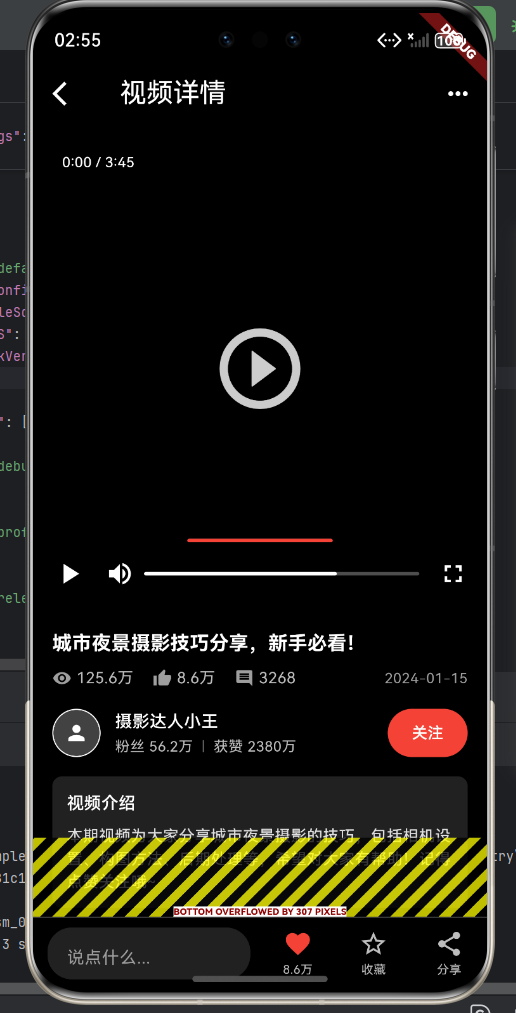
完整示例:短视频分享平台
下面是一个完整的短视频分享平台示例,展示了 Flex、Row 和 Column 的综合应用:
import 'package:flutter/material.dart';
class VideoDetailPage extends StatelessWidget {
const VideoDetailPage({super.key});
Widget build(BuildContext context) {
return Scaffold(
backgroundColor: Colors.black,
appBar: _buildAppBar(),
body: Column(
children: [
_buildVideoPlayer(),
_buildVideoInfo(),
_buildComments(),
],
),
bottomNavigationBar: _buildBottomBar(),
);
}
AppBar _buildAppBar() {
return AppBar(
backgroundColor: Colors.black,
elevation: 0,
leading: IconButton(
icon: const Icon(Icons.arrow_back_ios, color: Colors.white),
onPressed: () {},
),
title: const Text('视频详情', style: TextStyle(color: Colors.white)),
actions: [
IconButton(icon: const Icon(Icons.more_horiz, color: Colors.white),
onPressed: () {}),
],
);
}
// 视频播放器区域
Widget _buildVideoPlayer() {
return Container(
height: 400,
color: Colors.black,
child: Stack(
children: [
Center(
child: Icon(Icons.play_circle_outline,
size: 80, color: Colors.white.withOpacity(0.8)),
),
Positioned(
top: 16,
left: 16,
child: Container(
padding: const EdgeInsets.symmetric(horizontal: 8, vertical: 4),
decoration: BoxDecoration(
color: Colors.black54,
borderRadius: BorderRadius.circular(4),
),
child: const Text('0:00 / 3:45',
style: TextStyle(color: Colors.white, fontSize: 12)),
),
),
Positioned(
bottom: 16,
left: 16,
right: 16,
child: Column(
children: [
// 进度条
Container(
height: 3,
decoration: BoxDecoration(
color: Colors.white30,
borderRadius: BorderRadius.circular(2),
),
child: FractionallySizedBox(
widthFactor: 0.35,
alignment: Alignment.centerLeft,
child: Container(
decoration: BoxDecoration(
color: Colors.red,
borderRadius: BorderRadius.circular(2),
),
),
),
),
const SizedBox(height: 12),
// 播放控制
Row(
children: [
const Icon(Icons.play_arrow, color: Colors.white, size: 28),
const SizedBox(width: 16),
const Icon(Icons.volume_up, color: Colors.white, size: 24),
const SizedBox(width: 8),
Expanded(
child: Container(
height: 3,
decoration: BoxDecoration(
color: Colors.white30,
borderRadius: BorderRadius.circular(2),
),
child: FractionallySizedBox(
widthFactor: 0.7,
alignment: Alignment.centerLeft,
child: Container(
decoration: BoxDecoration(
color: Colors.white,
borderRadius: BorderRadius.circular(2),
),
),
),
),
),
const SizedBox(width: 16),
const Icon(Icons.fullscreen, color: Colors.white, size: 24),
],
),
],
),
),
],
),
);
}
// 视频信息 - 使用 Flex 布局
Widget _buildVideoInfo() {
return Container(
color: Colors.black,
padding: const EdgeInsets.all(16),
child: Column(
crossAxisAlignment: CrossAxisAlignment.start,
children: [
Text(
'城市夜景摄影技巧分享,新手必看!',
style: const TextStyle(
color: Colors.white,
fontSize: 16,
fontWeight: FontWeight.bold,
),
),
const SizedBox(height: 8),
Row(
children: [
const Icon(Icons.remove_red_eye, color: Colors.grey, size: 16),
const SizedBox(width: 4),
Text('125.6万',
style: TextStyle(color: Colors.grey[400], fontSize: 13)),
const SizedBox(width: 16),
const Icon(Icons.thumb_up, color: Colors.grey, size: 16),
const SizedBox(width: 4),
Text('8.6万',
style: TextStyle(color: Colors.grey[400], fontSize: 13)),
const SizedBox(width: 16),
const Icon(Icons.comment, color: Colors.grey, size: 16),
const SizedBox(width: 4),
Text('3268',
style: TextStyle(color: Colors.grey[400], fontSize: 13)),
const Spacer(),
Text('2024-01-15',
style: TextStyle(color: Colors.grey[500], fontSize: 12)),
],
),
const SizedBox(height: 12),
Row(
children: [
Container(
width: 40,
height: 40,
decoration: BoxDecoration(
shape: BoxShape.circle,
border: Border.all(color: Colors.white, width: 1),
),
child: ClipOval(
child: Container(
color: Colors.grey[800],
child: const Icon(Icons.person, size: 20, color: Colors.white),
),
),
),
const SizedBox(width: 12),
Expanded(
child: Column(
crossAxisAlignment: CrossAxisAlignment.start,
children: [
const Text(
'摄影达人小王',
style: TextStyle(
color: Colors.white,
fontSize: 14,
fontWeight: FontWeight.w500),
),
const SizedBox(height: 2),
Row(
children: [
Text(
'粉丝 56.2万',
style: TextStyle(color: Colors.grey[400], fontSize: 12),
),
const SizedBox(width: 8),
Container(
width: 1,
height: 10,
color: Colors.grey[600],
),
const SizedBox(width: 8),
Text(
'获赞 2380万',
style: TextStyle(color: Colors.grey[400], fontSize: 12),
),
],
),
],
),
),
ElevatedButton(
onPressed: () {},
style: ElevatedButton.styleFrom(
backgroundColor: Colors.red,
foregroundColor: Colors.white,
padding:
const EdgeInsets.symmetric(horizontal: 20, vertical: 8),
shape: RoundedRectangleBorder(
borderRadius: BorderRadius.circular(20),
),
),
child: const Text('关注', style: TextStyle(fontSize: 13)),
),
],
),
],
),
);
}
// 评论区 - 使用 Column 垂直布局
Widget _buildComments() {
return Container(
color: Colors.black,
padding: const EdgeInsets.all(16),
child: Column(
crossAxisAlignment: CrossAxisAlignment.start,
children: [
const Text(
'热门评论 (3268)',
style: TextStyle(
color: Colors.white, fontSize: 15, fontWeight: FontWeight.bold),
),
const SizedBox(height: 12),
_buildCommentItem(
avatar: '张',
name: '摄影爱好者',
content: '拍得太美了!请问用的什么相机和镜头?',
time: '2小时前',
likes: 1256,
isHot: true,
),
const SizedBox(height: 16),
_buildCommentItem(
avatar: '李',
name: '城市猎人',
content: '学习了!终于知道怎么拍夜景了',
time: '3小时前',
likes: 892,
isHot: true,
),
],
),
);
}
Widget _buildCommentItem({
required String avatar,
required String name,
required String content,
required String time,
required int likes,
required bool isHot,
}) {
return Row(
crossAxisAlignment: CrossAxisAlignment.start,
children: [
Container(
width: 36,
height: 36,
decoration: BoxDecoration(
color: isHot ? Colors.blue[600] : Colors.grey[700],
shape: BoxShape.circle,
),
child: Center(
child: Text(avatar,
style: const TextStyle(color: Colors.white, fontSize: 16))),
),
const SizedBox(width: 12),
Expanded(
child: Column(
crossAxisAlignment: CrossAxisAlignment.start,
children: [
Row(
children: [
Text(
name,
style: const TextStyle(color: Colors.white, fontSize: 13),
),
if (isHot) ...[
const SizedBox(width: 6),
Container(
padding:
const EdgeInsets.symmetric(horizontal: 4, vertical: 1),
decoration: BoxDecoration(
color: Colors.orange,
borderRadius: BorderRadius.circular(3),
),
child: const Text('热',
style: TextStyle(color: Colors.white, fontSize: 9)),
),
],
const Spacer(),
Text(time,
style: TextStyle(color: Colors.grey[500], fontSize: 11)),
],
),
const SizedBox(height: 4),
Text(
content,
style: TextStyle(color: Colors.grey[300], fontSize: 13),
),
const SizedBox(height: 8),
Row(
children: [
Icon(Icons.thumb_up_outlined,
size: 14, color: Colors.grey[500]),
const SizedBox(width: 4),
Text('$likes',
style: TextStyle(color: Colors.grey[500], fontSize: 12)),
const SizedBox(width: 16),
Icon(Icons.chat_bubble_outline,
size: 14, color: Colors.grey[500]),
const SizedBox(width: 4),
Text('回复',
style: TextStyle(color: Colors.grey[500], fontSize: 12)),
],
),
],
),
),
],
);
}
// 底部操作栏 - 使用 Flex 布局
Widget _buildBottomBar() {
return Container(
height: 60,
decoration: BoxDecoration(
color: Colors.black,
border: Border(top: BorderSide(color: Colors.grey[800]!)),
),
child: Flex(
direction: Axis.horizontal,
children: [
// 输入框
Expanded(
flex: 3,
child: Container(
margin:
const EdgeInsets.only(left: 12, right: 8, top: 8, bottom: 8),
decoration: BoxDecoration(
color: Colors.grey[900],
borderRadius: BorderRadius.circular(20),
),
child: TextField(
decoration: InputDecoration(
hintText: '说点什么...',
hintStyle:
TextStyle(color: Colors.grey[500], fontSize: 14),
border: InputBorder.none,
contentPadding:
const EdgeInsets.symmetric(horizontal: 16, vertical: 10),
),
),
),
),
// 点赞按钮
Expanded(
flex: 1,
child: Column(
mainAxisAlignment: MainAxisAlignment.center,
children: [
const Icon(Icons.favorite, color: Colors.red, size: 24),
const SizedBox(height: 2),
Text('8.6万',
style: TextStyle(color: Colors.grey[400], fontSize: 10)),
],
),
),
// 收藏按钮
Expanded(
flex: 1,
child: Column(
mainAxisAlignment: MainAxisAlignment.center,
children: [
Icon(Icons.star_border, color: Colors.grey[400], size: 24),
const SizedBox(height: 2),
Text('收藏',
style: TextStyle(color: Colors.grey[400], fontSize: 10)),
],
),
),
// 分享按钮
Expanded(
flex: 1,
child: Column(
mainAxisAlignment: MainAxisAlignment.center,
children: [
Icon(Icons.share, color: Colors.grey[400], size: 24),
const SizedBox(height: 2),
Text('分享',
style: TextStyle(color: Colors.grey[400], fontSize: 10)),
],
),
),
],
),
);
}
}
void main() {
runApp(const MaterialApp(
home: VideoDetailPage(),
debugShowCheckedModeBanner: false,
));
}
关键点说明
-
Flex 与 Row/Column:
- Row = Flex(Axis.horizontal)
- Column = Flex(Axis.vertical)
- 底部操作栏使用 Flex 实现精确的 flex 比例分配
-
Row 应用场景:
- 视频控制按钮
- 用户信息展示
- 评论区布局
-
Column 应用场景:
- 页面整体垂直布局
- 评论区列表
- 统计信息展示
Flex、Row、Column布局关系深度解析
Flex是Flutter中最基础的布局组件,Row和Column都是继承自Flex的便捷类。理解Flex、Row、Column三者之间的关系和转换,能够让你更深入地掌握Flutter的布局系统。
一、继承关系
1.1 类继承图
Flex (基类)
├── Row (水平Flex)
└── Column (垂直Flex)
1.2 源码简化
class Row extends Flex {
  const Row({
    super.key,
    super.children,
    super.mainAxisAlignment,
    super.crossAxisAlignment,
    super.mainAxisSize,
    super.textBaseline,
    super.textDirection,
    super.verticalDirection,
  }) : super(direction: Axis.horizontal);
}

class Column extends Flex {
  const Column({
    super.key,
    super.children,
    super.mainAxisAlignment,
    super.crossAxisAlignment,
    super.mainAxisSize,
    super.textBaseline,
    super.textDirection,
    super.verticalDirection,
  }) : super(direction: Axis.vertical);
}
1.3 本质区别
Row和Column的本质区别只有一个:direction参数的值。
// Row = Flex(Axis.horizontal)
Row(...) == Flex(direction: Axis.horizontal, ...)

// Column = Flex(Axis.vertical)
Column(...) == Flex(direction: Axis.vertical, ...)
二、Flex基础用法
Flex是一个通用的弹性布局组件,可以指定任意方向。
2.1 基本结构
Flex(
  direction: Axis.horizontal,  // 或 Axis.vertical
  mainAxisAlignment: MainAxisAlignment.start,
  crossAxisAlignment: CrossAxisAlignment.center,
  children: [
    Container(width: 60, height: 40, color: Colors.red),
    Container(width: 60, height: 40, color: Colors.green),
    Container(width: 60, height: 40, color: Colors.blue),
  ],
)
2.2 direction参数
Flex(
  direction: Axis.horizontal,  // 水平排列
  children: [...],
)

Flex(
  direction: Axis.vertical,  // 垂直排列
  children: [...],
)
三、Row vs Flex对比
3.1 相同功能的实现
// Row实现
Row(
  mainAxisAlignment: MainAxisAlignment.spaceAround,
  children: [
    Container(width: 60, height: 40, color: Colors.red),
    Container(width: 60, height: 40, color: Colors.green),
    Container(width: 60, height: 40, color: Colors.blue),
  ],
)

// Flex实现(效果相同)
Flex(
  direction: Axis.horizontal,
  mainAxisAlignment: MainAxisAlignment.spaceAround,
  children: [
    Container(width: 60, height: 40, color: Colors.red),
    Container(width: 60, height: 40, color: Colors.green),
    Container(width: 60, height: 40, color: Colors.blue),
  ],
)
3.2 何时使用Flex
使用Flex而不是Row/Column的场景:
// 需要动态改变方向
class DirectionalLayout extends StatefulWidget {
State<DirectionalLayout> createState() => _DirectionalLayoutState();
}
class _DirectionalLayoutState extends State<DirectionalLayout> {
Axis direction = Axis.horizontal;
Widget build(BuildContext context) {
return Column(
children: [
Row(
children: [
ElevatedButton(
onPressed: () => setState(() => direction = Axis.horizontal),
child: Text('横向'),
),
SizedBox(width: 8),
ElevatedButton(
onPressed: () => setState(() => direction = Axis.vertical),
child: Text('纵向'),
),
],
),
SizedBox(height: 16),
Container(
height: 200,
color: Colors.grey[200],
child: Flex(
direction: direction,
mainAxisAlignment: MainAxisAlignment.spaceAround,
children: [
Container(
width: 60,
height: 40,
color: Colors.red,
child: Center(child: Text('A')),
),
Container(
width: 60,
height: 40,
color: Colors.green,
child: Center(child: Text('B')),
),
Container(
width: 60,
height: 40,
color: Colors.blue,
child: Center(child: Text('C')),
),
],
),
),
],
);
}
}
四、Column vs Flex对比
4.1 相同功能的实现
// Column实现
Column(
  mainAxisAlignment: MainAxisAlignment.spaceBetween,
  children: [
    Container(height: 60, color: Colors.red),
    Container(height: 60, color: Colors.green),
    Container(height: 60, color: Colors.blue),
  ],
)

// Flex实现(效果相同)
Flex(
  direction: Axis.vertical,
  mainAxisAlignment: MainAxisAlignment.spaceBetween,
  children: [
    Container(height: 60, color: Colors.red),
    Container(height: 60, color: Colors.green),
    Container(height: 60, color: Colors.blue),
  ],
)
4.2 混合使用场景
class MixedFlexLayout extends StatelessWidget {
Widget build(BuildContext context) {
return Column(
children: [
// 横向Flex
Container(
height: 80,
color: Colors.grey[200],
child: Flex(
direction: Axis.horizontal,
mainAxisAlignment: MainAxisAlignment.spaceAround,
children: [
_buildFlexItem('A', Colors.red),
_buildFlexItem('B', Colors.green),
_buildFlexItem('C', Colors.blue),
],
),
),
SizedBox(height: 16),
// 纵向Flex
Container(
height: 200,
color: Colors.grey[200],
child: Flex(
direction: Axis.vertical,
mainAxisAlignment: MainAxisAlignment.spaceAround,
children: [
_buildFlexItem('D', Colors.orange),
_buildFlexItem('E', Colors.purple),
_buildFlexItem('F', Colors.teal),
],
),
),
],
);
}
Widget _buildFlexItem(String label, Color color) {
return Container(
width: 60,
height: 40,
color: color,
child: Center(
child: Text(
label,
style: TextStyle(color: Colors.white, fontWeight: FontWeight.bold),
),
),
);
}
}
五、Flex与Expanded配合
5.1 基本用法
Flex(
  direction: Axis.horizontal,
  children: [
    Expanded(
      flex: 1,
      child: Container(color: Colors.red, height: 50),
    ),
    Expanded(
      flex: 2,
      child: Container(color: Colors.green, height: 50),
    ),
    Expanded(
      flex: 3,
      child: Container(color: Colors.blue, height: 50),
    ),
  ],
)
5.2 动态flex分配
class DynamicFlexLayout extends StatefulWidget {
State<DynamicFlexLayout> createState() => _DynamicFlexLayoutState();
}
class _DynamicFlexLayoutState extends State<DynamicFlexLayout> {
int flex1 = 1;
int flex2 = 2;
int flex3 = 3;
Widget build(BuildContext context) {
return Column(
children: [
_buildControls(),
SizedBox(height: 16),
Container(
height: 100,
color: Colors.grey[200],
child: Flex(
direction: Axis.horizontal,
children: [
Expanded(
flex: flex1,
child: _buildFlexItem('Flex: $flex1', Colors.red),
),
Expanded(
flex: flex2,
child: _buildFlexItem('Flex: $flex2', Colors.green),
),
Expanded(
flex: flex3,
child: _buildFlexItem('Flex: $flex3', Colors.blue),
),
],
),
),
],
);
}
Widget _buildControls() {
return Row(
mainAxisAlignment: MainAxisAlignment.spaceAround,
children: [
_buildFlexControl('红色', flex1, (value) => setState(() => flex1 = value)),
_buildFlexControl('绿色', flex2, (value) => setState(() => flex2 = value)),
_buildFlexControl('蓝色', flex3, (value) => setState(() => flex3 = value)),
],
);
}
Widget _buildFlexControl(String label, int current, Function(int) onChanged) {
return Column(
children: [
Text(label),
Row(
children: List.generate(5, (index) {
final value = index + 1;
return IconButton(
icon: Icon(value == current ? Icons.circle : Icons.circle_outlined),
onPressed: () => onChanged(value),
);
}),
),
],
);
}
Widget _buildFlexItem(String label, Color color) {
return Container(
color: color,
child: Center(
child: Text(
label,
style: TextStyle(color: Colors.white),
),
),
);
}
}
六、实战案例:响应式工具栏
6.1 需求描述
根据屏幕宽度动态调整工具栏的排列方向。
6.2 完整实现
class ResponsiveToolbar extends StatelessWidget {
Widget build(BuildContext context) {
return LayoutBuilder(
builder: (context, constraints) {
final isHorizontal = constraints.maxWidth > 600;
final direction = isHorizontal ? Axis.horizontal : Axis.vertical;
return Container(
padding: EdgeInsets.all(16),
decoration: BoxDecoration(
color: Colors.white,
boxShadow: [
BoxShadow(
color: Colors.black.withOpacity(0.1),
blurRadius: 4,
),
],
),
child: Flex(
direction: direction,
mainAxisAlignment: MainAxisAlignment.spaceAround,
children: [
_buildToolbarItem(Icons.home, '首页'),
if (isHorizontal) SizedBox(width: 16) else SizedBox(height: 16),
_buildToolbarItem(Icons.search, '搜索'),
if (isHorizontal) SizedBox(width: 16) else SizedBox(height: 16),
_buildToolbarItem(Icons.favorite, '收藏'),
if (isHorizontal) SizedBox(width: 16) else SizedBox(height: 16),
_buildToolbarItem(Icons.person, '我的'),
],
),
);
},
);
}
Widget _buildToolbarItem(IconData icon, String label) {
return Container(
padding: EdgeInsets.symmetric(horizontal: 16, vertical: 12),
decoration: BoxDecoration(
color: Colors.blue[50],
borderRadius: BorderRadius.circular(8),
border: Border.all(color: Colors.blue[200]!),
),
child: Row(
mainAxisSize: MainAxisSize.min,
children: [
Icon(icon, color: Colors.blue),
SizedBox(width: 8),
Text(
label,
style: TextStyle(
color: Colors.blue[700],
fontWeight: FontWeight.w500,
),
),
],
),
);
}
}
七、Flex与其他组件的嵌套
7.1 Flex + Flex嵌套
class NestedFlexLayout extends StatelessWidget {
Widget build(BuildContext context) {
return Flex(
direction: Axis.vertical,
children: [
// 第一行
Flex(
direction: Axis.horizontal,
children: [
Expanded(child: Container(color: Colors.red, height: 60)),
Expanded(child: Container(color: Colors.green, height: 60)),
],
),
// 第二行
Flex(
direction: Axis.horizontal,
children: [
Expanded(
flex: 1,
child: Container(color: Colors.blue, height: 60),
),
Expanded(
flex: 2,
child: Container(color: Colors.orange, height: 60),
),
],
),
// 第三行
Flex(
direction: Axis.horizontal,
children: [
Expanded(
flex: 1,
child: Container(color: Colors.purple, height: 60),
),
Expanded(
flex: 1,
child: Container(color: Colors.teal, height: 60),
),
Expanded(
flex: 1,
child: Container(color: Colors.pink, height: 60),
),
],
),
],
);
}
}
7.2 Flex + Flex混合方向
class MixedDirectionFlex extends StatelessWidget {
Widget build(BuildContext context) {
return Flex(
direction: Axis.horizontal,
children: [
// 左侧:纵向Flex
Expanded(
flex: 1,
child: Flex(
direction: Axis.vertical,
children: [
Expanded(child: Container(color: Colors.red)),
Expanded(child: Container(color: Colors.green)),
],
),
),
SizedBox(width: 8),
// 中间:纵向Flex
Expanded(
flex: 2,
child: Flex(
direction: Axis.vertical,
children: [
Expanded(child: Container(color: Colors.blue)),
Expanded(child: Container(color: Colors.orange)),
Expanded(child: Container(color: Colors.purple)),
],
),
),
SizedBox(width: 8),
// 右侧:纵向Flex
Expanded(
flex: 1,
child: Flex(
direction: Axis.vertical,
children: [
Expanded(child: Container(color: Colors.teal)),
Expanded(child: Container(color: Colors.pink)),
],
),
),
],
);
}
}
八、Flex性能优化
8.1 使用const构造函数
// 不推荐
Flex(
  direction: Axis.horizontal,
  children: [
    Container(width: 60, height: 40, color: Colors.red),
    Container(width: 60, height: 40, color: Colors.green),
  ],
)

// 推荐
const Flex(
  direction: Axis.horizontal,
  children: [
    SizedBox(width: 60, height: 40, child: ColoredBox(color: Colors.red)),
    SizedBox(width: 60, height: 40, child: ColoredBox(color: Colors.green)),
  ],
)
8.2 提取独立组件
class FlexItem extends StatelessWidget {
final String label;
final Color color;
const FlexItem({
required this.label,
required this.color,
});
Widget build(BuildContext context) {
return Container(
width: 60,
height: 40,
color: color,
child: Center(
child: Text(
label,
style: const TextStyle(color: Colors.white),
),
),
);
}
}
// 使用
Flex(
direction: Axis.horizontal,
children: const [
FlexItem(label: 'A', color: Colors.red),
FlexItem(label: 'B', color: Colors.green),
FlexItem(label: 'C', color: Colors.blue),
],
)
九、Flex选择指南
9.1 使用Row的情况
// 固定水平布局
Row(
  children: [
    Icon(Icons.star),
    SizedBox(width: 8),
    Text('4.5'),
  ],
)
9.2 使用Column的情况
// 固定垂直布局
Column(
  children: [
    Text('标题'),
    SizedBox(height: 8),
    Text('描述'),
  ],
)
9.3 使用Flex的情况
// 需要动态改变方向
class DirectionalWidget extends StatefulWidget {
State<DirectionalWidget> createState() => _DirectionalWidgetState();
}
class _DirectionalWidgetState extends State<DirectionalWidget> {
Axis _direction = Axis.horizontal;
Widget build(BuildContext context) {
return Flex(
direction: _direction,
children: [
ElevatedButton(
onPressed: () => setState(() {
_direction = _direction == Axis.horizontal
? Axis.vertical
: Axis.horizontal;
}),
child: Text('切换方向'),
),
Expanded(child: Container(color: Colors.blue, height: 50)),
],
);
}
}
十、Flex布局流程图
十一、总结
Flex是Flutter中最基础的布局组件,Row和Column是它的便捷子类。
核心要点
- Row:固定水平布局的便捷类
- Column:固定垂直布局的便捷类
- Flex:通用弹性布局,支持动态方向
- 本质相同:Row = Flex(Axis.horizontal), Column = Flex(Axis.vertical)
选择建议
// 使用Row的场景
- 固定的水平排列
- 标准的横向布局
- 导航栏、工具栏

// 使用Column的场景
- 固定的垂直排列
- 标准的纵向布局
- 列表、表单

// 使用Flex的场景
- 需要动态改变方向
- 响应式布局
- 需要统一处理
通过理解Flex、Row、Column之间的关系,你将能够更灵活地选择合适的布局组件,构建出更加精简和高效的代码。
欢迎加入开源鸿蒙跨平台社区:https://openharmonycrossplatform.csdn.net

AtomGit 是由开放原子开源基金会联合 CSDN 等生态伙伴共同推出的新一代开源与人工智能协作平台。平台坚持“开放、中立、公益”的理念,把代码托管、模型共享、数据集托管、智能体开发体验和算力服务整合在一起,为开发者提供从开发、训练到部署的一站式体验。
更多推荐

 9
9 0
0- 0



 已为社区贡献16条内容

所有评论(0)