Flutter for OpenHarmony音乐播放器App实战:创建歌单实现
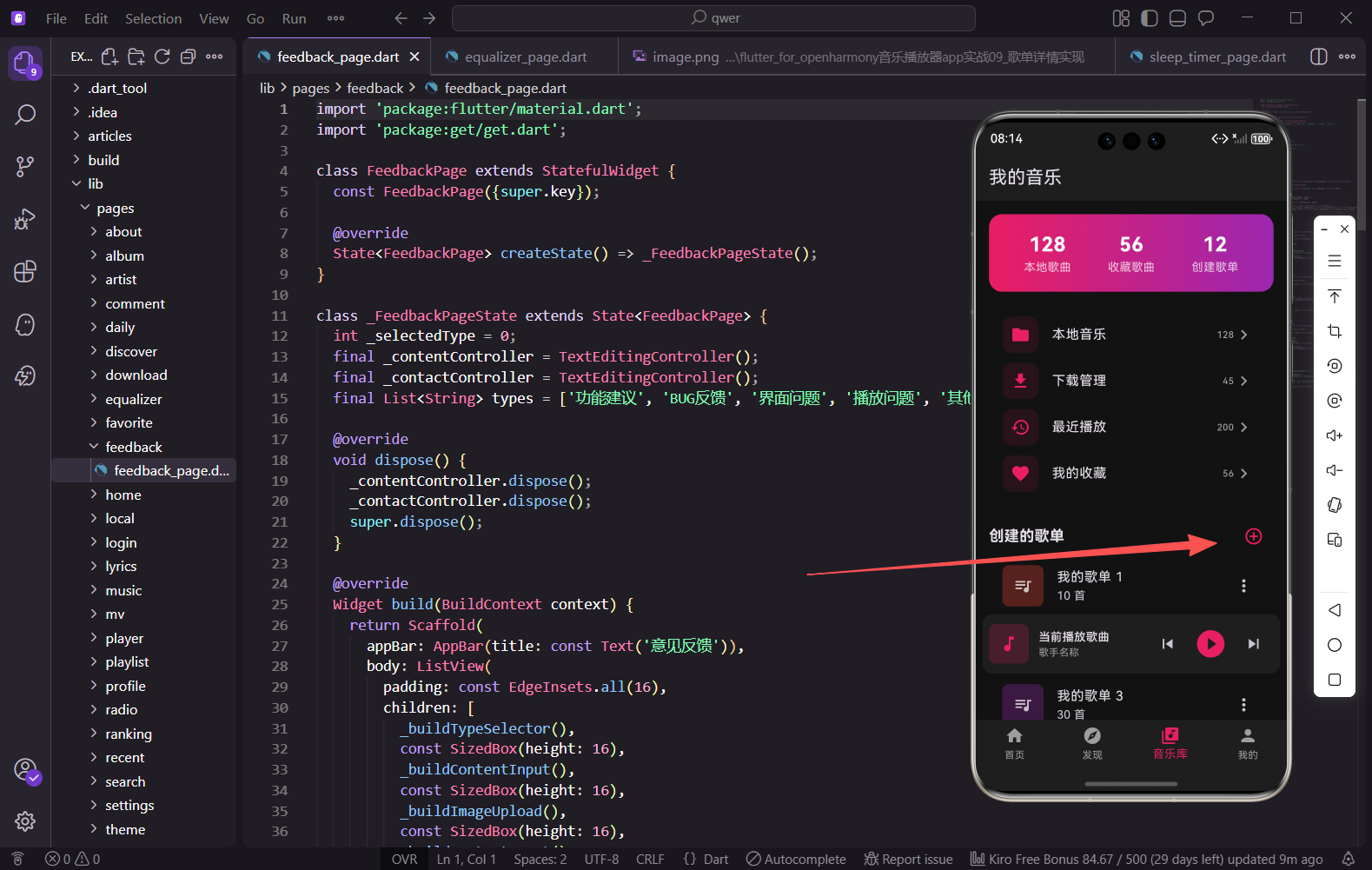
创建歌单是音乐播放器中一个基础但重要的功能。用户可以创建自己的歌单来整理和收藏喜欢的音乐。本篇文章将详细介绍如何实现一个简洁实用的创建歌单页面,包括封面上传、名称输入、隐私设置等功能。
页面基础结构
创建歌单页面使用StatefulWidget,因为需要管理输入框内容和开关状态。
import 'package:flutter/material.dart';
import 'package:get/get.dart';
class CreatePlaylistPage extends StatefulWidget {
const CreatePlaylistPage({super.key});
State<CreatePlaylistPage> createState() => _CreatePlaylistPageState();
}
这段代码是创建歌单页面的基础结构定义,首先导入了Flutter核心Material库和GetX路由管理库,这是跨平台开发中常用的依赖组合。页面类继承自StatefulWidget,因为页面包含输入框、开关等需要动态更新的状态,必须通过State类来管理这些可变状态。CreatePlaylistPage作为无状态的壳组件,核心的状态逻辑会封装在对应的_CreatePlaylistPageState类中。
状态变量定义
页面需要管理输入控制器和隐私开关状态。
class _CreatePlaylistPageState extends State<CreatePlaylistPage> {
final _nameController = TextEditingController();
bool _isPrivate = false;
void dispose() {
_nameController.dispose();
super.dispose();
}
在State类中,首先定义了两个核心状态变量:_nameController是文本编辑控制器,用于绑定歌单名称输入框,实现输入内容的获取和管理;_isPrivate是布尔值,用于标记歌单是否设为私密状态。重写dispose方法是Flutter开发的最佳实践,当页面销毁时释放TextEditingController资源,避免内存泄漏,这对于长期运行的音乐播放器应用至关重要。
AppBar设计
AppBar包含标题和完成按钮。
Widget build(BuildContext context) {
return Scaffold(
appBar: AppBar(
title: const Text('创建歌单'),
actions: [
TextButton(
onPressed: () => _createPlaylist(),
child: const Text(
'完成',
style: TextStyle(color: Color(0xFFE91E63)),
),
),
],
),
build方法是Flutter构建UI的核心入口,这里先返回Scaffold作为页面的基础骨架,保证页面有标准的AppBar和Body布局结构。AppBar部分设置了“创建歌单”的标题,右侧通过actions属性添加了完成按钮,按钮使用TextButton组件,点击事件绑定到_createPlaylist方法,按钮文字使用主题色(粉色系),符合音乐类App的视觉风格,提升用户体验。
页面主体布局
页面主体使用Padding包裹Column,垂直排列各个组件。
      body: Padding(
        padding: const EdgeInsets.all(16),
        child: Column(
          crossAxisAlignment: CrossAxisAlignment.start,
          children: [
            _buildCoverPicker(),
            const SizedBox(height: 24),
            _buildNameInput(),
            const SizedBox(height: 16),
            _buildPrivacySwitch(),
          ],
        ),
      ),
    );
  }
页面主体部分通过Padding给整个内容区域添加16dp的内边距,避免内容紧贴屏幕边缘,符合移动端UI设计规范。Column组件垂直排列封面选择、名称输入、隐私设置三个核心功能模块,crossAxisAlignment设为start让子组件左对齐,保持视觉上的统一。SizedBox用于控制各模块间的间距,24dp和16dp的间距区分了主要模块和次要模块的层级,让页面布局更有呼吸感。
封面选择组件
封面选择区域居中显示,点击可以选择图片。
  Widget _buildCoverPicker() {
    return Center(
      child: GestureDetector(
        onTap: () => _pickCoverImage(),
        child: Container(
          width: 120,
          height: 120,
          decoration: BoxDecoration(
            borderRadius: BorderRadius.circular(12),
            color: const Color(0xFF1E1E1E),
          ),
          child: const Column(
            mainAxisAlignment: MainAxisAlignment.center,
            children: [
              Icon(Icons.add_photo_alternate, size: 40, color: Colors.grey),
              SizedBox(height: 8),
              Text('添加封面', style: TextStyle(color: Colors.grey, fontSize: 12)),
            ],
          ),
        ),
      ),
    );
  }
封面选择组件是一个独立的构建方法,返回居中的可点击容器。GestureDetector包裹整个容器,实现点击事件的监听,点击后触发_pickCoverImage方法选择图片。容器设置为120x120的正方形,深色背景搭配圆角,符合音乐App歌单封面的视觉样式。内部通过Column居中显示添加封面的图标和文字提示,灰色的图标和文字在深色背景下清晰易识别,引导用户操作。
选择封面图片
点击封面区域后调用图片选择方法。
  void _pickCoverImage() async {
    // 实际项目中使用image_picker插件
    Get.bottomSheet(
      Container(
        decoration: const BoxDecoration(
          color: Color(0xFF1E1E1E),
          borderRadius: BorderRadius.vertical(top: Radius.circular(16)),
        ),
        child: Column(
          mainAxisSize: MainAxisSize.min,
          children: [
            ListTile(
              leading: const Icon(Icons.camera_alt),
              title: const Text('拍照'),
              onTap: () {
                Get.back();
                Get.snackbar('提示', '相机功能开发中');
              },
            ),
            ListTile(
              leading: const Icon(Icons.photo_library),
              title: const Text('从相册选择'),
              onTap: () {
                Get.back();
                Get.snackbar('提示', '相册功能开发中');
              },
            ),
            const SizedBox(height: 16),
          ],
        ),
      ),
    );
  }
_pickCoverImage方法实现了封面选择的交互逻辑,通过GetX的bottomSheet弹出底部选择菜单,替代原生的弹窗,样式更统一且可自定义。底部菜单使用深色背景和顶部圆角设计,提升视觉质感。菜单包含拍照和从相册选择两个ListTile选项,点击后先关闭底部菜单,再通过snackbar提示功能开发中,这种交互逻辑符合用户操作习惯,先反馈操作结果,再提示功能状态。实际项目中,这里会集成image_picker插件,实现真正的图片选择和裁剪功能。
名称输入组件
歌单名称输入区域包含标签和输入框。
  Widget _buildNameInput() {
    return Column(
      crossAxisAlignment: CrossAxisAlignment.start,
      children: [
        const Text(
          '歌单名称',
          style: TextStyle(fontWeight: FontWeight.bold),
        ),
        const SizedBox(height: 8),
        TextField(
          controller: _nameController,
          decoration: InputDecoration(
            hintText: '请输入歌单名称',
            filled: true,
            fillColor: const Color(0xFF1E1E1E),
            border: OutlineInputBorder(
              borderRadius: BorderRadius.circular(12),
              borderSide: BorderSide.none,
            ),
          ),
        ),
      ],
    );
  }
名称输入组件分为标签和输入框两部分,标签使用加粗样式突出显示,让用户清晰知道输入框的用途。TextField绑定了之前定义的_nameController,实现输入内容的双向绑定。输入框使用filled属性填充深色背景,无边框设计搭配12dp圆角,与封面容器的圆角保持一致,视觉风格统一。hintText提示用户输入歌单名称,提升输入框的易用性,这种设计符合Material Design的表单规范,同时适配深色模式的视觉需求。
隐私设置开关
使用SwitchListTile实现隐私设置。
  Widget _buildPrivacySwitch() {
    return SwitchListTile(
      title: const Text('设为私密'),
      subtitle: const Text('私密歌单仅自己可见'),
      value: _isPrivate,
      onChanged: (v) => setState(() => _isPrivate = v),
      activeColor: const Color(0xFFE91E63),
      contentPadding: EdgeInsets.zero,
    );
  }
隐私设置使用SwitchListTile组件,该组件集成了标题、副标题和开关,是Flutter中实现设置项的高效组件。title显示“设为私密”,subtitle补充说明私密歌单的权限范围,让用户明确开关的作用。value绑定_isPrivate状态,onChanged回调中通过setState更新状态,实现开关的双向绑定。activeColor设置为主题色,contentPadding设为零,让开关与其他组件的对齐方式保持一致,提升页面的整体整洁度。
创建歌单方法
点击完成按钮后执行创建逻辑。
  void _createPlaylist() {
    final name = _nameController.text.trim();

    if (name.isEmpty) {
      Get.snackbar(
        '提示',
        '请输入歌单名称',
        snackPosition: SnackPosition.BOTTOM,
        backgroundColor: Colors.red.withOpacity(0.8),
        colorText: Colors.white,
      );
      return;
    }

    // 模拟创建歌单
    Get.back(result: {
      'name': name,
      'isPrivate': _isPrivate,
    });

    Get.snackbar(
      '成功',
      '歌单创建成功',
      snackPosition: SnackPosition.BOTTOM,
      backgroundColor: Colors.green.withOpacity(0.8),
      colorText: Colors.white,
    );
  }
_createPlaylist方法是创建歌单的核心逻辑,首先获取并去除歌单名称输入框的首尾空格,进行非空验证。如果名称为空,通过GetX的snackbar显示底部提示框,红色背景搭配白色文字,提示用户输入名称,提示框位置设为底部,避免遮挡页面内容。验证通过后,模拟创建歌单的逻辑,通过Get.back返回上一级页面,并携带歌单名称和隐私状态的结果数据,方便上一级页面接收并展示新创建的歌单。最后显示绿色背景的成功提示,反馈歌单创建成功的结果,让用户明确操作已完成。
输入验证增强
可以添加更多的输入验证规则。
  bool _validateInput() {
    final name = _nameController.text.trim();

    if (name.isEmpty) {
      _showError('请输入歌单名称');
      return false;
    }

    if (name.length > 40) {
      _showError('歌单名称不能超过40个字符');
      return false;
    }

    // 检查是否包含特殊字符
    final regex = RegExp(r'[<>"\\/|?*]');
    if (regex.hasMatch(name)) {
      _showError('歌单名称不能包含特殊字符');
      return false;
    }

    return true;
  }

  void _showError(String message) {
    Get.snackbar(
      '提示',
      message,
      snackPosition: SnackPosition.BOTTOM,
      backgroundColor: Colors.red.withOpacity(0.8),
      colorText: Colors.white,
    );
  }
为了提升输入的安全性和规范性,这里封装了_validateInput验证方法,包含三层验证规则:首先是基础的非空验证,确保用户输入歌单名称;其次是长度验证,限制名称不超过40个字符,避免过长名称导致UI展示异常或后端存储问题;最后是特殊字符验证,通过正则表达式匹配非法字符,防止用户输入影响存储或展示的特殊符号。_showError方法将错误提示的逻辑抽离,避免重复代码,统一错误提示的样式和位置,让代码结构更清晰,也便于后续统一修改提示样式。
歌单描述输入
可以添加歌单描述输入框。
  Widget _buildDescriptionInput() {
    return Column(
      crossAxisAlignment: CrossAxisAlignment.start,
      children: [
        const Text(
          '歌单简介',
          style: TextStyle(fontWeight: FontWeight.bold),
        ),
        const SizedBox(height: 8),
        TextField(
          controller: _descController,
          maxLines: 4,
          maxLength: 200,
          decoration: InputDecoration(
            hintText: '介绍一下这个歌单吧(选填)',
            filled: true,
            fillColor: const Color(0xFF1E1E1E),
            border: OutlineInputBorder(
              borderRadius: BorderRadius.circular(12),
              borderSide: BorderSide.none,
            ),
          ),
        ),
      ],
    );
  }
歌单描述输入组件是对创建歌单功能的扩展,满足用户对歌单添加个性化介绍的需求。输入框设置maxLines为4,支持多行输入,适配长文本描述;maxLength限制200个字符,避免描述内容过长。hintText标注“选填”,降低用户的输入压力,符合人性化设计原则。输入框的样式与名称输入框保持一致,深色填充、无边框、圆角设计,保证页面UI风格的统一性,让用户在不同输入区域的操作体验保持连贯。
标签选择功能
可以为歌单添加标签。
  final List<String> _availableTags = ['流行', '摇滚', '民谣', '电子', '古典', '爵士', 'R&B', '说唱'];
  final Set<String> _selectedTags = {};

  Widget _buildTagSelector() {
    return Column(
      crossAxisAlignment: CrossAxisAlignment.start,
      children: [
        const Text(
          '歌单标签',
          style: TextStyle(fontWeight: FontWeight.bold),
        ),
        const SizedBox(height: 8),
        Wrap(
          spacing: 8,
          runSpacing: 8,
          children: _availableTags.map((tag) {
            final isSelected = _selectedTags.contains(tag);
            return GestureDetector(
              onTap: () {
                setState(() {
                  if (isSelected) {
                    _selectedTags.remove(tag);
                  } else if (_selectedTags.length < 3) {
                    _selectedTags.add(tag);
                  } else {
                    Get.snackbar('提示', '最多选择3个标签');
                  }
                });
              },
标签选择功能为歌单添加分类属性,提升歌单的可管理性。首先定义可用标签列表和已选标签集合,Set类型的_selectedTags避免重复选择同一标签。_buildTagSelector方法中,Wrap组件实现标签的流式布局,spacing和runSpacing控制标签间的水平和垂直间距,适配不同屏幕宽度。遍历可用标签生成Chip组件,通过GestureDetector监听点击事件,实现标签的选中和取消逻辑,同时限制最多选择3个标签,超过限制时通过snackbar提示用户,避免标签选择过多影响UI展示和分类效率。
              child: Chip(
                label: Text(tag),
                backgroundColor: isSelected ? const Color(0xFFE91E63) : const Color(0xFF1E1E1E),
                labelStyle: TextStyle(
                  color: isSelected ? Colors.white : Colors.grey,
                ),
              ),
            );
          }).toList(),
        ),
      ],
    );
  }
每个标签以Chip组件展示,选中状态的Chip使用主题色背景和白色文字,未选中状态使用深色背景和灰色文字,视觉对比明显,让用户清晰区分已选和未选标签。Chip组件的样式与页面整体的深色风格适配,圆角设计与其他组件保持一致,提升视觉统一性。通过map方法将标签列表转换为Chip组件列表,代码简洁高效,后续新增标签只需修改_availableTags列表即可,具备良好的扩展性。
封面预览
选择封面后显示预览。
  String? _coverPath;

  Widget _buildCoverPreview() {
    return Center(
      child: GestureDetector(
        onTap: () => _pickCoverImage(),
        child: Container(
          width: 120,
          height: 120,
          decoration: BoxDecoration(
            borderRadius: BorderRadius.circular(12),
            color: const Color(0xFF1E1E1E),
            image: _coverPath != null
                ? DecorationImage(
                    image: FileImage(File(_coverPath!)),
                    fit: BoxFit.cover,
                  )
                : null,
          ),
          child: _coverPath == null
              ? const Column(
                  mainAxisAlignment: MainAxisAlignment.center,
                  children: [
                    Icon(Icons.add_photo_alternate, size: 40, color: Colors.grey),
                    SizedBox(height: 8),
                    Text('添加封面', style: TextStyle(color: Colors.grey, fontSize: 12)),
                  ],
                )
              : Stack(
                  children: [
                    Positioned(
                      right: 4,
                      top: 4,
                      child: Container(
                        padding: const EdgeInsets.all(4),
                        decoration: const BoxDecoration(
                          color: Colors.black54,
                          shape: BoxShape.circle,
                        ),
                        child: const Icon(Icons.edit, size: 16, color: Colors.white),
                      ),
                    ),
                  ],
                ),
        ),
      ),
    );
  }
封面预览功能优化了用户选择封面后的交互体验,新增_coverPath变量存储选中封面的本地路径。容器的decoration根据_coverPath是否为空动态设置背景:为空时显示添加封面的提示,非空时通过DecorationImage展示封面图片,fit设为BoxFit.cover保证图片填充容器且不变形。选中封面后,容器右上角显示圆形的编辑图标,半透明黑色背景搭配白色编辑图标,既不遮挡封面内容,又能提示用户可再次点击修改封面,提升操作的直观性。
加载状态处理
创建歌单时显示加载状态。
  bool _isLoading = false;

  void _createPlaylist() async {
    if (!_validateInput()) return;

    setState(() => _isLoading = true);

    try {
      // 模拟网络请求
      await Future.delayed(const Duration(seconds: 1));

      Get.back(result: {
        'name': _nameController.text.trim(),
        'isPrivate': _isPrivate,
        'tags': _selectedTags.toList(),
      });

      Get.snackbar('成功', '歌单创建成功');
    } catch (e) {
      Get.snackbar('错误', '创建失败,请重试');
    } finally {
      if (mounted) {
        setState(() => _isLoading = false);
      }
    }
  }
加载状态处理提升了网络请求过程中的用户体验,新增_isLoading布尔值标记是否处于加载中。创建歌单前先调用_validateInput进行输入验证,验证失败则直接返回。验证通过后,设置_isLoading为true,触发UI刷新显示加载状态。通过Future.delayed模拟1秒的网络请求,模拟真实项目中对接后端接口的耗时操作。try-catch捕获请求过程中的异常,失败时显示错误提示;finally块中无论请求成功或失败,都将_isLoading重置为false,确保加载状态最终被清除,mounted判断避免页面销毁后调用setState导致的异常。
完成按钮状态
根据加载状态和输入内容控制按钮状态。
  Widget _buildSubmitButton() {
    return TextButton(
      onPressed: _isLoading || _nameController.text.trim().isEmpty
          ? null
          : () => _createPlaylist(),
      child: _isLoading
          ? const SizedBox(
              width: 20,
              height: 20,
              child: CircularProgressIndicator(
                strokeWidth: 2,
                valueColor: AlwaysStoppedAnimation<Color>(Color(0xFFE91E63)),
              ),
            )
          : const Text(
              '完成',
              style: TextStyle(color: Color(0xFFE91E63)),
            ),
    );
  }
完成按钮的状态控制是提升交互体验的关键优化,_buildSubmitButton方法封装了按钮的动态展示逻辑。onPressed回调根据加载状态和输入内容动态禁用或启用:加载中(_isLoading为true)或歌单名称为空时,按钮禁用(onPressed为null);否则绑定_createPlaylist方法。按钮的child也根据加载状态动态切换:加载中显示20x20的圆形进度条,strokeWidth设为2保证进度条纤细美观,valueColor使用主题色,与按钮文字颜色一致;非加载状态显示“完成”文字,保持原有的视觉风格。这种设计让用户清晰感知按钮的可用状态,避免重复点击导致的重复请求,提升操作的稳定性。
总结
创建歌单页面虽然功能相对简单,但涉及到表单输入、状态管理、输入验证等多个Flutter开发中的常见场景。通过合理的组件拆分和状态管理,让代码结构清晰、易于维护。在实际项目中,还需要对接后端接口实现真正的歌单创建功能,以及使用image_picker等插件实现图片选择。
欢迎加入开源鸿蒙跨平台社区:https://openharmonycrossplatform.csdn.net

AtomGit 是由开放原子开源基金会联合 CSDN 等生态伙伴共同推出的新一代开源与人工智能协作平台。平台坚持“开放、中立、公益”的理念,把代码托管、模型共享、数据集托管、智能体开发体验和算力服务整合在一起,为开发者提供从开发、训练到部署的一站式体验。
更多推荐



 15
15 0
0- 0


 已为社区贡献30条内容

所有评论(0)