flutter_for_openharmony口腔护理app实战+文章详情实现
前言
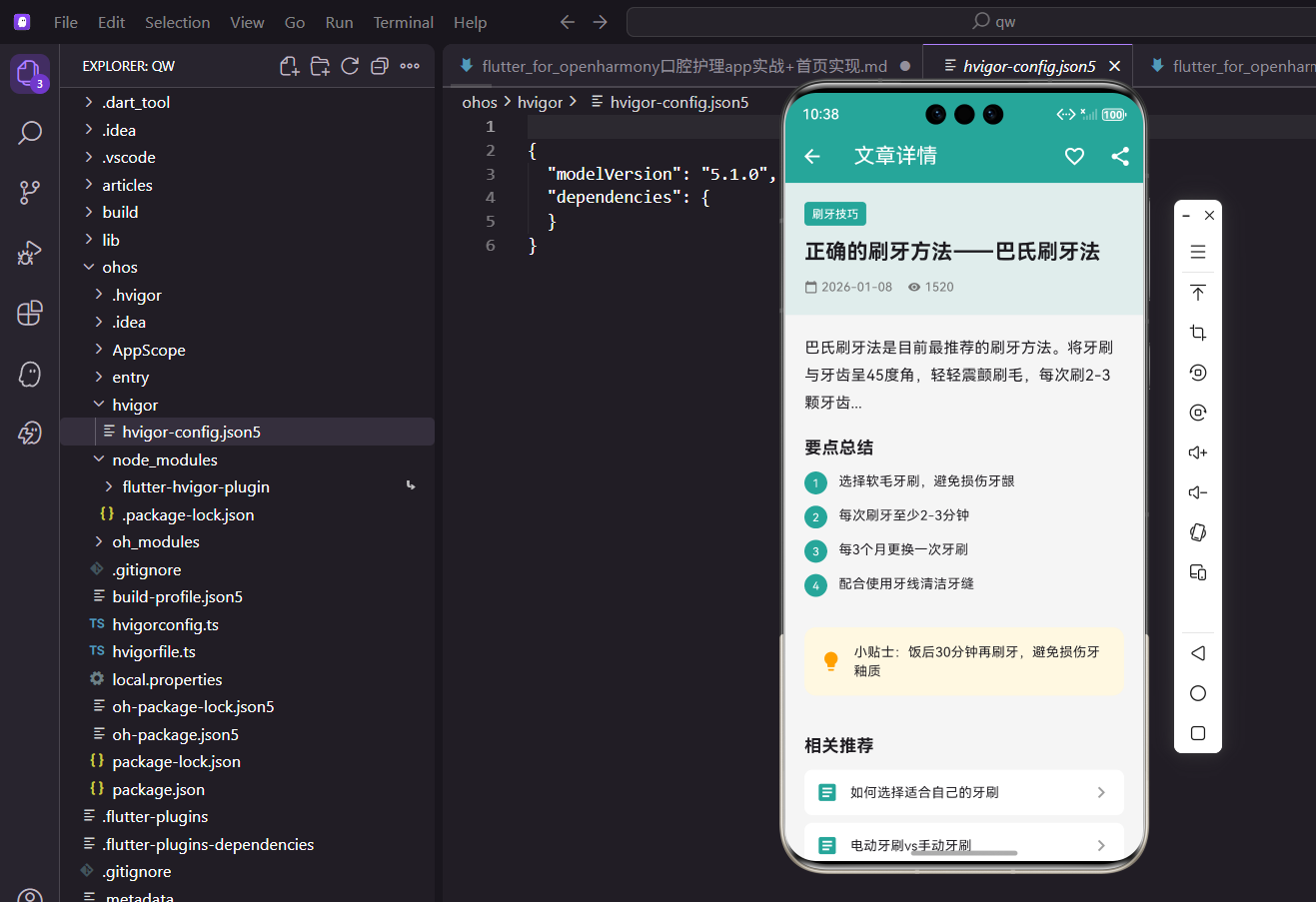
在口腔护理应用的知识模块中,文章详情页是用户获取深度内容的重要入口。一个设计良好的文章详情页不仅要展示文章内容,还要提供收藏、分享等交互功能,以及相关推荐等延伸阅读。
本文将介绍如何在 Flutter 中实现一个功能完善的文章详情页面。
功能规划
文章详情页需要实现以下功能:
- 文章头部:展示分类标签、标题、发布日期、阅读量
- 文章内容:展示正文内容和要点总结
- 收藏功能:支持收藏和取消收藏
- 分享功能:支持分享文章
- 相关推荐:展示相关文章列表
页面基础结构
文章详情页接收文章对象作为参数:
class ArticleDetailPage extends StatelessWidget {
final OralArticle article;
const ArticleDetailPage({super.key, required this.article});
Widget build(BuildContext context) {
return Scaffold(
appBar: AppBar(
title: const Text('文章详情'),
actions: [
使用构造函数接收文章数据,这是 Flutter 中页面间传递数据的标准方式。
收藏按钮实现
收藏按钮需要响应状态变化:
          Consumer<AppProvider>(
            builder: (context, provider, _) {
              final currentArticle = provider.articles.firstWhere(
                (a) => a.id == article.id,
                orElse: () => article,
              );
              return IconButton(
                icon: Icon(
                  currentArticle.isFavorite ? Icons.favorite : Icons.favorite_border,
                  color: currentArticle.isFavorite ? Colors.red : Colors.white,
                ),
                onPressed: () => provider.toggleArticleFavorite(article.id),
              );
            },
          ),
使用 Consumer 监听文章状态变化,收藏状态改变时图标和颜色会自动更新。firstWhere 从列表中获取最新的文章状态。
分享按钮:
          IconButton(
            icon: const Icon(Icons.share),
            onPressed: () {
              ScaffoldMessenger.of(context).showSnackBar(
                const SnackBar(content: Text('分享功能开发中')),
              );
            },
          ),
        ],
      ),
分享功能预留接口,实际项目中可以集成系统分享或第三方分享 SDK。
文章头部区域
文章头部展示分类、标题和元信息:
      body: SingleChildScrollView(
        child: Column(
          crossAxisAlignment: CrossAxisAlignment.start,
          children: [
            Container(
              width: double.infinity,
              padding: const EdgeInsets.all(20),
              color: const Color(0xFF26A69A).withOpacity(0.1),
              child: Column(
                crossAxisAlignment: CrossAxisAlignment.start,
                children: [
                  Container(
                    padding: const EdgeInsets.symmetric(horizontal: 8, vertical: 4),
                    decoration: BoxDecoration(
                      color: const Color(0xFF26A69A),
                      borderRadius: BorderRadius.circular(4),
                    ),
                    child: Text(
                      article.category,
                      style: const TextStyle(color: Colors.white, fontSize: 12),
                    ),
                  ),
分类标签使用主题色背景,白色文字,形成醒目的视觉效果。
文章标题:
                  const SizedBox(height: 12),
                  Text(
                    article.title,
                    style: const TextStyle(fontSize: 22, fontWeight: FontWeight.bold),
                  ),
标题使用大号加粗字体,突出显示文章主题。
发布日期和阅读量:
                  const SizedBox(height: 12),
                  Row(
                    children: [
                      Icon(Icons.calendar_today, size: 14, color: Colors.grey.shade600),
                      const SizedBox(width: 4),
                      Text(
                        DateFormat('yyyy-MM-dd').format(article.publishDate),
                        style: TextStyle(color: Colors.grey.shade600, fontSize: 13),
                      ),
                      const SizedBox(width: 16),
                      Icon(Icons.remove_red_eye, size: 14, color: Colors.grey.shade600),
                      const SizedBox(width: 4),
                      Text(
                        '${article.readCount}',
                        style: TextStyle(color: Colors.grey.shade600, fontSize: 13),
                      ),
                    ],
                  ),
                ],
              ),
            ),
使用图标配合文字展示元信息,视觉上更加直观。
文章正文内容
文章正文区域:
            Padding(
              padding: const EdgeInsets.all(20),
              child: Column(
                crossAxisAlignment: CrossAxisAlignment.start,
                children: [
                  Text(
                    article.content,
                    style: const TextStyle(fontSize: 16, height: 1.8),
                  ),
                  const SizedBox(height: 20),
                  _buildExpandedContent(),
                ],
              ),
            ),
正文使用16像素字体,1.8倍行高,提供舒适的阅读体验。
扩展内容区域
要点总结和小贴士:
Widget _buildExpandedContent() {
  return Column(
    crossAxisAlignment: CrossAxisAlignment.start,
    children: [
      const Text('要点总结',
          style: TextStyle(fontSize: 18, fontWeight: FontWeight.bold)),
      const SizedBox(height: 12),
      _buildKeyPoint('1', '选择软毛牙刷,避免损伤牙龈'),
      _buildKeyPoint('2', '每次刷牙至少2-3分钟'),
      _buildKeyPoint('3', '每3个月更换一次牙刷'),
      _buildKeyPoint('4', '配合使用牙线清洁牙缝'),
要点总结使用编号列表形式,便于用户快速获取关键信息。
小贴士卡片:
      const SizedBox(height: 20),
      Container(
        padding: const EdgeInsets.all(16),
        decoration: BoxDecoration(
          color: Colors.amber.shade50,
          borderRadius: BorderRadius.circular(12),
        ),
        child: Row(
          children: [
            Icon(Icons.lightbulb, color: Colors.amber.shade700),
            const SizedBox(width: 12),
            const Expanded(
              child: Text('小贴士:饭后30分钟再刷牙,避免损伤牙釉质'),
            ),
          ],
        ),
      ),
    ],
  );
}
小贴士使用琥珀色背景和灯泡图标,营造温馨的提示氛围。
要点组件
单个要点的实现:
Widget _buildKeyPoint(String number, String text) {
  return Padding(
    padding: const EdgeInsets.only(bottom: 12),
    child: Row(
      crossAxisAlignment: CrossAxisAlignment.start,
      children: [
        Container(
          width: 24,
          height: 24,
          decoration: const BoxDecoration(
            color: Color(0xFF26A69A),
            shape: BoxShape.circle,
          ),
          child: Center(
            child: Text(number,
                style: const TextStyle(color: Colors.white, fontSize: 12)),
          ),
        ),
        const SizedBox(width: 12),
        Expanded(child: Text(text)),
      ],
    ),
  );
}
编号使用圆形主题色背景,与文字形成视觉层次。crossAxisAlignment.start 确保多行文本时对齐顶部。
相关推荐区域
相关文章推荐:
            Container(
              padding: const EdgeInsets.all(20),
              color: Colors.grey.shade100,
              child: Column(
                crossAxisAlignment: CrossAxisAlignment.start,
                children: [
                  const Text('相关推荐',
                      style: TextStyle(fontSize: 18, fontWeight: FontWeight.bold)),
                  const SizedBox(height: 12),
                  _buildRelatedArticle('如何选择适合自己的牙刷'),
                  _buildRelatedArticle('电动牙刷vs手动牙刷'),
                  _buildRelatedArticle('牙膏的正确用量'),
                ],
              ),
            ),
          ],
        ),
      ),
    );
  }
相关推荐区域使用灰色背景,与正文区域形成视觉分隔。
相关文章组件
单个相关文章的实现:
Widget _buildRelatedArticle(String title) {
  return Container(
    margin: const EdgeInsets.only(bottom: 8),
    padding: const EdgeInsets.all(12),
    decoration: BoxDecoration(
      color: Colors.white,
      borderRadius: BorderRadius.circular(8),
    ),
    child: Row(
      children: [
        const Icon(Icons.article, color: Color(0xFF26A69A)),
        const SizedBox(width: 12),
        Expanded(child: Text(title)),
        const Icon(Icons.chevron_right, color: Colors.grey),
      ],
    ),
  );
}
相关文章使用白色卡片,包含图标、标题和箭头,提示用户可以点击查看。
数据模型定义
文章的数据模型:
class OralArticle {
  final String id;
  final String title;
  final String content;
  final String category;
  final DateTime publishDate;
  final int readCount;
  final bool isFavorite;

  OralArticle({
    String? id,
    required this.title,
    required this.content,
    required this.category,
    required this.publishDate,
    this.readCount = 0,
    this.isFavorite = false,
  }) : id = id ?? DateTime.now().millisecondsSinceEpoch.toString();
}
模型包含标题、内容、分类、发布日期、阅读量和收藏状态等字段。
Provider 收藏功能
在 AppProvider 中实现收藏切换:
void toggleArticleFavorite(String id) {
  final index = _articles.indexWhere((a) => a.id == id);
  if (index != -1) {
    final old = _articles[index];
    _articles[index] = OralArticle(
      id: old.id,
      title: old.title,
      content: old.content,
      category: old.category,
      publishDate: old.publishDate,
      readCount: old.readCount,
      isFavorite: !old.isFavorite,
    );
    notifyListeners();
  }
}
切换收藏状态后通知界面更新。
阅读量统计
进入详情页时增加阅读量:
void incrementReadCount(String id) {
  final index = _articles.indexWhere((a) => a.id == id);
  if (index != -1) {
    final old = _articles[index];
    _articles[index] = OralArticle(
      id: old.id,
      title: old.title,
      content: old.content,
      category: old.category,
      publishDate: old.publishDate,
      readCount: old.readCount + 1,
      isFavorite: old.isFavorite,
    );
    notifyListeners();
  }
}
在页面初始化时调用此方法统计阅读量。
页面初始化
使用 StatefulWidget 在初始化时增加阅读量:
class ArticleDetailPage extends StatefulWidget {
final OralArticle article;
const ArticleDetailPage({super.key, required this.article});
State<ArticleDetailPage> createState() => _ArticleDetailPageState();
}
class _ArticleDetailPageState extends State<ArticleDetailPage> {
void initState() {
super.initState();
WidgetsBinding.instance.addPostFrameCallback((_) {
context.read<AppProvider>().incrementReadCount(widget.article.id);
});
}
使用 addPostFrameCallback 确保在 Widget 构建完成后再更新数据。
分享功能实现
集成系统分享功能:
import 'package:share_plus/share_plus.dart';

void _shareArticle() {
  Share.share(
    '${article.title}\n\n${article.content.substring(0, 100)}...\n\n来自口腔护理App',
    subject: article.title,
  );
}
使用 share_plus 插件调用系统分享功能。
富文本内容支持
如果文章内容包含富文本,可以使用 flutter_html 插件:
import 'package:flutter_html/flutter_html.dart';

Html(
  data: article.htmlContent,
  style: {
    'body': Style(
      fontSize: FontSize(16),
      lineHeight: LineHeight(1.8),
    ),
    'h2': Style(
      fontSize: FontSize(20),
      fontWeight: FontWeight.bold,
    ),
  },
)
flutter_html 支持渲染 HTML 格式的文章内容。
图片展示
如果文章包含图片:
if (article.imageUrl != null)
  Container(
    height: 200,
    width: double.infinity,
    decoration: BoxDecoration(
      image: DecorationImage(
        image: NetworkImage(article.imageUrl!),
        fit: BoxFit.cover,
      ),
    ),
  ),
使用 NetworkImage 加载网络图片。
评论功能思路
可以添加评论功能:
Container(
  padding: const EdgeInsets.all(20),
  child: Column(
    crossAxisAlignment: CrossAxisAlignment.start,
    children: [
      Row(
        mainAxisAlignment: MainAxisAlignment.spaceBetween,
        children: [
          const Text('评论',
              style: TextStyle(fontSize: 18, fontWeight: FontWeight.bold)),
          Text('${comments.length}条',
              style: TextStyle(color: Colors.grey.shade600)),
        ],
      ),
      const SizedBox(height: 12),
      ...comments.map((c) => _buildCommentItem(c)),
    ],
  ),
)
评论区域展示评论数量和评论列表。
字体大小调节
可以添加字体大小调节功能:
double _fontSize = 16;

Slider(
  value: _fontSize,
  min: 14,
  max: 22,
  divisions: 4,
  onChanged: (value) {
    setState(() => _fontSize = value);
  },
)

Text(
  article.content,
  style: TextStyle(fontSize: _fontSize, height: 1.8),
)
滑块控制字体大小,提升阅读体验。
夜间模式支持
支持夜间模式阅读:
bool _isDarkMode = false;

Container(
  color: _isDarkMode ? Colors.grey.shade900 : Colors.white,
  child: Text(
    article.content,
    style: TextStyle(
      color: _isDarkMode ? Colors.white : Colors.black,
      fontSize: 16,
      height: 1.8,
    ),
  ),
)
夜间模式使用深色背景和浅色文字,保护用户眼睛。
阅读进度指示
添加阅读进度指示器:
NotificationListener<ScrollNotification>(
  onNotification: (notification) {
    if (notification is ScrollUpdateNotification) {
      final progress = notification.metrics.pixels /
          notification.metrics.maxScrollExtent;
      setState(() => _readProgress = progress);
    }
    return true;
  },
  child: SingleChildScrollView(...),
)

LinearProgressIndicator(
  value: _readProgress,
  backgroundColor: Colors.grey.shade200,
  valueColor: const AlwaysStoppedAnimation<Color>(Color(0xFF26A69A)),
)
进度条显示用户的阅读进度。
总结
本文详细介绍了口腔护理 App 中文章详情功能的实现。通过合理的布局设计和丰富的交互功能,我们构建了一个阅读体验良好的文章详情页面。核心技术点包括:
- 使用
Consumer实现收藏状态的实时更新 - 通过构造函数传递文章数据
- 使用分区布局组织不同类型的内容
- 封装可复用的要点和推荐组件
文章详情页是知识模块的核心页面,希望本文的实现对你有所帮助。
欢迎加入开源鸿蒙跨平台社区:https://openharmonycrossplatform.csdn.net

AtomGit 是由开放原子开源基金会联合 CSDN 等生态伙伴共同推出的新一代开源与人工智能协作平台。平台坚持“开放、中立、公益”的理念,把代码托管、模型共享、数据集托管、智能体开发体验和算力服务整合在一起,为开发者提供从开发、训练到部署的一站式体验。
更多推荐
 16
16 0
0- 0


 已为社区贡献20条内容

所有评论(0)