Flutter与OpenHarmony打卡弹窗对话框组件
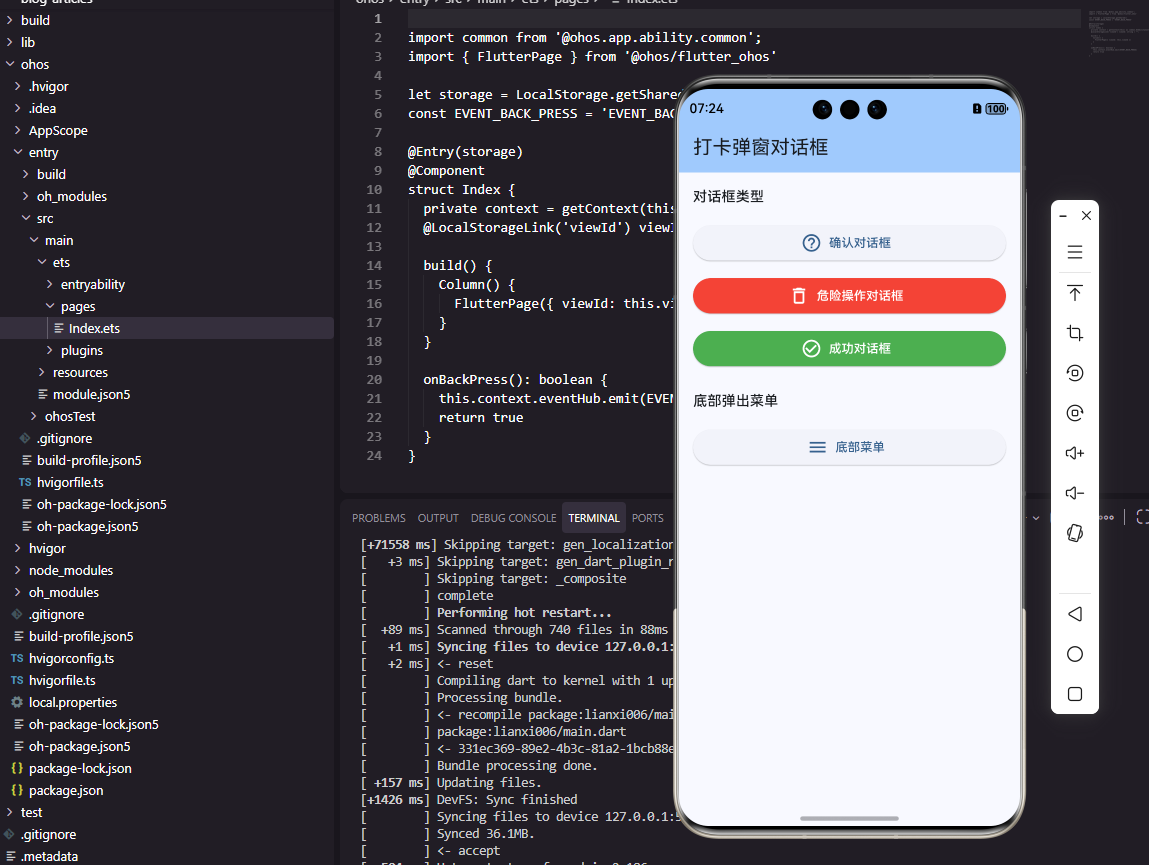
前言
弹窗对话框是移动应用中常见的交互组件,用于向用户展示重要信息、确认操作或收集输入。在打卡工具类应用中,弹窗可以用于打卡成功提示、删除确认、习惯编辑等场景。本文将详细介绍如何在Flutter和OpenHarmony平台上实现美观且功能完善的弹窗对话框组件。
弹窗的设计需要考虑内容清晰度、操作便捷性和视觉美观性。一个好的弹窗应该让用户快速理解信息并做出决策,同时不会打断用户的主要操作流程。我们将实现多种类型的弹窗,包括确认弹窗、输入弹窗和自定义内容弹窗。
Flutter确认弹窗实现
首先创建基础确认弹窗:
class ConfirmDialog extends StatelessWidget {
  final String title;
  final String message;
  final String confirmText;
  final String cancelText;
  final Color? confirmColor;
  final VoidCallback? onConfirm;
  final VoidCallback? onCancel;

  const ConfirmDialog({
    Key? key,
    required this.title,
    required this.message,
    this.confirmText = '确认',
    this.cancelText = '取消',
    this.confirmColor,
    this.onConfirm,
    this.onCancel,
  }) : super(key: key);

  static Future<bool?> show(BuildContext context, {
    required String title,
    required String message,
    String confirmText = '确认',
    String cancelText = '取消',
    Color? confirmColor,
  }) {
    return showDialog<bool>(
      context: context,
      builder: (context) => ConfirmDialog(
        title: title,
        message: message,
        confirmText: confirmText,
        cancelText: cancelText,
        confirmColor: confirmColor,
      ),
    );
  }
}
ConfirmDialog提供了静态show方法,简化了弹窗的调用方式。返回Future<bool?>让调用者可以获取用户的选择结果。confirmColor参数允许自定义确认按钮的颜色,比如删除操作可以使用红色警示。这种设计让弹窗的使用变得简单直观。
构建弹窗UI:
Widget build(BuildContext context) {
return Dialog(
shape: RoundedRectangleBorder(borderRadius: BorderRadius.circular(16)),
child: Padding(
padding: const EdgeInsets.all(24),
child: Column(
mainAxisSize: MainAxisSize.min,
children: [
Text(
title,
style: const TextStyle(fontSize: 18, fontWeight: FontWeight.bold),
),
const SizedBox(height: 12),
Text(
message,
style: const TextStyle(fontSize: 14, color: Colors.grey),
textAlign: TextAlign.center,
),
const SizedBox(height: 24),
Row(
children: [
Expanded(
child: OutlinedButton(
onPressed: () {
Navigator.pop(context, false);
onCancel?.call();
},
child: Text(cancelText),
),
),
const SizedBox(width: 12),
Expanded(
child: ElevatedButton(
onPressed: () {
Navigator.pop(context, true);
onConfirm?.call();
},
style: ElevatedButton.styleFrom(
backgroundColor: confirmColor ?? Colors.blue,
),
child: Text(confirmText),
),
),
],
),
],
),
),
);
}
弹窗使用Dialog组件,设置圆角让外观更加柔和。Column垂直排列标题、消息和按钮,mainAxisSize设为min让弹窗高度自适应内容。按钮区域使用Row水平排列取消和确认按钮,Expanded确保两个按钮等宽。Navigator.pop关闭弹窗并返回用户选择结果。
OpenHarmony确认弹窗实现
在鸿蒙系统中创建确认弹窗:
@CustomDialog
struct ConfirmDialog {
  controller: CustomDialogController
  title: string = ''
  message: string = ''
  confirmText: string = '确认'
  cancelText: string = '取消'
  confirmColor: string = '#007AFF'
  onConfirm: () => void = () => {}
  onCancel: () => void = () => {}
}
鸿蒙使用@CustomDialog装饰器定义自定义弹窗。controller用于控制弹窗的显示和关闭,由外部创建并传入。回调函数onConfirm和onCancel分别在用户点击确认和取消时触发。这种设计模式与Flutter的回调方式类似。
构建弹窗UI:
build() {
  Column() {
    Text(this.title)
      .fontSize(18)
      .fontWeight(FontWeight.Bold)
      .margin({ bottom: 12 })

    Text(this.message)
      .fontSize(14)
      .fontColor('#666666')
      .textAlign(TextAlign.Center)
      .margin({ bottom: 24 })

    Row() {
      Button(this.cancelText)
        .layoutWeight(1)
        .backgroundColor(Color.White)
        .fontColor('#333333')
        .border({ width: 1, color: '#E0E0E0' })
        .onClick(() => {
          this.onCancel()
          this.controller.close()
        })

      Button(this.confirmText)
        .layoutWeight(1)
        .backgroundColor(this.confirmColor)
        .fontColor(Color.White)
        .margin({ left: 12 })
        .onClick(() => {
          this.onConfirm()
          this.controller.close()
        })
    }
    .width('100%')
  }
  .padding(24)
  .backgroundColor(Color.White)
  .borderRadius(16)
}
弹窗布局与Flutter版本保持一致,使用Column垂直排列内容。Button组件的layoutWeight(1)让两个按钮等宽分布。取消按钮使用白色背景和边框,确认按钮使用主题色背景。controller.close()关闭弹窗,在回调执行后调用确保数据处理完成。
显示弹窗的方法:
// 在页面中使用
@Entry
@Component
struct SomePage {
  dialogController: CustomDialogController = new CustomDialogController({
    builder: ConfirmDialog({
      title: '删除习惯',
      message: '确定要删除这个习惯吗?删除后无法恢复。',
      confirmText: '删除',
      confirmColor: '#FF3B30',
      onConfirm: () => this.deleteHabit(),
      onCancel: () => {}
    }),
    autoCancel: true,
    alignment: DialogAlignment.Center
  })

  deleteHabit() {
    // 执行删除逻辑
  }

  showDeleteDialog() {
    this.dialogController.open()
  }
}
CustomDialogController负责管理弹窗的生命周期。builder参数传入弹窗组件实例,autoCancel设为true允许点击遮罩关闭弹窗,alignment设置弹窗在屏幕中的位置。调用open()方法显示弹窗,close()方法关闭弹窗。这种控制器模式让弹窗的管理更加灵活。
打卡成功弹窗
Flutter中实现打卡成功动画弹窗:
class CheckInSuccessDialog extends StatefulWidget {
final int streak;
final VoidCallback? onClose;
const CheckInSuccessDialog({
Key? key,
required this.streak,
this.onClose,
}) : super(key: key);
State<CheckInSuccessDialog> createState() => _CheckInSuccessDialogState();
}
class _CheckInSuccessDialogState extends State<CheckInSuccessDialog>
with SingleTickerProviderStateMixin {
late AnimationController _controller;
late Animation<double> _scaleAnimation;
late Animation<double> _opacityAnimation;
void initState() {
super.initState();
_controller = AnimationController(
duration: const Duration(milliseconds: 600),
vsync: this,
);
_scaleAnimation = Tween<double>(begin: 0.5, end: 1.0).animate(
CurvedAnimation(parent: _controller, curve: Curves.elasticOut),
);
_opacityAnimation = Tween<double>(begin: 0.0, end: 1.0).animate(
CurvedAnimation(parent: _controller, curve: Curves.easeIn),
);
_controller.forward();
}
}
打卡成功弹窗使用动画增强成就感。elasticOut缓动曲线让弹窗有弹性放大的效果,配合透明度动画让出现过程更加自然。streak参数显示当前连续打卡天数,强化用户的成就感。这种动画效果能够有效激励用户继续坚持打卡。
构建成功弹窗内容:
Widget build(BuildContext context) {
return AnimatedBuilder(
animation: _controller,
builder: (context, child) {
return Opacity(
opacity: _opacityAnimation.value,
child: Transform.scale(
scale: _scaleAnimation.value,
child: Dialog(
shape: RoundedRectangleBorder(borderRadius: BorderRadius.circular(20)),
child: Padding(
padding: const EdgeInsets.all(32),
child: Column(
mainAxisSize: MainAxisSize.min,
children: [
const Icon(Icons.check_circle, color: Colors.green, size: 64),
const SizedBox(height: 16),
const Text('打卡成功!', style: TextStyle(fontSize: 24, fontWeight: FontWeight.bold)),
const SizedBox(height: 8),
Text('已连续打卡 ${widget.streak} 天', style: const TextStyle(fontSize: 16, color: Colors.grey)),
const SizedBox(height: 24),
ElevatedButton(
onPressed: () {
Navigator.pop(context);
widget.onClose?.call();
},
child: const Text('太棒了'),
),
],
),
),
),
),
);
},
);
}
成功弹窗包含勾选图标、成功文字、连续天数和关闭按钮。绿色勾选图标是成功的通用视觉符号,64像素的大尺寸让它成为视觉焦点。连续打卡天数的展示强化了用户的成就感,"太棒了"的按钮文案传达积极情绪。
输入弹窗
实现带输入框的弹窗:
class InputDialog extends StatefulWidget {
final String title;
final String? initialValue;
final String hint;
final int maxLength;
static Future<String?> show(BuildContext context, {
required String title,
String? initialValue,
String hint = '',
int maxLength = 50,
}) {
return showDialog<String>(
context: context,
builder: (context) => InputDialog(
title: title,
initialValue: initialValue,
hint: hint,
maxLength: maxLength,
),
);
}
State<InputDialog> createState() => _InputDialogState();
}
class _InputDialogState extends State<InputDialog> {
late TextEditingController _controller;
void initState() {
super.initState();
_controller = TextEditingController(text: widget.initialValue);
}
Widget build(BuildContext context) {
return Dialog(
shape: RoundedRectangleBorder(borderRadius: BorderRadius.circular(16)),
child: Padding(
padding: const EdgeInsets.all(24),
child: Column(
mainAxisSize: MainAxisSize.min,
crossAxisAlignment: CrossAxisAlignment.start,
children: [
Text(widget.title, style: const TextStyle(fontSize: 18, fontWeight: FontWeight.bold)),
const SizedBox(height: 16),
TextField(
controller: _controller,
maxLength: widget.maxLength,
autofocus: true,
decoration: InputDecoration(
hintText: widget.hint,
border: OutlineInputBorder(borderRadius: BorderRadius.circular(8)),
),
),
const SizedBox(height: 16),
Row(
mainAxisAlignment: MainAxisAlignment.end,
children: [
TextButton(onPressed: () => Navigator.pop(context), child: const Text('取消')),
const SizedBox(width: 8),
ElevatedButton(
onPressed: () => Navigator.pop(context, _controller.text),
child: const Text('确定'),
),
],
),
],
),
),
);
}
}
输入弹窗用于收集用户输入,如重命名习惯、添加备注等场景。autofocus设为true让输入框自动获得焦点,用户可以直接开始输入。initialValue支持预填充内容,适用于编辑场景。返回值是用户输入的文本,取消时返回null。
底部弹窗
实现底部滑出的操作菜单:
class BottomActionSheet extends StatelessWidget {
final List<ActionItem> actions;
static void show(BuildContext context, List<ActionItem> actions) {
showModalBottomSheet(
context: context,
backgroundColor: Colors.transparent,
builder: (context) => BottomActionSheet(actions: actions),
);
}
Widget build(BuildContext context) {
return Container(
decoration: const BoxDecoration(
color: Colors.white,
borderRadius: BorderRadius.vertical(top: Radius.circular(16)),
),
child: Column(
mainAxisSize: MainAxisSize.min,
children: [
Container(
width: 40,
height: 4,
margin: const EdgeInsets.symmetric(vertical: 12),
decoration: BoxDecoration(
color: Colors.grey.shade300,
borderRadius: BorderRadius.circular(2),
),
),
...actions.map((action) => ListTile(
leading: Icon(action.icon, color: action.isDestructive ? Colors.red : null),
title: Text(action.label, style: TextStyle(color: action.isDestructive ? Colors.red : null)),
onTap: () {
Navigator.pop(context);
action.onTap();
},
)),
const SizedBox(height: 16),
],
),
);
}
}
底部弹窗从屏幕底部滑出,适合展示操作菜单。顶部的灰色横条是拖动指示器,暗示用户可以下滑关闭。isDestructive标记危险操作,使用红色文字警示用户。这种弹窗模式在iOS和Android上都很常见,用户已经形成了使用习惯。
总结
本文详细介绍了在Flutter和OpenHarmony平台上实现弹窗对话框组件的完整方案。确认弹窗用于重要操作的二次确认,打卡成功弹窗通过动画增强成就感,输入弹窗收集用户输入,底部弹窗展示操作菜单。两个平台的实现都注重用户体验,通过清晰的信息展示和流畅的动画效果,让弹窗交互变得自然舒适。
欢迎加入开源鸿蒙跨平台社区:https://openharmonycrossplatform.csdn.net

AtomGit 是由开放原子开源基金会联合 CSDN 等生态伙伴共同推出的新一代开源与人工智能协作平台。平台坚持“开放、中立、公益”的理念,把代码托管、模型共享、数据集托管、智能体开发体验和算力服务整合在一起,为开发者提供从开发、训练到部署的一站式体验。
更多推荐
 28
28 0
0- 0


 已为社区贡献27条内容

所有评论(0)