Flutter适配鸿蒙三方库(piu_animation)实战-加载成功场景
为什么需要 Loading 动画
上一篇文章讲了 piu_animation 的基础用法,实现了简单的飞入动画。但在实际项目中,我遇到了一个问题:
点击"加入购物车"按钮后,需要调用后端接口。如果直接播放飞入动画,用户会以为商品已经加入成功了,但实际上接口可能还在请求中,甚至可能失败。这就会造成用户误解。
后来发现 piu_animation 有个 loading 动画功能,完美解决了这个问题。动画会在中途暂停,等待接口返回结果,成功了才继续飞向购物车,失败了就返回起点。这样用户就能清楚地知道操作是否成功。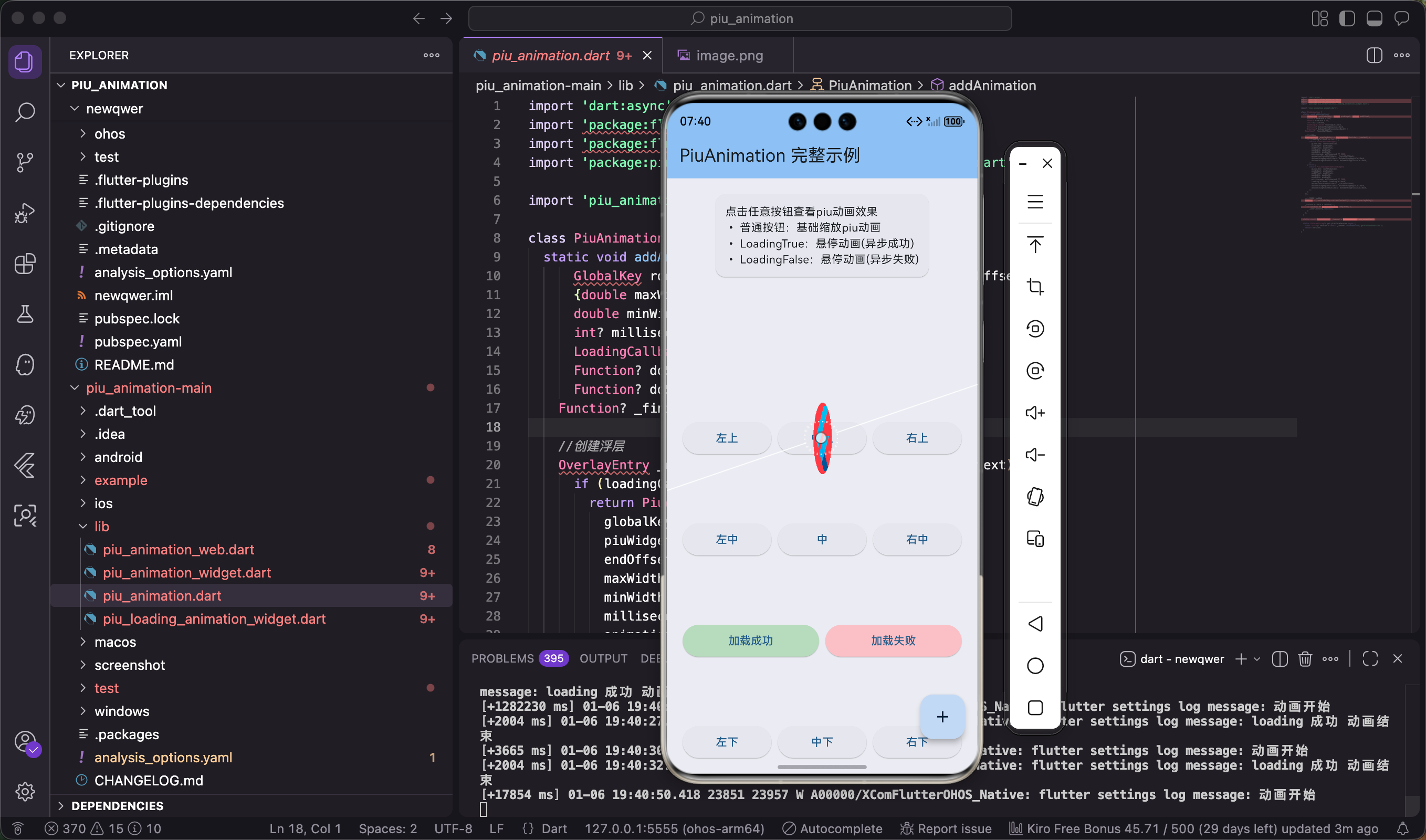
Loading 动画的执行过程
先说说这个动画是怎么运作的,理解了原理用起来会更顺手。
第一阶段:起飞
点击按钮后,Widget 从起点开始移动和缩放,就像普通的飞入动画一样。
第二阶段:悬停
飞到一半的时候,Widget 会停下来,这时候会显示一个 loading 状态(通常是个转圈的图标)。
第三阶段:等待
在悬停期间,你传入的异步函数会被执行。比如调用后端接口、保存数据到本地等等。
第四阶段:结果反馈
- 如果异步函数返回
true(成功),会短暂显示一个成功图标(✓),然后继续飞向终点 - 如果返回
false(失败),会显示失败图标(✗),然后返回起点
这个设计很巧妙,用户能清楚地看到操作的每个阶段,体验比单纯的 loading 提示好多了。
和普通动画的区别
普通动画就是从 A 点直接飞到 B 点,中间不停顿,也不执行任何异步操作。适合纯视觉效果的场景。
Loading 动画会在中途暂停,等待异步任务完成,并根据结果决定是继续飞还是返回。适合需要网络请求或其他异步操作的场景。
快速上手:第一个 Loading 动画
定义异步任务
首先要写一个返回 Future<bool> 的异步函数。这个函数会在动画悬停时被调用:
Future<bool> loadingSuccessFunction() {
  return Future.delayed(const Duration(milliseconds: 2000), () {
    // 这里可以是实际的网络请求
    // 比如:await addToCartApi(productId);
    return true;  // 返回 true 表示任务成功
  });
}
💡 关键点:
- 函数必须返回
Future<bool>类型true表示成功,动画会继续飞向终点false表示失败,动画会返回起点- 这里用
Future.delayed模拟了一个 2 秒的异步操作
在实际项目中,你会把这里的延迟替换成真实的 API 调用,比如:
Future<bool> addToCartApi(int productId) async {
  try {
    final response = await http.post(
      Uri.parse('https://api.example.com/cart/add'),
      body: {'productId': productId.toString()},
    );
    return response.statusCode == 200;
  } catch (e) {
    return false;
  }
}
触发 Loading 动画
和普通动画相比,只需要多传一个 loadingCallback 参数:
void addToCartWithLoading(GlobalKey sourceKey) {
  // 第一步:定义飞入的 Widget
  Widget piuWidget = Container(
    decoration: BoxDecoration(
      color: Colors.blue,
      borderRadius: BorderRadius.circular(8),
    ),
    child: const Icon(
      Icons.shopping_bag,
      color: Colors.white,
      size: 40,
    ),
  );
这里我用了一个蓝色圆角容器包裹购物袋图标。你可以根据自己的 UI 风格调整。
  // 第二步:计算终点坐标
  RenderBox box = cartButtonKey.currentContext!.findRenderObject() as RenderBox;
  var offset = box.localToGlobal(Offset.zero);
  Offset endOffset = Offset(
    offset.dx + box.size.width / 2,
    offset.dy + box.size.height / 2,
  );
这段坐标计算和之前一样,没什么变化。
  // 第三步:触发带 loading 的动画
  PiuAnimation.addAnimation(
    rootKey,
    piuWidget,
    endOffset,
    maxWidth: MediaQuery.of(context).size.width * 0.8,
    minWidth: 60,
    millisecond: 1500,
    loadingCallback: loadingSuccessFunction,  // 关键:传入异步任务
    doSomethingBeginCallBack: () {
      print("开始添加到购物车");
    },
    doSomethingFinishCallBack: (success) {
      if (success) {
        print("成功添加到购物车");
        // 这里可以更新购物车数量
        updateCartCount();
      }
    },
  );
}
🎯 重点说明:
loadingCallback参数传入你的异步函数doSomethingFinishCallBack的参数success会告诉你异步任务是否成功- 在结束回调里,你可以根据
success的值做不同的处理
就这么简单!相比普通动画,只是多了一个 loadingCallback 参数。
实战案例:完整的购物车功能
现在来做一个完整的电商购物车案例。包括商品列表、购物车图标、数量徽章,以及真实的网络请求模拟。
页面状态管理
先定义页面需要的状态变量:
class ShoppingCartDemo extends StatefulWidget {
const ShoppingCartDemo({Key? key}) : super(key: key);
State<ShoppingCartDemo> createState() => _ShoppingCartDemoState();
}
class _ShoppingCartDemoState extends State<ShoppingCartDemo> {
GlobalKey rootKey = GlobalKey();
GlobalKey cartButtonKey = GlobalKey();
int cartCount = 0; // 购物车商品数量
这三个变量是必须的:
rootKey:绑定到根容器cartButtonKey:绑定到购物车图标cartCount:记录购物车里有多少商品
构建顶部导航栏
先做个带购物车图标和数量徽章的 AppBar:
Widget build(BuildContext context) {
return Scaffold(
appBar: AppBar(
title: const Text('商品列表'),
actions: [
Stack(
children: [
IconButton(
key: cartButtonKey, // 绑定 Key
icon: const Icon(Icons.shopping_cart),
onPressed: () {
// 跳转到购物车页面
},
),
if (cartCount > 0) // 有商品时才显示徽章
Positioned(
right: 8,
top: 8,
child: Container(
padding: const EdgeInsets.all(4),
decoration: const BoxDecoration(
color: Colors.red,
shape: BoxShape.circle,
),
child: Text(
'$cartCount',
style: const TextStyle(
color: Colors.white,
fontSize: 10,
),
),
),
),
],
),
],
),
🎨 UI 设计技巧:
- 用
Stack组件把徽章叠在购物车图标上if (cartCount > 0)条件渲染,没商品时不显示徽章- 红色圆形徽章是电商 App 的标准设计
构建商品网格
用 GridView 展示商品列表:
      body: Container(
        key: rootKey,  // 别忘了绑定 rootKey
        child: GridView.builder(
          padding: const EdgeInsets.all(16),
          gridDelegate: const SliverGridDelegateWithFixedCrossAxisCount(
            crossAxisCount: 2,        // 每行 2 个
            childAspectRatio: 0.75,   // 宽高比
            crossAxisSpacing: 16,     // 横向间距
            mainAxisSpacing: 16,      // 纵向间距
          ),
          itemCount: 10,
          itemBuilder: (context, index) {
            return ProductCard(
              productId: index,
              onAddToCart: () => addToCart(index),
            );
          },
        ),
      ),
    );
  }
这里用了 GridView.builder 而不是 GridView.count,因为 builder 方式性能更好,特别是商品数量多的时候。
模拟网络请求
写一个模拟 API 调用的函数:
  Future<bool> addToCartApi(int productId) async {
    // 模拟网络延迟
    await Future.delayed(const Duration(milliseconds: 1500));

    // 实际项目中,这里应该是真实的 HTTP 请求
    // final response = await http.post(
    //   Uri.parse('https://api.example.com/cart/add'),
    //   body: {'productId': productId.toString()},
    // );
    // return response.statusCode == 200;

    // 这里模拟成功
    return true;
  }
📡 真实项目中的建议:
- 用
http或dio包发送请求- 记得处理异常情况(网络错误、超时等)
- 添加请求超时设置,避免用户等太久
- 考虑添加重试机制
实现加入购物车逻辑
现在来写核心的加入购物车方法:
  void addToCart(int productId) {
    Widget piuWidget = Container(
      decoration: BoxDecoration(
        color: Colors.orange,
        borderRadius: BorderRadius.circular(12),
        boxShadow: [
          BoxShadow(
            color: Colors.orange.withOpacity(0.5),
            blurRadius: 8,
            spreadRadius: 2,
          ),
        ],
      ),
      child: const Icon(
        Icons.add_shopping_cart,
        color: Colors.white,
        size: 40,
      ),
    );
这次我加了个阴影效果,让动画更有立体感。不过要注意,阴影会增加渲染负担,如果设备性能不好可以去掉。
    RenderBox box = cartButtonKey.currentContext!.findRenderObject() as RenderBox;
    var offset = box.localToGlobal(Offset.zero);
    Offset endOffset = Offset(
      offset.dx + box.size.width / 2,
      offset.dy + box.size.height / 2,
    );

    PiuAnimation.addAnimation(
      rootKey,
      piuWidget,
      endOffset,
      maxWidth: 100,
      minWidth: 50,
      millisecond: 1200,
      loadingCallback: () => addToCartApi(productId),  // 调用 API
      doSomethingBeginCallBack: () {
        print("商品 $productId 开始添加到购物车");
      },
      doSomethingFinishCallBack: (success) {
        if (success) {
          setState(() {
            cartCount++;  // 更新购物车数量
          });
          ScaffoldMessenger.of(context).showSnackBar(
            const SnackBar(
              content: Text('已成功添加到购物车'),
              duration: Duration(seconds: 1),
            ),
          );
        }
      },
    );
  }
}
✨ 用户体验优化:
- 在结束回调里用
setState更新购物车数量- 用
SnackBar给用户一个明确的成功提示duration设置为 1 秒,不要太长,避免打扰用户
商品卡片组件
最后补充一下商品卡片的实现:
class ProductCard extends StatelessWidget {
final int productId;
final VoidCallback onAddToCart;
const ProductCard({
Key? key,
required this.productId,
required this.onAddToCart,
}) : super(key: key);
Widget build(BuildContext context) {
return Card(
elevation: 4,
shape: RoundedRectangleBorder(
borderRadius: BorderRadius.circular(12),
),
child: Column(
crossAxisAlignment: CrossAxisAlignment.stretch,
children: [
Expanded(
child: Container(
decoration: BoxDecoration(
color: Colors.grey[200],
borderRadius: const BorderRadius.vertical(
top: Radius.circular(12),
),
),
child: const Icon(
Icons.image,
size: 80,
color: Colors.grey,
),
),
),
Padding(
padding: const EdgeInsets.all(8.0),
child: Column(
crossAxisAlignment: CrossAxisAlignment.start,
children: [
Text(
'商品 ${productId + 1}',
style: const TextStyle(
fontSize: 16,
fontWeight: FontWeight.bold,
),
),
const SizedBox(height: 4),
Text(
'¥${(productId + 1) * 99}.00',
style: const TextStyle(
fontSize: 18,
color: Colors.red,
fontWeight: FontWeight.bold,
),
),
const SizedBox(height: 8),
SizedBox(
width: double.infinity,
child: ElevatedButton(
onPressed: onAddToCart,
style: ElevatedButton.styleFrom(
backgroundColor: Colors.orange,
shape: RoundedRectangleBorder(
borderRadius: BorderRadius.circular(8),
),
),
child: const Text('加入购物车'),
),
),
],
),
),
],
),
);
}
}
这个卡片组件很简单,就是展示商品信息和一个加入购物车按钮。实际项目中你可以加上商品图片、评分、销量等信息。
进阶技巧和优化
防止重复点击
用户可能会快速连续点击"加入购物车"按钮,导致多个动画同时执行,甚至重复添加商品。我们需要加个锁:
bool _isAdding = false;

void addToCart(int productId) {
  if (_isAdding) {
    ScaffoldMessenger.of(context).showSnackBar(
      const SnackBar(content: Text('请稍候,正在添加...')),
    );
    return;
  }

  _isAdding = true;
在动画开始前检查 _isAdding,如果正在添加就直接返回,并给用户一个提示。
  // ... 动画代码 ...

  PiuAnimation.addAnimation(
    rootKey,
    piuWidget,
    endOffset,
    loadingCallback: () => addToCartApi(productId),
    doSomethingFinishCallBack: (success) {
      _isAdding = false;  // 动画结束,解除锁定
      if (success) {
        setState(() {
          cartCount++;
        });
      }
    },
  );
}
🔒 防抖的重要性:
- 避免重复提交请求,减轻服务器压力
- 防止购物车数量错误
- 提升用户体验,避免混乱
自定义 Loading Widget 样式
默认的 loading 样式可能不符合你的 UI 风格,可以自定义:
Widget piuWidget = Container(
  padding: const EdgeInsets.all(12),
  decoration: BoxDecoration(
    gradient: LinearGradient(
      colors: [Colors.orange, Colors.deepOrange],
      begin: Alignment.topLeft,
      end: Alignment.bottomRight,
    ),
    borderRadius: BorderRadius.circular(16),
    boxShadow: [
      BoxShadow(
        color: Colors.orange.withOpacity(0.6),
        blurRadius: 12,
        spreadRadius: 3,
      ),
    ],
  ),
  child: Column(
    mainAxisSize: MainAxisSize.min,
    children: const [
      Icon(Icons.shopping_cart, color: Colors.white, size: 30),
      SizedBox(height: 4),
      Text(
        '添加中...',
        style: TextStyle(color: Colors.white, fontSize: 10),
      ),
    ],
  ),
);
🎨 样式设计建议:
- 渐变色比纯色更有质感,但会增加渲染负担
- 可以加个"添加中…"的文字提示,让用户知道正在处理
- 阴影不要太夸张,
blurRadius控制在 10-15 之间比较合适
不过要注意,太复杂的样式会影响性能。如果目标设备性能一般,还是用简单的纯色背景比较保险。
结合真实 API 调用
前面用的都是模拟数据,现在来看看怎么对接真实的后端接口。
首先在 pubspec.yaml 里添加 http 包:
dependencies:
  http: ^1.1.0
然后实现真实的 API 调用:
import 'package:http/http.dart' as http;
import 'dart:convert';

Future<bool> addToCartApi(int productId) async {
  try {
    final response = await http.post(
      Uri.parse('https://your-api.com/cart/add'),
      headers: {
        'Content-Type': 'application/json',
        'Authorization': 'Bearer YOUR_TOKEN',  // 如果需要认证
      },
      body: jsonEncode({
        'productId': productId,
        'quantity': 1,
      }),
    ).timeout(const Duration(seconds: 10));  // 设置超时

    if (response.statusCode == 200) {
      final data = jsonDecode(response.body);
      return data['success'] == true;
    }
    return false;
  } catch (e) {
    print('添加购物车失败: $e');
    return false;
  }
}
🌐 网络请求注意事项:
- 一定要设置超时时间,避免用户等太久
- 用 try-catch 捕获异常,网络请求随时可能失败
- 检查 HTTP 状态码,200 才算成功
- 如果接口需要认证,记得加上 Authorization header
优化动画参数
根据我的实践经验,这些参数设置比较合适:
PiuAnimation.addAnimation(
  rootKey,
  piuWidget,
  endOffset,
  maxWidth: 100,           // 不要太大,100 左右就够了
  minWidth: 50,            // 最小宽度是最大宽度的一半比较协调
  millisecond: 1200,       // 1.2 秒,快速但不仓促
  loadingCallback: () => addToCartApi(productId),
  // ...
);
如果你的异步任务比较慢(比如超过 3 秒),可以适当延长动画时长,让用户不会觉得卡住了:
millisecond: 1500, // 异步任务慢的话,动画可以稍微长一点
添加音效反馈
动画配合音效会让体验更好。可以用 audioplayers 包:
dependencies:
  audioplayers: ^5.2.0
然后在动画成功时播放音效:
import 'package:audioplayers/audioplayers.dart';

final player = AudioPlayer();

void addToCart(int productId) {
  // ... 动画代码 ...

  PiuAnimation.addAnimation(
    rootKey,
    piuWidget,
    endOffset,
    loadingCallback: () => addToCartApi(productId),
    doSomethingFinishCallBack: (success) {
      if (success) {
        player.play(AssetSource('sounds/success.mp3'));  // 播放成功音效
        setState(() => cartCount++);
      }
    },
  );
}
🔊 音效使用建议:
- 音效文件要小,最好不超过 100KB
- 音量不要太大,避免吓到用户
- 提供关闭音效的选项,有些用户不喜欢
- 记得把音效文件放到
assets/sounds/目录,并在pubspec.yaml里声明
鸿蒙平台适配要点
网络权限配置
如果你的 loading 动画里涉及到网络请求,需要在鸿蒙项目里配置网络权限。
找到 ohos/entry/src/main/module.json5 文件,确保有这个配置:
{
  "module": {
    "requestPermissions": [
      {
        "name": "ohos.permission.INTERNET"
      }
    ]
  }
}
📱 权限说明:
- 这是鸿蒙系统的网络权限声明
- 如果不配置,网络请求会被系统拦截
- 配置后需要重新编译项目才能生效
性能优化建议
在鸿蒙设备上运行时,我发现几个需要注意的点:
1. 控制动画时长
鸿蒙设备的性能差异比较大,建议动画时长不要太长:
millisecond: 1200, // 推荐 1000-1500ms
如果你的异步任务本身就比较慢(比如 3 秒),那动画时长可以适当延长,但不建议超过 2 秒。
2. 简化 Widget 结构
loading 动画的 Widget 会在悬停期间持续渲染,所以不要太复杂:
// ❌ 不推荐:太复杂
Widget piuWidget = Container(
  decoration: BoxDecoration(
    gradient: LinearGradient(...),  // 渐变
    boxShadow: [...],              // 多层阴影
  ),
  child: Column(
    children: [
      Image.network(...),  // 网络图片
      CircularProgressIndicator(),
      // 更多嵌套...
    ],
  ),
);

// ✅ 推荐:简洁高效
Widget piuWidget = Container(
  color: Colors.orange,
  child: const Icon(Icons.shopping_cart, size: 40),
);
3. 设置合理的超时时间
网络请求一定要设置超时,避免用户等太久:
Future<bool> addToCartApi(int productId) async {
  try {
    return await apiCall(productId)
        .timeout(const Duration(seconds: 5));  // 5 秒超时
  } on TimeoutException {
    print('请求超时');
    return false;
  } catch (e) {
    print('请求失败: $e');
    return false;
  }
}
⏱️ 超时时间建议:
- 普通接口:5 秒
- 上传文件:10-15 秒
- 下载文件:根据文件大小动态设置
超时后返回
false,动画会显示失败图标并返回起点。
测试建议
在鸿蒙设备上测试时,建议这样做:
1. 真机测试
模拟器的性能和真机差异很大,一定要在真机上测试:
# 查看连接的设备
flutter devices

# 运行到指定设备
flutter run -d <device-id>
2. 性能分析
如果觉得动画不够流畅,可以用性能分析模式:
flutter run --profile
这个模式会显示帧率、渲染时间等信息。如果发现掉帧,就需要优化 Widget 结构了。
3. 网络环境测试
在不同网络环境下测试:
- WiFi 环境(快速网络)
- 4G/5G 环境(正常网络)
- 弱网环境(可以用 Charles 或 Fiddler 模拟)
弱网环境下,异步任务会比较慢,要确保超时设置合理,不要让用户等太久。
鸿蒙特有的注意事项
屏幕适配
鸿蒙设备的屏幕尺寸差异很大,建议用相对尺寸:
maxWidth: MediaQuery.of(context).size.width * 0.8,
minWidth: MediaQuery.of(context).size.width * 0.1,
这样在不同设备上都能有比较好的效果。
内存管理
如果你的 App 有很多页面都用到了 loading 动画,要注意内存管理。每次动画结束后,Overlay 会自动移除,但如果用户快速切换页面,可能会有内存泄漏的风险。
建议在页面销毁时检查一下:
void dispose() {
// 如果有正在执行的动画,可以在这里清理
super.dispose();
}
常见问题和解决方案
问题一:Loading 状态不显示
有时候动画能正常飞,但中途没有暂停,也看不到 loading 状态。
原因分析:
没有传 loadingCallback 参数,或者传的函数签名不对。
解决方法:
确保传入的是一个返回 Future<bool> 的函数:
// ❌ 错误:没有传 loadingCallback
PiuAnimation.addAnimation(
  rootKey,
  piuWidget,
  endOffset,
  // 缺少 loadingCallback
);

// ✅ 正确:传入异步函数
PiuAnimation.addAnimation(
  rootKey,
  piuWidget,
  endOffset,
  loadingCallback: () => addToCartApi(productId),
);
问题二:动画执行后回调未触发
点击按钮后,动画正常执行,但 doSomethingFinishCallBack 没有被调用。
原因分析:
异步函数抛出了异常,导致动画流程中断。
解决方法:
在异步函数里加上 try-catch:
Future<bool> addToCartApi(int productId) async {
  try {
    final response = await http.post(...);
    return response.statusCode == 200;
  } catch (e) {
    print('Error: $e');
    return false;  // 一定要返回 false,不要让异常往外抛
  }
}
🛡️ 异常处理的重要性:
- 网络请求随时可能失败,必须捕获异常
- 返回
false让动画正常结束,而不是卡住- 在 catch 块里可以记录日志,方便排查问题
问题三:购物车数量没有更新
动画执行成功了,但购物车图标上的数字没有变化。
原因分析:
忘记调用 setState 了。
解决方法:
在 doSomethingFinishCallBack 里用 setState 更新状态:
doSomethingFinishCallBack: (success) {
  if (success) {
    setState(() {
      cartCount++;  // 必须在 setState 里更新
    });
  }
}
问题四:快速点击导致数量错误
用户快速点击多次,购物车数量增加了好几个,但实际只应该加一个。
原因分析:
没有防抖处理,每次点击都触发了动画和请求。
解决方法:
前面提到过,用一个布尔变量控制:
bool _isAdding = false;

void addToCart(int productId) {
  if (_isAdding) return;

  _isAdding = true;

  PiuAnimation.addAnimation(
    // ...
    doSomethingFinishCallBack: (success) {
      _isAdding = false;
      if (success) {
        setState(() => cartCount++);
      }
    },
  );
}
问题五:在 ListView 中使用时坐标不准
在 ListView 的 item 里触发动画,有时候飞到的位置不对。
原因分析:
ListView 的 item 可能还没有完全渲染,或者在滚动过程中位置发生了变化。
解决方法:
确保在点击事件里实时计算坐标:
ListView.builder(
  itemBuilder: (context, index) {
    return ListTile(
      onTap: () {
        // 每次点击都重新计算,不要提前缓存
        RenderBox box = cartKey.currentContext!.findRenderObject() as RenderBox;
        var offset = box.localToGlobal(Offset.zero);
        Offset endOffset = Offset(
          offset.dx + box.size.width / 2,
          offset.dy + box.size.height / 2,
        );

        PiuAnimation.addAnimation(rootKey, piuWidget, endOffset,
          loadingCallback: () => addToCartApi(index));
      },
    );
  },
)
实用技巧分享
批量添加商品
有时候需要一次性添加多个商品,可以用延迟触发:
void addMultipleToCart(List<int> productIds) {
  for (int i = 0; i < productIds.length; i++) {
    Future.delayed(Duration(milliseconds: i * 500), () {
      addToCart(productIds[i]);
    });
  }
}
每个动画间隔 500ms,看起来像是依次飞入,效果很酷。
根据距离调整时长
距离远的飞得慢一点,距离近的飞得快一点,这样速度更统一:
void addToCart(int productId) {
  // 计算起点和终点的距离
  RenderBox sourceBox = sourceKey.currentContext!.findRenderObject() as RenderBox;
  RenderBox targetBox = cartKey.currentContext!.findRenderObject() as RenderBox;

  var sourceOffset = sourceBox.localToGlobal(Offset.zero);
  var targetOffset = targetBox.localToGlobal(Offset.zero);

  double distance = (targetOffset - sourceOffset).distance;

  // 根据距离计算时长
  int duration = (distance * 1.5).toInt().clamp(1000, 2000);

  PiuAnimation.addAnimation(
    rootKey,
    piuWidget,
    endOffset,
    millisecond: duration,
    loadingCallback: () => addToCartApi(productId),
  );
}
添加震动反馈
在动画成功时加个震动反馈,体验会更好:
import 'package:flutter/services.dart';

doSomethingFinishCallBack: (success) {
  if (success) {
    HapticFeedback.lightImpact();  // 轻微震动
    setState(() => cartCount++);
  }
}
📳 震动反馈建议:
lightImpact():轻微震动,适合成功提示mediumImpact():中等震动,适合重要操作heavyImpact():强烈震动,适合错误提示不要滥用震动,会让用户觉得烦。
显示加载进度
如果异步任务比较慢,可以显示一个进度条:
double _progress = 0.0;

Future<bool> addToCartWithProgress(int productId) async {
  setState(() => _progress = 0.0);

  // 模拟进度更新
  Timer.periodic(const Duration(milliseconds: 100), (timer) {
    setState(() {
      _progress += 0.1;
      if (_progress >= 1.0) {
        timer.cancel();
      }
    });
  });

  final result = await addToCartApi(productId);
  setState(() => _progress = 1.0);
  return result;
}
然后在页面上显示进度:
if (_progress > 0 && _progress < 1)
  LinearProgressIndicator(value: _progress),
不过这个功能 piu_animation 本身不支持,需要你自己实现。
写在最后
用了 piu_animation 的 loading 动画功能一段时间,感觉这个设计真的很巧妙。它把动画和异步任务结合在一起,让用户能清楚地看到操作的每个阶段,体验比单纯的 loading 提示好太多了。
适用场景总结
特别适合的场景:
- 电商 App 的加入购物车(这是最典型的)
- 收藏、点赞等需要调用接口的操作
- 文件上传、下载等耗时操作
- 任何需要"操作 + 等待 + 反馈"的场景
不太适合的场景:
- 纯本地操作,不需要等待的场景(用普通动画就够了)
- 异步任务特别慢的场景(超过 5 秒,用户会不耐烦)
- 需要显示详细进度的场景(piu_animation 不支持进度条)
使用建议
1. 异步任务要快
尽量把异步任务控制在 2-3 秒内。如果任务本身就很慢,考虑先返回成功,后台慢慢处理。
2. 错误处理要完善
网络请求随时可能失败,一定要做好异常捕获。返回 false 让动画正常结束,不要让异常往外抛。
3. 用户反馈要及时
动画结束后,用 SnackBar 或 Toast 给用户一个明确的提示。不要让用户猜测操作是否成功。
4. 防抖处理必不可少
用一个布尔变量控制,防止用户快速点击导致重复提交。这不仅是用户体验问题,也关系到数据准确性。
5. 鸿蒙适配要测试
在不同配置的鸿蒙设备上测试,确保动画流畅。低端设备可能需要简化 Widget 结构或缩短动画时长。
和失败场景的区别
这篇文章讲的是成功场景,也就是异步任务返回 true 的情况。下一篇会讲失败场景,也就是返回 false 的情况。
两者的区别主要在于:
- 成功:显示 ✓ 图标,继续飞向终点
- 失败:显示 ✗ 图标,返回起点
失败场景的处理更复杂,需要考虑各种错误类型(网络超时、服务器错误、库存不足等),并给用户合适的提示和重试机会。
后续计划
下一篇文章会详细讲解失败场景的处理,包括:
- 各种失败情况的处理(网络、库存、权限等)
- 错误提示的设计
- 重试机制的实现
- 离线缓存的处理
敬请期待!
欢迎加入开源鸿蒙跨平台社区:https://openharmonycrossplatform.csdn.net

AtomGit 是由开放原子开源基金会联合 CSDN 等生态伙伴共同推出的新一代开源与人工智能协作平台。平台坚持“开放、中立、公益”的理念,把代码托管、模型共享、数据集托管、智能体开发体验和算力服务整合在一起,为开发者提供从开发、训练到部署的一站式体验。
更多推荐



 30
30 0
0- 0


 已为社区贡献14条内容

所有评论(0)