flutter_for_openharmony口腔护理app实战+口腔百科实现
引言
口腔百科是口腔护理应用中的知识库功能,为用户提供系统化的口腔健康知识。通过分类整理牙齿结构、常见疾病、护理工具、治疗方法等内容,帮助用户全面了解口腔健康相关知识。在日常生活中,很多人对口腔健康知识了解不足,导致出现各种口腔问题。一个设计良好的百科页面可以帮助用户建立正确的口腔护理观念,预防口腔疾病的发生。
本文将介绍如何在 Flutter 中实现一个分类清晰、交互友好的口腔百科页面。我们将从数据结构设计、页面布局、交互逻辑等多个方面进行详细讲解,帮助开发者快速掌握百科类页面的实现技巧。通过本文的学习,你将能够独立完成类似的知识库功能开发。
功能设计思路
口腔百科页面需要实现以下核心功能:
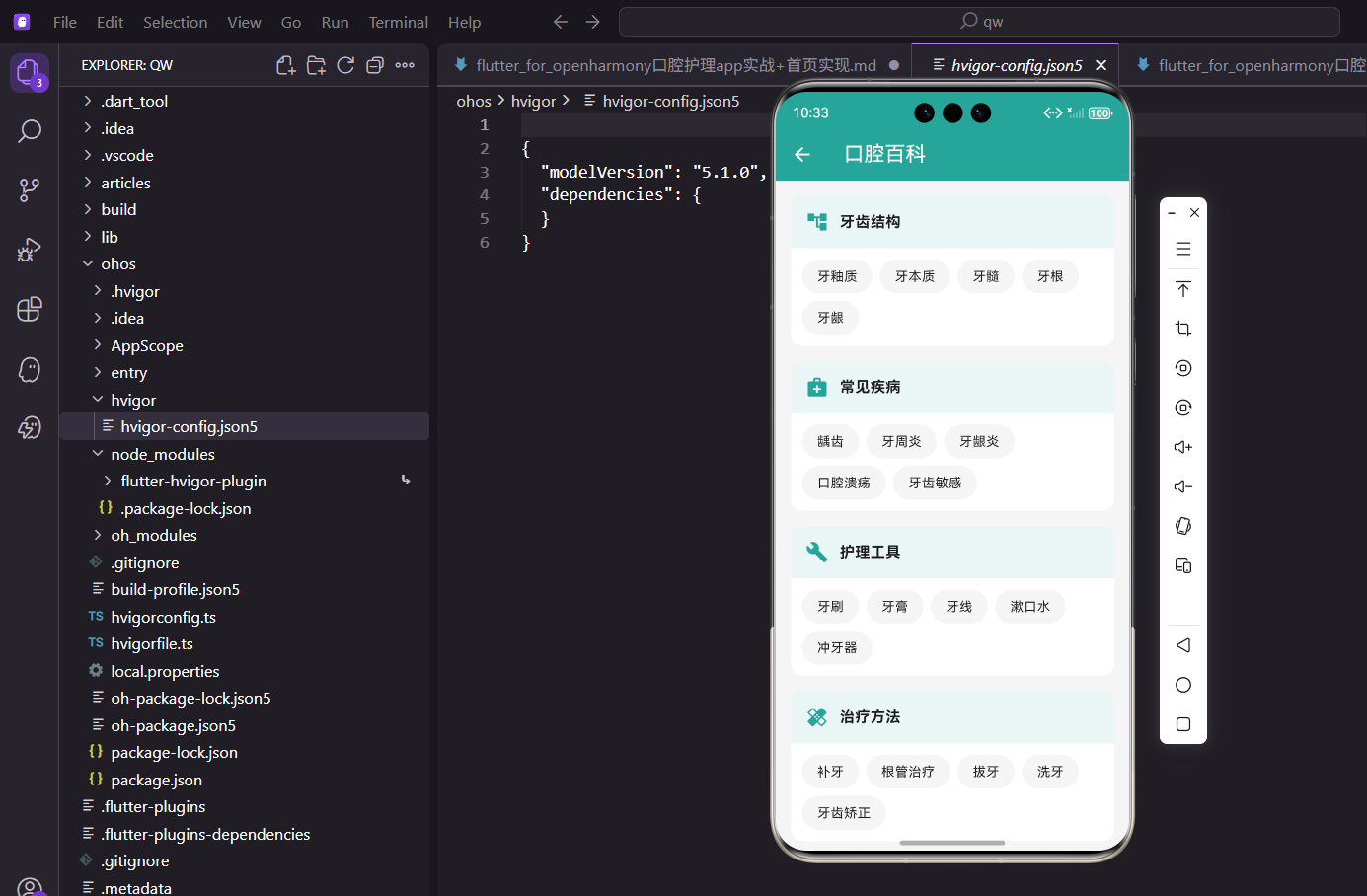
分类展示:按主题分类展示百科条目,让用户能够快速定位到感兴趣的知识领域。我们将口腔知识分为牙齿结构、常见疾病、护理工具、治疗方法、美容项目五大类,每个分类都有独特的图标和颜色标识,方便用户识别。
标签布局:使用标签形式展示各分类下的条目,采用流式布局自动换行,提供良好的视觉体验。标签采用圆角胶囊设计,点击后有视觉反馈,提升交互体验。
详情弹窗:点击条目显示详细解释,使用底部弹窗的形式,避免页面跳转带来的割裂感。弹窗设计简洁明了,用户可以快速获取信息后关闭,继续浏览其他内容。
视觉设计:使用图标和颜色区分不同分类,通过视觉编码帮助用户快速识别内容类型。每个分类都有专属的主题色,形成统一的视觉语言。
搜索功能:支持按关键词搜索百科条目,提高查找效率。搜索功能可以同时匹配条目名称和描述内容,确保用户能找到需要的信息。
收藏功能:用户可以收藏感兴趣的条目,方便日后查阅。收藏的条目会在个人中心展示,形成用户的个性化知识库。
这些功能的设计遵循了移动应用的最佳实践,既保证了信息的完整性,又确保了良好的用户体验。在实际开发中,我们还需要考虑性能优化、数据缓存等技术细节。
页面基础结构搭建
口腔百科页面使用 StatelessWidget 实现,因为页面的数据是静态的,不需要管理复杂的状态:
class OralEncyclopediaPage extends StatelessWidget {
const OralEncyclopediaPage({super.key});
Widget build(BuildContext context) {
final categories = [
{
'name': '牙齿结构',
'icon': Icons.account_tree,
'items': ['牙釉质', '牙本质', '牙髓', '牙根', '牙龈'],
},
{
'name': '常见疾病',
'icon': Icons.medical_services,
'items': ['龋齿', '牙周炎', '牙龈炎', '口腔溃疡', '牙齿敏感'],
},
这里我们使用 Map 列表来存储百科数据,每个分类包含名称、图标和条目列表三个字段。这种数据结构简单直观,便于维护和扩展。在实际项目中,这些数据通常会从服务器获取,但数据结构保持一致。使用 final 关键字声明数据,确保数据不会被意外修改,提高代码的安全性。
继续添加其他分类数据:
      {
        'name': '护理工具',
        'icon': Icons.build,
        'items': ['牙刷', '牙膏', '牙线', '漱口水', '冲牙器'],
      },
      {
        'name': '治疗方法',
        'icon': Icons.healing,
        'items': ['补牙', '根管治疗', '拔牙', '洗牙', '牙齿矫正'],
      },
      {
        'name': '美容项目',
        'icon': Icons.auto_awesome,
        'items': ['牙齿美白', '烤瓷牙', '种植牙', '牙贴面', '隐形矫正'],
      },
    ];
五大分类涵盖了口腔健康的主要知识领域。牙齿结构帮助用户了解口腔的基本构造,常见疾病让用户认识各种口腔问题,护理工具介绍日常护理用品,治疗方法讲解医疗手段,美容项目则关注牙齿美观。这样的分类既全面又清晰,用户可以根据自己的需求快速找到相关信息。每个分类选择了合适的图标,比如牙齿结构用树状图标表示层次关系,常见疾病用医疗图标,护理工具用工具图标等,图标的选择增强了信息的可读性。
列表构建与布局
使用 ListView.builder 构建分类列表,这是 Flutter 中构建长列表的最佳实践:
    return Scaffold(
      appBar: AppBar(
        title: const Text('口腔百科'),
        actions: [
          IconButton(
            icon: const Icon(Icons.search),
            onPressed: () {
              // 打开搜索页面
            },
          ),
        ],
      ),
      body: ListView.builder(
        padding: const EdgeInsets.all(16),
        itemCount: categories.length,
        itemBuilder: (context, index) {
          final category = categories[index];
          return Container(
            margin: const EdgeInsets.only(bottom: 16),
            decoration: BoxDecoration(
              color: Colors.white,
              borderRadius: BorderRadius.circular(12),
              boxShadow: [
                BoxShadow(
                  color: Colors.grey.withOpacity(0.1),
                  spreadRadius: 1,
                  blurRadius: 3,
                  offset: const Offset(0, 2),
                ),
              ],
            ),
ListView.builder 是一个高性能的列表构建方式,它只会构建屏幕上可见的列表项,而不是一次性构建所有项。这对于长列表来说非常重要,可以大大提升性能和减少内存占用。我们设置了 padding 为 16 像素,让列表内容与屏幕边缘保持适当距离。每个分类卡片使用白色背景和圆角设计,并添加了轻微的阴影效果,让卡片有浮起的视觉效果,增强层次感。卡片之间通过 margin 保持 16 像素的间距,确保视觉上的呼吸感。
分类标题区域设计
分类标题使用主题色背景,让用户一眼就能识别分类:
            child: Column(
              crossAxisAlignment: CrossAxisAlignment.start,
              children: [
                Container(
                  padding: const EdgeInsets.all(16),
                  decoration: BoxDecoration(
                    color: const Color(0xFF26A69A).withOpacity(0.1),
                    borderRadius: const BorderRadius.vertical(
                        top: Radius.circular(12)),
                  ),
                  child: Row(
                    children: [
                      Icon(
                        category['icon'] as IconData,
                        color: const Color(0xFF26A69A),
                        size: 24,
                      ),
                      const SizedBox(width: 12),
                      Text(
                        category['name'] as String,
                        style: const TextStyle(
                          fontWeight: FontWeight.bold,
                          fontSize: 16,
                          color: Color(0xFF26A69A),
                        ),
                      ),
                      const Spacer(),
                      Text(
                        '${(category['items'] as List).length}项',
                        style: TextStyle(
                          fontSize: 12,
                          color: Colors.grey.shade600,
                        ),
                      ),
                    ],
                  ),
                ),
标题区域使用主题色 #26A69A 的浅色版本作为背景,通过 withOpacity(0.1) 实现半透明效果,既突出了标题区域,又不会过于抢眼。图标和文字都使用主题色,保持视觉统一。我们在标题右侧显示该分类下的条目数量,让用户对内容量有直观的了解。Spacer 组件会自动占据剩余空间,将条目数量推到最右边。标题区域只有顶部圆角,与下方的内容区域自然衔接。
条目标签区域实现
使用 Wrap 组件展示条目标签,实现自动换行的流式布局:
                Padding(
                  padding: const EdgeInsets.all(12),
                  child: Wrap(
                    spacing: 8,
                    runSpacing: 8,
                    children: (category['items'] as List<String>).map((item) =>
                        GestureDetector(
                      onTap: () => _showItemDetail(context, item),
                      child: Container(
                        padding: const EdgeInsets.symmetric(
                            horizontal: 16, vertical: 8),
                        decoration: BoxDecoration(
                          color: Colors.grey.shade100,
                          borderRadius: BorderRadius.circular(20),
                          border: Border.all(
                            color: Colors.grey.shade300,
                            width: 1,
                          ),
                        ),
                        child: Text(
                          item,
                          style: const TextStyle(
                            fontSize: 14,
                            color: Colors.black87,
                          ),
                        ),
                      ),
                    )).toList(),
                  ),
                ),
              ],
            ),
          );
        },
      ),
    );
  }
Wrap 组件是实现标签布局的最佳选择,它会自动处理换行逻辑。spacing 参数控制标签之间的水平间距,runSpacing 控制行与行之间的垂直间距,都设置为 8 像素,确保标签之间有适当的留白。每个标签使用圆角胶囊形状 (borderRadius: 20),这是标签的经典设计。标签背景使用浅灰色,边框使用稍深的灰色,形成微妙的层次感。通过 GestureDetector 包裹标签,使其可以响应点击事件。当用户点击标签时,会调用 _showItemDetail 方法显示详情弹窗。
详情弹窗的实现
点击条目后显示详情弹窗,使用 showModalBottomSheet 实现从底部滑出的效果:
void _showItemDetail(BuildContext context, String item) {
  final details = {
    '牙釉质': '牙釉质是牙齿最外层的保护层,是人体最坚硬的组织,主要由矿物质组成。它保护牙齿免受外界刺激,但一旦受损就无法再生,因此保护牙釉质至关重要。',
    '龋齿': '龋齿俗称蛀牙,是由细菌引起的牙齿硬组织破坏性疾病,是最常见的口腔疾病之一。细菌分解食物残渣产生酸性物质,腐蚀牙齿表面,形成龋洞。',
    '牙周炎': '牙周炎是累及牙周支持组织的慢性炎症性疾病,是导致成年人牙齿脱落的主要原因。早期症状包括牙龈出血、口臭,严重时会导致牙齿松动甚至脱落。',
    '牙线': '牙线是清洁牙齿邻面的重要工具,可以有效去除牙刷无法触及的牙缝中的食物残渣和牙菌斑。建议每天至少使用一次牙线,最好在睡前使用。',
    '洗牙': '洗牙是用专业器械去除牙齿表面的牙结石、牙菌斑和色素沉着,是预防牙周病的重要手段。建议每半年到一年洗一次牙,保持口腔健康。',
    '牙齿美白': '牙齿美白是通过化学或物理方法去除牙齿表面和内部的色素,使牙齿恢复洁白。常见方法包括冷光美白、激光美白等,需在专业医生指导下进行。',
  };
我们使用 Map 存储条目的详细解释,键是条目名称,值是详细描述。这种方式简单直接,便于查找和维护。在实际项目中,这些数据应该从数据库或服务器获取,并且可以包含更丰富的内容,如图片、视频等多媒体资源。每条解释都经过精心编写,既专业又通俗易懂,帮助用户快速理解口腔健识。对于没有详细信息的条目,我们会显示"该词条详情正在编辑中"的提示,避免空白页面。
弹窗界面的具体实现:
  showModalBottomSheet(
    context: context,
    isScrollControlled: true,
    backgroundColor: Colors.transparent,
    shape: const RoundedRectangleBorder(
      borderRadius: BorderRadius.vertical(top: Radius.circular(20)),
    ),
    builder: (context) => Container(
      padding: const EdgeInsets.all(24),
      decoration: const BoxDecoration(
        color: Colors.white,
        borderRadius: BorderRadius.vertical(top: Radius.circular(20)),
      ),
      child: Column(
        mainAxisSize: MainAxisSize.min,
        crossAxisAlignment: CrossAxisAlignment.start,
        children: [
          Row(
            children: [
              Container(
                padding: const EdgeInsets.all(10),
                decoration: BoxDecoration(
                  color: const Color(0xFF26A69A).withOpacity(0.1),
                  shape: BoxShape.circle,
                ),
                child: const Icon(
                  Icons.info_outline,
                  color: Color(0xFF26A69A),
                  size: 24,
                ),
              ),
              const SizedBox(width: 12),
              Expanded(
                child: Text(
                  item,
                  style: const TextStyle(
                    fontSize: 20,
                    fontWeight: FontWeight.bold,
                  ),
                ),
              ),
              IconButton(
                icon: const Icon(Icons.close),
                onPressed: () => Navigator.pop(context),
              ),
            ],
          ),
showModalBottomSheet 是 Flutter 提供的底部弹窗组件,非常适合展示详情信息。我们设置 isScrollControlled: true 让弹窗可以根据内容自适应高度,backgroundColor: Colors.transparent 让弹窗背景透明,只有内容区域显示白色背景。顶部圆角设计让弹窗更加美观,符合现代 UI 设计规范。弹窗标题区域包含一个信息图标、条目名称和关闭按钮,布局清晰。图标使用圆形背景,与主题色保持一致。关闭按钮放在右上角,这是用户习惯的位置。
详情内容和操作按钮:
          const SizedBox(height: 16),
          Container(
            constraints: BoxConstraints(
              maxHeight: MediaQuery.of(context).size.height * 0.5,
            ),
            child: SingleChildScrollView(
              child: Text(
                details[item] ?? '该词条详情正在编辑中,敬请期待...',
                style: TextStyle(
                  color: Colors.grey.shade700,
                  height: 1.6,
                  fontSize: 15,
                ),
              ),
            ),
          ),
          const SizedBox(height: 24),
          Row(
            children: [
              Expanded(
                child: OutlinedButton.icon(
                  onPressed: () {
                    // 收藏功能
                  },
                  icon: const Icon(Icons.bookmark_border),
                  label: const Text('收藏'),
                  style: OutlinedButton.styleFrom(
                    padding: const EdgeInsets.symmetric(vertical: 12),
                  ),
                ),
              ),
              const SizedBox(width: 12),
              Expanded(
                child: ElevatedButton(
                  onPressed: () => Navigator.pop(context),
                  style: ElevatedButton.styleFrom(
                    backgroundColor: const Color(0xFF26A69A),
                    foregroundColor: Colors.white,
                    padding: const EdgeInsets.symmetric(vertical: 12),
                  ),
                  child: const Text('知道了'),
                ),
              ),
            ],
          ),
        ],
      ),
    ),
  );
}
详情文字使用 1.6 倍行高,这是提升可读性的黄金比例。文字颜色使用深灰色而不是纯黑色,减少视觉疲劳。我们限制了内容区域的最大高度为屏幕高度的 50%,超出部分可以滚动查看,避免弹窗过高影响体验。底部提供两个按钮:收藏按钮使用轮廓样式,关闭按钮使用填充样式并占据主要视觉位置。两个按钮等宽排列,通过 Expanded 组件实现。这种设计既提供了功能,又保持了界面的简洁。
数据模型的定义
为了更好地管理百科数据,我们定义一个数据模型类:
class EncyclopediaItem {
  final String id;
  final String name;
  final String category;
  final String description;
  final String? imageUrl;
  final List<String> relatedItems;
  final DateTime createTime;
  final int viewCount;
  bool isFavorite;

  EncyclopediaItem({
    String? id,
    required this.name,
    required this.category,
    required this.description,
    this.imageUrl,
    this.relatedItems = const [],
    DateTime? createTime,
    this.viewCount = 0,
    this.isFavorite = false,
  }) : id = id ?? DateTime.now().millisecondsSinceEpoch.toString(),
       createTime = createTime ?? DateTime.now();

  // 从 JSON 创建对象
  factory EncyclopediaItem.fromJson(Map<String, dynamic> json) {
    return EncyclopediaItem(
      id: json['id'],
      name: json['name'],
      category: json['category'],
      description: json['description'],
      imageUrl: json['imageUrl'],
      relatedItems: List<String>.from(json['relatedItems'] ?? []),
      createTime: DateTime.parse(json['createTime']),
      viewCount: json['viewCount'] ?? 0,
      isFavorite: json['isFavorite'] ?? false,
    );
  }

  // 转换为 JSON
  Map<String, dynamic> toJson() {
    return {
      'id': id,
      'name': name,
      'category': category,
      'description': description,
      'imageUrl': imageUrl,
      'relatedItems': relatedItems,
      'createTime': createTime.toIso8601String(),
      'viewCount': viewCount,
      'isFavorite': isFavorite,
    };
  }
}
数据模型类封装了百科条目的所有属性,包括 ID、名称、分类、描述、图片 URL、相关条目、创建时间、查看次数和收藏状态。使用类来管理数据有很多好处:类型安全、代码提示、便于维护。我们提供了 fromJson 和 toJson 方法,方便与服务器进行数据交互。ID 字段使用时间戳自动生成,确保唯一性。imageUrl 和 relatedItems 是可选字段,不是所有条目都需要图片和相关条目。isFavorite 字段用于标记用户是否收藏了该条目。
搜索功能的实现
添加搜索功能,让用户可以快速找到需要的信息:
class EncyclopediaSearchPage extends StatefulWidget {
final List<EncyclopediaItem> allItems;
const EncyclopediaSearchPage({super.key, required this.allItems});
State<EncyclopediaSearchPage> createState() => _EncyclopediaSearchPageState();
}
class _EncyclopediaSearchPageState extends State<EncyclopediaSearchPage> {
String _searchKeyword = '';
List<EncyclopediaItem> _searchResults = [];
void initState() {
super.initState();
_searchResults = widget.allItems;
}
void _performSearch(String keyword) {
setState(() {
_searchKeyword = keyword;
if (keyword.isEmpty) {
_searchResults = widget.allItems;
} else {
_searchResults = widget.allItems.where((item) {
return item.name.contains(keyword) ||
item.description.contains(keyword) ||
item.category.contains(keyword);
}).toList();
}
});
}
Widget build(BuildContext context) {
return Scaffold(
appBar: AppBar(
title: TextField(
autofocus: true,
decoration: const InputDecoration(
hintText: '搜索百科内容...',
border: InputBorder.none,
hintStyle: TextStyle(color: Colors.white70),
),
style: const TextStyle(color: Colors.white, fontSize: 16),
onChanged: _performSearch,
),
),
body: _buildSearchResults(),
);
}
Widget _buildSearchResults() {
if (_searchKeyword.isEmpty) {
return _buildSearchHistory();
}
if (_searchResults.isEmpty) {
return Center(
child: Column(
mainAxisAlignment: MainAxisAlignment.center,
children: [
Icon(Icons.search_off, size: 64, color: Colors.grey.shade300),
const SizedBox(height: 16),
Text(
'没有找到相关内容',
style: TextStyle(color: Colors.grey.shade500, fontSize: 16),
),
const SizedBox(height: 8),
Text(
'试试其他关键词吧',
style: TextStyle(color: Colors.grey.shade400, fontSize: 14),
),
],
),
);
}
return ListView.builder(
padding: const EdgeInsets.all(16),
itemCount: _searchResults.length,
itemBuilder: (context, index) {
final item = _searchResults[index];
return Card(
margin: const EdgeInsets.only(bottom: 12),
child: ListTile(
leading: Container(
width: 40,
height: 40,
decoration: BoxDecoration(
color: const Color(0xFF26A69A).withOpacity(0.1),
borderRadius: BorderRadius.circular(8),
),
child: const Icon(
Icons.article,
color: Color(0xFF26A69A),
),
),
title: Text(
item.name,
style: const TextStyle(fontWeight: FontWeight.bold),
),
subtitle: Text(
item.category,
style: TextStyle(color: Colors.grey.shade600, fontSize: 12),
),
trailing: const Icon(Icons.chevron_right),
onTap: () {
// 显示详情
},
),
);
},
);
}
Widget _buildSearchHistory() {
return Padding(
padding: const EdgeInsets.all(16),
child: Column(
crossAxisAlignment: CrossAxisAlignment.start,
children: [
Row(
mainAxisAlignment: MainAxisAlignment.spaceBetween,
children: [
const Text(
'搜索历史',
style: TextStyle(fontSize: 16, fontWeight: FontWeight.bold),
),
TextButton(
onPressed: () {
// 清空搜索历史
},
child: const Text('清空'),
),
],
),
const SizedBox(height: 12),
Wrap(
spacing: 8,
runSpacing: 8,
children: ['龋齿', '牙周炎', '洗牙', '牙线'].map((keyword) {
return ActionChip(
label: Text(keyword),
onPressed: () => _performSearch(keyword),
);
}).toList(),
),
],
),
);
}
}
搜索页面使用 StatefulWidget 因为需要管理搜索关键词和结果状态。搜索框直接放在 AppBar 的 title 位置,节省空间并符合用户习惯。设置 autofocus: true 让页面打开时自动聚焦到搜索框,用户可以直接输入。搜索逻辑在 _performSearch 方法中实现,使用 where 方法过滤符合条件的条目。我们同时搜索名称、描述和分类三个字段,提高搜索的准确性。空状态时显示友好的提示信息和图标,引导用户尝试其他关键词。搜索结果使用卡片列表展示,每个结果显示图标、名称和分类,点击可查看详情。搜索历史功能可以帮助用户快速重复之前的搜索,提升使用效率。
收藏功能的实现
实现收藏功能,让用户可以保存感兴趣的内容:
class EncyclopediaProvider extends ChangeNotifier {
  final List<EncyclopediaItem> _allItems = [];
  final List<String> _favoriteIds = [];

  List<EncyclopediaItem> get allItems => _allItems;

  List<EncyclopediaItem> get favoriteItems {
    return _allItems.where((item) => _favoriteIds.contains(item.id)).toList();
  }

  bool isFavorite(String id) {
    return _favoriteIds.contains(id);
  }

  void toggleFavorite(String id) {
    if (_favoriteIds.contains(id)) {
      _favoriteIds.remove(id);
    } else {
      _favoriteIds.add(id);
    }

    // 更新条目的收藏状态
    final item = _allItems.firstWhere((item) => item.id == id);
    item.isFavorite = !item.isFavorite;

    // 保存到本地存储
    _saveFavorites();

    notifyListeners();
  }

  Future<void> _saveFavorites() async {
    final prefs = await SharedPreferences.getInstance();
    await prefs.setStringList('favorite_encyclopedia', _favoriteIds);
  }

  Future<void> loadFavorites() async {
    final prefs = await SharedPreferences.getInstance();
    final favorites = prefs.getStringList('favorite_encyclopedia') ?? [];
    _favoriteIds.addAll(favorites);

    // 更新条目的收藏状态
    for (var item in _allItems) {
      item.isFavorite = _favoriteIds.contains(item.id);
    }

    notifyListeners();
  }
}
使用 Provider 模式管理收藏状态,这是 Flutter 推荐的状态管理方案。EncyclopediaProvider 类继承自 ChangeNotifier,可以通知监听者状态变化。我们维护一个收藏 ID 列表 _favoriteIds,而不是直接修改条目对象,这样更容易持久化存储。toggleFavorite 方法实现收藏和取消收藏的切换逻辑,调用后会通知所有监听者更新 UI。使用 SharedPreferences 将收藏列表保存到本地,确保应用重启后收藏数据不丢失。loadFavorites 方法在应用启动时调用,从本地加载收藏数据。
性能优化建议
在实际开发中,还需要注意以下性能优化点:
图片懒加载:如果百科条目包含图片,应该使用懒加载技术,只加载可见区域的图片,减少内存占用和网络流量。
数据缓存:从服务器获取的百科数据应该缓存到本地,避免重复请求。可以使用 sqflite 数据库或文件缓存。
分页加载:如果百科条目数量很多,应该实现分页加载,每次只加载一部分数据,提升首屏加载速度。
搜索防抖:搜索功能应该添加防抖处理,避免用户每输入一个字符就触发搜索,减少不必要的计算。
使用 const 构造函数:对于不变的 Widget,尽量使用 const 构造函数,可以提升性能并减少重建。
总结
本文详细介绍了口腔护理 App 中口腔百科功能的完整实现方案。我们从功能设计、页面布局、交互逻辑、数据管理等多个方面进行了深入讲解。核心技术点包括:
使用 ListView.builder 构建高性能列表,通过 Wrap 组件实现标签的流式布局,使用 showModalBottomSheet 展示详情弹窗,通过图标和颜色区分不同分类,实现搜索和收藏等实用功能,使用 Provider 进行状态管理,通过 SharedPreferences 实现数据持久化。
口腔百科是帮助用户系统学习口腔知识的重要功能,良好的设计和实现可以大大提升用户体验。希望本文的详细讲解能够帮助你快速掌握类似功能的开发技巧,在实际项目中灵活运用。
欢迎加入开源鸿蒙跨平台社区:https://openharmonycrossplatform.csdn.net

AtomGit 是由开放原子开源基金会联合 CSDN 等生态伙伴共同推出的新一代开源与人工智能协作平台。平台坚持“开放、中立、公益”的理念,把代码托管、模型共享、数据集托管、智能体开发体验和算力服务整合在一起,为开发者提供从开发、训练到部署的一站式体验。
更多推荐
 14
14 0
0- 0


 已为社区贡献20条内容

所有评论(0)