Flutter for OpenHarmony 口腔护理App实战:个人信息功能实现
前言
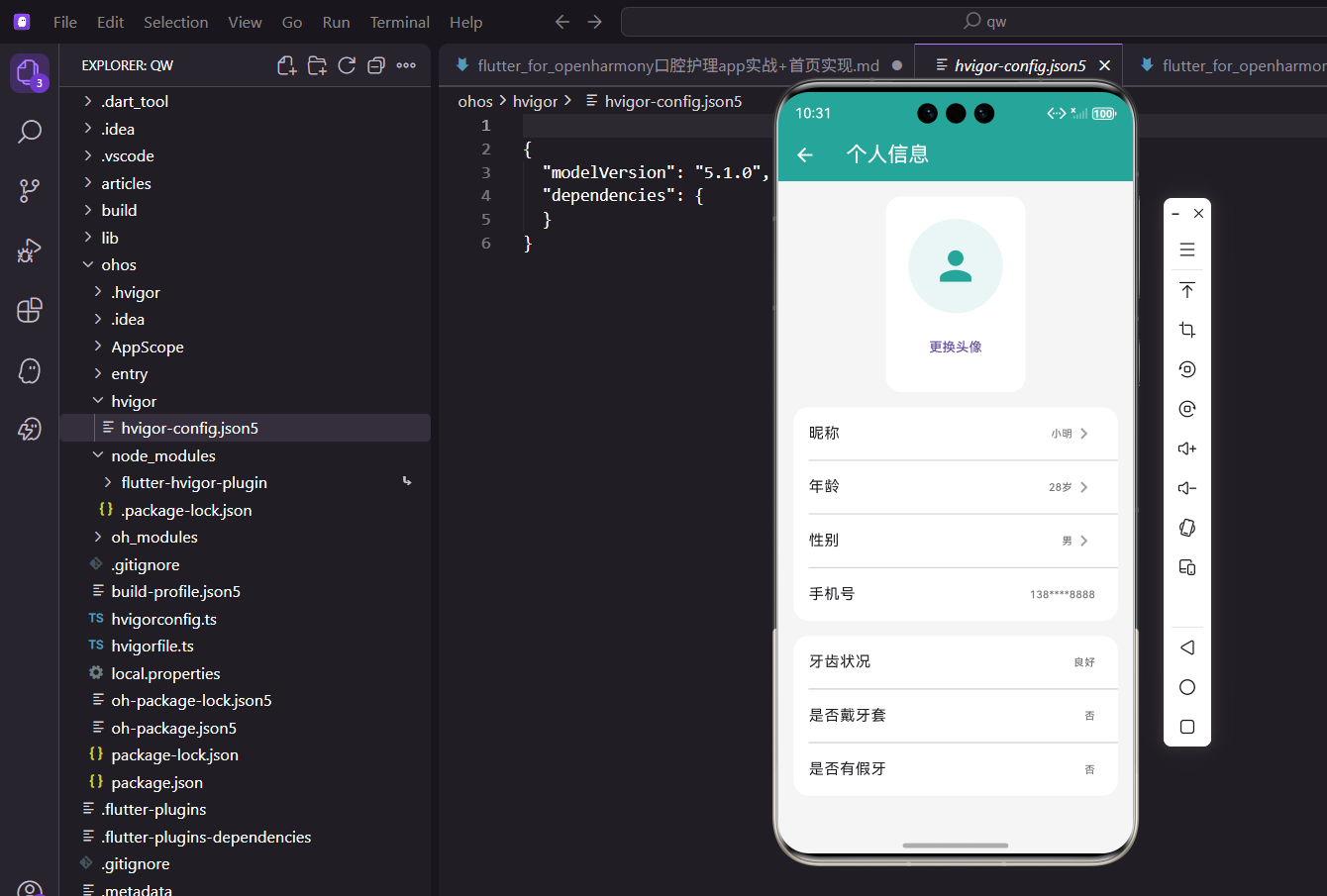
个人信息页面是用户管理自己账户信息的重要入口。在口腔护理应用中,除了基本的用户信息外,还可以记录与口腔健康相关的个人信息,如牙齿状况、是否戴牙套等,为用户提供更个性化的服务。
本文将介绍如何在 Flutter 中实现一个功能完善的个人信息管理页面。
功能设计
个人信息页面需要实现以下功能:
- 头像展示:显示用户头像和更换入口
- 基本信息:昵称、年龄、性别、手机号
- 口腔信息:牙齿状况、是否戴牙套、是否有假牙
- 信息编辑:支持修改可编辑的信息项
页面基础结构
个人信息页面使用 StatelessWidget 实现:
class UserInfoPage extends StatelessWidget {
const UserInfoPage({super.key});
Widget build(BuildContext context) {
return Scaffold(
appBar: AppBar(title: const Text('个人信息')),
body: Consumer<AppProvider>(
builder: (context, provider, _) {
return SingleChildScrollView(
padding: const EdgeInsets.all(16),
child: Column(
children: [
使用 Consumer 监听 AppProvider 的数据变化,SingleChildScrollView 确保内容可以滚动。
头像区域
头像区域包含头像显示和更换按钮:
                Container(
                  padding: const EdgeInsets.all(24),
                  decoration: BoxDecoration(
                    color: Colors.white,
                    borderRadius: BorderRadius.circular(16),
                  ),
                  child: Column(
                    children: [
                      Container(
                        width: 100,
                        height: 100,
                        decoration: BoxDecoration(
                          color: const Color(0xFF26A69A).withOpacity(0.1),
                          shape: BoxShape.circle,
                        ),
                        child: const Icon(Icons.person, size: 50,
                            color: Color(0xFF26A69A)),
                      ),
头像使用圆形容器,主题色浅色背景配合人物图标。实际项目中应该显示用户上传的头像图片。
更换头像按钮:
                      const SizedBox(height: 12),
                      TextButton(
                        onPressed: () {
                          ScaffoldMessenger.of(context).showSnackBar(
                            const SnackBar(content: Text('更换头像功能开发中')),
                          );
                        },
                        child: const Text('更换头像'),
                      ),
                    ],
                  ),
                ),
                const SizedBox(height: 16),
更换头像按钮使用 TextButton,点击时显示提示。
基本信息区域
基本信息使用列表形式展示:
                Container(
                  decoration: BoxDecoration(
                    color: Colors.white,
                    borderRadius: BorderRadius.circular(16),
                  ),
                  child: Column(
                    children: [
                      _buildInfoItem('昵称', provider.userName,
                          () => _editName(context, provider)),
                      const Divider(height: 1, indent: 16),
                      _buildInfoItem('年龄', '${provider.userAge}岁',
                          () => _editAge(context, provider)),
                      const Divider(height: 1, indent: 16),
                      _buildInfoItem('性别', provider.userGender,
                          () => _editGender(context, provider)),
                      const Divider(height: 1, indent: 16),
                      _buildInfoItem('手机号', '138****8888', null),
                    ],
                  ),
                ),
使用 Divider 分隔各信息项,indent 设置左侧缩进。手机号不可编辑,传入 null 作为回调。
信息项组件
封装信息项组件:
Widget _buildInfoItem(String label, String value, VoidCallback? onTap) {
  return ListTile(
    title: Text(label),
    trailing: Row(
      mainAxisSize: MainAxisSize.min,
      children: [
        Text(value, style: TextStyle(color: Colors.grey.shade600)),
        if (onTap != null)
            const Icon(Icons.chevron_right, color: Colors.grey),
      ],
    ),
    onTap: onTap,
  );
}
使用 ListTile 实现信息项,trailing 区域显示值和箭头图标。只有可编辑的项才显示箭头。
口腔信息区域
口腔相关的个人信息:
                const SizedBox(height: 16),
                Container(
                  decoration: BoxDecoration(
                    color: Colors.white,
                    borderRadius: BorderRadius.circular(16),
                  ),
                  child: Column(
                    children: [
                      _buildInfoItem('牙齿状况', '良好', null),
                      const Divider(height: 1, indent: 16),
                      _buildInfoItem('是否戴牙套', '否', null),
                      const Divider(height: 1, indent: 16),
                      _buildInfoItem('是否有假牙', '否', null),
                    ],
                  ),
                ),
              ],
            ),
          );
        },
      ),
    );
  }
口腔信息目前为静态展示,实际项目中可以添加编辑功能。
编辑昵称对话框
点击昵称项弹出编辑对话框:
void _editName(BuildContext context, AppProvider provider) {
  final controller = TextEditingController(text: provider.userName);
  showDialog(
    context: context,
    builder: (ctx) => AlertDialog(
      title: const Text('修改昵称'),
      content: TextField(
        controller: controller,
        decoration: const InputDecoration(hintText: '请输入昵称'),
      ),
      actions: [
        TextButton(
            onPressed: () => Navigator.pop(ctx),
            child: const Text('取消')),
        ElevatedButton(
          onPressed: () {
            if (controller.text.isNotEmpty) {
              provider.updateUserName(controller.text);
            }
            Navigator.pop(ctx);
          },
          child: const Text('保存'),
        ),
      ],
    ),
  );
}
使用 TextEditingController 预填当前昵称,保存时调用 Provider 的更新方法。
编辑年龄对话框
年龄使用加减按钮编辑:
void _editAge(BuildContext context, AppProvider provider) {
  int age = provider.userAge;
  showDialog(
    context: context,
    builder: (ctx) => StatefulBuilder(
      builder: (context, setState) => AlertDialog(
        title: const Text('修改年龄'),
        content: Row(
          mainAxisAlignment: MainAxisAlignment.center,
          children: [
            IconButton(
              onPressed: () => setState(() => age = (age - 1).clamp(1, 120)),
              icon: const Icon(Icons.remove_circle_outline),
            ),
            Text('$age', style: const TextStyle(fontSize: 24,
                fontWeight: FontWeight.bold)),
            IconButton(
              onPressed: () => setState(() => age = (age + 1).clamp(1, 120)),
              icon: const Icon(Icons.add_circle_outline),
            ),
          ],
        ),
使用 StatefulBuilder 在对话框内管理状态,clamp 方法限制年龄范围在1-120之间。
保存按钮:
        actions: [
          TextButton(
              onPressed: () => Navigator.pop(ctx),
              child: const Text('取消')),
          ElevatedButton(
            onPressed: () {
              provider.updateUserAge(age);
              Navigator.pop(ctx);
            },
            child: const Text('保存'),
          ),
        ],
      ),
    ),
  );
}
保存时调用 Provider 的更新方法。
编辑性别对话框
性别使用单选按钮选择:
void _editGender(BuildContext context, AppProvider provider) {
  showDialog(
    context: context,
    builder: (ctx) => AlertDialog(
      title: const Text('选择性别'),
      content: Column(
        mainAxisSize: MainAxisSize.min,
        children: [
          ListTile(
            title: const Text('男'),
            leading: Radio<String>(
              value: '男',
              groupValue: provider.userGender,
              onChanged: (v) {
                provider.updateUserGender(v!);
                Navigator.pop(ctx);
              },
            ),
          ),
          ListTile(
            title: const Text('女'),
            leading: Radio<String>(
              value: '女',
              groupValue: provider.userGender,
              onChanged: (v) {
                provider.updateUserGender(v!);
                Navigator.pop(ctx);
              },
            ),
          ),
        ],
      ),
    ),
  );
}
使用 Radio 组件实现单选,选择后立即保存并关闭对话框。
Provider 数据管理
在 AppProvider 中管理用户信息:
String _userName = '用户';
int _userAge = 25;
String _userGender = '男';

String get userName => _userName;
int get userAge => _userAge;
String get userGender => _userGender;

void updateUserName(String name) {
  _userName = name;
  notifyListeners();
}

void updateUserAge(int age) {
  _userAge = age;
  notifyListeners();
}

void updateUserGender(String gender) {
  _userGender = gender;
  notifyListeners();
}
提供 getter 和 setter 方法,每次更新后通知界面刷新。
头像上传功能
实现头像上传功能:
import 'package:image_picker/image_picker.dart';

Future<void> _pickImage(BuildContext context) async {
  final picker = ImagePicker();
  final source = await showDialog<ImageSource>(
    context: context,
    builder: (ctx) => AlertDialog(
      title: const Text('选择图片来源'),
      content: Column(
        mainAxisSize: MainAxisSize.min,
        children: [
          ListTile(
            leading: const Icon(Icons.camera_alt),
            title: const Text('拍照'),
            onTap: () => Navigator.pop(ctx, ImageSource.camera),
          ),
          ListTile(
            leading: const Icon(Icons.photo_library),
            title: const Text('相册'),
            onTap: () => Navigator.pop(ctx, ImageSource.gallery),
          ),
        ],
      ),
    ),
  );

  if (source != null) {
    final image = await picker.pickImage(source: source);
    if (image != null) {
      // 上传图片并更新头像
      provider.updateAvatar(image.path);
    }
  }
}
使用 image_picker 插件选择图片,支持拍照和从相册选择。
头像显示
显示用户头像:
Container(
  width: 100,
  height: 100,
  decoration: BoxDecoration(
    shape: BoxShape.circle,
    image: provider.avatarUrl != null
        ? DecorationImage(
            image: NetworkImage(provider.avatarUrl!),
            fit: BoxFit.cover,
          )
        : null,
    color: provider.avatarUrl == null
        ? const Color(0xFF26A69A).withOpacity(0.1)
        : null,
  ),
  child: provider.avatarUrl == null
      ? const Icon(Icons.person, size: 50, color: Color(0xFF26A69A))
      : null,
)
有头像时显示图片,没有头像时显示默认图标。
手机号验证
添加手机号验证功能:
void _verifyPhone(BuildContext context) {
  final phoneController = TextEditingController();
  final codeController = TextEditingController();

  showDialog(
    context: context,
    builder: (ctx) => AlertDialog(
      title: const Text('绑定手机号'),
      content: Column(
        mainAxisSize: MainAxisSize.min,
        children: [
          TextField(
            controller: phoneController,
            decoration: const InputDecoration(labelText: '手机号'),
            keyboardType: TextInputType.phone,
          ),
          const SizedBox(height: 12),
          Row(
            children: [
              Expanded(
                child: TextField(
                  controller: codeController,
                  decoration: const InputDecoration(labelText: '验证码'),
                  keyboardType: TextInputType.number,
                ),
              ),
              TextButton(
                onPressed: () {
                  // 发送验证码
                },
                child: const Text('获取验证码'),
              ),
            ],
          ),
        ],
      ),
      actions: [
        TextButton(
            onPressed: () => Navigator.pop(ctx),
            child: const Text('取消')),
        ElevatedButton(
          onPressed: () {
            // 验证并绑定
          },
          child: const Text('绑定'),
        ),
      ],
    ),
  );
}
手机号绑定需要验证码验证。
数据持久化
使用 SharedPreferences 持久化用户信息:
import 'package:shared_preferences/shared_preferences.dart';

Future<void> saveUserInfo() async {
  final prefs = await SharedPreferences.getInstance();
  await prefs.setString('userName', _userName);
  await prefs.setInt('userAge', _userAge);
  await prefs.setString('userGender', _userGender);
}

Future<void> loadUserInfo() async {
  final prefs = await SharedPreferences.getInstance();
  _userName = prefs.getString('userName') ?? '用户';
  _userAge = prefs.getInt('userAge') ?? 25;
  _userGender = prefs.getString('userGender') ?? '男';
  notifyListeners();
}
应用启动时加载用户信息,修改后保存到本地。
退出登录功能
添加退出登录功能:
ElevatedButton(
  onPressed: () {
    showDialog(
      context: context,
      builder: (ctx) => AlertDialog(
        title: const Text('确认退出'),
        content: const Text('确定要退出登录吗?'),
        actions: [
          TextButton(
              onPressed: () => Navigator.pop(ctx),
              child: const Text('取消')),
          ElevatedButton(
            onPressed: () {
              provider.logout();
              Navigator.pop(ctx);
              // 跳转到登录页
            },
            child: const Text('退出'),
          ),
        ],
      ),
    );
  },
  style: ElevatedButton.styleFrom(
    backgroundColor: Colors.red,
    foregroundColor: Colors.white,
  ),
  child: const Text('退出登录'),
)
退出前显示确认对话框,避免误操作。
账号注销功能
添加账号注销入口:
TextButton(
  onPressed: () {
    showDialog(
      context: context,
      builder: (ctx) => AlertDialog(
        title: const Text('注销账号'),
        content: const Text('注销后所有数据将被删除且无法恢复,确定要注销吗?'),
        actions: [
          TextButton(
              onPressed: () => Navigator.pop(ctx),
              child: const Text('取消')),
          ElevatedButton(
            onPressed: () {
              // 执行注销
            },
            style: ElevatedButton.styleFrom(backgroundColor: Colors.red),
            child: const Text('确认注销'),
          ),
        ],
      ),
    );
  },
  child: const Text('注销账号', style: TextStyle(color: Colors.red)),
)
账号注销是敏感操作,需要明确提示风险。
总结
本文详细介绍了口腔护理 App 中个人信息功能的实现。通过合理的界面布局和交互设计,我们构建了一个功能完善的个人信息管理页面。核心技术点包括:
- 使用
ListTile实现信息列表项 - 通过
AlertDialog实现编辑对话框 - 使用
Radio组件实现单选 - 使用
StatefulBuilder在对话框中管理状态
个人信息页面是用户管理账户的重要入口,希望本文的实现对你有所帮助。
欢迎加入开源鸿蒙跨平台社区:https://openharmonycrossplatform.csdn.net

AtomGit 是由开放原子开源基金会联合 CSDN 等生态伙伴共同推出的新一代开源与人工智能协作平台。平台坚持“开放、中立、公益”的理念,把代码托管、模型共享、数据集托管、智能体开发体验和算力服务整合在一起,为开发者提供从开发、训练到部署的一站式体验。
更多推荐
 6
6 0
0- 0


 已为社区贡献20条内容

所有评论(0)