鸿蒙跨端框架Flutter学习:State生命周期详解
·
一、示例项目说明
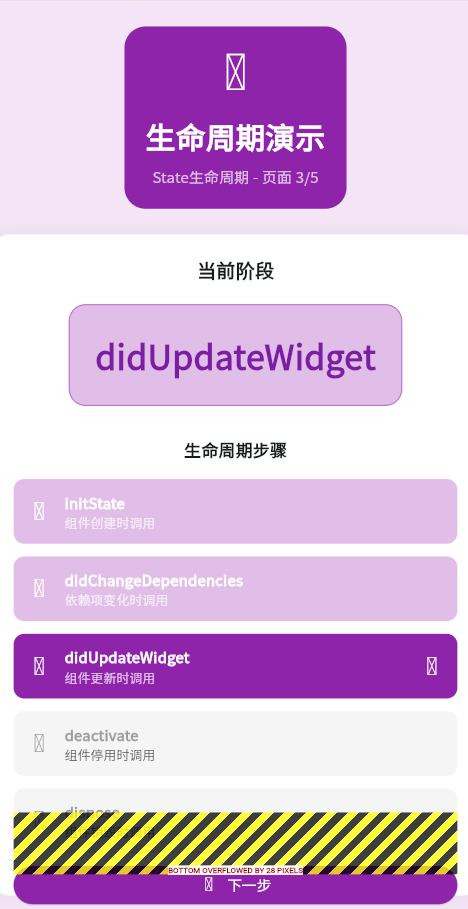
本文配套的示例项目是一个生命周期演示应用,位于main.dart文件中的_Page03LifecycleDemo类。该页面以交互式的方式展示了State的各个生命周期阶段,通过点击按钮可以模拟不同生命周期方法的调用过程。
二、生命周期概述
State的生命周期管理是StatefulWidget的核心,理解每个阶段的调用时机对于正确管理资源和状态至关重要。示例项目通过可视化的方式展示了生命周期流程。
三、生命周期流程
四、示例代码分析
1. 完整的生命周期演示实现
class _Page03LifecycleDemo extends StatefulWidget {
const _Page03LifecycleDemo();
State<_Page03LifecycleDemo> createState() => _Page03LifecycleDemoState();
}
class _Page03LifecycleDemoState extends State<_Page03LifecycleDemo> {
// 当前显示的生命周期阶段
String _currentStep = '初始化';
// 生命周期步骤列表
final List<LifecycleStep> _steps = [
LifecycleStep('initState', '组件创建时调用', Icons.play_circle_outline),
LifecycleStep('didChangeDependencies', '依赖项变化时调用', Icons.sync_alt),
LifecycleStep('didUpdateWidget', '组件更新时调用', Icons.update),
LifecycleStep('deactivate', '组件停用时调用', Icons.pause_circle_outline),
LifecycleStep('dispose', '组件销毁时调用', Icons.delete_outline),
];
// 当前步骤索引
int _currentStepIndex = -1;
void initState() {
super.initState();
// 初始化时显示initState阶段
_currentStep = 'initState';
_currentStepIndex = 0;
print('initState被调用:组件初始化');
}
// 切换到下一个生命周期步骤
void _nextStep() {
setState(() {
_currentStepIndex = (_currentStepIndex + 1) % _steps.length;
_currentStep = _steps[_currentStepIndex].name;
print('当前生命周期阶段:$_currentStep');
});
}
Widget build(BuildContext context) {
return Container(
color: Colors.purple.shade50,
child: SafeArea(
child: Padding(
padding: const EdgeInsets.all(24),
child: Column(
children: [
// 标题区域
Container(
padding: const EdgeInsets.all(20),
decoration: BoxDecoration(
color: Colors.purple.shade600,
borderRadius: BorderRadius.circular(20),
),
child: const Column(
children: [
Icon(Icons.timeline, size: 48, color: Colors.white),
SizedBox(height: 16),
Text(
'生命周期演示',
style: TextStyle(
fontSize: 28,
fontWeight: FontWeight.bold,
color: Colors.white,
),
),
SizedBox(height: 8),
Text(
'State生命周期 - 页面 3/5',
style: TextStyle(
fontSize: 14,
color: Colors.white70,
),
),
],
),
),
const SizedBox(height: 24),
// 生命周期展示区域
Expanded(
child: Container(
padding: const EdgeInsets.all(20),
decoration: BoxDecoration(
color: Colors.white,
borderRadius: BorderRadius.circular(16),
boxShadow: [
BoxShadow(
color: Colors.black.withOpacity(0.05),
blurRadius: 10,
),
],
),
child: Column(
children: [
const Text(
'当前阶段',
style: TextStyle(
fontSize: 18,
fontWeight: FontWeight.bold,
),
),
const SizedBox(height: 20),
// 当前阶段显示
Container(
padding: const EdgeInsets.all(24),
decoration: BoxDecoration(
color: Colors.purple.shade100,
borderRadius: BorderRadius.circular(16),
border: Border.all(color: Colors.purple.shade300),
),
child: Column(
children: [
Text(
_currentStep,
style: TextStyle(
fontSize: 32,
fontWeight: FontWeight.bold,
color: Colors.purple.shade700,
),
),
],
),
),
const SizedBox(height: 30),
const Text(
'生命周期步骤',
style: TextStyle(
fontSize: 16,
fontWeight: FontWeight.bold,
),
),
const SizedBox(height: 16),
// 步骤列表
...List.generate(_steps.length, (index) {
final step = _steps[index];
final isActive = index == _currentStepIndex;
final isPast = index < _currentStepIndex;
return Padding(
padding: const EdgeInsets.only(bottom: 12),
child: Container(
padding: const EdgeInsets.all(12),
decoration: BoxDecoration(
color: isActive
? Colors.purple.shade600
: isPast
? Colors.purple.shade100
: Colors.grey.shade100,
borderRadius: BorderRadius.circular(10),
),
child: Row(
children: [
Icon(
step.icon,
color: isActive || isPast ? Colors.white : Colors.grey,
size: 24,
),
const SizedBox(width: 12),
Expanded(
child: Column(
crossAxisAlignment: CrossAxisAlignment.start,
children: [
Text(
step.name,
style: TextStyle(
fontWeight: FontWeight.bold,
color: isActive || isPast
? Colors.white
: Colors.grey,
),
),
Text(
step.description,
style: TextStyle(
fontSize: 12,
color: isActive || isPast
? Colors.white70
: Colors.grey.shade600,
),
),
],
),
),
if (isActive)
const Icon(Icons.play_arrow, color: Colors.white),
],
),
),
);
}),
const Spacer(),
// 下一步按钮
SizedBox(
width: double.infinity,
child: ElevatedButton.icon(
onPressed: _nextStep,
icon: const Icon(Icons.arrow_forward, color: Colors.white),
label: const Text(
'下一步',
style: TextStyle(color: Colors.white),
),
style: ElevatedButton.styleFrom(
backgroundColor: Colors.purple.shade600,
padding: const EdgeInsets.symmetric(vertical: 16),
),
),
),
],
),
),
),
],
),
),
),
);
}
}
// 生命周期步骤数据类
class LifecycleStep {
final String name;
final String description;
final IconData icon;
LifecycleStep(this.name, this.description, this.icon);
}
2. 代码特点解析
生命周期可视化:
- 使用
_currentStep跟踪当前生命周期阶段 - 通过
_nextStep()模拟生命周期切换 - UI动态显示当前处于哪个阶段
状态管理:
// 初始化状态
void initState() {
super.initState();
_currentStep = 'initState';
_currentStepIndex = 0;
}
// 更新状态
void _nextStep() {
setState(() {
_currentStepIndex = (_currentStepIndex + 1) % _steps.length;
_currentStep = _steps[_currentStepIndex].name;
});
}
UI反馈:
- 当前步骤高亮显示
- 已完成的步骤标记为完成状态
- 未完成的步骤显示灰色
五、生命周期方法详解
1. initState(初始化)
| 特性 | 说明 | 示例项目体现 |
|---|---|---|
| 调用时机 | Widget首次插入到Element树时 | 页面打开时调用 |
| 调用次数 | 整个生命周期只调用一次 | 只初始化一次 |
| 典型用途 | 初始化状态变量、订阅事件流 | 初始化_currentStep |
| 注意事项 | 必须调用super.initState() | 已正确调用 |
void initState() {
super.initState();
// 初始化当前步骤
_currentStep = 'initState';
_currentStepIndex = 0;
print('initState被调用:组件初始化');
}
实际应用场景:
- 初始化动画控制器
- 订阅数据流
- 设置初始状态
- 获取配置参数
2. didChangeDependencies(依赖变化)
| 特性 | 说明 |
|---|---|
| 调用时机 | 依赖的InheritedWidget变化时 |
| 调用次数 | 可多次调用 |
| 典型用途 | 获取InheritedWidget数据、Theme数据 |
| 注意事项 | 首次构建也会调用 |
void didChangeDependencies() {
super.didChangeDependencies();
// 获取主题数据
final theme = Theme.of(context);
// 响应主题变化
_updateColors();
}
实际应用场景:
- 获取Theme数据
- 获取Localizations数据
- 响应Provider变化
- 初始化需要Context的资源
3. build(构建)
| 特性 | 说明 | 示例项目体现 |
|---|---|---|
| 调用时机 | 每次setState后 | _nextStep调用后 |
| 调用次数 | 可多次调用 | 随用户交互调用 |
| 典型用途 | 返回UI描述 | 返回生命周期展示UI |
| 注意事项 | 纯函数,不能有副作用 | 只根据_currentStep渲染 |
Widget build(BuildContext context) {
return Column(
children: [
Text('当前阶段:$_currentStep'),
..._buildSteps(),
],
);
}
实际应用场景:
- 返回UI结构
- 根据状态渲染不同内容
- 使用ListView等滚动组件
- 组合多个子Widget
4. didUpdateWidget(Widget更新)
| 特性 | 说明 |
|---|---|
| 调用时机 | 父Widget重建时 |
| 调用次数 | 可多次调用 |
| 典型用途 | 比新旧Widget、更新内部状态 |
| 注意事项 | 首次构建不调用 |
void didUpdateWidget(MyWidget oldWidget) {
super.didUpdateWidget(oldWidget);
// 比对关键属性
if (widget.title != oldWidget.title) {
// 标题变化,重新加载数据
_loadDataForTitle(widget.title);
}
}
实际应用场景:
- 父Widget传递参数变化
- 需要根据新参数更新状态
- 重置动画或控制器
- 切换数据源
5. dispose(销毁)
| 特性 | 说明 |
|---|---|
| 调用时机 | Widget从Element树永久移除时 |
| 调用次数 | 整个生命周期只调用一次 |
| 典型用途 | 取消订阅、释放资源、停止动画 |
| 注意事项 | 必须调用super.dispose() |
void dispose() {
// 取消订阅
_subscription?.cancel();
_controller?.dispose();
// 停止计时器
_timer?.cancel();
super.dispose();
}
实际应用场景:
- 取消Stream订阅
- 释放AnimationController
- 停止Timer
- 关闭数据库连接
六、生命周期对比表
| 方法 | 首次构建 | setState | Widget更新 | 依赖变化 | 销毁 |
|---|---|---|---|---|---|
| initState | ✅ | ❌ | ❌ | ❌ | ❌ |
| didChangeDependencies | ✅ | ❌ | ❌ | ✅ | ❌ |
| build | ✅ | ✅ | ✅ | ❌ | ❌ |
| didUpdateWidget | ❌ | ❌ | ✅ | ❌ | ❌ |
| deactivate | ❌ | ❌ | ❌ | ❌ | ✅ |
| dispose | ❌ | ❌ | ❌ | ❌ | ✅ |
欢迎加入开源鸿蒙跨平台社区:https://openharmonycrossplatform.csdn.net

AtomGit 是由开放原子开源基金会联合 CSDN 等生态伙伴共同推出的新一代开源与人工智能协作平台。平台坚持“开放、中立、公益”的理念,把代码托管、模型共享、数据集托管、智能体开发体验和算力服务整合在一起,为开发者提供从开发、训练到部署的一站式体验。
更多推荐

 25
25 0
0- 0


 已为社区贡献12条内容

所有评论(0)