tkinter点击按钮实现图片的切换
linux-dash
A beautiful web dashboard for Linux
项目地址:https://gitcode.com/gh_mirrors/li/linux-dash
 免费下载资源
·
tkinter是python的标准Tk GUI工具包的接口,在windows下如果你安装的python3,那在安装python的时候,就已经自动安装了tkinter了
如果是在linux系统中,则不会自动安装tkinter,需要通过
sudo apt-get install python-tk手动安装
首先先介绍一下,tkinter本身只支持gif等少数几个图片格式,如果图片并不复杂,建议直接右击图片,进入编辑,在画图界面将图片另存为gif格式就可以使用了(连png和jpeg都不支持。。。真的有点魔幻)
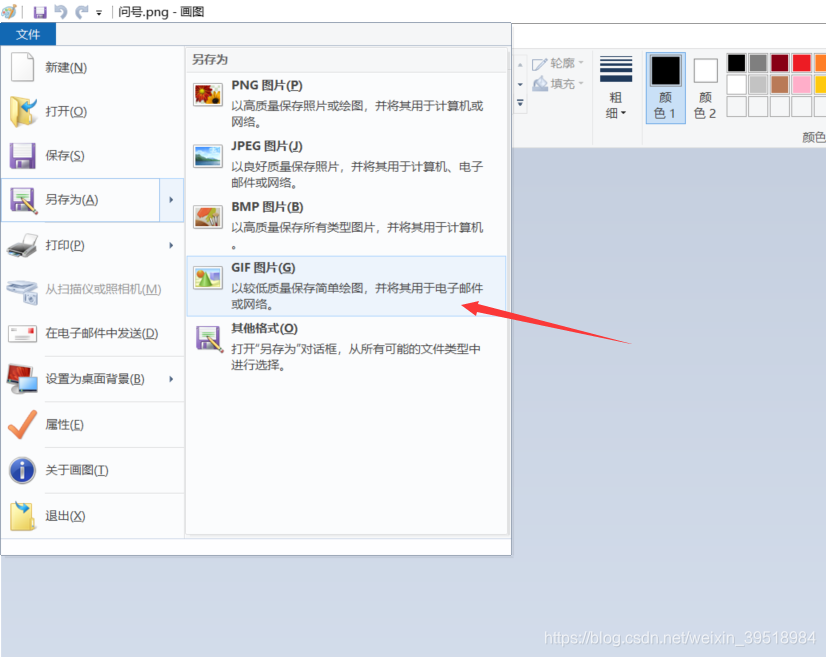
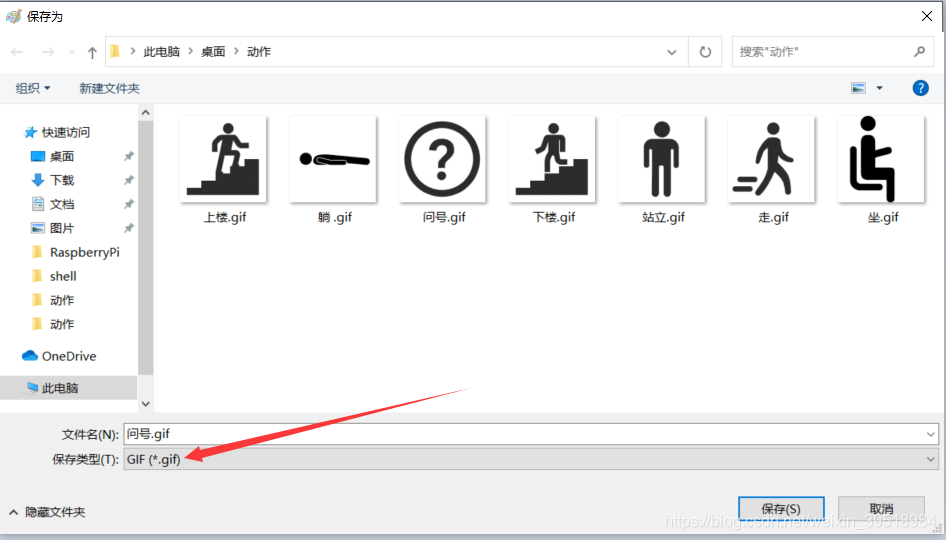
具体的编程操作
如果你尝试直接重写设置图片的有关代码会出问题
比如
import tkinter as tk
top = tk.Tk()

top.title("划水摸鱼")  # 设置窗口
width = 260
height = 500
top.geometry(f'{width}x{height}')  # 设置窗口大小

img_gif = tk.PhotoImage(file='./动作/问号.gif')  # 设置图片
label_img = tk.Label(top, image=img_gif)  # 设置预显示图片
label_img.place(x=30, y=120)

def change_img():   # 设置按钮事件
    img_gif0 = tk.PhotoImage(file='./动作/走.gif')
    label_img.configure(image=img_gif0)
    label_img.place(x=30, y=120)

button = tk.Button(top, text='Prediction', command=change_img)  # 设置按钮
button.place(x=90, y=330)

top.mainloop()
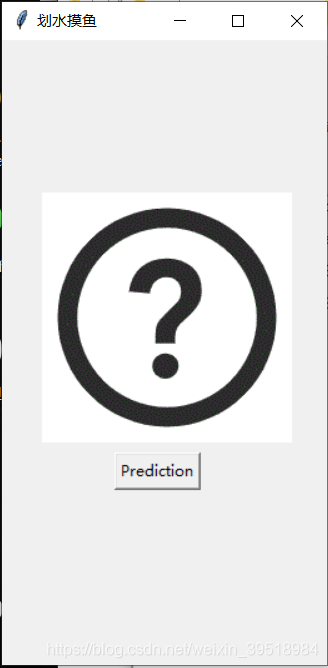
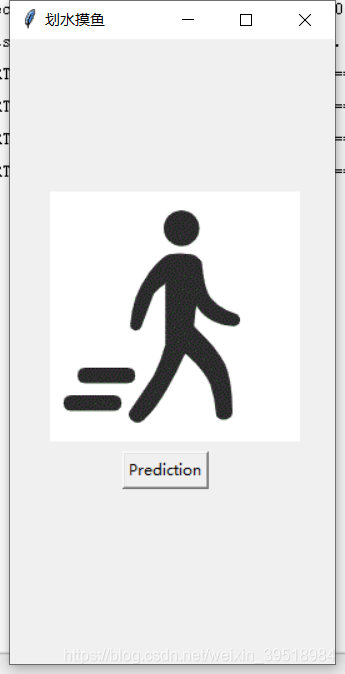
在这里我直接重写了label_img,但是实际效果是
问号.gif能够正常显示,
点击按钮后,走.gif无法显示
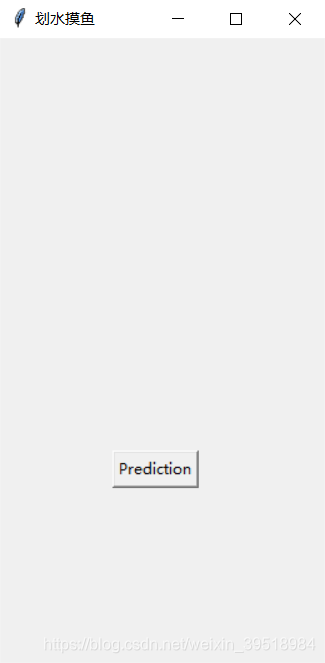
实际切换图片,应该用configure实现
正确的操作如下
import tkinter as tk
top = tk.Tk()

top.title("划水摸鱼")  # 设置窗口
width = 260
height = 500
top.geometry(f'{width}x{height}')  # 设置窗口大小

img_gif = tk.PhotoImage(file='./动作/问号.gif')  # 设置图片
img_gif0 = tk.PhotoImage(file='./动作/走.gif')

label_img = tk.Label(top, image=img_gif)  # 设置预显示图片
label_img.place(x=30, y=120)

def change_img():
    label_img.configure(image=img_gif0)  # 设置按钮事件

button = tk.Button(top, text='Prediction', command=change_img)  # 设置按钮
button.place(x=90, y=330)

top.mainloop()
具体效果
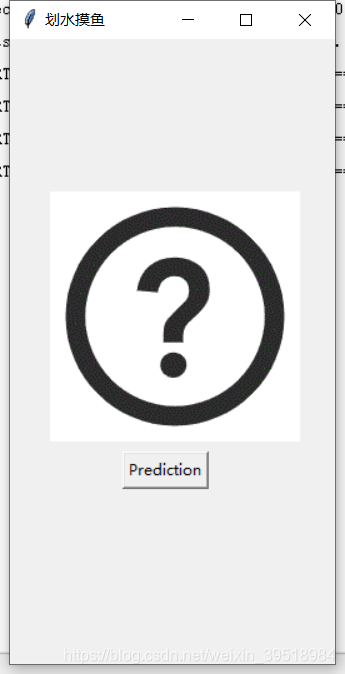
点击按钮后
 GitHub 加速计划 / li / linux-dash
 13
13
 2
下载
2
下载
A beautiful web dashboard for Linux
最近提交(Master分支:4 个月前 )
186a802e
added ecosystem file for PM2 5 年前
5def40a3
Add host customization support for the NodeJS version 5 年前

AtomGit 是由开放原子开源基金会联合 CSDN 等生态伙伴共同推出的新一代开源与人工智能协作平台。平台坚持“开放、中立、公益”的理念,把代码托管、模型共享、数据集托管、智能体开发体验和算力服务整合在一起,为开发者提供从开发、训练到部署的一站式体验。
更多推荐


 14
14 0
0- 0


 已为社区贡献4条内容

所有评论(0)